



Authorise Another Person to Act on Behalf of Self (Add Authorised Signatory)
1. Overview
This service is available to all registered users of the e‑Filing portal. It enables users who are unable to verify their ITRs, Forms, or Service Requests—whether due to being outside the country, being non‑residents, or for any other reason—to authorize another person to complete the verification on their behalf. The service also allows users to register as Representative Assessees and act on behalf of another person.
2. Prerequisites for availing this service
-
Valid User ID and Password
-
PAN is linked with Aadhaar number
3. Process/Step-by-Step Guide
3.1 Register to Act on Behalf of Another Person
Step 1: Go to the e-Filing portal homepage.

Step 2: Enter the User ID and Password.

Step 3: Go to Authorised Partners click on Authorise Another Person to Act on behalf of Self

Step 4: Click on Let’s Get Started

Step 5: Click on + Add Authorised Signatory

Step 6: Select the Reason to Add Authorised Signatory, Enter the PAN of Authorised Signatory and Select the Period (Start date -to- End date) or Task for which Authorising.

Note:
For below tasks Authorised Signatory can be added:
- Submission and verification of Return of Income
- Verification of Return of Income
- Submission of Form
- Submission of Service Request
Step 7: Now enter the 6-digit OTP received on e-Filing registered Mobile no. and email id to verify the request

Step 8: Request has been submitted successfully now the Authorised Signatory will accept the request within 7 days. will be processed by Income Tax Department within 7 days.
Click on view request to view the request.

3.2 Acceptance of request by Authorised Signatory:
Step 1: Go to the e-Filing portal homepage.

Step 2: Enter the User ID and Password.

Step 3: Go to Pending Actions click on Worklist

Step 4: Worklist will open where you can see request raised by Assessee to Add Authorised Signatory. Click Accept to accept the request.

Step 5: Now attach the Power of Attorney by clicking on Attach file and click on continue to verification

Note:
1) Maximum file size can be 5 MB.
2) Files can be uploaded only in as PDF.
Step 6: Now verify the request through below modes of verification:
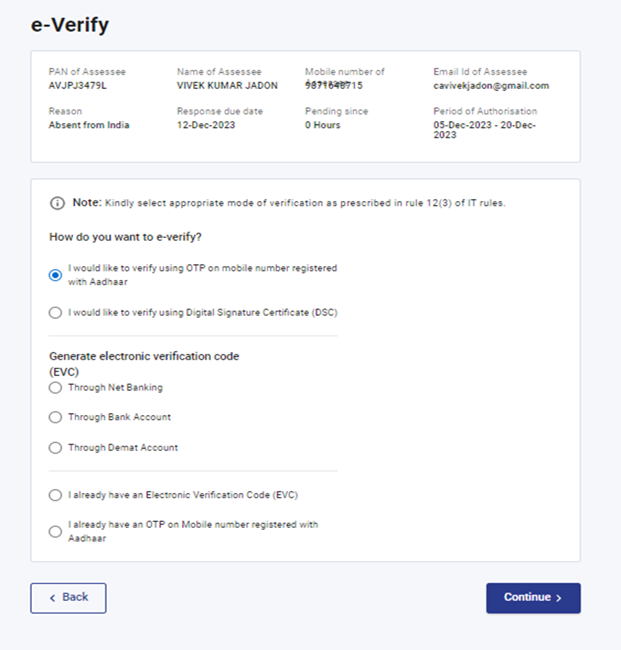

Step 7: Click Validate Aadhaar Details, select Generate Aadhaar OTP, and enter the OTP received on your registered mobile number.
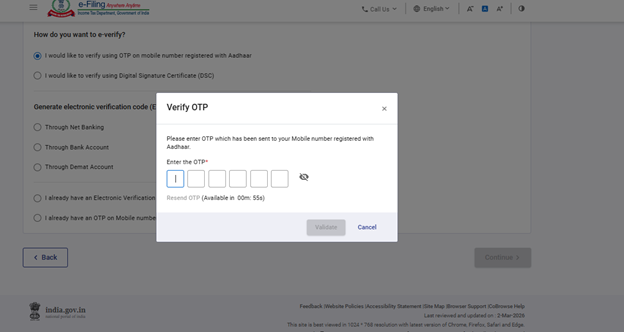

Step 8: After successful e‑verification, a confirmation message will appear. And click Yes to proceed with submitting the form.

After Verification Income tax department will process the request and will take 24 to 72 hours for the authentication to become effective.
Related Topics
- Login
- PAN Aadhaar link
- Dashboard
- Income Tax Return
- File ITR
- Home Page
- How to e-Verify
Glossary
|
Acronym/ Abbreviation |
Description/Full Form |
|
AO |
Assessing Officer |
|
AY |
Assessment Year |
|
AOP |
Association of Persons |
|
BOI |
Body of Individuals |
|
CA |
Chartered Accountant |
|
CPC |
Centralized Processing Centre |
|
ERI |
e-Return Intermediary |
|
LA |
Local Authority |
|
TDS |
Tax Deducted at Source |
|
EXTA |
External Agency |
|
ITDREIN |
Income Tax Department Reporting Entity Identification Number |
|
HUF |
Hindu Undivided Family |
|
EVC |
Electronic Verification Code |
|
DSC |
Digital Signature Certificate |
|
ITD |
Income Tax Department |
|
ITR |
Income tax return |



