Form 15CC User Manual: Quarterly statement to be furnished by an authorised dealer in respect of foreign remittances made in the quarter
1. Overview
As per the Section 195 of the Income Tax Act, 1961, read with Rule 37BB of the Income Tax Rules, 1962, every authorized dealer making a payment to a non-resident, not being a company or to a foreign company, is required to furnish statement of such payments Form 15CC.
It is required to be furnished to the competent authority of the Income Tax Department electronically within fifteen days from the end of the quarter of the financial year to which such statement relates.
Form 15CC can be submitted either through online mode only.
2. Prerequisites for availing this service
| User | Prerequisites |
| Reporting Entity |
|
| Authorized Persons |
|
3. About the Form
3.1. Purpose
Rule 37BB requires Authorized Dealers to furnish a quarterly statement in respect of remittances made for each quarter of the financial year in Form 15CC.
Before filing Form 15CC, the reporting entity is required to generate ITDREIN (a Unique ID issued by Income Tax Department for submission of Form 15CC and Form V) on e-Filing portal. After successful generation of ITDREIN, the reporting entity is required to add an authorized person for filing Form 15CC with respect to the ITDREIN number generated.
3.2 Who can use it?
Authorized persons added by a reporting entity after generation of ITDREIN number.
3.3 Form at a Glance
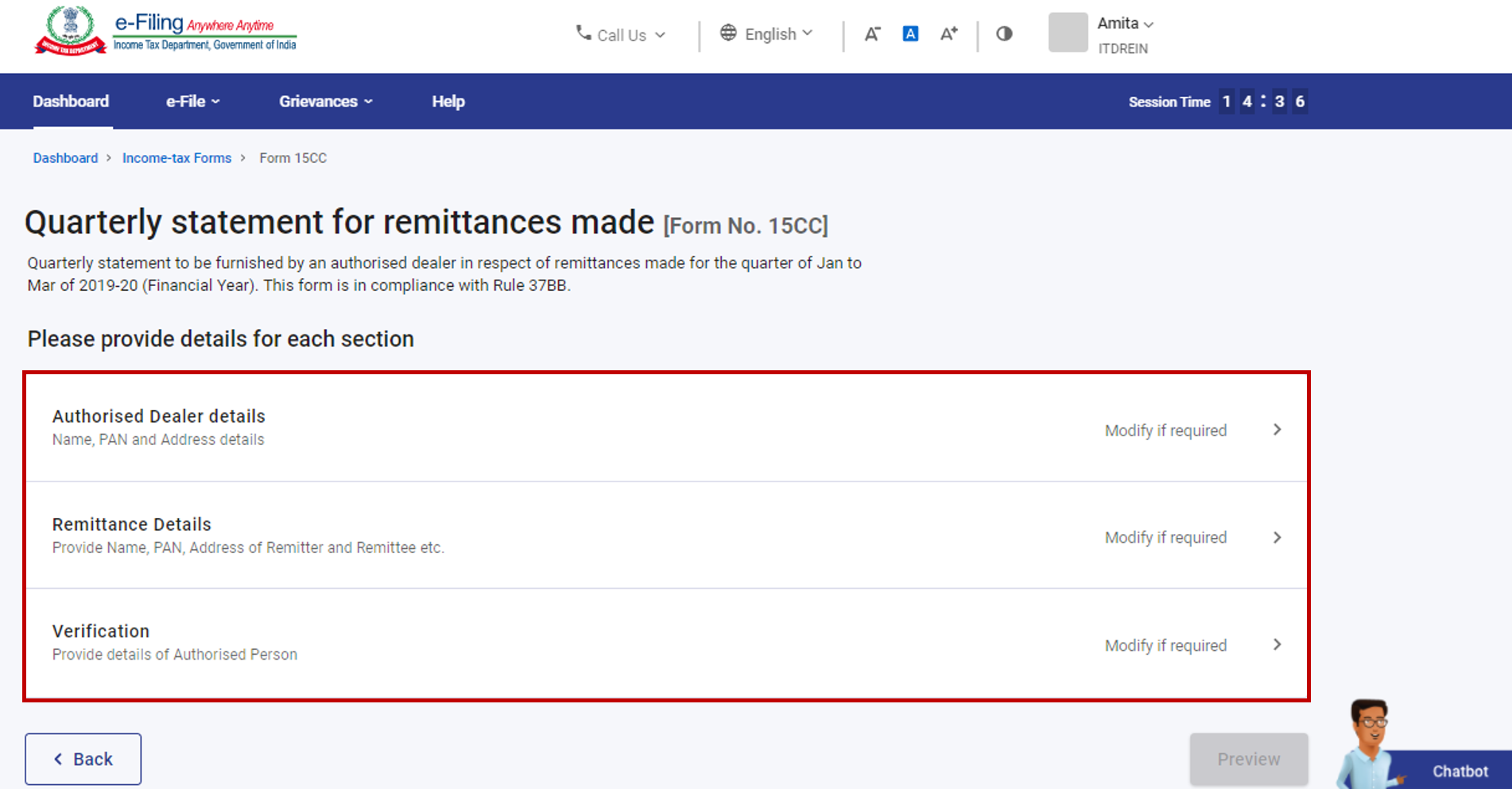
Form 15CC has three sections:
- Authorized Dealer Details
- Remittance Details
- Verification
4. Step-by-Step Guide
Step 1: Log in to the e-Filing portal with your User ID and Password.

Step 2: Log in to the e-Filing portal using ITDREIN, your user ID (PAN) and password

Step 3: Go to e-file >Income Tax Forms > File Income Tax Forms

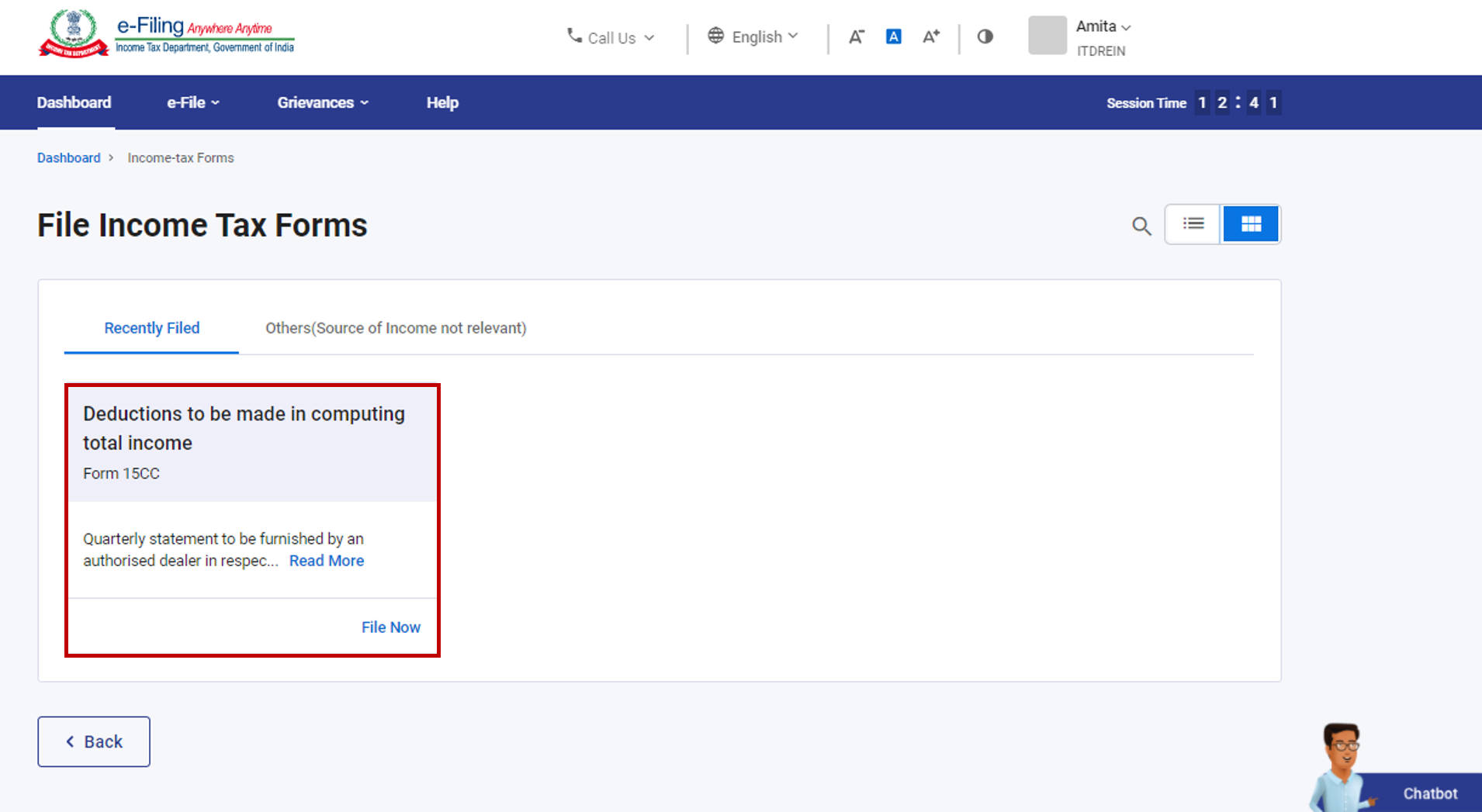
Step 4: Select/ Search Form 15CC under Forms as per Income Tax Act 1961 tab.

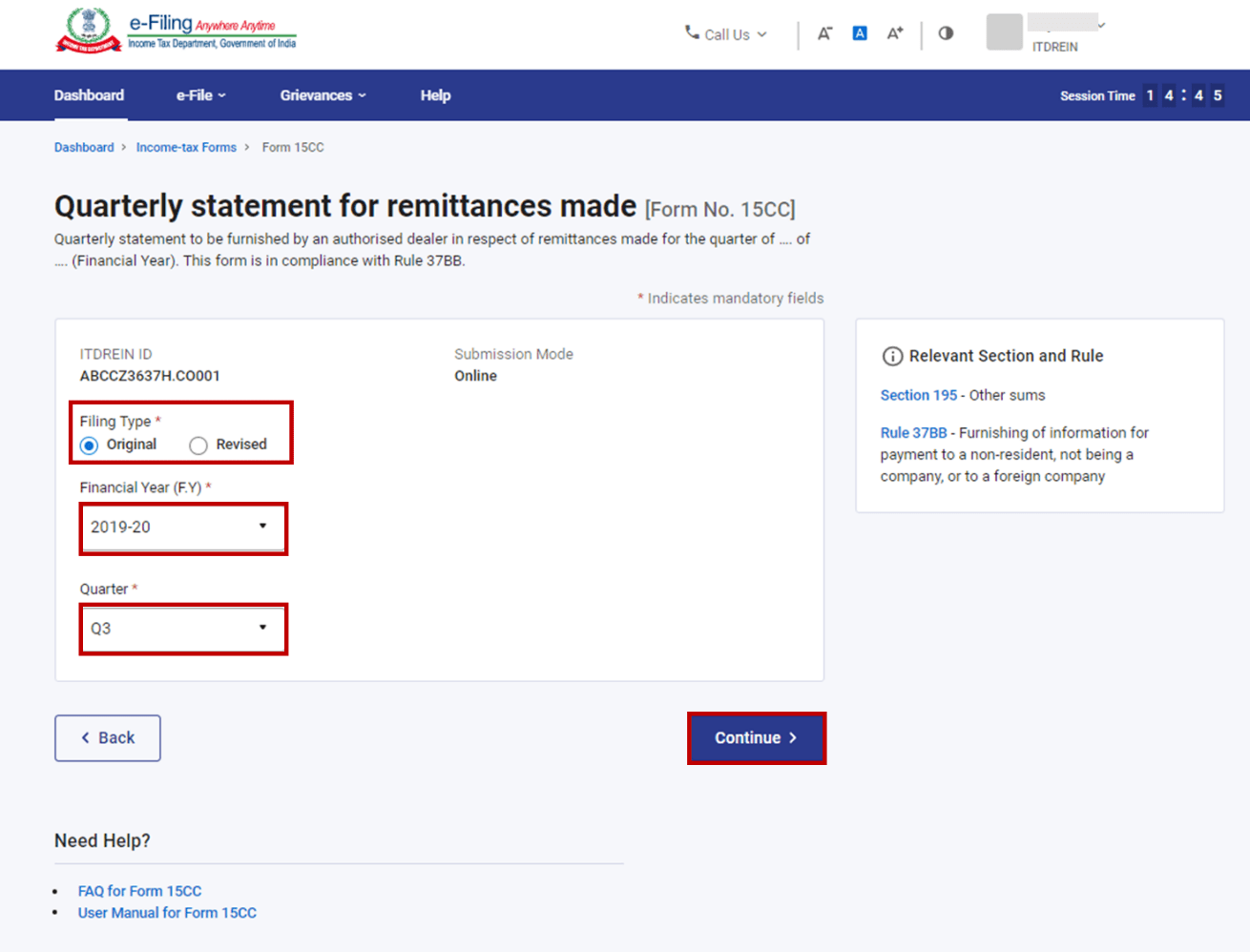
Step 5: Select Filing Type, Financial Year (F.Y.), Quarter and click Continue.

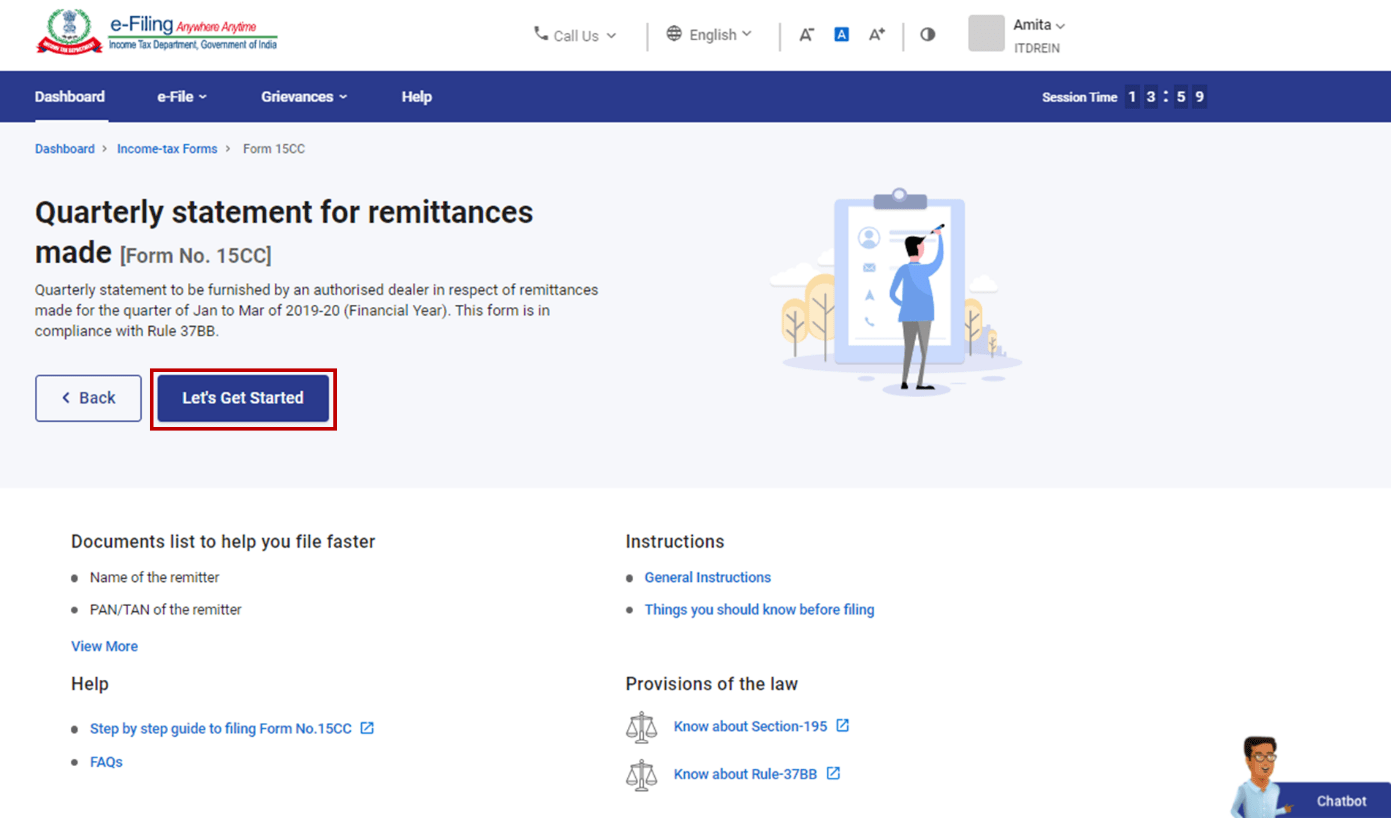
Step 6: Click on Let’s Get Started

Step 7.1.a: On click of Let’s Get Started. Form 15CC will be displayed. Click on “Authorised Dealer details” tab.

Step 7.1.b: This part contains details of Authorised Dealer
Check the details and click Save.
Note: The details of Authorised Dealer will be prefilled from the My Profile section.

Step 7.2.a: Authorised Dealer Tab is confirmed now, click on “Remittance Details” tab.

Step 7.2.b: In this section you can add details of remitter, remittee and location to which remittance has been completed.
You can use a .csv file for uploading details of multiple remittances using a template (available on the same page). Click Download CSV template to download a blank template. After updating the csv file, click Attach CSV file to upload the details. Kindly download the instructions to fill in the csv template for more information and Click Save.

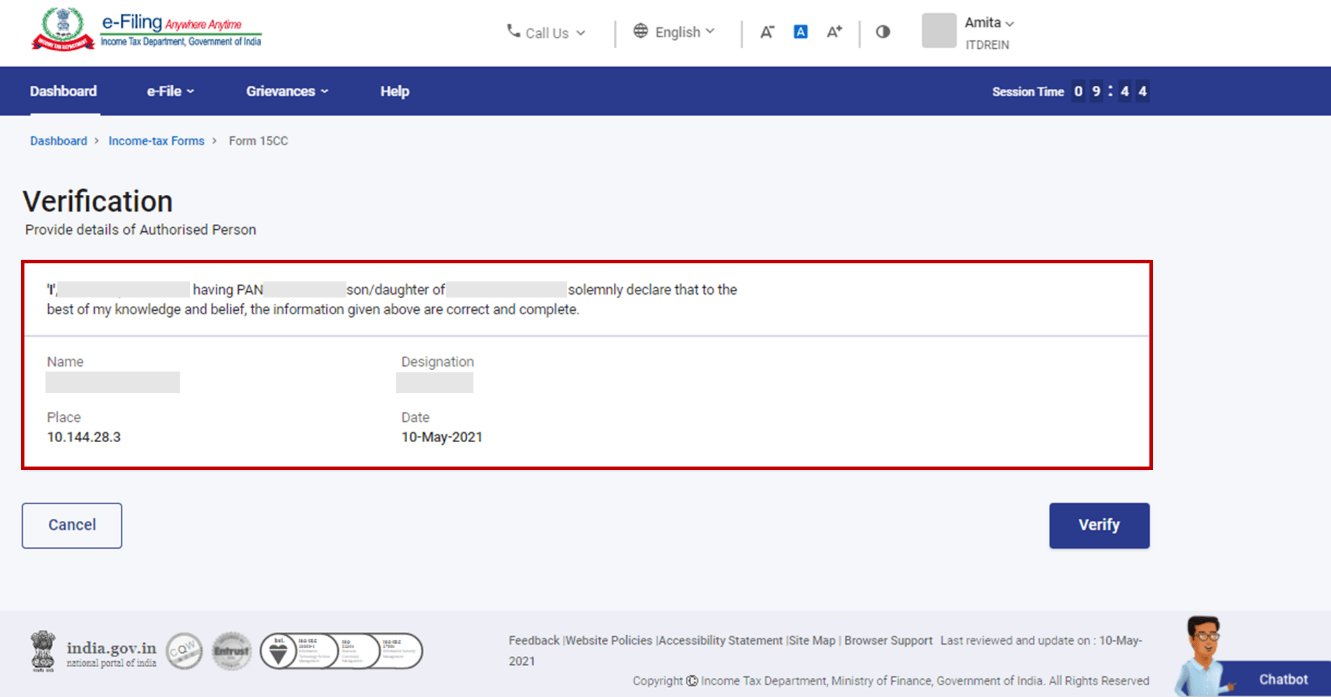
Step 7.3.a: Remittance Details tab is confirmed now, click on “Verification” tab.

Step 7.3.b: Enter the Place and click Save.

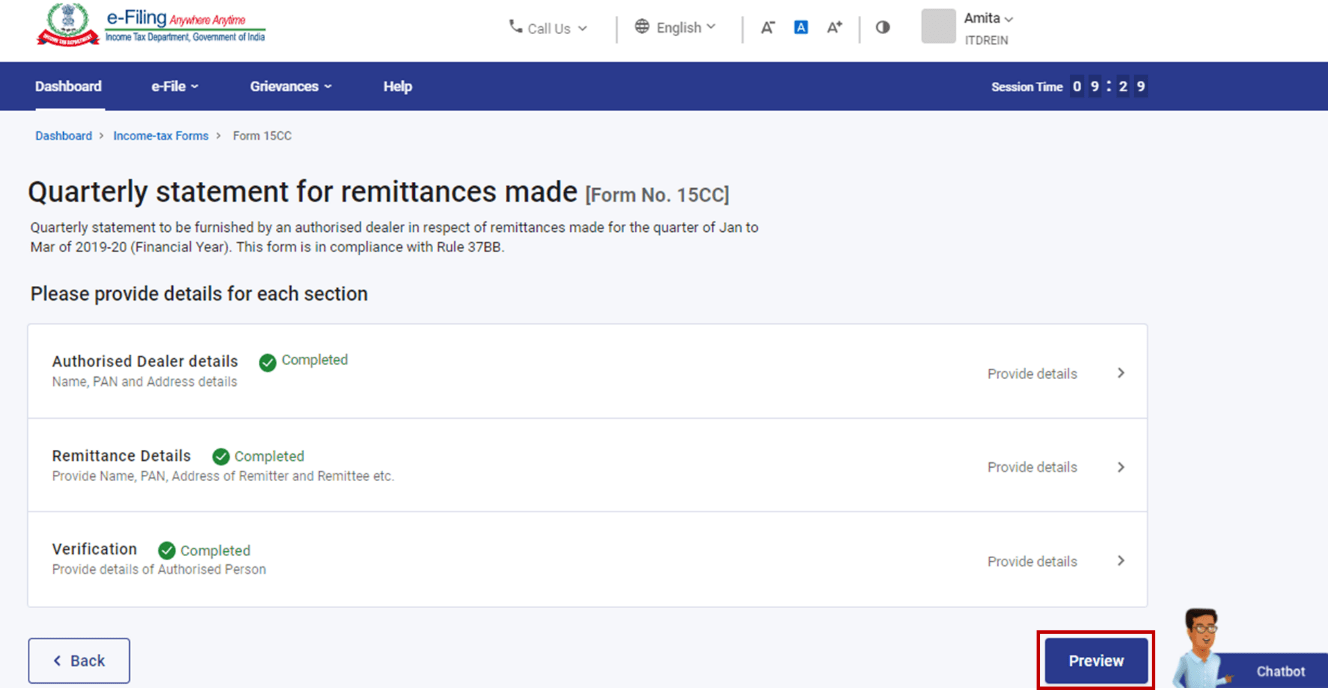
Step 8: All the tabs are confirmed now. Click on Preview

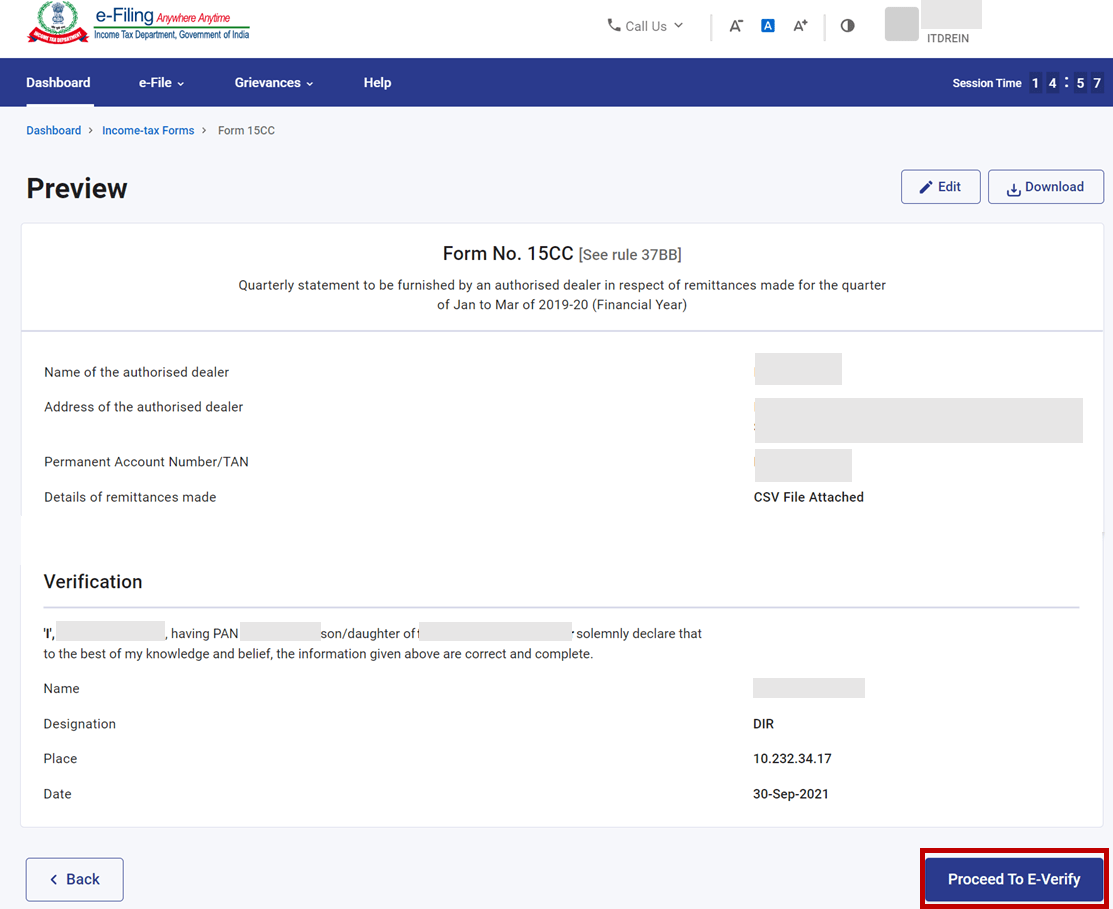
Step 9: This is the Preview of the Form. Click on Proceed to e-Verify, if details are correct in Preview, else you can edit the details.

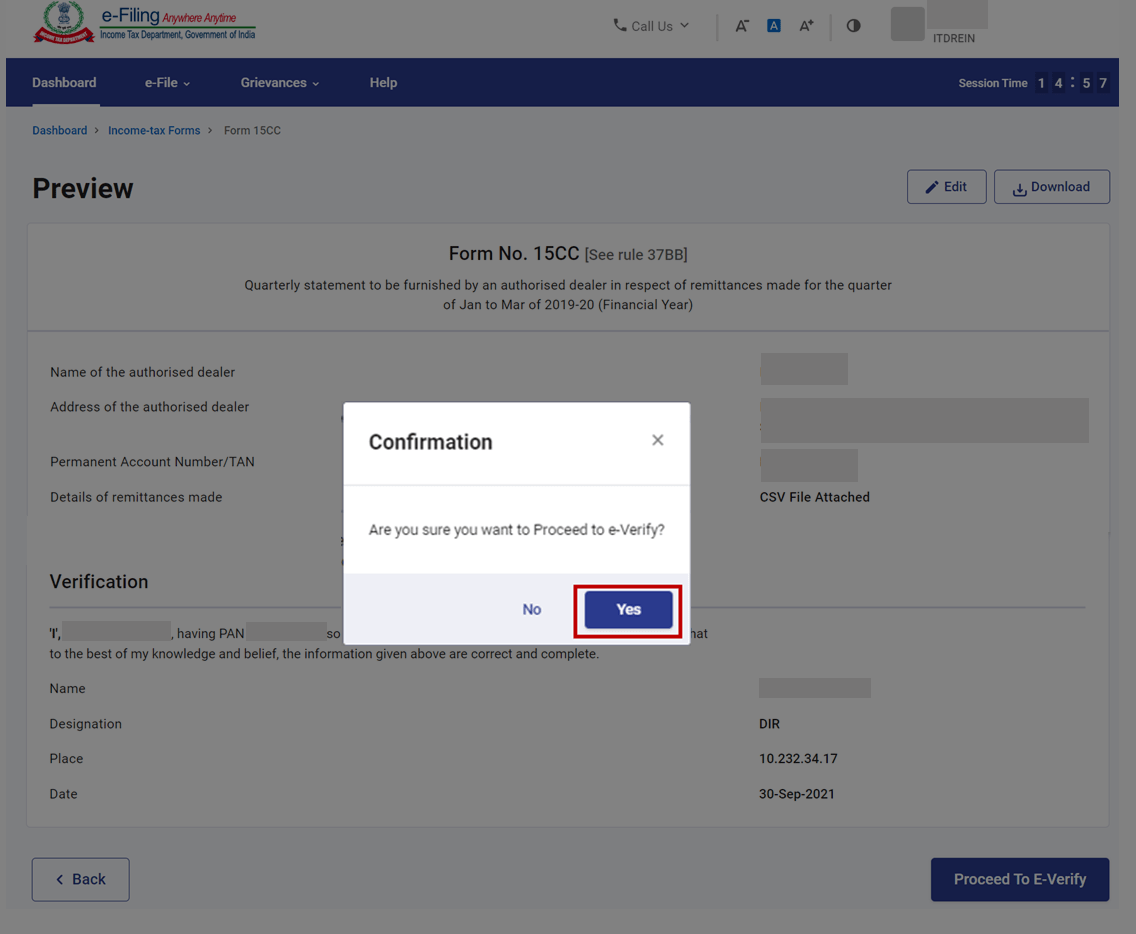
Step 10: Click Yes to Submit.

Step 11: On clicking Yes, you will be taken to the e-Verify page where you can verify using Digital Signature Certificate.

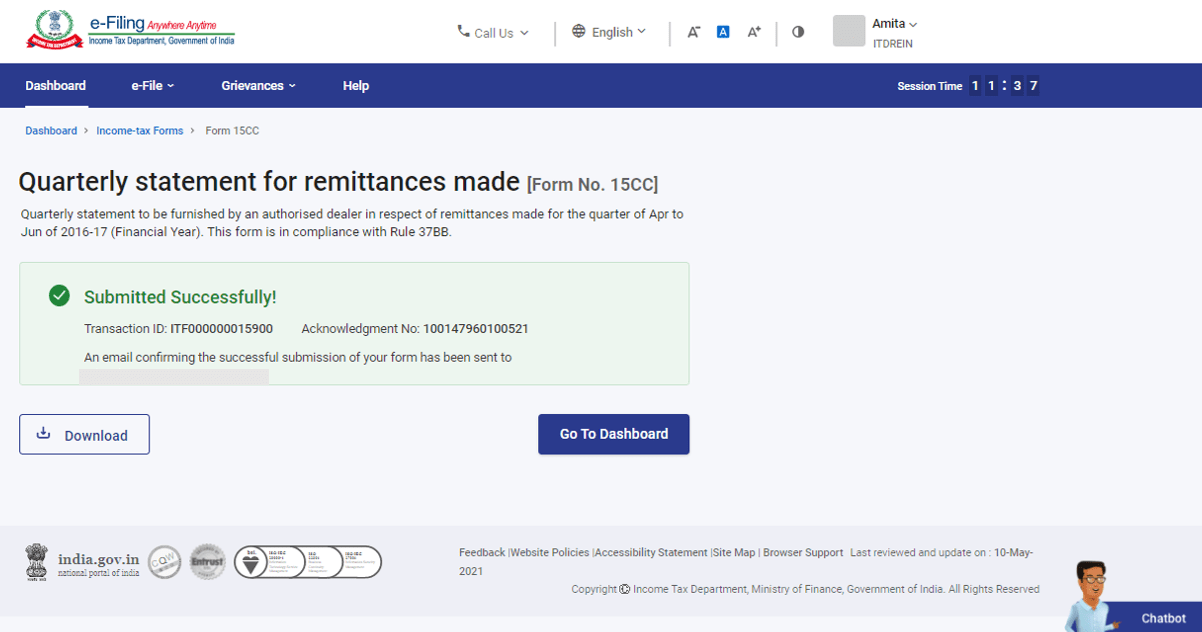
After e-Verification, 15CC will be submitted. Acknowledgement number will be generated and communicated on registered e-mail Id and Mobile Number.

5. How to view filed form?
Go to e-file >Income Tax Forms > View Filed Forms>Forms as per Income Tax Act 1961

You can use a .csv file for uploading details of multiple remittances using a template (available on the same page). Click Download CSV template to download a blank template. After updating the csv file, click Attach CSV file to upload the details. Kindly download the instructions to fill the csv template for more information.
4.3. Verification
The final section contains a self-declaration form for Form 15CC.
5. How to Access and Submit
You can fill and submit Form 15CC through the following methods:
- Online Mode - through the e-Filing portal
Follow the below steps to fill and submit Form 15CC through online mode.
5.1. Submitting Form 15CC (Online Mode)
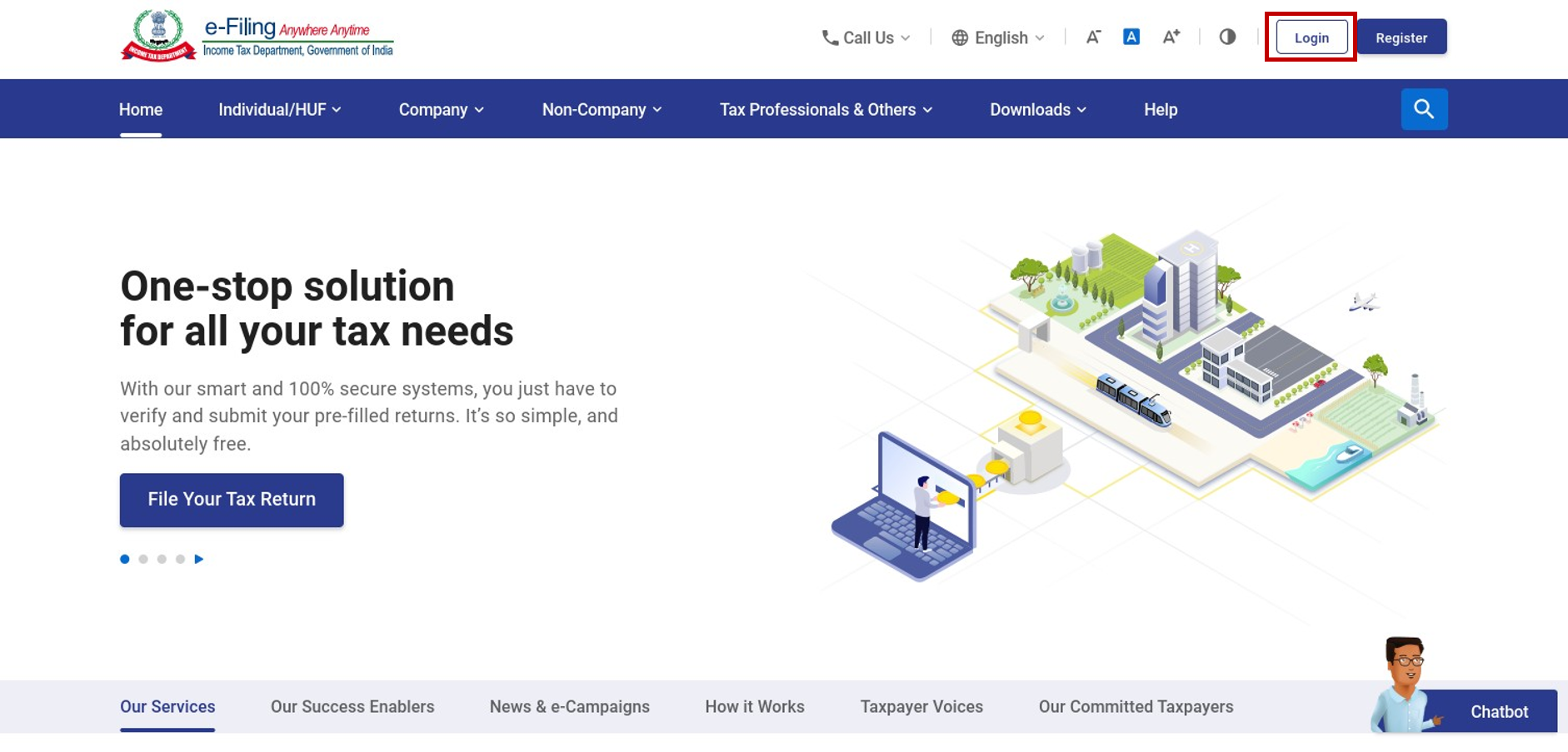
Step 1: Log in to the e-Filing portal using ITDREIN, your user ID (PAN) and password.
Step 2: On your Dashboard, click e-File > Income tax forms > File Income Tax Forms.
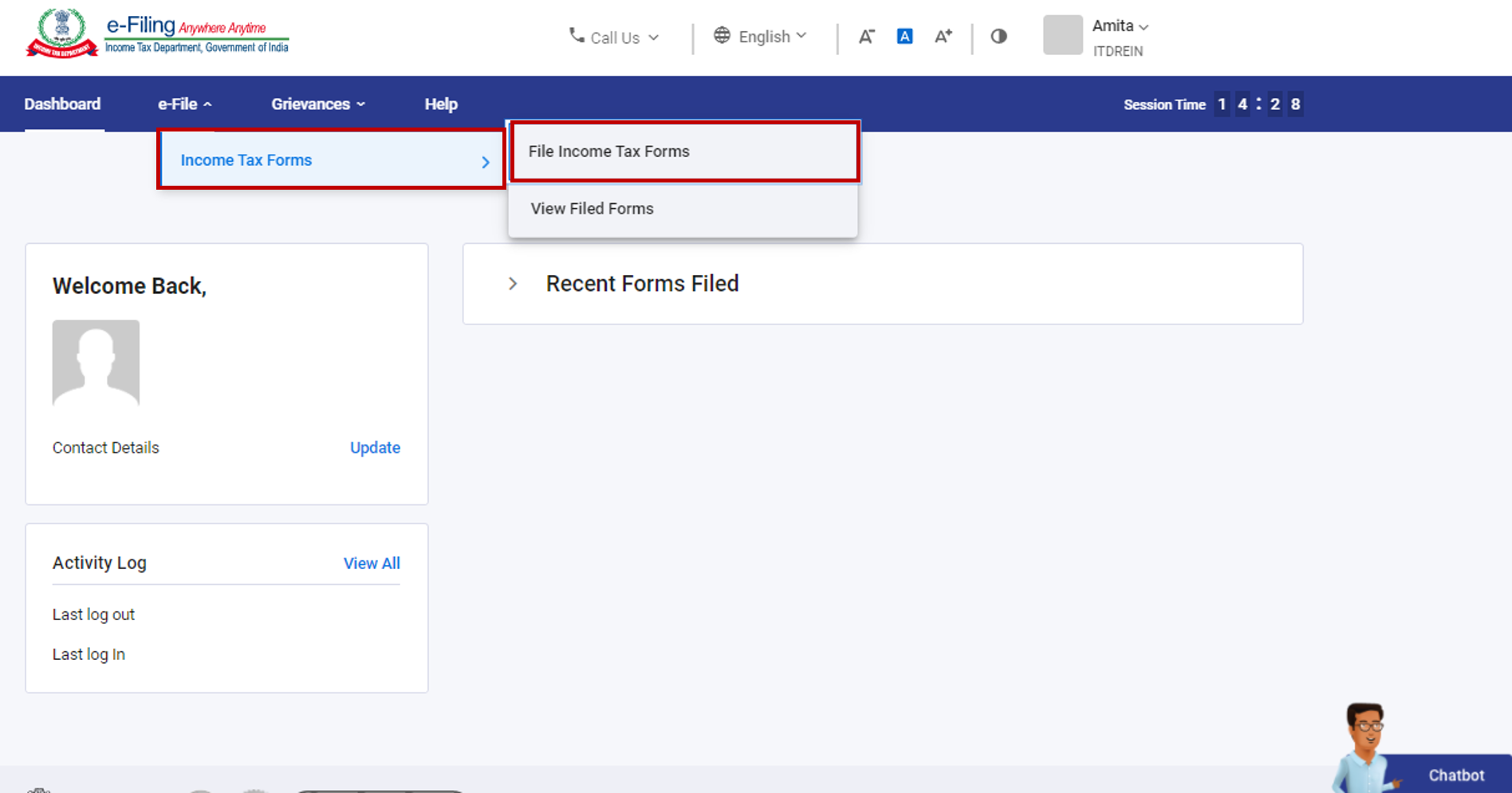
Step 3: On the File Income Tax Forms page, select File Form 15CC. Alternatively, enter Form 15CC in the search box to find the form.
Step 4: On the Form 15CC page, select the Filing Type, Financial Year (F.Y.) and Quarter. Click Continue.
Step 5: On the Instructions page, click Let's Get Started.
Step 6: On click of Let's Get Started, Form 15CC is displayed. Fill all the required details and click Preview.
Step 7: On the Preview page, verify the details and click Proceed to e-Verify.
Step 8: Click Yes to submit.
Step 9: On clicking Yes, you will be taken to the e-Verify page where you can verify using Digital Signature Certificate.
Note: Refer to the How to e-Verify user manual to learn more
After successful e-Verification, a success message is displayed along with a Transaction ID and Acknowledgement Receipt Number. Please keep a note of the Transaction ID and Acknowledgement Receipt Number for future reference. You (and the reporting entity) will also receive a confirmation message on the email ID(s) and mobile number(s) registered with the e-Filing portal.