Form 141 Schedule E [Challan-cum-Statement of Deduction of Tax under Section 393(2)]
1. Overview
This document provides an overview and step-by-step guidance for taxpayers on making payments related to Schedule E of Form 141 through the e-Filing portal.
Schedule E has been introduced in Form 141 to facilitate reporting of Tax Deducted at Source (TDS) on transfer of any immovable property by a non-resident to a resident Individual or Hindu Undivided Family (HUF) under section 393(2) [Table Serial No. 17] of the Income-tax Act, 2025.
Prior to 1 October 2026, a resident Individual/HUF purchasing immovable property from a non-resident seller was required to obtain a Tax Deduction and Collection Account Number (TAN), deduct tax at source, and file the prescribed statement (Form 144) through the TRACES portal. Pursuant to the provisions introduced through the Finance Bill, 2026, obtaining a TAN is no longer mandatory for such transactions with effect from 1st October 2026. Accordingly, such transactions can now be reported through Schedule E of Form 141 on the e-Filing portal using the deductor's PAN.
Multiple deductees may be included within the same form only if they fall under the same deductee category and the month of deduction is identical.
2. Prerequisites for availing this service
• You should be a registered user having valid user ID and Password on the e-Filing portal.
• Status of PAN of the taxpayer should be "Active"
• If Individual, PAN and Aadhaar are linked (recommended)
• Form 141 can be filled only in post‑login mode only.
3. Step-by-Step Guide
3.1 Generate Challan Form (CRN)
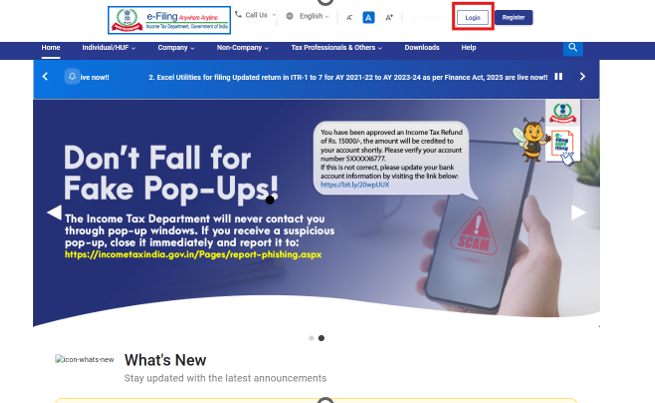
Step 1: Log in to the e-Filing portal with user ID and password.
For Individual users, if PAN is not linked with the Aadhaar User will see a pop-up message that your PAN is made inoperative as it is not linked with your Aadhaar.
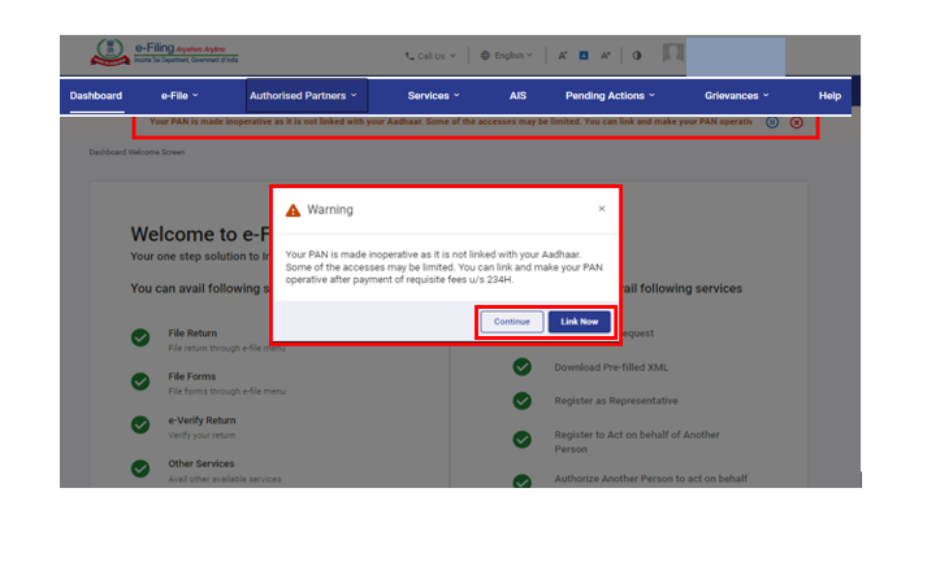
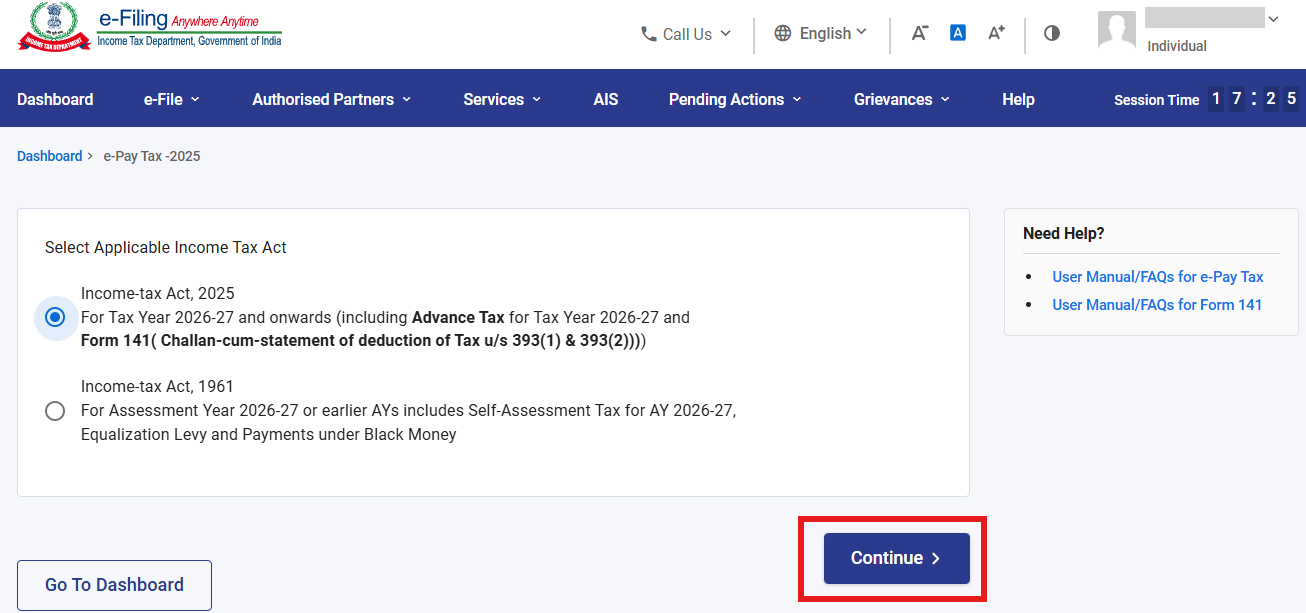
Step 2: On Dashboard, click e-File > e-Pay Tax On click of e-Pay Tax, User will be navigated to Act Selection screen.
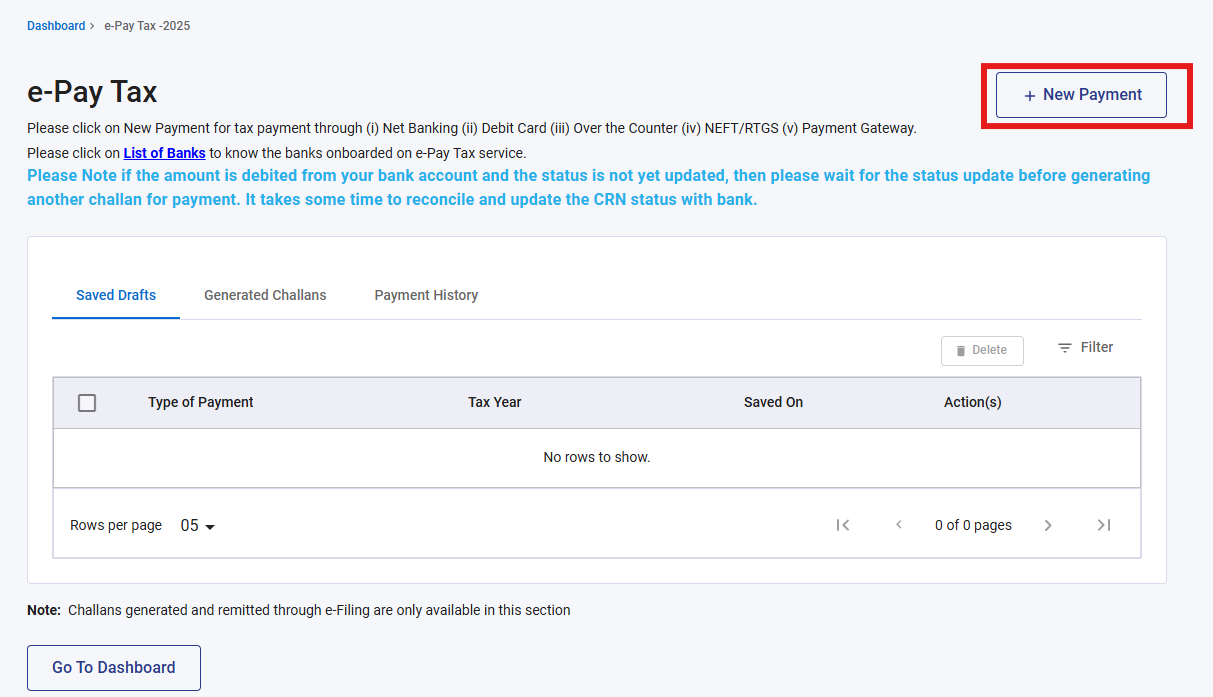
Step 3: On e-Pay Tax page, click New Payment option to create a new Challan Form (CRN).
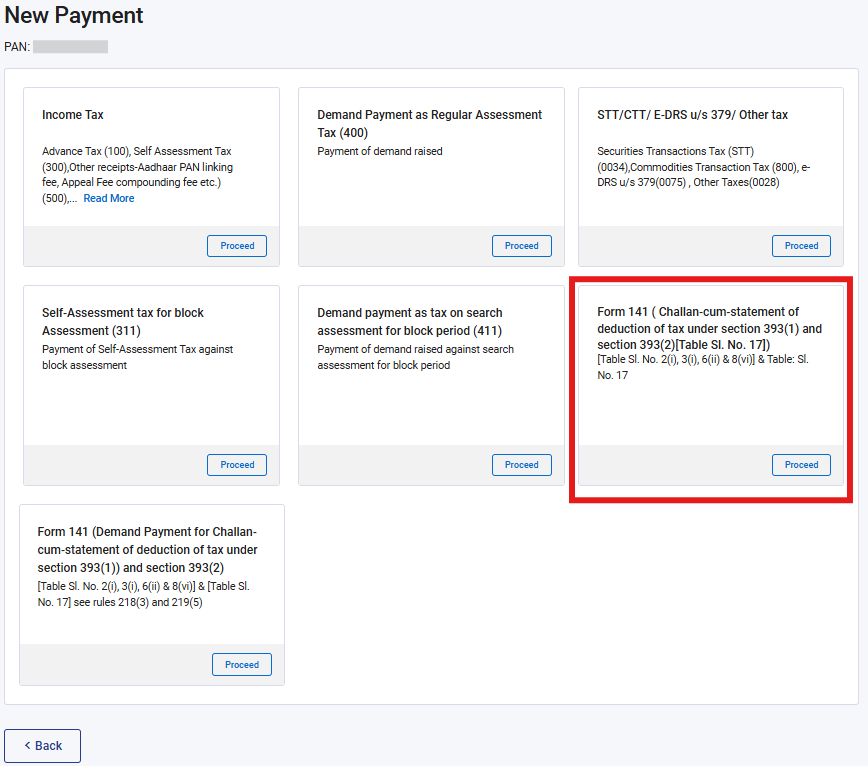
Step 4: On New Payment page, click Proceed on Form 141 (Challan-cum-statement of deduction of tax under section 393(1) and section 393 (2)) payment tile.
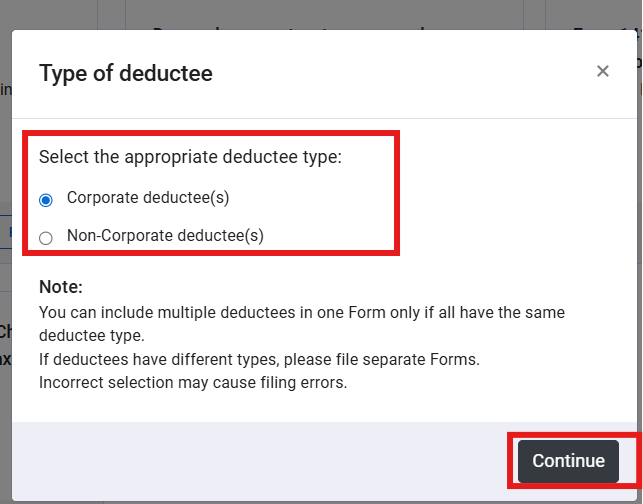
Step 5: On clicking the Proceed button, a pop‑up message will appear asking the user to select the Deductee Type. If the user is filing the form for company deductees, they must select Corporate Deductee; otherwise, they should select Non‑Corporate Deductee.
Note: A user can file a single form for multiple deductees, provided all deductees belong to the same deductee type (either all Corporate or all Non‑Corporate). If the deductees are of different types, the user must file separate forms for each deductee type.
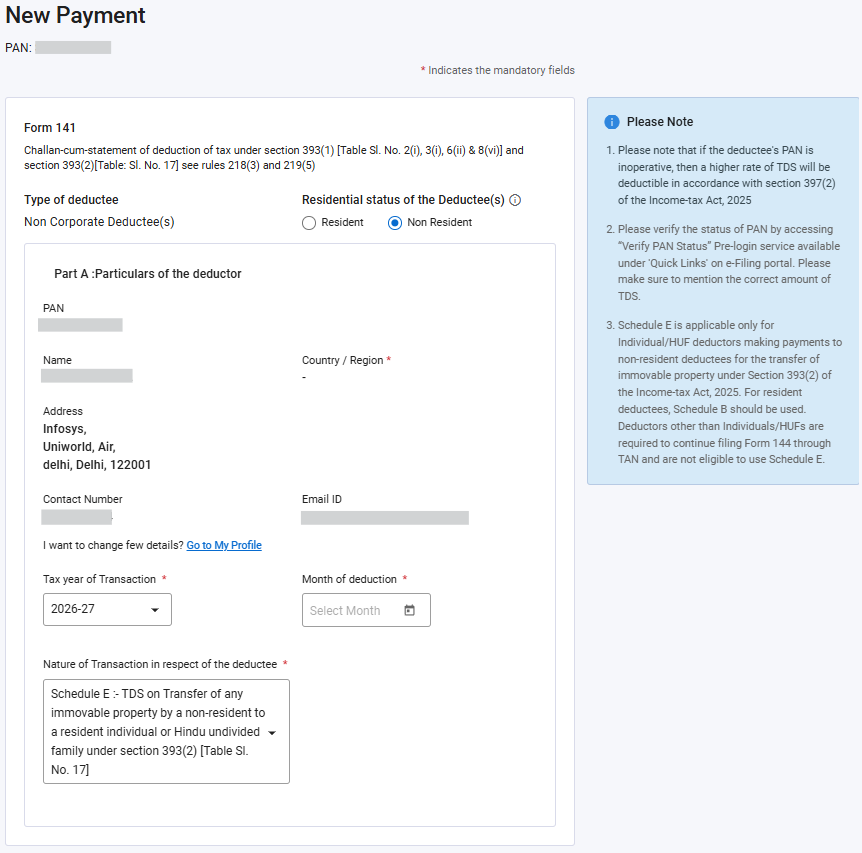
Step 6: When the user clicks the “Continue” button, they will be directed to the Particulars of Deductor screen. User needs to select Residential status of the Deductee(s) as “Non Resident”.
The deductor details on this screen will be pre‑filled based on the information available in the logged‑in user’s profile. If any profile information appears incorrect or is not displayed properly, the user must first update their profile before proceeding.
On this screen, all details are auto populated from the profile except for the following user‑input fields:
| Field Name | Mandatory | Instructions |
| Tax Year of Transactions | Yes | This refers to the year in which the transaction was carried out |
| Month Of Deduction | Yes | The user must enter the month in which the tax deduction was made |
| Nature of Transaction in respect of the Deductee | Yes |
Only Schedule E will be available in the drop‑down list Schedule E: TDS on Transfer of any immovable property by a non-resident to a resident individual or Hindu undivided family under section 393(2) [Table: Sl. No. 17] |
After entering all the required information, the user can click the “Continue” button to proceed further.
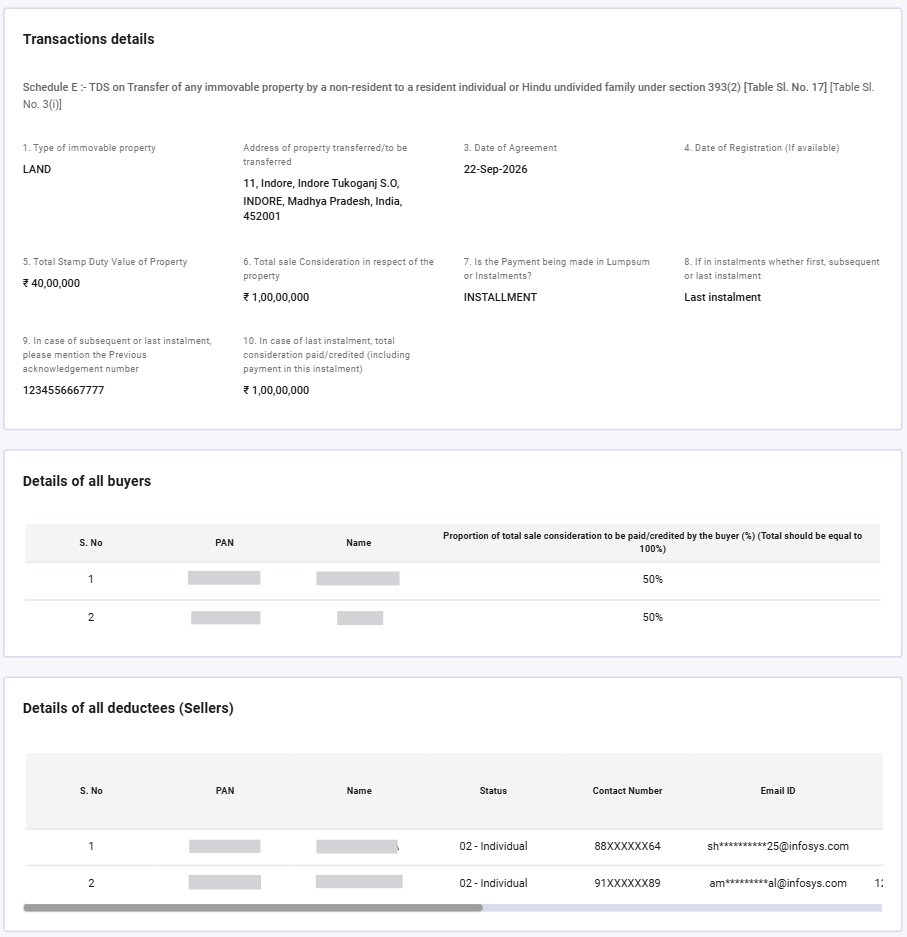
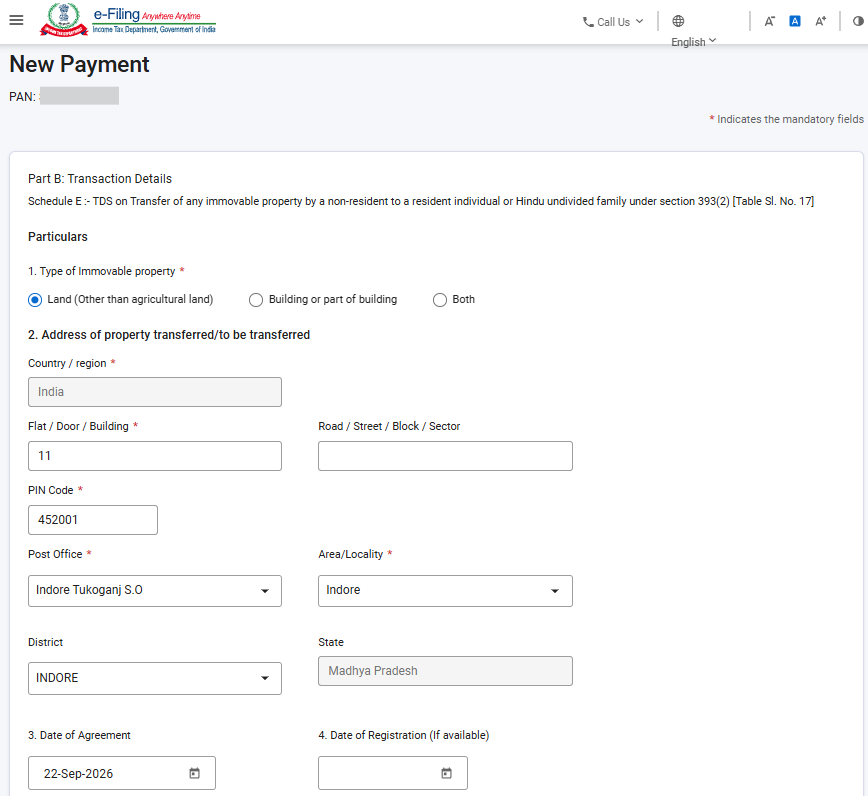
Step 7: On click of the “Continue” button, user will be navigated to Transaction Details page. On this page, the user must enter the following information:
| S. No. | Field Name | Mandatory | Instructions |
| 1 | Type of Immovable Property | Yes | User enterable field. Select one radio button: Land (Other than agricultural land) / Building or part of building/ Both |
| 2 | Address of the Property Transferred / To Be Transferred | Yes | Please enter the complete address of the property transferred/proposed to be transferred |
| 3 | Date of Agreement | No | Please enter the date on which the property agreement was executed |
| 4 | Date of Registration (If Available) | No | Please enter the date of registration of property, if the property referred in Sl. No. 2 is already registered |
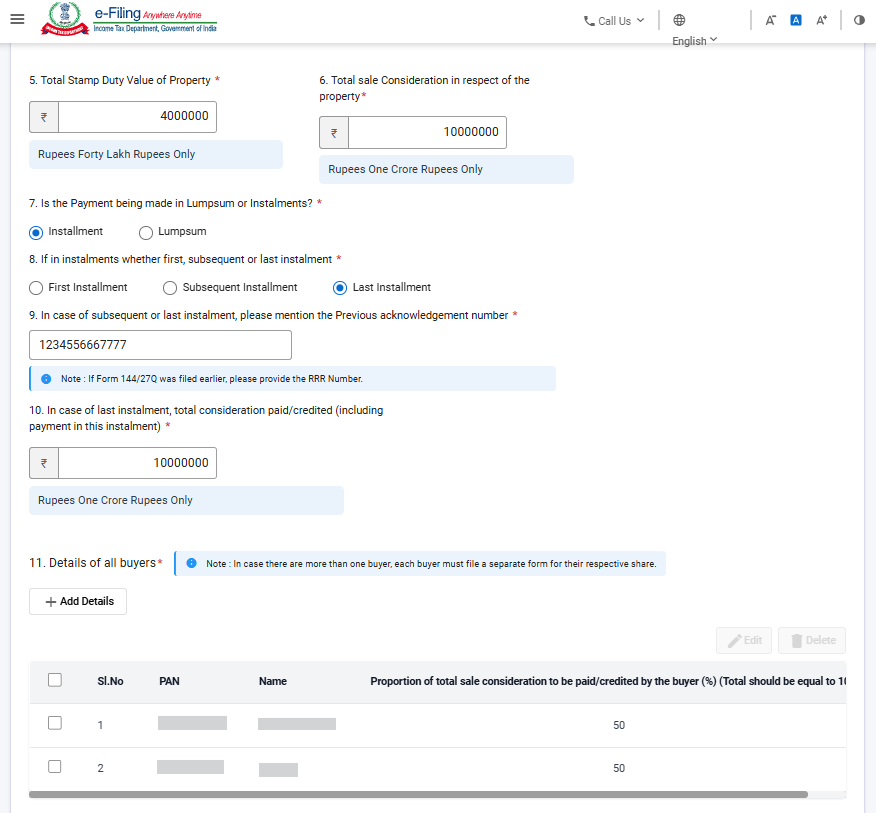
| 5 | Total Stamp Duty Value of Property | Yes | Please enter the Stamp duty value of the property as per the agreement, even in case of multiple deductees. DON’T Proportionate the Stamp duty value, in case of multiple deductee |
| 6 | Total sale Consideration in respect of the property | Yes | Enter the total consideration /sale value of the property, even in case of multiple deductees i.e. Value should not be proportioned in case of multiple deductees |
| 7 | Is the Payment being made in Lumpsum or Instalments? | Yes | Select radio button: Lumpsum / Instalments based on how consideration is being paid |
| 8 | If in instalments whether first, subsequent or last instalment | No |
This field will be Enabled only if user selects mode of payments as “Installment” Further, please select “Installment Type “from the given options First Instalment / Subsequent Instalment / Last Instalment. |
| 9 | In case of subsequent or last instalment, please mention the Previous acknowledgement number | No |
This field will be enabled only when Subsequent or Last instalment is selected in above field Further, enter the Last acknowledgement number of the previous form filed for the same property. If Form 144/27Q was filed earlier, please provide the RRR Number. |
| 10 | In case of last instalment, total consideration paid/credited (including payment in this instalment) | No |
This field will be enabled only when Last Instalment is selected at Sl. No. 8. Please enter total amount paid/credited including the current instalment for which form is being filed |
| 11 | Details of all buyers | Yes |
The first row of buyer details will be auto populated based on login PAN. User is expected to enter proportionate percentage of property purchased Once percentage is added, “Add details” button will be enabled. In case of multiple buyers, the user can click the "Add Details" button and enter the PAN, name, and respective share percentage of each additional buyer. Please ensure percentage of share should be equal to 100% |
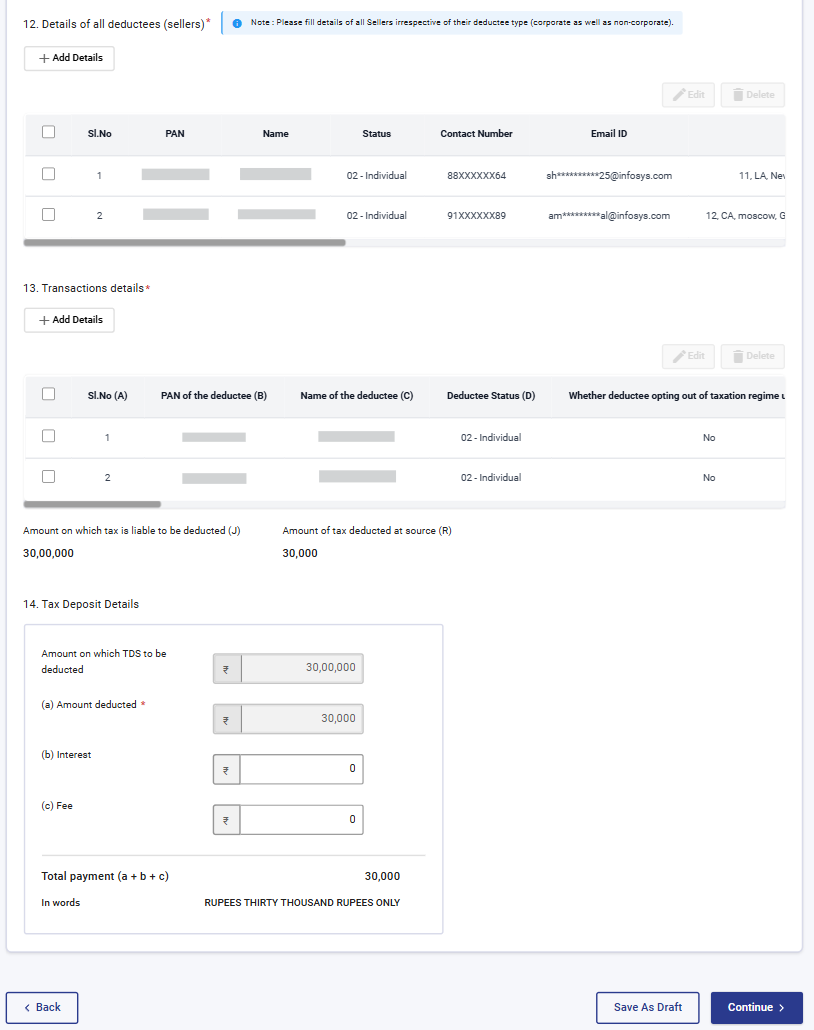
| 12 | Details of all deductees (sellers) | Yes |
Please enter details (PAN, Name, Status, Contact Number, Email ID, Address in the country or specified territory outside India of which deductee is a resident, Tax residency certificate, Tax Identification Number & their proportionate share in property) of all deductees (who are sellers of the property) irrespective of corporate & non Corporate sellers. PAN, name, status of the deductee, contact number, Email Id, Address in the country or specified territory outside India of which deductee is a resident and their proportionate share in property) are the mandatory fields whereas the Tax residency certificate and Tax Identification Number are optional fields. Also, If the the PAN entered is invalid or not available. In order to avoid tax deduction rate as per rule 217, please provide the following mandatory details:
If the above details are not furnished, tax is required to be deducted at the higher rate prescribed under Section 397(2). In this table, the user is required to enter the details of all sellers, irrespective of the deductee type, such as Corporate, Non-Corporate, Valid PAN, Invalid PAN, PAN Not Available, Resident Deductee, or Non-Resident Deductee. However, in the Transaction Details section, the form must be filed based on the deductee type. This means that a single form can be filed only for sellers belonging to the same deductee category. Further, this form is applicable only for Non-Resident Deductees. In cases where both Resident and Non-Resident sellers are involved, separate forms must be filed:
Accordingly, Resident and Non-Resident sellers cannot be reported together in the same form. |
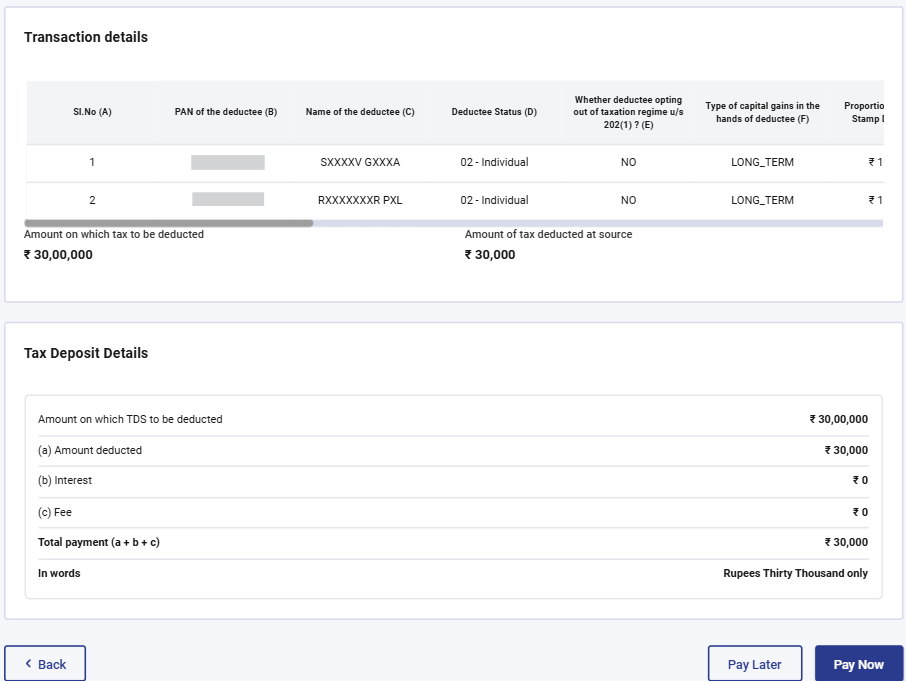
| 13 | Transaction Details | Yes | This Table capture all transactions requiring TDS to be deposited by the Deductor. Refer Annexure II for the validations |
| 14 | Tax Deposit Details | Yes |
“Amount on which TDS to be Deducted and “Amount Deducted” will be auto populated from the transaction details table Please enter Interest and Fee amount, if applicable |
| Annexure II | |||
| Sl. No. | Field Name | Mandatory | Instrcutions |
| A | PAN of the deductee | Yes |
The drop down list is populated based on the Deductee Type selected in the previous screen and the PANs entered in the “Details of all deductees (sellers)” at Sl. No.12 • Accordingly: – If the user selected Corporate Deductee, only corporate PANs will appear in the drop down. Example: This schedule is applicable only to Non-Resident Deductees. Therefore, while selecting a PAN from the dropdown, the user shall ensure that the selected PAN belongs to a Non-Resident Deductee |
| B | Name of the deductee | Auto-populated | This field will be Auto populated based on details of selected PAN above and as entered in Sl. No. 12 |
| C | Deductee Status | Auto-populated | This field will be Auto populated based on details of selected PAN above and as entered in Sl. No. 12. Please ensure that the status of the deductee is selected correctly |
| D | Whether deductee opting out of taxation regime u/s 202(1) | Yes | Select Yes, if opting out of New tax regime, otherwise select no |
| E | Type of capital gains in the hands of deductee | Yes | Select nature of capital gain in the hands of seller |
| F | Proportionate Amount of Stamp Duty Value | No | This field will be enabled only for payment type is selected Last Instalment or Lumpsum payment and will be auto calculated as Total Stamp Duty Value of property (Sl. No. 5) × Buyer’s Share (%) (Sl. No. 11) × Seller’s Share (%) (Sl. No. 12) |
| G | Total Amount Paid/Credited in Previous Instalments, if any | No |
Please enter total amount of all previous instalments paid/credited. Note: This field will be enabled only if Subsequent instalment or Last instalment is selected in Sl. No. 8 |
| H | Amount Paid/Credited in Present Transaction | Yes | Please enter the amount being paid/credited in the current transaction |
| I | Amount on which tax is liable to be deducted | Please enter the amount on which tax is liable to be deducted | |
| J | Date of Payment/ Credit | Yes |
The calendar will open based on the tax year selected by the taxpayer on the common screen. For schedule E the calendar will display dates from 01/10/2026 onwards and the selectable dates will be restricted up to the current system date. For example, if the taxpayer selects the tax year 2026–27, the calendar will display dates from 01/10/2026 to 31/03/2027. |
| K | Whether Section 395(1) Applicable | Yes | Select Yes if user has a Lower Deduction Certificate, otherwise select no |
| L | Certificate Number u/s 395(1) of the Act, if applicable | No | Mandatory only if “Yes” was selected in previous field. Enter certificate number issued by Assessing Officer |
| M | Whether Section 395(2) applicable | Yes | Select Yes if user has a Lower Deduction Certificate, otherwise select no |
| N | Certificate Number u/s 395(2) of the Act, if applicable | No |
Mandatory only if “Yes” was selected in previous field. Enter certificate number issued by Assessing Officer Unique acknowledgement number of the corresponding Form No. 145, if applicable No Please enter the acknowledgement number of Form 145 (if filed) |
| O | Rate at which tax deducted at source | Yes | Please enter the rate as an absolute numeric value, up to two decimal places |
| P | Amount of tax deducted at source | Yes | Please enter the amount of tax deducted at source including cess and surcharge if applicable |
| Q | Date of deduction | Yes | Calendar opens based on the Month of Deduction selected on first screen. User must Select the date only from this restricted calendar |
Please refer below screenshot for details
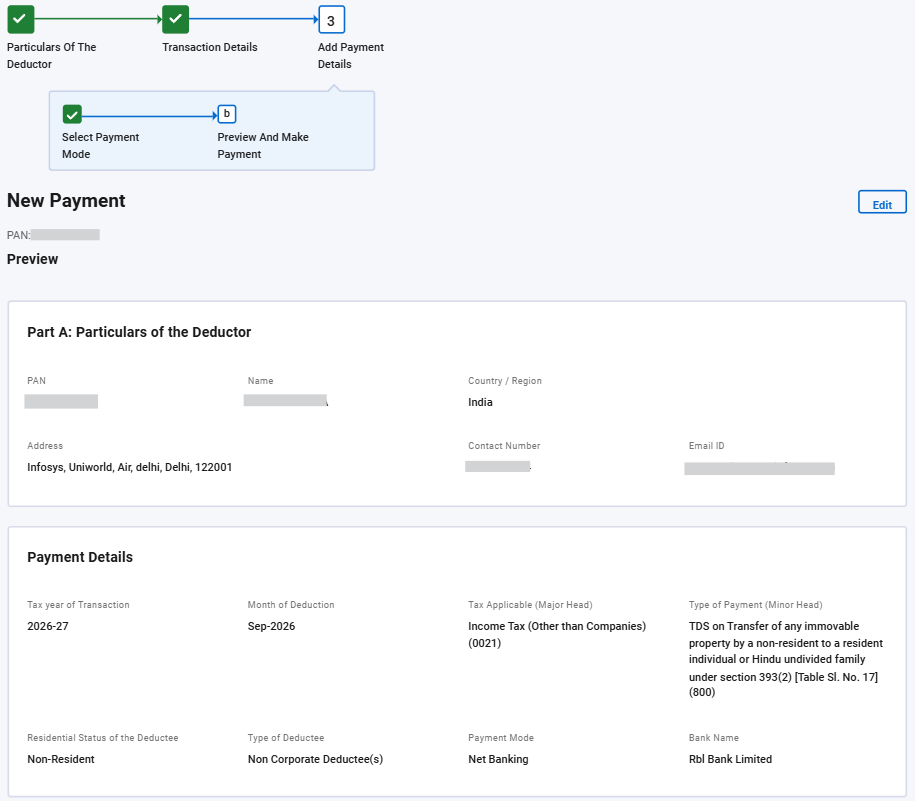
Step 8: Once all the information is saved successfully, the user can click the “Continue” button. Upon clicking, the system will navigate the user to the Select payment mode page, where the user can select the appropriate payment method for depositing the tax.
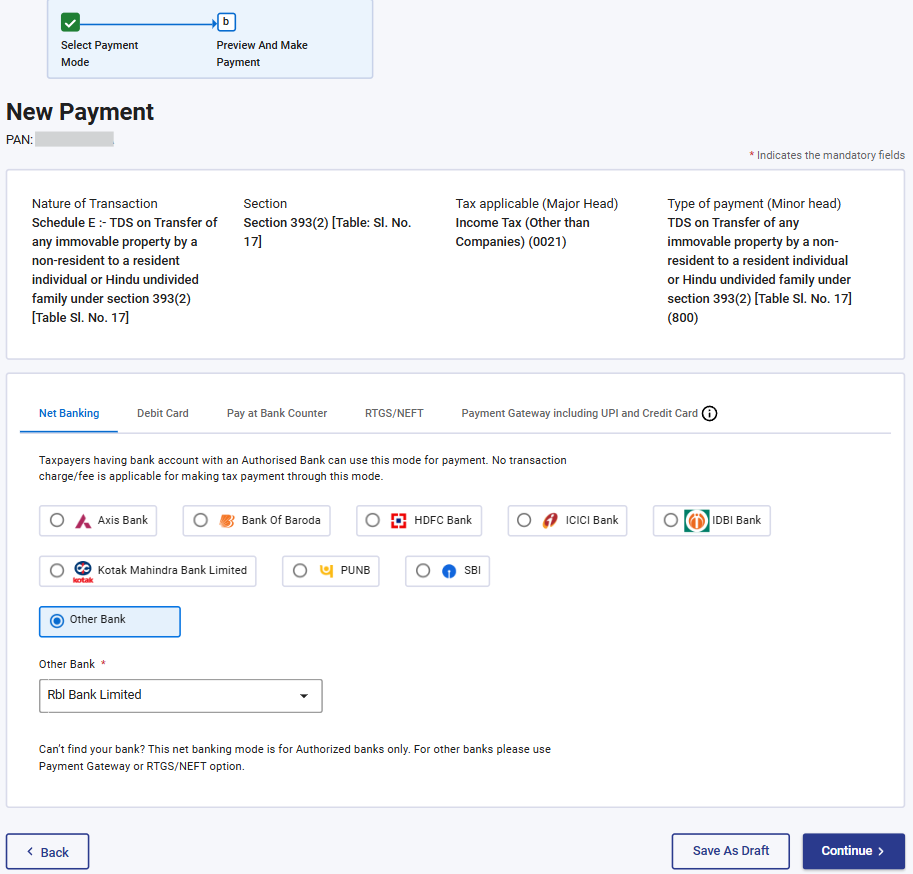
Step 9: On clicking the “continue” button, the user will be navigated to the Preview and Make Payment page.
Here, the user can:
• Preview all the details entered before proceeding with the payment.
• If any corrections are needed, the user can click the “Edit” button to go back and update the information.
• If all details are correct, the user can click the “Pay Now” button, after which they will be redirected to the bank’s payment page to complete the transaction.
Note: After successful payment, you will receive a confirmation e-Mail and an SMS on the e-Mail ID and Mobile number registered with the e-Filing portal. Once the payment is successful, Challan Receipt may be downloaded for future references. The details of payment and Challan Receipt / statement are also available under Payment History Tab on the e-Pay Tax page post-login.