Form 189 User Manual
1. Overview
- Form 189 is submitted under Rule 331 of the Income-tax Rules, 2026 by a public company or public financial institution that intends to raise capital from the public through equity shares or debentures.
- This form must be filed at least three months before the proposed issue and acts as a compliance requirement to ensure that only eligible entities raise funds.
- Along with Form 189, the company must also provide supporting documents such as its Certificate of Incorporation under the Companies Act, 2013, and its audited financial statements (Balance Sheet and Profit & Loss account) for the last three years or since incorporation, whichever is shorter
2. Prerequisites for availing this service
- You should be a registered user on the e-Filing portal
- Status of PAN of the taxpayer should be "Active"
- You should have a valid DSC to verify the form through DSC mode, and it must be registered on the e-filing portal and not expired
3.2 Who can use it?
3.3 Form at a Glance
- Part A
- Part B
- Part C
- Attachments
- Verification
4. Step-by-Step Guide
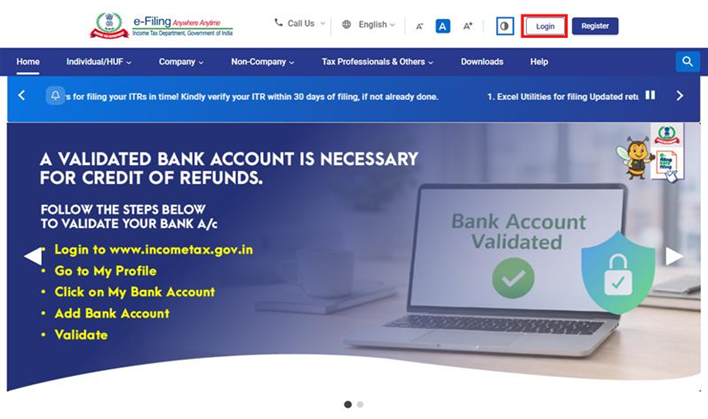
Step 1: Log in to the e-Filing portal with your User ID and Password.
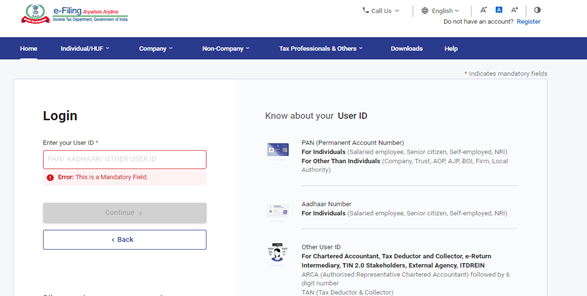
Step 2: Enter the User ID (PAN) and Password
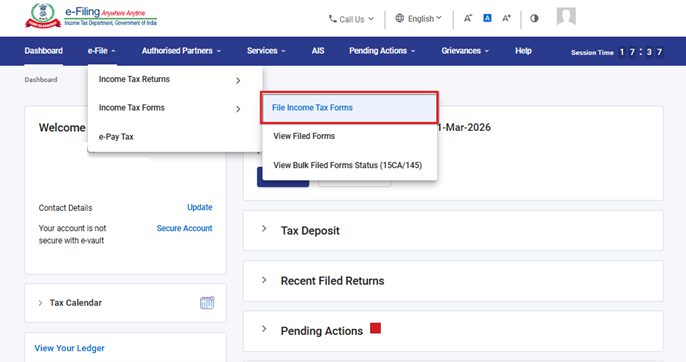
Step 3: Go to e-file >Income Tax Forms > File Income Tax Forms
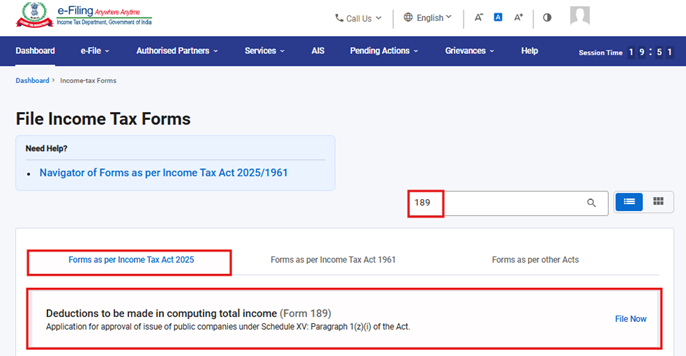
Step 4: Under the Forms as per Income Tax Act 2025 tab, select Form 189 and click File Now
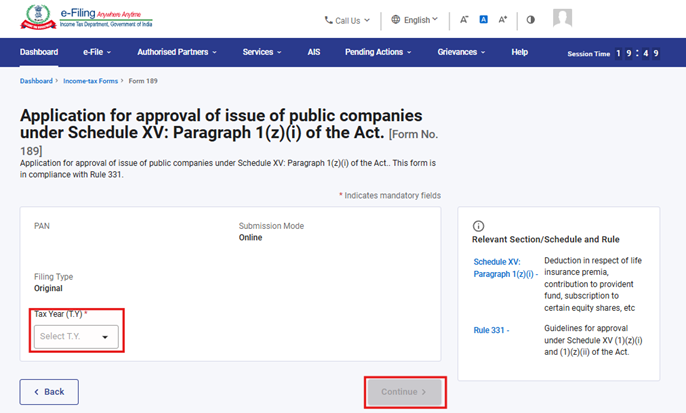
Step 5: Select the applicable Tax Year (T.Y) and click on Continue button.
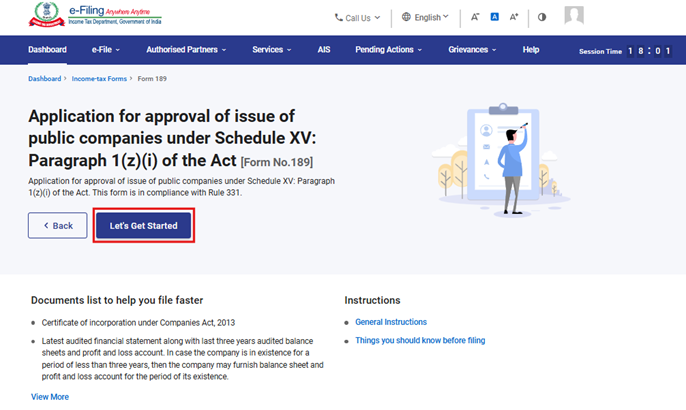
Step 6: Click on Let's Get Started
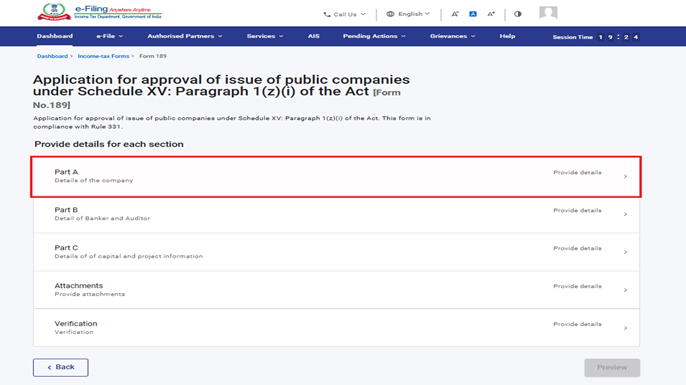
Step 7: Upon clicking Let's Get Started, the user is navigated to the Panel screen. Select the first panel: Part A
Step 8: Fill the relevant details, verify and click Save.
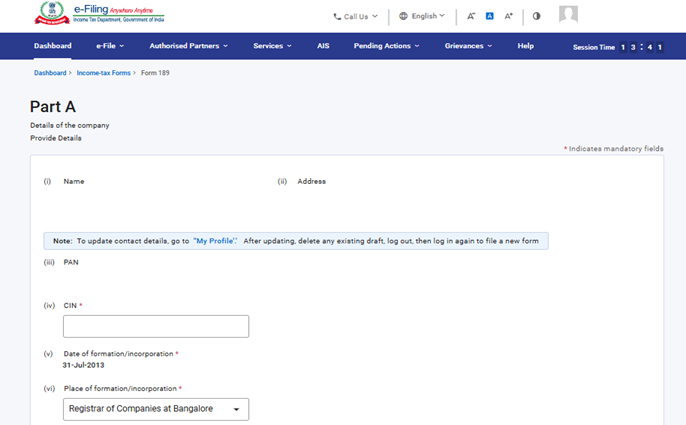
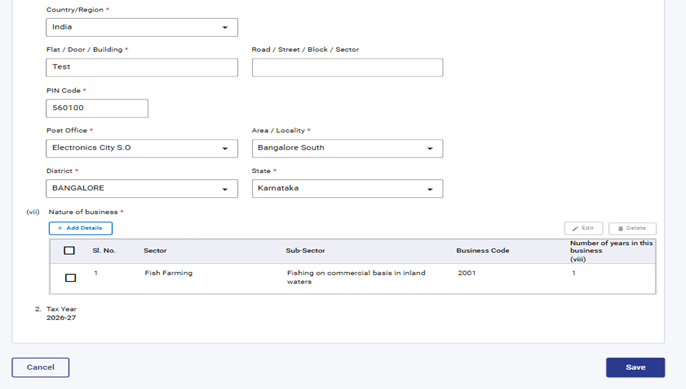
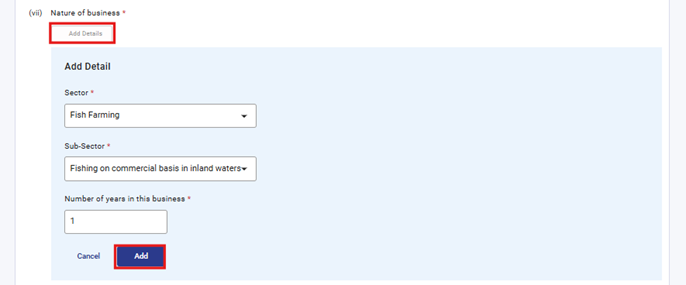
Under Serial No.(vii) Nature of business, select 'Add Details', enter the required details, and click 'Add' to proceed. Dropdown menus are provided for the field “Sector & sub sector” user can select from the available options.
 Step 9: After saving the first panel, select the second panel: Part B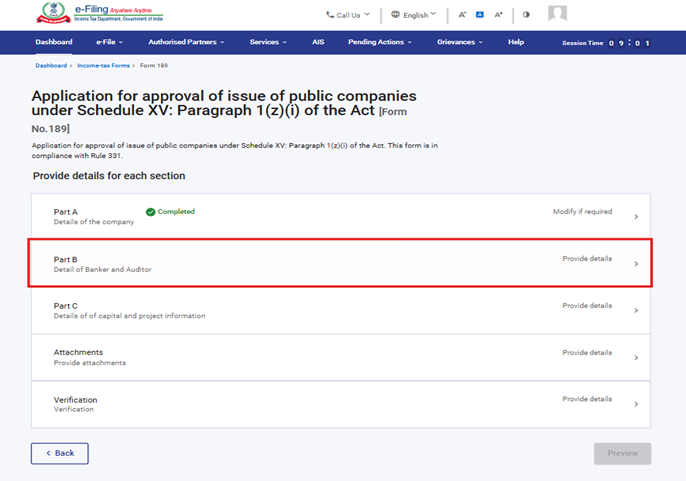
Step 10: Fill in and verify the details under the Part B panel, then click Save
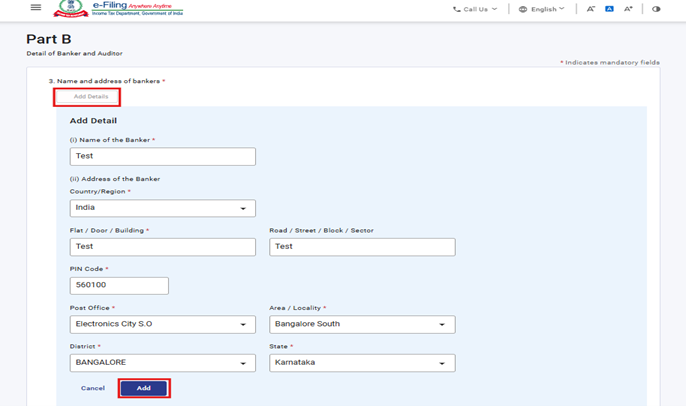
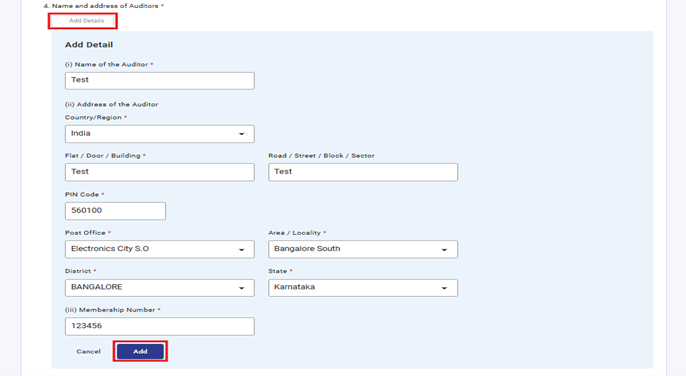
Under Serial No. 4 Name and address of Auditors, select 'Add Details', fill the required fields, and click 'Add' to proceed.
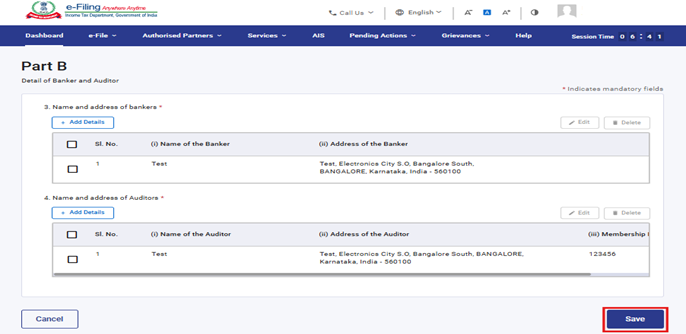
The details entered under Serial No. 3 and 4 will be reflected in a table once added. User can add up to 50 records by clicking on “Add Details” button.
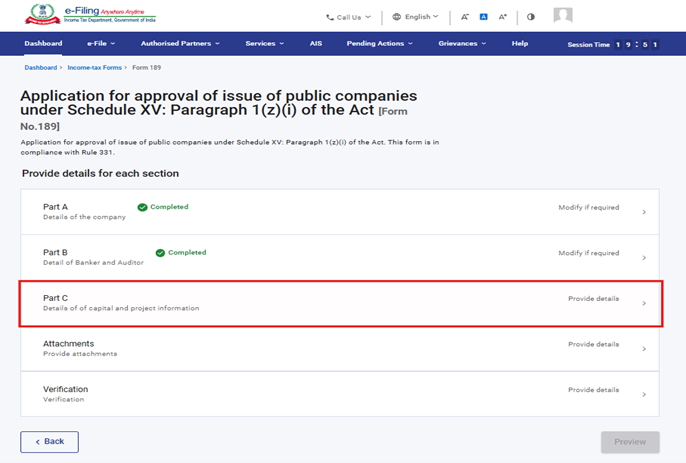
Step 11: After saving the second panel, select the third panel: Part C
Step 12: Fill the relevant details in “Part C” panel and click Save.
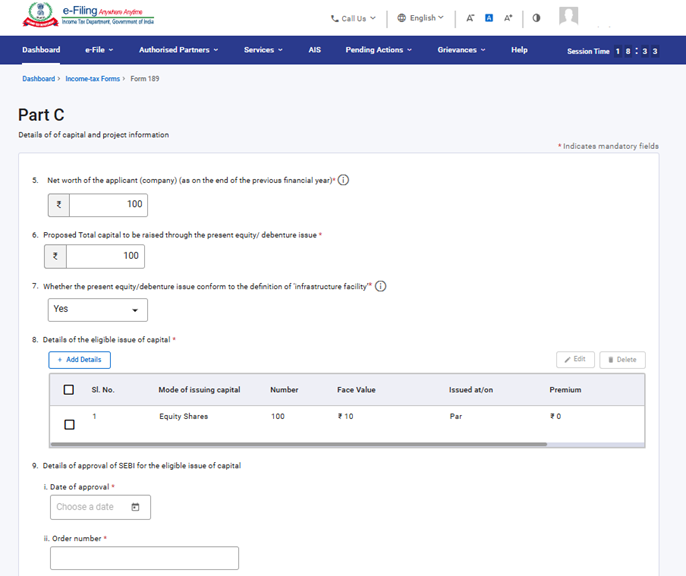
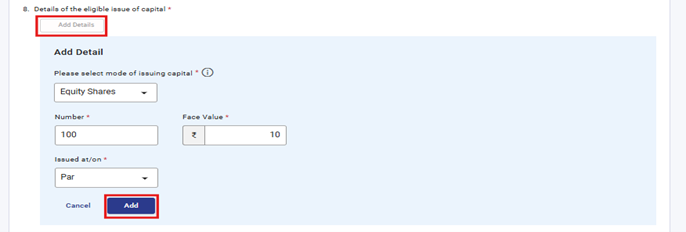
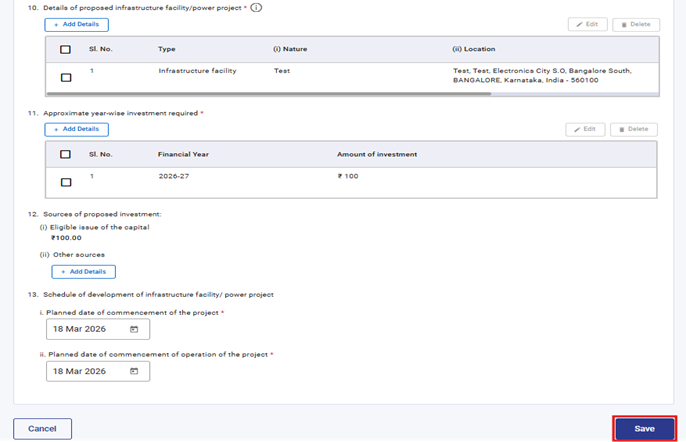
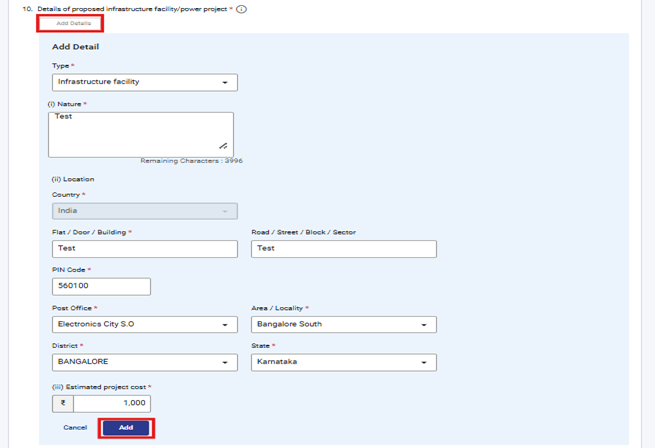
Under Serial No. 10, select 'Add Details', complete the required fields, and click 'Add' to proceed. The field 'Type' provides a dropdown menu from which the user can choose an option.
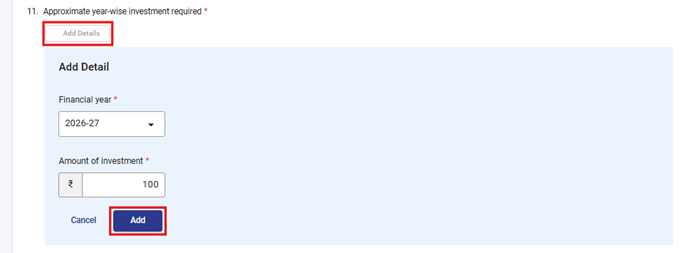
Under Serial No. 11, select 'Add Details', complete the required fields, and click 'Add' to proceed. The field 'Financial year' contains a dropdown menu from which the user can choose an option.
Under Serial No. 12, select 'Add Details', complete the required fields, and click 'Add' to proceed.
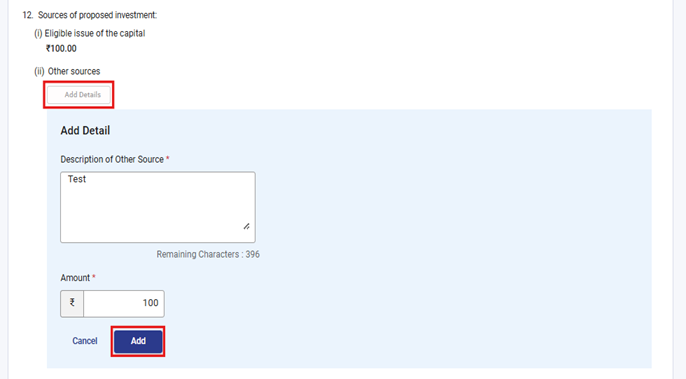
Step 13: After saving the third panel, select the fourth panel: Attachments
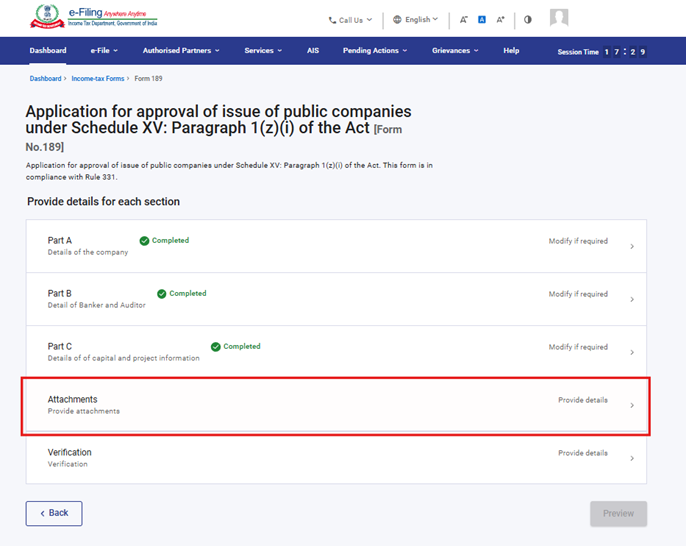
Step 14: Please attach the mandatory documents and click on Save.
In Attachment A-2, if the user uploads any file, the description text box becomes mandatory.
Attachment A-6 becomes mandatory if user selects “Yes” in field no 7.
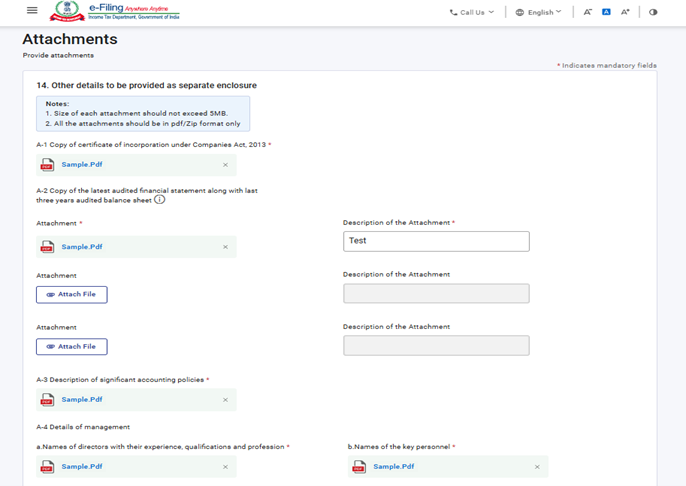
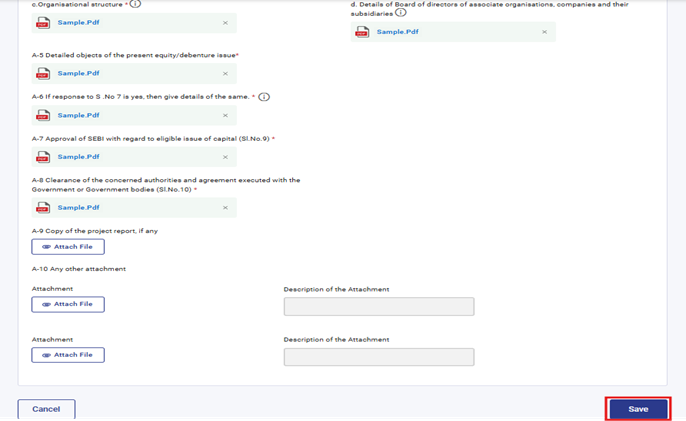
Step 15: After saving the fourth panel, select the Verification panel.
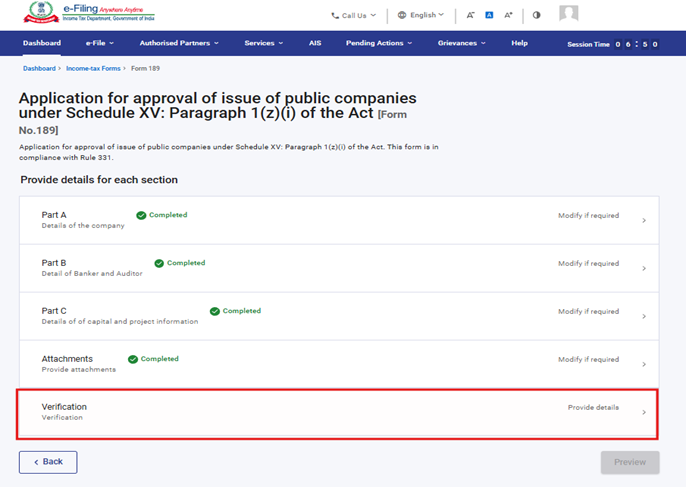
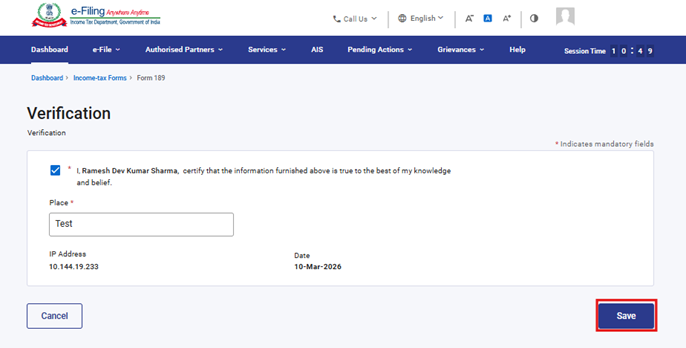
Step 16: Confirm the undertaking and click on Save.
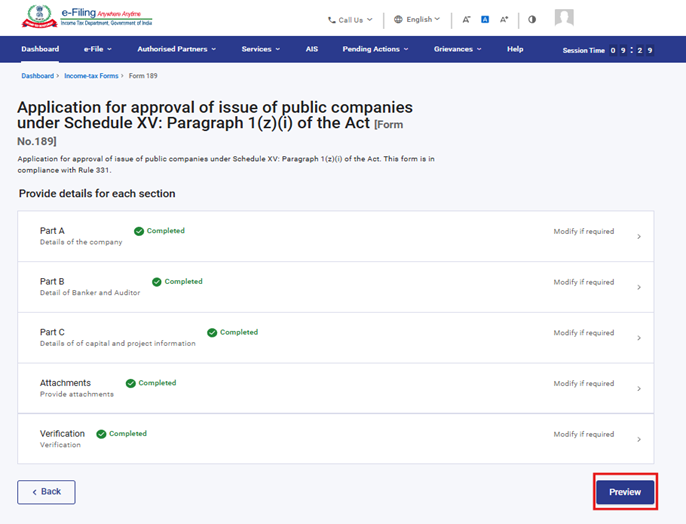
Step 17: Post saving the Verification panel, click on Preview.
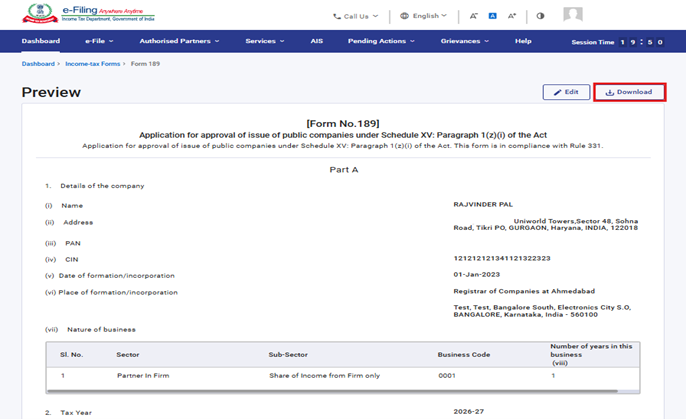
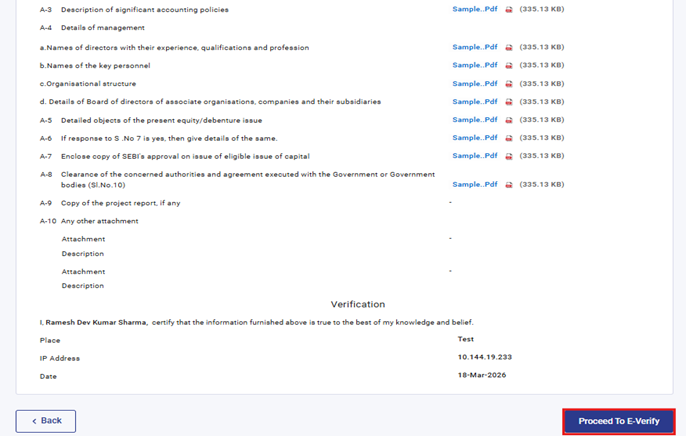
Step 18: On the Preview page, verify the details and click Proceed to e-Verify.
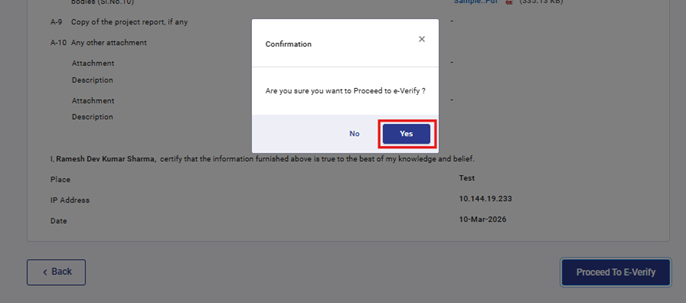
Step 19: Upon clicking the “Proceed to e-Verify” button, a popup confirmation display, that you would like to proceed to e-Verify. Click on “Yes”
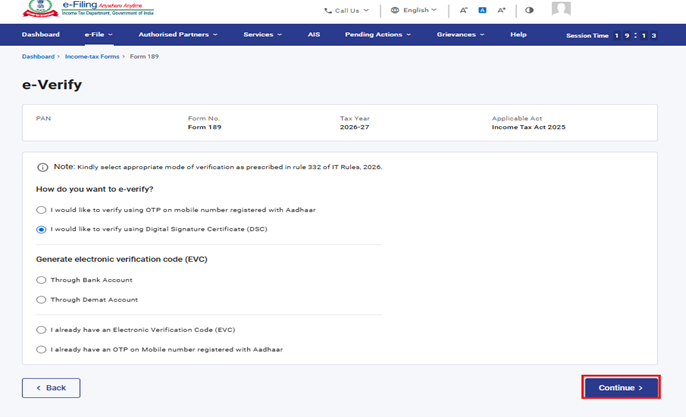
Step 20: On clicking Yes, you will be navigated to the e-Verify page where you can verify the Form 189 using DSC/EVC (as applicable).
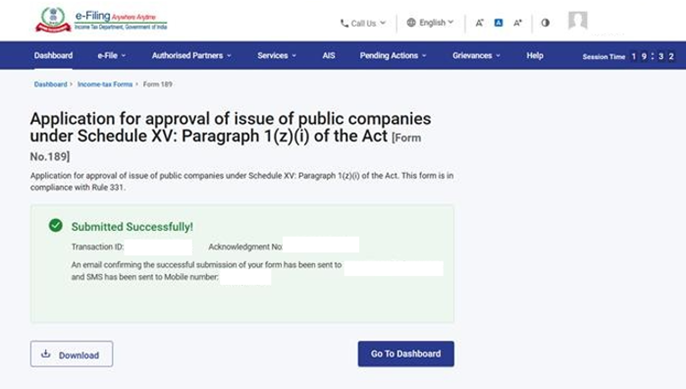
Step 21: After successful e-Verification, a success message is displayed along with a Transaction ID and Acknowledgement Receipt Number. Please keep a note of the Transaction ID and Acknowledgement Receipt Number for future reference. You will also receive a confirmation message on the email ID(s) and mobile number(s) registered with the e-Filing portal.
After successful submission of form 189 the user can view the filled form under - On your Dashboard, click e-File > File Income Tax Forms > View Filed Forms> View Filed Form tab under Income Tax Act 2025.
5. Related Topics
6. Glossary
| Acronym/Abbreviation | Description/Full Form |
|---|---|
| DSC | Digital Signature Certificate |
| EVC | Electronic Verification Certificate |
| ARN | Acknowledgement Receipt Number |
| PY | Previous Year |
| FY | Financial Year |
| TY | Tax Year |