1. What is Instant e-PAN and who can use the Instant e-PAN service?
Instant e-PAN is a free, pre-login service on the e-Filing portal that lets an individual taxpayer who has not yet been allotted a PAN obtain a digitally signed PAN in electronic form, using their Aadhaar and the mobile number linked to it. This Instant e-PAN service can be used by any individual who does not already have a PAN, has a valid Aadhaar linked to an active mobile number, and has access to DigiLocker.
2. Is there any fee for generating an Instant e-PAN?
No. The service is free of cost.
3. Who is not eligible to apply for Instant e-PAN?
- An Individual who already has a PAN allotted.
- A minor as on the date of the request.
- A person covered under the definition of ‘Representative Assessee’ under section 160 of the Income Tax Act, 1961, or section 303 of the Income Tax Act, 2025.
4. What are the prerequisites for Instant e-PAN?
- A valid Aadhaar number.
- A mobile number linked to that Aadhaar (for OTP verification).
- Access to DigiLocker.
5. How can I apply for new e-PAN?
On the e-Filing portal homepage, click ‘Instant e-PAN’ under Quick Links, then click ‘Get New e-PAN’ on the e-PAN page.
6. Why am I redirected to DigiLocker during the process?
You are redirected to DigiLocker to fetch your date of birth details and supporting proof, which are used as part of the PAN generation process.
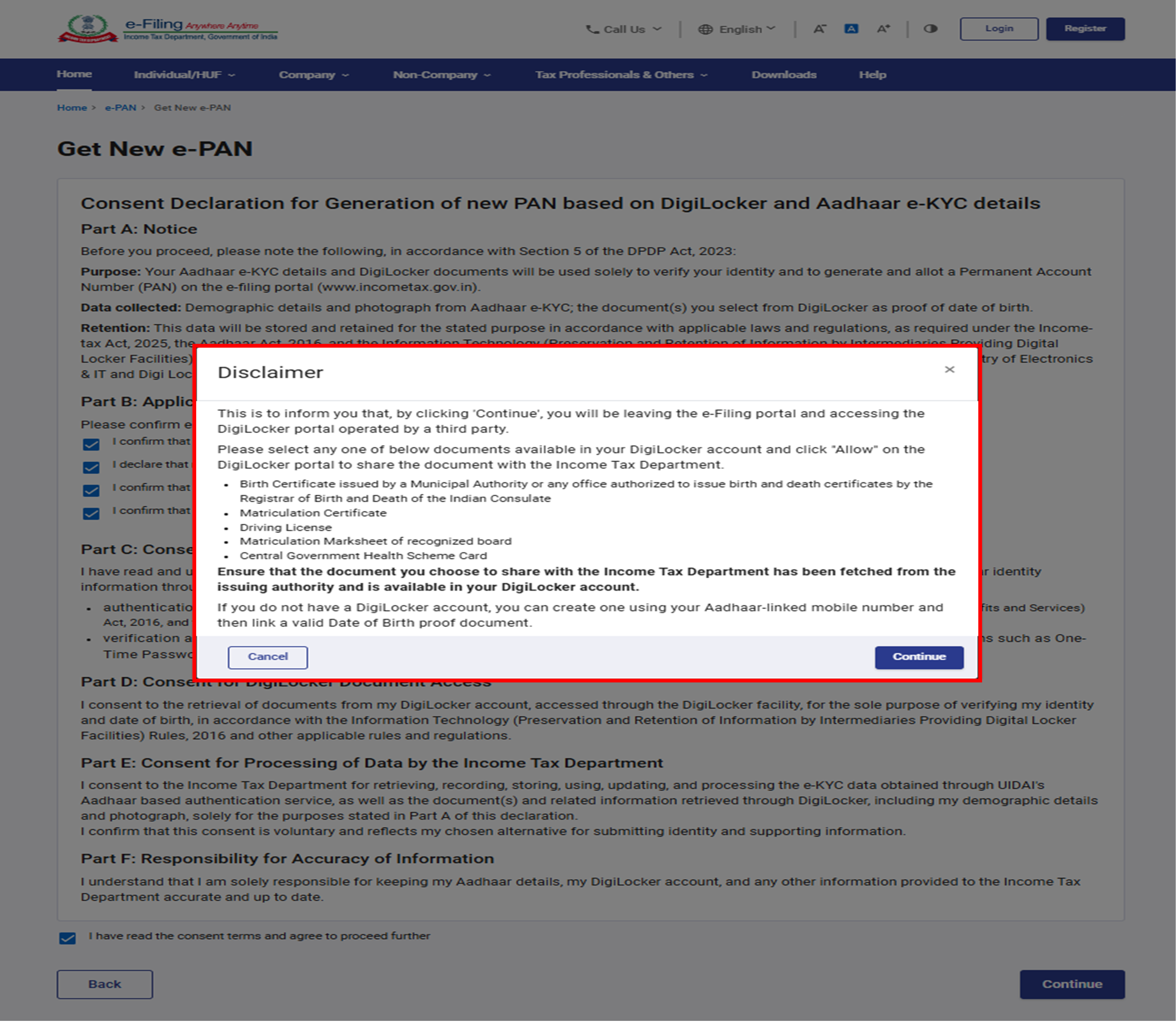
7. How is my date of birth proof selected using DigiLocker?
The following documents are considered as valid documents as proof of your date of birth:
- Driving License
- Birth Certificate
- Class X marksheet
- Class X compartment marksheet
- Class X / Matriculation Passing Certificate
- Central Govt Health Scheme Card
You may select the any one of the documents(s) to be shared with the Income Tax Department as proof of date of birth. Edit the validity date giving consent to share the document with Income Tax Department. and click ‘Allow’.
Please make sure that the documents you are allowing to share with the Income Tax Department is already fetched from the respective Departments and are available in the DigiLocker.
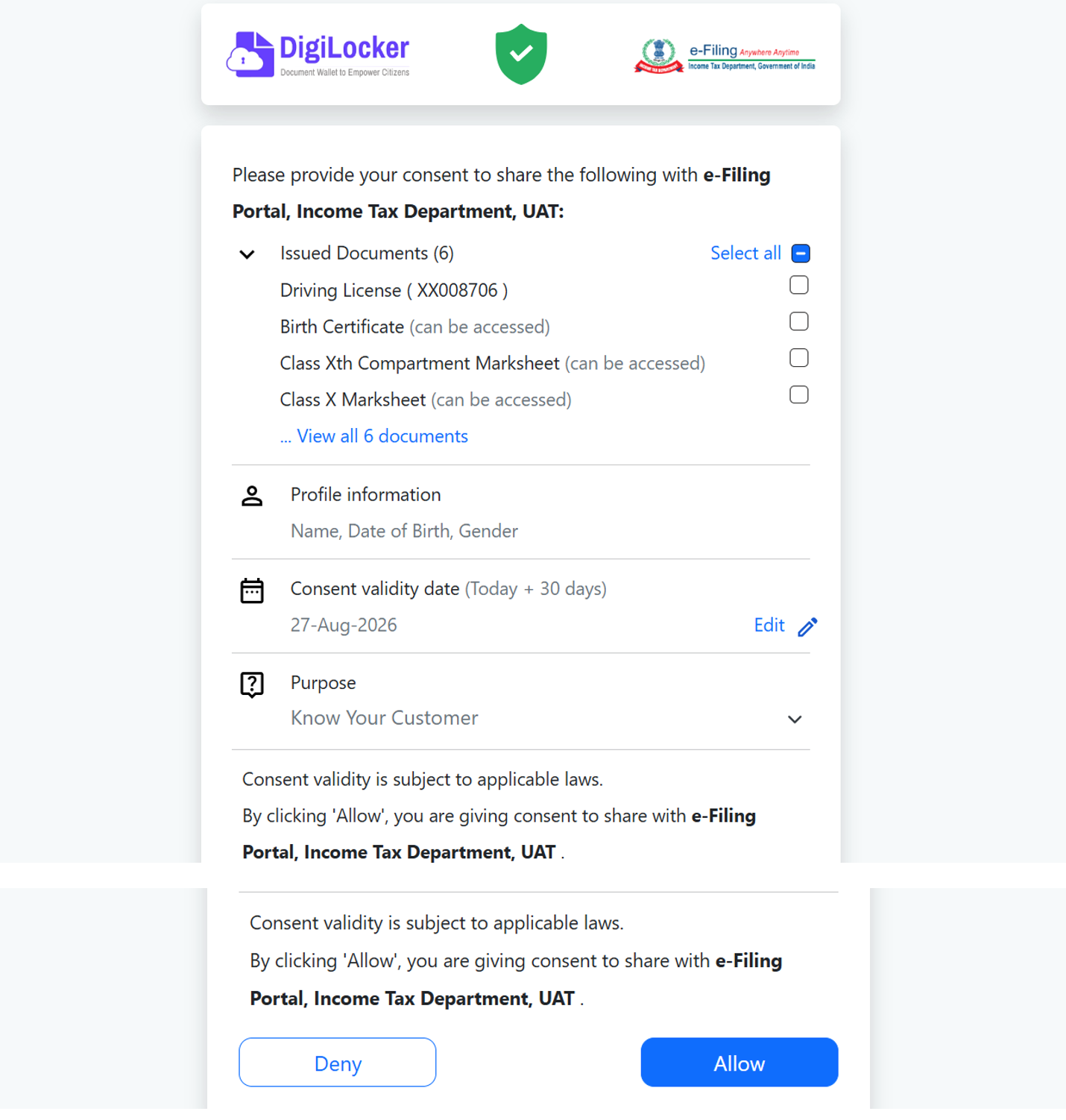
8. What happens if I select multiple documents in DigiLocker for date of birth proof?
Multiple documents can be selected and as proof for Date of birth. If multiple documents in DigiLocker is the selected, then documents will be sorted alphabetically, and the first document in that order will be used as proof of date of birth.
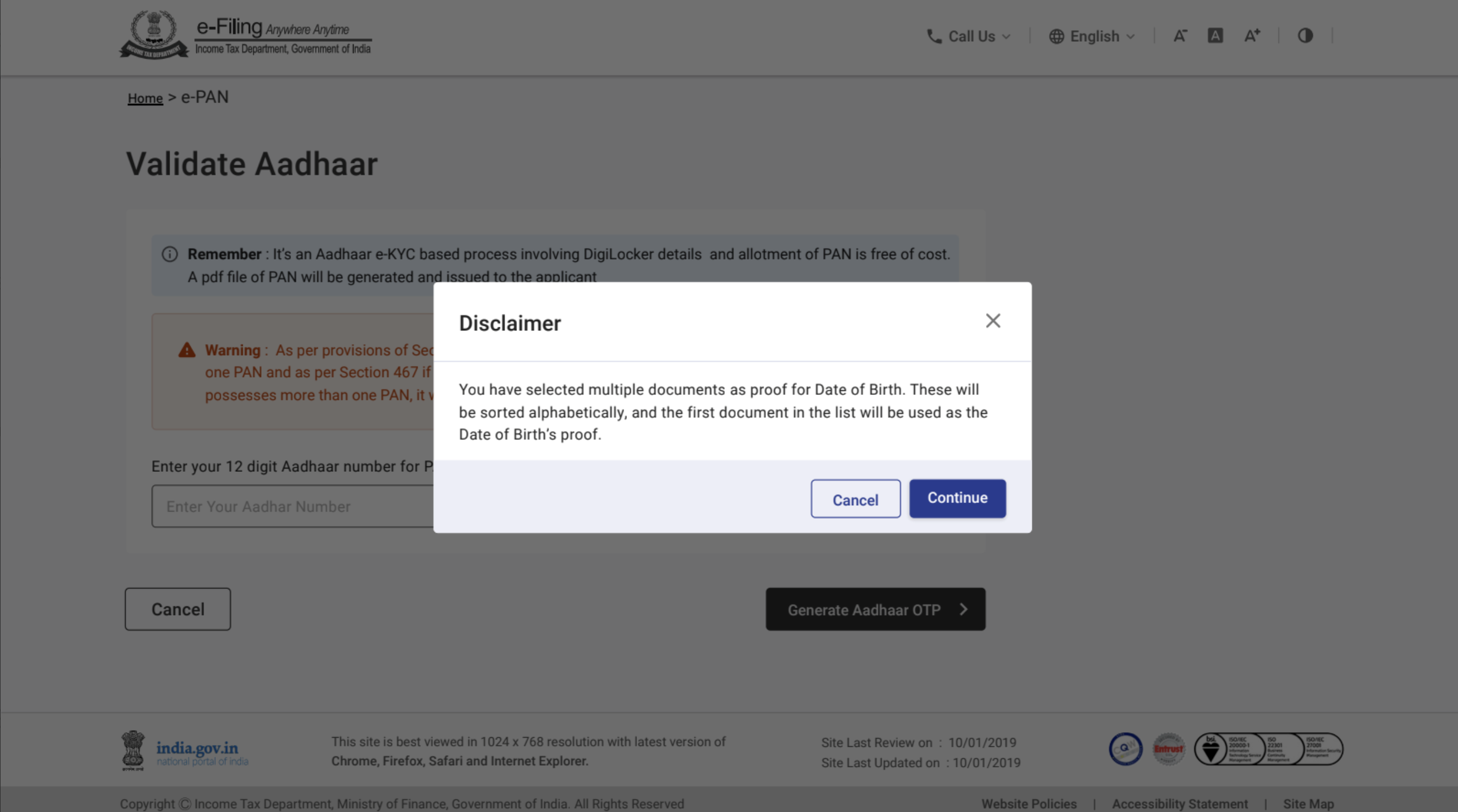
9. Is validating my email ID compulsory?
No, linking or validating the email ID registered with your Aadhaar is optional.
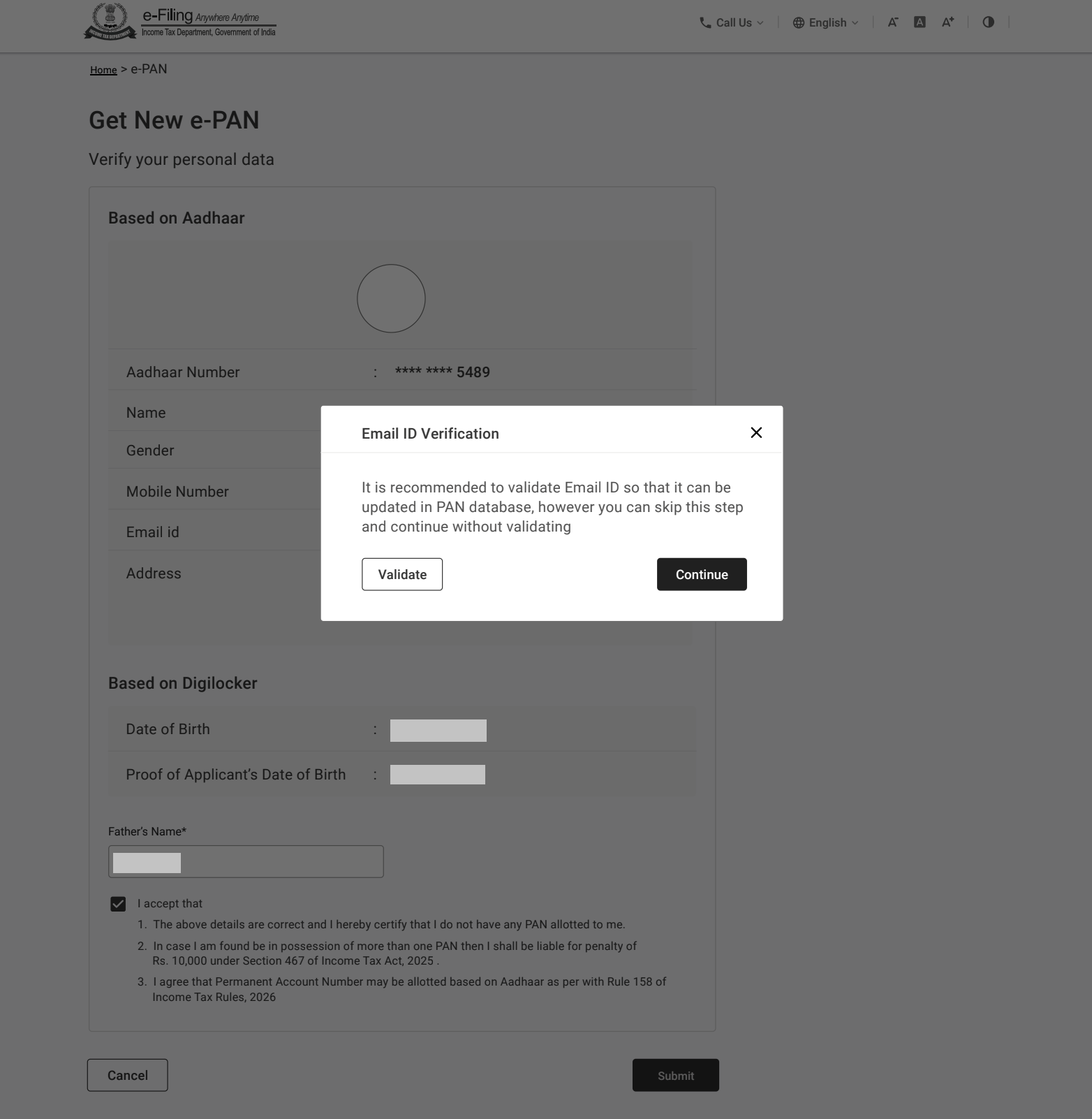
10. What if my email ID is updated in Aadhaar but not validated?
Click on ‘Validate Email’, then on the Validate Email ID page enter the 6-digit OTP sent to your Aadhaar-linked mobile number and then click ‘Continue’.
11. What if I have not updated my email ID in Aadhaar at all?
Click on ‘Link Email ID’, then on the Validate Email ID page enter the 6-digit OTP sent to your Aadhaar-linked mobile number and then click ‘Continue’.
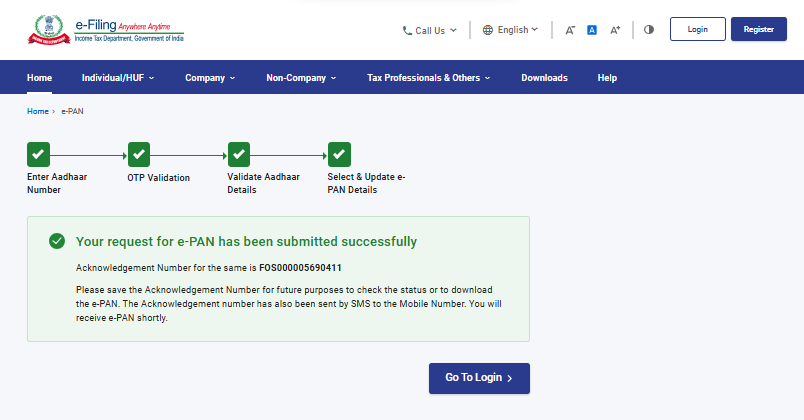
12. How do I know my e-PAN application was submitted successfully?
A success message is displayed along with an Acknowledgement Number, which you should note for future reference. A confirmation message is also sent to your Aadhaar-linked mobile number.
13. How do I check the status of my e-PAN request without logging in?
Go to the e-Filing portal homepage, click ‘Instant e-PAN’ under Quick Links, then click ‘Continue’ on the ‘Check Status / Download e-PAN’ tile.
14. What do I need to check my status?
Enter your 12-digit Aadhaar number and click ‘Continue’, then enter the 6-digit OTP received on your Aadhaar-registered mobile number and click ‘Validate Aadhaar OTP and Continue’.
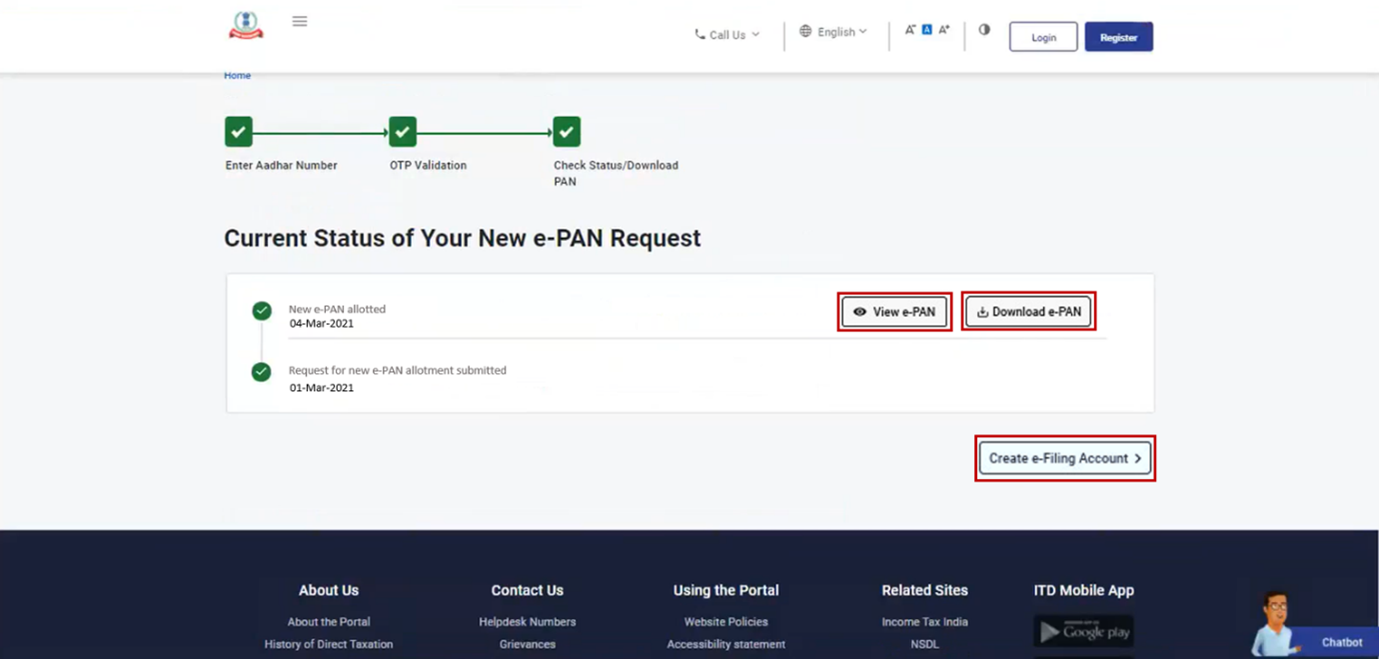
15. What can I do once I see my e-PAN status?
If the e-PAN has been generated and allotted, you can click ‘View e-PAN’ to view it, ‘Download e-PAN’ to download a copy, or ‘Create e-Filing Account’ to register on the e-Filing portal.
16. Do I need to validate my email during e-Filing account registration?
If you did not validate your email ID (as per your Aadhaar KYC) while generating your e-PAN or while updating PAN details, validating it becomes compulsory during registration.
17. Can I download my e-PAN after logging in to the e-Filing portal?
Yes. Log in using your User ID and password, then on the Dashboard go to ‘Services’ > ‘View / Download e-PAN’.
18. Do I need to register on the e-Filing portal before I can log in?
Yes. You must register on the e-Filing portal after receiving your e-PAN; only after successful registration can you log in.
19. What is the step-by-step process to download e-PAN after logging in?
- Go to Dashboard > Services > View / Download e-PAN.
- On the Enter Aadhaar Number page, enter your 12-digit Aadhaar number and click ‘Continue’.
- On the OTP Validation page, enter the 6-digit OTP received on your Aadhaar-registered mobile number and click ‘Validate Aadhaar OTP and Continue’.
- On the View / Download e-PAN page, click ‘View e-PAN’ to view or ‘Download e-PAN’ to download a copy.
- ‘Resend OTP’ generates and sends a fresh OTP.
20. I do not have a DigiLocker account. Can I still apply for Instant e-PAN?
If you are applying for Instant e-PAN you need a DigiLocker account to complete the process, since it is used to fetch your date of birth proof. If you do not already have DigiLocker Account, you can create it during the e-PAN flow itself using your Aadhaar-linked mobile number for OTP verification, after which you can select a username and password to complete sign-up.
21. What if my mobile number is not linked to Aadhaar, so I cannot sign up on DigiLocker?
You will first need to get your mobile number linked to your Aadhaar at a nearby Aadhaar Enrolment/Update Centre, since both Aadhaar OTP validation and DigiLocker sign-up depend on this link. Once the mobile number is linked with Aadhar and active, retry the Instant e-PAN process.
22. None of my accepted Date of Birth documents (Birth Certificate, Matriculation Certificate, Driving License, Matriculation Marksheet, CGHS Card) are available in my DigiLocker. What should I do now?
- Check whether the issuing authority (e.g., school board, RTO, municipal body, CGHS) is listed as a partner department on DigiLocker and ‘pull’ the document directly from there using your relevant ID details.
- If the document is available only in physical form, you can upload a self-attested scanned copy to DigiLocker and e-sign it, where this option is supported for that document type.
- If the document cannot be fetched or uploaded, you will not be able to complete the Instant e-PAN route and should consider applying for a PAN through the regular PAN application process instead.
23. The DigiLocker platform is down or not loading when I am redirected to it. What should I do?
- If the DigiLocker platform is down or not loading Wait for few minutes and retry, as this is often a temporary service outage. Confirm DigiLocker is reachable directly by visiting digilocker.gov.in in a browser before retrying from the e-Filing portal.
- Avoid refreshing or navigating away mid-process, as this can invalidate your in-progress consent and require you to restart the Instant e-PAN steps from the beginning.
- If the issue persists, try again after some time or use a different browser/device before restarting the application.
24. I created a new DigiLocker account, but my documents are not showing up yet. What should I do?
Newly issued or newly linked documents can sometimes take a short while to reflect in DigiLocker. Wait for few minutes and refresh the ‘Issued Documents’ section before retrying the Instant e-PAN request.
25. Whom do I contact if I am unable to resolve a DigiLocker-related issue?
- For issues specific to DigiLocker itself (account creation, document fetch, login), reach out to DigiLocker’ s support channels.
- For issues within the Instant e-PAN flow on the e-Filing portal, use the e-Filing portal’s helpdesk options.