



Challan Creation through PAN Login
1. Overview
This document provides step by step guidance to taxpayers on generating Challan Forms ITNS 280N, ITNS 282N, and ITNS 288N through the e-Filing portal for tax payments under Income Tax Act, 2025. Under the Income-tax Act, 1961, the applicable challans Forms are ITNS 280, ITNS 282, and ITNS 288.
A key procedural change is that challans under the Income-tax Act, 1961 Act were are filed based on the Assessment Year, whereas under the Income Tax Act, 2025, challans must be filed based on the Tax Year.
This manual explains how taxpayers can correctly generate challans under both Acts by selecting the appropriate Act, Tax Type, and Tax Period.
• ITNS 280/280N covers payments related to Income Tax and Corporation Tax, including Advance Tax, Self-Assessment Tax, and Regular Assessment Tax (400)
• ITNS 282/282N covers payments for STT, CTT, e-DRS under section 379, and other applicable taxes
• ITNS 288/288N covers payments related to Block Assessments, including Self Assessment Tax for Block Assessment (311) and demand payments as Tax on Search Assessment for the Block Period (411).
2. Prerequisites for availing this service
You can create Challan for Tax Payment in Pre-login (before logging in the e-Filing portal) or post-login (after logging in the e-Filing portal) mode.
|
Option |
Prerequisites |
|
Pre-Login |
|
|
Post-login |
|
Note: As of now, the tax payment on e-Filing Portal (e-Pay Tax service) through Payment Gateway mode is available through authorized banks only.
3. Step-by-Step Guide
3.1 Generate Challan Form (CRN) (Post Login)
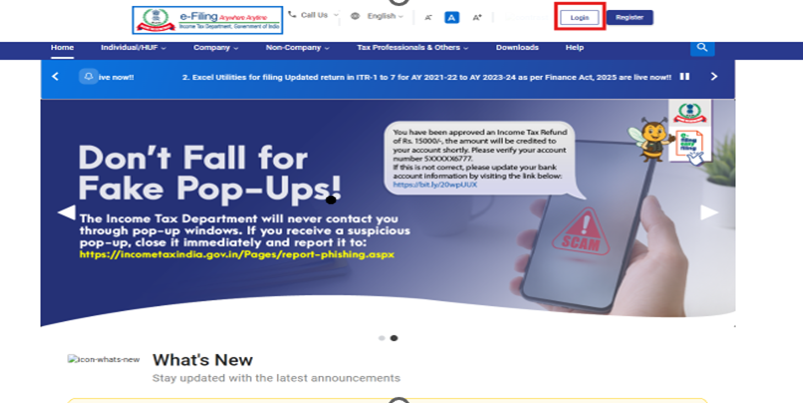
3.1.1 Log in to the e-Filing portal with user ID and password.
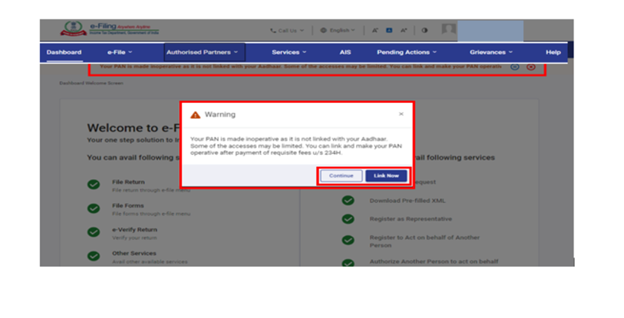
Note :-For Individual users, if PAN is not linked with the Aadhaar you will see a pop-up message that your PAN is made inoperative as it is not linked with your Aadhaar.
To link the PAN with Aadhaar, click on Link Now button else click Continue.
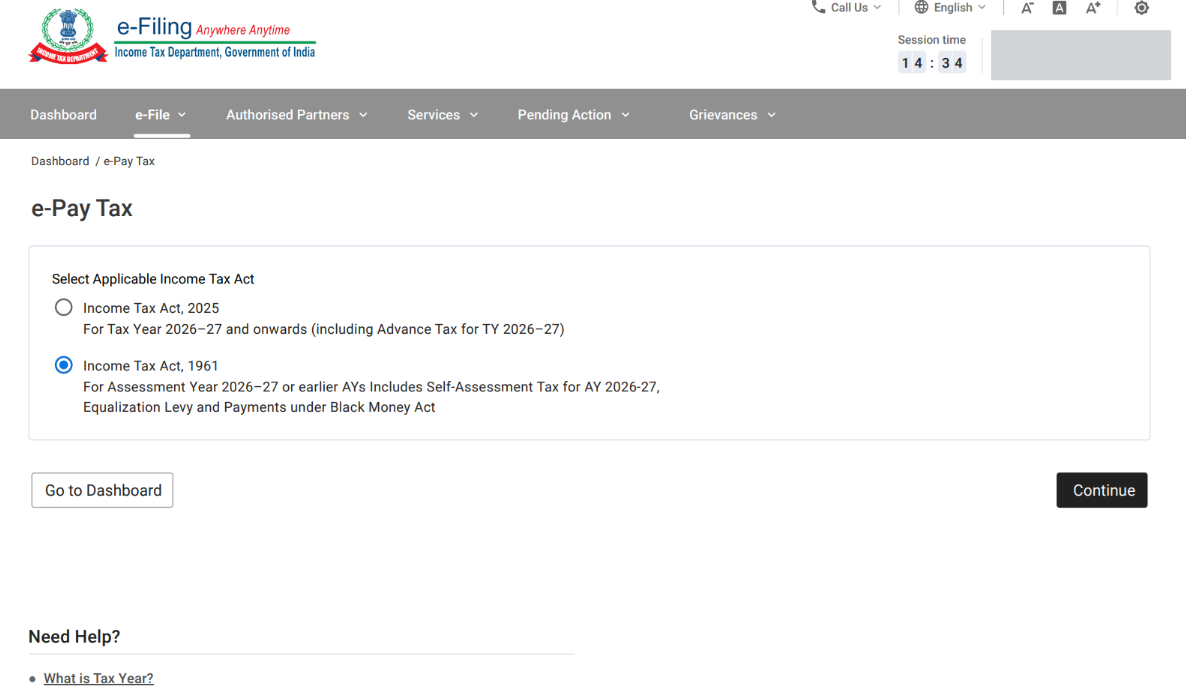
3.1.2 On the Dashboard, click e-File > e-Pay Tax. On click of e-Pay Tax, User will be navigated to the applicable Act Selection screen. After making the appropriate selection, Click the Continue button. User will then be navigated to the e-Pay Tax.
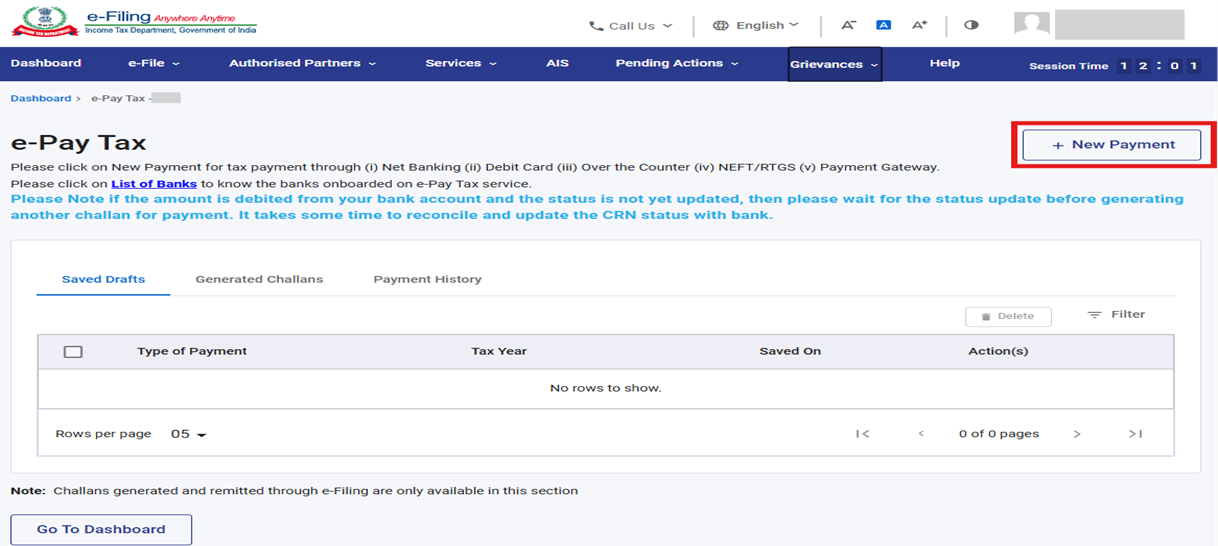
3.1.3 On the e-Pay Tax page, click the New Payment option to create a new Challan Form (CRN) through only selected Authorized Banks . The tax payment via other than these banks can be made via NEFT/RTGS facility provided by RBI.
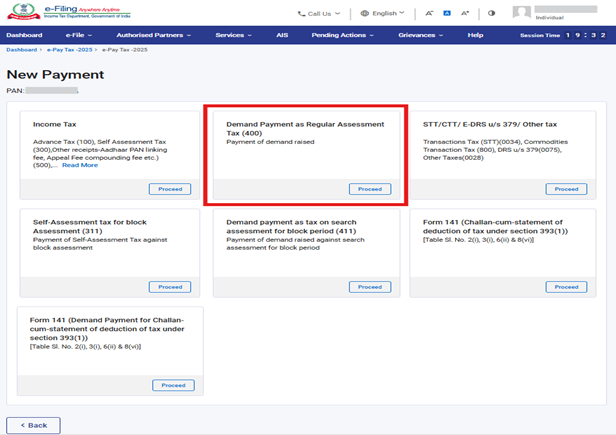
3.1.4 On the New Payment page, Click Proceed on a tax payment tile that applies to you. Tiles will be enabled based on the Act selected on the previous screen.
Select radio button “Income Tax Act 1961”, to make payments for Assessment Years upto 2026-27 and Prior Years including Self assessment Tax for AY 2026-27 .
Select “Income Tax Act 2025”, for making payments for TY 2026–27 onwards.
Please Note: Please select “Income Tax Act 1961”, for the tax payments related to The Black Money (Undisclosed Foreign Income And Assets) And Imposition of Tax Act, 2015
On selecting the Income Tax, 1961 radio button, the following tiles will be available:
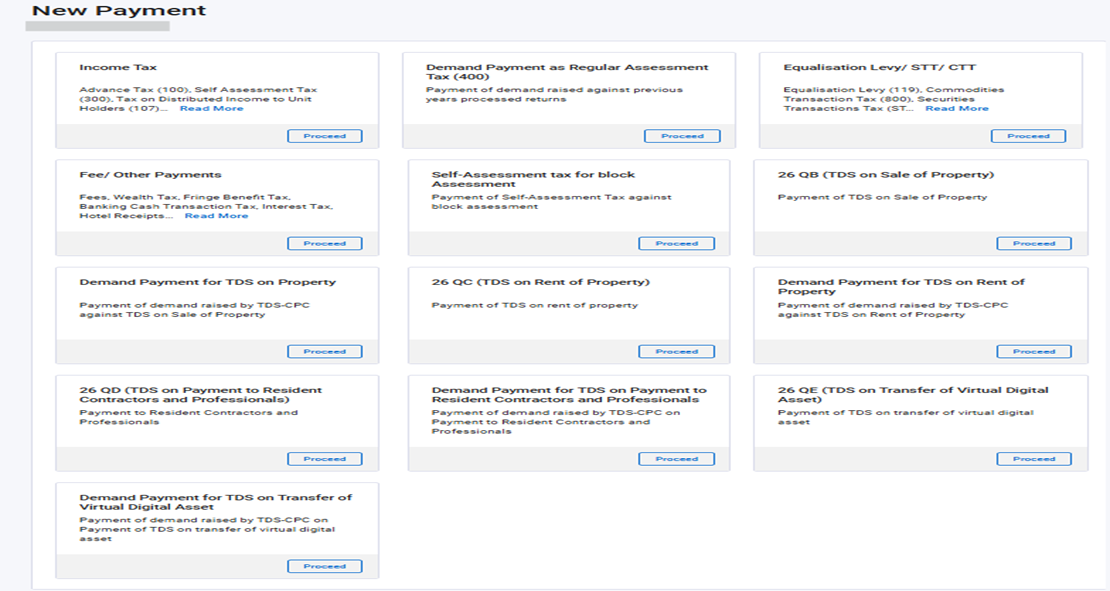
Overview of the Tiles:
|
Tile Name |
Major Head |
Instructions and (Minor head) applicable for Tiles |
|
Income Tax (for Non‑Companies) / Corporation Tax (for Company Login) |
Income Tax (Other than Companies) (0021) / Corporation Tax (Company Login) (0020) |
Please select this option to pay tax for AY 26-27 or prior years • Self‑Assessment Tax (300) - Fee for delay in linking PAN with Aadhaar
Please Note: Applicable ITNS for Minor code
|
|
Demand Payment as Regular Assessment Tax (400) |
Income Tax (Other than Companies) (0021) / Corporation Tax (Company Login) (0020) |
Please select this option to pay Outstanding Demand for AY 2026‑27 or prior years (400) Challan covered: ITNS 280 Note: You will have the option to make Demand Payment either with DRN or without DRN. |
|
Equalization Levy / STT / CTT |
Other Taxes and Duties on Commodities and Services (0045) Securities Transaction Tax (0034) |
- Self‑Assessment Tax (300) under STT, |
|
Fee / Other Payments
|
- Banking Cash Transaction Tax (0036) |
Please select this option to pay Self‑Assessment Tax (300) and Outstanding Demand (400) for AY 2009‑10 or prior years- Refer ITNS 283 |
|
- Hotel Receipts Tax (0023) |
Please select this option to pay Self‑Assessment Tax and Outstanding Demand for AY 2026‑27 or prior years. – Refer ITNS 282 |
|
|
Miscellaneous Receipts (0075) |
Please select this option to pay Application Fee u/s 245MA (Form No. 34BC) for AY 2026‑27 or prior years (800): Refer ITNS 282 |
|
|
Self‑Assessment Tax for Block Assessment |
Income Tax (Other than Companies) (0021) / Corporation Tax (Company Login) (0020) |
Please select this option to pay Self‑Assessment Tax for Block Assessment (311) – Refer ITNS 288 |
|
Demand payment as tax on search assessment for block period (411) |
Income Tax (Other than Companies) (0021) / Corporation Tax (Company Login) (0020)
|
Please select this option to pay Demand payment for block period (411)- Refer ITNS 288 Note: Demand related to Block Assessment can be paid only with DRN, and this option is available exclusively through post‑login functionality. |
|
26 QB (TDS on Sale of Property) |
Income Tax (Other than Companies) (0021) / Corporation Tax (Company Login) (0020) |
Please select this option to pay Tax on Sale of Property in case the date of payment/credit relates to AY 2026‑27 or a prior year. |
|
Demand Payment for TDS on Property |
Income Tax (Other than Companies) (0021) / Corporation Tax (Company Login) (0020) |
Please select this option to pay Demand for TDS on Sale of Property in case the date of payment/credit relates to AY 2026‑27 or a prior year. |
|
26 QC (TDS on Rent of Property) |
Income Tax (Other than Companies) (0021) |
Please select this option to pay TDS on Rent in case the date of payment/credit relates to AY 2026‑27 or a prior year. |
|
Demand Payment for TDS on Rent of Property |
Income Tax (Other than Companies) (0021) |
Please select this option to pay Demand for TDS on Rent in case the date of payment/credit relates to AY 2026‑27 or a prior year. |
|
26 QD (TDS on Payment to Resident Contractors and Professionals) |
Income Tax (Other than Companies) (0021) |
Please select this option to pay TDS on Payments to Resident Contractors and Professionals in case the date of payment/credit relates to AY 2026‑27 or a prior year. |
|
Demand Payment for TDS on Payment to Resident Contractors and Professionals |
Income Tax (Other than Companies) (0021) |
Please select this option to pay Demand for TDS on Payments to Resident Contractors and Professionals in case the date of payment/credit relates to AY 2026‑27 or a prior year. |
|
26 QE (TDS on Transfer of Virtual Digital Asset) |
Income Tax (Other than Companies) (0021) |
Please select this option to pay TDS on transfer of Virtual Digital Assets in case the date of payment/credit relates to AY 2026‑27 or a prior year. |
|
Demand Payment for TDS on Transfer of Virtual Digital Asset |
Income Tax (Other than Companies) (0021) |
Please select this option to pay Demand for TDS on transfer of Virtual Digital Assets in case the date of payment/credit relates to AY 2026‑27 or a prior year. |
3.2 On selecting the Income Tax Act 2025 radio button, the following tiles will be available:
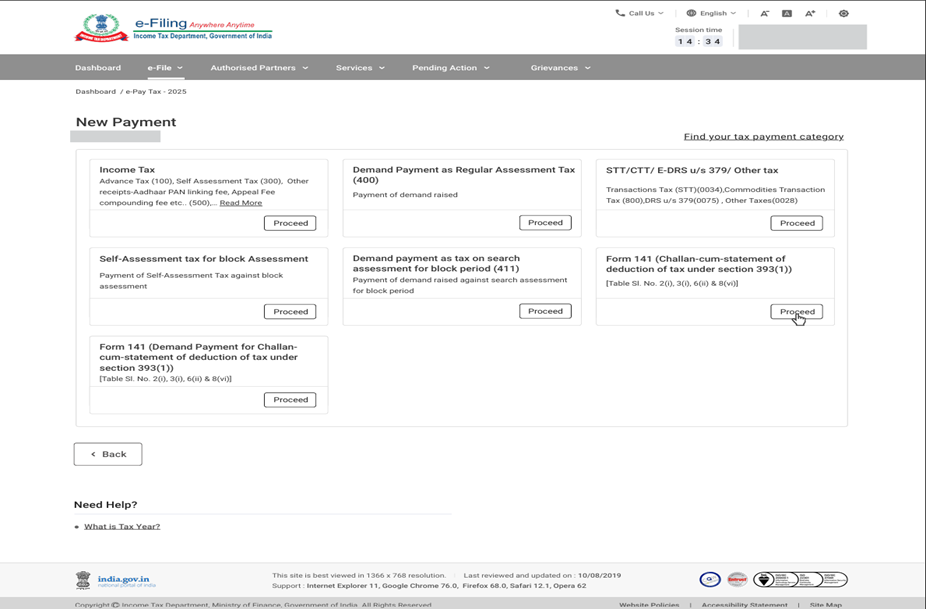
3.3 Overview of the tiles:-
3.3.1 Income Tax /corporation Tax tile & Outstanding Demand (Regular Assessment Tax) (400) Tile
|
Tile Name |
Major Head |
Instructions and (Minor head) applicable for Tiles |
|
Income Tax (for Non‑Companies) / Corporation Tax (for Company Login) |
Income Tax (Other than Companies) (0021) / Corporation Tax (Company Login) (0020)
|
Select this option to pay tax for TY 2026-27 & onwards- Refer ITNS 280N
Note: This tile will be enabled post closure of the relevant Tax Year. (Example: For TY 2026‑27, Self‑Assessment Tax can be paid from 01 April 2027 onwards.)
- Fee for delay in linking PAN with Aadhaar |
|
Demand Payment as Regular Assessment Tax (400) |
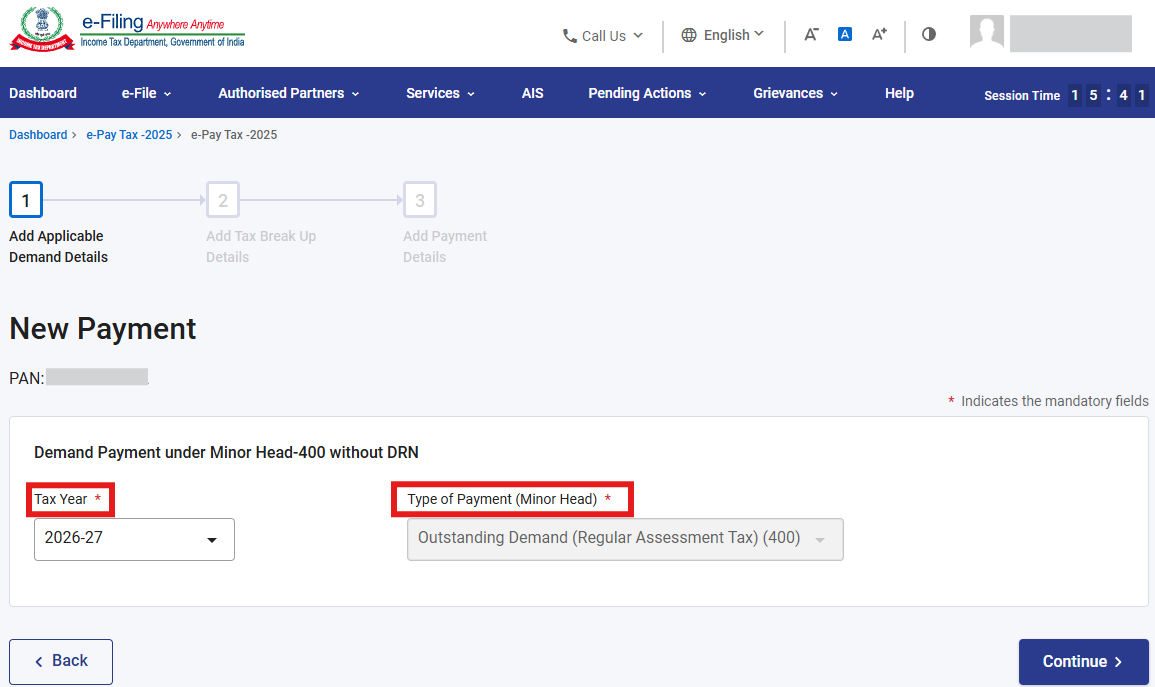
Select this option to pay the following for TY 2026‑27 & onwards: User have option to make the Demand Payment either with DRN or without DRN. • With DRN: Payment can be made only through post‑login functionality. Please Note: It is recommended to pay demand using DRN number so that payment can be mapped easily – Refer ITNS 280N |
On click of Proceed button on Income Tax tile/Corporation Tax tile (In case of company login), User is navigated to Add Tax Applicable Details page to Select applicable Tax year, Minor head and then click the Continue button
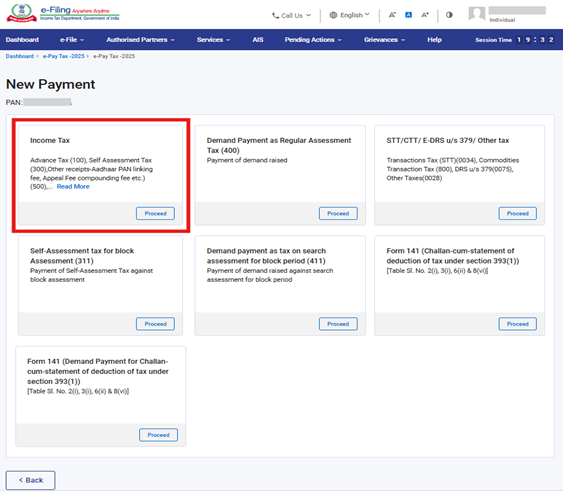
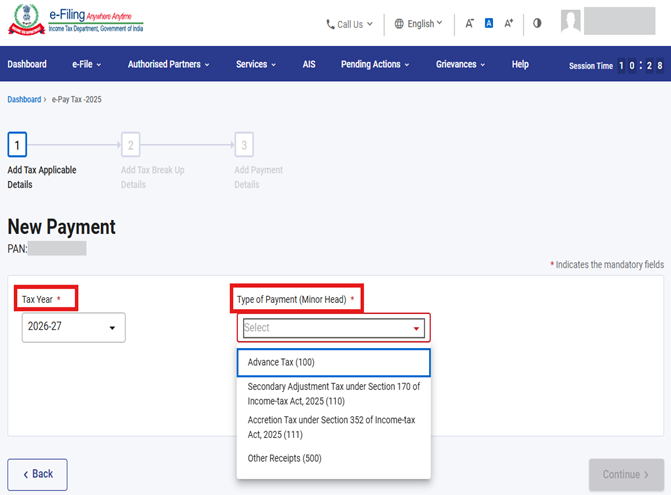
On click of the Proceed button on Demand Payment as Regular Assessment Tax (400) tile, User is navigated to Add Applicable Demand Details page to make the payment with DRN or without DRN (Only if DRN is not available).
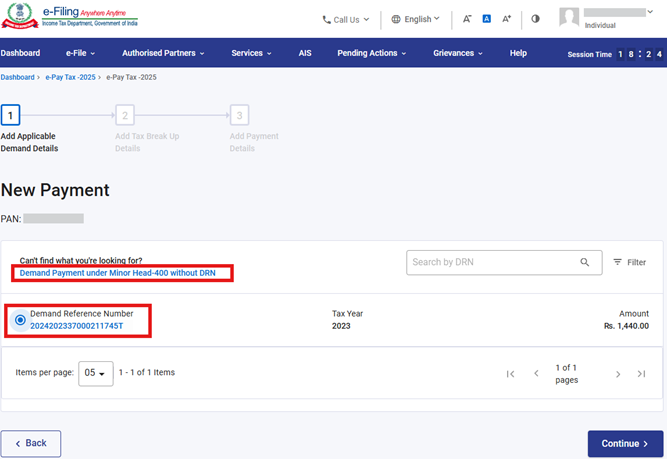
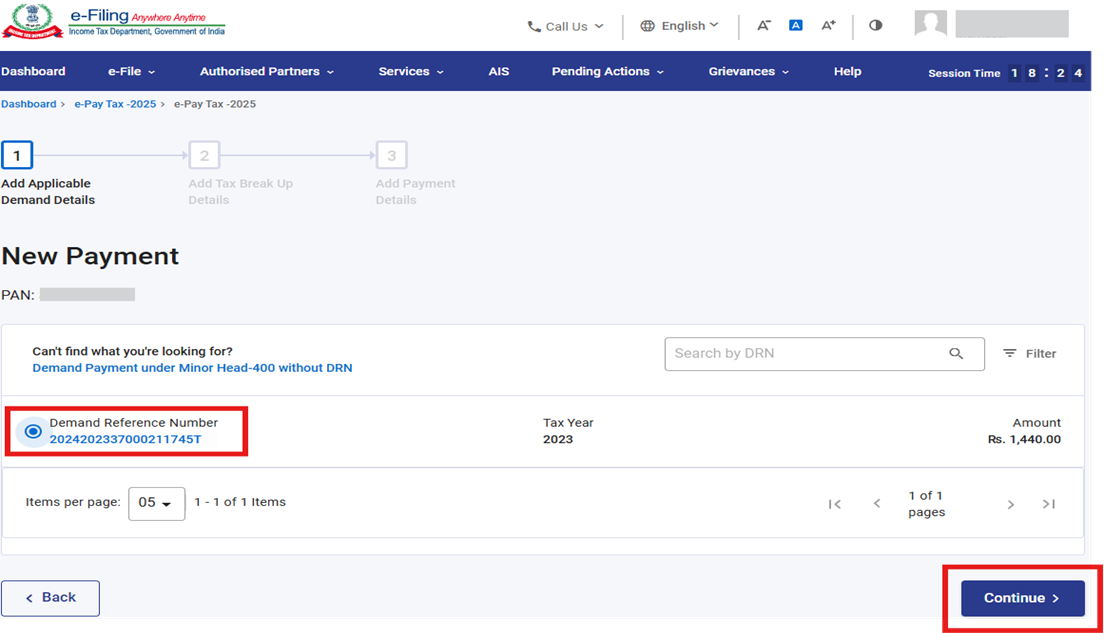
When paying with DRN, select the DRN option. The system will automatically fetch all DRN‑related details, and upon clicking the Continue button, you will be taken directly to the payment page.
When paying without DRN, you must click the hyperlink shown on the screen and Select Tax year, Minor head and click Continue. This option is available in both pre‑login and post‑login modes.
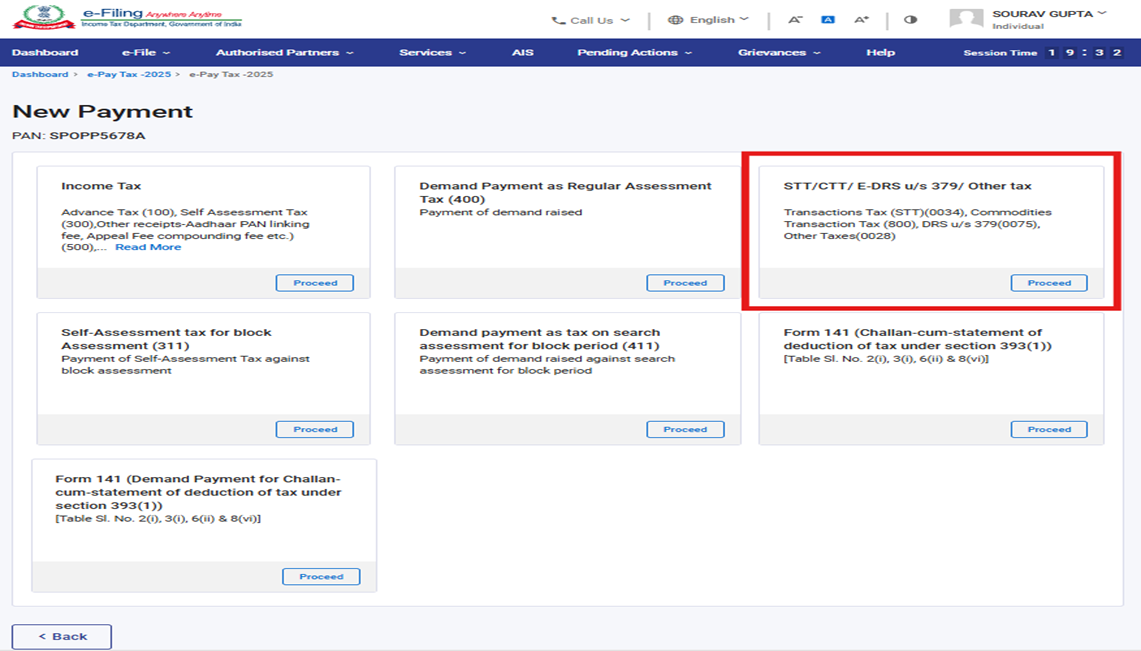
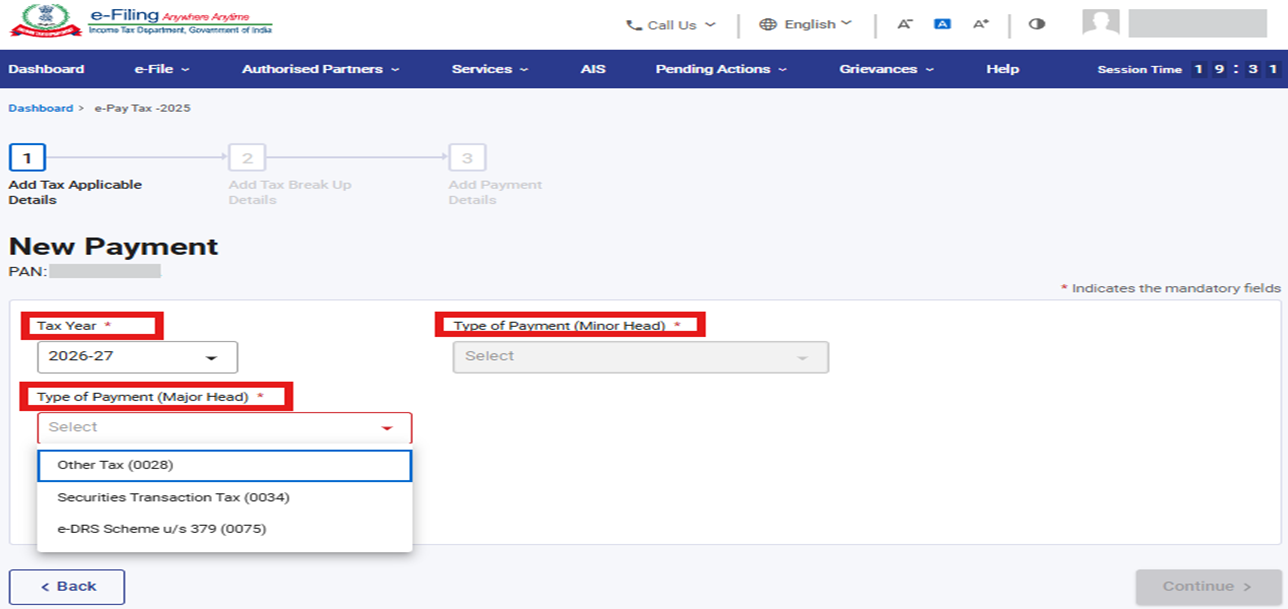
3.3.2 STT/CTT/ E-DRS u/s 379/ Other tax tile
|
Tile |
Major Head |
Instructions and (Minor head) applicable for Tiles |
|
STT/ CTT/ E-DRS u/s 379/ Other tax tile |
Securities Transaction Tax (0034) |
Select this option to pay tax for TY 2026‑27 & onwards- Refer ITNS 282N
|
|
Miscellaneous Receipts (0075) |
Select this option to pay Miscellaneous Receipts (800) under the e‑DRS Scheme u/s 379 for TY 2026‑27 & onwards – Refer ITNS 282N |
|
|
Other Tax (0028) |
Select this option to pay following tax TY 2026‑27 & onwards- Refer ITNS 282N
|
On click of Proceed button on STT/CTT/ E-DRS u/s 379/ Other tax tile, User is navigated to Add Tax Applicable Details page to Select applicable Tax year, Major head ,Minor head and then click the Continue button
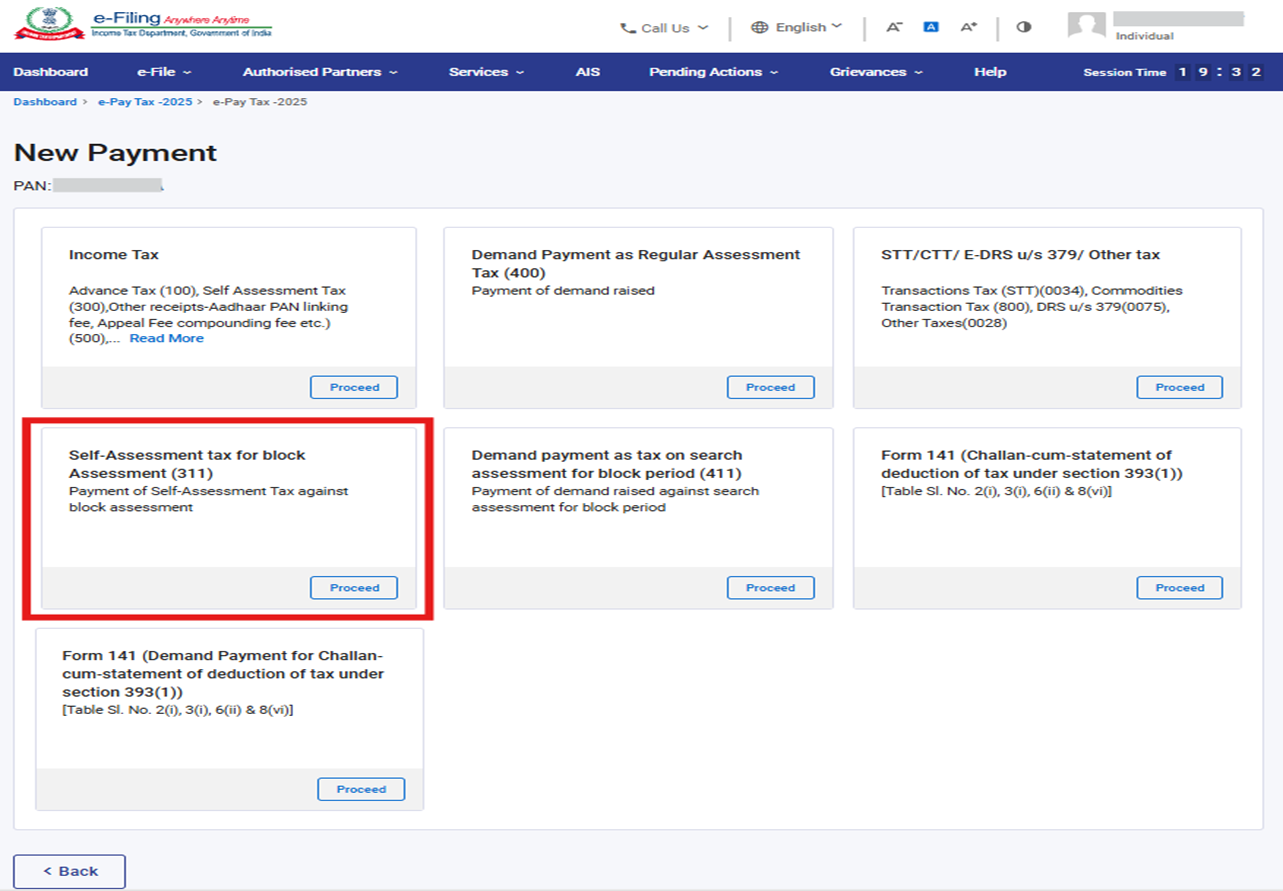
3.3.3 Self-Assessment tax for block Assessment (311) and Demand payment as tax on search assessment for block period (411)
|
Tile |
Major Head |
Instructions and (Minor head) applicable for Tiles |
|
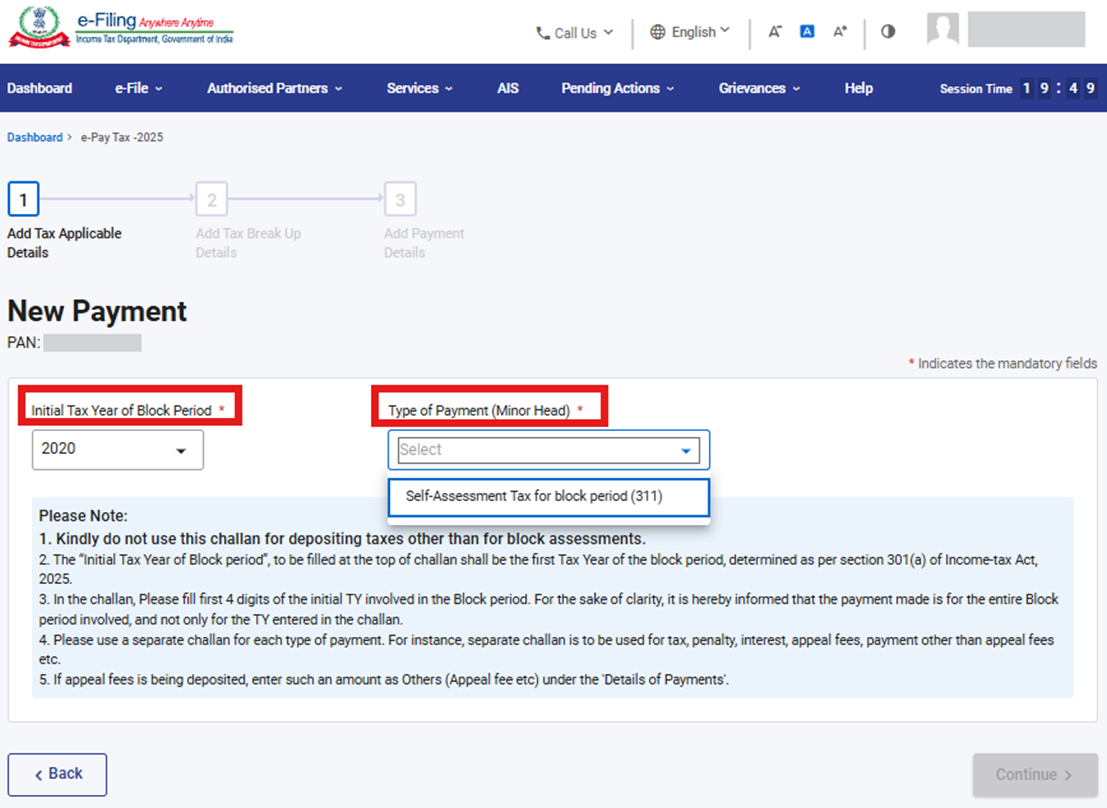
Self-Assessment tax for block Assessment (311) |
Income Tax (Other than Companies) (0020) / Corporation Tax (Company Login) (0021) |
Select this option to pay Self‑Assessment Tax for Block Assessment for TY 2020 & onwards (311)- Refer ITNS: 288N |
|
Demand Payment as Tax on Search Assessment for Block Period (411) |
Income Tax (Other than Companies) (0020) / Corporation Tax (Company Login) (0021) |
Select this option to pay Demand Payment for Block Period for TY 2020 & onwards (411) – Refer ITNS: 288N |
On click of Proceed button on Self-Assessment tax for block Assessment (311) tile, User is navigated to Add Tax Applicable Details page to Select Initial Tax year of Block period, Minor head and Click Continue button
3.3.4 For Tile Form 141 Please refer User Manual for Form 141[Challan Cum statement of deduction of Tax under section 393(1)]
3.4 Payment of Taxes
3.4.1 On Click of Continue button on ‘Add Tax Applicable Details / Add Applicable Demand Details’ page (In case of Demand Payment as Regular Assessment Tax (400) tile), user is navigated to the ‘Add Tax Break up Details’ page to enter the breakup of total amount of Tax Payment and Click Continue button
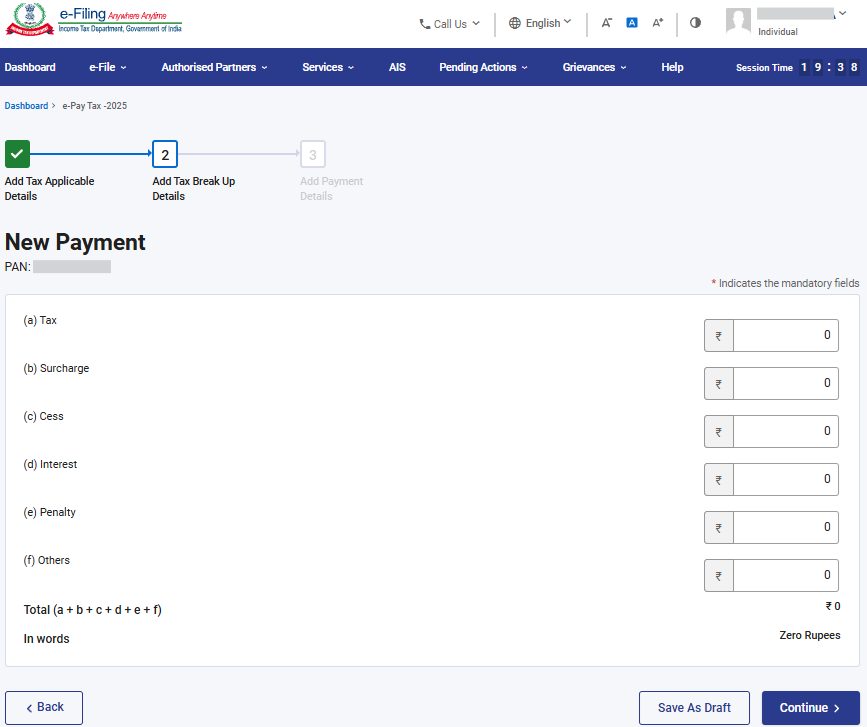
3.4.2 On Click of Continue button on “Add Tax Breakup Details” page, Select the payment mode through which payment is proposed to be made. (For more details on “How to make Payment using different modes”, Please refer the respective User Manual)
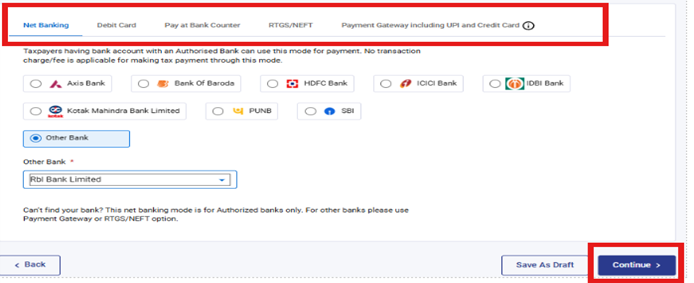
3.4.3 On clicking the “continue” button, the user will be navigated to the Preview and Make Payment page.
Here, the user can:
• Preview all the entered details before proceeding with the payment.
• If any corrections are needed, the user can click the “Edit” button to go back and update the information.
• If all details are correct, the user can click the “Pay Now” button, after which they will be redirected to the bank’s payment page to complete the transaction.
Note: After successful payment, you will receive a confirmation e-Mail and an SMS on the e-Mail ID and Mobile number registered with the e-Filing portal. Once the payment is successful, Challan Receipt may be downloaded for future references. The details of payment and Challan Receipt are also available under Payment History Tab on the e-Pay Tax page post-login.
3.5 Generate Challan Form (CRN) (Pre Login)
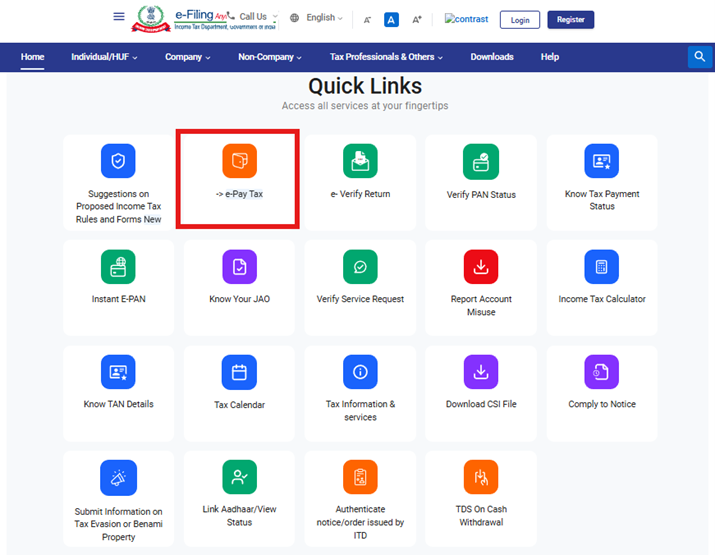
3.5.1 Go to the e-Filing portal www.incometax.gov.in and click e-Pay Tax.
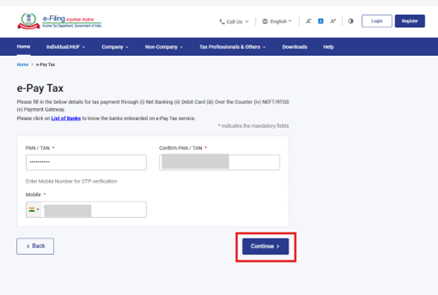
3.5.2 On the e-Pay Tax page, Fill the required details and click Continue.
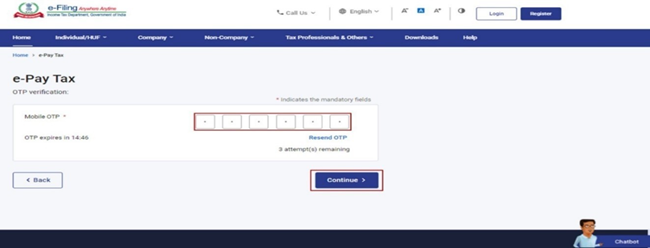
3.5.3 On the OTP Verification page, enter the 6-digit OTP received on the mobile number entered in Step 2 and click Continue.
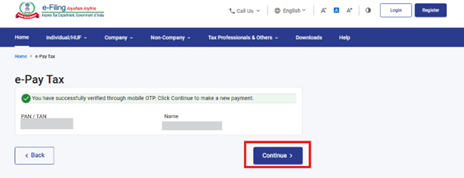
3.5.4 After OTP verification, a success message with your PAN and masked name will be displayed. Click Continue to proceed.
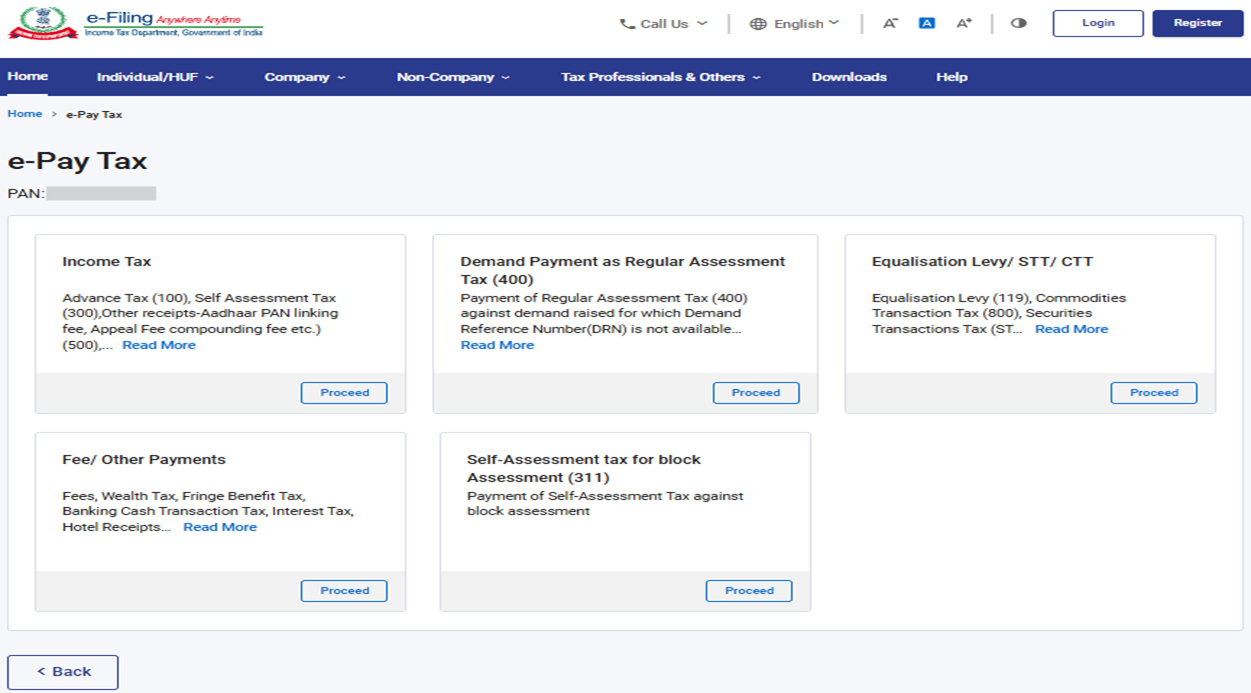
3.5.5 On the e-Pay Tax page, click Proceed on a tax payment category that applies to you.
• Select radio button “Income Tax Act 1961”, to make payments for Assessment Years upto 2026-27 and Prior Years including Self assessment Tax for AY 2026-27
• Select “Income Tax Act 2025”, for making payments for TY 2026–27 onwards.
Please Note:- Please select Income Tax Act, 1961 for the tax payments related to The Black Money (Undisclosed Foreign Income and Assets) And Imposition of Tax Act, 2015
3.5.6 On selecting the Income Tax, 1961 radio button, the following tiles will be available:
3.5.7 On selecting the Income Tax, 2025 radio button, the following tiles will be available:
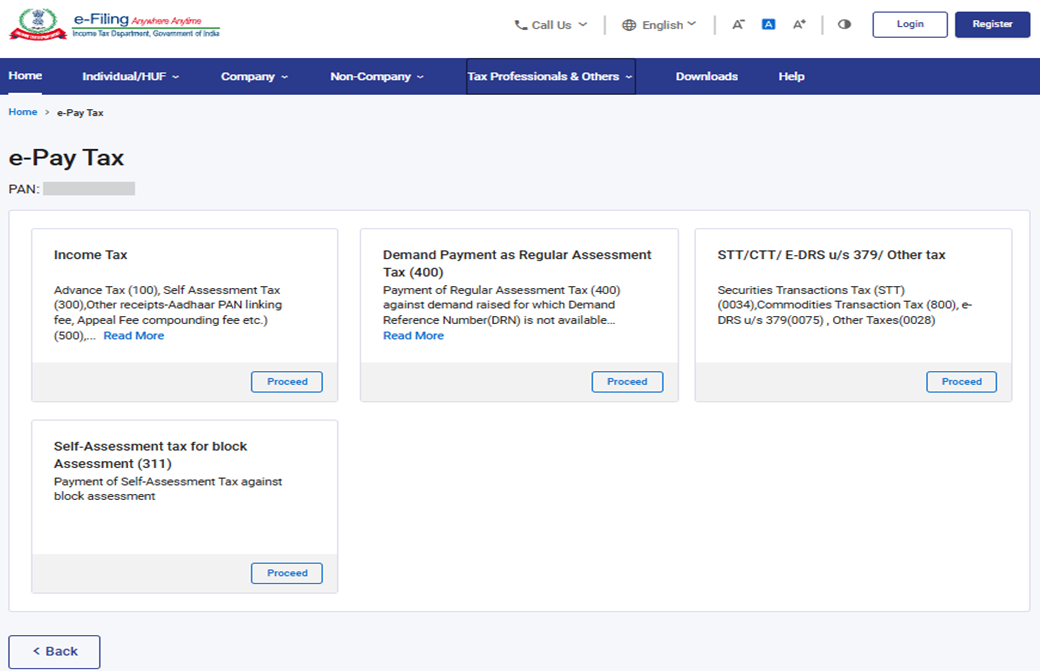
Further flow from Selection of tiles to Payment process will be same as mentioned above for the post‑login functionality. (refer Step 3.3.1 to 3.4.3)



