



Challan Creation through TAN Login
1. Overview
This document provides step by step guidance to taxpayers on generating Challan Forms ITNS 281N and ITNS 282N through the e-filing portal for tax payments under Income Tax Act, 2025. Under the Income-tax Act, 1961, the applicable challans Forms are ITNS 281, ITNS 282.
A key procedural change is that challans under the Income Tax Act, 1961 were filed based on the Assessment Year, while under the Income Tax Act, 2025, challans must be filed based on the Tax Year.
This manual guides taxpayers on generating challans correctly for both Acts by selecting the appropriate Act, Tax Type, and Tax Period. Users can make the following payments through the TAN login:
ITNS 281N/ITNS 281 covers the following payments :-
- Tax Deducted at Source (TDS) / Tax Collected at Source (TCS) under the Income‑tax Act
- Outstanding demand related to TDS/TCS
- Appeal fees and Compounding charges
ITNS 282N/ITNS 282 covers the following payments :-
- Application fees related to the e‑DRS scheme.
2. Prerequisites for availing this service
You can create Challan for Tax Payment in Pre-login (before logging in the e-Filing portal) or post-login (after logging in the e-Filing portal) mode.
|
Option |
Prerequisites |
|
Pre-Login |
|
|
Post-login |
|
Important Note:
As of now, the tax payment on e-Filing Portal (e-Pay Tax service) through Payment Gateway mode is available through authorized banks only.
3. Step-by-Step Guide
3.1 Generate Challan Form (CRN) (Post Login)
3.1.1 Log in to the e-Filing portal with user ID and password.
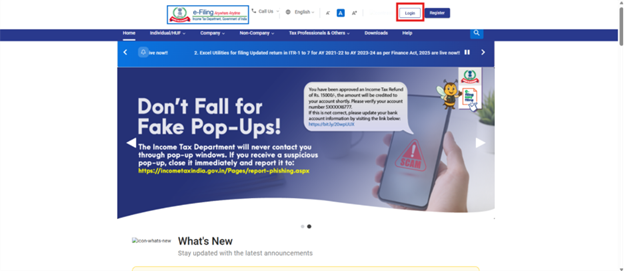
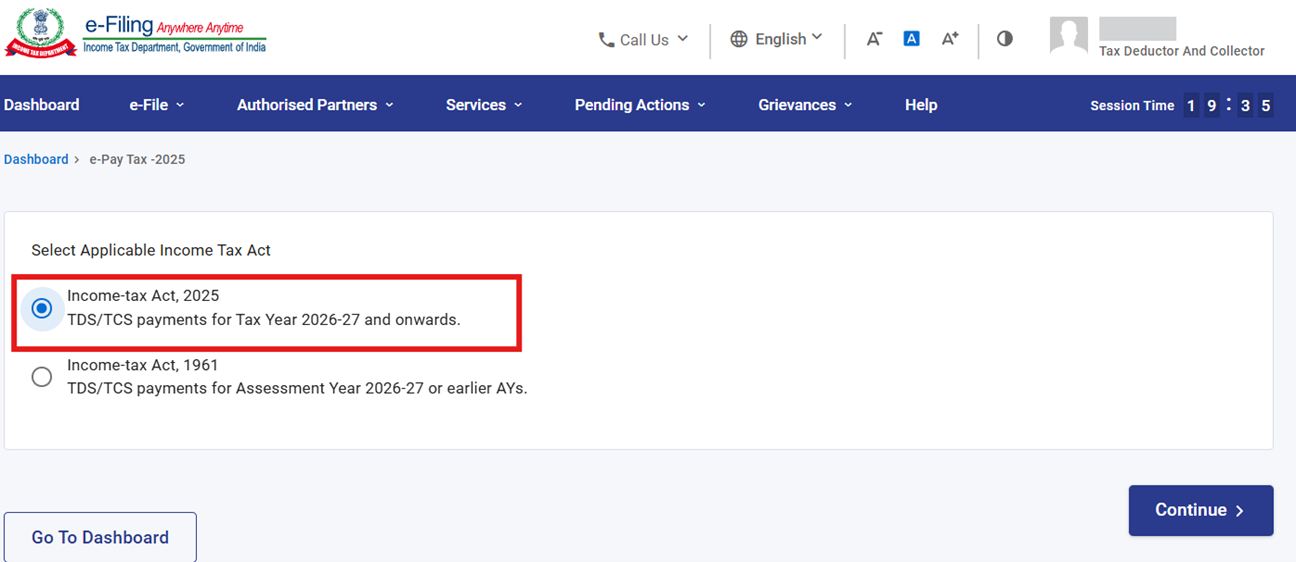
3.1.2 On the Dashboard, click e-File > e-Pay Tax. On click of e-Pay Tax, User will be navigated to the Act Selection screen. After making the appropriate selection, click the Continue button. User will then be navigated to the e-Pay Tax.
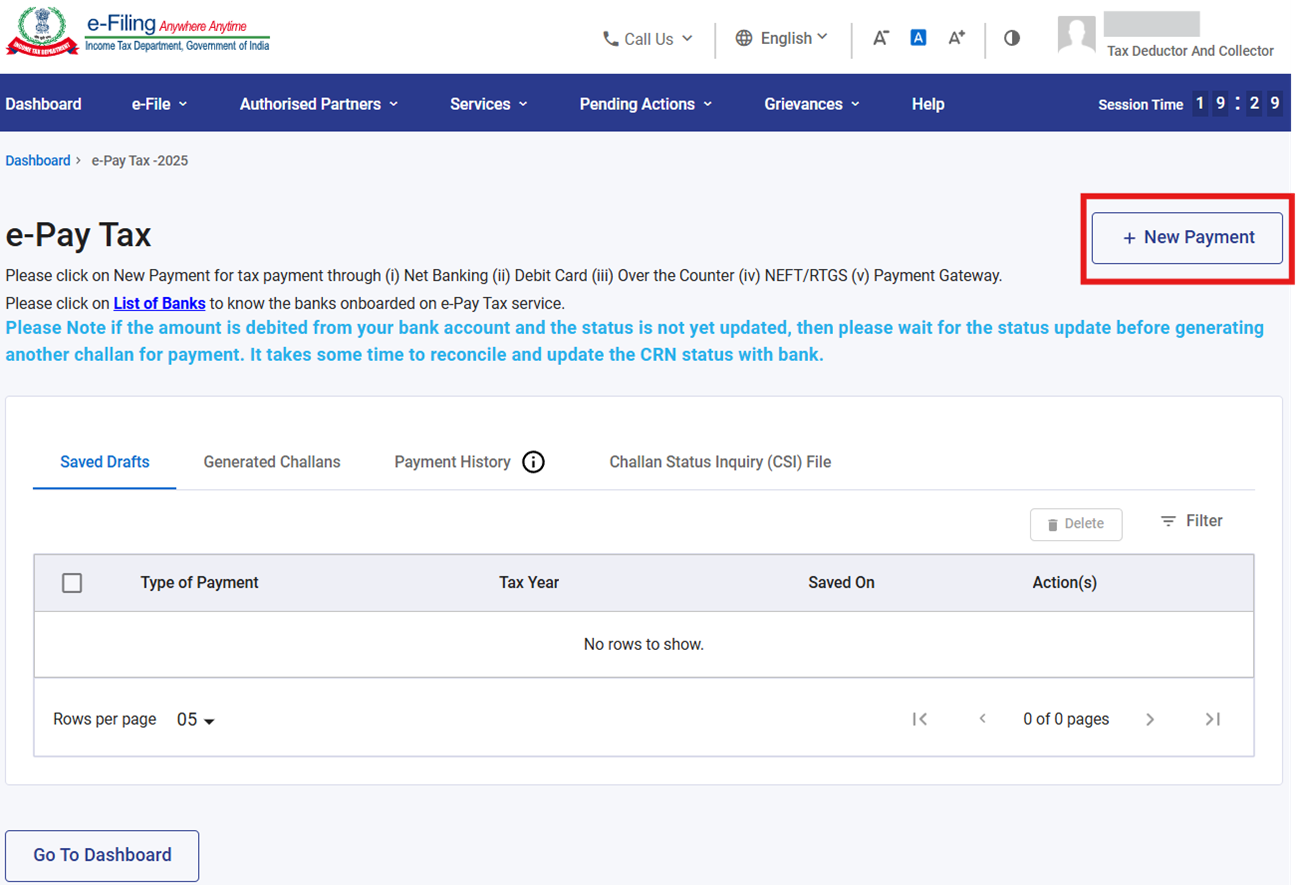
3.1.3 On the e-Pay Tax page, click the New Payment option to create a new Challan Form (CRN) through only selected Authorized Banks. The tax payment via other than these banks can be made via NEFT/RTGS facility provided by RBI.
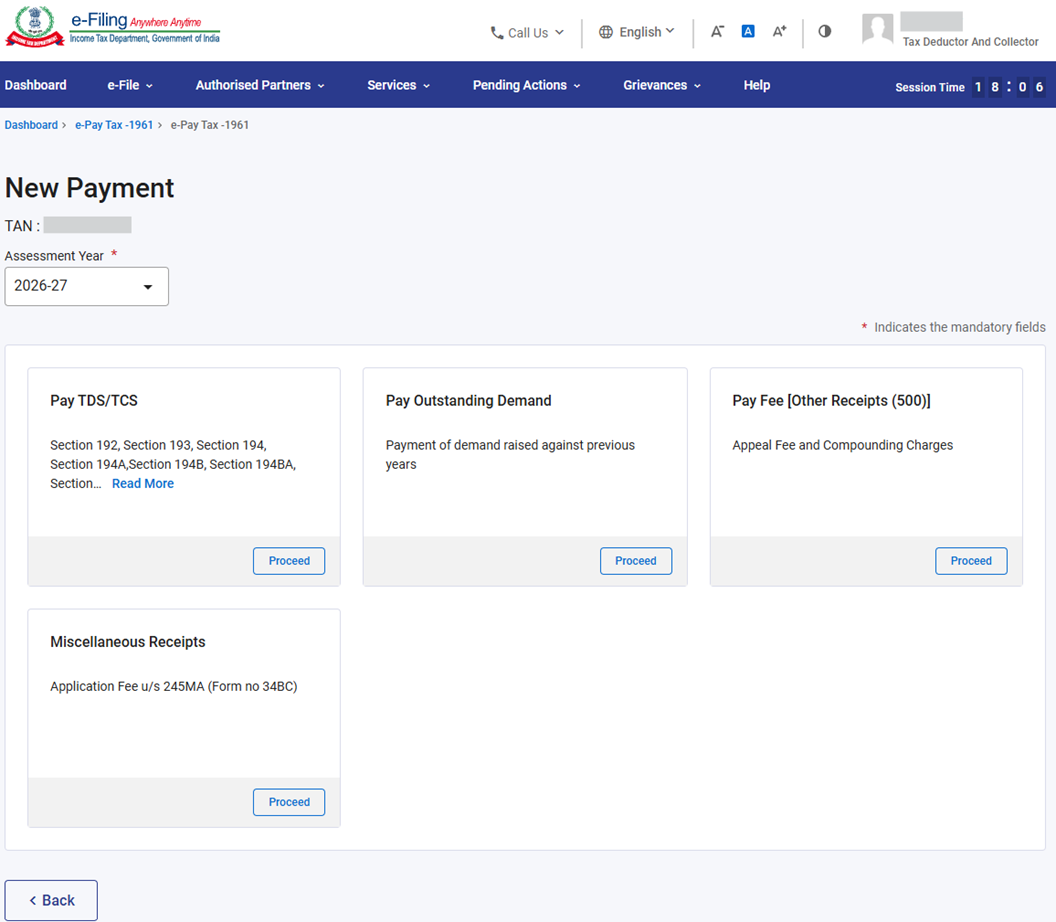
3.1.4 On the New Payment page, Click Proceed on a tax payment tile that applies to you. Tiles will be enabled based on the Act selected on the previous screen.
- Select the radio button “Income Tax Act 1961”, to make payments related to TDS/TCS for Assessment Years up to and including AY 2026–27 (including payment related to March’2026).
- Select “Income Tax Act 2025”, for making payments for TY 2026–27 onwards.
3.1.5 On selecting the Income Tax 1961 radio button, the following tiles will be available:
Overview of the Tiles:
|
Tile Name |
Major Head |
Minor Head |
Instructions & Respective Challans |
|
Pay TDS/TCS |
Corporation Tax (0020)/ Income Tax (Other than Companies) (0021) |
TDS/TCS Payable by Taxpayer (200) |
Please select this option to make TDS/TCS Payments for AY 2026-27 or Earlier AYs. Only a single Section code can be selected for a chosen deductee type in a single challan. Challans covered: ITNS 281 |
|
Pay Outstanding Demand |
Corporation Tax (0020)/ Income Tax (Other than Companies) (0021) |
TDS/TCS Regular Assessment (400) |
Please select this option to make Outstanding Demand Payment for AY 2026-27 or Earlier AYs. Only a single Section code can be selected for a chosen deductee type in a single challan. Challans covered: ITNS 281 |
|
Pay Fee [Other receipt (500)] |
Corporation Tax (0020)/ Income Tax (Other than Companies) (0021) |
Other Receipts (500) |
Please select this option to make Payment of Appeal Fees and Compounding Charges for AY 2026-27 or Earlier AYs. Challans covered: ITNS 281 |
|
Miscellaneous Receipts |
Corporation Tax (0020)/ Income Tax (Other than Companies) (0021) |
Other Miscellaneous Receipts (800) |
Please select this option to make Payment of Application Fee u/s 245MA (Form no 34BC) for AY 2026-27 or Earlier AYs. Challans covered: ITNS 282 |
3.1.6 After selecting the applicable Tax Payment tile, enter the details as per the table below and click Continue.
|
Sl. No |
Tax Payment Category |
Details to be entered |
Break up details |
|
1 |
Pay TDS/TCS tile |
|
Enter details for: • Tax • Surcharge • Cess • Interest • Penalty • Fee under section 234E |
|
2 |
Pay Outstanding Demand tile |
|
Enter details for: • Tax • Surcharge • Cess • Interest • Penalty |
|
3 |
Pay Fee [Other Receipts (500)] tile |
|
Enter details for: • Tax • Surcharge • Cess • Interest • Penalty • Fee under section 234E (Mention the correct options) |
|
4 |
Miscellaneous Receipts tile |
|
Amount will be auto-populated as “1000” in ‘others’ Column |
3.1.7 On the Add Tax Breakup Details page, add the breakup of total amount of tax payment as referred above and click Continue.
3.1.8 On Click of Continue button select mode of payment (For more details on “How to make Payment using different modes”, Please refer User Manual).
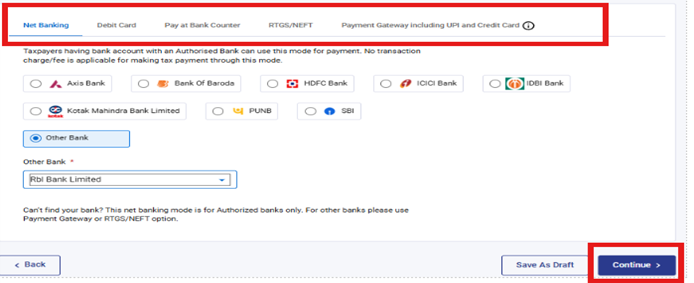
After successful payment, a success message will be displayed. You can download the Challan Receipt by clicking on Download button. You will be able to view the details of payment made in the Payment History menu on the e-Pay Tax page. If you want to make a new payment, Click on Make Another Payment button.
3.1.9 On selecting the Income Tax Act 2025 radio button, the following tiles will be available:
Overview of the Tiles:
|
Tile Name |
Major Head |
Minor Head |
Instructions & Respective Challans |
|
Pay TDS/TCS |
Corporation Tax (0020)/ Income Tax (Other than Companies) (0021) |
TDS/TCS Payable by Taxpayer (200) |
Please select this option to make TDS/TCS Payments for TY 2026‑27 & onwards. Under ‘TDS/TCS Section-Wise Payment Details’ section, Multiple section codes can be selected for the chosen deductee type in a single challan, subject to a maximum of 20 codes. If more than 20 codes are required, an additional challan must be filed. Challans covered: ITNS 281N |
|
Pay Outstanding Demand |
Corporation Tax (0020)/ Income Tax (Other than Companies) (0021) |
TDS/TCS Regular Assessment (400) |
Please select this option to make Outstanding Demand Payment for TY 2026‑27 & onwards. Challans covered: ITNS 281N |
|
Pay Fee [Other receipt (500)] |
Corporation Tax (0020)/ Income Tax (Other than Companies) (0021) |
Other Receipts (500) |
Please select this option to make Payment of Appeal Fees and Compounding Charges for TY 2026‑27 & onwards. Challans covered: ITNS 281N |
|
Miscellaneous Receipts |
Corporation Tax (0020)/ Income Tax (Other than Companies) (0021) |
Other Miscellaneous Receipts (800) |
Please select this option to make Payment of Application Fee of e-DRS u/s 379 (Form no 119) for TY 2026‑27 & onwards. Challans covered: ITNS 282N |
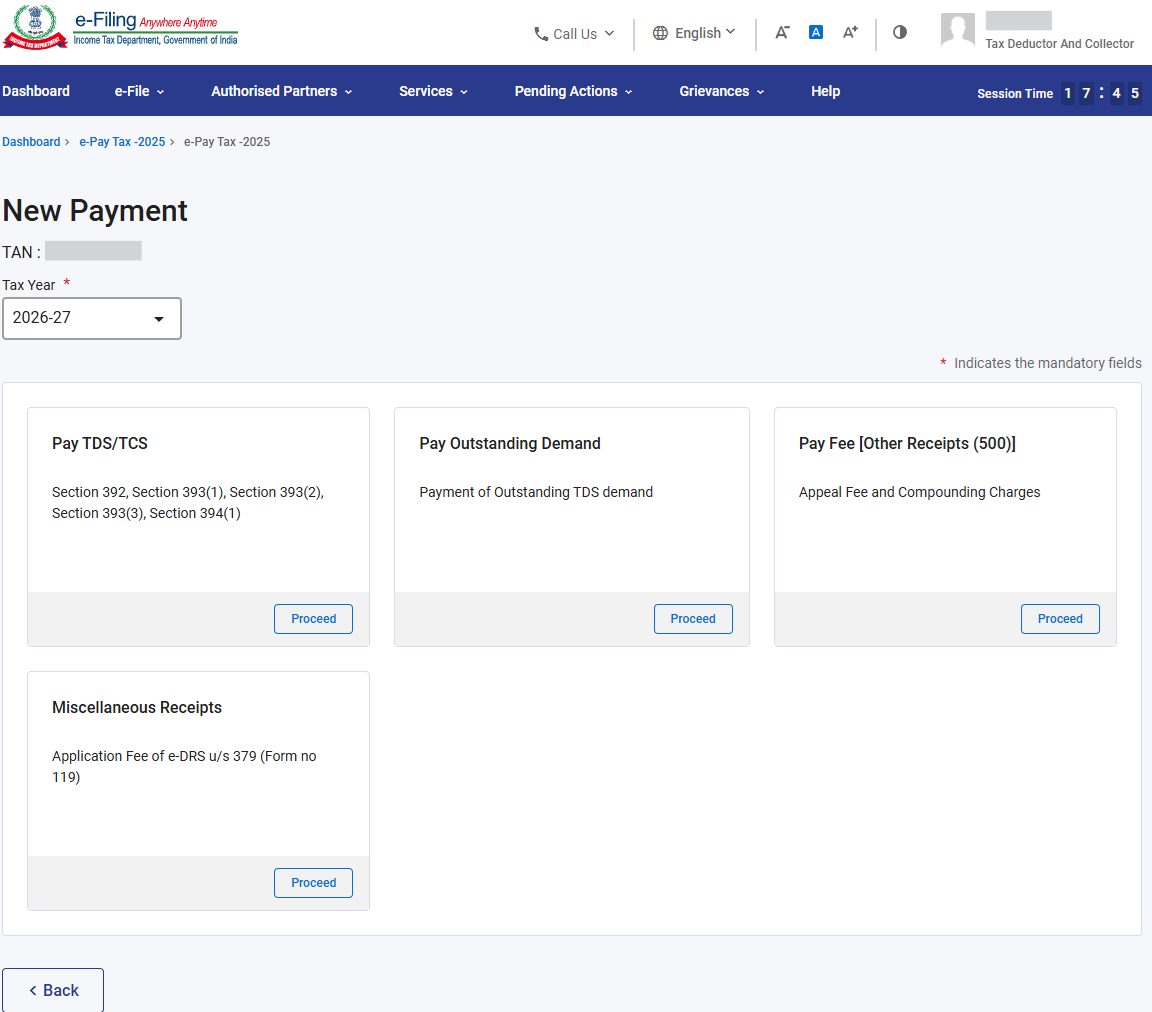
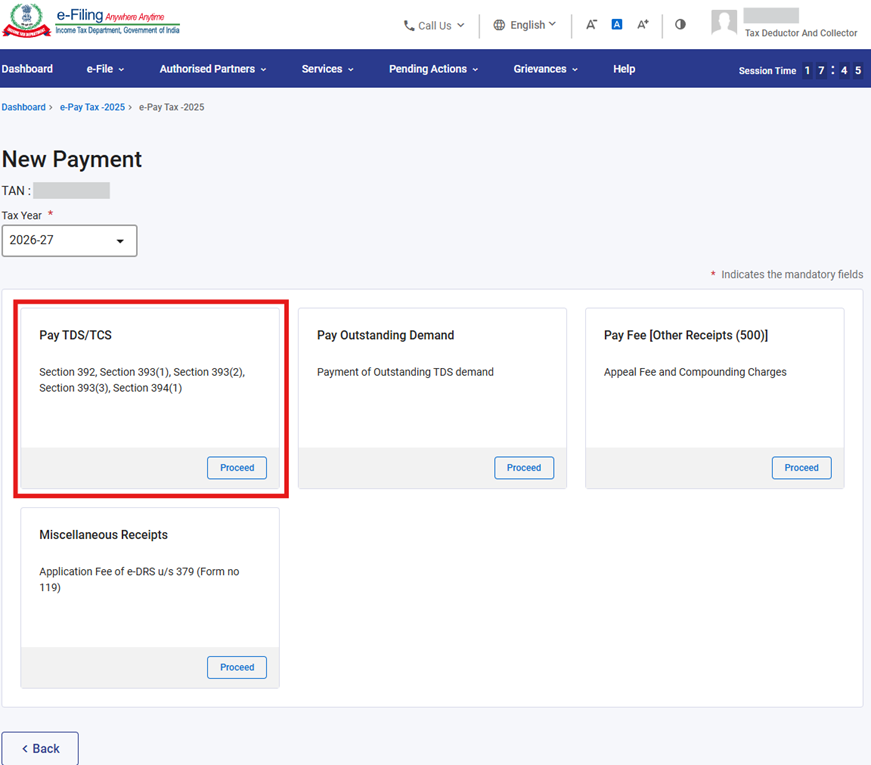
3.1.10 Pay TDS/TCS tile
On click of Proceed button on Pay TDS/TCS tile, User will be navigated to ‘Select Deductee Type’ screen where applicable Major head and Residential status of the deductee should be selected.
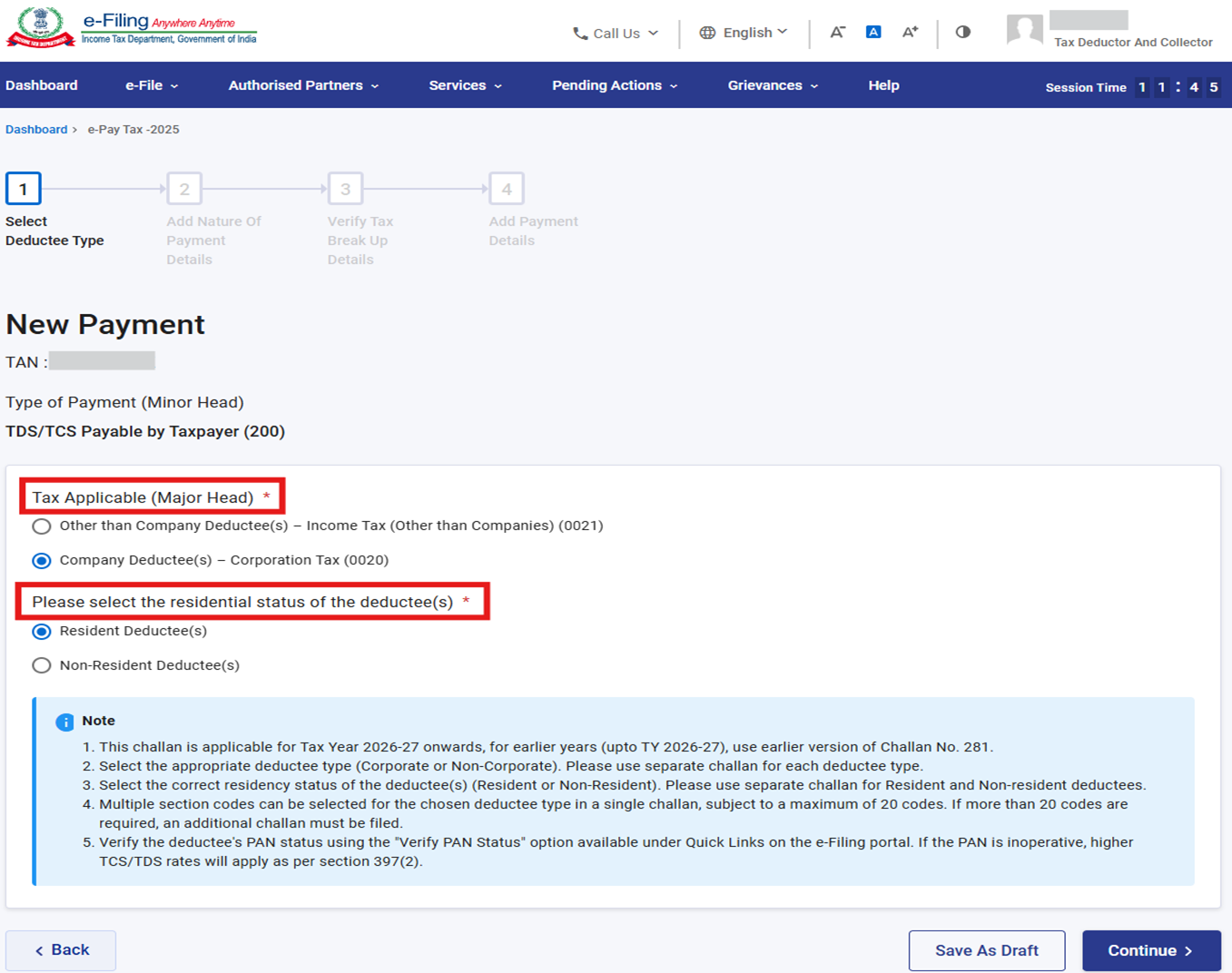
Note:
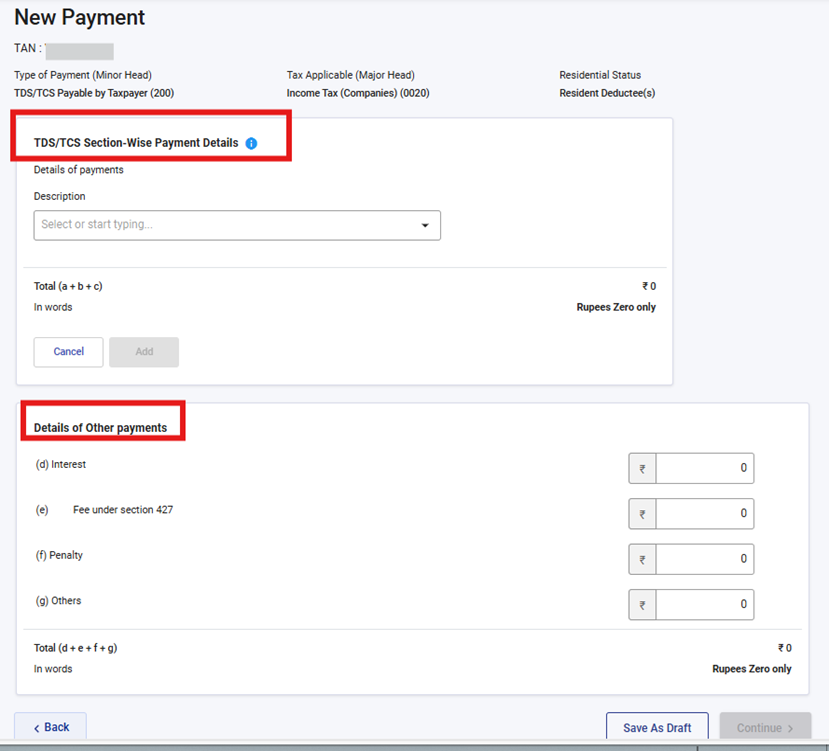
When the user clicks the Continue button on the Select Deductee Type screen, they are taken to the Add Nature of Payment Details screen, where they must enter information in at least one of the two sections (as referred in below screen)
- TDS/TCS Section‑Wise Payment Details, which allows entry of section‑wise Tax, Surcharge, and Education Cess (with each section code selectable only once).
- Please note separate challan is required to filled based on “Deductee type” and “residential status of deductee”.
- User can select 20 section codes in one challan
- Under this section, user is expected to enter description along with Tax details such as Tax, Surcharge & Education cess amount
- Details of Other Payments, where the user can enter Interest, Fee under section 427, Penalty, and Other amounts.
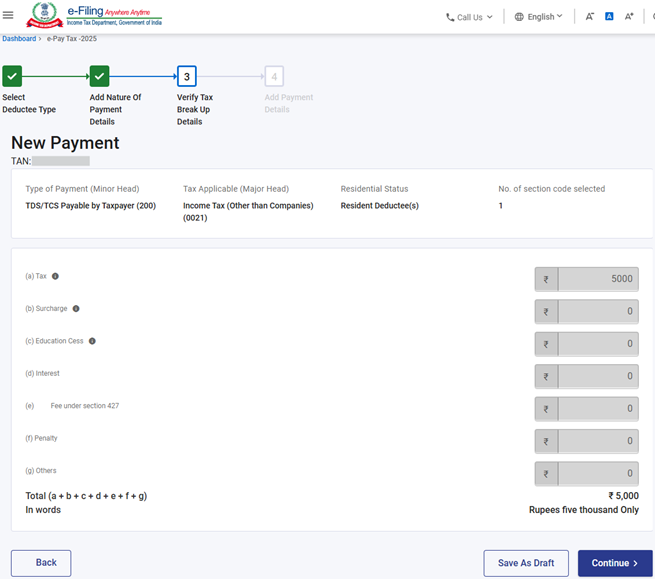
3.1.11 On Click of continue button on ‘Add Nature of Payment Details’ Screen, User will be navigated to ‘Verify Tax Break Up Details’ Screen where All the fields are auto populated and non-editable
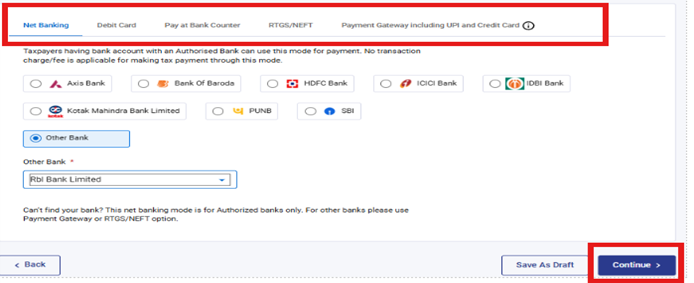
3.1.12 On Click of continue button on ‘Verify Tax Break Up Details’ Screen, User will be navigated to Select payment mode page, where the user can select the appropriate payment method for depositing the tax.
3.1.13 On click of “continue” button, the user will be navigated to the Preview and Make Payment page. Here, the user can:
- Preview all the entered details before proceeding with the payment.
- If any corrections are needed, the user can click the “Edit” button to go back and update the information.
- If all details are correct, the user can click the “Pay Now” button, after which they will be redirected to the bank’s payment page to complete the transaction.
Note: After successful payment, you will receive a confirmation e-Mail and an SMS on the e-Mail ID and Mobile number registered with the e-Filing portal. Once the payment is successful, Challan Receipt may be downloaded for future references. The details of payment and Challan Receipt are also available under Payment History Tab on the e-Pay Tax page post-login.
3.1.14 Pay Outstanding Demand tile
On click of Proceed button on Pay Outstanding Demand tile, User will be navigated to ‘Add Tax applicable Details’ screen where Major head, Tax Year and Minor Head will be Pre-filled.
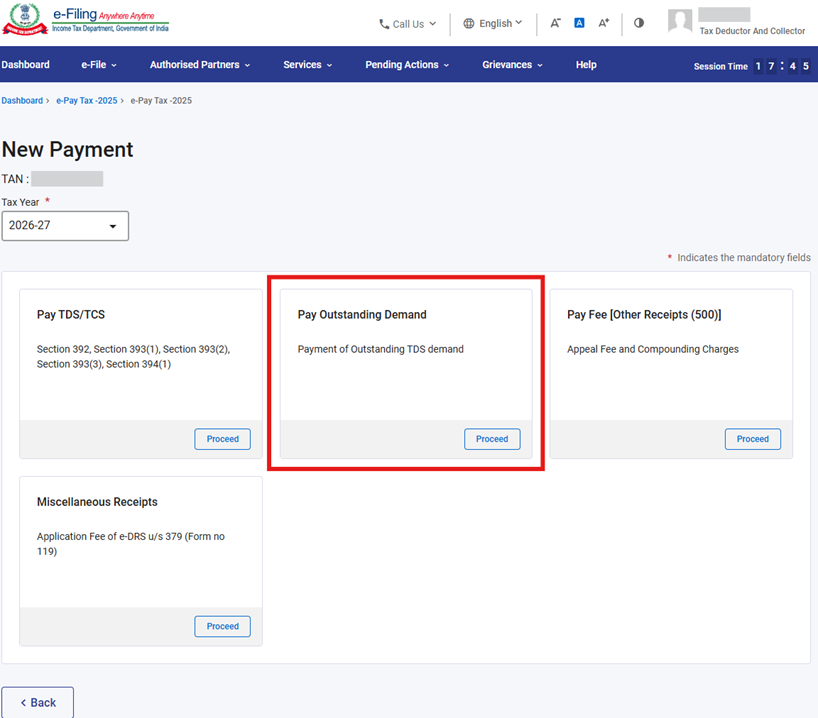
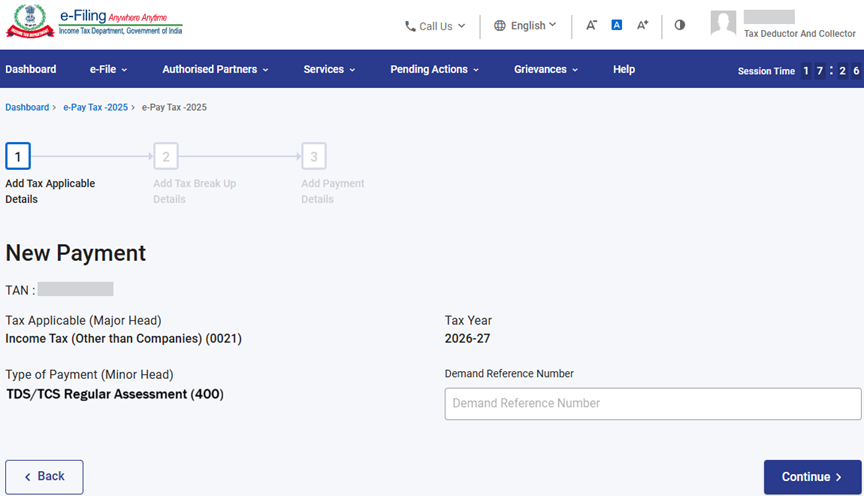
On Click of continue button on ‘Add Tax applicable Details’ screen, User will be navigated to ‘Add Tax Break Up Details’ Screen where user can add the breakup of total amount of tax payment and click Continue.
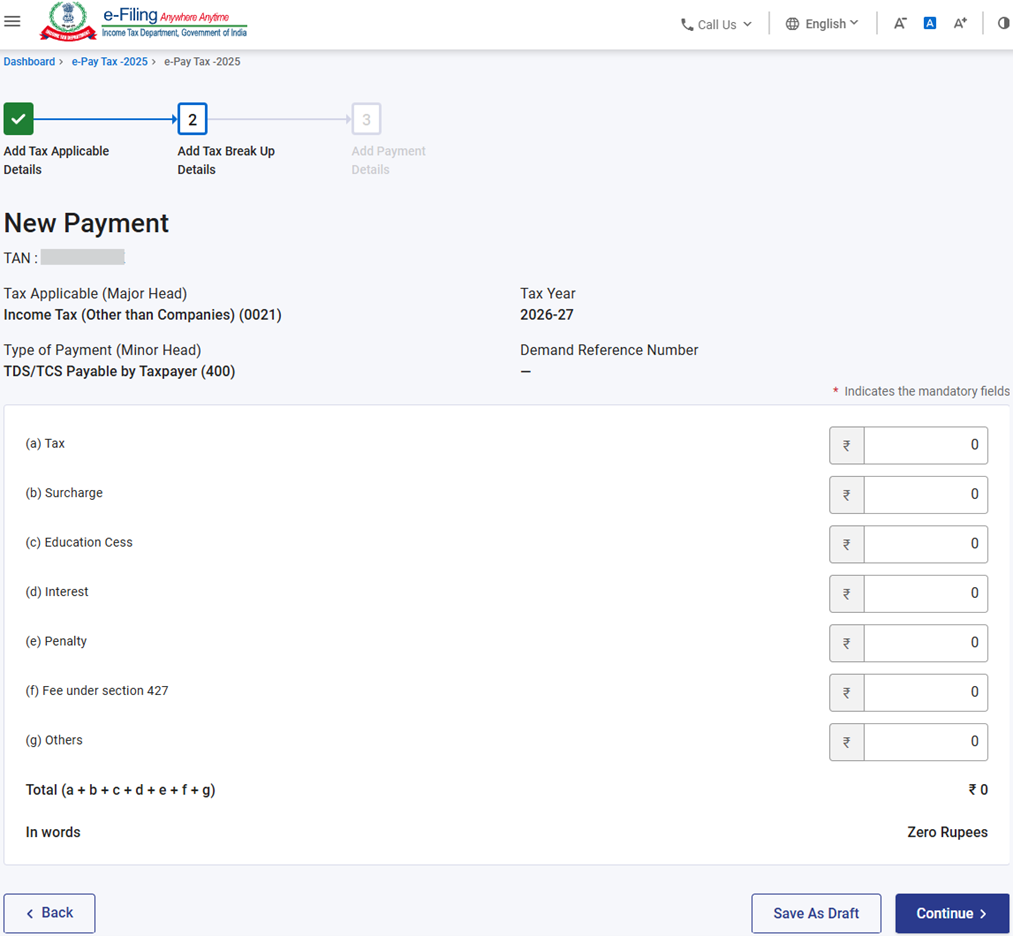
On Click of continue button on ‘Add Tax Break Up Details’ Screen, User will be navigated to Select payment mode page, where the user can select the appropriate payment method for depositing the tax and to complete the payment, refer step no 3.1.12 and 3.1.13
3.1.15 Pay Fee [Other Receipts (500)] tile
On click of Proceed button on Pay Fee [Other Receipts (500)] tile, User will be navigated to ‘Add Tax applicable Details’ screen where Major head and Tax Year will be Pre-filled. User need to select ‘Sub-type of Payment’ and click Continue.
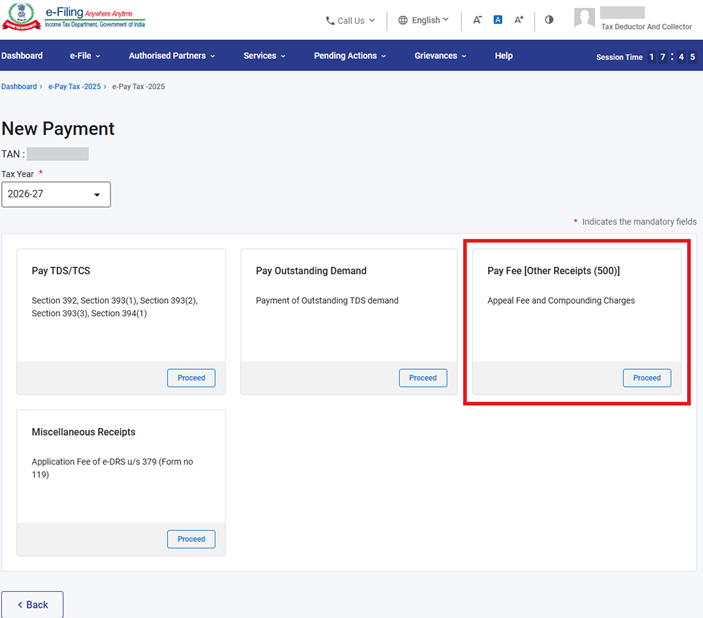
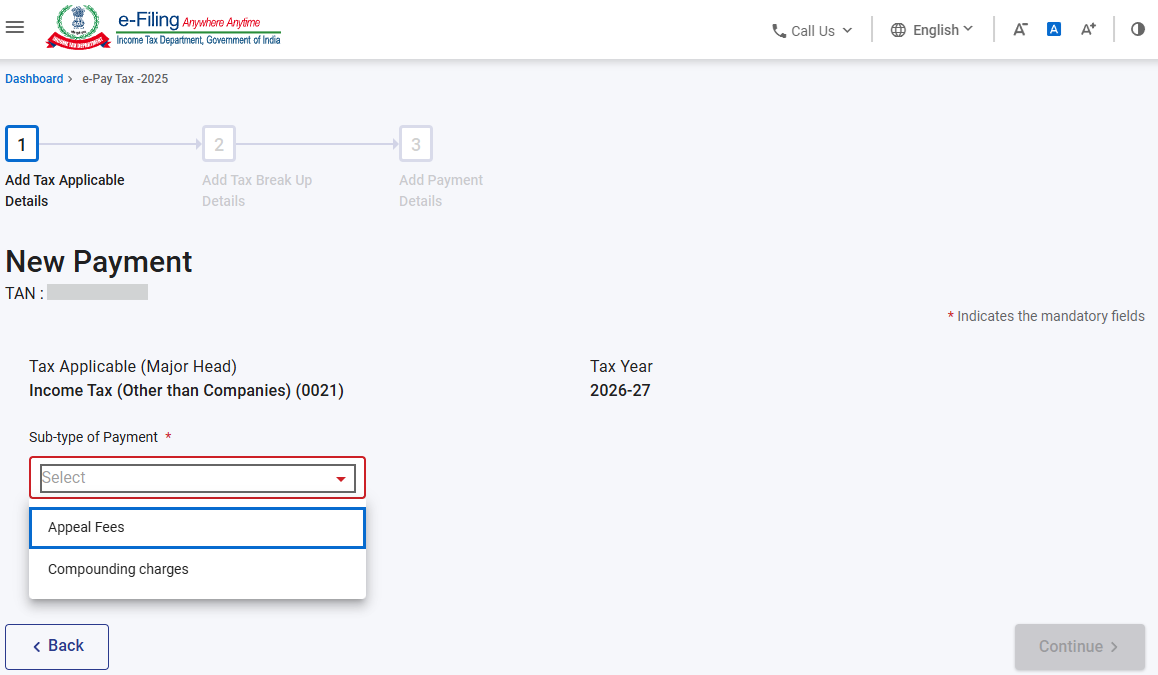
On Click of continue button on ‘Add Tax applicable Details’ screen, User will be navigated to ‘Add Tax Break Up Details’ Screen where all fields are non editable (hence greyed out). Please enter amount in ‘Others’ column only and click Continue.
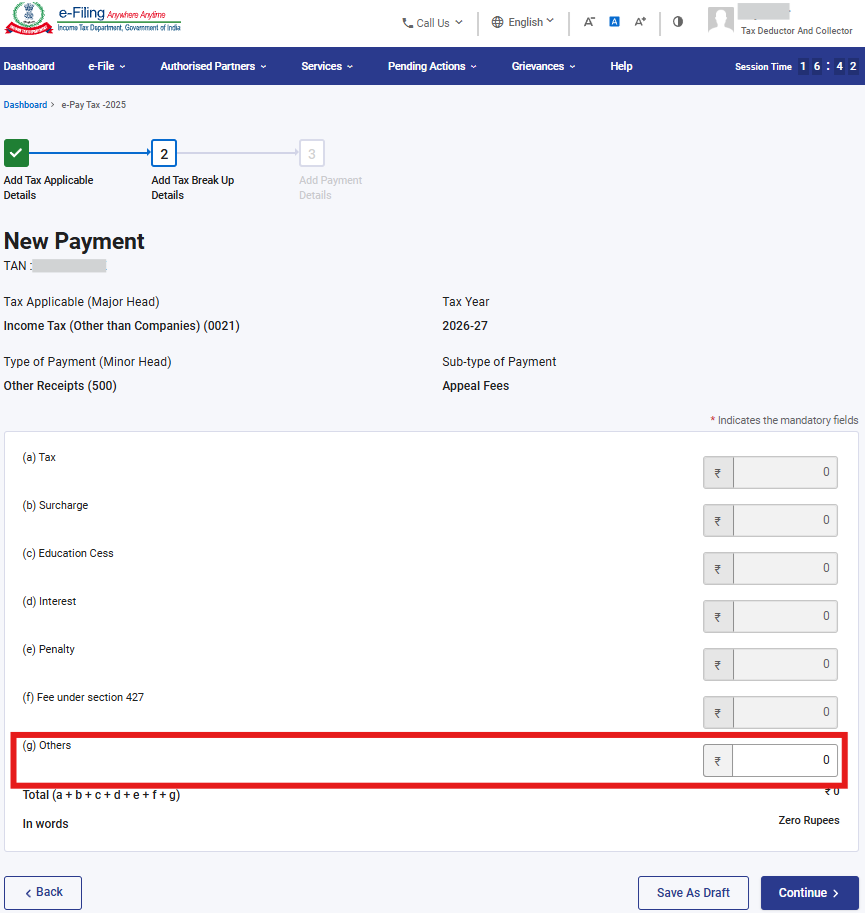
On Click of continue button on ‘Add Tax Break Up Details’ Screen, User will be navigated to Select payment mode page, where the user can select the appropriate payment method for depositing the tax and to complete the payment , refer step no 3.1.12 and 3.1.13
3.1.16 Miscellaneous Receipts tile
On click of Proceed button on Miscellaneous Receipts tile, User will be navigated to ‘Add Tax applicable Details’ screen where User need to select Major head, Minor head and Sub-type of Payment and click Continue.
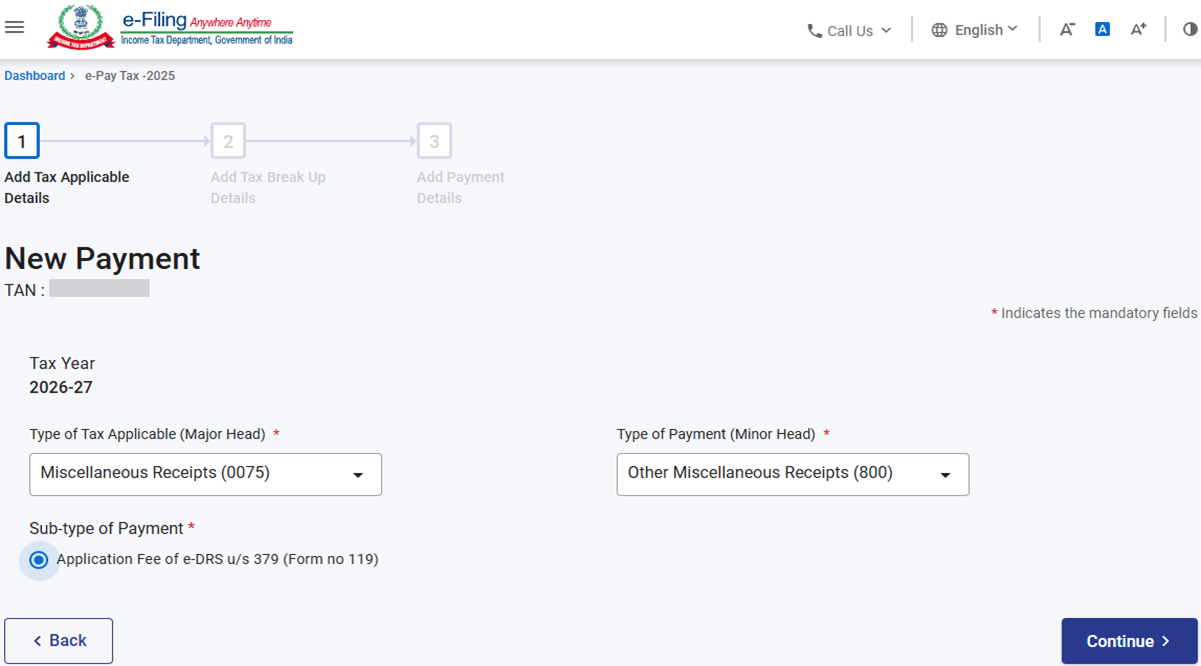
On Click of continue button on ‘Add Tax applicable Details’ screen, User will be navigated to ‘Add Tax Break Up Details’ Screen where amount will be pre-filled in ‘others’ Column as “INR 1000”.
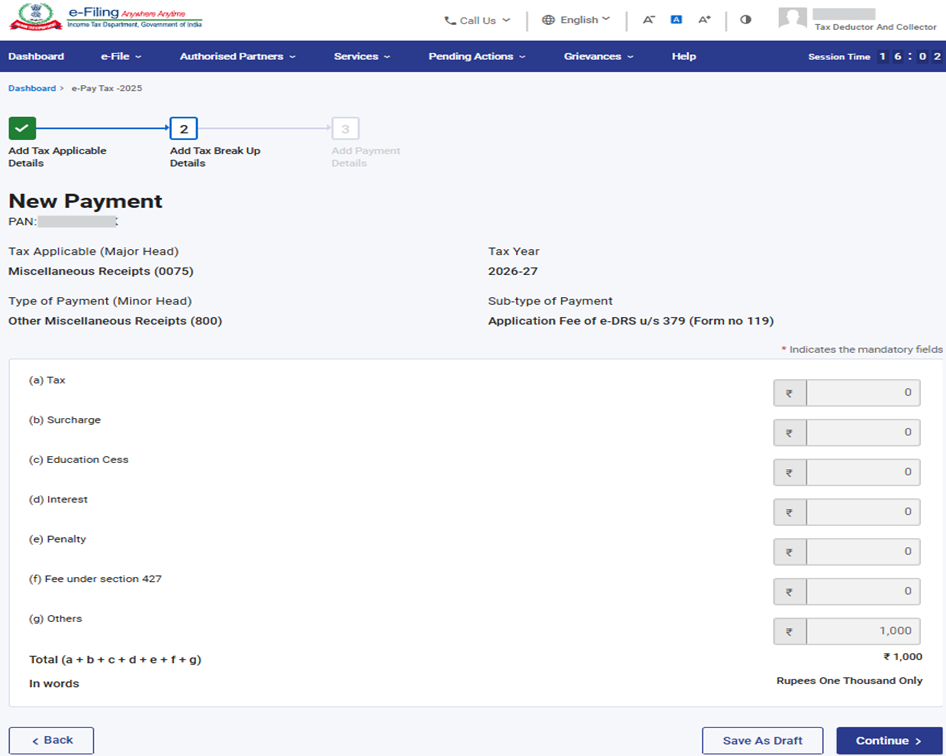
On Click of continue button on ‘Verify Tax Break Up Details’ Screen, User will be navigated to Select payment mode page, where the user can select the appropriate payment method for depositing the tax and to complete the payment, refer step no 3.1.12 and 3.1.13.
3.2 Generate Challan Form (CRN) (Pre Login)
3.2.1 Go to the e-Filing portal www.incometax.gov.in and click e-Pay Tax.
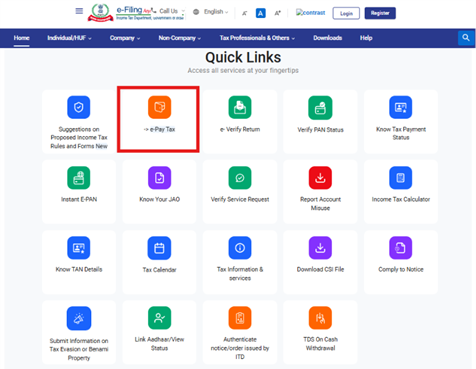
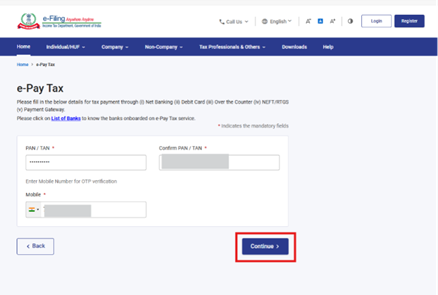
3.2.2 On the e-Pay Tax page, fill the required details as referred in below screenshot and click Continue.
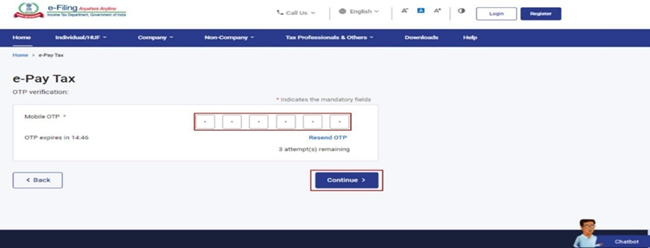
3.2.3 On the OTP Verification page, enter the 6-digit OTP received on the mobile number entered in Step 2 and click Continue.
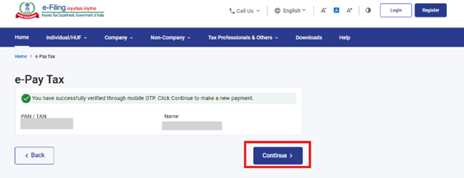
3.2.4 After OTP verification, a success message with your TAN and masked name will be displayed. Click Continue to proceed.
3.2.5 On the e-Pay Tax page, click Proceed on a tax payment category that applies to you.
- Select the radio button “Income Tax Act 1961”, to make payments related to TDS/TCS for Assessment Years up to and including AY 2026–27(including payment related to March’2026).
- Select “Income Tax Act 2025”, for making payments for TY 2026–27 onwards.
3.2.6 Further steps will be same Post login screens (refer Step 3.1.5 to 3.1.16) except payment against “Pay Outstanding Demand tile” under both acts are not available in Pre-login services.



