How to respond to Defective Return Notice u/s139 (9) & Prima Facie Adjustment Notice u/s 143(1) (a)
1. Overview:
Defective Return Notice u/s 139(9):
A return may be treated as defective on account of incomplete or inconsistent information in the return or on the schedules or for any other reason.
• If your return is found to be defective, you will get 15 days of time from the date of receiving the notice or as the time duration specified in the notice to rectify the defect in the return filed by you.
• If you fail to respond to the defective notice within stipulated period then your return may be treated as invalid and therefore consequences such as penalty, interest, non-carry forward of losses, loss of specific exemptions may occur as the case may be, in accordance with the Income Tax Act.
• You can either file the return as a fresh/ revised return in case the time provided for filing the return in a particular assessment year has not lapsed or alternatively you can also choose to respond to Notice u/s139 (9). However, once the time provided for filing the return for a particular assessment year has lapsed, you will not be able file the return as a fresh/ revised return, and you will have to respond to Notice u/s 139(9). If you are unable to respond to the notice, the return will be treated as invalid or not filed for that assessment year.
Prima Facie Adjustment Notice u/s 143(1)(a):
Prima facie Adjustment Notice u/s 143(1)(a) is a notice of proposed adjustments by the Centralized Processing Center during the processing of income tax returns when there are discrepancies between the income reported in your return and the data available with the Income Tax Department. This is a preliminary communication to the taxpayer based on the information provided. This notice may indicate any discrepancies or adjustments in the filed income tax return, allowing the taxpayer to respond before return is processed.
If you have received a notice under section 143(1)(a), you must file a response within 30 days from the date of issue of notice.
• If you Agree to the discrepancies mentioned in the notice – You can accept the proposed adjustments.
• If you Disagree with the discrepancies mentioned in the notice – Submit a response by explaining the reasons for disagreement.
Note: Taxpayers also have the opportunity to submit a revised return under section 139(5).
2. Pre-requisites to submit response to notice u/s 143(1)(a) and u/s 139(9):
• Registered user on e-Filing portal with a valid user ID and password
• Active PAN
• Notice / intimation / letter from the Department (AO / CPC / Any other Income Tax Authority)
3. Step-by-Step Guide
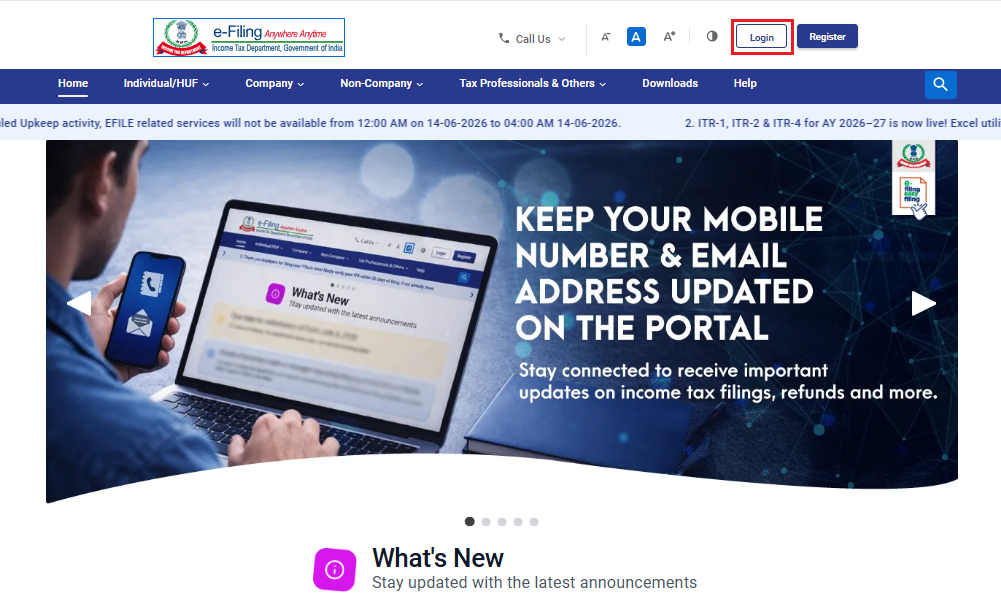
Step 1: Log in to the e-Filing portal using your user ID and password.
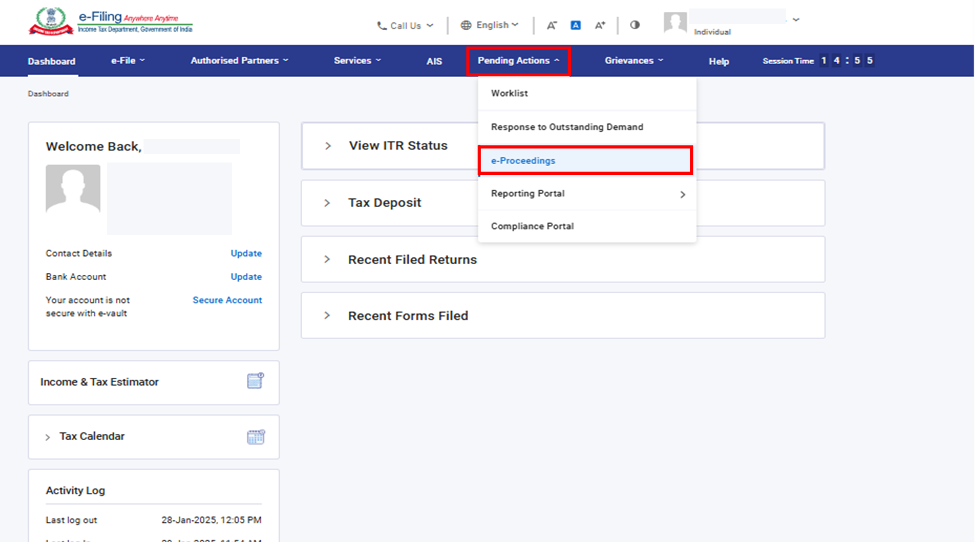
Step 2: On your Dashboard, click ‘Pending Actions’ > ‘e-Proceedings’.
There can be multiple types of Notices in e-proceedings section.
This User Manual Discuses Defective Return Notice u/s 139(9) and Prima Facie Adjustment u/s 143(1)(a).
To view and submit response to such notices, kindly refer to following sections:
| Defective Return Notice u/s 139(9) | Refer to Section 3.1 |
| Prima Facie Adjustment u/s 143(1)(a) | Refer to Section 3.2 |
3.1. To view and submit response to Defective Return Notice u/s 139(9):
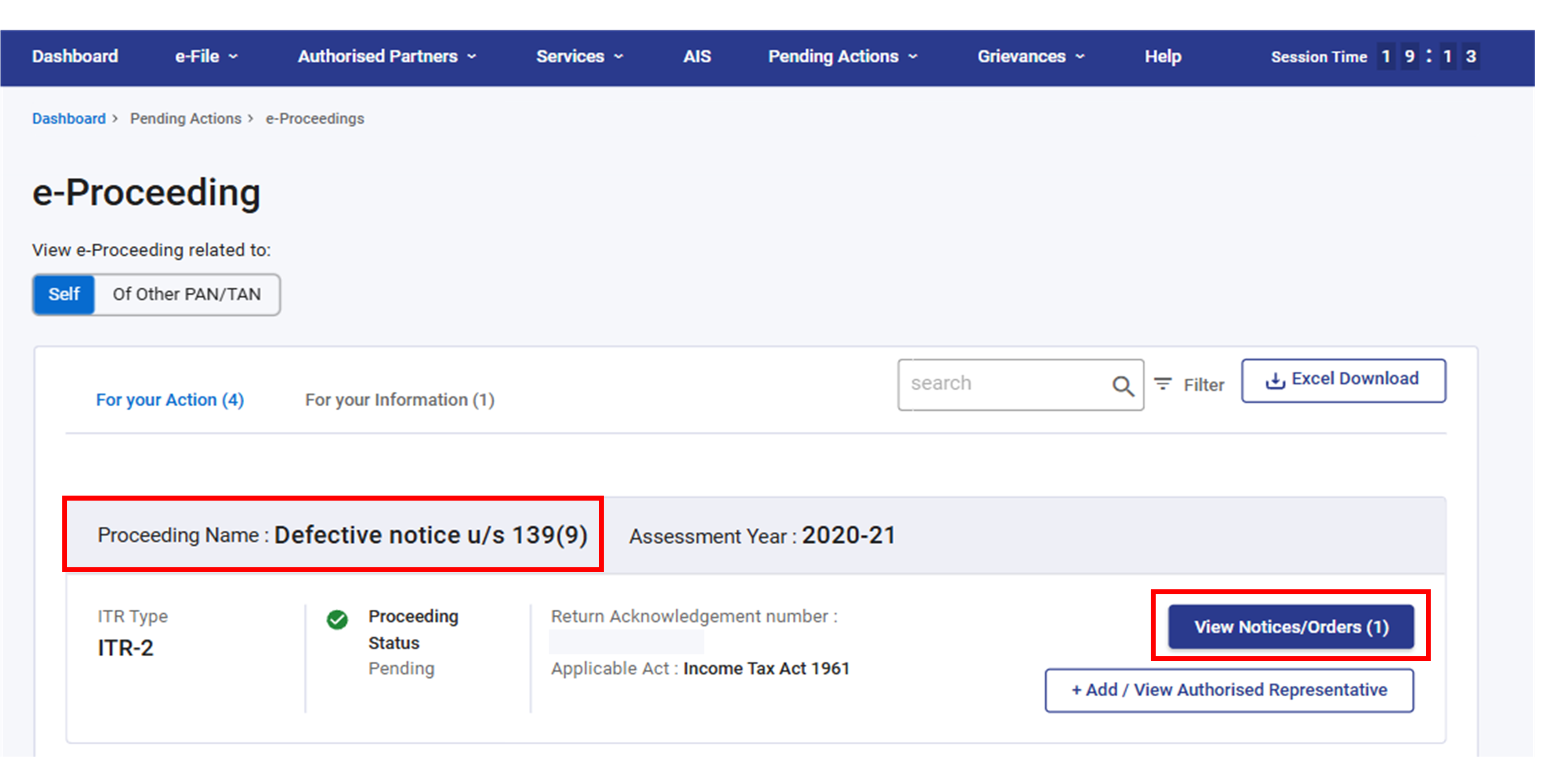
Step 1: Click ‘View Notice’ corresponding to the ‘Defective Notice u/s 139(9)’ section and you can:
| View and Download Notice | Follow Step 2 and Step 3 |
| Submit Response | Follow Step 4 to Step 8 |
To View and Download Notice:
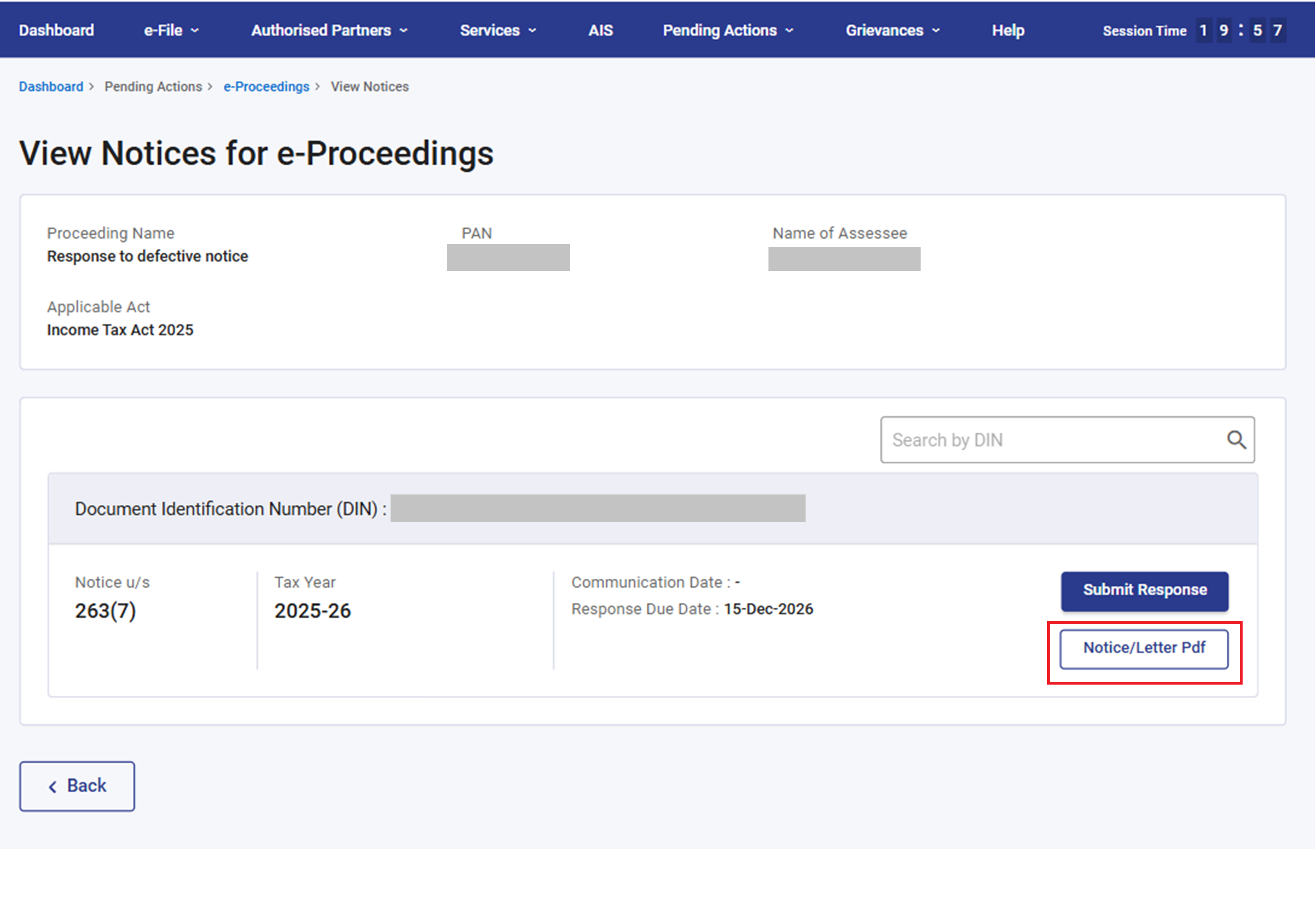
Step 2: Click ‘Notice/Letter Pdf’.
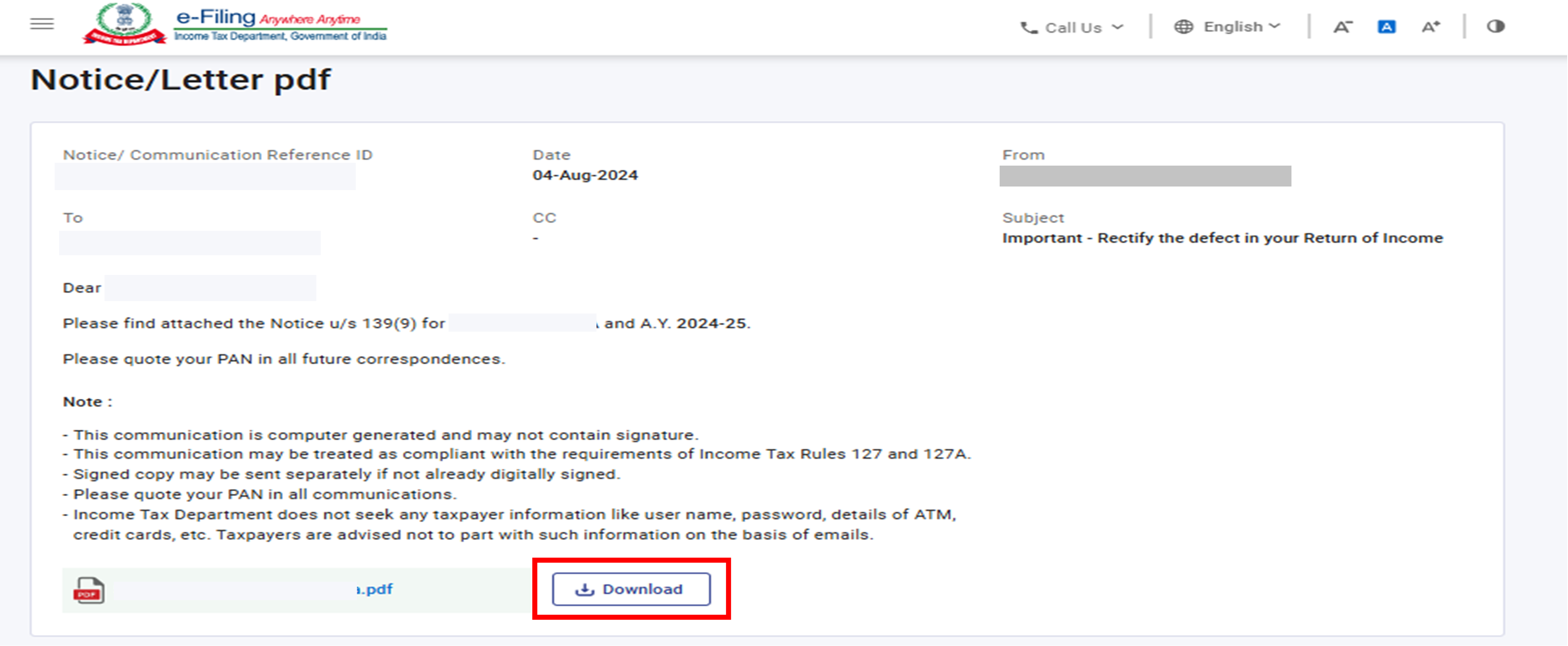
Step 3: You will be able to view the notice issued to you. If you wish to download the notice, click ‘Download’.
To Submit Response:
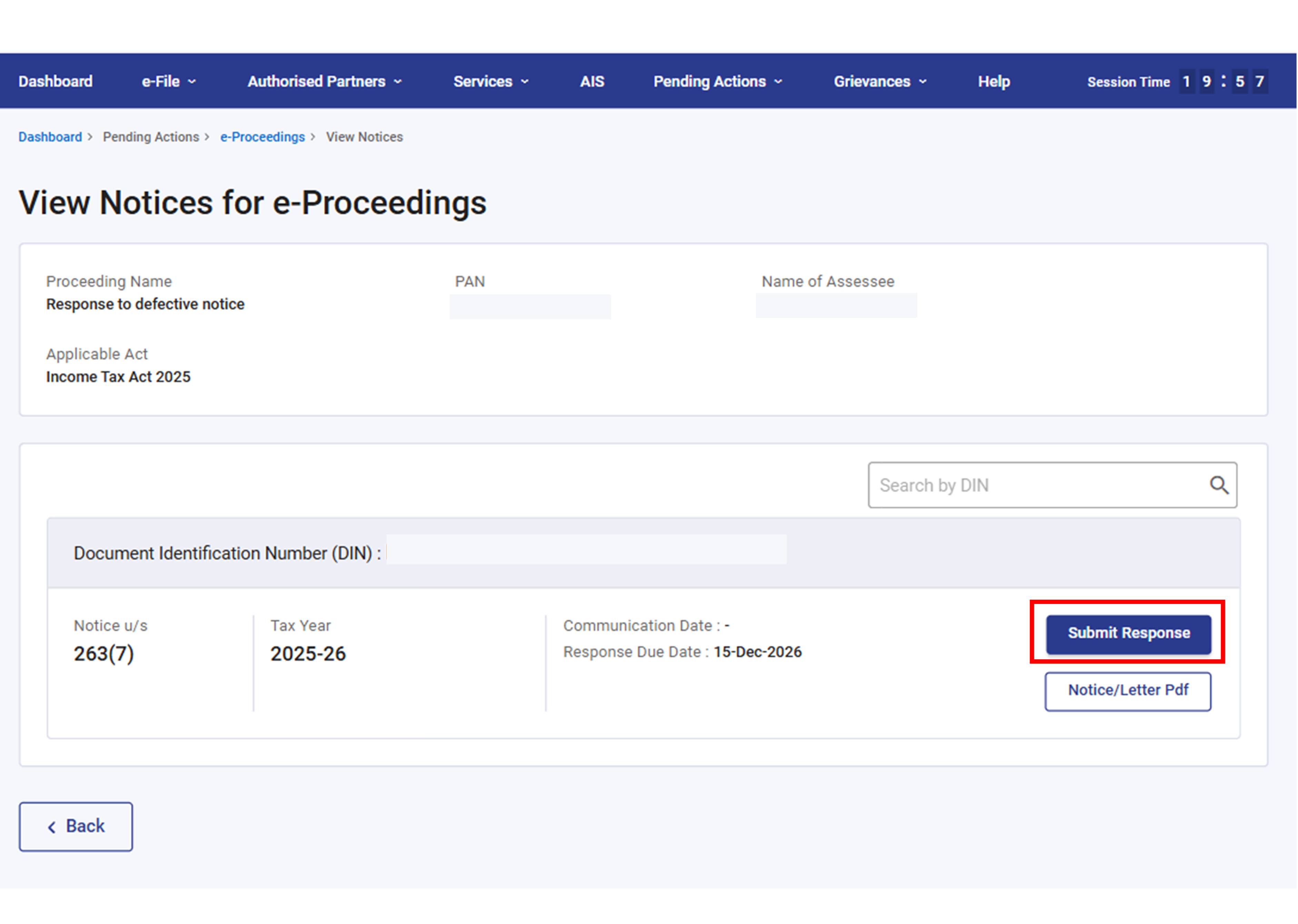
Step 4: Click ‘Submit Response’.
Step 5: Against the Defect Details, you can either select ‘Agree’ or ‘Disagree’.
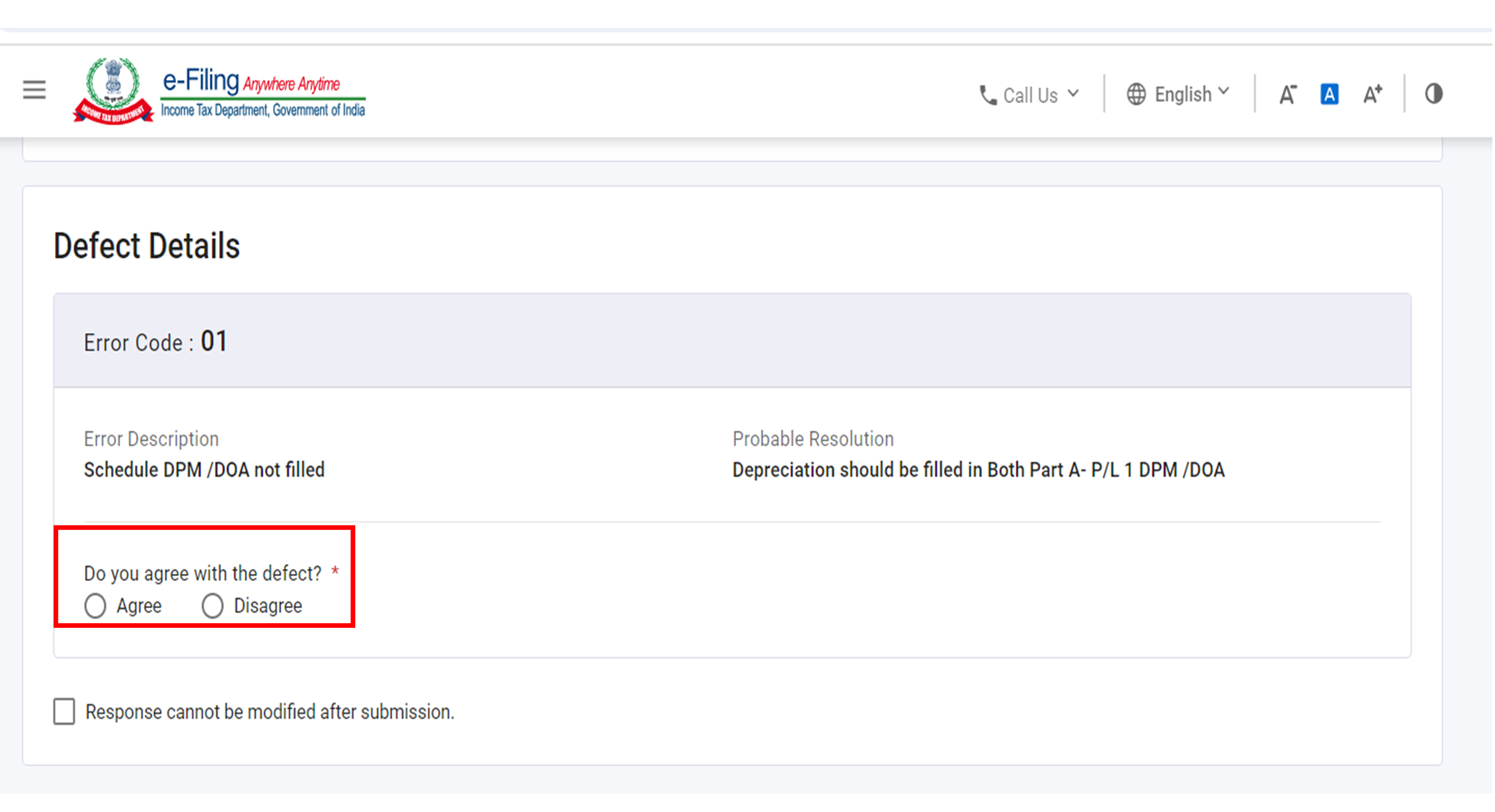
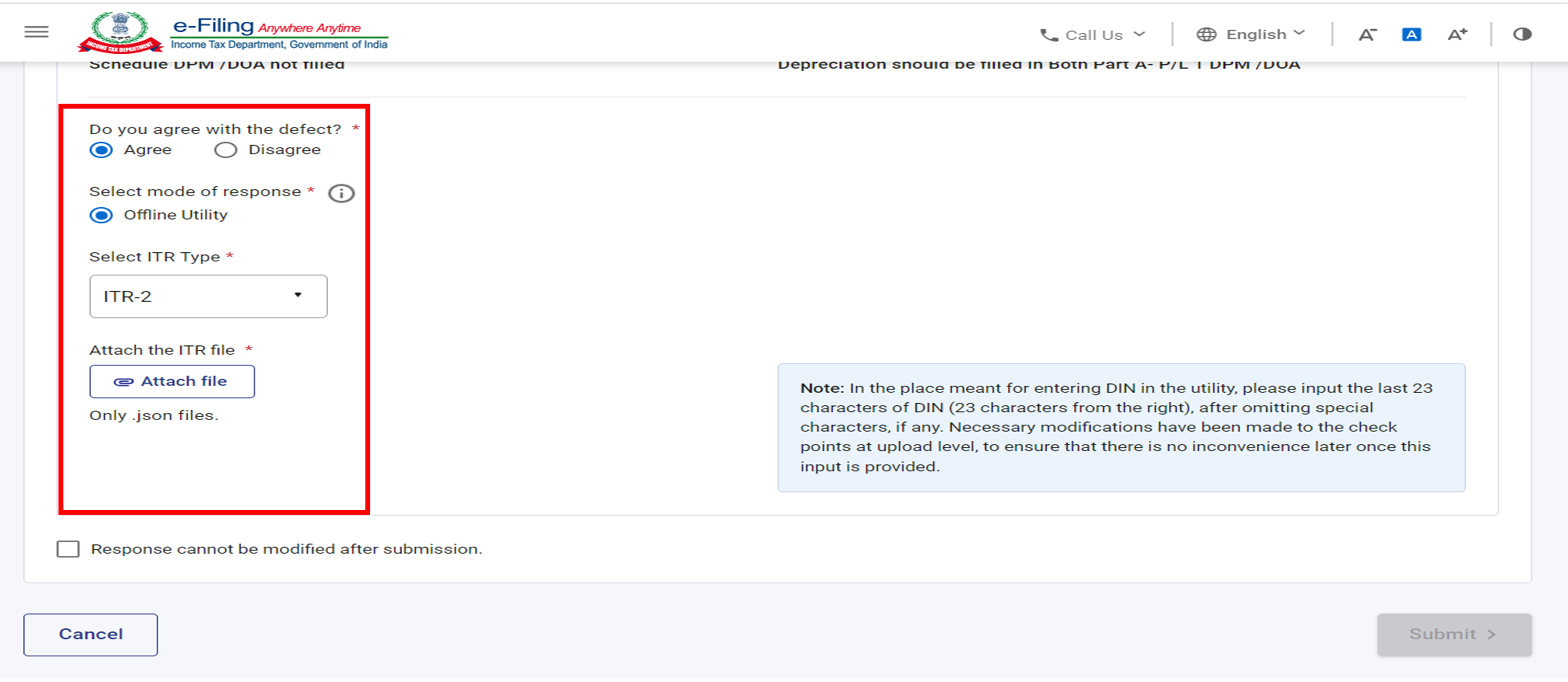
Step 5a: If you select ‘Agree’, then select the Mode of Response (offline), Select the ITR Type and attach the correct JSON file as applicable and click ‘Submit’.
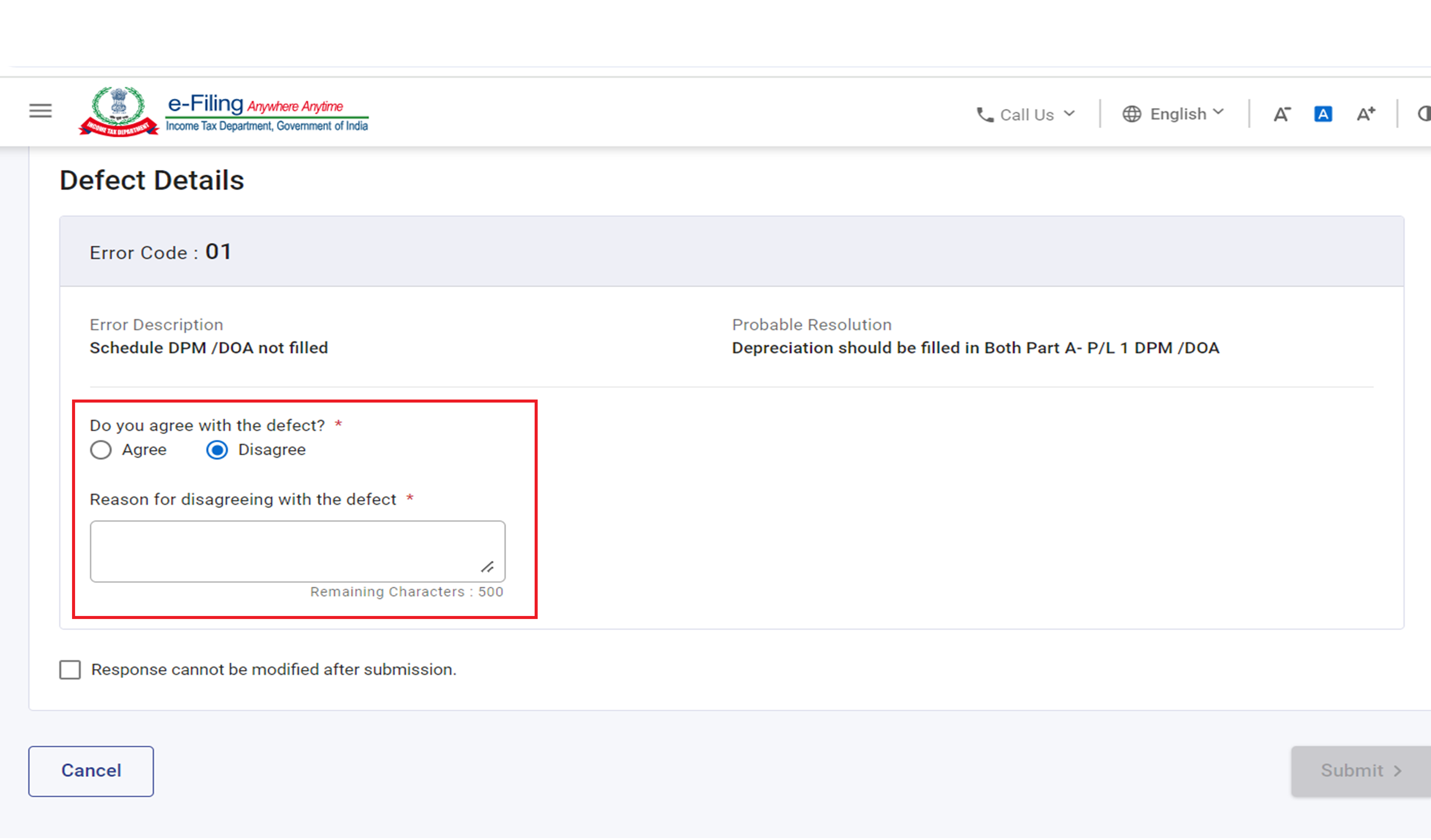
Step 5b: If you select ‘Disagree’, write the reason for disagreement with the defect and click ‘Submit’.
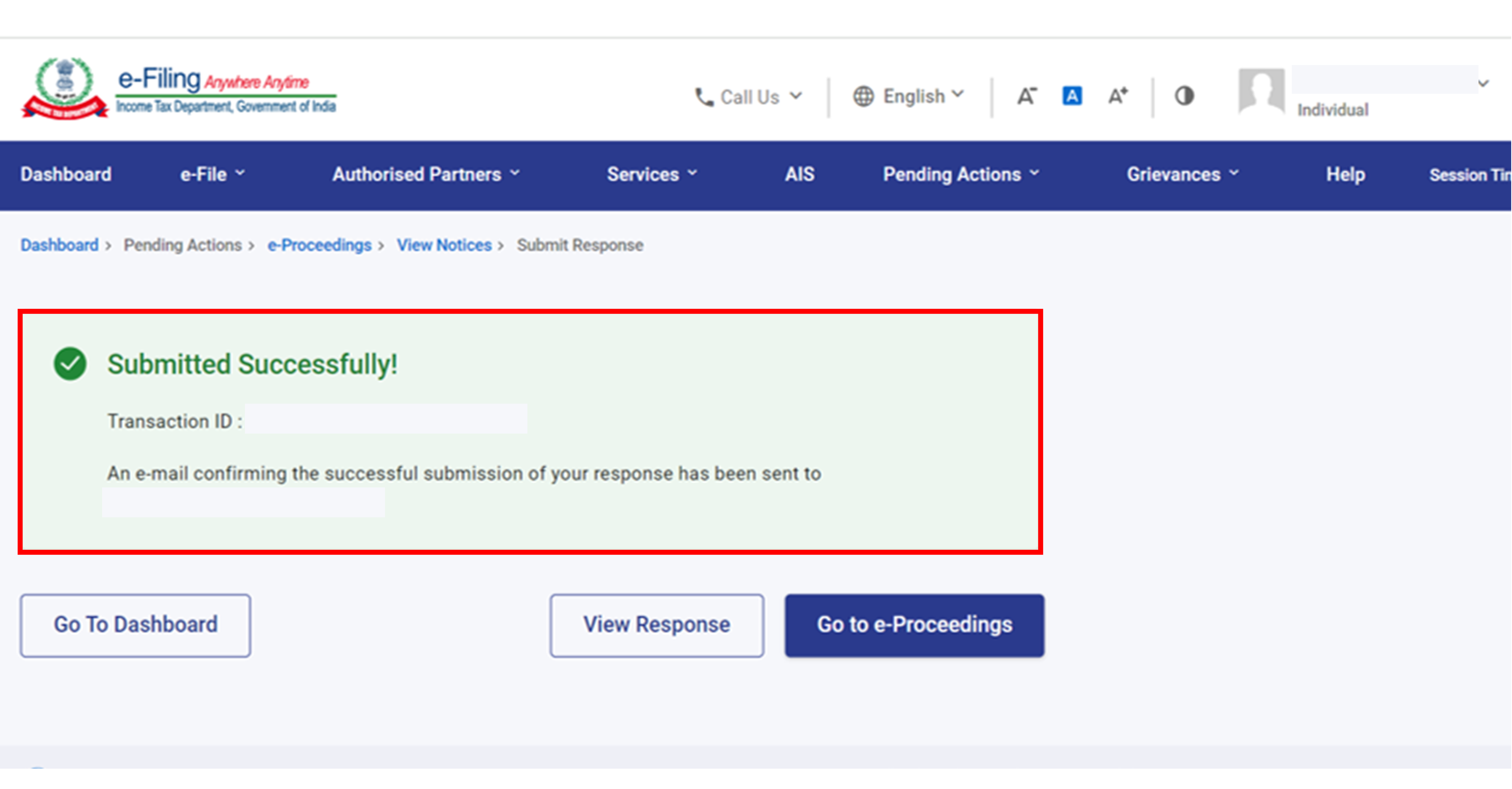
Step 6: After submission, a success message is displayed along with a Transaction ID. Please keep a note of the Transaction ID for future reference. You will also receive a confirmation message on your email ID registered on the e-Filing portal.
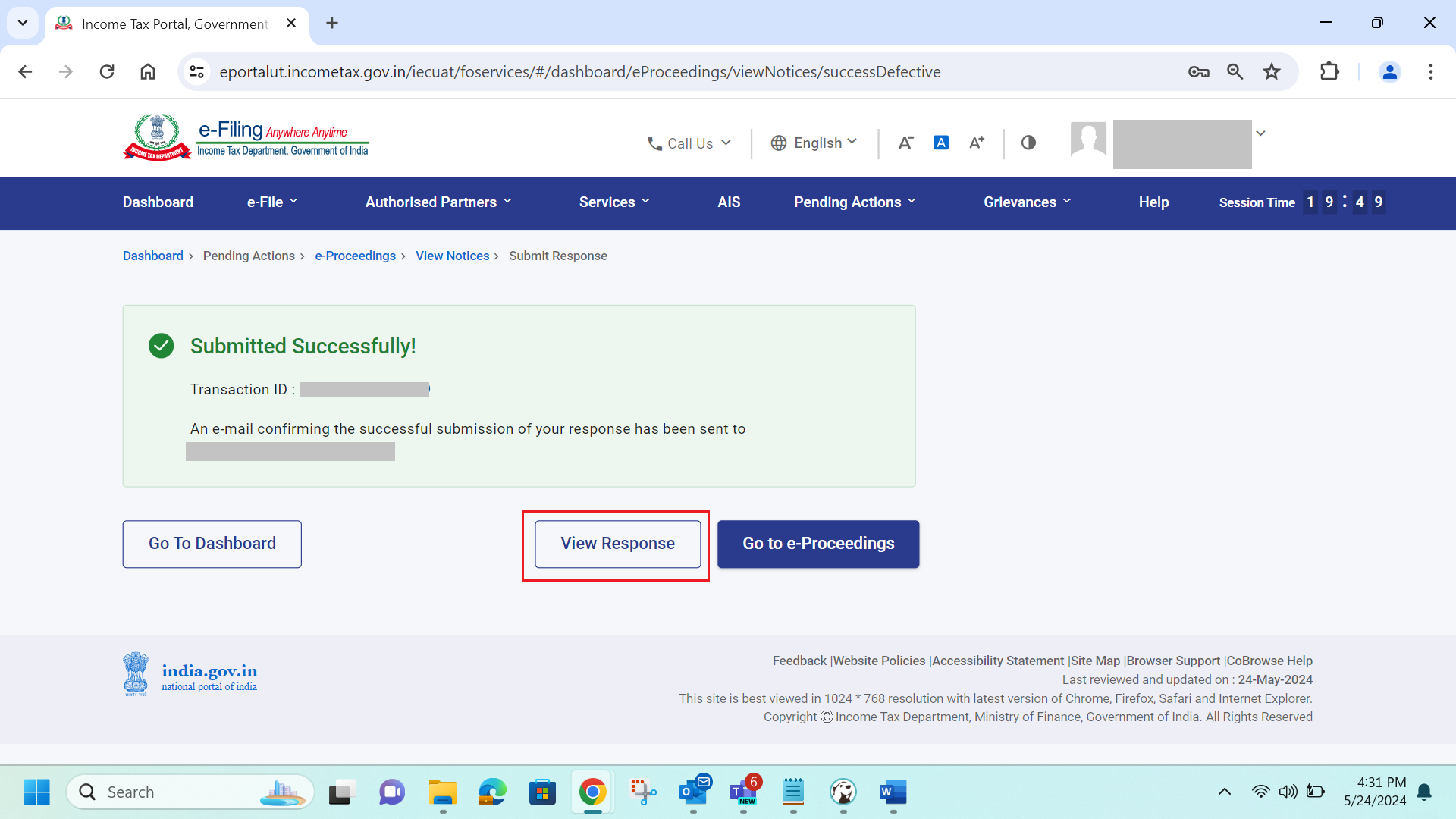
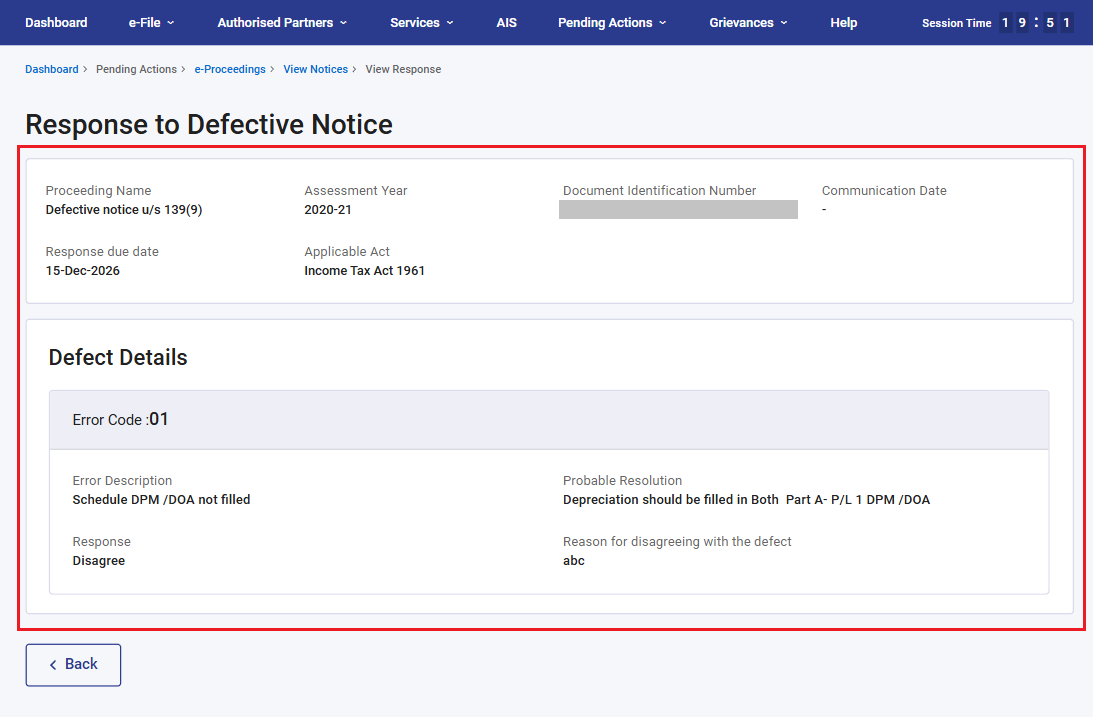
Step 7: If you wish to view the response submitted, click ‘View Response’ on the Successful Submission page.
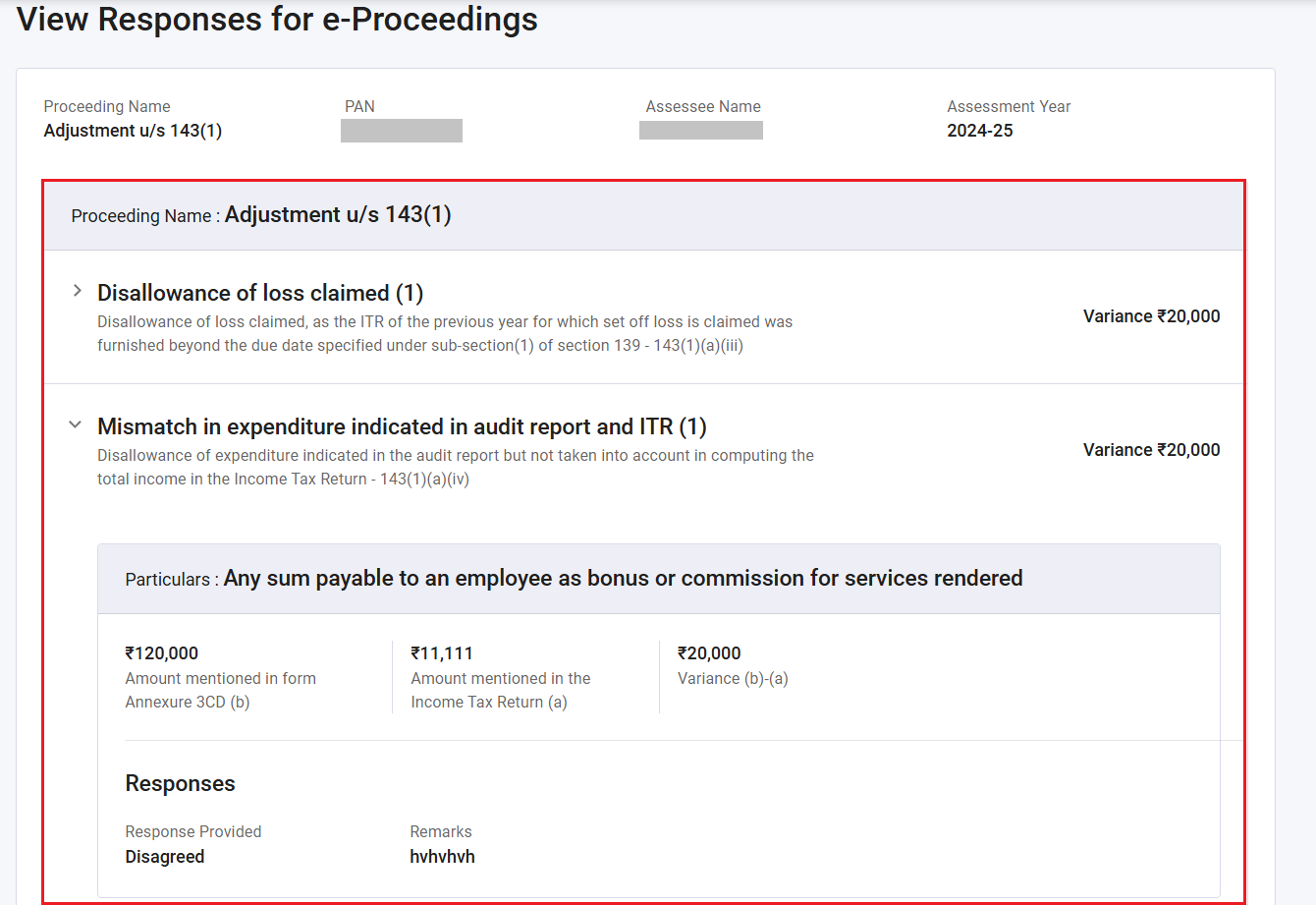
Step 8: You will be able to view the details of notices, response / remarks provided.
3.2. To view and submit response to Prima Facie Adjustment u/s 143(1)(a)
Step 1: Click ‘View Notice’ corresponding to Adjustment u/s 143(1)(a)
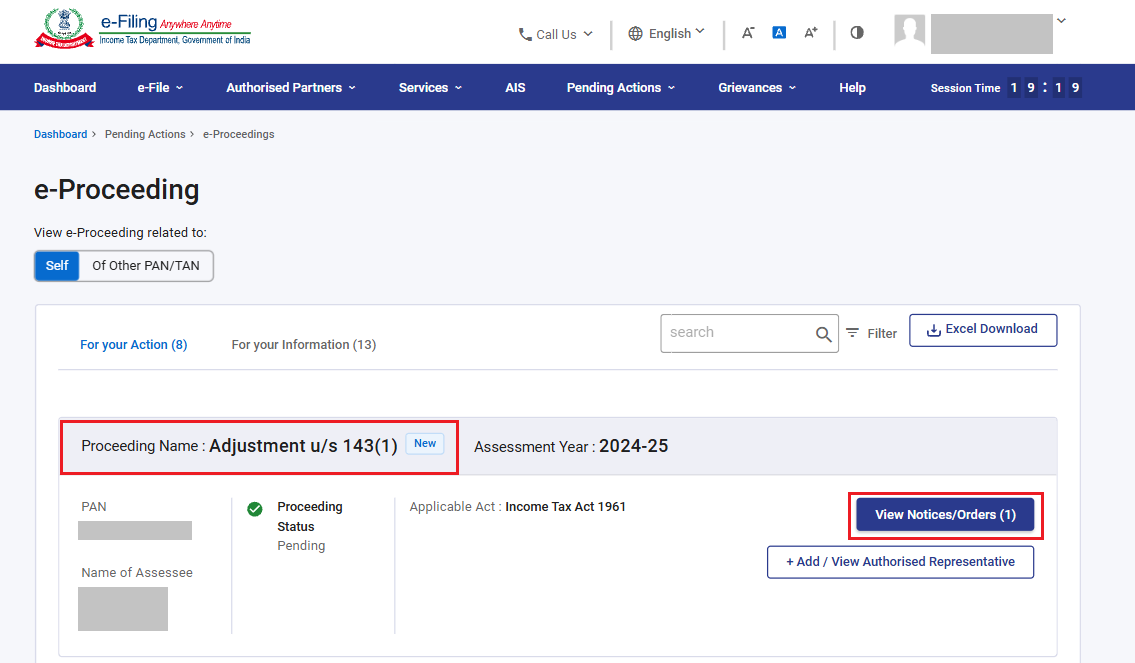
You can:
| View and Download Notice | Follow Step 2 and Step 3 |
| Submit Response | Follow Step 4 to Step 12 |
View and Download Notice:
Step 2: Click ‘Notice/Letter Pdf’.
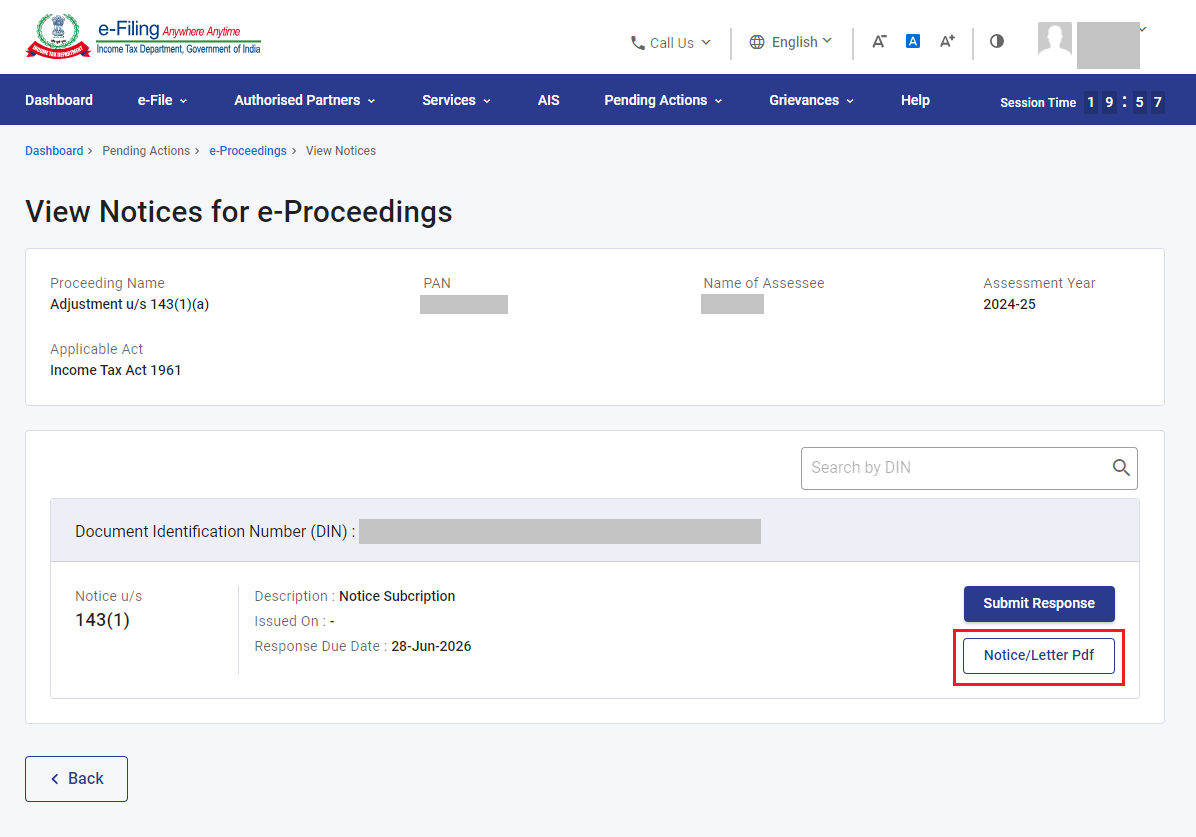
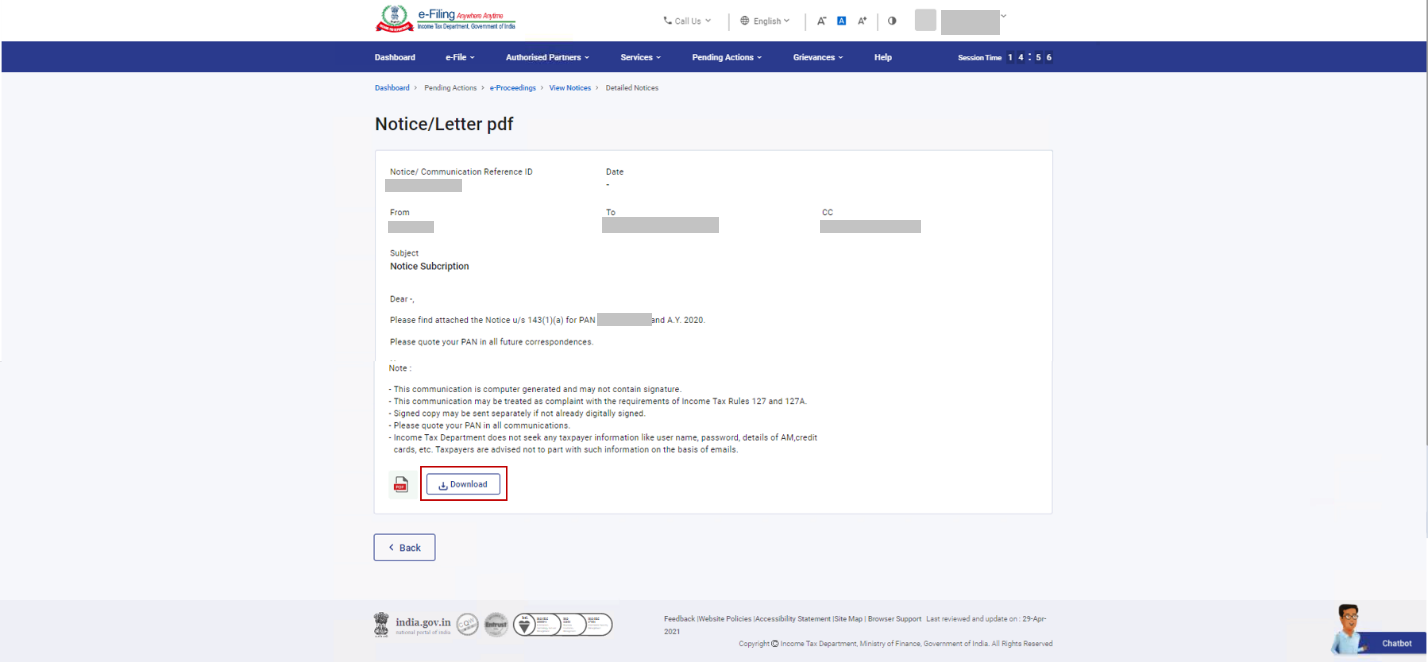
Step 3: You will be able to view the notice issued to you. If you wish to download the notice, click ‘Download’.
To Submit Response:
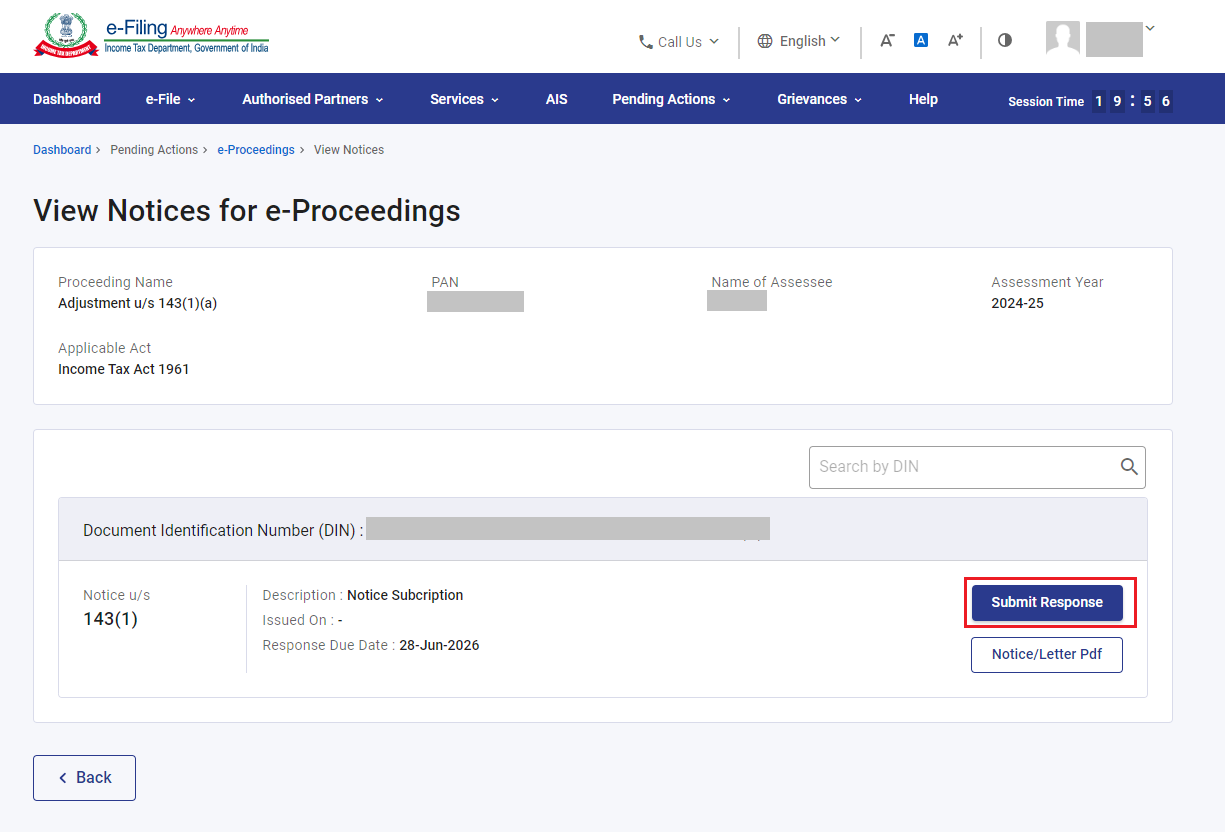
Step 4: Click ‘Submit Response’.
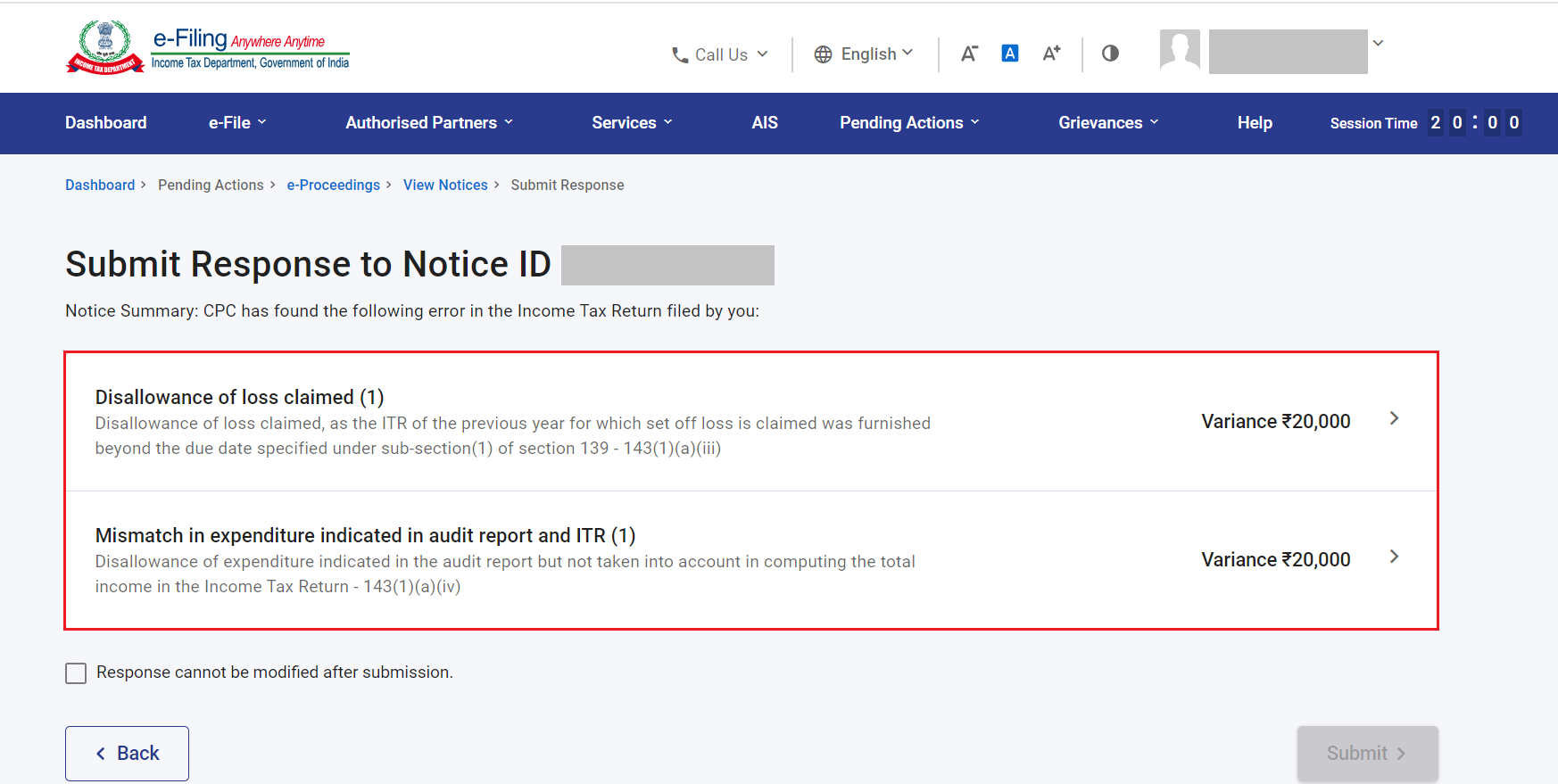
Step 5: You will be able to view the details of the Prima Facie Adjustments found by CPC in your filed ITR. Click on each variance to provide responses.
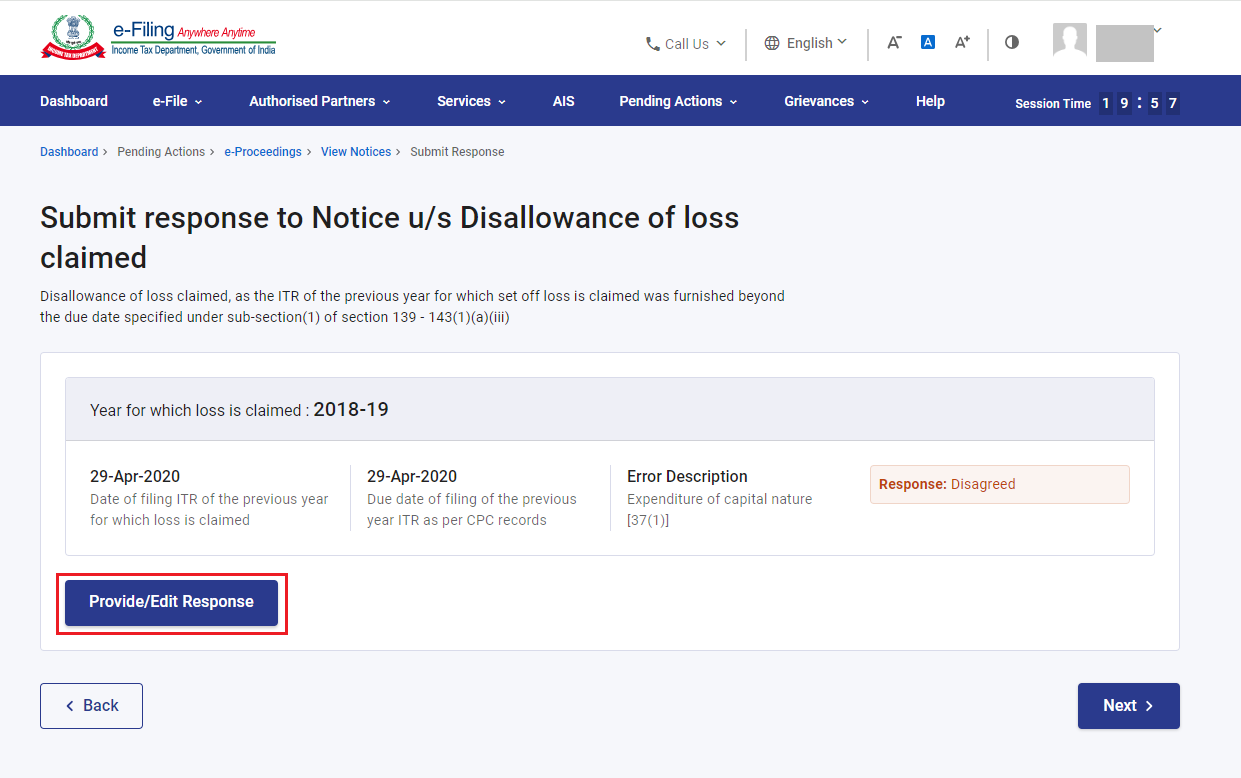
Step 6: On clicking the variance, details of the variance will be displayed. To provide response for the variance, click ‘Provide Response’.
Step 7: Select the ‘Agree’ or ‘Disagree’ for the Proposed adjustment and click ‘Save’.
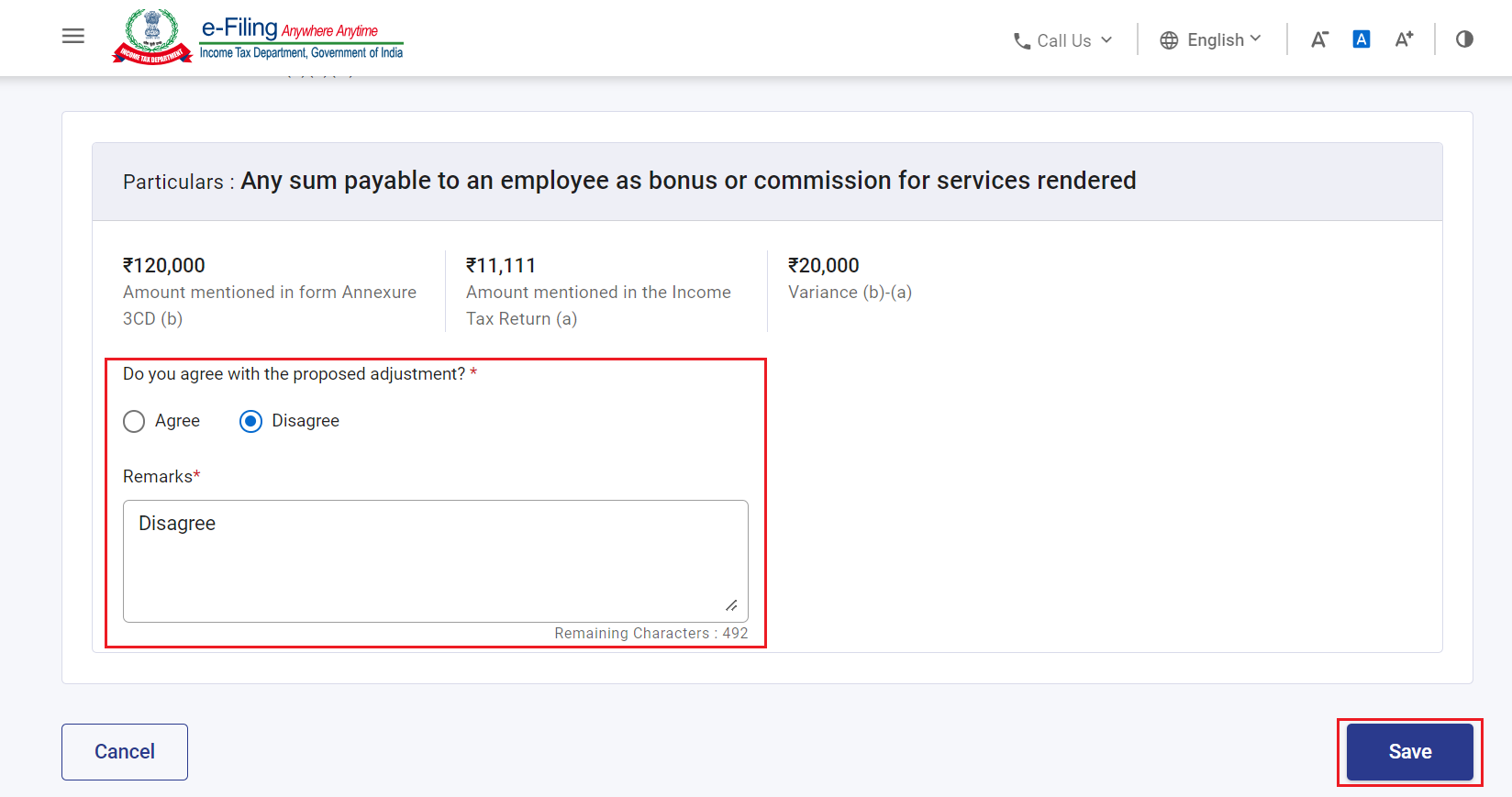
After responding to each Prima Facie Adjustment. Click ‘Next’.
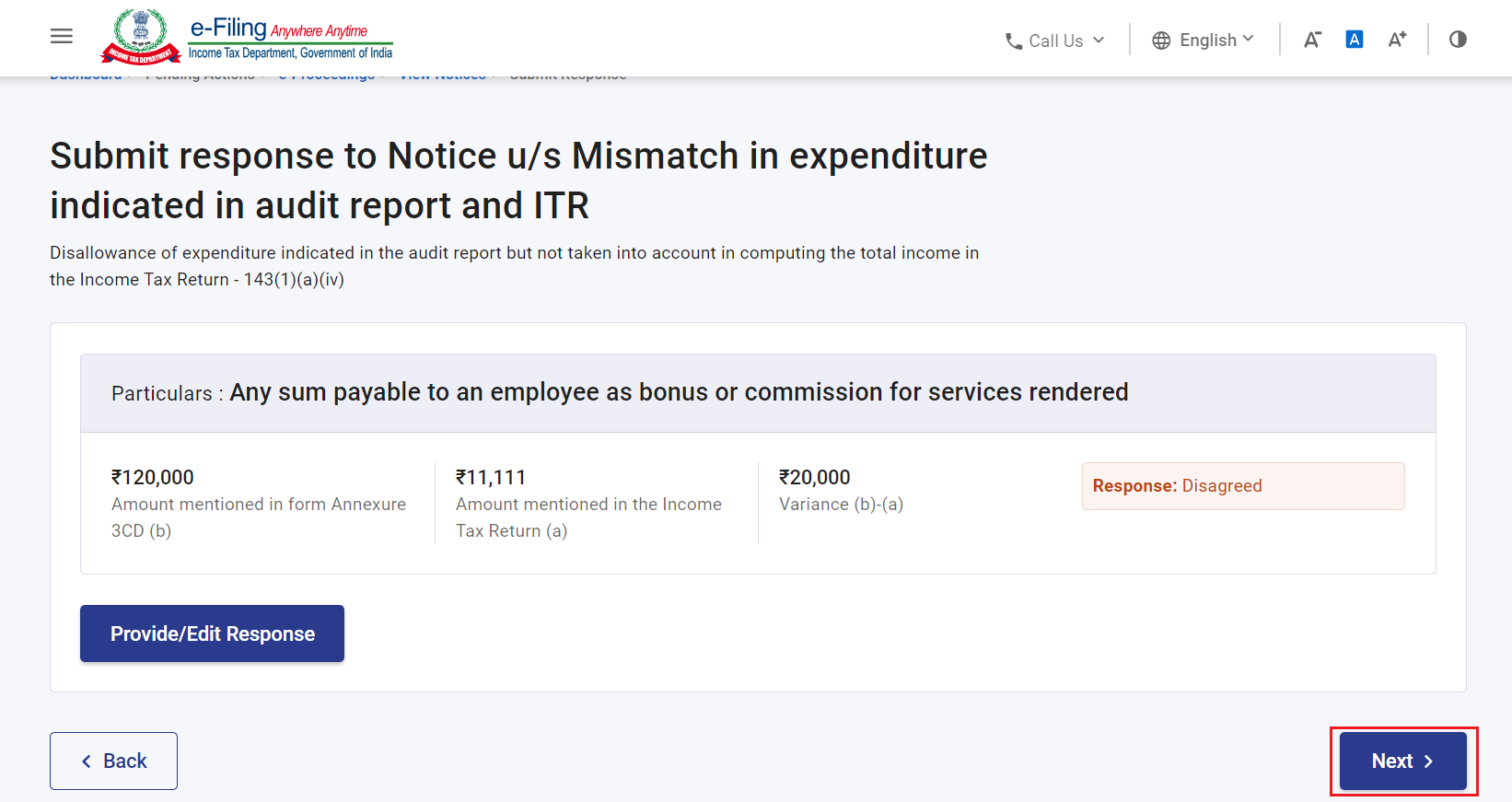
Step 8: Once all the responses have been provided, click ‘Back’.
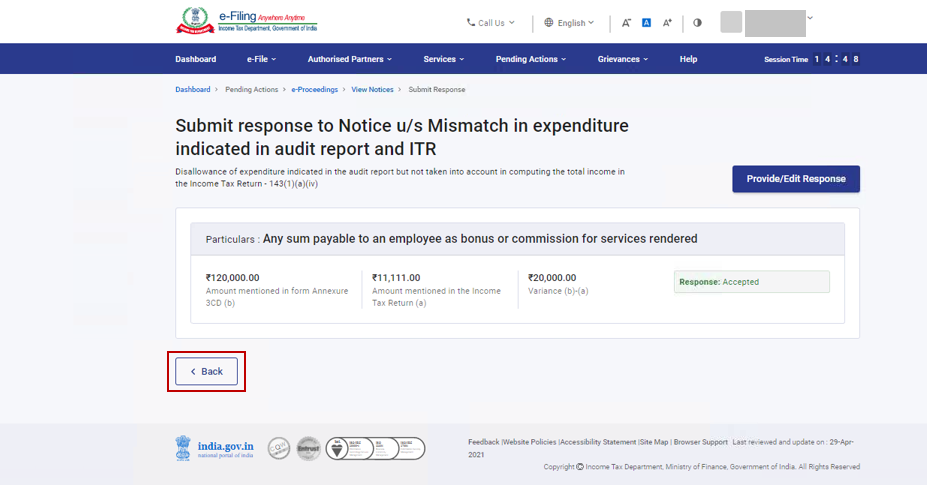
Step 9: On clicking Back, you will be taken back to the details of Prima Facie Adjustment found by CPC in your filed ITR. After responding to each variance, Select the Declaration checkbox and click ‘Submit’.
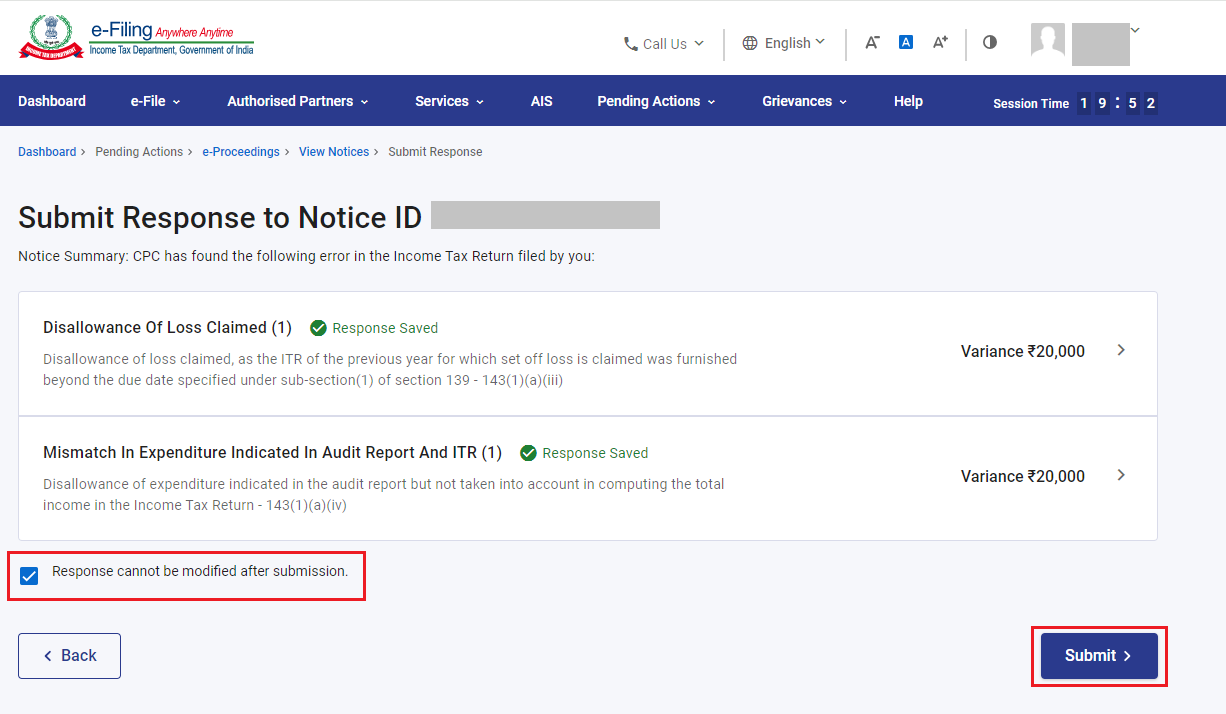
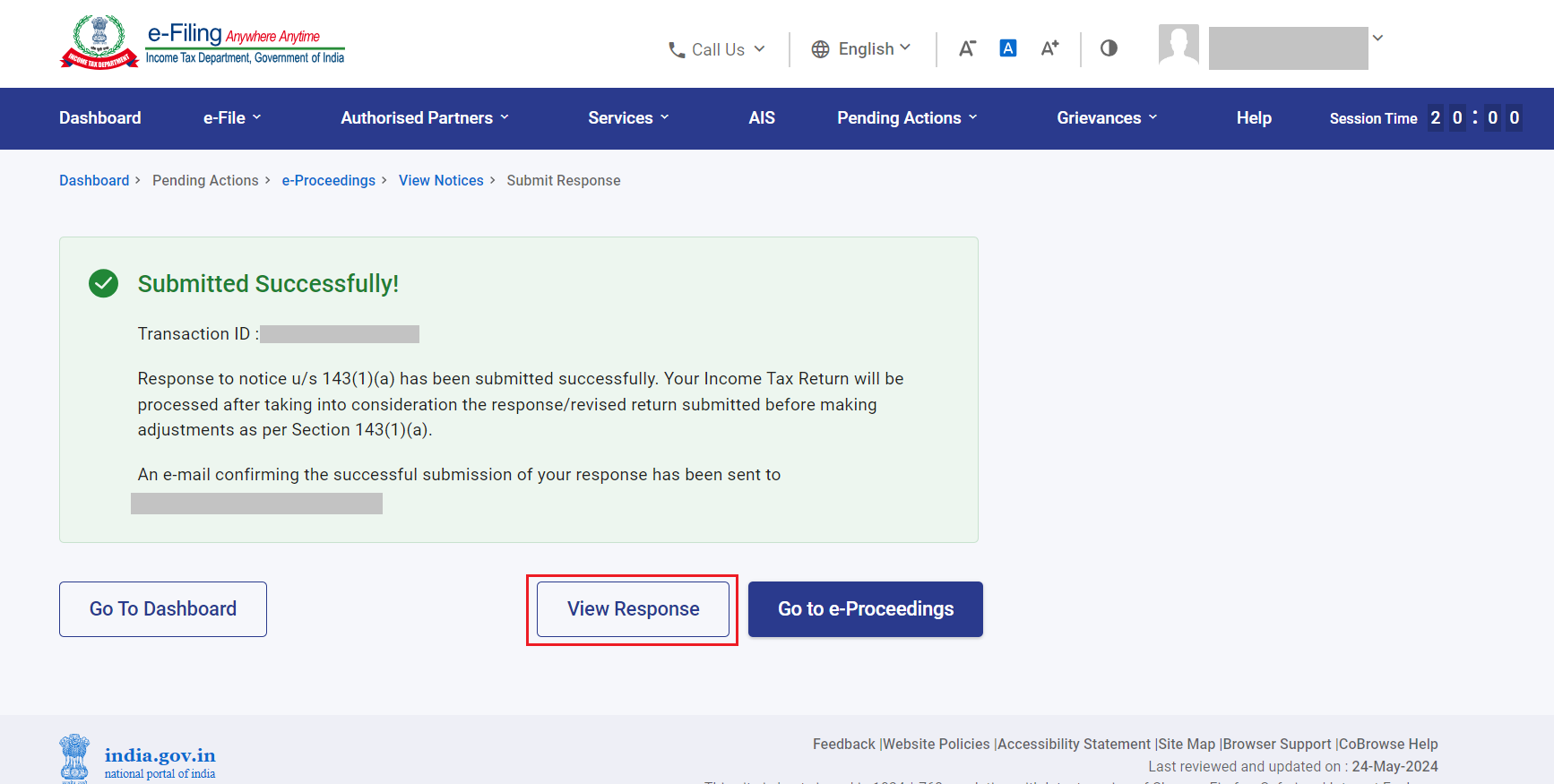
Step 10: On successful submission, a success message is displayed along with a Transaction ID. Please keep a note of the Transaction ID for future reference. You will also receive a confirmation message on your email ID registered on the e-Filing portal.
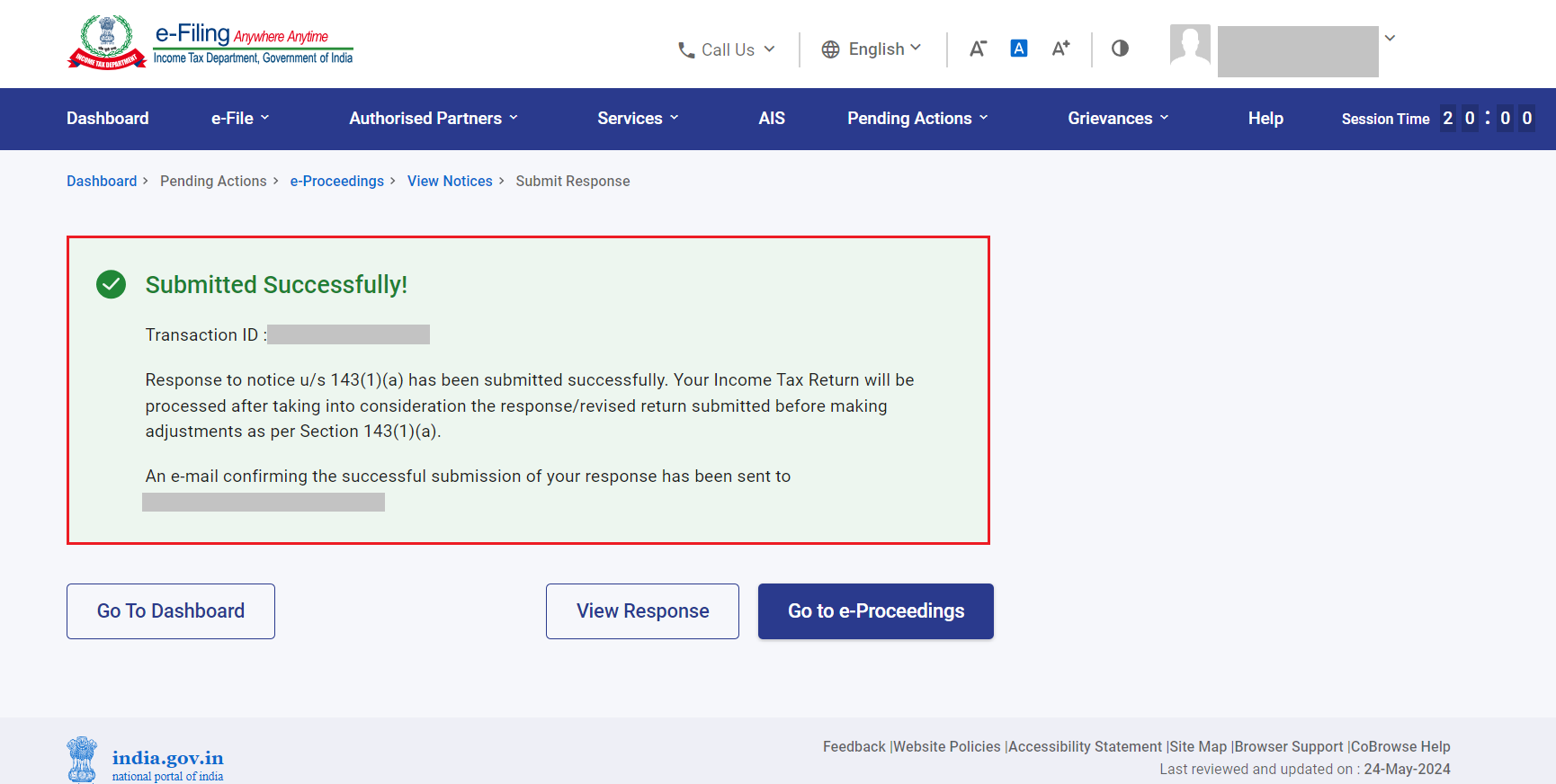
Step 11: If you wish to view the response submitted, click ‘View Response’ on the Successful Submission page.
Step 12: You will be able to view the details of notices, response / remarks provided.