



Register Digital Signature Certificate User Manual
1. Overview
The ‘Register Digital Signature Certificate (DSC)’ service is available to all registered users of the e-Filing portal. This service enables registered users to perform the following activities:
- Register DSC
- Re-Register when registered DSC has expired
- Re-Register when registered DSC has not expired
- Register DSC of Principal Contact
2. Prerequisites for availing this service
- One should be a Registered user on the e-Filing portal with valid user ID and password
- The emsigner utility need to be downloaded and installed.
- The USB token procured from a Certifying Authority Provider should be plugged in to the computer
- DSC USB token should be Class 2 or Class 3 Certificate
- DSC
3. Step-by-Step Guide
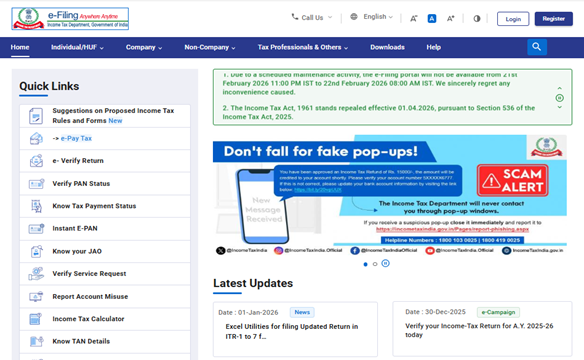
Step 1: Log in to the e-Filing portal using your user ID and password.
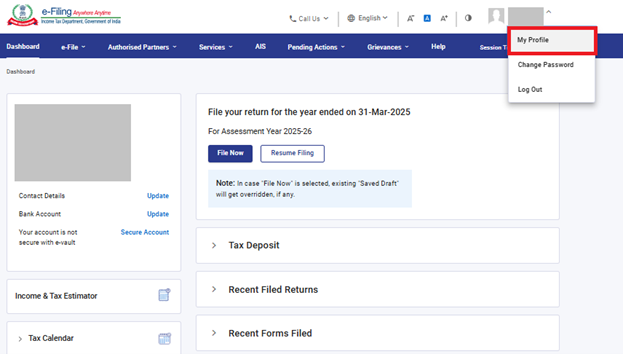
Step 2: On the top right corner of Dashboard click on your name, then click on ‘My Profile’
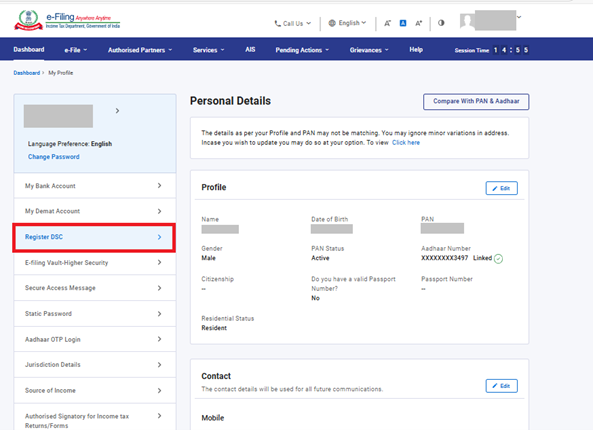
Step 3: Click 'Register DSC' on the left side of Profile Page.
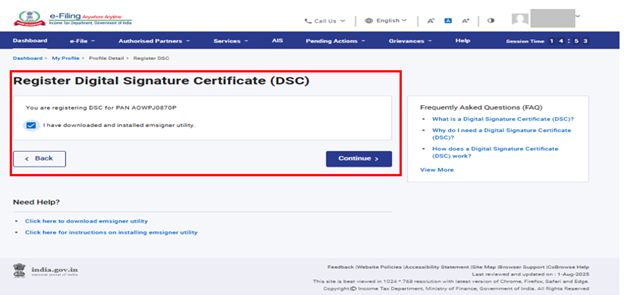
Step 4: Confirm 'I have downloaded and installed emsigner utility' and click 'Continue'.
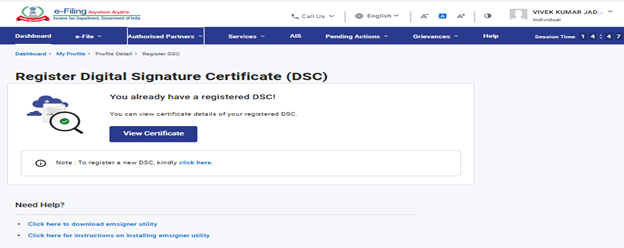
If your DSC is already registered, you will see the screen below. You can view DSC certificate by clicking on View Certificate.
Note: Downloading & installing the emSigner utility is essential for using this service.
To install the utility, click on hyperlink available under ‘Need Help” section at the bottom of the page
or
Follow Path: e-filing portal Home page >> Download >> DSC Management Utility>> Utility (emBridge)
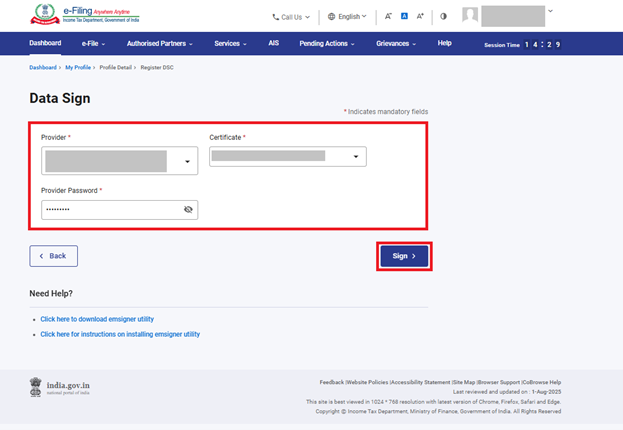
Step 5: Select the Provider and Certificate and enter Provider Password. Click 'Sign'.
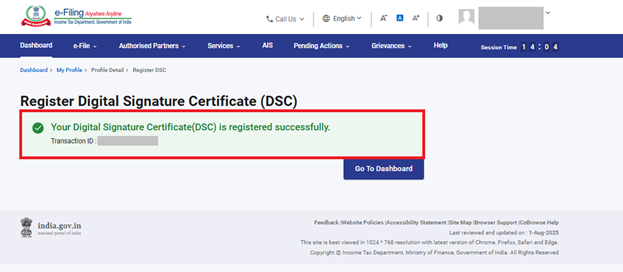
On successful validation, a 'success' message will be displayed with the option to go to the Dashboard.
For the other scenarios of Registering DSC, please refer to the table below:
| Re-register when registered DSC has expired | After Step 3, if the message ‘Your Registered DSC has already expired. Please re-register a valid DSC’ is displayed, then the process of registering a DSC in such a case is the same as explained. |
| Re-register when registered DSC has not expired | After Step 3, if the message “You have already registered DSC. You can view details of your registered DSC or register New DSC” is displayed, then click “View” to view the details and click here to register new DSC (by following Steps 4 and 5). |
| Register DSC of Principal Contact | After Step 3, if the message “You have already registered DSC. You can view details of your registered DSC or register New DSC”, click “View” to view the details and click here to register new DSC (by following Steps 4 and 5). |



