Form 10E User Manual
1. Overview
The total Income Tax liability is calculated on the total income earned during a particular Financial Year. However, if the income for the particular Financial Year includes an advance or arrear payment in the nature of salary, the Income Tax Act allows relief (u/s 89) for the additional burden of the tax liability.
Form 10E needs to be filed to claim such a relief. It is advisable that Form 10E is filed before filing Income Tax Return. The said form is available on e-filing portal. If Form 10E is not filed and the taxpayer claims relief u/s 89, the ITR filed will be processed but the relief claimed will not be allowed. It is mandatory to file Form 10E to claim tax relief on arrear/advance income under Salary. Form 10E can be submitted through online mode only.
2. Prerequisites for availing this service
- You should be a registered user on the e-Filing portal.
- Status of PAN of the taxpayer should be "Active."
3. About the Form
3.1 Purpose
The Income Tax Act u/s 89 provides relief to an assessee for any salary or family pension, gratuity, retrenchment compensation or commuted pension is received by an assessee in advance or arrears in a Financial Year. This relief is granted as the total income assessed is at a rate higher than that at which it would otherwise have been assessed. Such relief can be claimed by furnishing particulars of your income in Form 10E.
3.2 Who can use it?
All registered users, being an Individual, on the e-Filing portal can furnish particulars of their income in Form 10E for claiming relief as per Section 89 of Income Tax Act, 1961.
3.3 Form at a Glance
Form 10E has seven parts:
- Annexure I - Arrears Salary / Family Pension received in arrears.
- Annexure I - Salary / Family Pension received in advance.
- Annexure II & IIA - Payment in nature of Gratuity in respect of past services.
- Annexure III – Payment in nature of compensation from the employer or previous employer at or in connection with termination of employment after continuous service of not more than 3 years or where the unexpired portion of term of employment is also not less than 3 years.
- Annexure IV - Commutation of pension.
Based on the nature of amount received, appropriate annexure needs to be selected when filing Form 10E.
4. Step-by-Step Guide
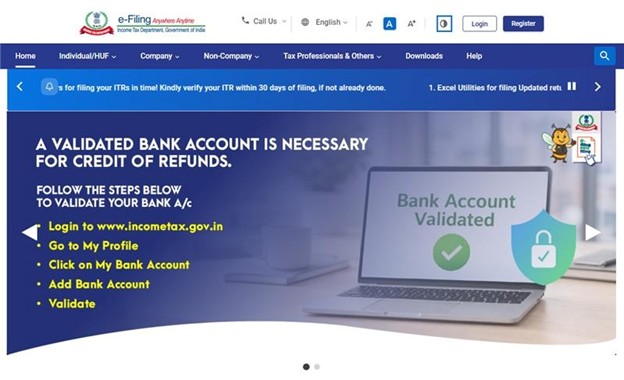
Step 1: Log in to the e-Filing portal with your User ID and Password.
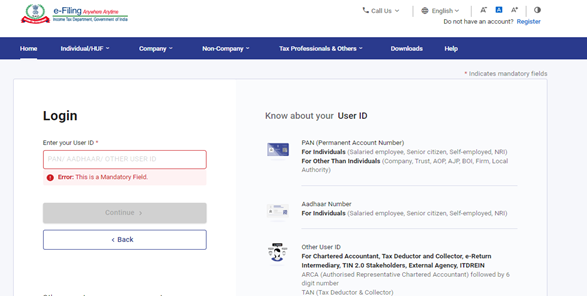
Step 2: Enter the User ID (PAN) and Password.
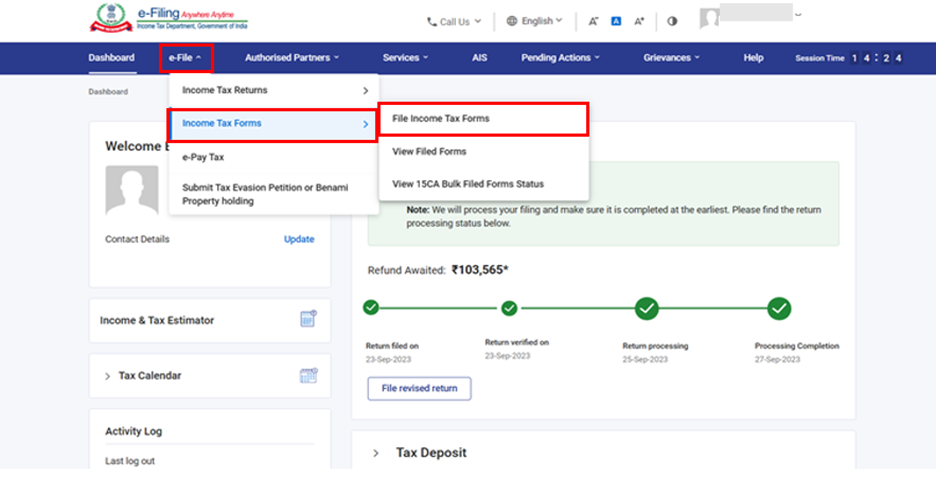
Step 3: Go to e-file >Income Tax Forms > File Income Tax Forms.
Step 4: Select/ Search Form 10E under Forms as per Income Tax Act 1961 tab.
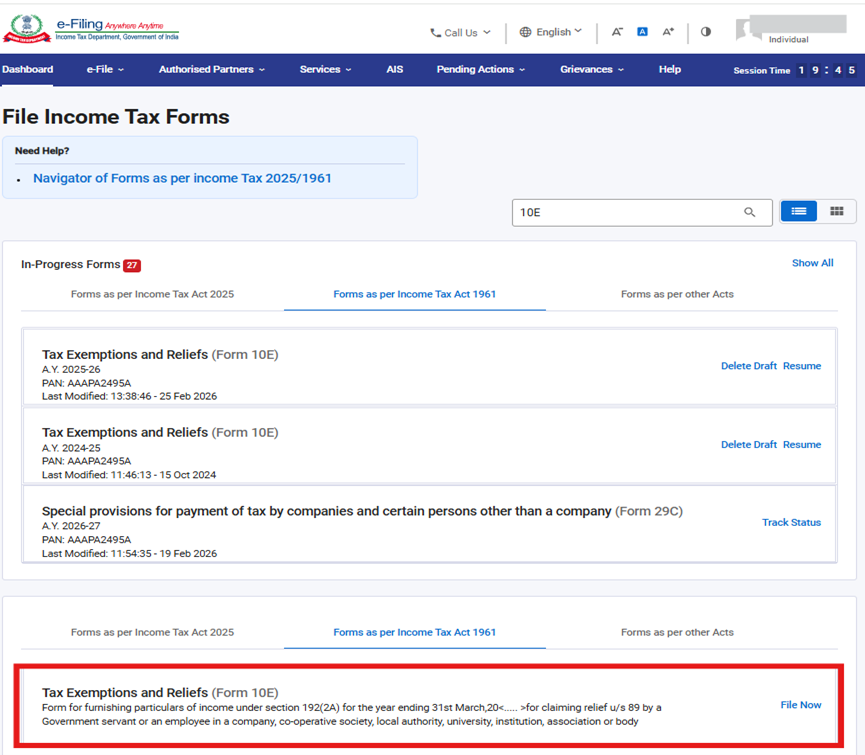
Step 5: Select AY and click Continue.
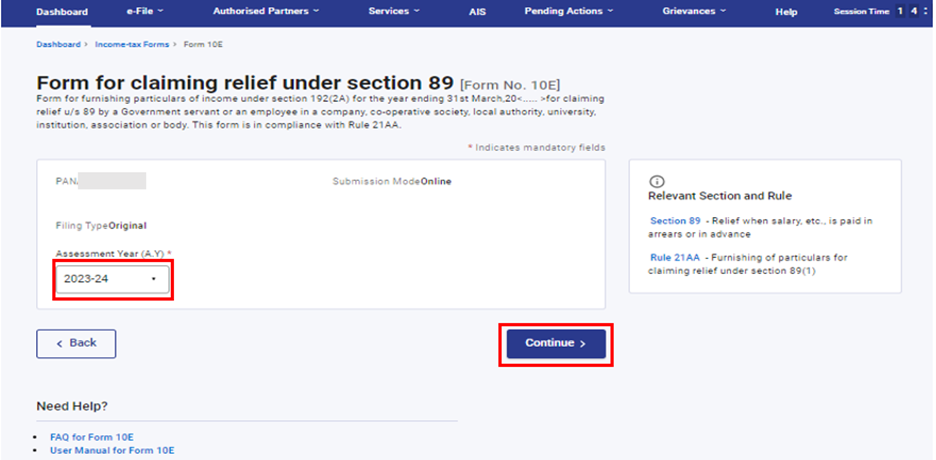
Step 6: Click on Let’s Get Started.
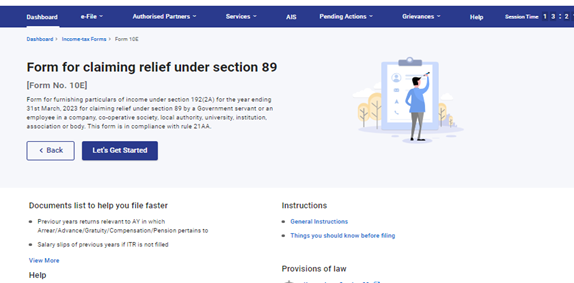
Step 7: Select the applicable items regarding particulars of income.
Step 8: Click on Personal Information and confirm the Personal Information and click Save.
Note: Please ensure that all mandatory details under "My Profile" section including residential status are completed. You can change your contact details and residential status by clicking on hyperlink “My Profile.”
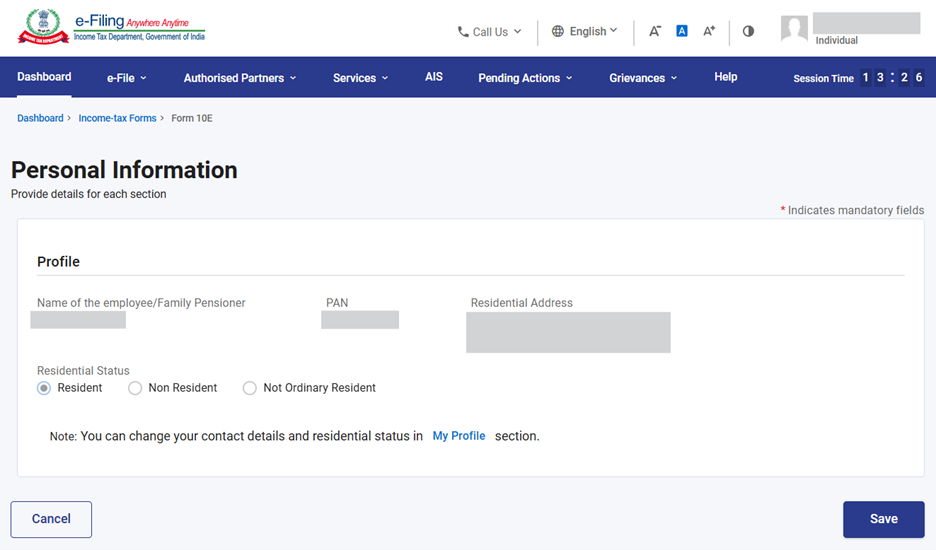
Step 9.1.a: Personal Information Tab is confirmed now, click on Arrears Salary/Family pension (if applicable to you).
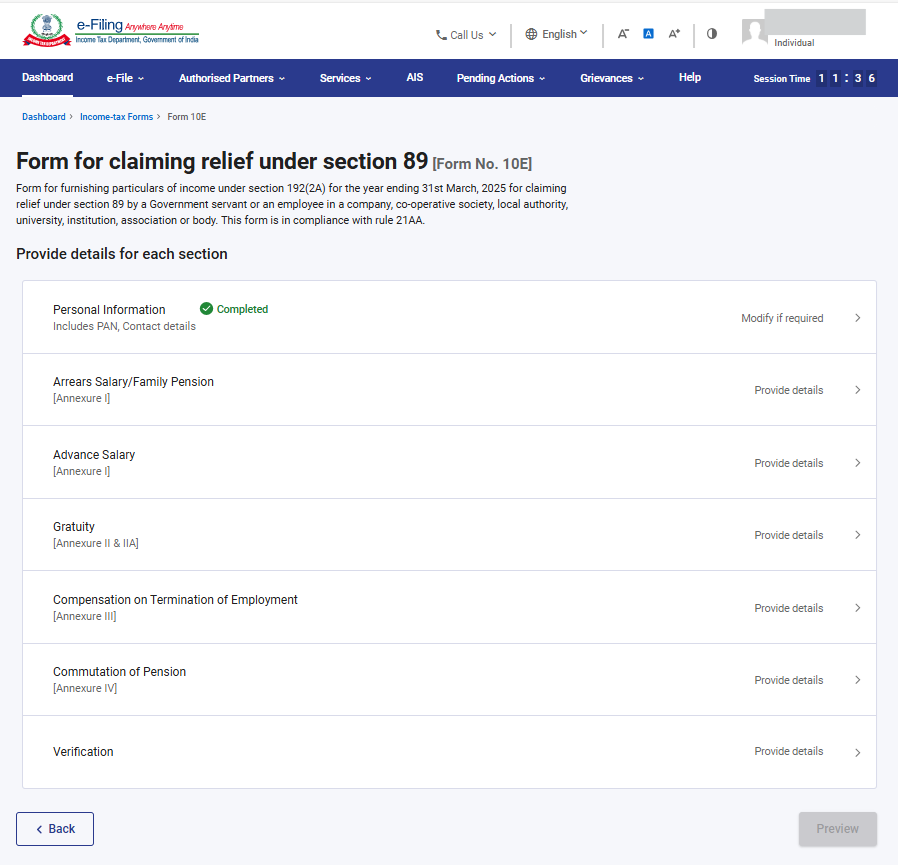
Step 9.1.b: This part contains general details of salary / Family Pension received in arrears.
Enter the details and click Save.
The details in field "Salary/Family Pension received in arrears" shall be populated based on the information provided in Table A to be added after S. No. 6. "Details of salary/Family Pension received in arrears relating to different previous years".
Note: The system calculated tax for A.Y. 2024 - 25 & onwards is computed under the default new tax regime as per Section 115BAC(1A), whereas for all assessment years up to A.Y. 2023 - 24, the tax is calculated according to the old tax regime.
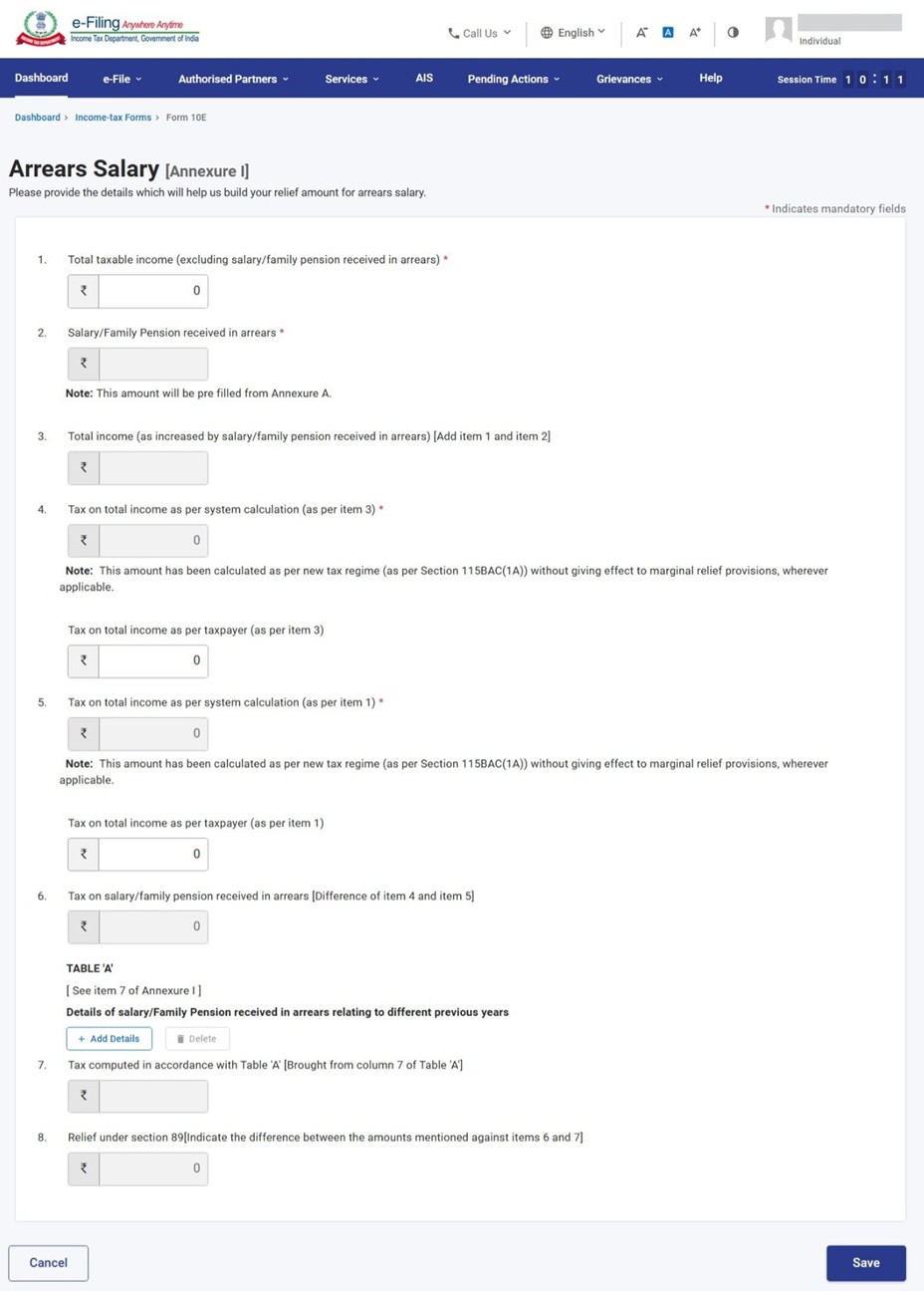
Step 9.2.a: Arrear Salary tab is confirmed now, click on Advance Salary (if applicable to you).
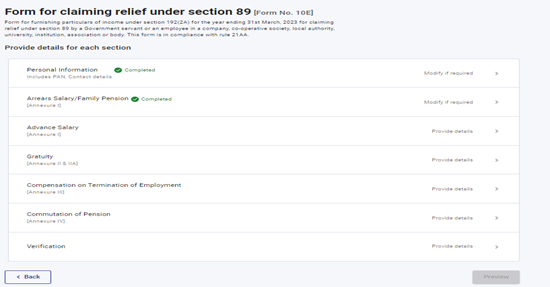
Step 9.2.b: This part contains general details of salary / Family Pension received in advance.
Enter the details and click Save.
The details in field “Salary received in Advance” shall be populated based on the information provided in Table A to be added after S. No. 6. "Details of Salary/Family Pension received in advance relating to different previous years".
Note: The system calculated tax for A.Y. 2024 - 25 & onwards is computed under the default new tax regime as per Section 115BAC(1A), whereas for all assessment years up to A.Y. 2023 - 24, the tax is calculated according to the old tax regime.
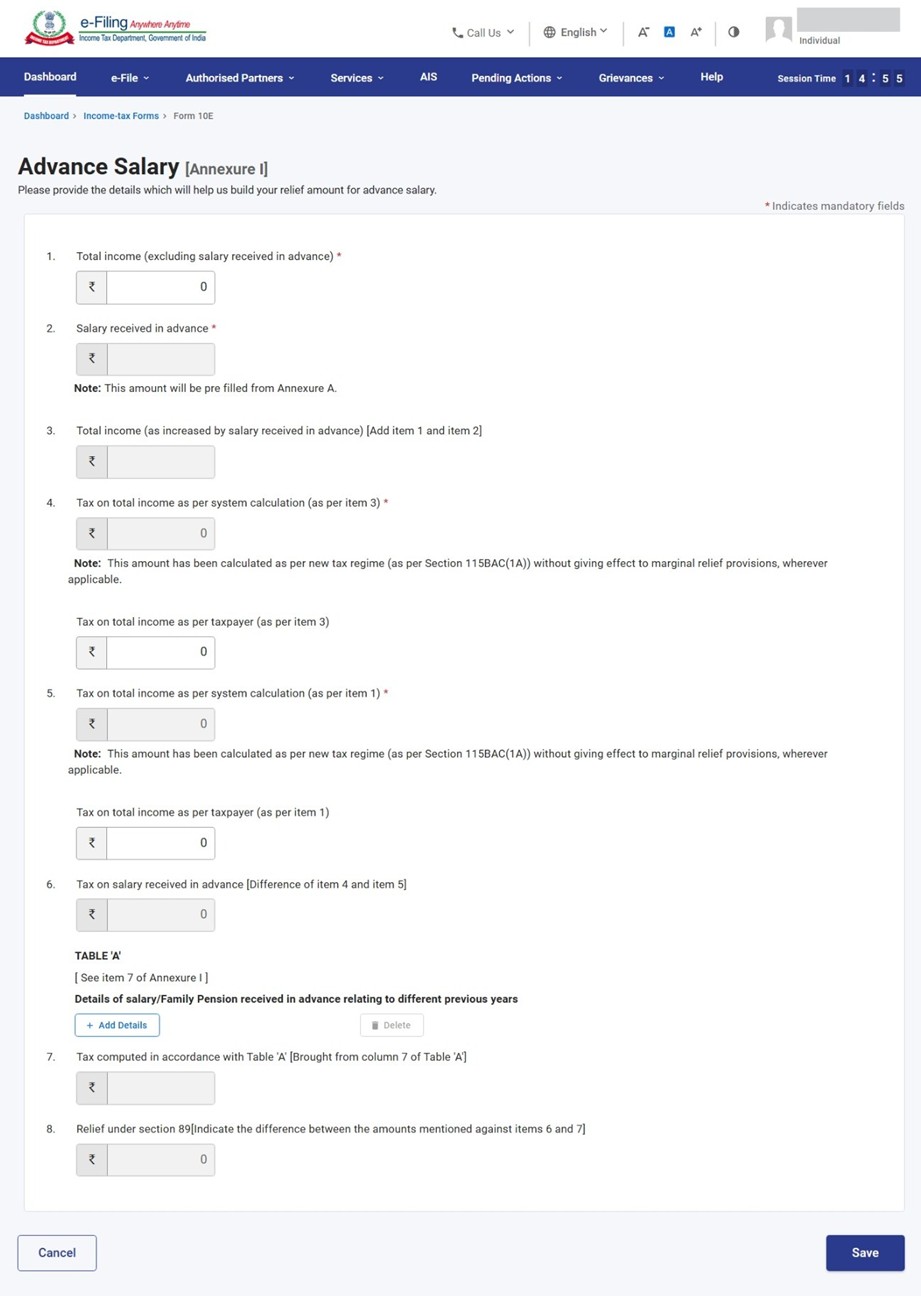
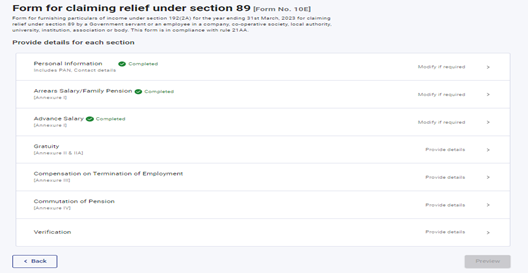
Step 9.3.a: Advance salary tab is confirmed now, click on Gratuity (if applicable to you).
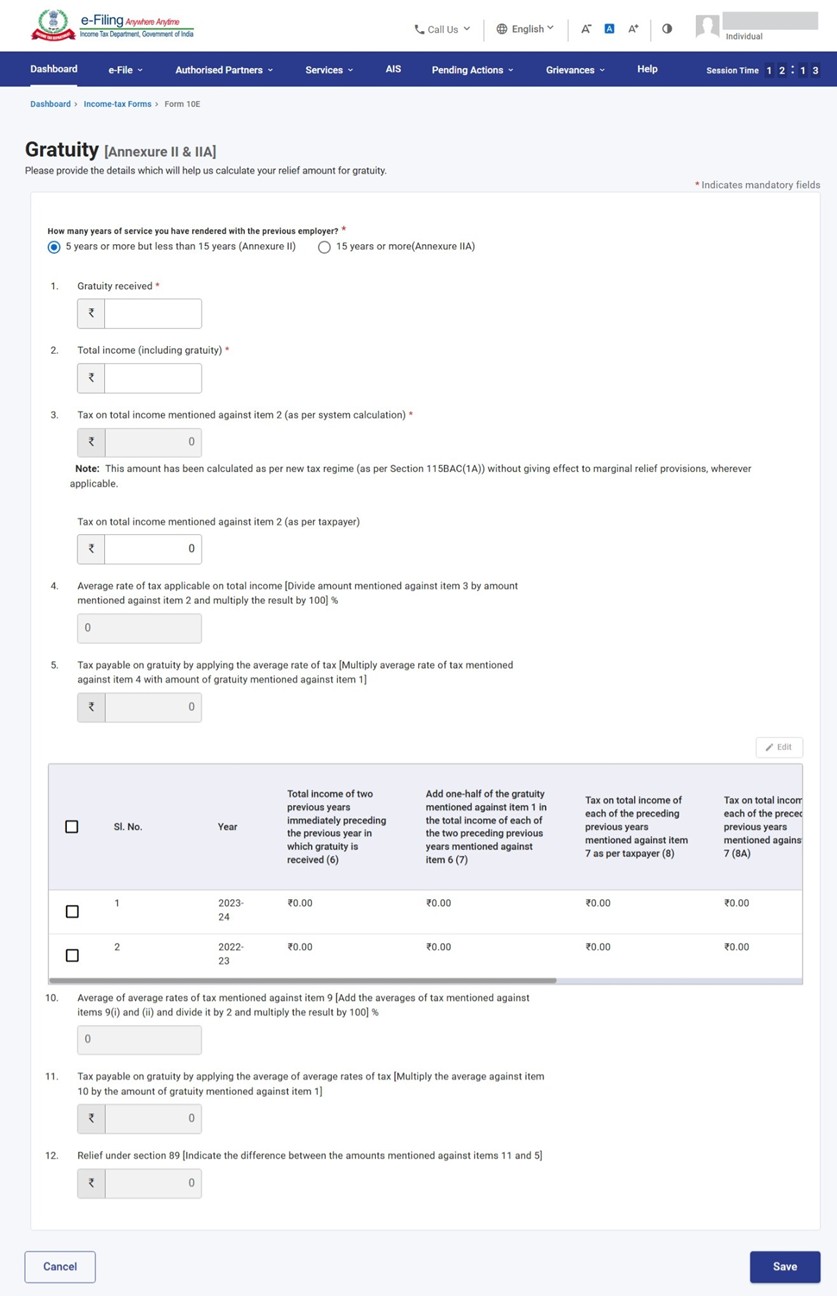
Step 9.3.b: This part contains general details of payment in nature of Gratuity in respect of past services.
Enter the details and click Save.
Note: The system calculated tax for A.Y. 2024 - 25 & onwards is computed under the default new tax regime as per Section 115BAC(1A), whereas for all assessment years up to A.Y. 2023 - 24, the tax is calculated according to the old tax regime.
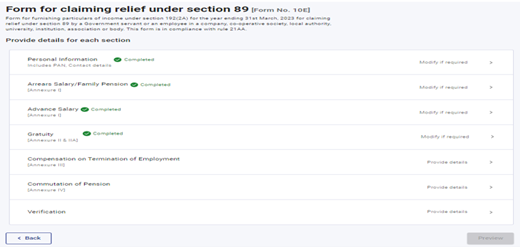
Step 9.4.a: Gratuity tab is confirmed now, click on Compensation on Termination of Employment tab (if applicable to you).
Step 9.4.b: This part contains general details of payment in nature of compensation from the employer or previous employer at or in connection with termination of employment after continuous service of not more than 3 years or where the unexpired portion of term of employment is also not less than 3 years.
Enter the details and click Save.
Note: The system calculated tax for A.Y. 2024 - 25 & onwards is computed under the default new tax regime as per Section 115BAC(1A), whereas for all assessment years up to A.Y. 2023 - 24, the tax is calculated according to the old tax regime.
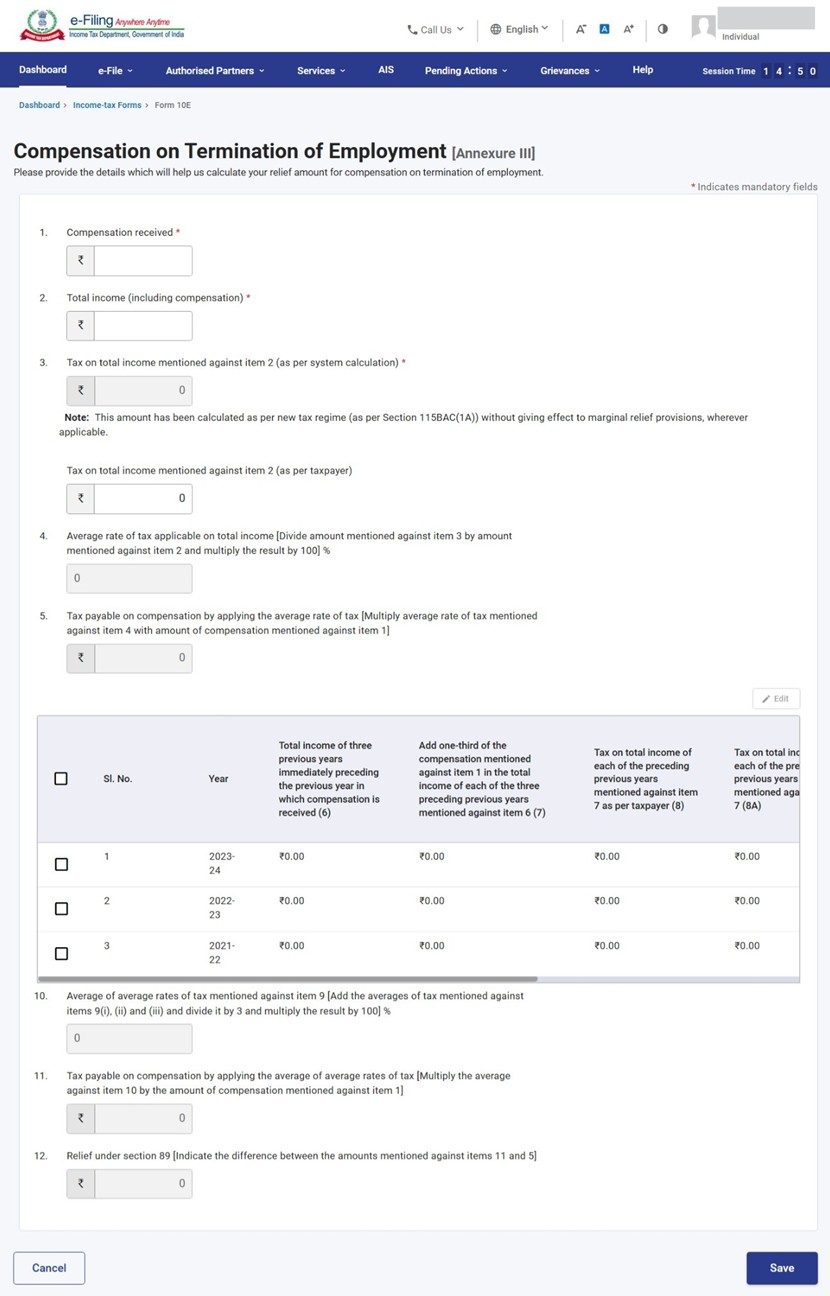
Step 9.5.a: Compensation on Termination of Employment tab is confirmed now, click on Commutation of Pension tab (if applicable to you).
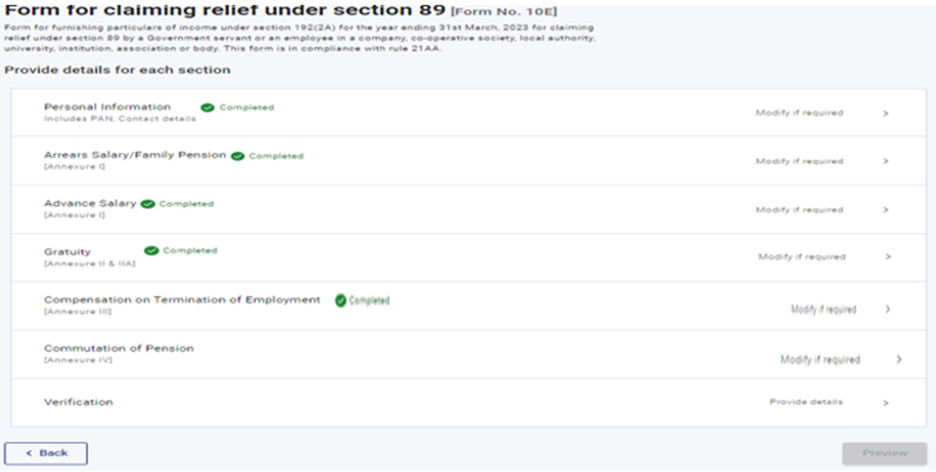
Step 9.5.b: This part contains general details of Payment in commutation of pension.
Enter the details and click Save.
Note: The system calculated tax for A.Y. 2024 - 25 & onwards is computed under the default new tax regime as per Section 115BAC(1A), whereas for all assessment years up to A.Y. 2023 - 24, the tax is calculated according to the old tax regime.
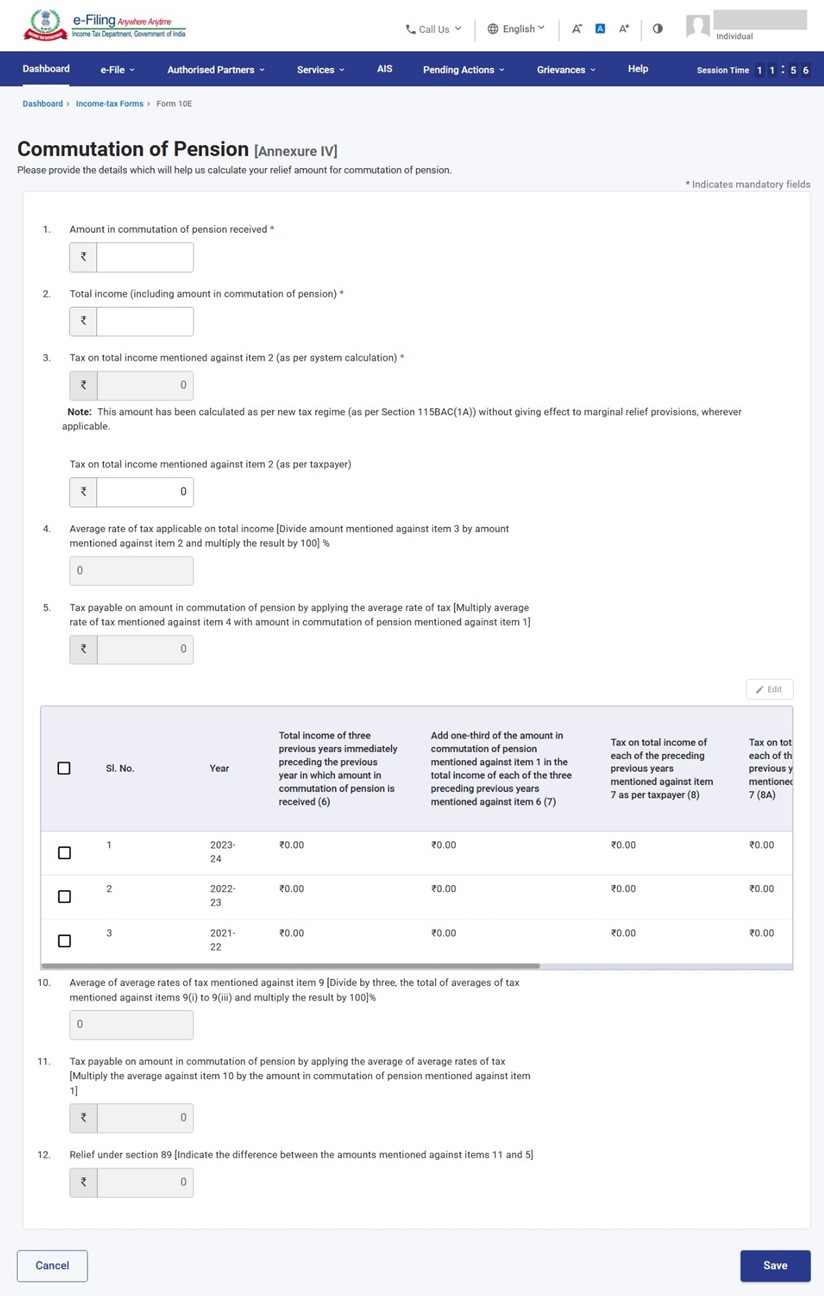
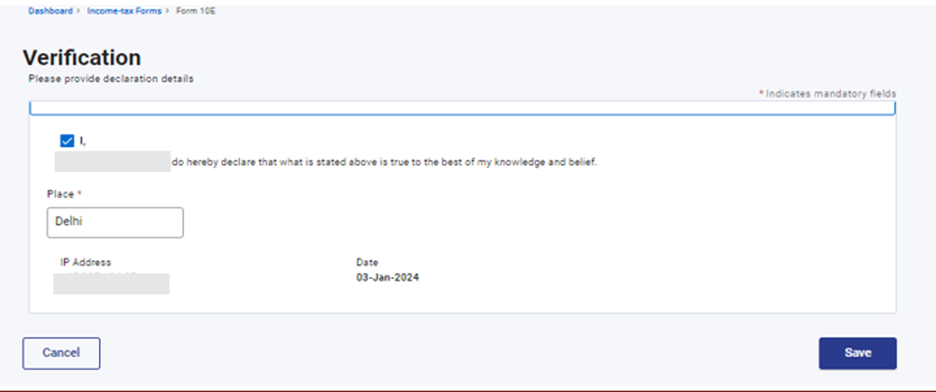
Step 10: Commutation of Pension tab is confirmed now, click on Verification tab.
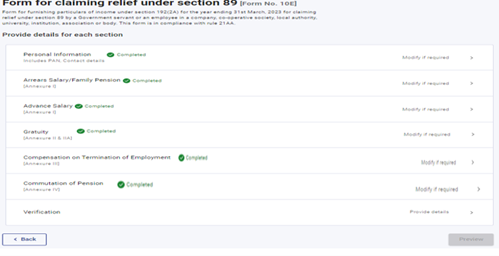
Step 11: Select the check box, enter the Place, and click Save.
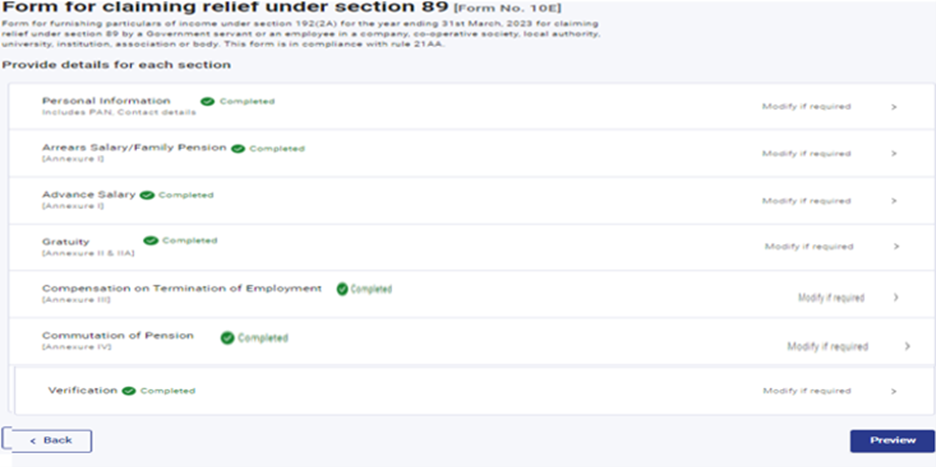
Step 12: All the tabs are confirmed now. Click on Preview.
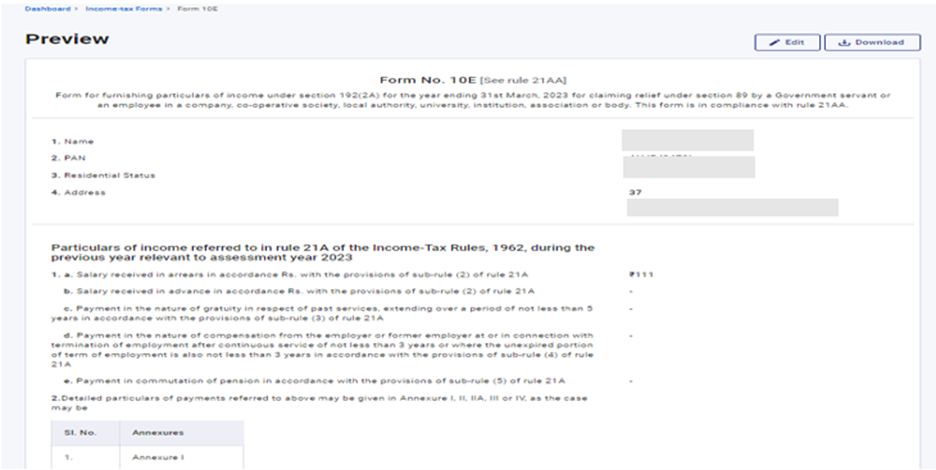
Step 13: This is the Preview of the Form. Click on Proceed to e-Verify, if details are correct in Preview, else you can edit the details.
Step 14: You can e-Verify the Form through any of the modes of Verification.
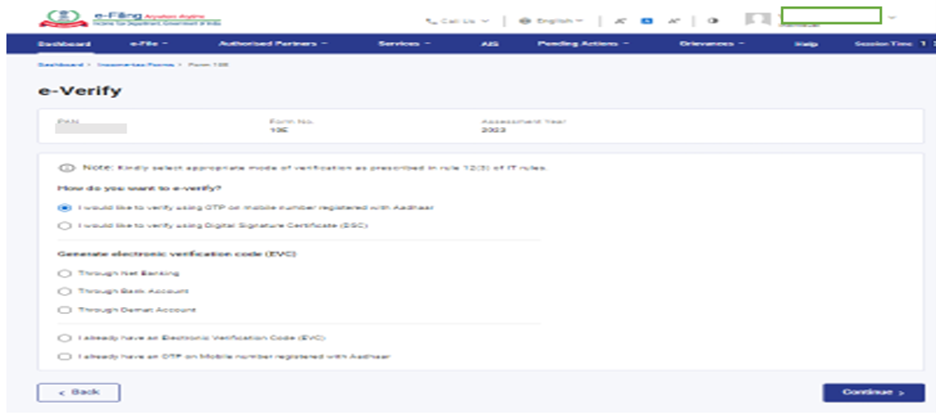
After e-Verification, Form 10E will be submitted. Acknowledgement number will be generated and communicated on registered e-mail Id and Mobile Number.
5. How to view filed form?
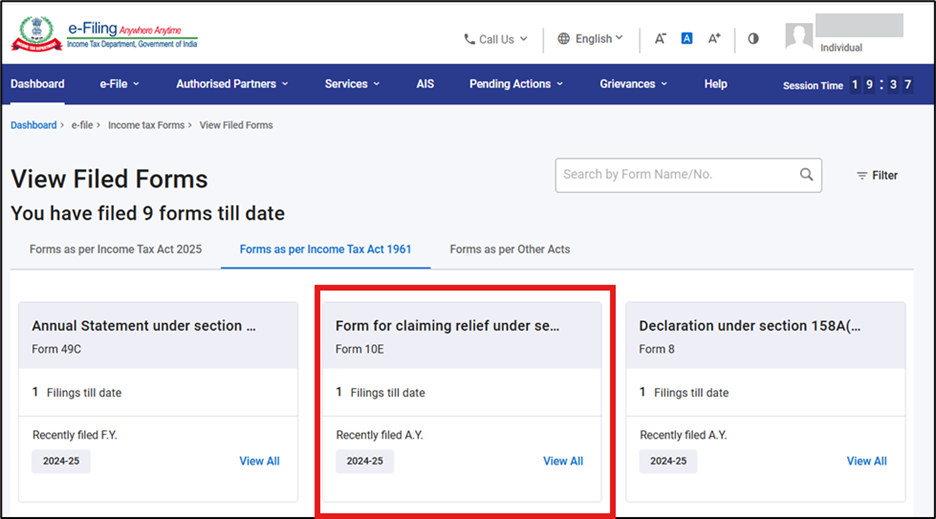
Go to e-file >Income Tax Forms > View Filed Forms>Forms as per Income Tax Act 1961.
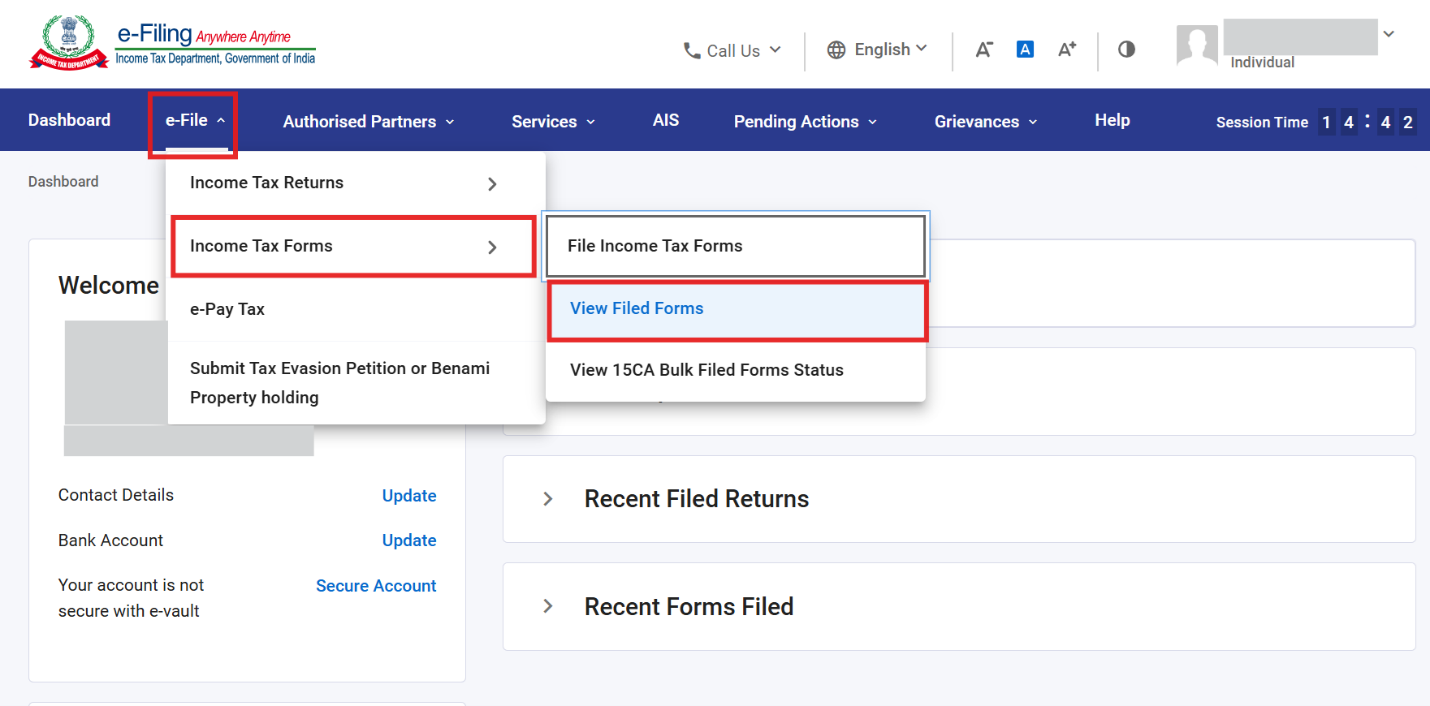
The filed form will be displayed here.