



Form 113-114 User Manual
1. Overview
The registered nonprofit organizations and person listed in Schedule VII (Table: Sl. No. 1) must File Form 113 for reporting donations and issuing donation certificates to donors.
All eligible organizations are required to file a Statement of Donations in Form 113. This form is submitted online and must be verified by an authorized signatory.
The Users (Reporting person) has the option of either directly filing Form 113 and generate system generated Form 114 certificates for the donors (within 24hrs from filing Form 113) or generate Pre-Acknowledgement Numbers (Pre-ARN's) for manual issue of Form 114 certificates to the donors.
Reporting person (Registered non-profit organizations and persons listed in Schedule VII[Table: Sl. No. 1])can generate Pre-ARN's for Form 114 upto 1000 no. without filing form 113. Pre-acknowledgement no. will be a unique number to be quoted on Manual donation certificates issued to the donors at the time of receipt of donation. The details of all such Manual certificates with Pre-ARN's issued shall be entered while filing Form 113 mandatorily.
The Reporting entity can generate next set of 1000 Pre-ARN's for Manual issue of donation certificates after consuming all the previously generated pre-ARN's by filing Form 113.
After filing of Statement of Donations in Form 113, reporting entity must download and issue Certificate of Donations generated in Form 114 which contains details of the Institution like PAN, Name and Unique registration number along with details of the donations and donor.
- How to generate Pre-Acknowledgement nos. (Section 4.1)
- View Previous Pre-Acknowledgement Numbers generated (Section 4.2)
- How to File Form 113 (Statement of particulars of Donors and Donation) (Section 4.3)
- How to generate Form 114 after filing Form 113 (Section 4.4)
- How to File Revised Form 113 (Section 4.5)
2. Prerequisites for availing this service
- Taxpayer is registered at e-filing portal.
- Taxpayer has valid Username (PAN) and Password of E-filing portal.
- Status of PAN of the Taxpayer is "Active" as per PAN database.
- If the taxpayer would like to validate through DSC, he should have a valid DSC. It should be registered at e-filing portal & not expired. About the Form.
3. About the Form
3.1 Purpose
In accordance with clauses (e) and (f) of Section 354(1), every reporting person is required to furnish a statement of particulars or a correction statement for each financial year, starting from the tax year 2026-27. Submitting the Statement of Donations in Form 113 is mandatory.
The purpose of Form 113 is to enable charitable institutions, NGOs, and other approved entities to submit statement of all donations received during the tax year that qualify for deductions under Section 133(1)(b)(ii) of the Income-tax Act. This filing ensures transparency, verifies donor identities, and allows the Income-tax Department to accurately match and validate the deductions claimed by donors. Based on the details reported in Form 113, these institutions must then issue Form 114 to each donor which gets generated on efiling portal after filing form 113. Form 114 serves as the official donation certificate and acts as proof for donors to claim their eligible tax deductions in their income-tax returns.
3.2 Who can use it?
3.3 Form at a Glance
- Generate Pre-Acknowledgement Numbers
- View Previous Pre-Acknowledgement Numbers
- File Statement or Correction Statement to be filed by Donee under section 354(1) [Form 113]
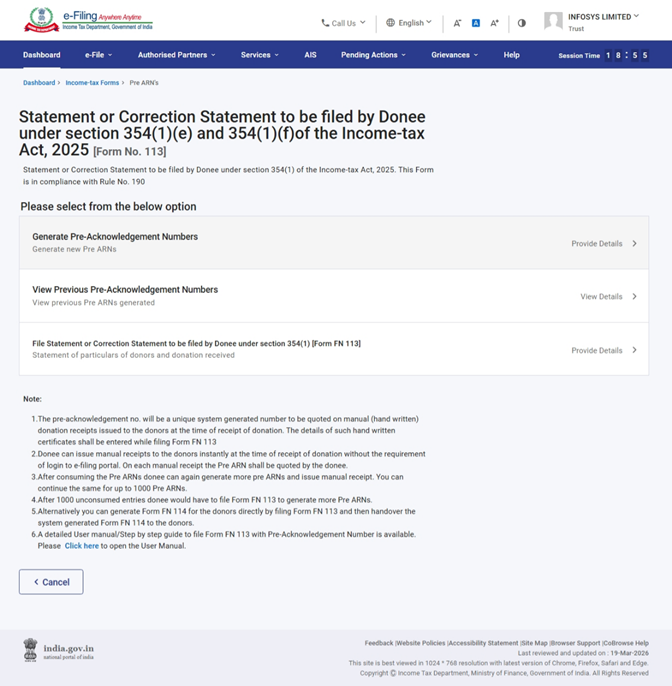
Note: If the user wants to directly file Form 113 and generate system generated Form 114 certificates, then please select directly File Statement or Correction Statement to be filed by Donee under section 354(1) [Form 113]” and continue filing.
A Pre Acknowledgement Number (Pre ARN) can only be created during the same tax year for which you are filing the statement. Once the tax year ends on 31st March, the system does not allow you to generate a Pre ARN for that completed year. You can generate it only for the current, ongoing tax year.
4. Step-by-Step Guide
4.1 Generate Pre-Acknowledgement Numbers
Step 1: Log in to the e-Filing portal with your User ID and Password.
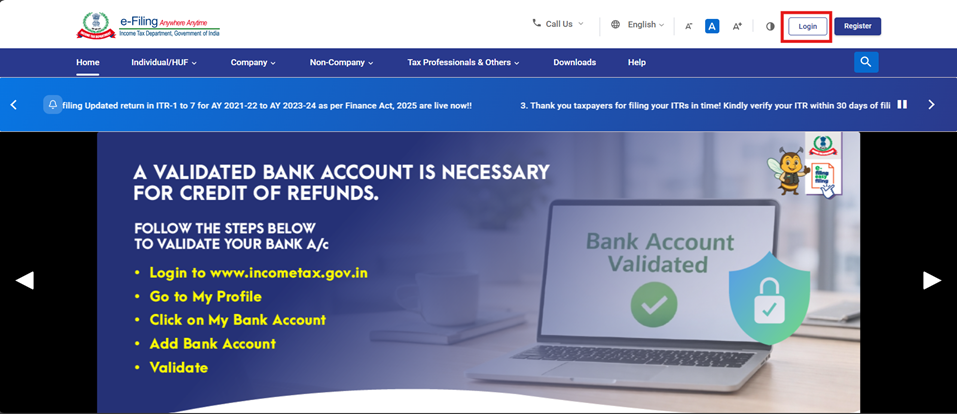
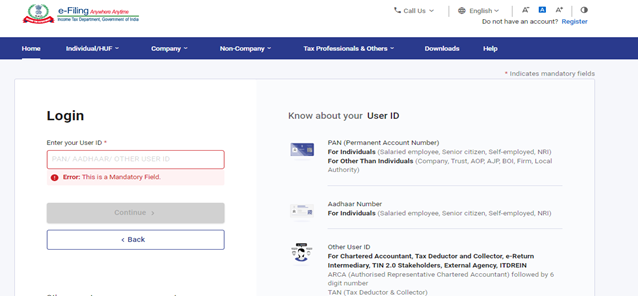
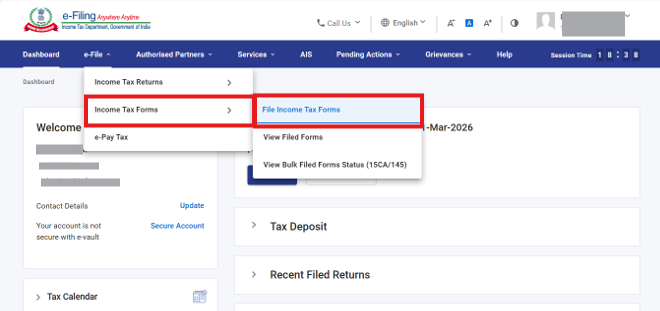
Step 2: Go to e-File >Income Tax Forms > File Income Tax Forms.
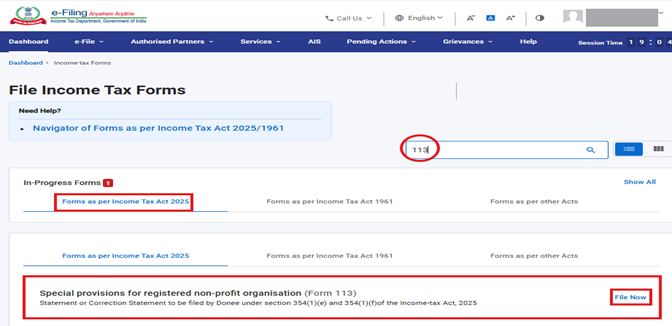
Step 3: Select the “Forms as per Income Tax Act 2025” tab, search for Form 113, and click the File Now button.
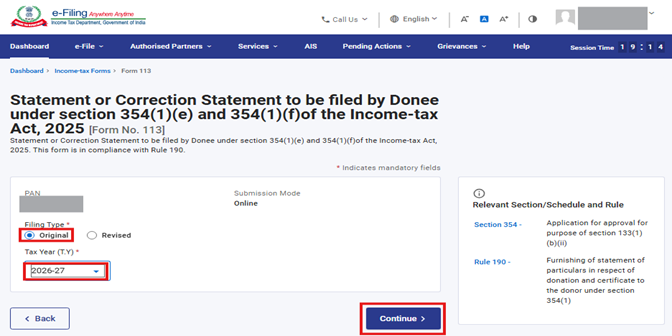
Step 4: Select the Filing type radio button and Tax year from the drop down menu and click Continue.
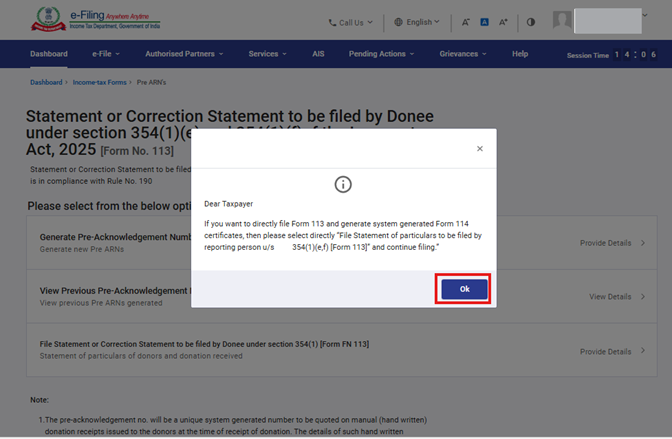
Step 5: Read the instructions and close the pop up by clicking on Ok.
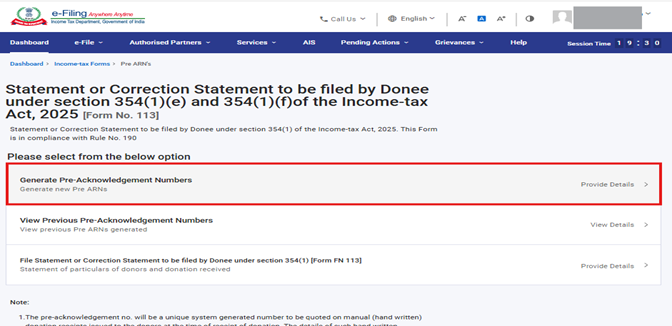
Step 6: Click on Generate Pre-Acknowledgement Numbers to Generate Pre-ARN.
(If the user wants to directly file Form 113 and generate system generated Form 114 certificates, then please select “File Statement or Correction Statement to be filed by Donee under section 354(1) [Form 113]” directly and continue filing).
Step 7: Enter the count of Pre-ARN to be generated. Click Generate Pre ARNs after enter number in field “Count of Pre Acknowledgement Nos. to be generated”.
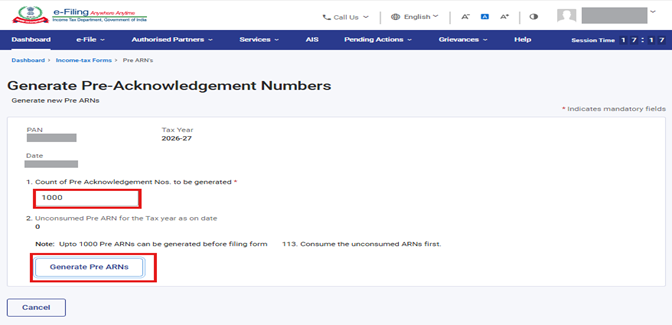
Step 8: Click on Continue.
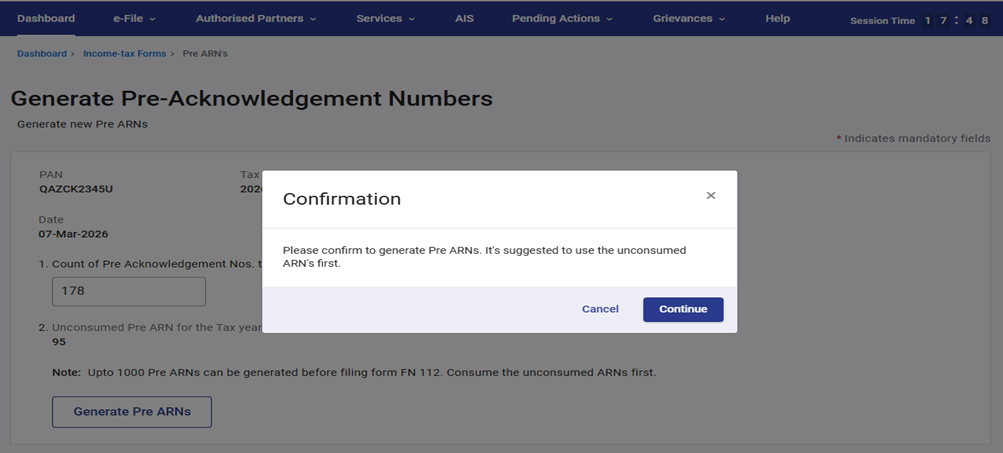
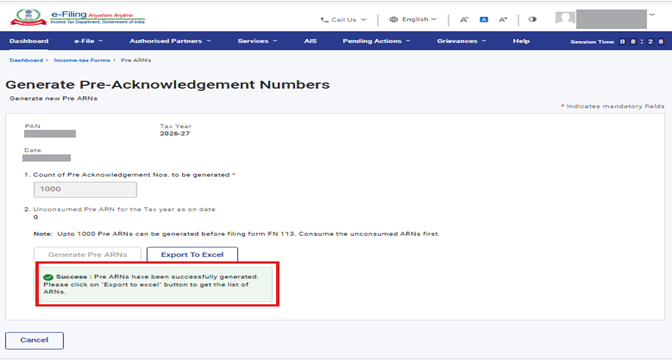
Step 9: After click on continue, you will see a success message - Pre ARNs have been successfully generated. Please click on the 'Export to excel' button to get the list of ARNs.
Click Export to excel to get the list of ARNs generated.
 Note:
Note:- Donee can issue Manual 114's to the donors instantly at the time of receipt of donation without the requirement of login to e-filing portal. On each manual receipt the Pre ARN shall be quoted by the Donee.
- After utilizing the generated Pre-ARNs Donee can again generate more Pre ARN's and issue manual receipt. You can continue the same for up to 1000 Pre ARN's.
- After utilizing the 1000 Pre-ARN entries (unconsumed) donee would have to file Form 113 with the details of those 1000 Pre-ARN entries. Once filed the 1000 Pre-ARNs will get consumed.
- The Donee can generate next set of 1000 Pre-ARNs only after consuming the previously generated 1000 Pre-ARNs by filing Form 113.
4.2 View Previous Pre-Acknowledgement Numbers generated
Step 1: Click on View previous Pre-Acknowledgement Numbers Generated.
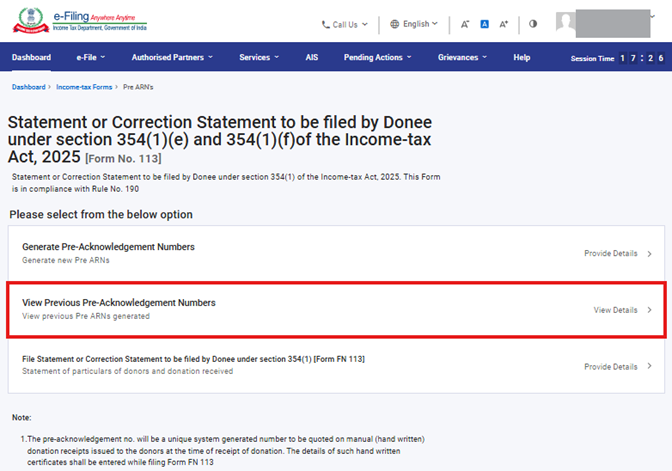
Step 2: Here you can View and check the Status (Consumed, Unconsumed, expired &deleted) of all Pre-ARN generated.
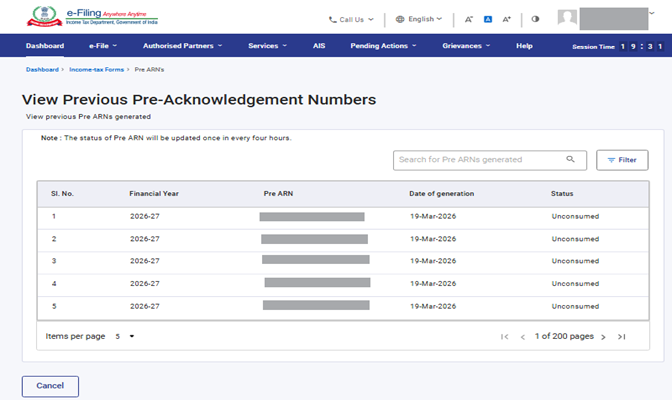
Note: The status of Pre ARN will be updated once in every four hours.
Step 2(a): You can View/ check status of particular ARN by applying filter option.Click the filter in the right above corner, select status and date of generation (From-To) and then click Apply.
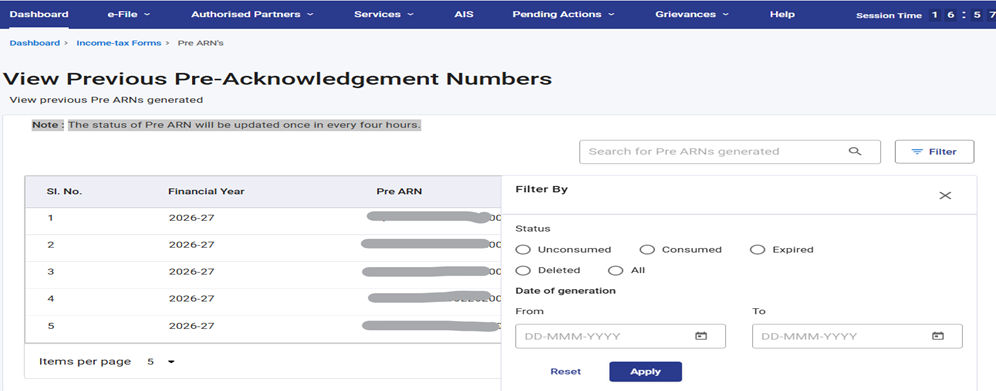
Note:
- Once Form 113 is filed, the status of all PreAcknowledgement Numbers (PreARNs) included in that filing will automatically change from "Unconsumed" to "Consumed."
- Any PreARNs that remain unused and cannot be included in Form 113 by 31st May of the Financial Year following the relevant Tax Year will be marked as "Expired."
- If a PreARN is included in Form 113 initially but its entry is later deleted while filing a revised Form 113, the status of such PreARNs will be updated to "Deleted."
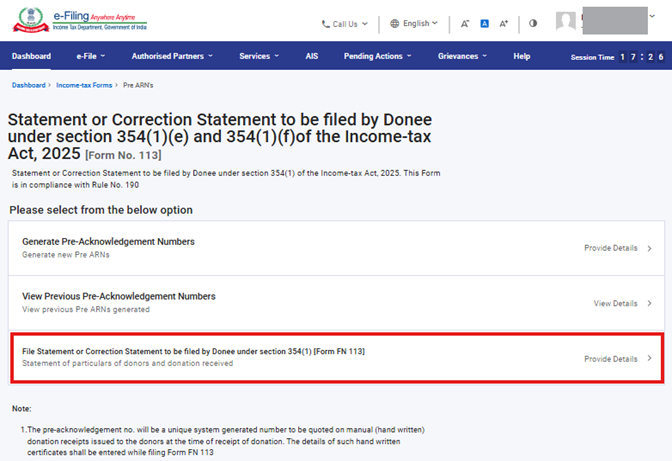
4.3 File Statement or Correction Statement to be filed by Donee under section 354(1) [Form 113]
Step 1: Click the File Statement or Correction Statement to be filed by Donee under section 354(1) [Form 113].
Step 2: Click on Let's Get Started.
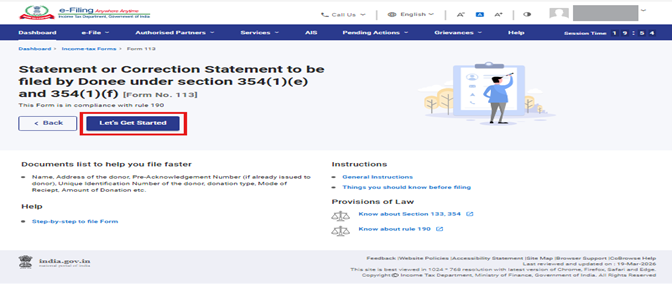
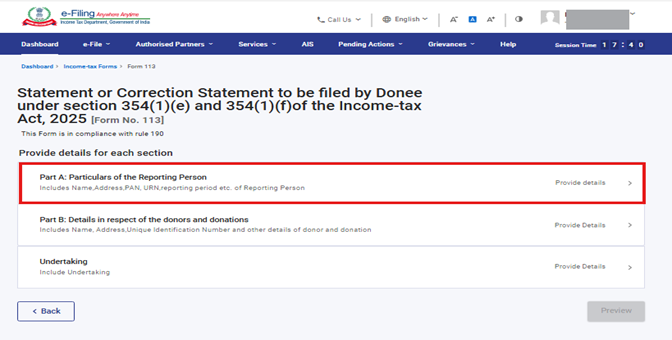
Step 3: Post clicking on Let's Get Started button, you will be navigated to Panel screen. This Form has three panels.
- Panel 1: Part A: Particulars of the Reporting Person.
- Panel 2: Part B: Details in respect of the donors and donations.
- Panel 3: Undertaking.
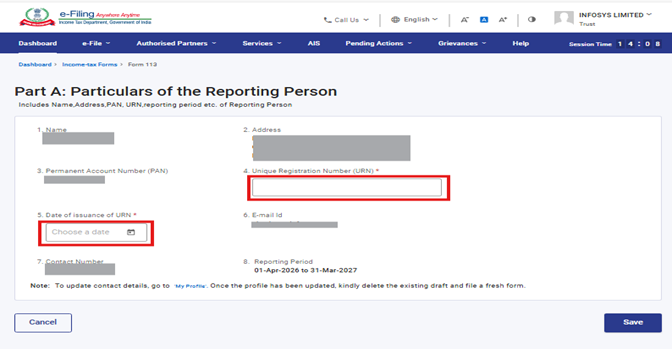
Select the 1st Panel "Part A: Particulars of the Reporting Person"
Under this Panel Name, Address, Permanent Account Number (PAN), Email id, Contact Number and Reporting Period (01-Apr-202X to 31-Mar-202X) will be prefilled.
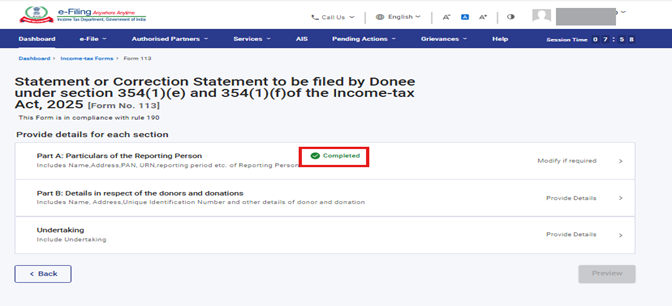
Step 4: 'Part A: Particulars of the Reporting Person panel' will have a green tick mark with the status 'Completed'.
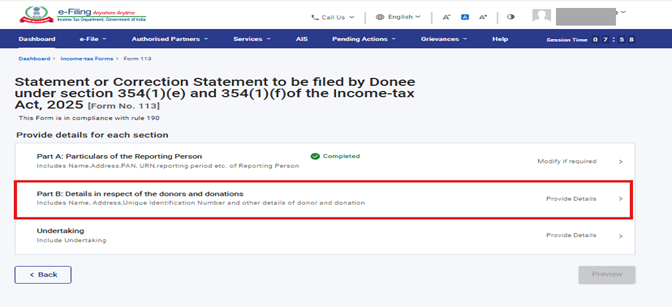
Step 6: User need to download the template by clicking on "Download Template"
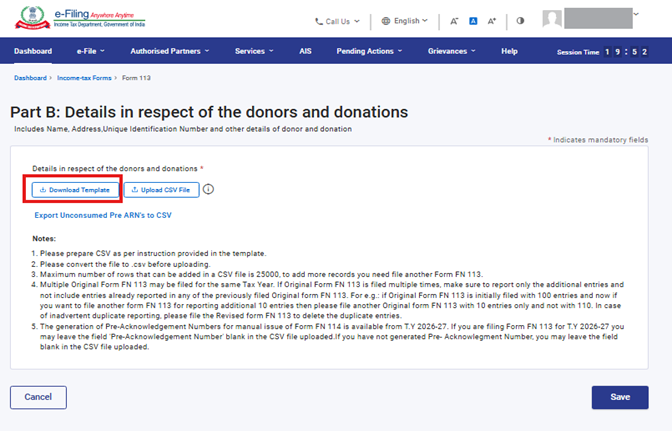
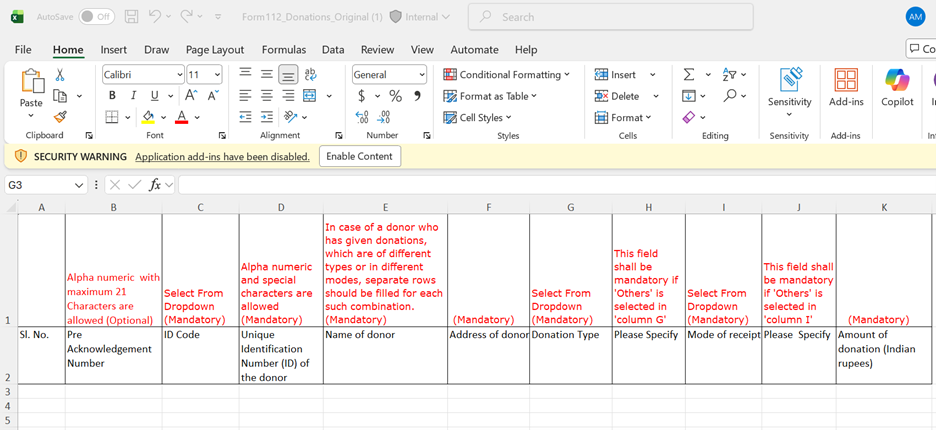
Notes:
1. Follow the under-mentioned instructions to fill the above excel template:
| Field Name | Instruction | Mandatory field (Yes/No) | Length of the character |
|---|---|---|---|
| Sl.No | Enter the serial numbers starting from 1 | Yes | |
| Pre Acknowledgement No. | Enter Pre Acknowledgement No. which has been allotted against Manual Reciept issued to Donor for donation rec | No | Alpha numeric with maximum 21 Characters are allowed |
| ID Code | ID code needs to be selected from Dropdown. | Yes |
Following are the Dropdown value:: 1-Permanent Account Number 2-Passport number 3-Elector's photo identity number 4-Tax Identification Number of the country where the person resides |
| Unique Identification Number (ID) of the donor | User needs to enter Unique identification of ID code selected. | Yes | Alpha numeric and special characters are allowed with Maximum 100 Characters |
| Name of donor | Name of donor Donor name needs to be filled up Yes Maximum 277 Characters allowed. | Yes | Maximum 277 Characters allowed |
| Donation Type | Donation type needs to be selected from Dropdown. | Yes |
Following are the Dropdown values:- (I)Corpus donation as per section 339 of the Income-tax Act, 2025 (II)Voluntary contribution other than corpus donation (III) Specific Grant (IV) Donation from Corporate Social Responsibility funds as referred to in section 135 of the Companies Act, 2013 (V) Others, Specify |
| Please Specify | Please Specify If Option V is selected from dropdown in Donation Type Field then user needs to write brief description mandatorily. No Maximum 100 Characters allowed. | No | Maximum 100 Characters allowed. |
| Mode of receipt | Mode of receipt needs to be selected from Dropdown. | Yes |
Following are the Dropdown values:- 1. Cash 2. Kind 3. Electronic modes including account payee cheque/draft 4. Others, Specify |
| Please Specify | Donation type needs to be selected from Dropdown. If Option 4 is selected from dropdown in Mode of reciept Field then user needs to write brief description. | No | Maximum 100 Characters allowed. |
| Amount of donation (Indian rupees) | Donation Amount needs to be entered. | Yes |
2. Please convert the file to .csv before uploading.
3. Maximum number of rows that can be added in a CSV file is 25000, to add more records you need file another Form 113.
4.Multiple Original Form 113 may be filed for the same Tax Year. If Original Form 113 is filed multiple times, make sure to report only the additional entries and not include entries already reported in any of the previously filed original form 113. For example: if Original Form 113 is initially filed with 100 entries and now if you want to file another form 113 for reporting additional 10 entries then please file another original form 113 with 10 entries only and not with 110. In case of inadvertent duplicate reporting, please file the Revised Form 113 to delete the duplicate entries.
The generation of Pre-Acknowledgement Numbers for manual issue of donation receipt is available from T.Y 2026-27. If you have not generated a PreAcknowledgement Number and are directly filing Form 113, you may leave the 'PreAcknowledgement Number' field blank in the CSV file uploaded.
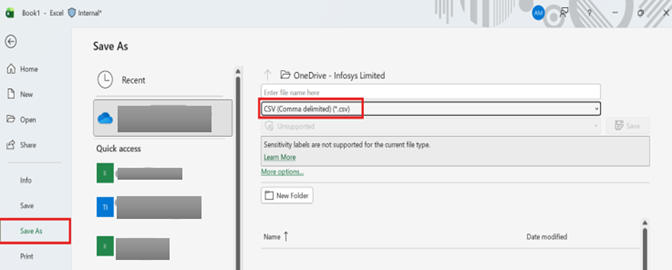
Step 8: After filling in all the mandatory Field in the downloaded excel template, save the data in the excel template. Then click File > Save As or Alt + F + A. Select the 'CSV (Comma delimited)' from the drop down in Save as type and then click Save. The filled in excel file will be saved in CSV format. This CSV format needs to be uploaded onto the portal.
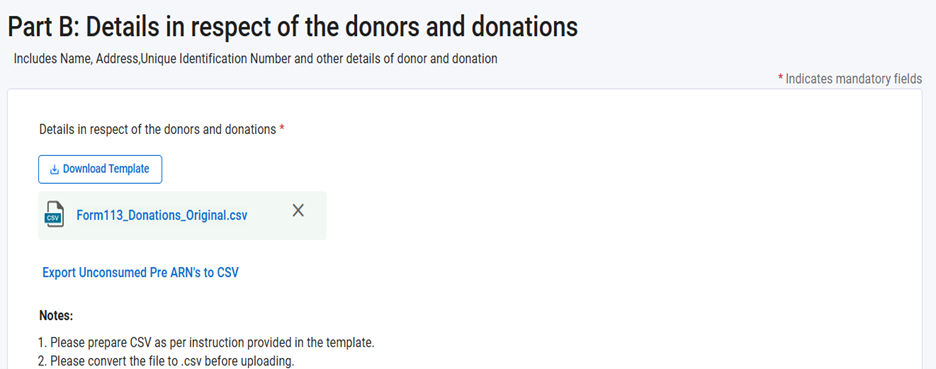
Step 9: Click the Upload CSV File button upload the CSV file and click Save
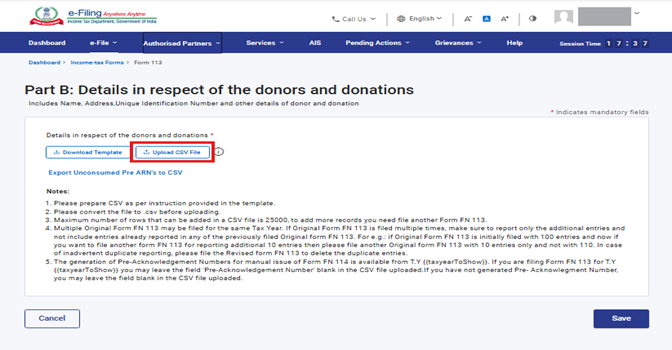
After the CSV file is uploaded, the 'Upload CSV File' button will disappear, and the uploaded file will be displayed as an attachment, as shown in the screen below.
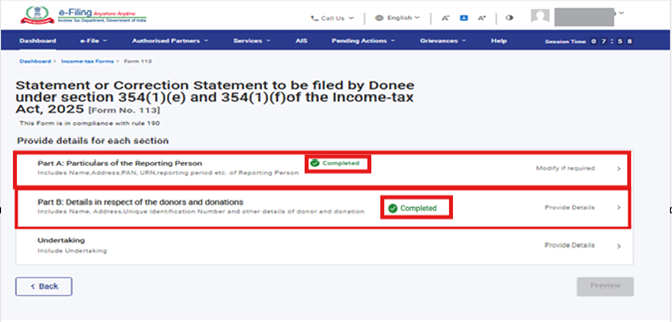
Step 10: Part B: Details in respect of the donors and Donations will have a green tick mark with the status Completed.
Now, Click the Undertaking Panel to verify the Form 113.
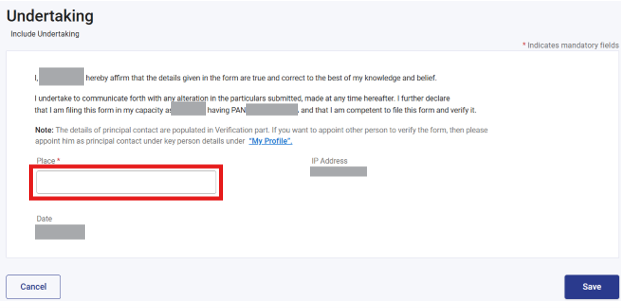
Step 11: Name, designation and PAN of signatory will be prefilled. Fill in the field 'Place' from where the form is being filed and click on save button.>
Step 12: Part A: Particulars of the Reporting Person, Part B: Details in respect of the donors and donations, Undertaking will have a green tick mark with the status Completed. Now click Preview.
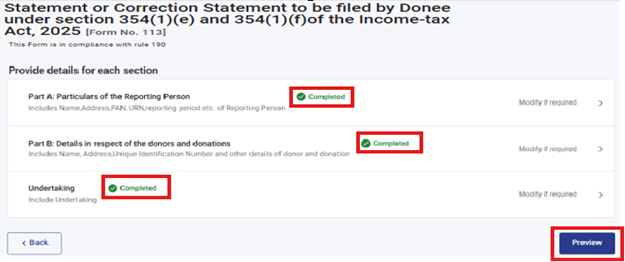
Step 13: Click on Proceed to E-Verify. You can click on Download in order to Download Preview.
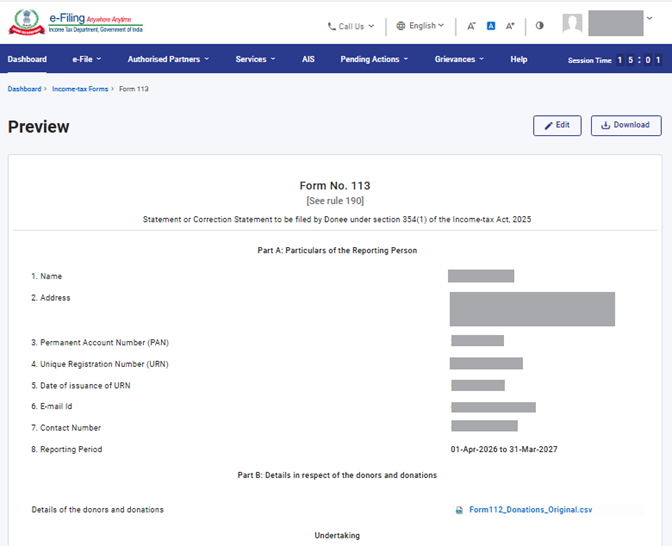
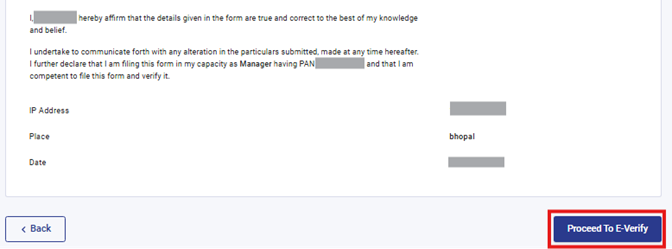
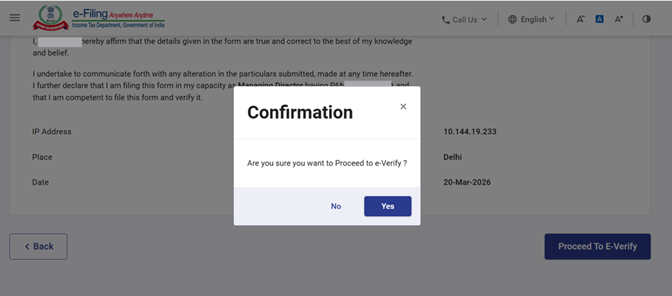
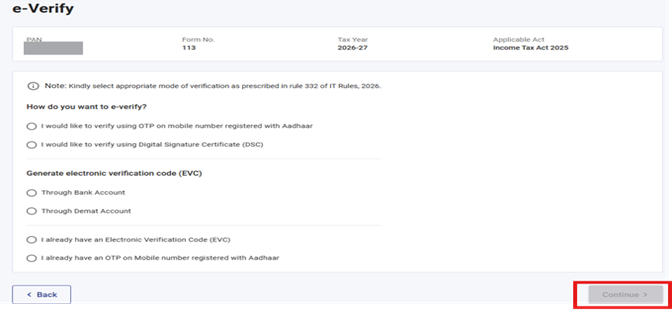
Step 14: On clicking Yes, you will be navigated to the E-Verify page where you can verify Form 113 using EVC/DSC (as applicable).
Step 15: Select the mode of e-verification and click on continue which will be enabled once you select the mode of e-verification.
Note: Refer to the How to e-Verify user manual to learn more.
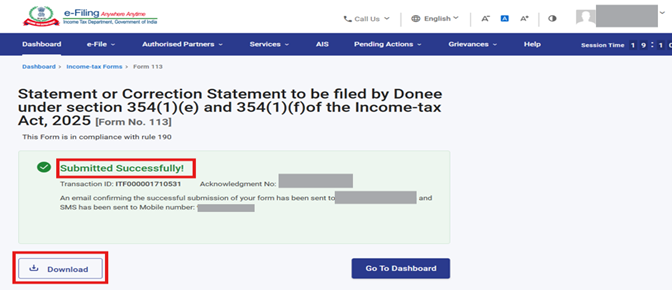
Step 16: After e-verification you will see the success message on the screen that the form has been submitted successfully and download the Acknowledgement Reciept by clicking on download.
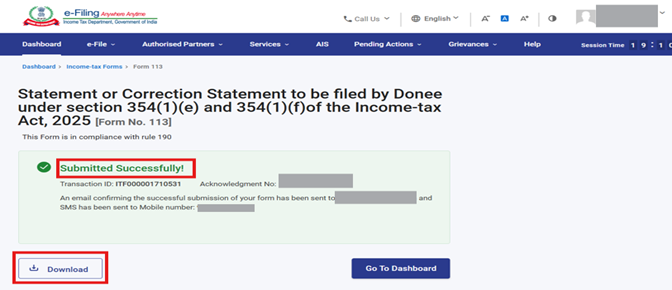
Note: You can download Form 114 within 24hrs from the time of filing form 113
4.4 Certificate of Donation (for Donor) in Form 114
After filing of Statement of Donations in Form 113, download and issue Certificate of Donations in Form 114 which contains details of the NGO like PAN and Name of the NGO, approval/certificate numbers u/s 80G of income tax act 1961 or 354 of income tax act 2025 along with details of the donations and donor.
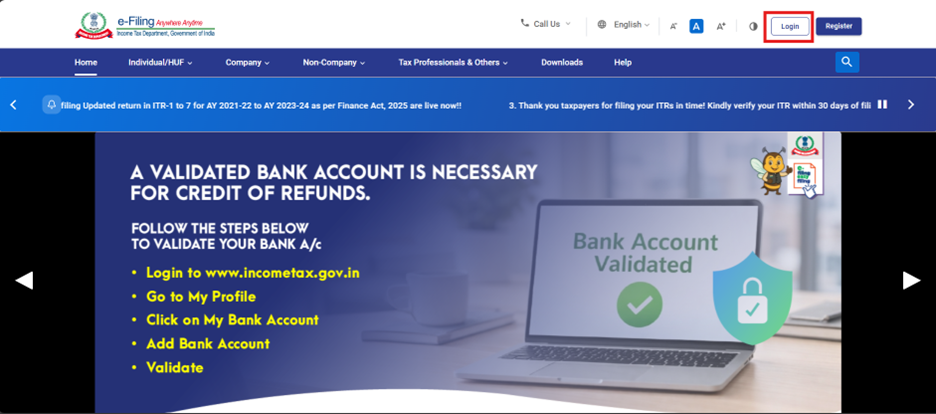
Step 1: Log in to the e-Filing portal using your user ID and password.
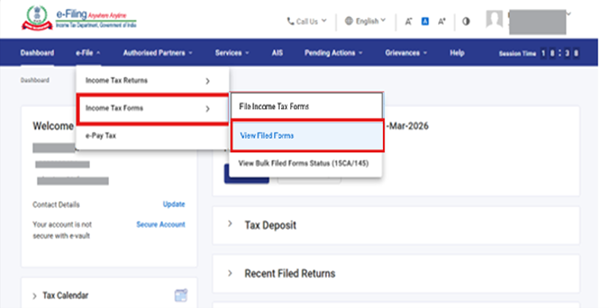
Step 2: On your Dashboard, click e-File > File Income Tax Forms > View Filed Forms.
Step 3: After clicking on “View Filed Forms,” go to the next screen and select the Tab“ Forms as per Income Tax Act 2025.” Once the tab opens, choose the Form 113 panel.
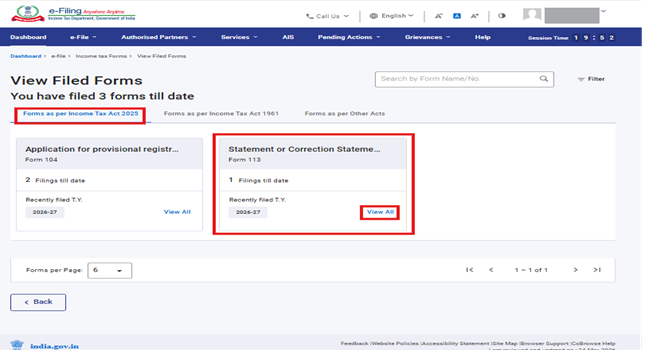
Step 4: Click on “Download 114 PDF's.” button.
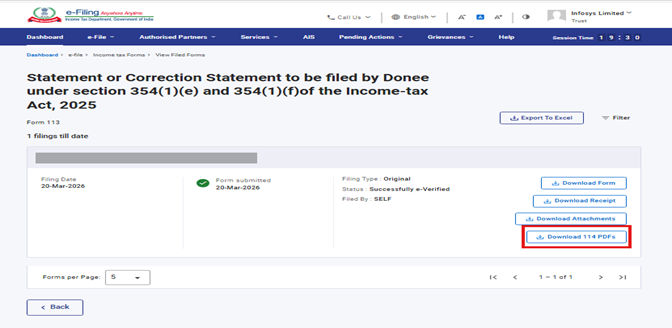
Note: Form 114 will be available for download within 24 hrs. from the time of filing form 113
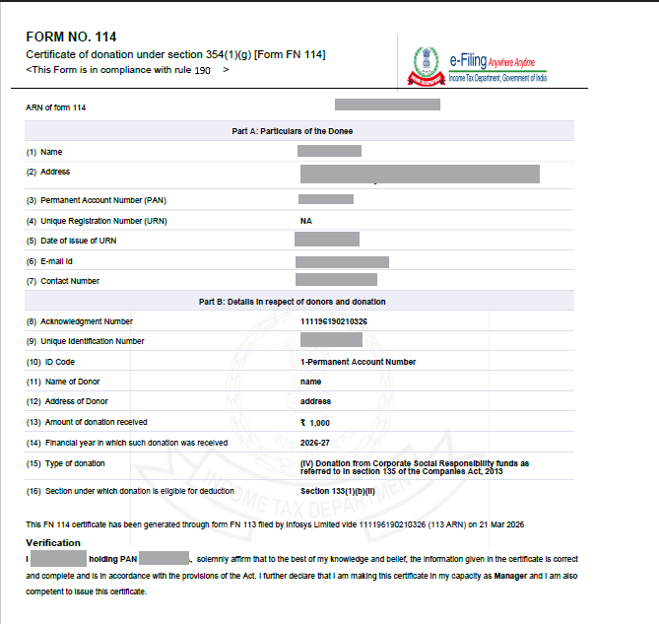
Step 5: Once you click the “Download Form 114 PDF” button, a ZIP file will be downloaded. This ZIP file will contain separate Form 114 PDFs for each donation whose details were provided in the CSV uploaded while filing Form 113.
After extracting the Form 114 PDFs from the ZIP file, the Donation Certificate can be issued to the respective donors.
Form 114 PDF will appear as follows.
4.5 Filing of Revised Form 113
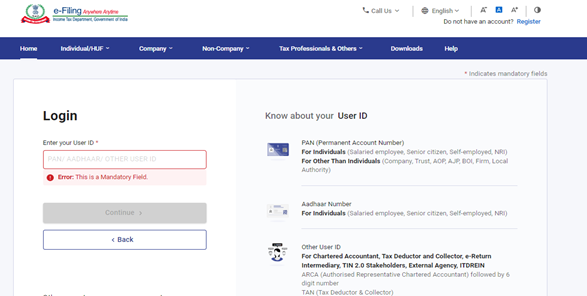
Step 1: Log in to the e-Filing portal using your user ID and password.
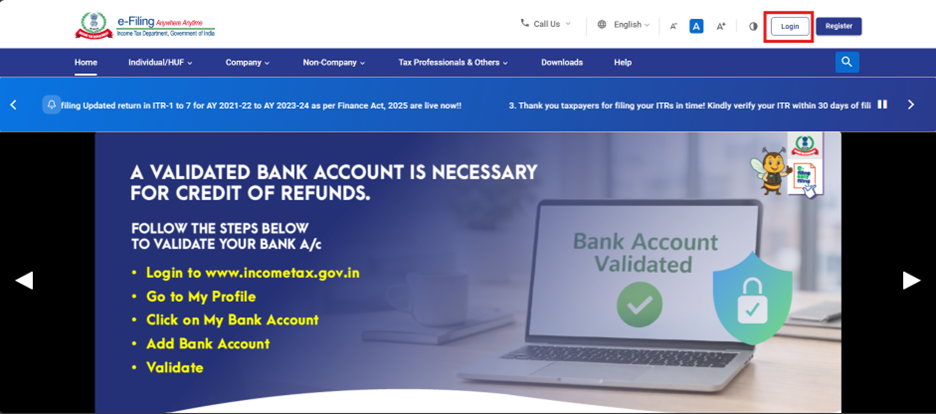
Step 2: Enter the User ID (PAN) and Password.
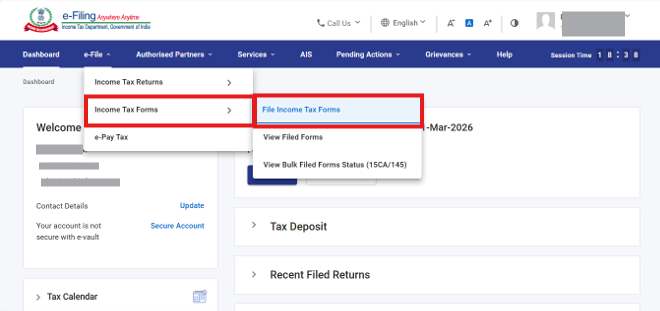
Step 3: Go to e-File >Income Tax Forms > File Income Tax Forms.
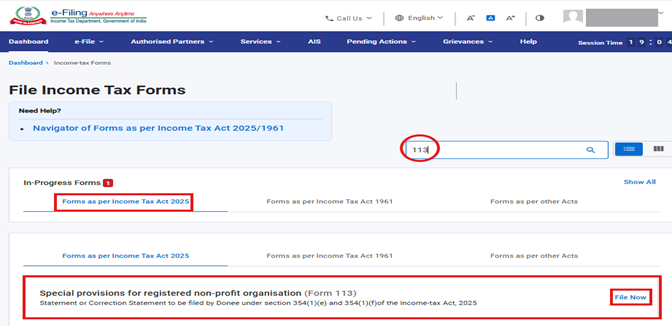
Step 5: Select the Filing type Revised radio button and Tax year from the drop-down menu and click Continue.
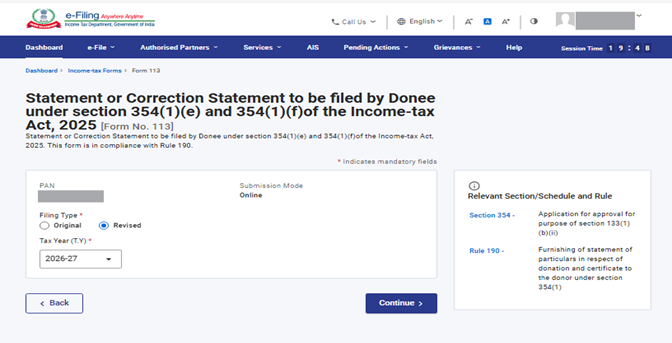
Step 6: Click the File Statement or Correction Statement to be filed by Donnée under section 354(1) [Form 113].
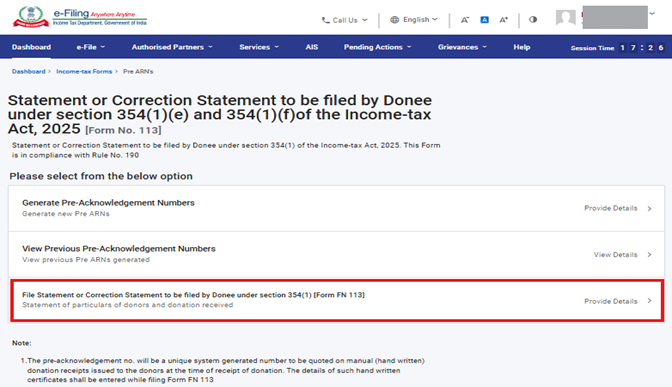
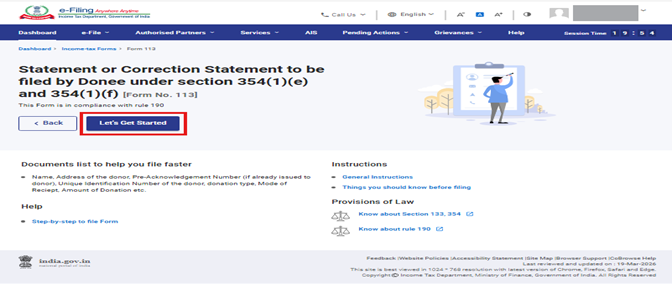
Step 7: Click on Let's Get Started.
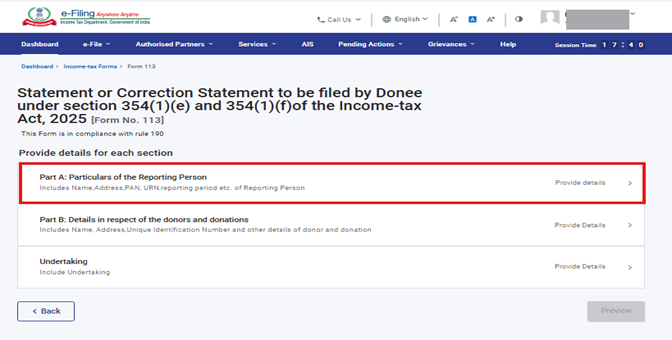
Step 8: Post clicking on Let's Get Started button, you will be navigated to Panel screen .This Form has three panels.
- Panel 1: Part A: Particulars of the Reporting Person
- Panel 2: Part B: Details in respect of the donors and donations
- Panel 3: Undertaking
Select the 1st Panel "Part A: Particulars of the Reporting Person"
Under this Panel Name, Address, Permanent Account Number (PAN), Email id, Contact Number and Reporting Period (01-Apr-202X to 31-Mar-202X) will be prefilled.
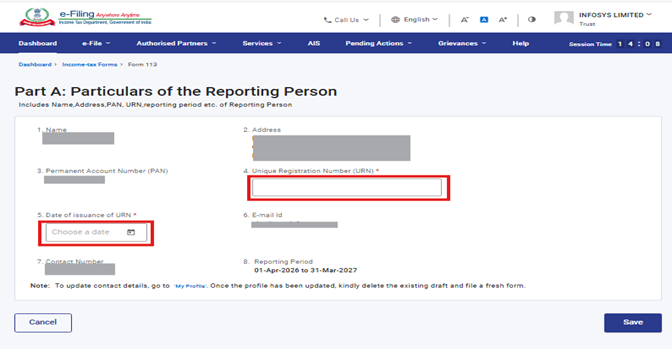
Step 9: Part A: Particulars of the Reporting Person panel' will have a green tick mark with the status 'Completed'.
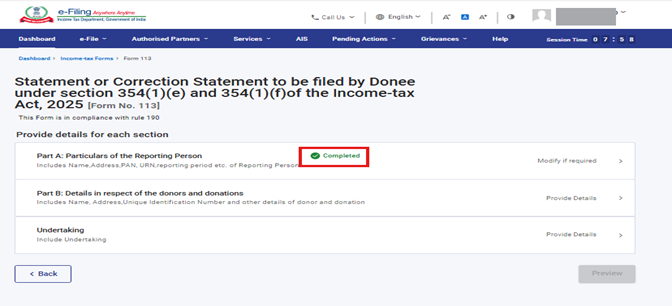
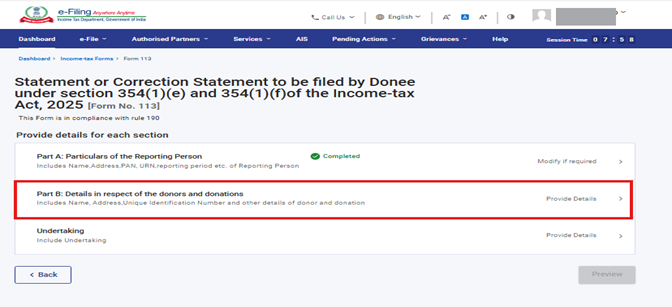
Step 10: Now, click Panel 2- Part B: Details in respect of the donors and Donations.
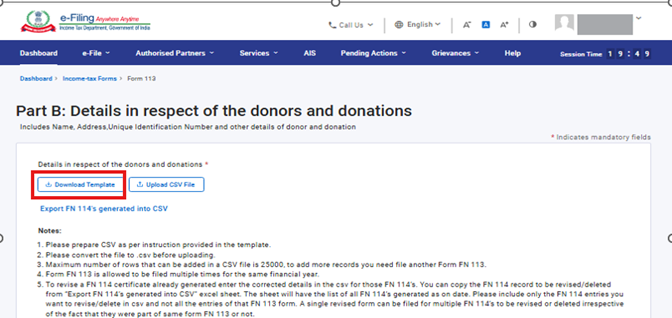
Step 11: Click Export 114 generated into CSV.
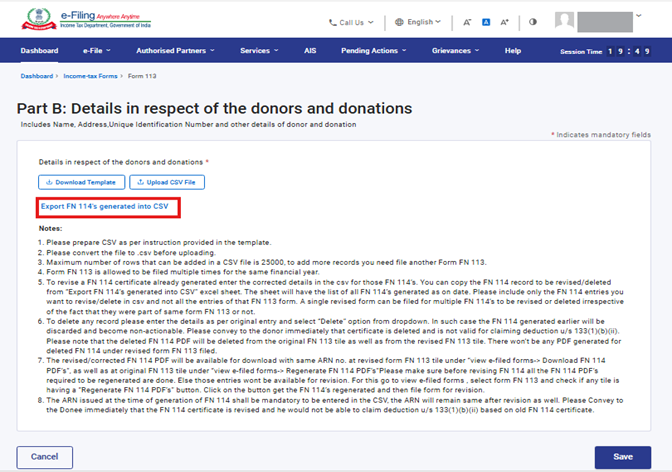
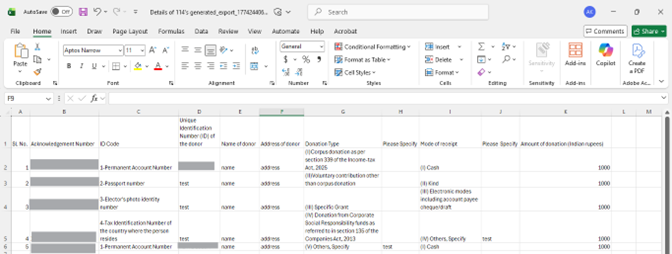
Step 12: Click Download Template to download the excel template.
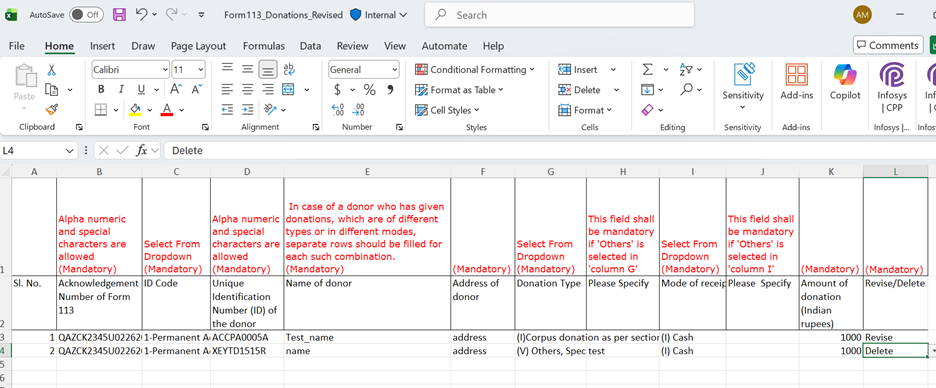
Note:- You can revise (Change in name of donor, change/add address of donor, amount etc.) or you can delete entries. Enter the revised details in excel sheet and select the status in column L as Revised or Delete. If you want to enter new entry then you have to file original form you can not use revise functionality to add new details.
Note:- You need to mention Acknowledgement number of Form 114 Mandatorily for which you need to revise or delete entry. Acknowledgement no of Form 114 is mentioned in form 114 PDF as highlighted below.
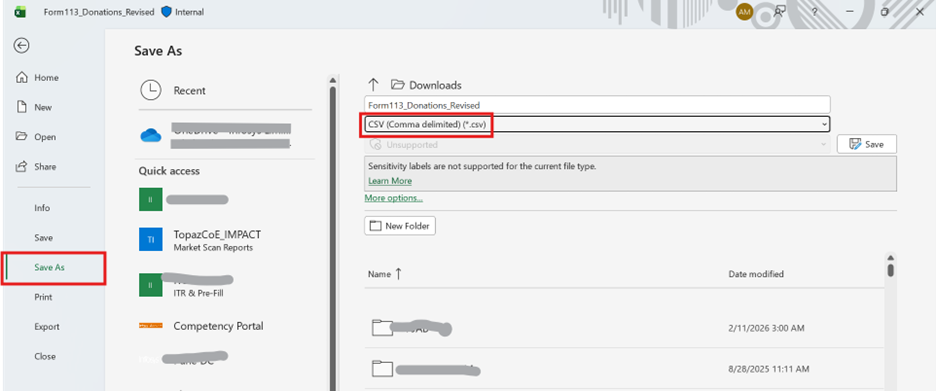
Step 13: After filing the data in the downloaded excel template, save the data in the excel template. Then click File > Save As or Alt+F+A. Select the 'CSV (Comma delimited)' from the drop down in Save as type and then click Save. The filled in excel file will be saved in CSV format. This CSV format needs to be uploaded on the portal.
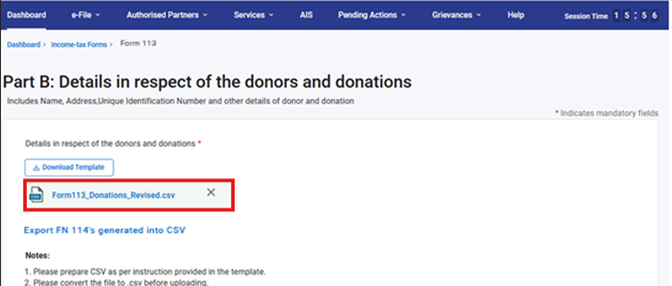
Step 14: Click the Upload CSV File button upload the CSV file and click Save.
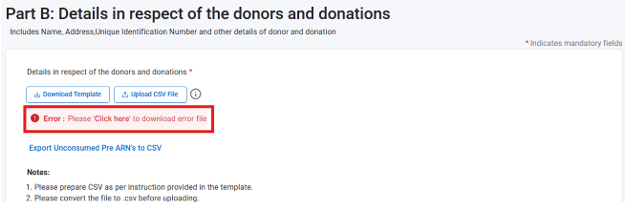
Step 15: If Any wrong details entered or mandatory fields are blank then error will be shown in error file. After click on “Click here” link, user can download the error file.
Now, Click the Undertaking Panel to verify the Form 113.
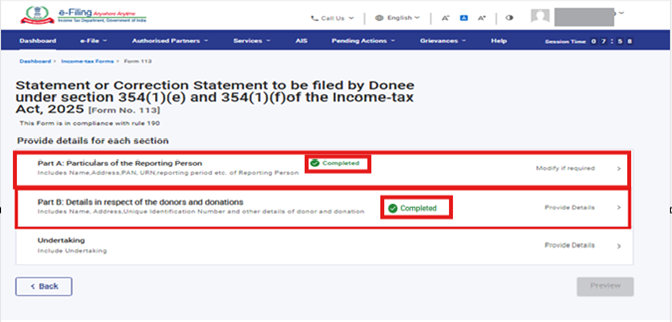
Step 16: Name, designation and PAN of signatory will be prefilled. Fill in the field 'Place' from where the form is being filed and click on save button.
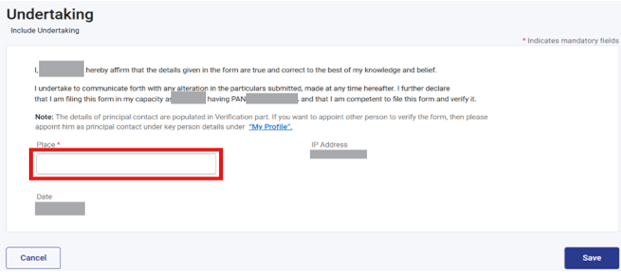
Step 17: Name, designation and PAN of signatory will be prefilled. Fill in the field 'Place' from where the form is being filed and click on save button.
Part A: Particulars of the Reporting Person, Part B: Details in respect of the donors and donations, Undertaking will have a green tick mark with the status Completed. Now click Preview.
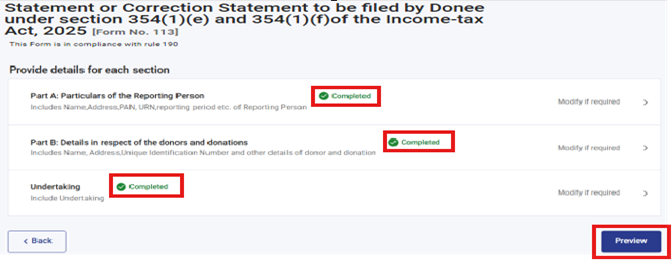
Step 18: Click on Proceed to E-verify.
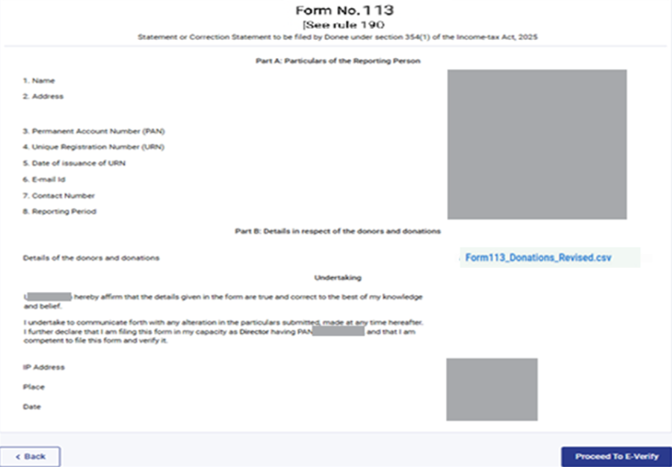
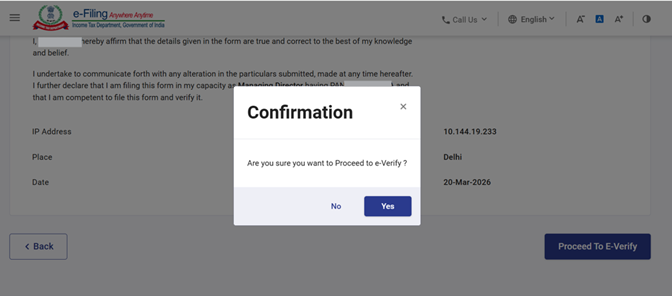
Step 20: Select the mode of e-verification and click on continue which will be enabled once you select the mode of e-verification.
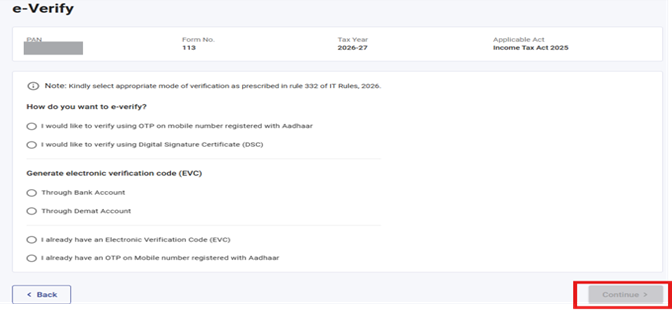
Note: Refer to the How to e-Verify user manual to learn more. After successful e-Verification, a success message is displayed along with a Transaction ID and Acknowledgement Receipt Number. Please keep a note of the Transaction ID and Acknowledgement Receipt Number for future reference. You will also receive a confirmation message on the email ID(s) and mobile number(s) registered with the e-Filing portal
Step 21: After e-verification you will see the success message on the screen that the form has been submitted successfully and download the Acknowledgement Receipt by clicking on download.
6. Glossary
| Acronym/Abbreviation | Description/Full Form |
|---|---|
| DSC | Digital Signature Certificate |
| EVC | Electronic Verification Certificate |
| ARN | Acknowledgement Receipt Number |
| PY | Previous Year |
| FY | Financial Year |
| TY | Tax Year |



