Form 144 User Manual
1. Overview
Form 144 is a quarterly statement that must be filed by persons who deduct tax at source (TDS) on payments (Other than salary) made to non-residents.
In simple terms, if any person such as a company, partnership firm, government body, or individual makes payments (like interest, fees, or other income) to a non-resident and deducts TDS on such payments, they are required to file Form 144.
These deductors are required to file Form 144 every quarter to report the details of tax deducted on such payments. This form must be submitted within the prescribed below due dates:
| Quarter | Period | Due Date |
| Q1 | April – June | 31st July of the financial year |
| Q2 | July – September | 31st October of the financial year |
| Q3 | October – December | 31st January of the financial year |
| Q4 | January – March | 31st May (of the following financial year) |
Filing Form 144 on time is important to avoid penalties and ensure proper reporting of TDS.
2. Prerequisites for availing this service
• The deductor must have a valid TAN and it should be registered on e-Filling portal.
• Downloaded Updated version of Return Preparation Utility (RPU) from NSDL (Protean) website
• A valid FVU file generated through Return Preparation Utility (RPU).
• DSC is registered on e-Filing portal (If uploading through DSC)
3. Step-by-Step Guide
3.1 How to File Form 144
Step 1: Visit NSDL(Protean) portal.
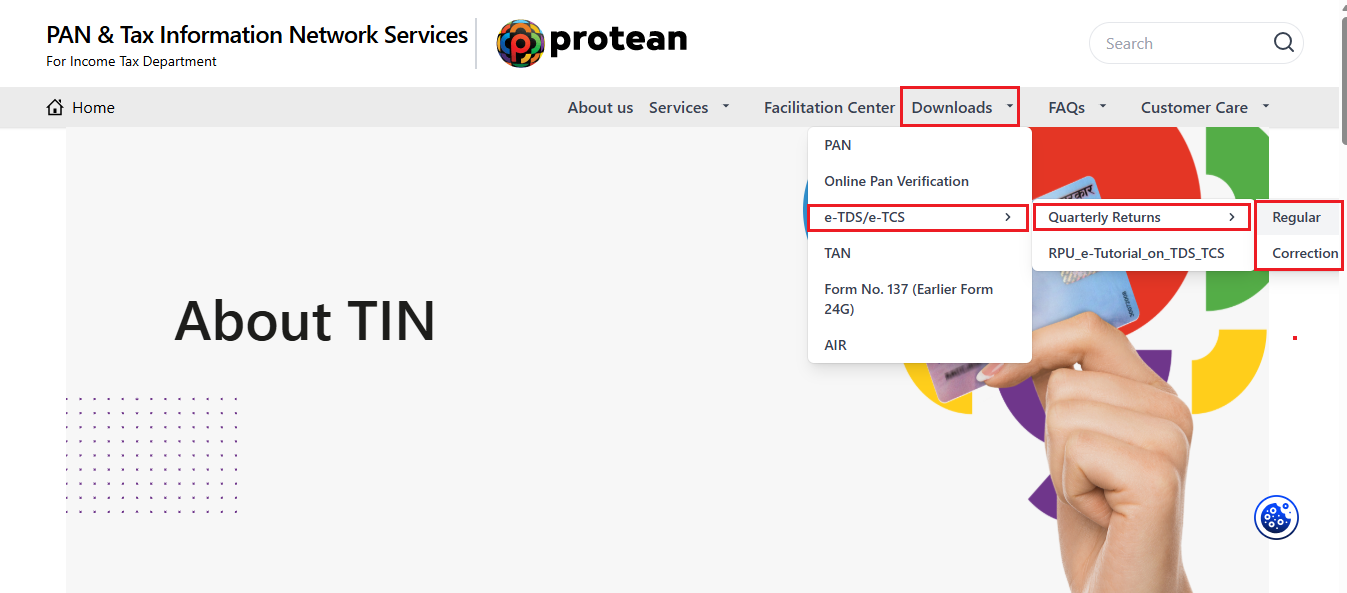
Step 2: Go to ‘Downloads’ > ‘e-TDS/e-TCS’ > ‘Quarterly return’ > ‘Regular/Correction’.
Step 3: Download the updated/Latest version of ‘Return Preparation Utility (RPU)’.
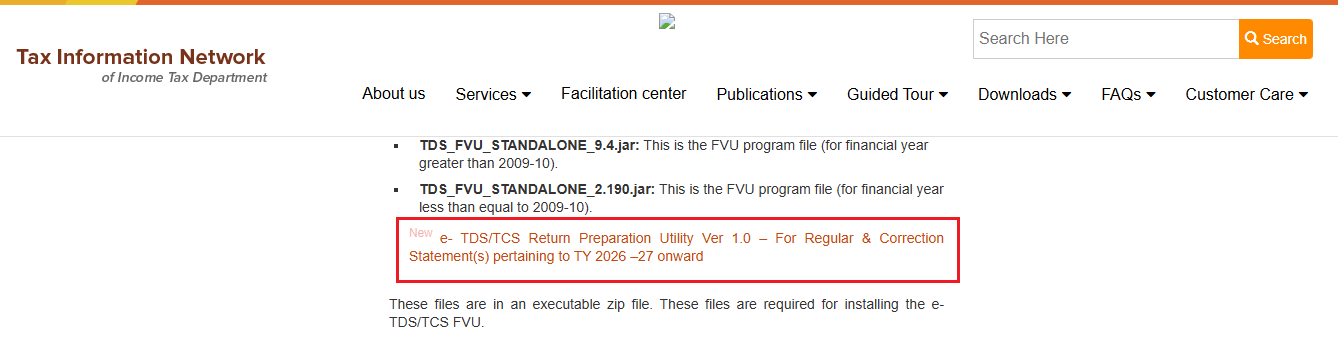
Step 4: Fill in the details in RPU, validate it, generate the FVU file and convert it in to .zip file.
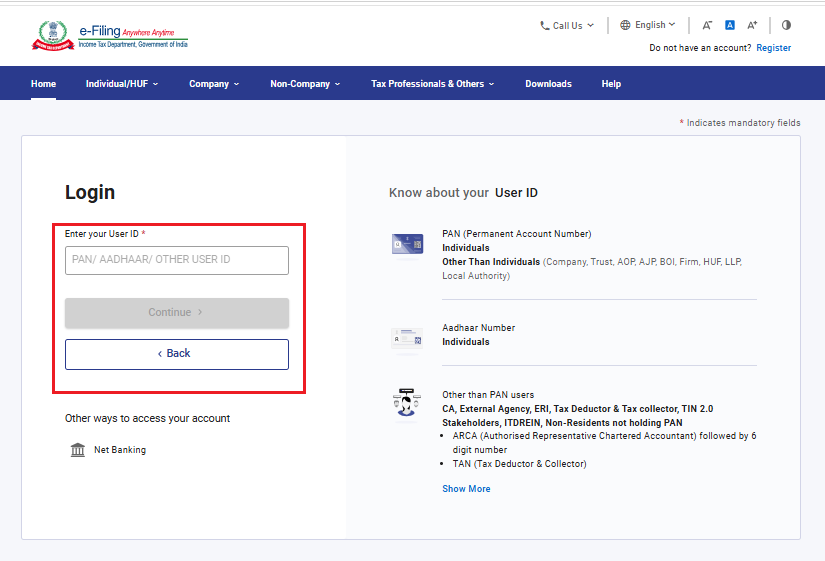
Step 5: Login to the e-Filing portal using TAN.
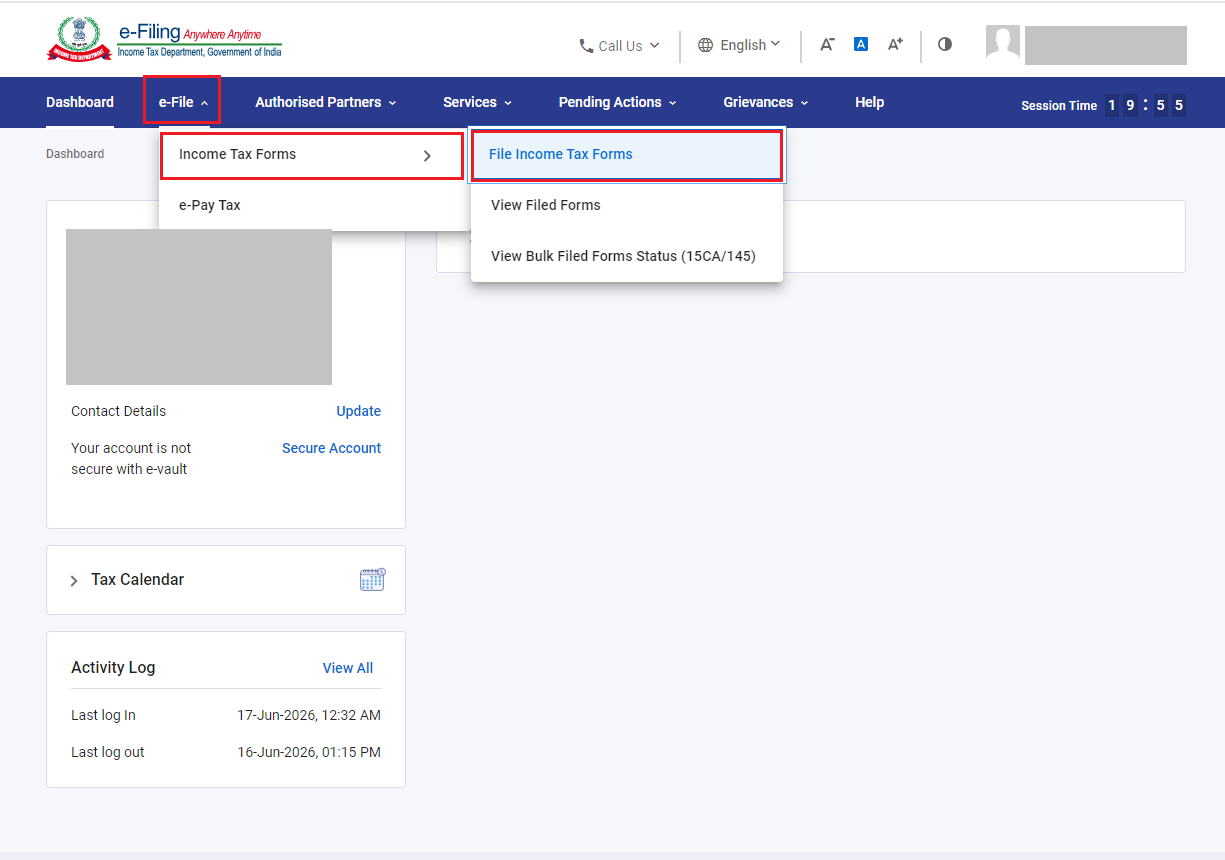
Step 6: Go to ‘e-File’ > ‘Income Tax Forms’ > ‘File Income Tax Forms’.
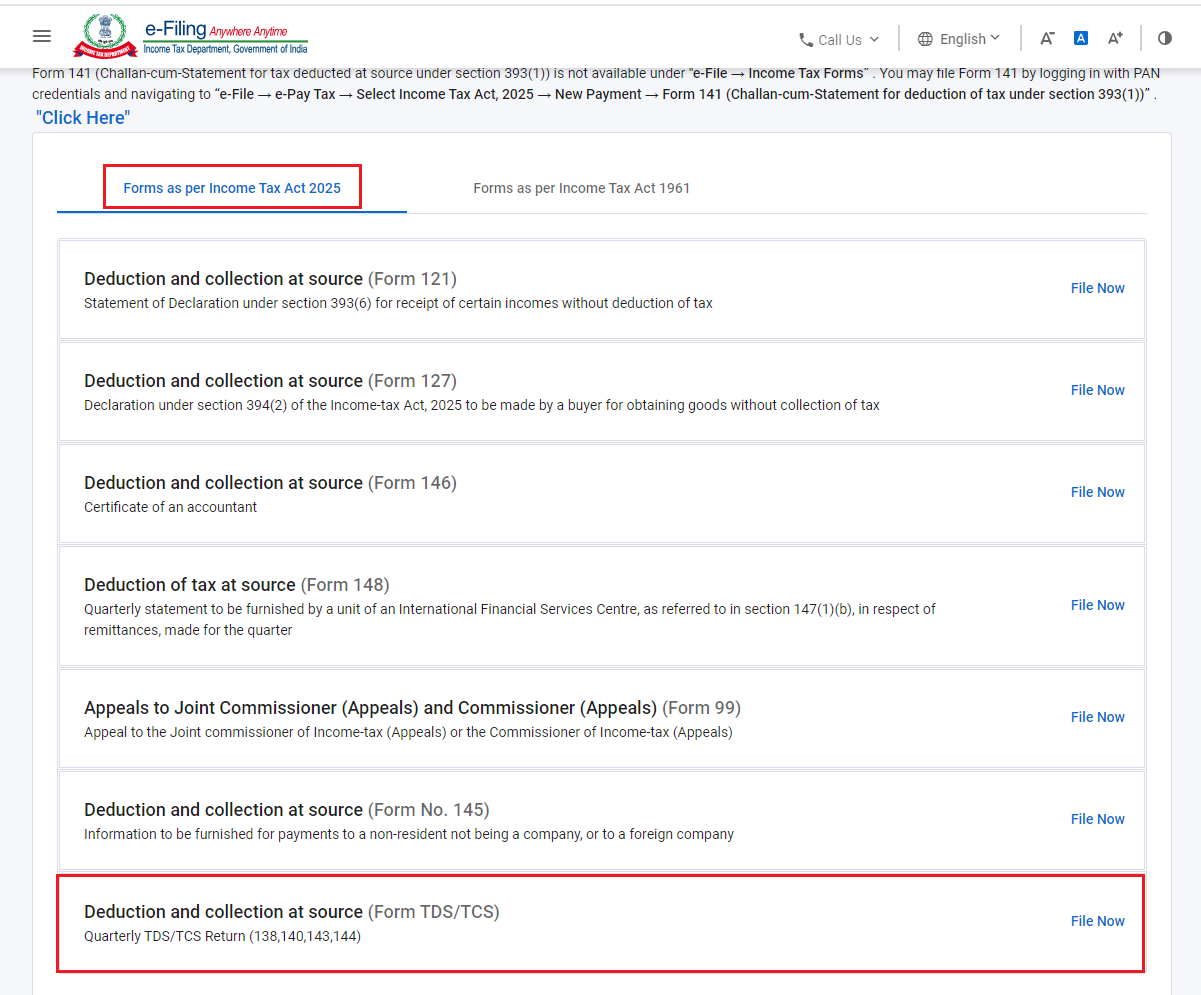
Step 7: In ‘Forms as Per Income Tax Act 2025’ category Select ‘Deduction and Collection at source (Form TDS/ TCS)’ and click ‘File Now’.
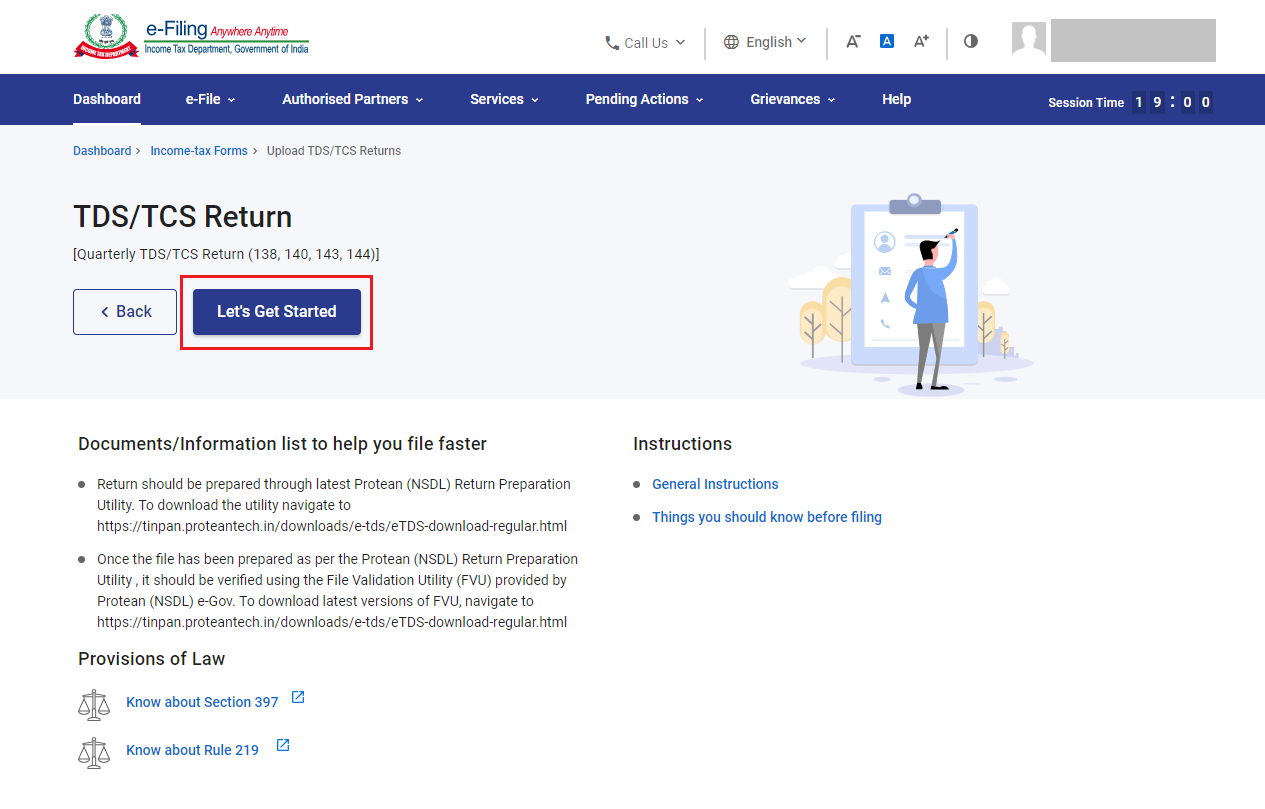
Step 8: Read the Instruction to file the Form and Click on ‘Let’s get Started’.
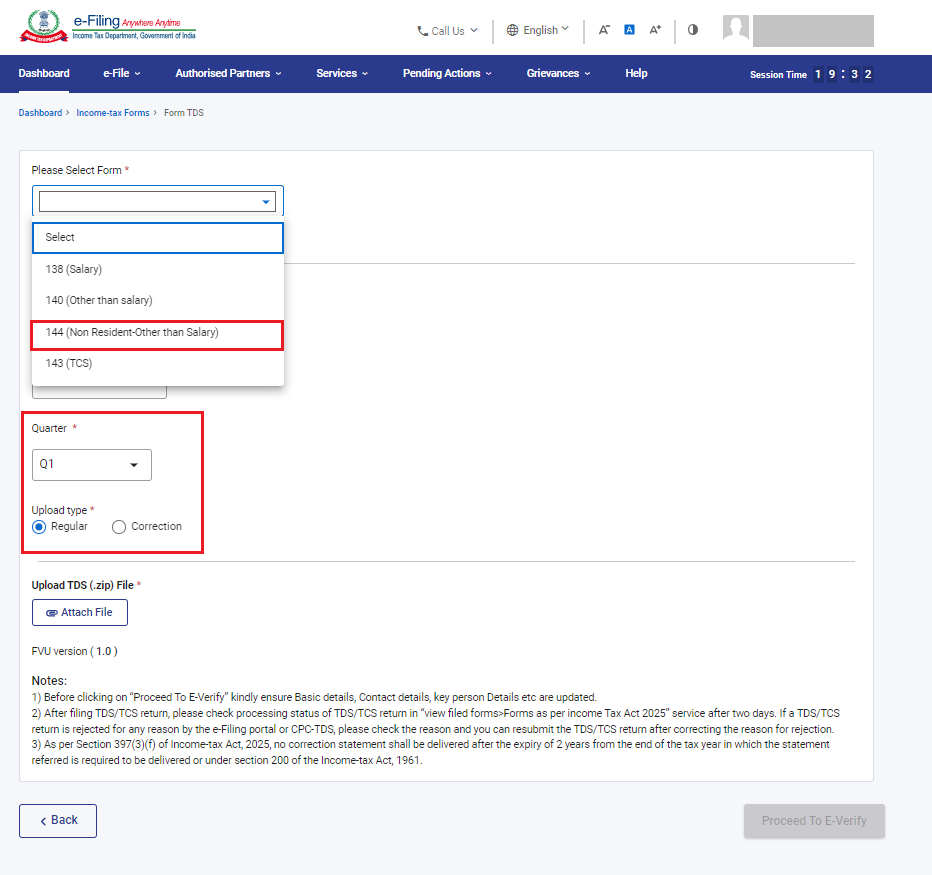
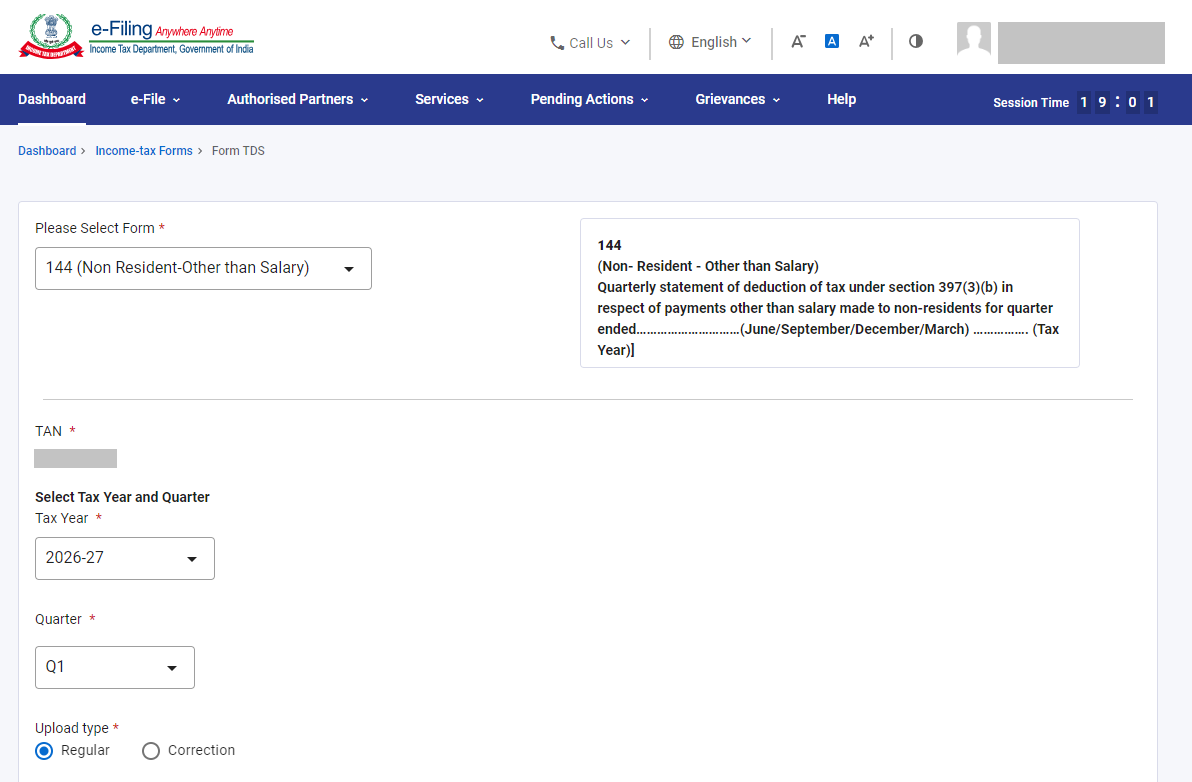
Step 9: On Form page, Select ‘Form 144’ from the dropdown, select applicable Tax Year, Quarter and Upload Type (Regular/correction)
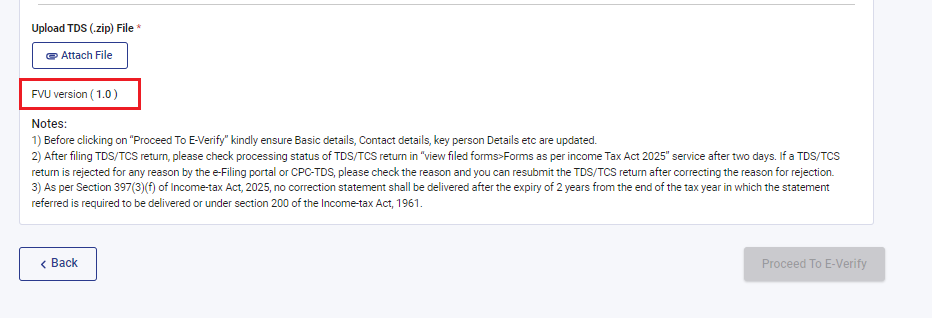
Step 10: Now click on ‘Upload’ and upload the zip file containing .FVU file prepared and click on ‘Proceed to E-Verify’.
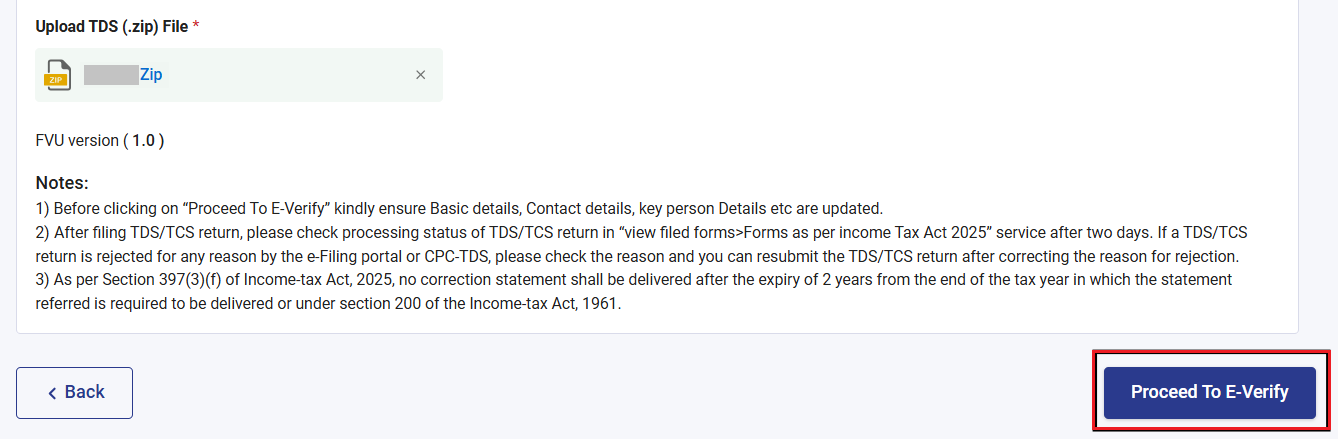
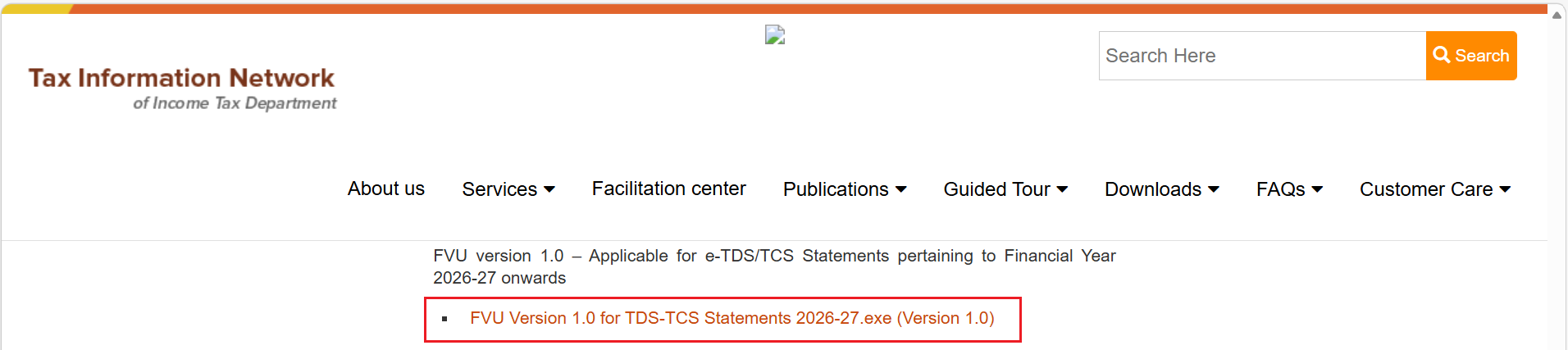
Please Note: Ensure you are uploading correct/updated version of FVU file matching with FVU version shown on form screen of e-Filing portal.
PROTEAN Version:
e-Filing Version:
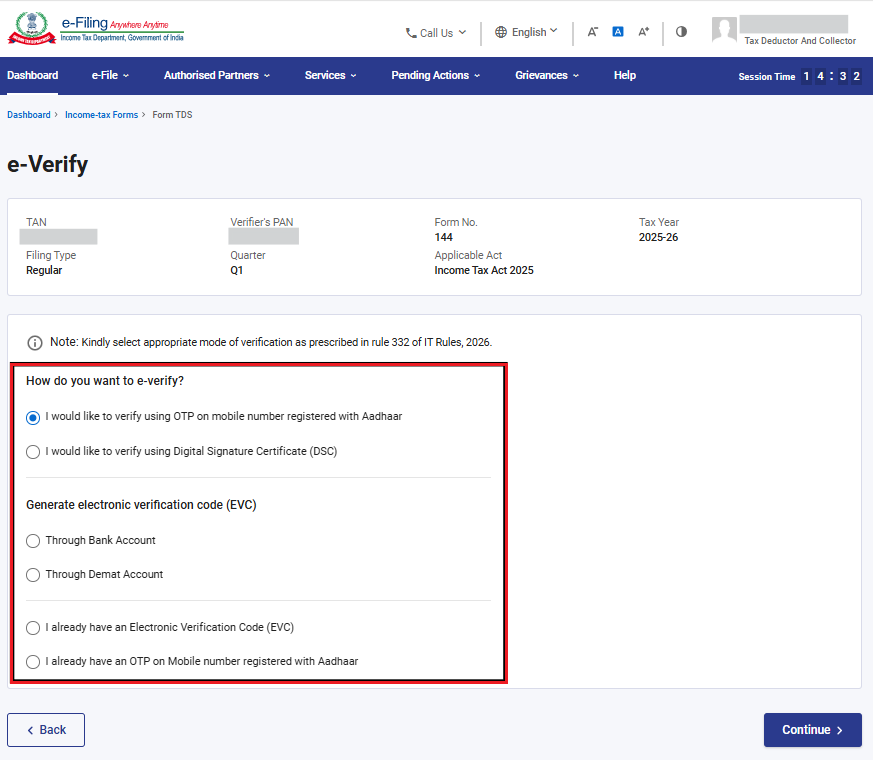
Step 11: Select the appropriate method of verification and e-Verify the form and form will be submitted and you will get the communication on registered email ID and Mobile no. for the same.
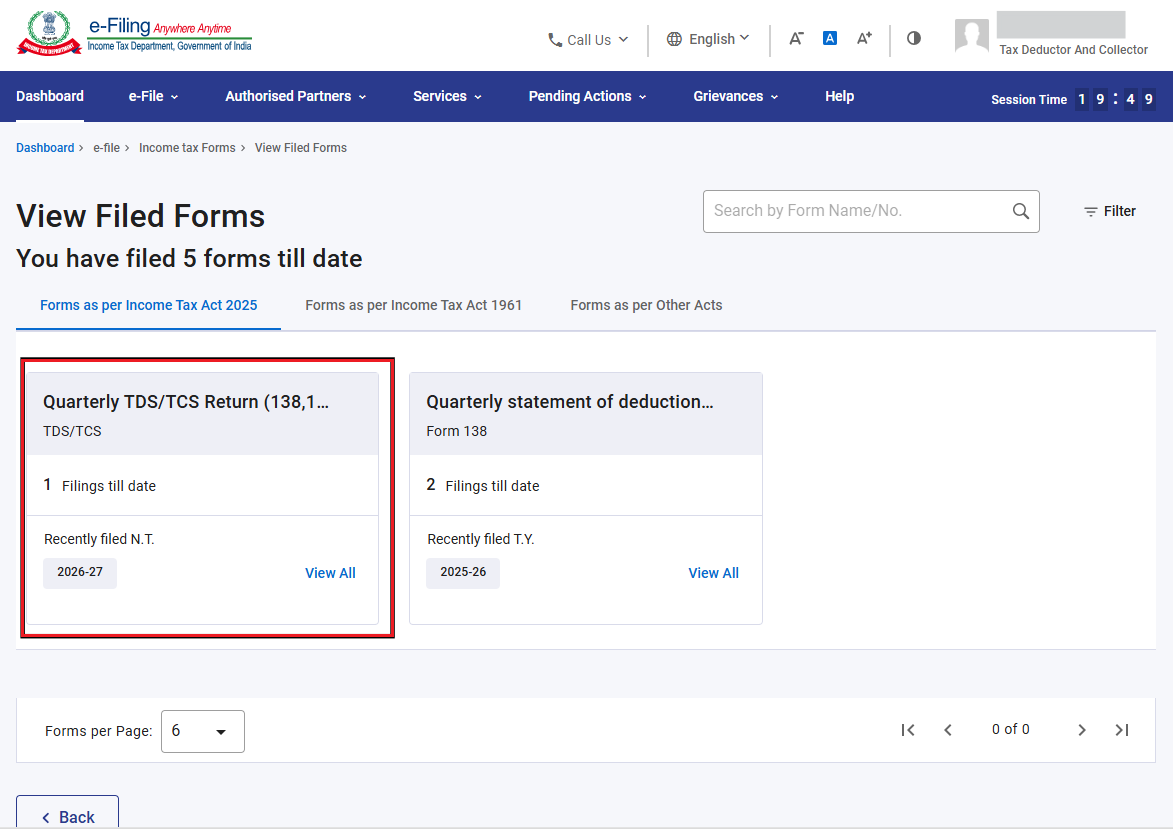
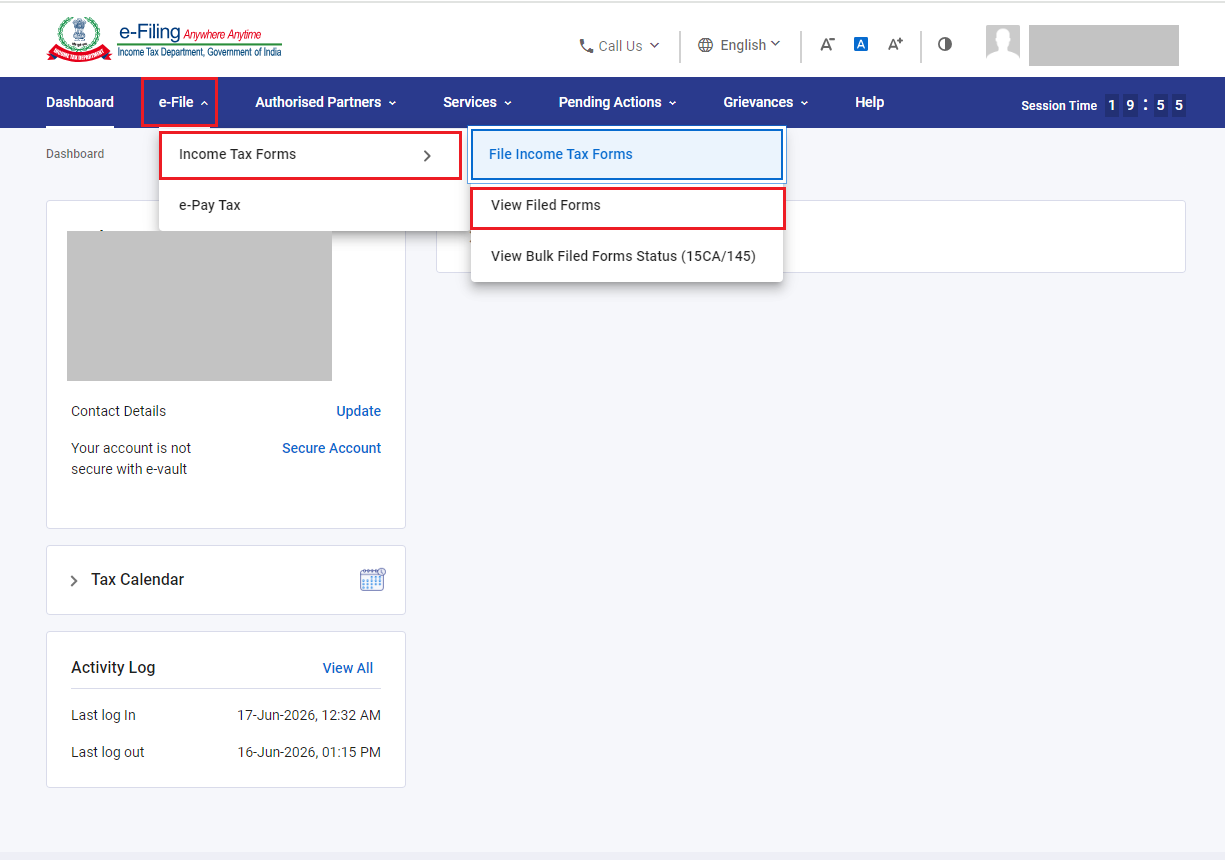
Step 12: To view the submitted form. Go to ‘e-File’ > ‘Income Tax Forms’ > ‘View Filed Forms’.
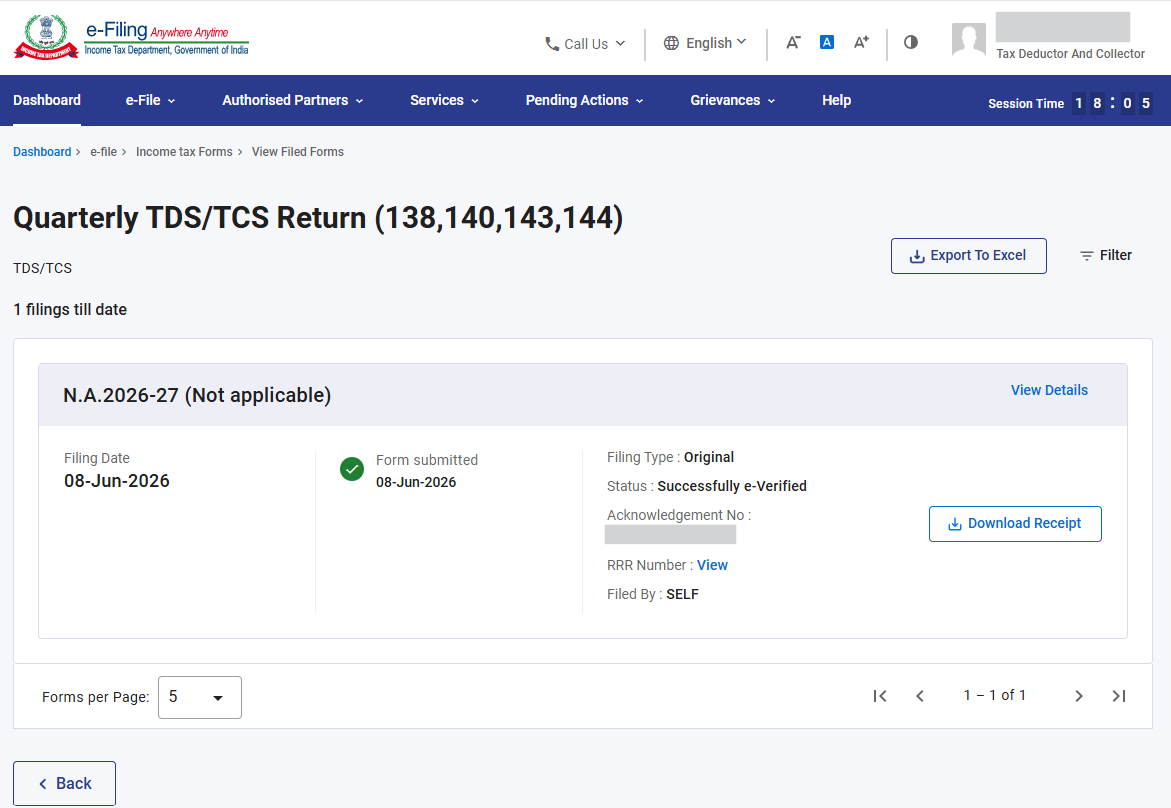
Step 13: Here you will see submitted Form 144. Click on View all.
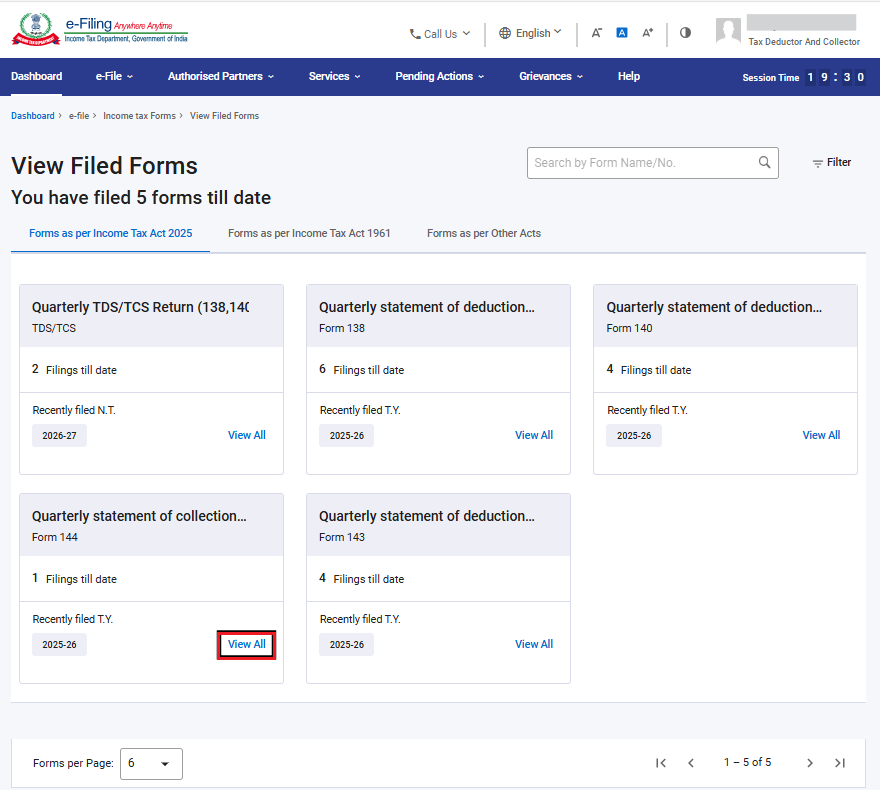
Step 14: The status of the form as to whether its accepted or rejected after validation of uploaded FVU file can be seen here. Click on ‘View Details’ to check the rejection reason (if form is rejected).
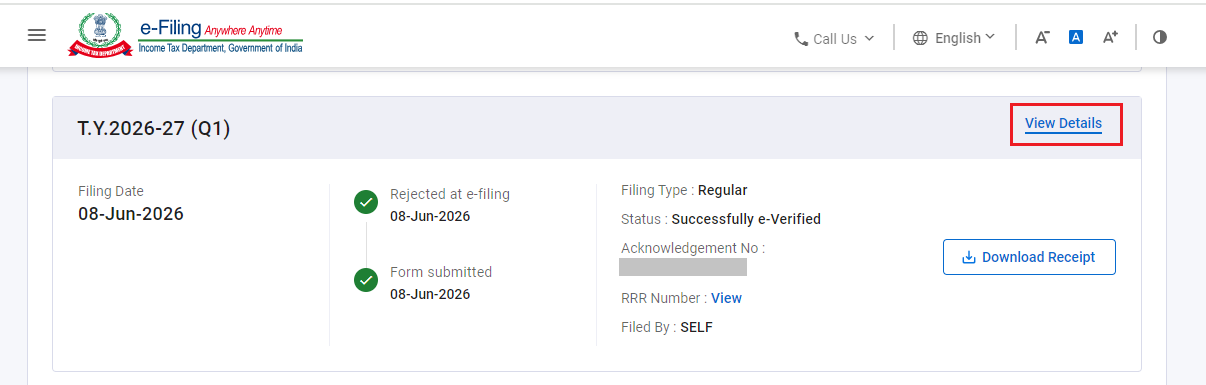
Please Note:
• If validation is successful: Status of form will be accepted and the same will be sent to TRACES for further processing.
• If validation is not successful: Status of Form will be rejected, and you will get communication on your registered email ID (primary) for the rejection with reason of rejection.
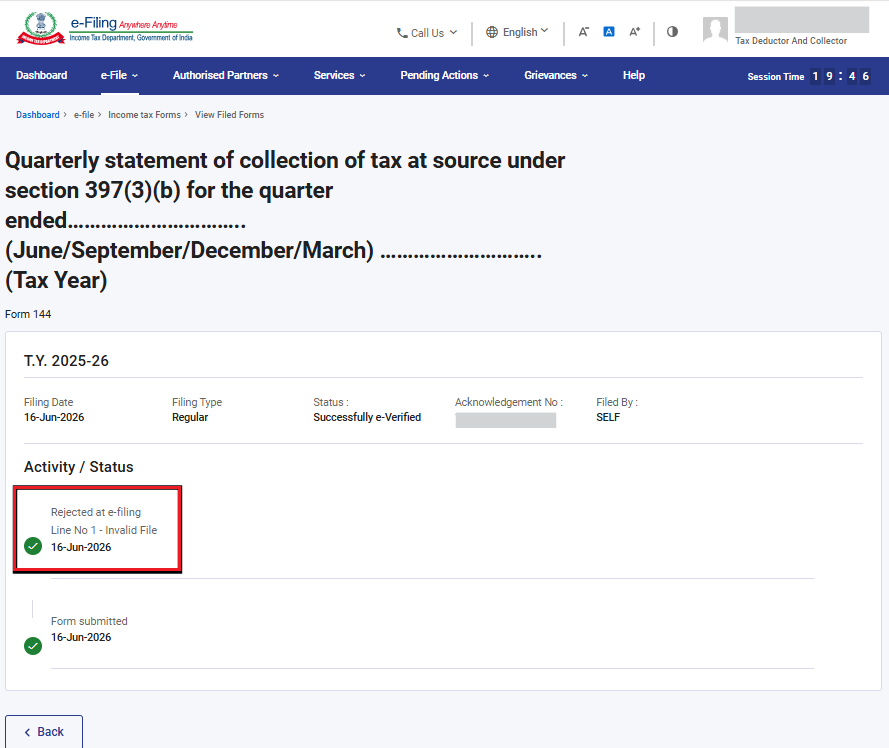
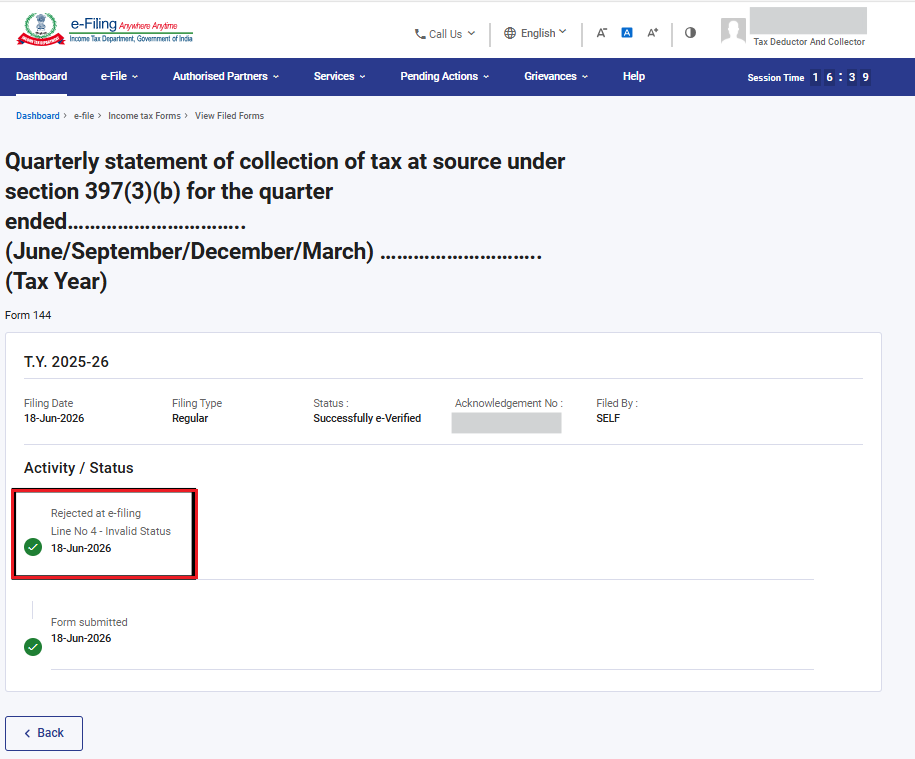
Step 15: Here you can see the rejection reason of form.
Reason: Invalid FVU file
Reason: Invalid Status
Please Note: There can be many possible reasons for rejection of form, but few reasons are listed below:
1. Wrong selection of Tax year
2. Multiple filing of forms for same Quarter
3. Mismatch in the FVU version downloaded and uploaded on portal. Ensure you are uploading updated Version of FVU on e-Filing portal
4. While filing regular statement, correction statement FVU file was uploaded and vice versa.
5. TAN mentioned in the FVU file is not matching with the logged in TAN
6. In case of correction, RRR number mentioned in the FVU file does not match with the RRR number entered in the landing screen of the form.
Step 16: If Form is rejected, rectify the error by uploading correct FVU (.zip file) and file the form.
Note: Post filing of Form 144, if the form appears under the tile mentioned below, it indicates that the form is yet to be processed. Kindly wait until the processing is completed. Once the form is processed, you will receive an email communication indicating the status of the form, i.e., Acceptance or Rejection.