Form 175 User Manual
1. Overview
Form 175 is a quarterly statement required to be furnished by pension Fund in respect of Investments Schedule V (Table Sl. no. 7). This form contains details such as name, contact details, Investment Details Like- Date of Investments, Nature of Investments, Entity in which invested etc.
Form 175 must be furnished quarterly, within one from the end of each quarter.
2. Who can file Form 175
Form 175 is applicable for:
• Pension Fund for details of Investment.
3. Due Date to file Form 175
Form 175 must be furnished quarterly, within one month from the end of each quarter.
Below are the due dates:
| Quarter | Period | Due Date |
| Q1 | April – June | On or before July 31st of financial year |
| Q2 | July – September | On or before October 31st of financial year |
| Q3 | October – December | On or before January 31st of financial year |
| Q4 | January – March | On or before April 30th of financial year |
4. Prerequisites for availing this service
• Taxpayer is registered at e-filing portal.
• Taxpayer has valid Username (PAN) and Password of E-filing 2.0 portal.
• Status of PAN of the Taxpayer is ‘Active’ as per PAN database
• Taxpayers should have a valid DSC. It should be registered at e-filing portal & not expired.
5. Step-by-Step Guide
5.1 How to File Form 175
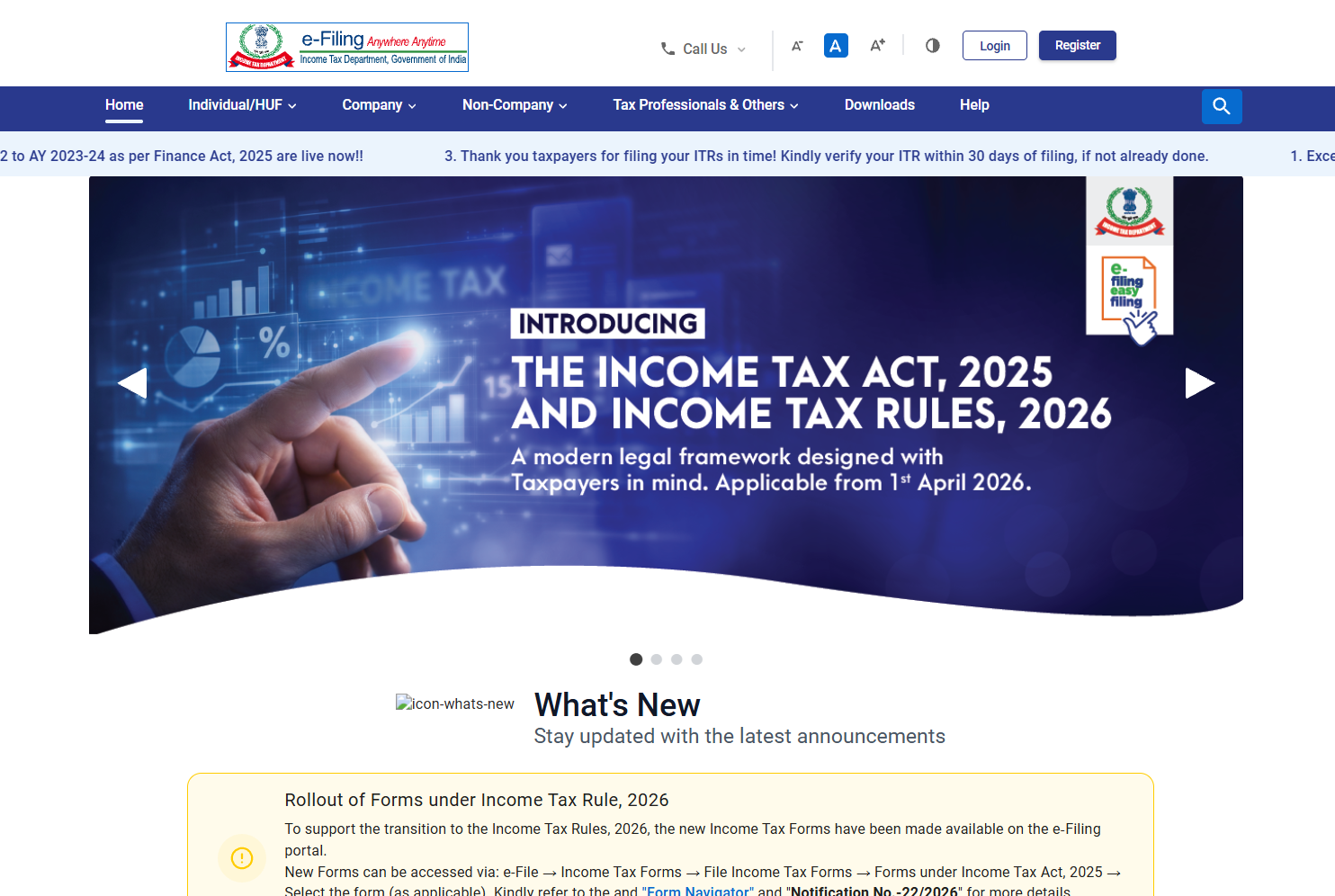
Step 1: Visit Income Tax e-filing portal (http://www.incometax.gov.in/).
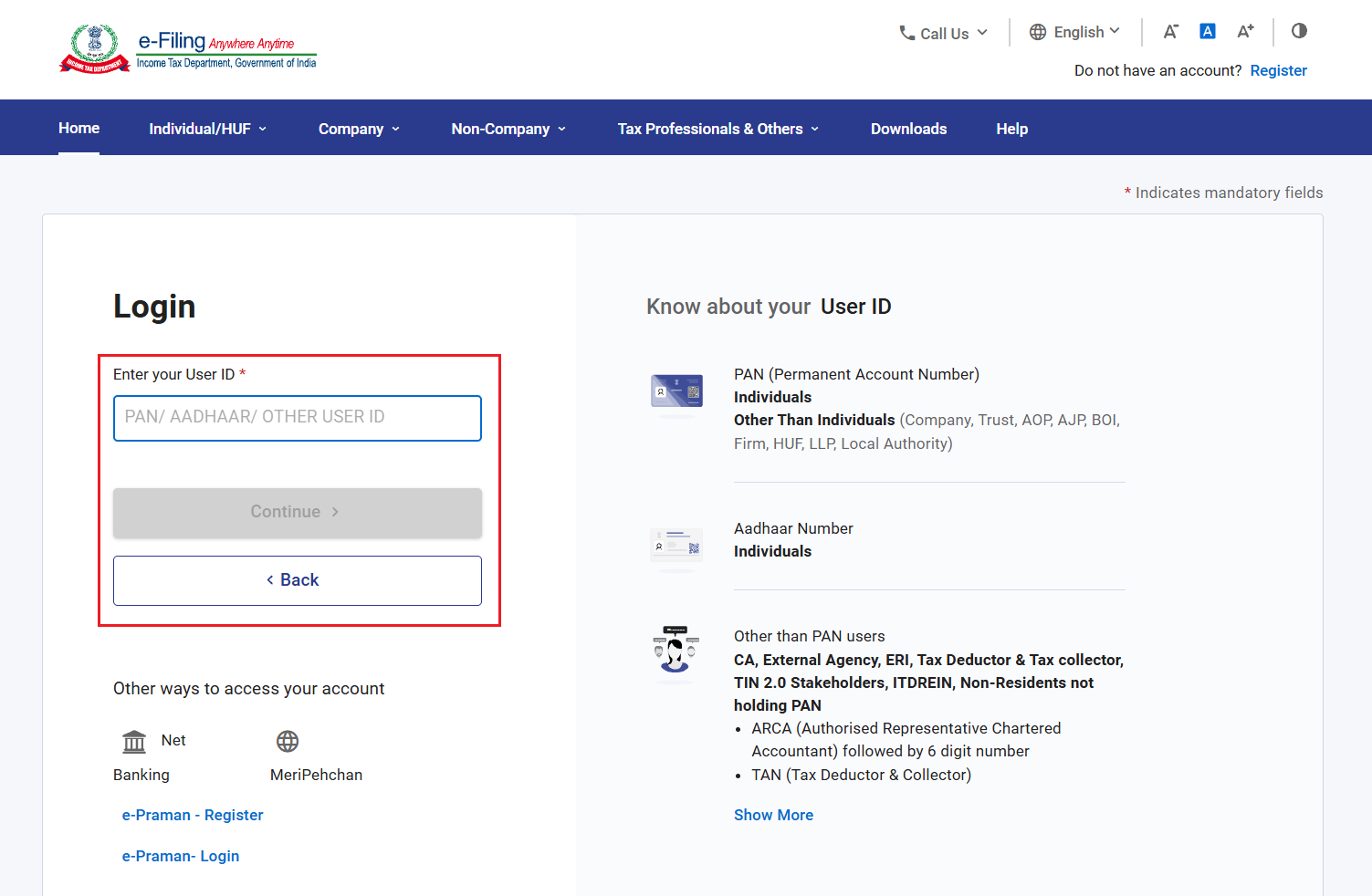
Step 2: Login with User ID (PAN) and password.
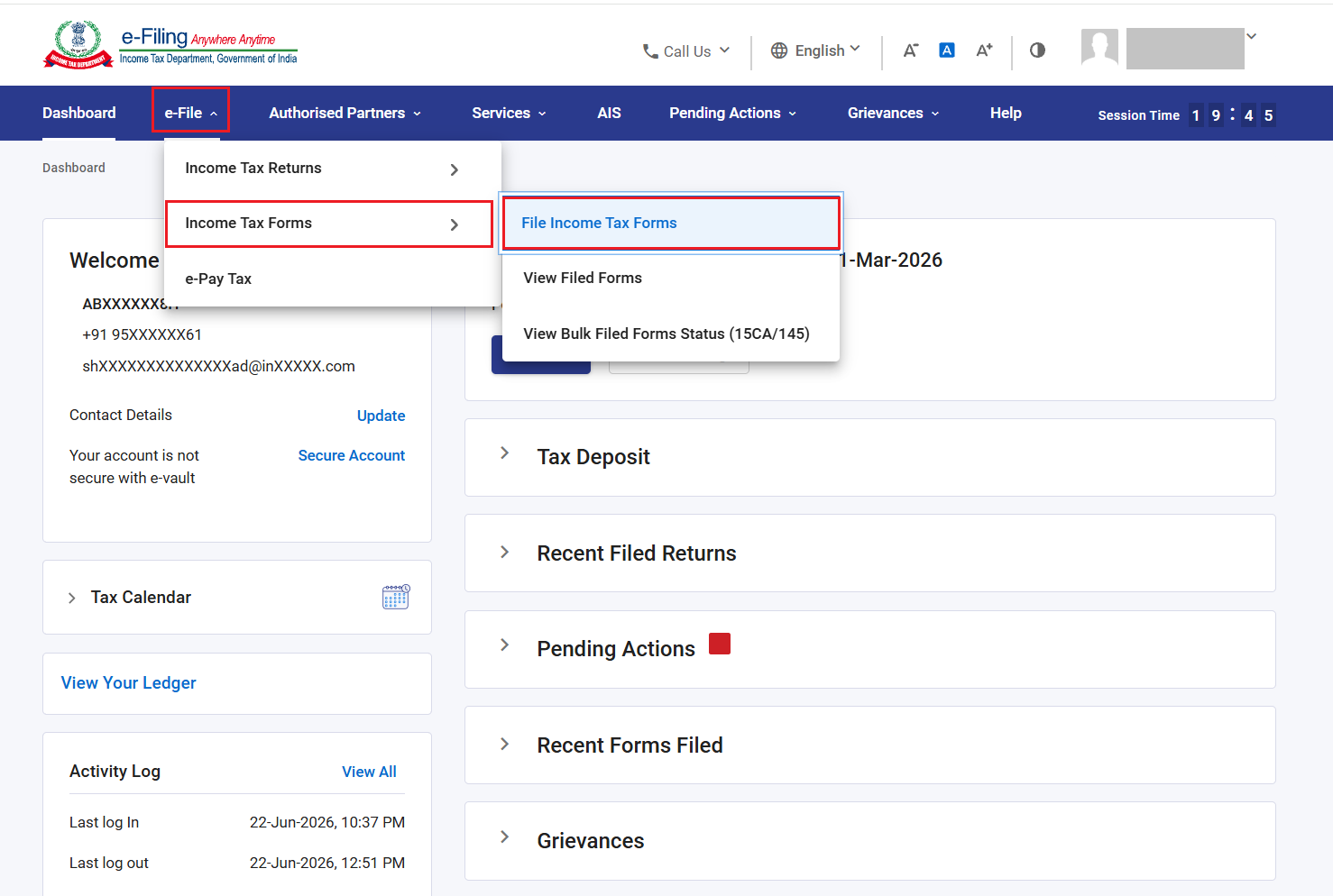
Step 3: After Login, Go to ‘e-File’ > ‘Income Tax Forms’ > ‘File Income Tax Forms’.
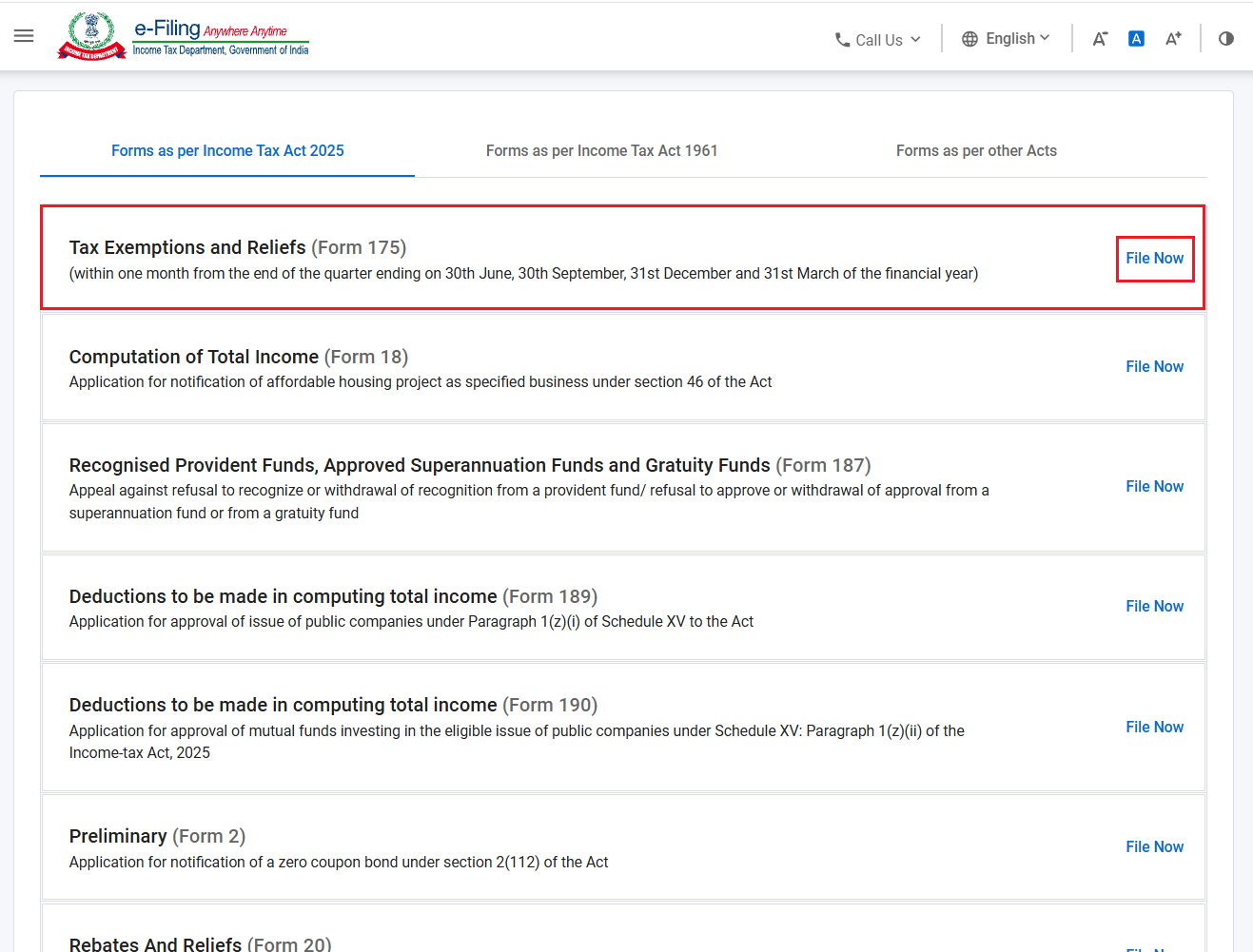
Step 4: Under ‘Forms as Per Income Tax Act 2025’ category, select ‘Form 175’ and click ‘File Now’.
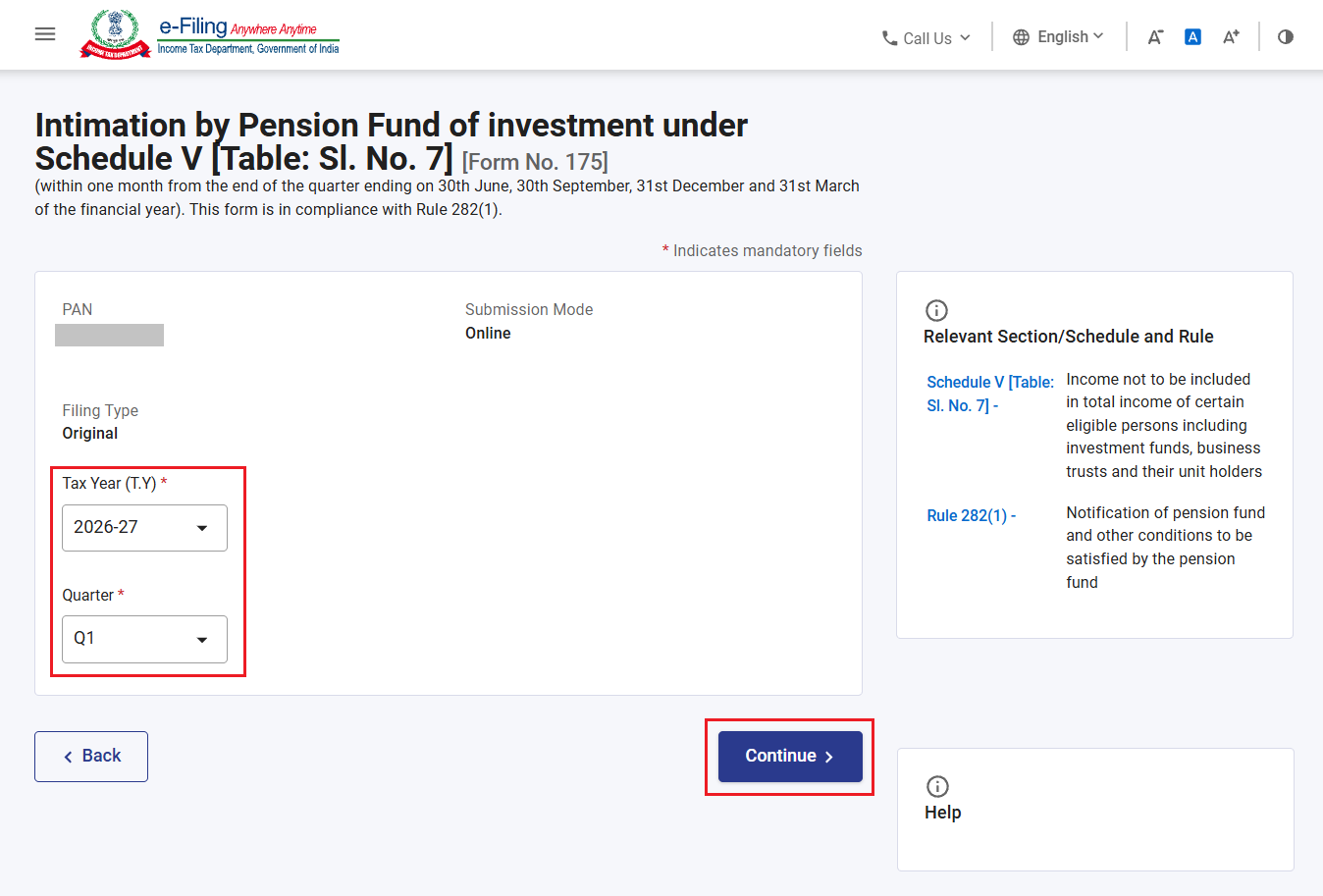
Step 5: On form page, select Applicable Tax Year and Quarter and click ‘Continue’.
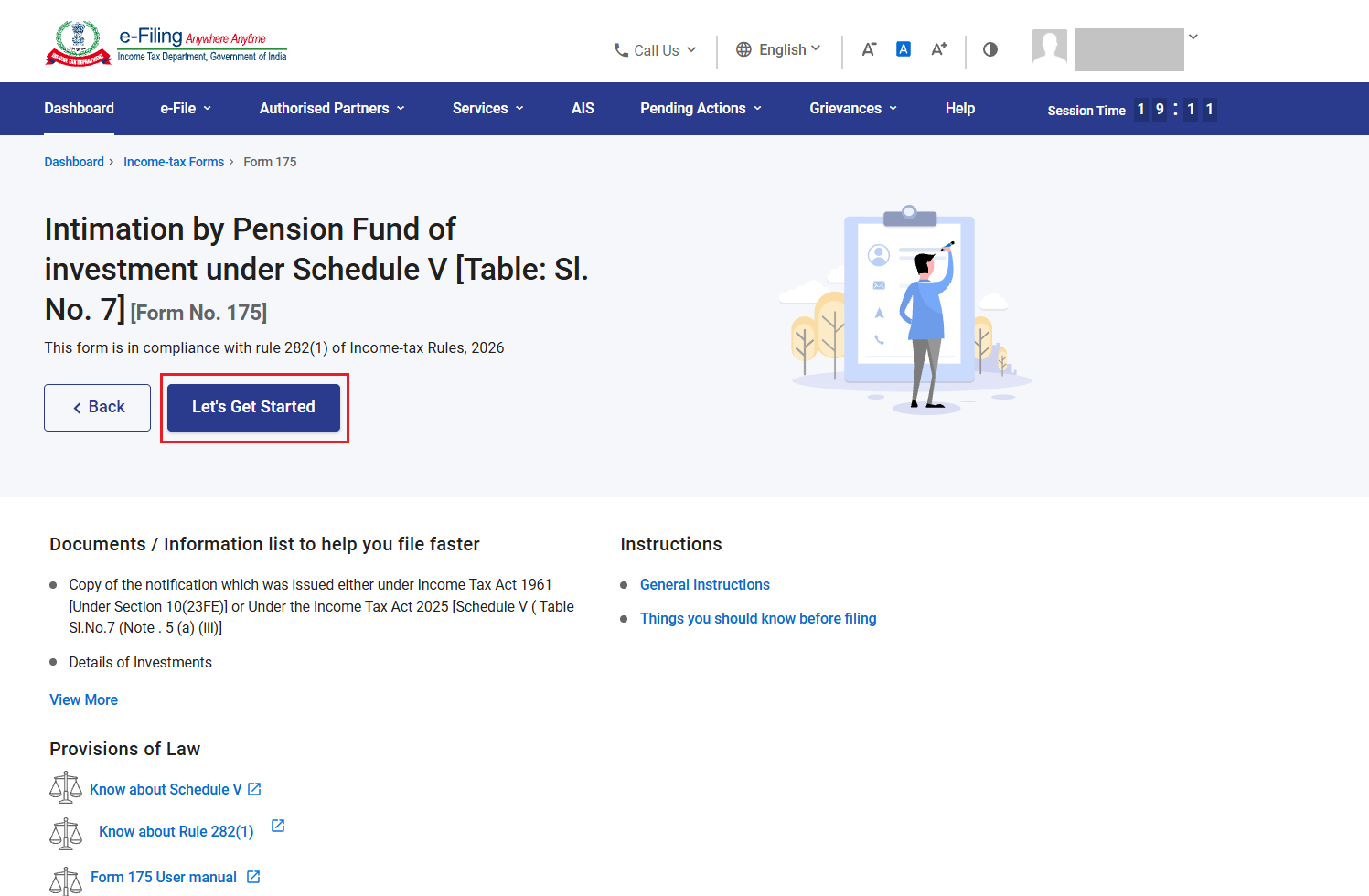
Step 6: Read the Instruction to file the Form and Click on ‘Let’s get Started’.
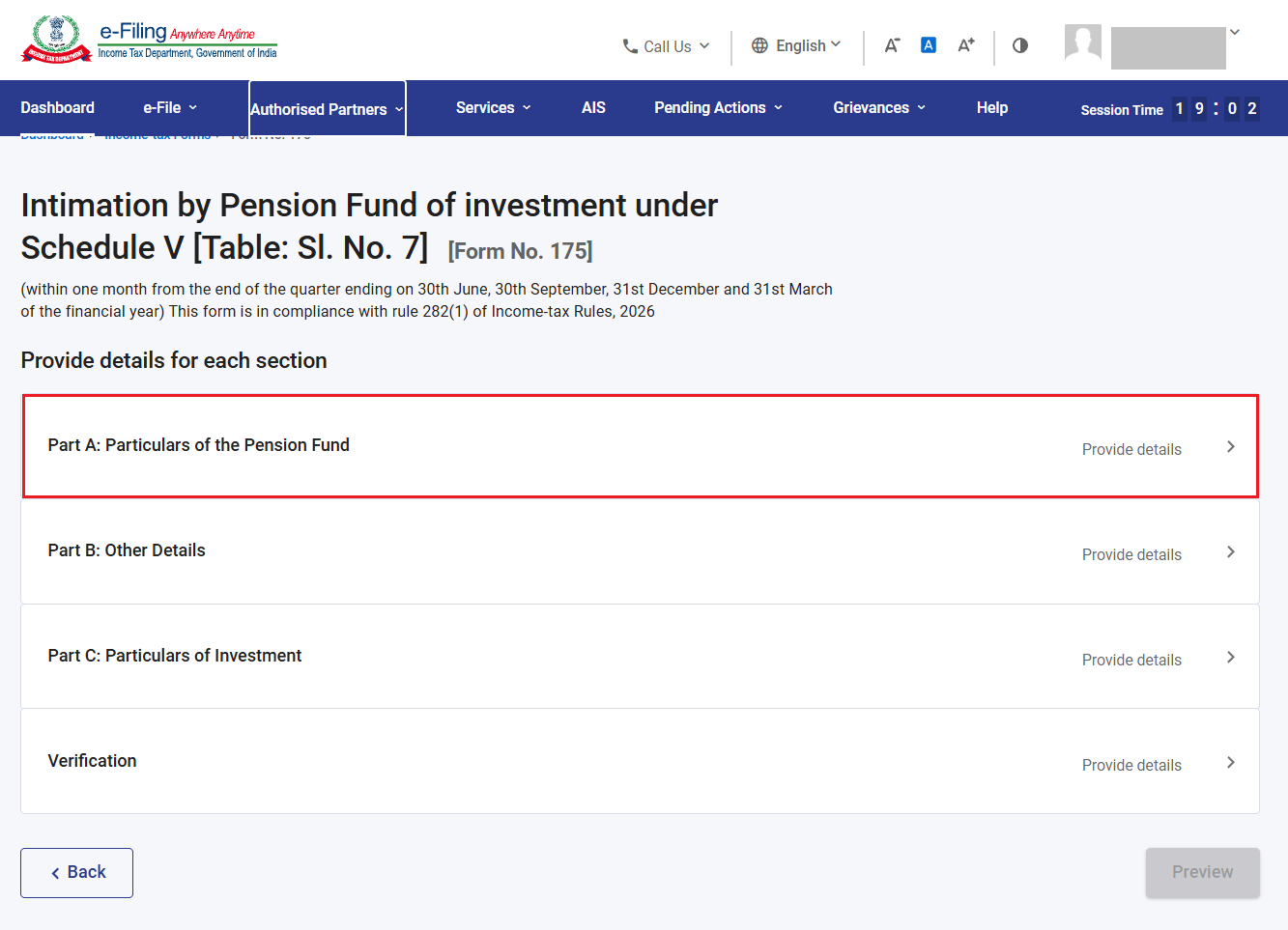
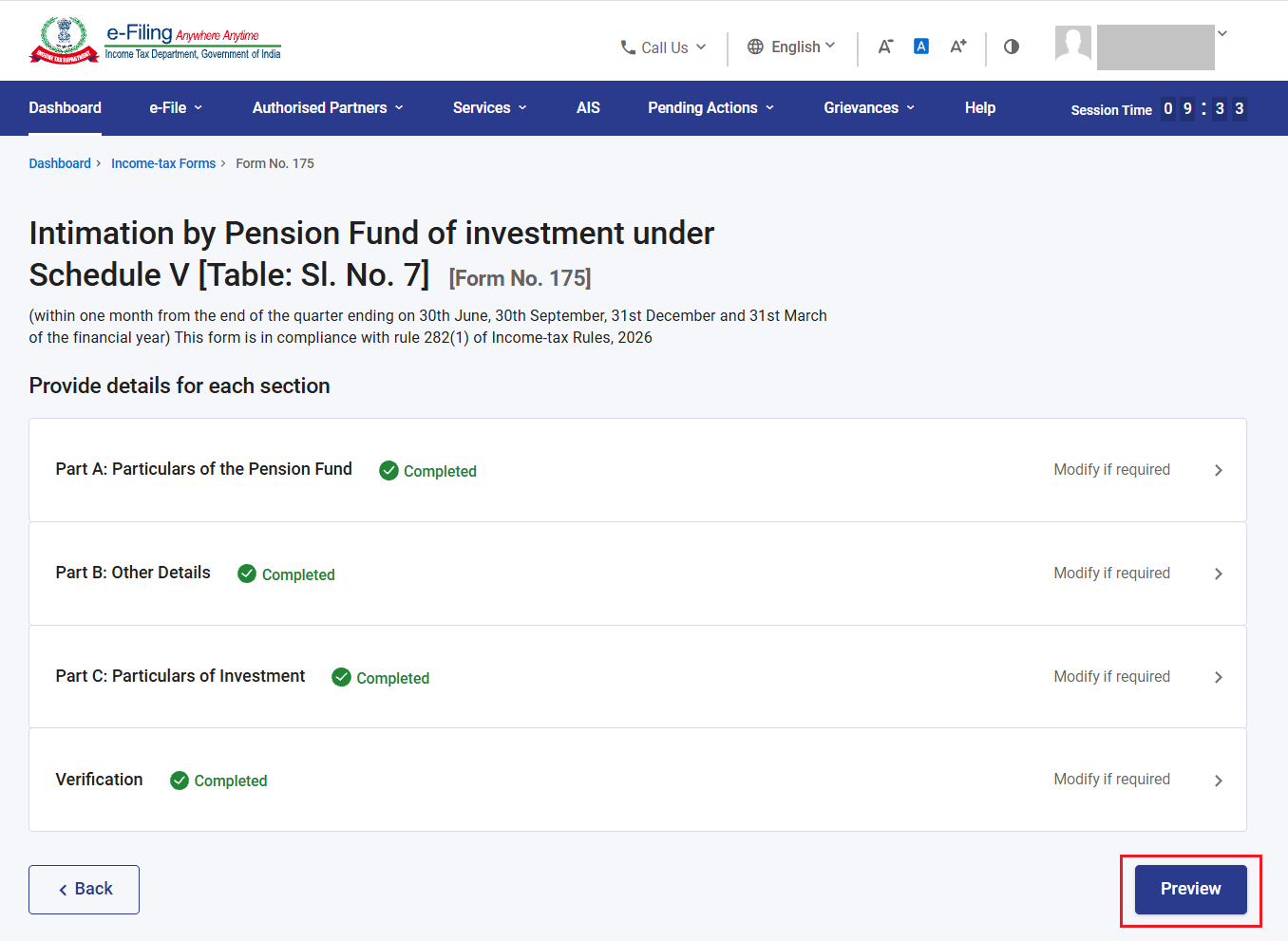
Step 7: Form 175 have 4 sections:
1. Part A- Particulars of Pension Fund
2. Part B- Other Details
3. Part C- Particulars of Investment
4. Verification
To complete the form, confirm each section of form.
Now, click on ‘Part A- Particulars of Pension Fund’.
Step 8: Basic information (Name, Address, Email ID etc) of pension fund will be prefilled from profile section. To change/update, go to My profile and change the information. Click ‘Save’.
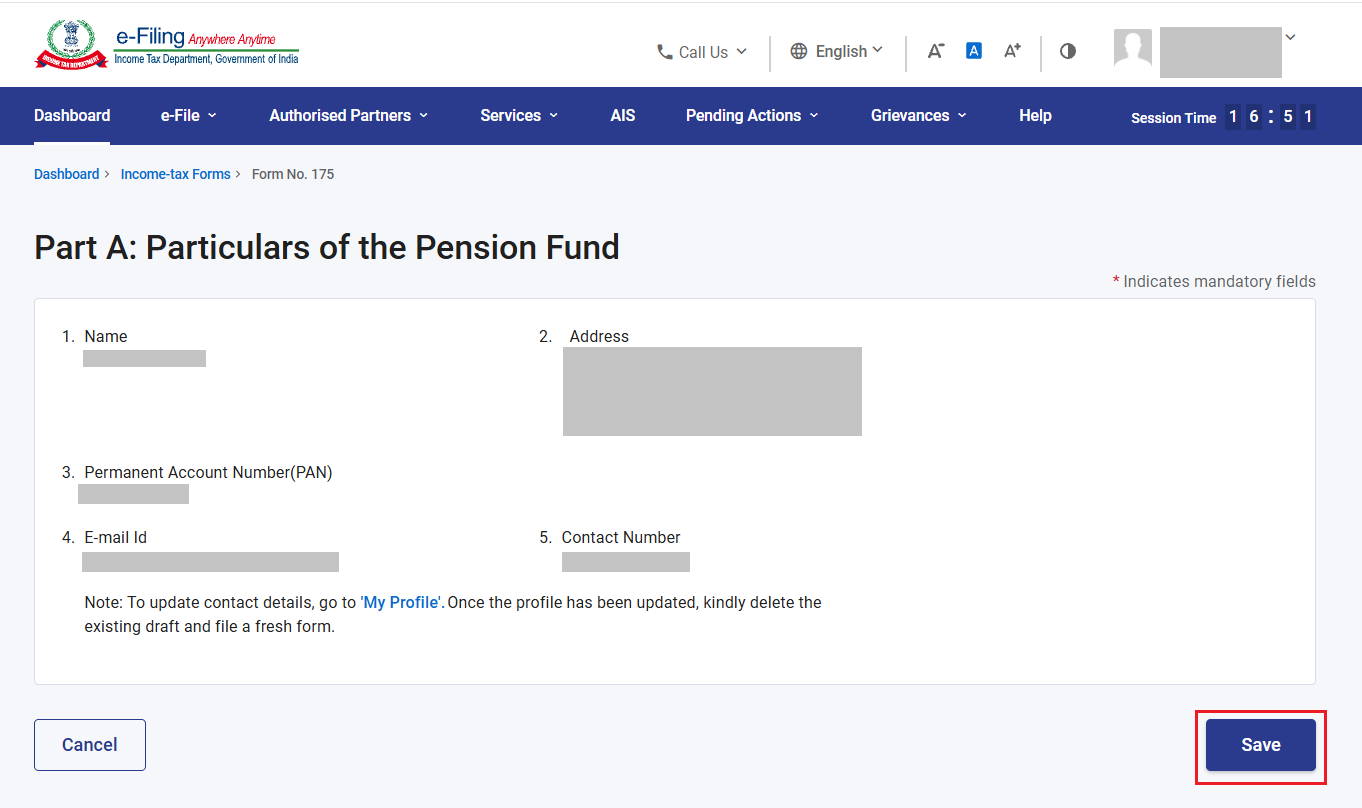
Step 9: Part A is completed. Now, Click on ‘Part B- Other Details’.
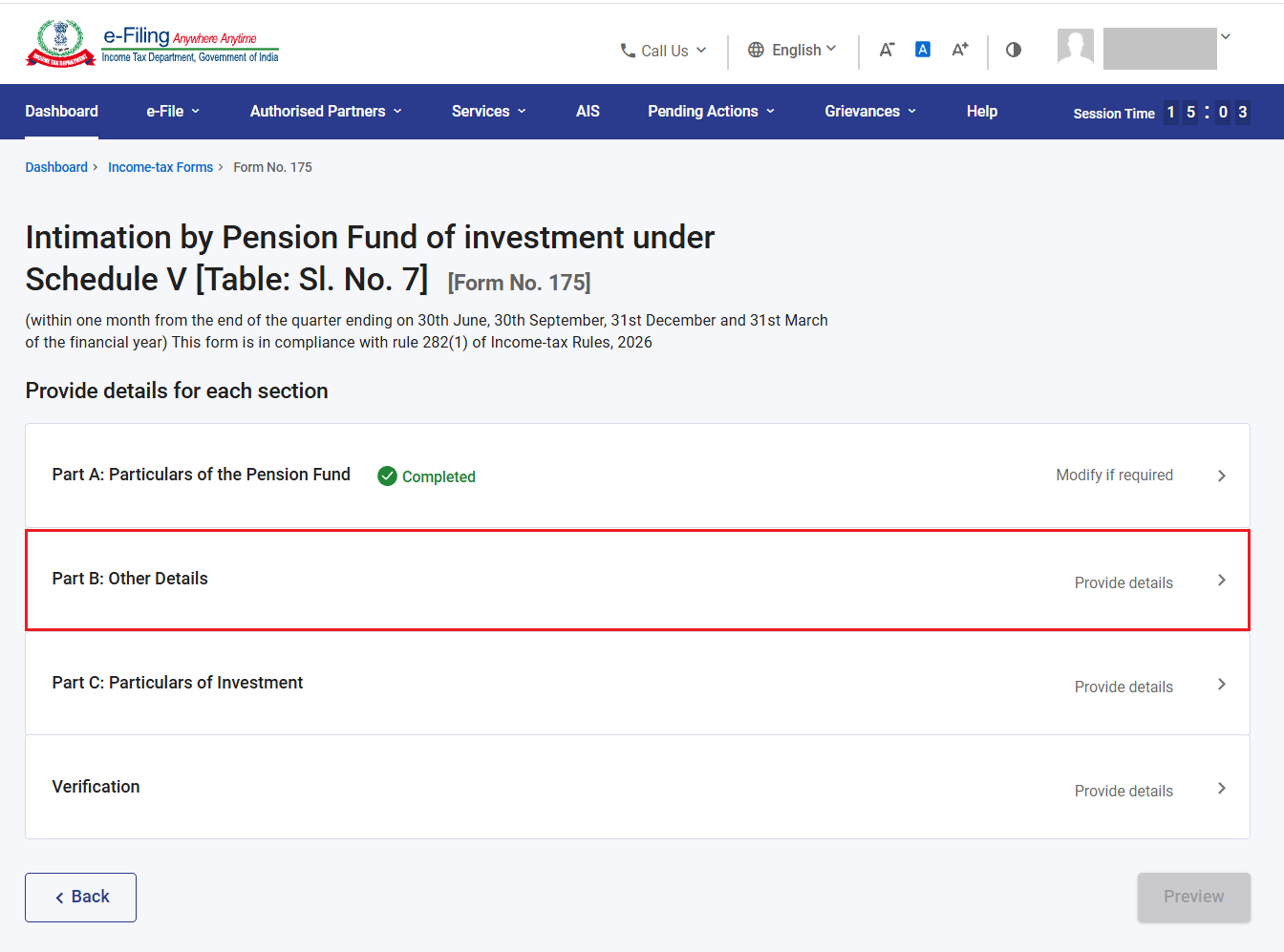
Step 10: In ‘Part B- Other Details’, enter exemption Notification number, date of notification and click ‘Save’.
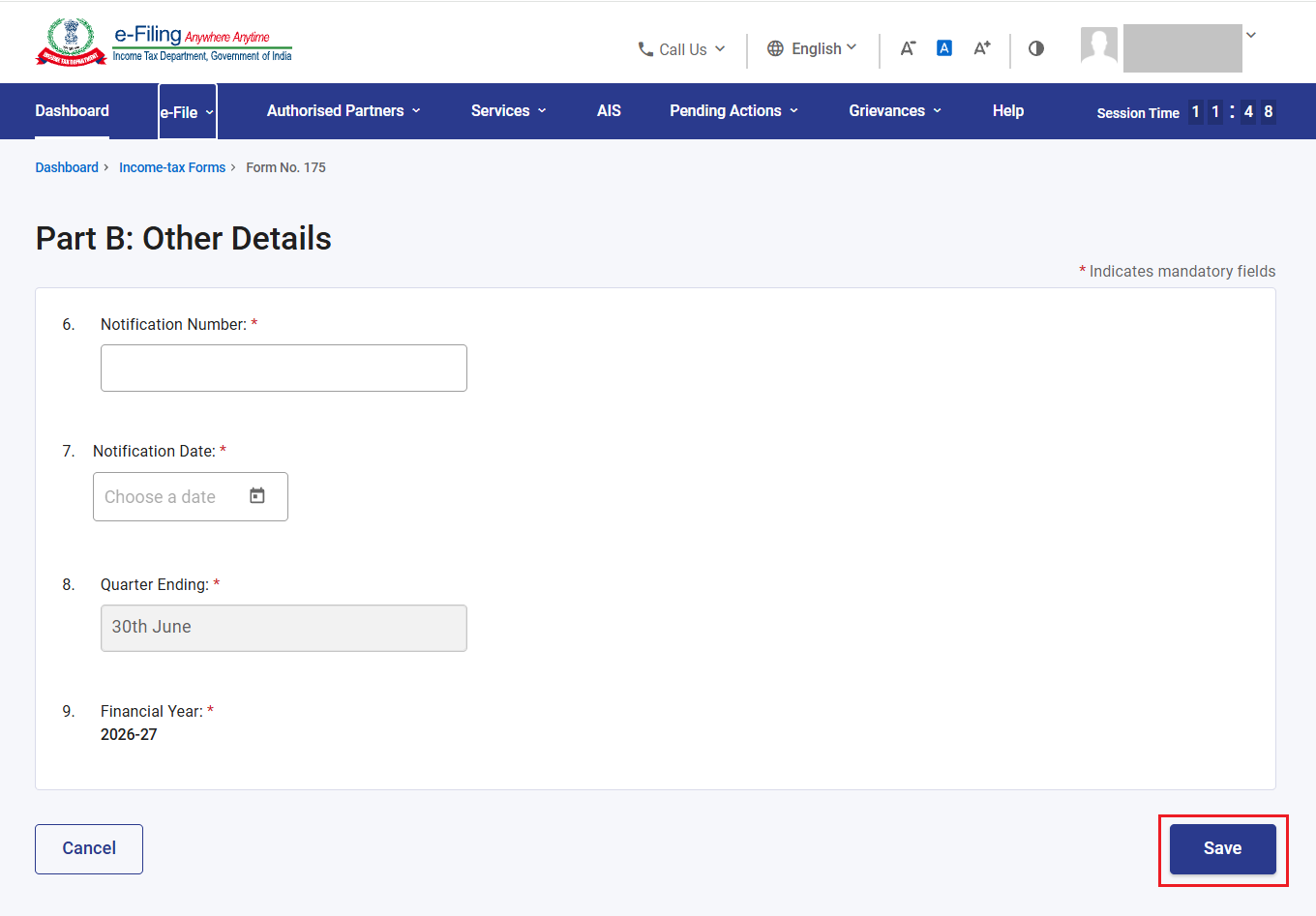
Step 11: Part B- Other Details is completed. Now, click on ‘Part C- Particulars of Investment’.
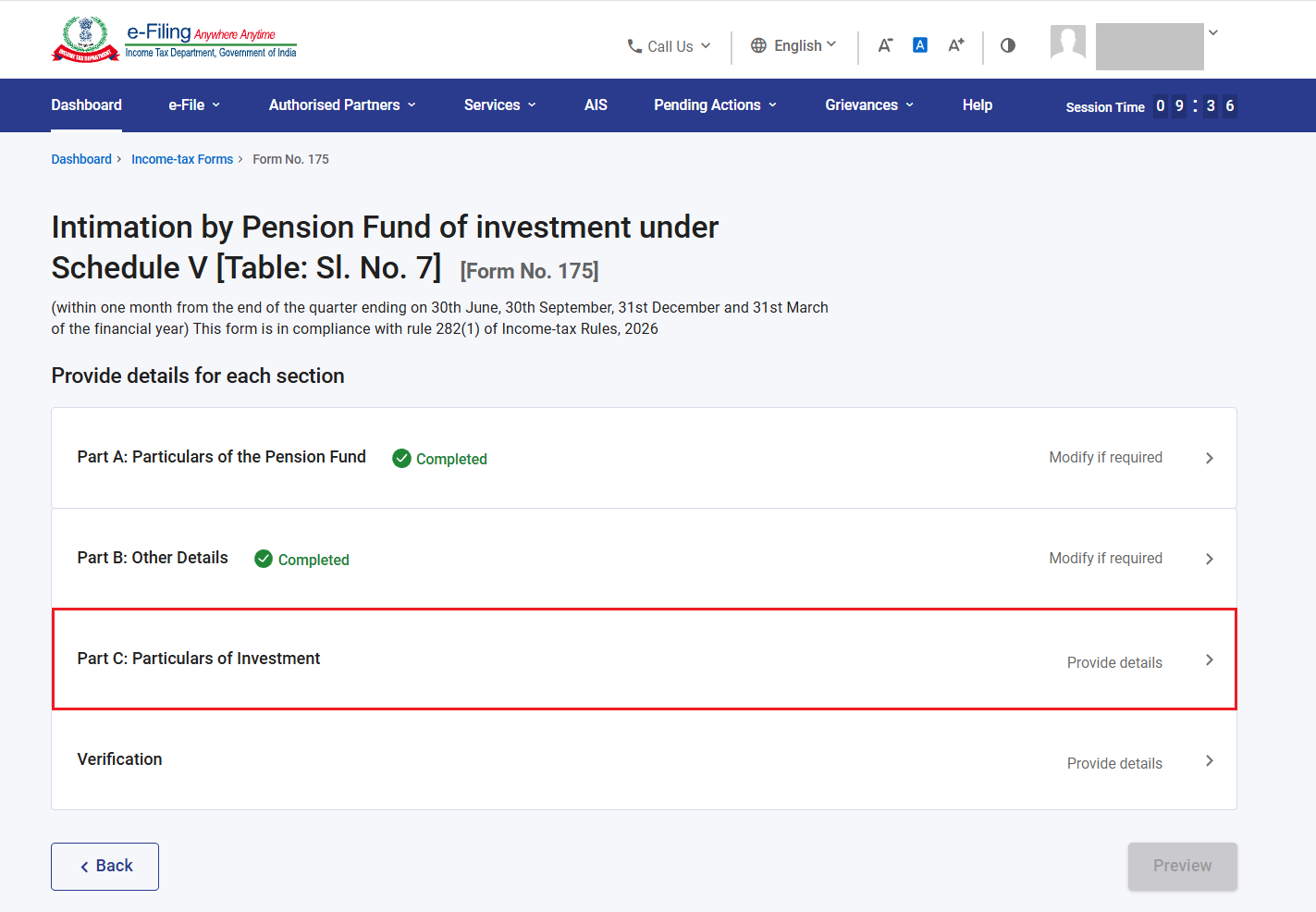
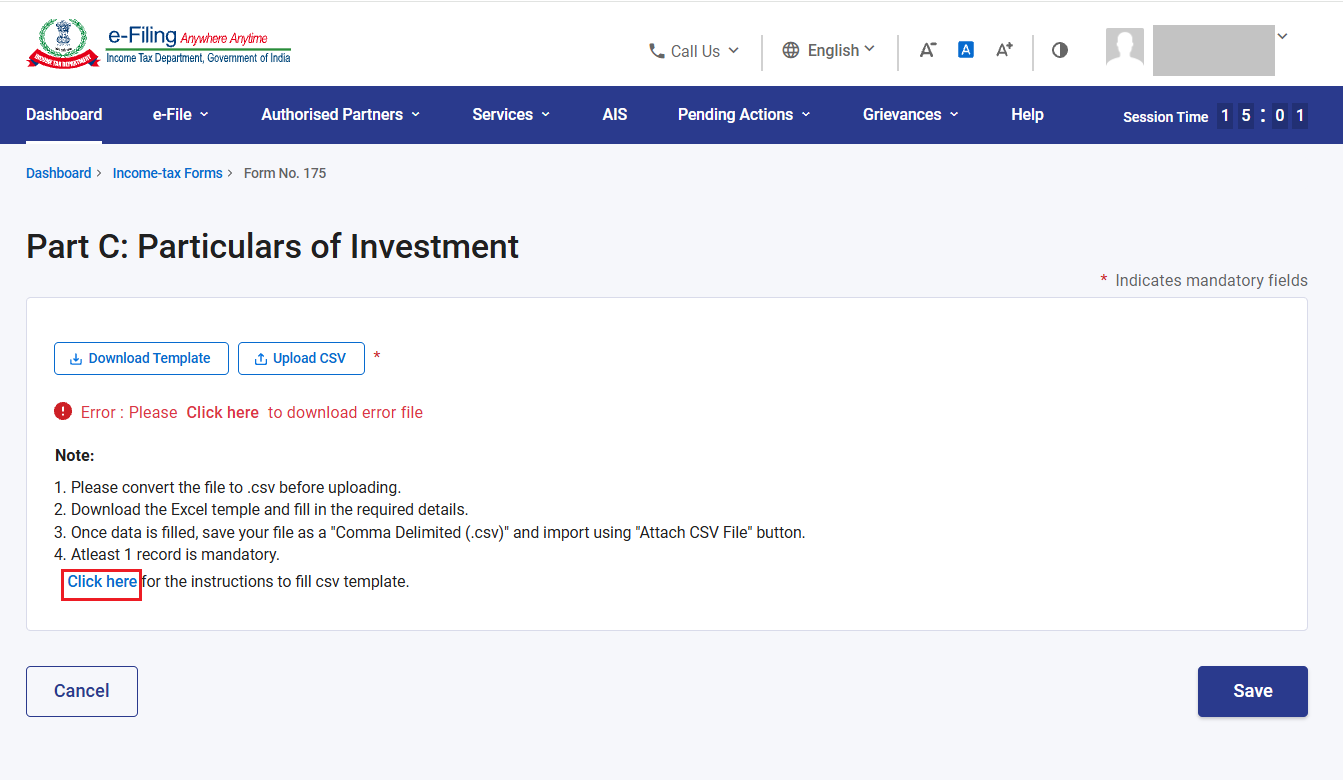
Step 12: In ‘Part C- Particulars of Investment’, please furnish the details Investments of pension fund. Download the template and fill it.
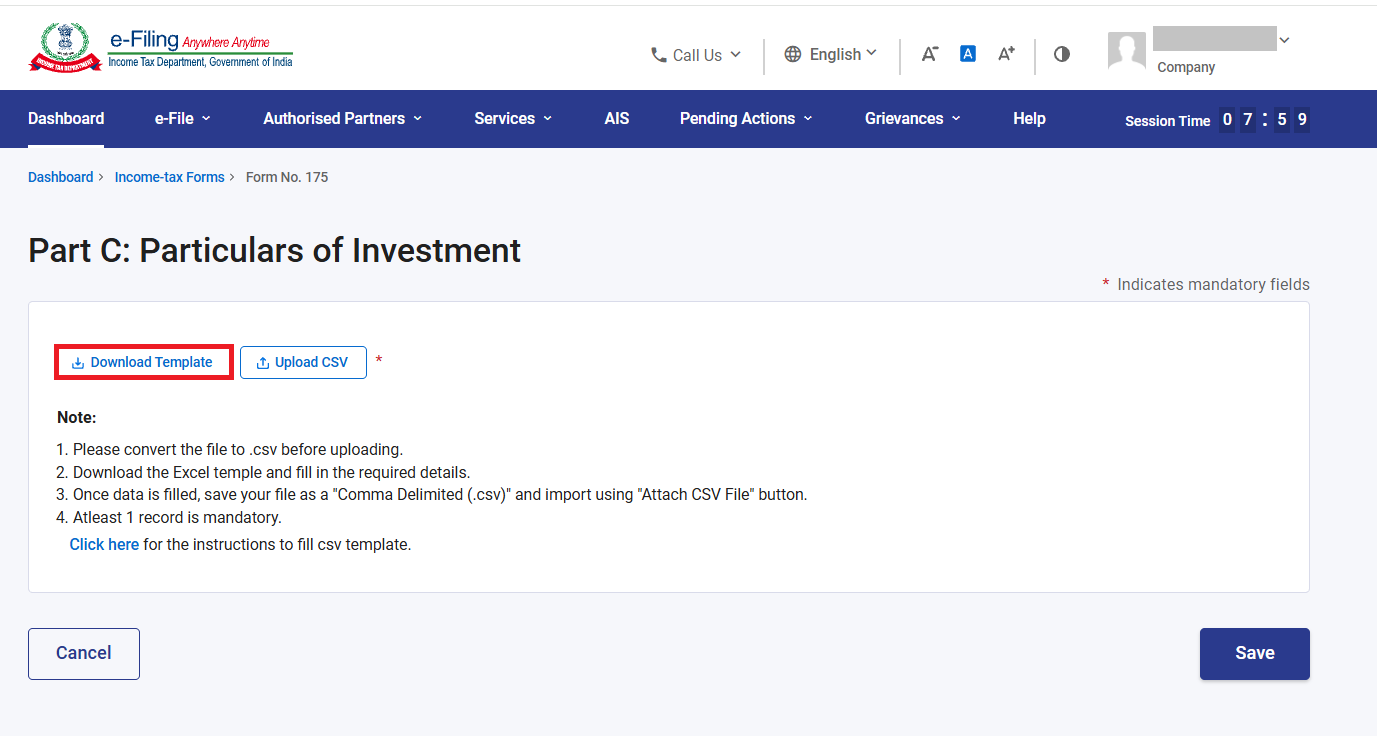
Please Note: Download the instruction sheet by clicking on the hyperlink ‘Click here’ and fill the information in excel sheet accordingly to avoid any error in uploading .CSV file.
Download below excel template and furnish the information of investments, in excel format (Column A to Column J) and create .CSV file.
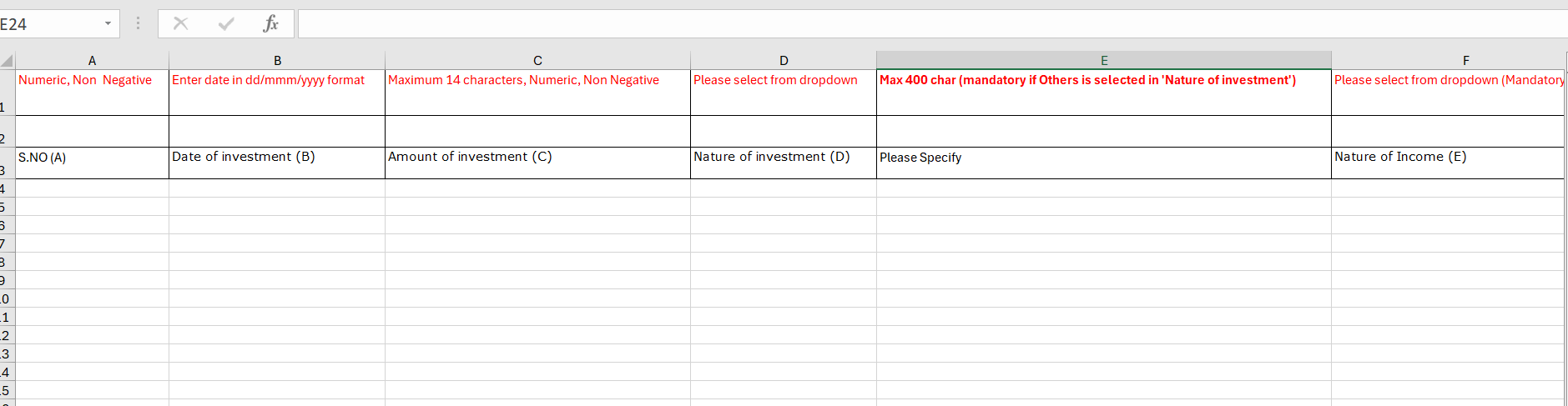
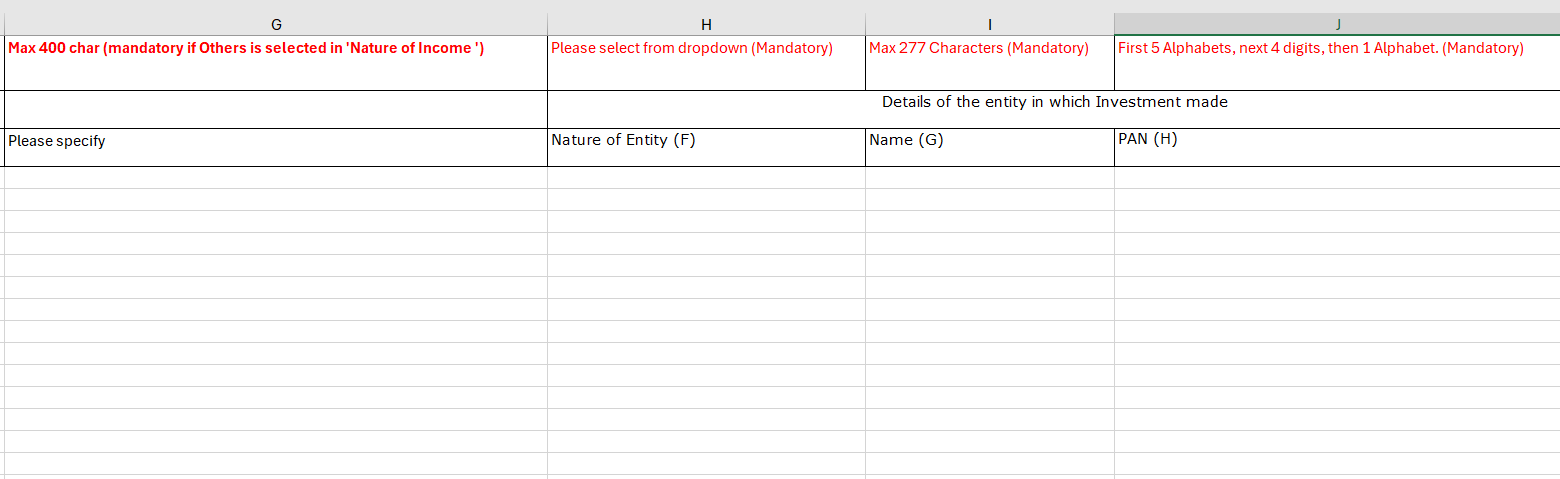
Now, upload the .CSV file by clicking on upload CSV. If there is no error in uploaded file, click ‘Save’.
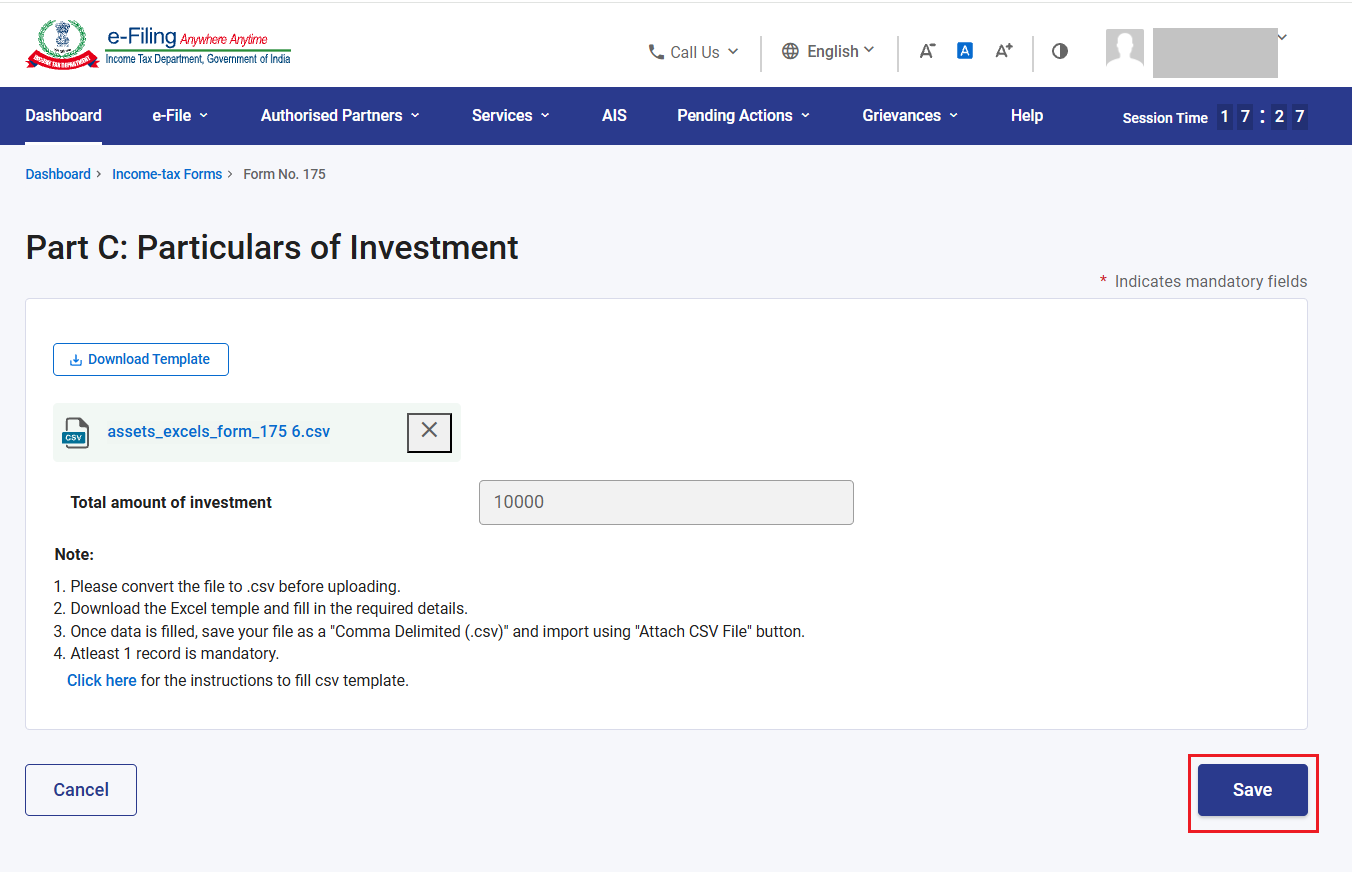
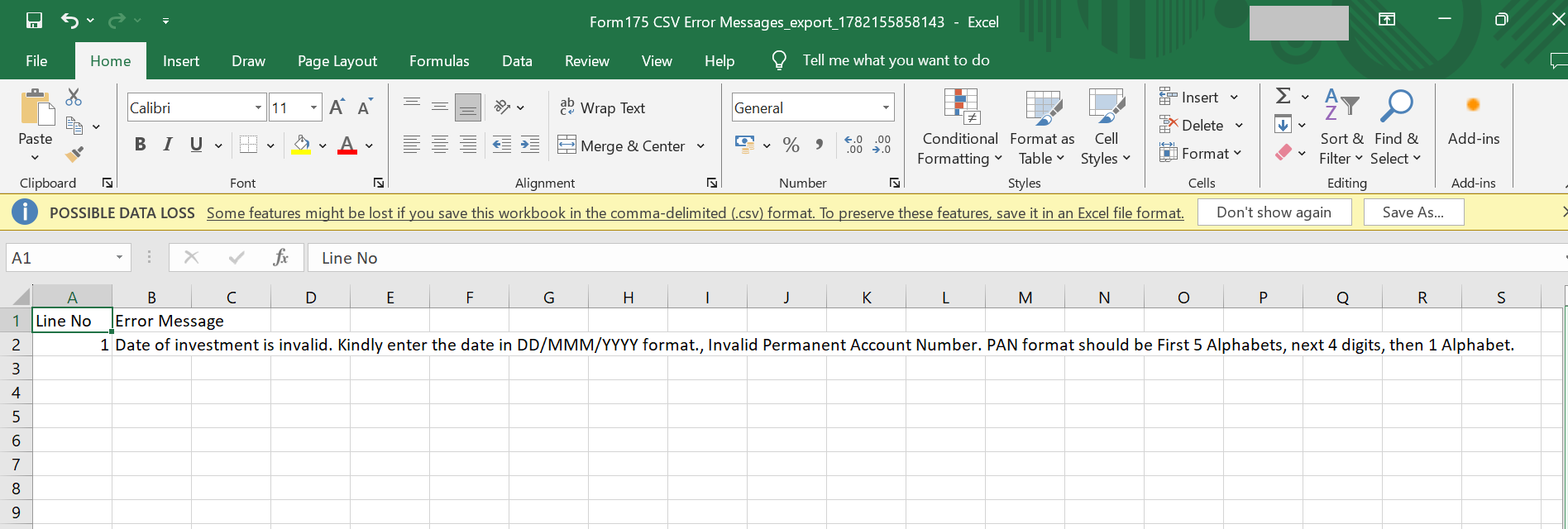
-If there is error in uploaded .CSV file, click on ‘Click here’ to download error file and check the error.
Rectify the error in below error sheet and upload again. you can refer the instruction sheet to rectify the error.
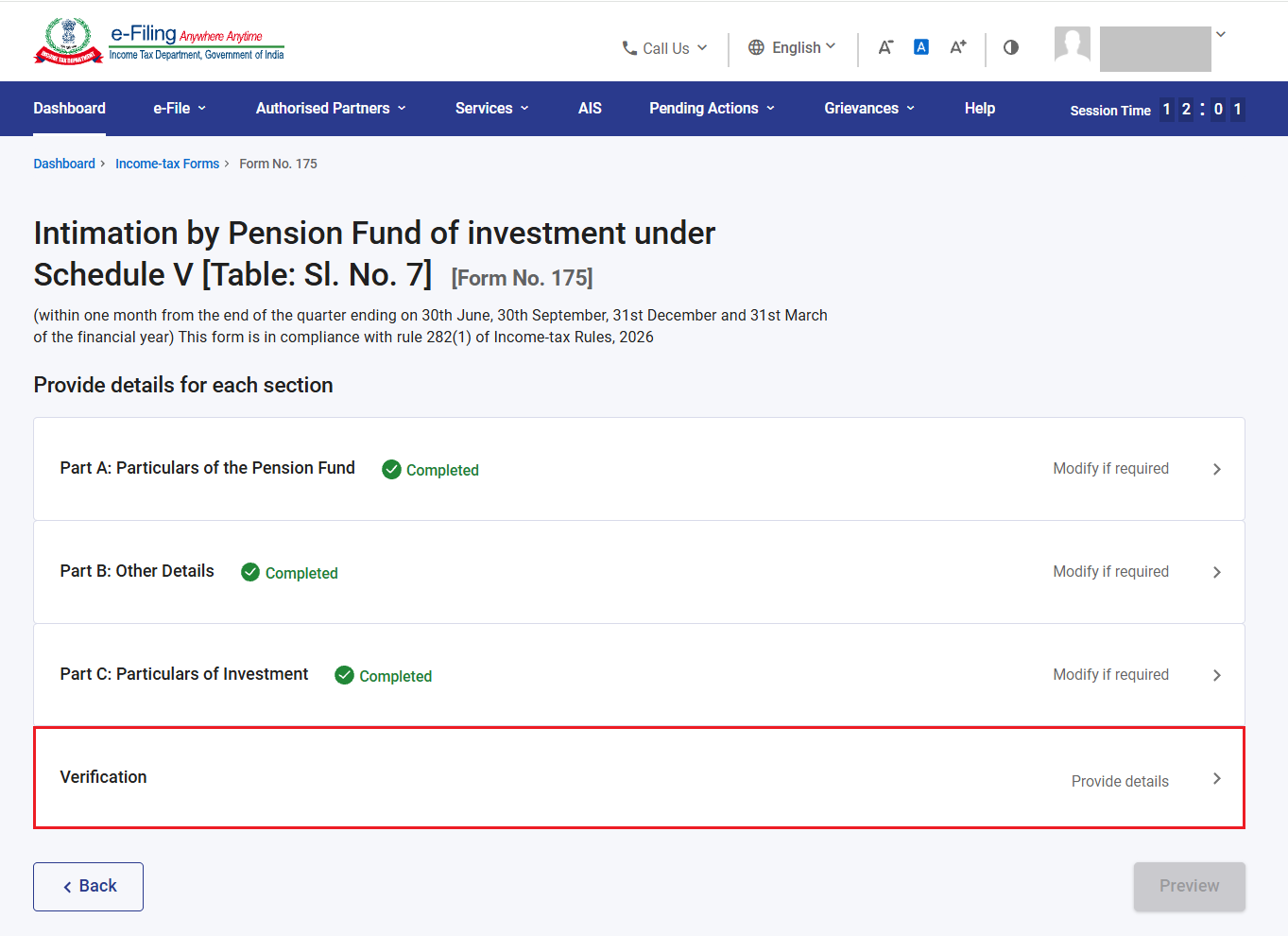
Step 13: ‘Part C- Particulars of Investment’ is confirmed. Now, click on ‘Verification’.
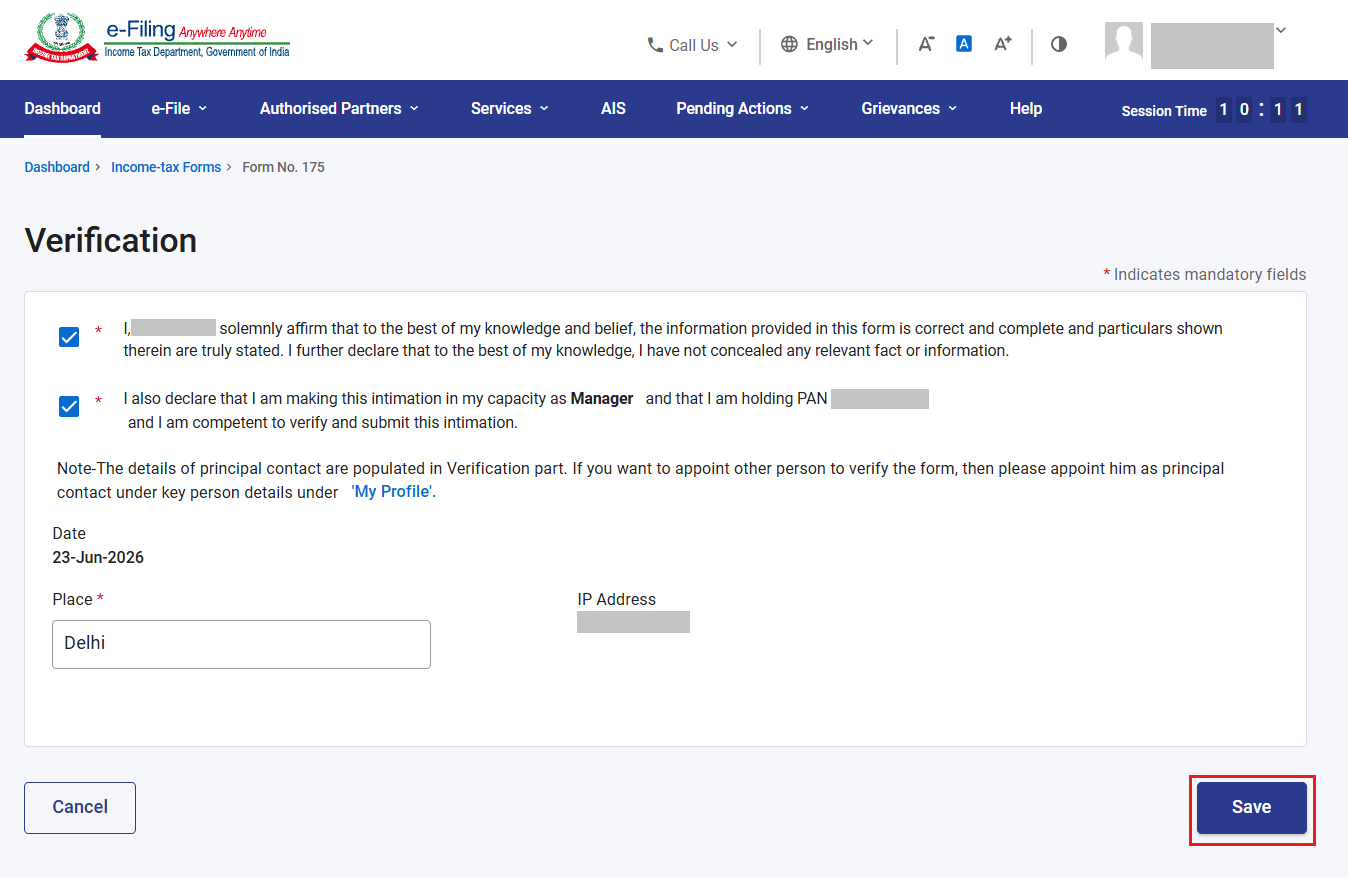
Step 14: Confirm the checkboxes and enter place. Click ‘Save’.
Step 15: All the four sections are confirmed. Click ‘Preview’.
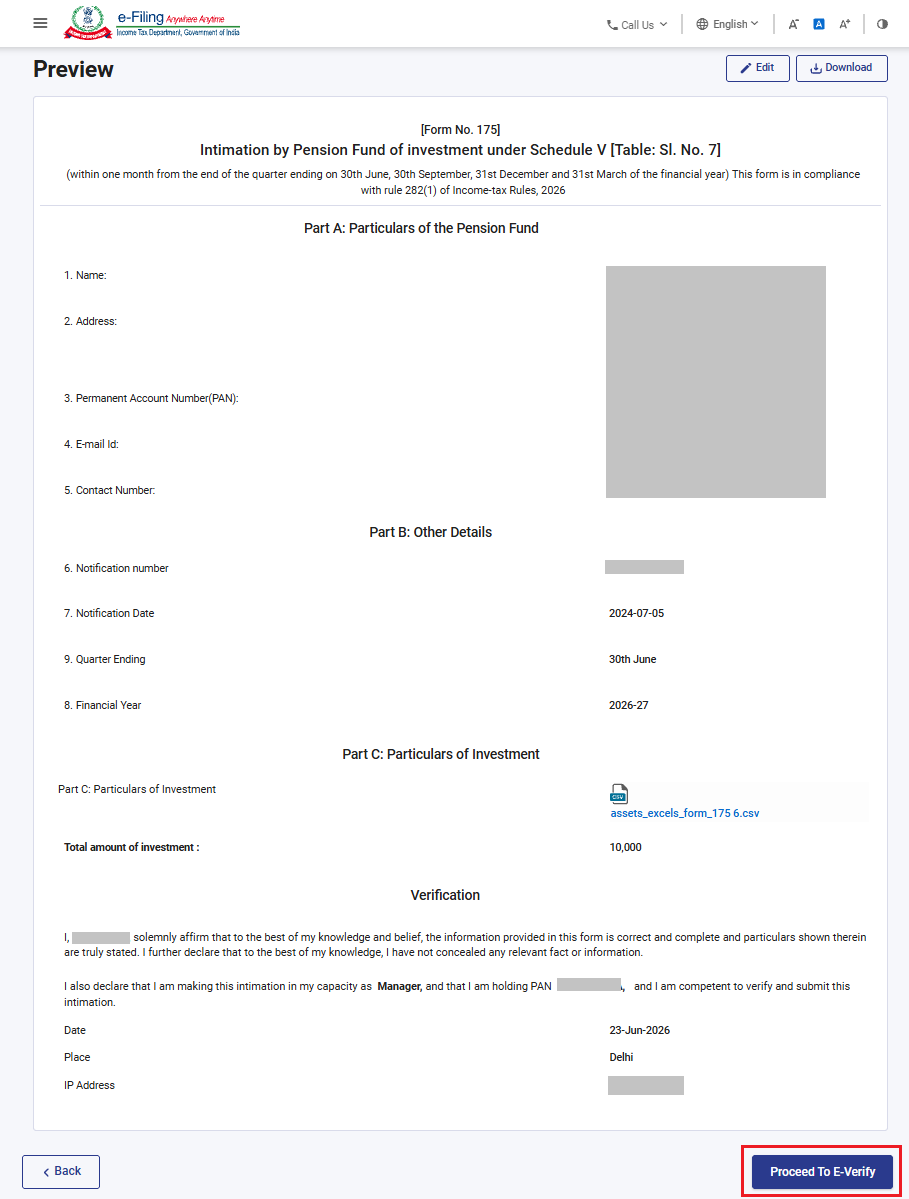
Step 16: Verify the details in the preview of form. Click ‘Proceed to E-Verify’. By clicking the ‘Download’ button, the user can download the preview PDF and verify the details before proceeding with e verification.
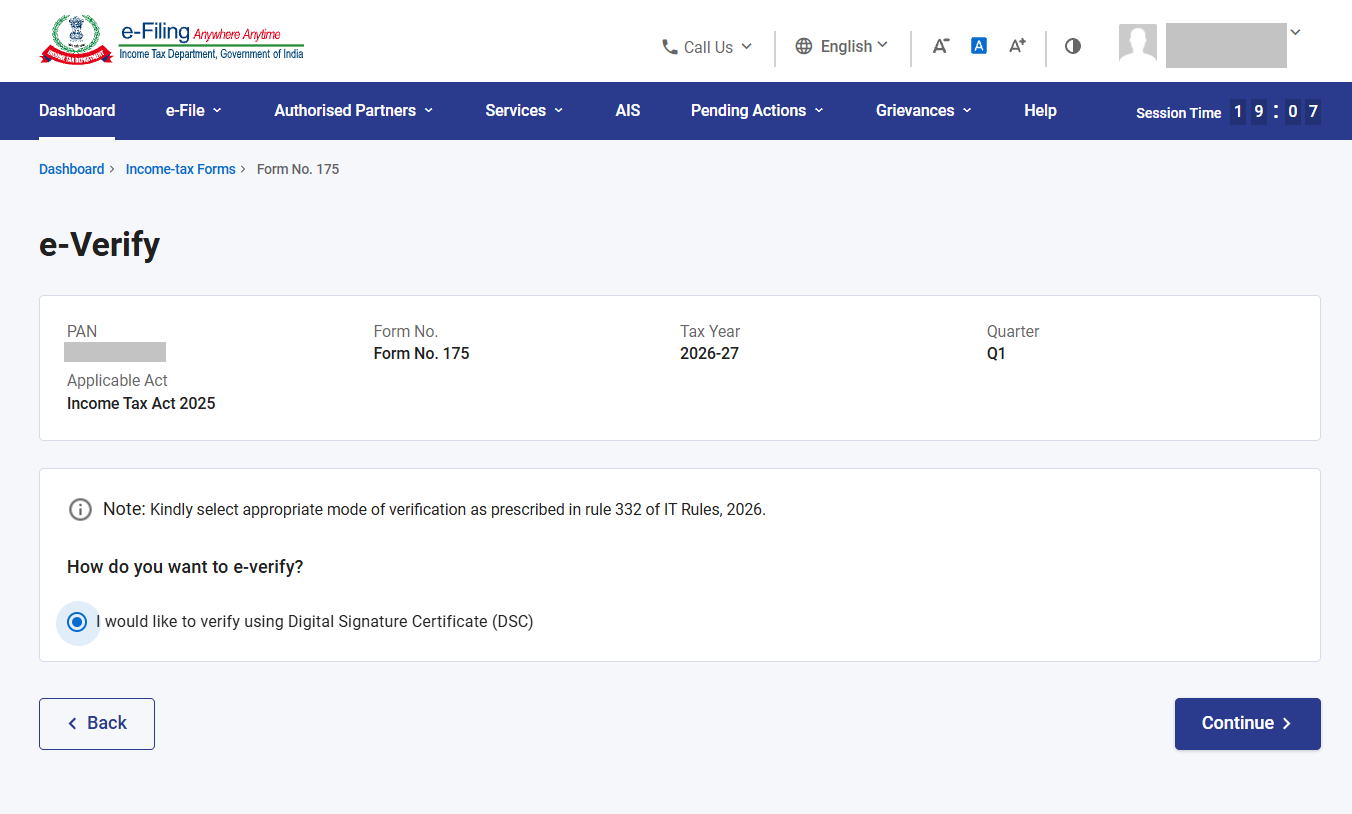
Step 17: Verify the form through DSC of authorised person.
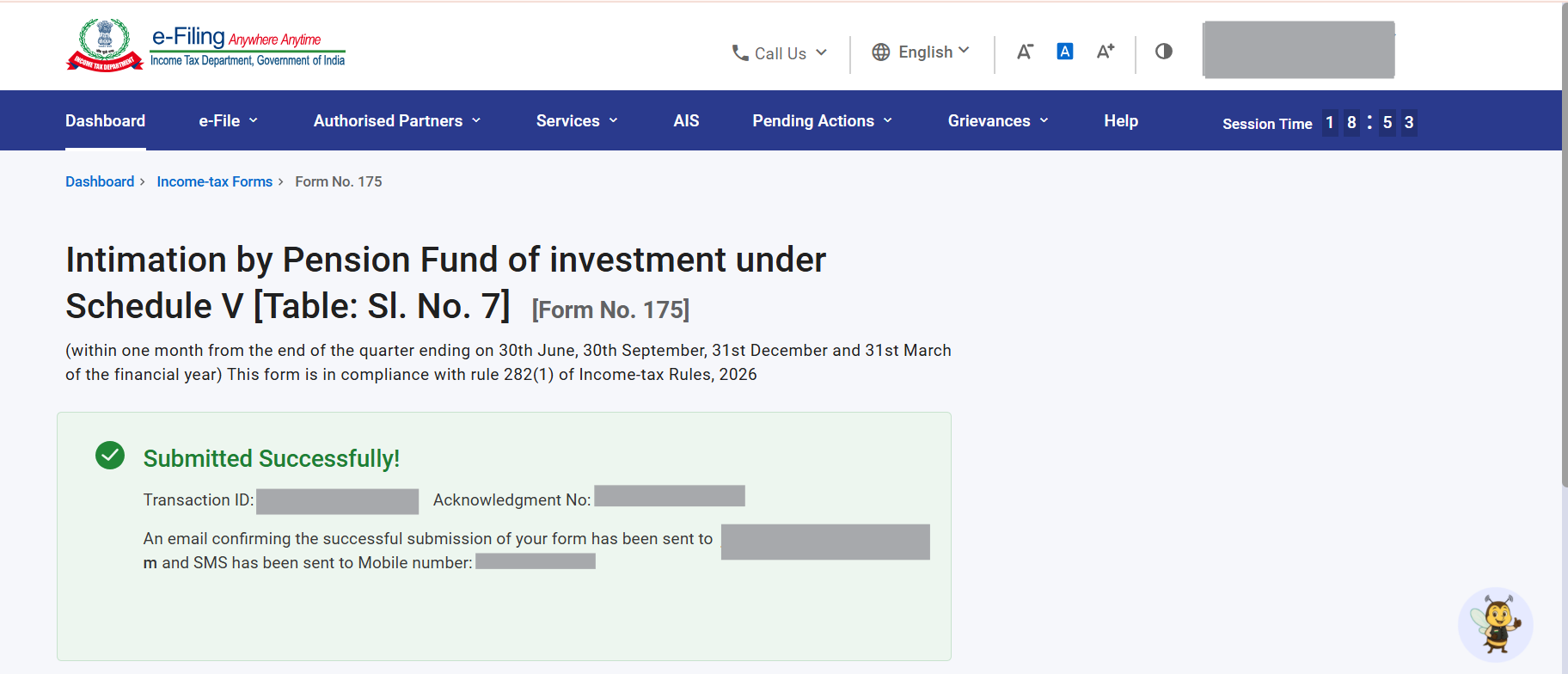
Step 18: After successful e-Verification form will be submitted and a success message is displayed along with a Transaction ID and Acknowledgement Receipt Number. Please keep a note of the Acknowledgement Receipt Number and Transaction ID for future reference. You will also receive a confirmation message on the email ID and mobile number registered with the e-Filing portal.