Form 1 (65/2022) User Manual
1. Overview
Form 1 based Notification No. 65/2022 is filed to avail an exemption from TDS under section 393 (1) (Sl.No.2 of the Table) of Income Tax Act'2025 (under section 194-I of Income-tax Act'1962 for earlier years before 01.04.2026) on lease rent or supplemental lease rent paid for aircraft leasing, when such payment is made by a lessee to a lessor when unit of lessor is located in an IFSC.
To avail this benefit, the lessor must submit Form No. 1 (65/2022) (Aircraft Leasing Business) to the lessee.
Once the lessee receives Form No. 1 (65/2022), they are not required to deduct TDS for the period declared by the lessor.
2. Prerequisites Before Filing the Form
Before filing Form No. 1, the following conditions must be fulfilled:
✅ For the Lessor (Unit located in IFSC)
- The unit must be engaged in the business of aircraft leasing.
- The unit must be located in an IFSC as per SEZ Act definitions.
- The unit must be eligible for deduction under section 147 of the Income-tax Act.
- The unit should have:
- Permission under Section 23(1)(a) of the Banking Regulation Act, 1949, or
- Permission/registration under the Securities and Exchange Board of India act,1992 or
- Permission under the International Financial Services Centre Authority Act
- The unit must decide the 10 consecutive tax year out of fifteen years beginning from the tax year in which Permission obtained, for which it will claim deduction under section 147.
✅ For the Lessee
- Must receive the Form No. 1 copy from the lessor.
- Must ensure no TDS is deducted on lease payments after receiving Form 1.
3. Purpose of Form 1(65/2022)
Form No. 1(65/2022) serves as a Statement-cum-Declaration given by the aircraft leasing unit located in an IFSC to the lessee. Its purpose is to:
- Declare that the unit is engaged in aircraft leasing and is eligible for deduction under Section 147 (1)(b) read with Section 147(2)(b) under The Income Tax Act'2025 (Section 80LA(1A) Income tax Act'1961 for earlier years before 1.4.2026).
- Inform the lessee about the specific 10-year tax holiday period the lessor has chosen.
- Confirm that the unit continues to operate in the IFSC during the relevant year.
- Enable the lessee to stop deducting TDS on lease rent payments as permitted under the notification.
In simple terms, Form No. 1 tells the lessee:
“Lessor is eligible for tax benefits—so you don't need to deduct TDS on lease rent for these years.”
4. Step-by-Step Guide to File Form No. 1
Step 1: Log in to the e-Filing portal with your User ID and Password.
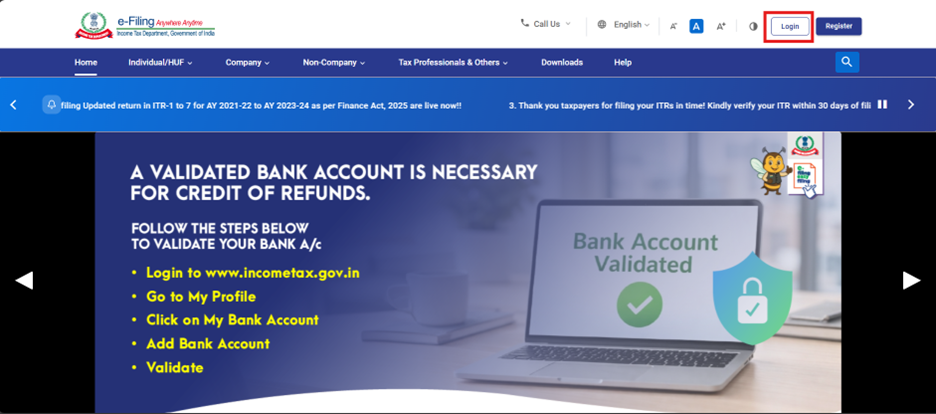
Step 2: Enter the User ID (PAN) and Password.
Step 3: Go to e-File >Income Tax Forms > File Income Tax Forms
Step 4: Select Tab “Forms as per Income tax Act 2025”
Step 5: Select/ Search Form 1 (65/2022)
Step 6: Select Tax Year then click on Continue
Step 7: Click on Let's Get Started
Step 8: When the user clicks “Let's Get Started”, Form 1 (65/2022) will be displayed. Users must fill in all the blank fields. Fields marked with an asterisk (* ) are mandatory. Mandatory Information
The user is required to enter:
- Name of the unit located in IFSC of the lessor, Mandatory fields in the Address section and Place.
- Permission or registration obtained under relevant act needs to be selected from the dropdown in field 8(i), Authority from which such Permission/registration is obtained needs to be entered in field 8(ii), Date of such Permission/Registration needs to be entered in field 8(iii) and in field no.8(iv) registration/certificate no. needs to be entered.
- Field no. 9(i) and 9(ii) will get auto filled based on the Tax year /Financial year selected in field no. 10.
Prefilled Information
Certain details will be automatically prefilled in the form, such as:
Name of the lessor PAN, Address, Email ID, Contact number
Statement-cum-Declaration
Details of the Principal Contact will also be prefilled based on the Key Person information available in My Profile.
Note: If the user needs to update Prefill details or Principal Contact details:
- Navigate to My Profile using the hyperlink provided in the panel.
- Update the required information accordingly.
Step 9: When you click on preview, you will be redirected to Preview screen where you will reverify Information filled and click on Proceed to E-Verify Button.
Step 10: After clicking on Proceed to E-Verify Pop up message will come select yes to proceed
Step 11: On clicking Yes, you will be taken to the e-Verify page.
Once EVC is entered E-Verify button will get enabled. User needs to click on E-Verify button in order to proceed.
Note: Refer to the How to e-Verify user manual to learn more.
Step 12: On clicking Yes, Form will be submitted successfully.