Form 99 User Manual
1. Overview
Form 99 is available for use to any assessee / deductor for filing appeal to Commissioner of Income Tax (Appeal)/ Joint Commissioner of Income Tax (Appeals) if aggrieved by an order of the Assessing Officer (AO). An appeal is required to be filed along with Memorandum of Appeal, Statement of facts and the Grounds of appeal and should be accompanied by a copy of the order appealed against and the notice of demand.
CBDT has notified the 'Faceless Appeal Scheme, 2020', vide Gazetted Notification F.No. S.O. 3296 (E), dated 25-9-2020.
Under this Faceless Appeals Scheme, 2020, all Income Tax appeals before the first appellate authority i.e., the JCIT(Appeals) /CIT (Appeals), shall be finalized in a faceless manner under the faceless ecosystem.
The Scheme was amended and under the amended Faceless Appeal Scheme, 2021. The National Faceless Appeal Centre assigns the appeal, for disposal, directly, to a JCIT (Appeals) / CIT (Appeals) of a specific appeal unit, through an automated allocation system.
It has also been mandated that the appellant may request for a personal hearing through video conferencing, and on receipt of such a request of the appellant, the respective JCIT (Appeals) /CIT(Appeals), in the Appeal Unit shall grant such personal hearing to the appellant through video conferencing.
In 2023, CBDT has notified the 'e-Appeals Scheme, 2023’, vide Gazetted Notification F.No. S.O. 2352 (E), dated 29-5-2023.
2. Pre-requisites for availing this service
• Registered PAN/TAN user on the e-Filing portal with valid user ID and password
• PAN and Aadhaar are linked (Recommended)
• Valid Digital Signature Certificate (DSC) registered on the e-Filing portal, which is not expired, if the Return of Income is required to be verified using DSC. In any other case, EVC is required.
3. Documents required for filing appeal:
• Copy of order. To download the order from e-filing portal, on the homepage go to the Pending Actions tab > E-proceedings
• Demand Notice
• Details of appeal fees paid
• Details of pending appeal
• Details of Taxes Paid
• Statement of Facts, Grounds of Appeal & Documentary Evidence
• Document Identification Number (DIN) or Order No.
4. Time limit for appeal
As per the Income Tax Act, appeal should be filed within 30 days of the following date:
• Where the appeal relates to any assessment or penalty, the date of service of notice of demand relating to the assessment or penalty order.
• In any other case, the date on which intimation of the order sought to be appealed against is served.
5. How to Access and Submit the form
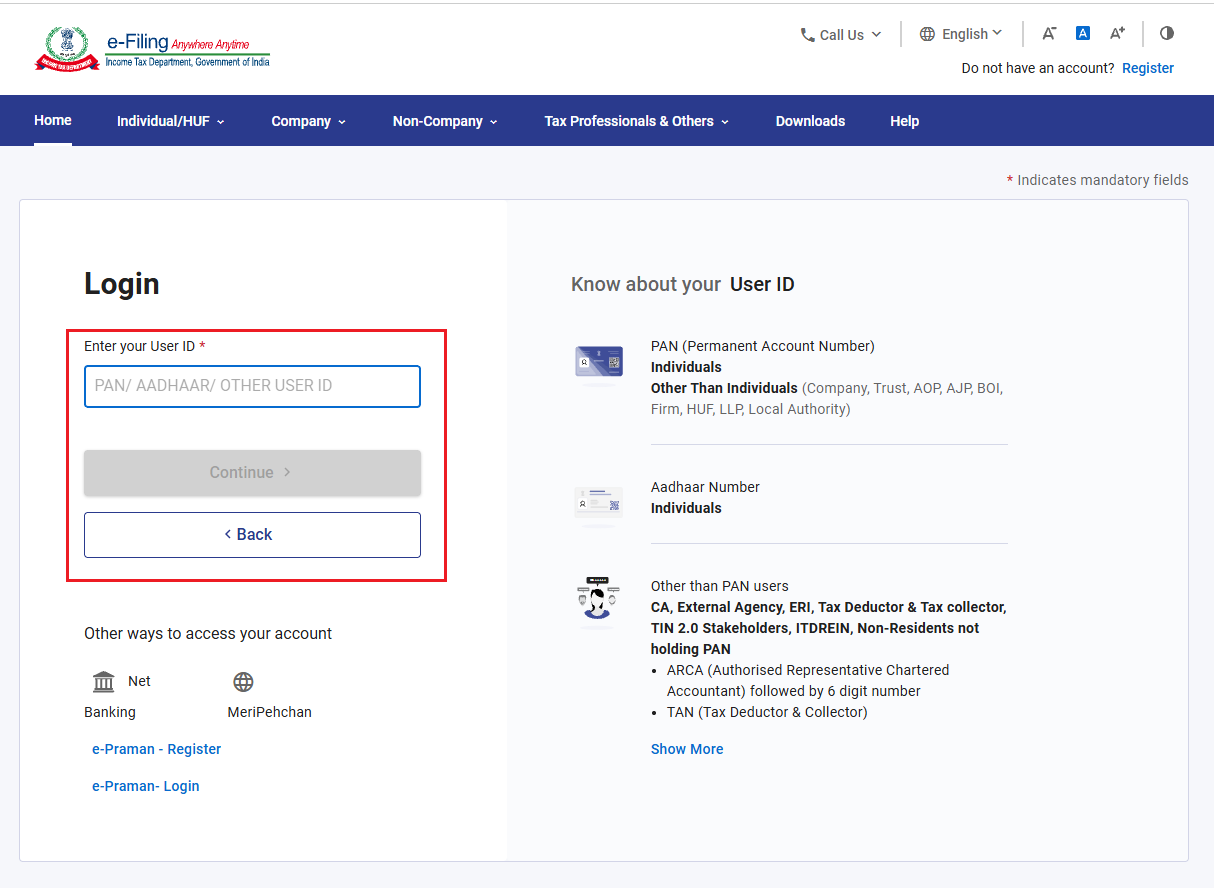
Step 1: Please log in to the e-Filing portal using your PAN/TAN and password.
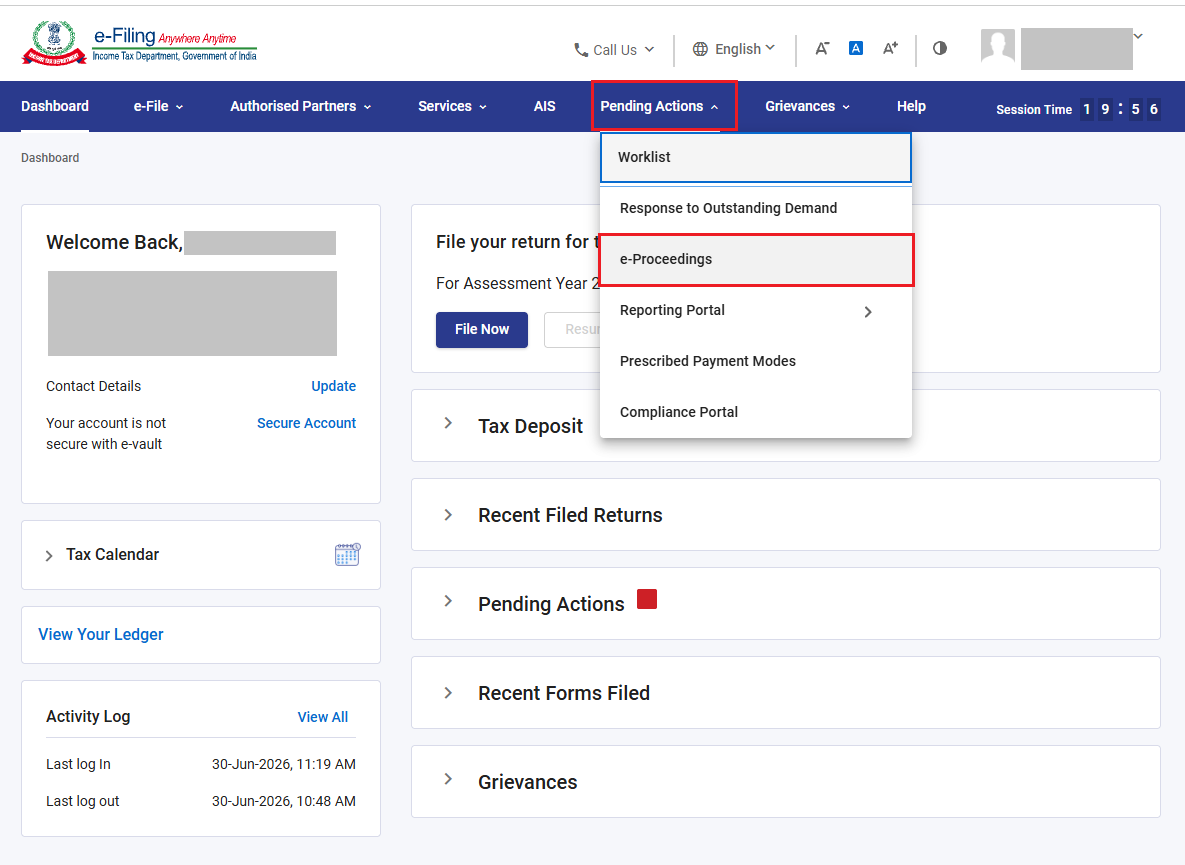
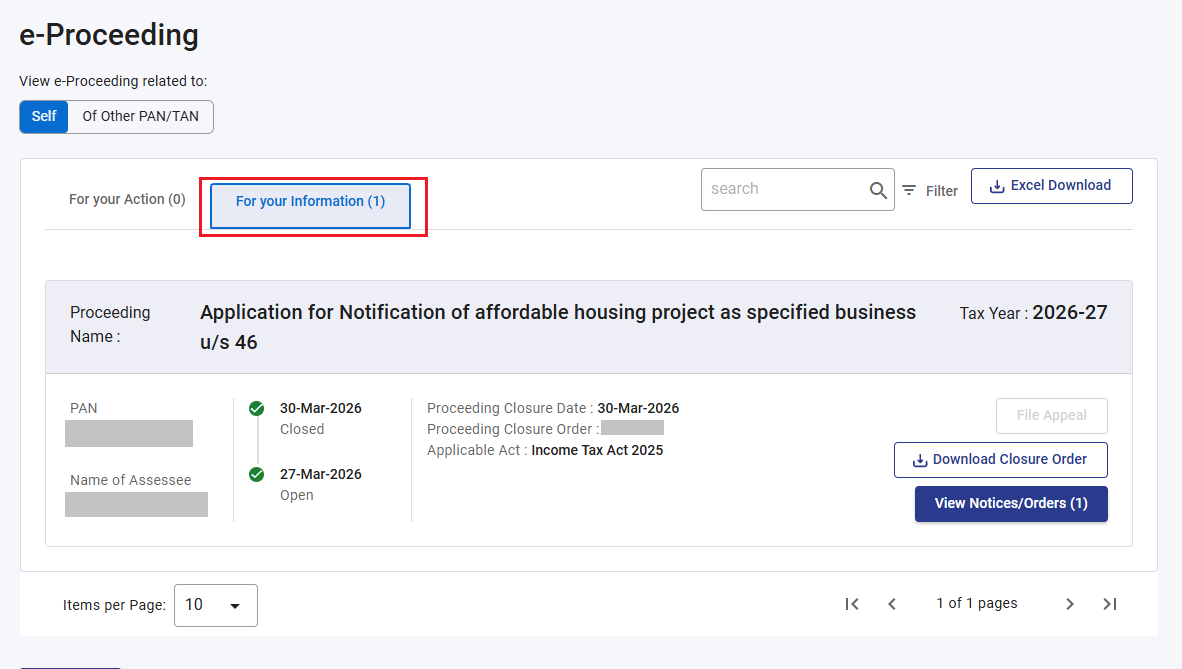
Step 2.1: Go to ‘Pending Actions’ > ‘E-Proceedings’ > ‘For your Information’ > ‘File Appeal’.
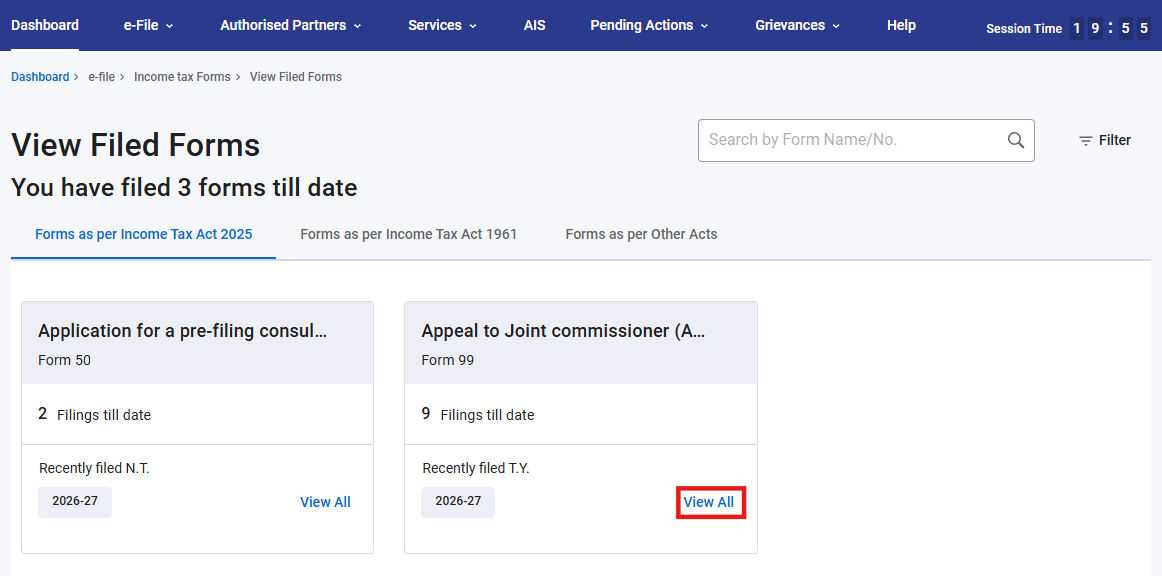
Step 2.2: Alternatively go to ‘e-File’ > ‘Income Tax Forms’ > ‘File Income Tax Forms’.
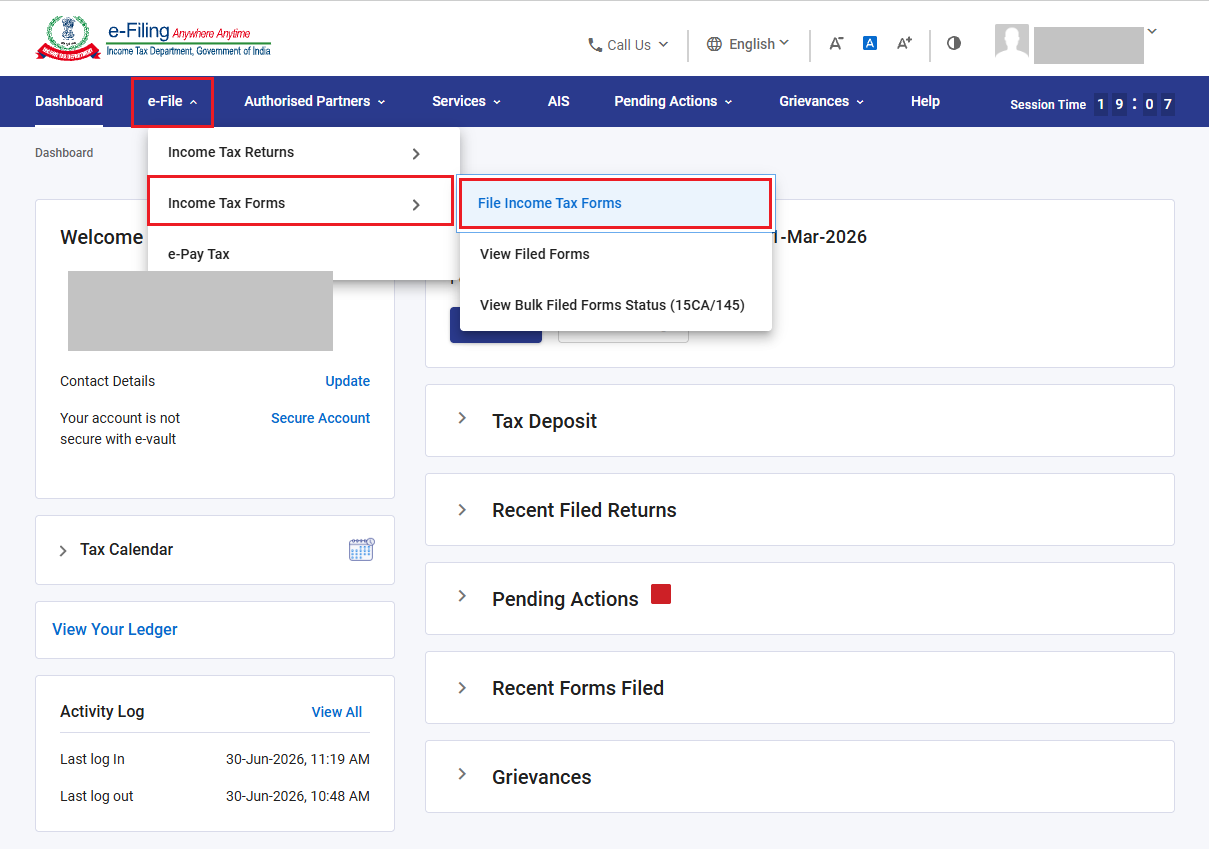
Step 2.2.1: Under Income tax Act 2025 category, Select the ‘Form 99’.
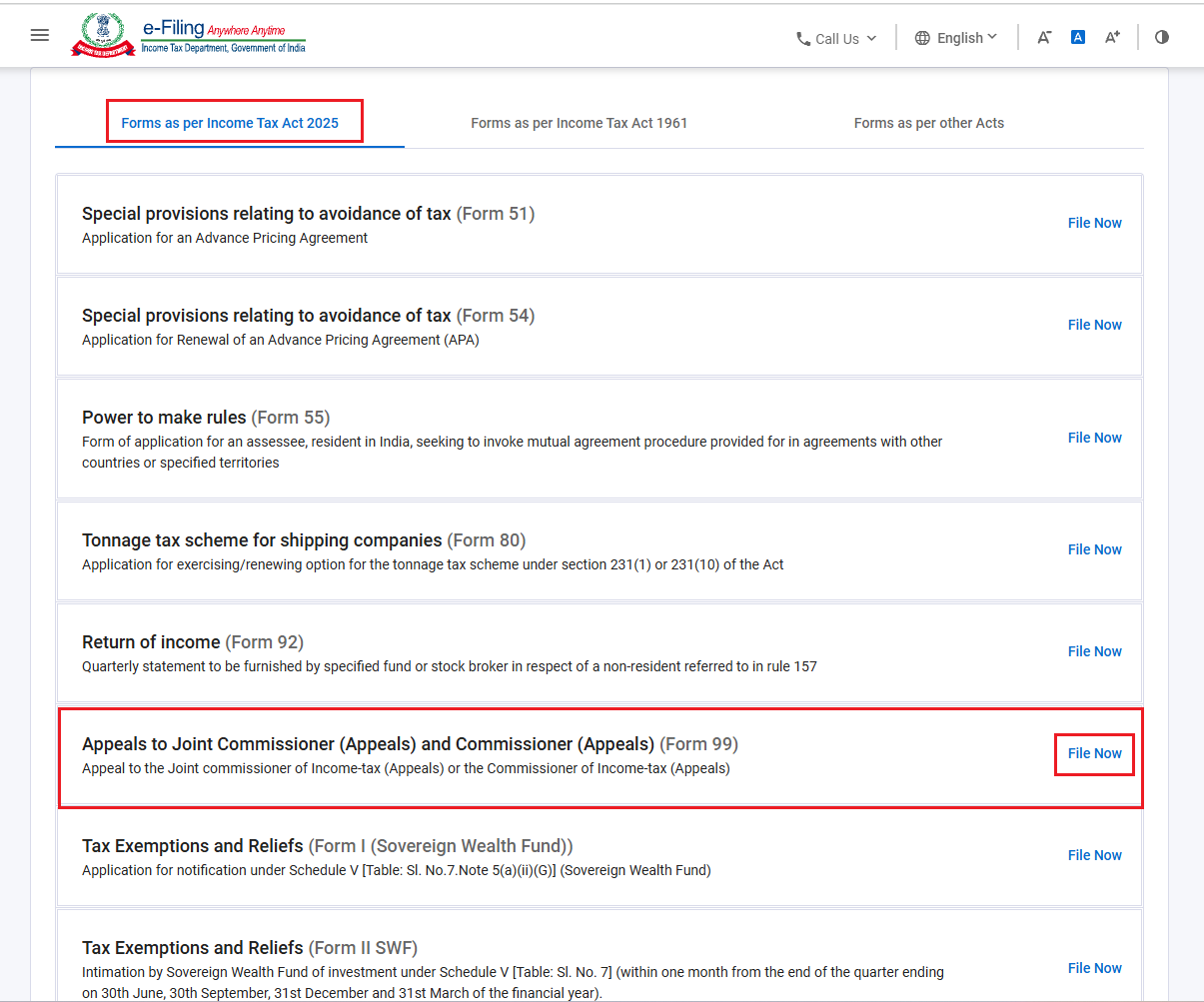
In the TAN login, you can search Form 99 and click on ‘File Now’.
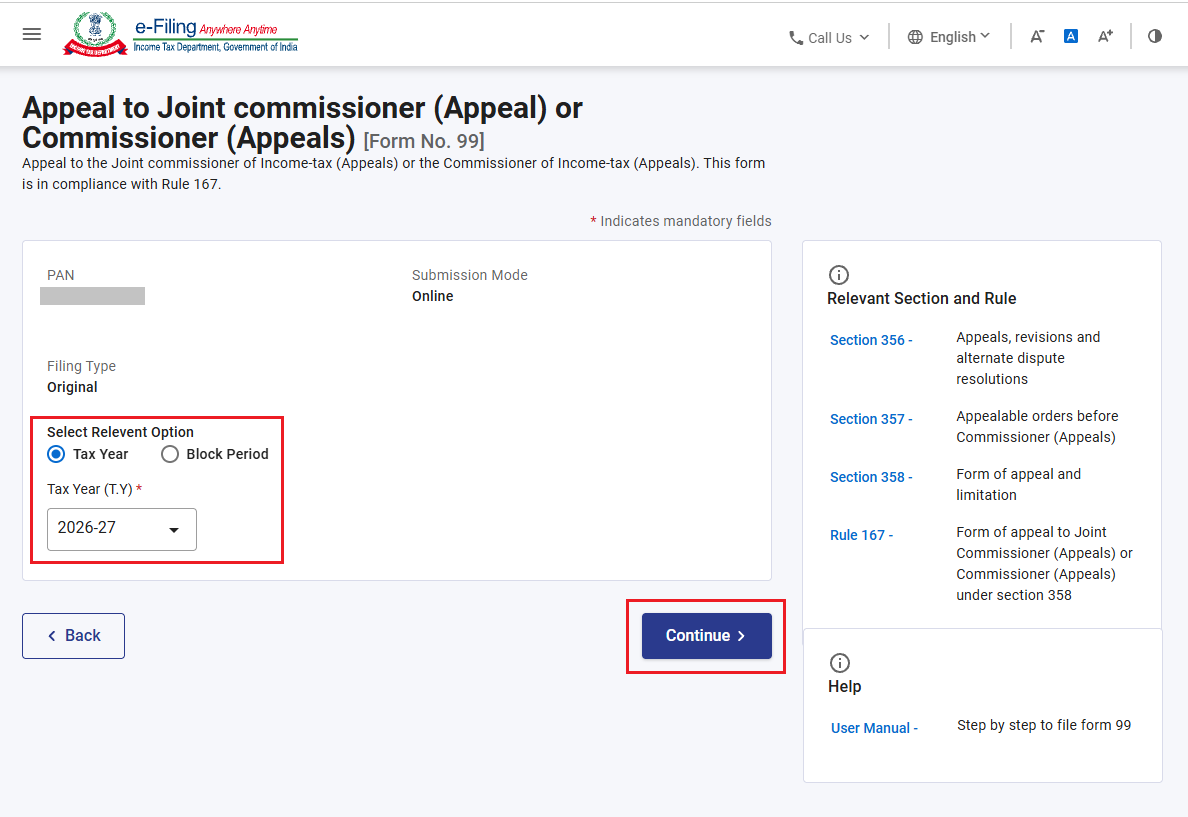
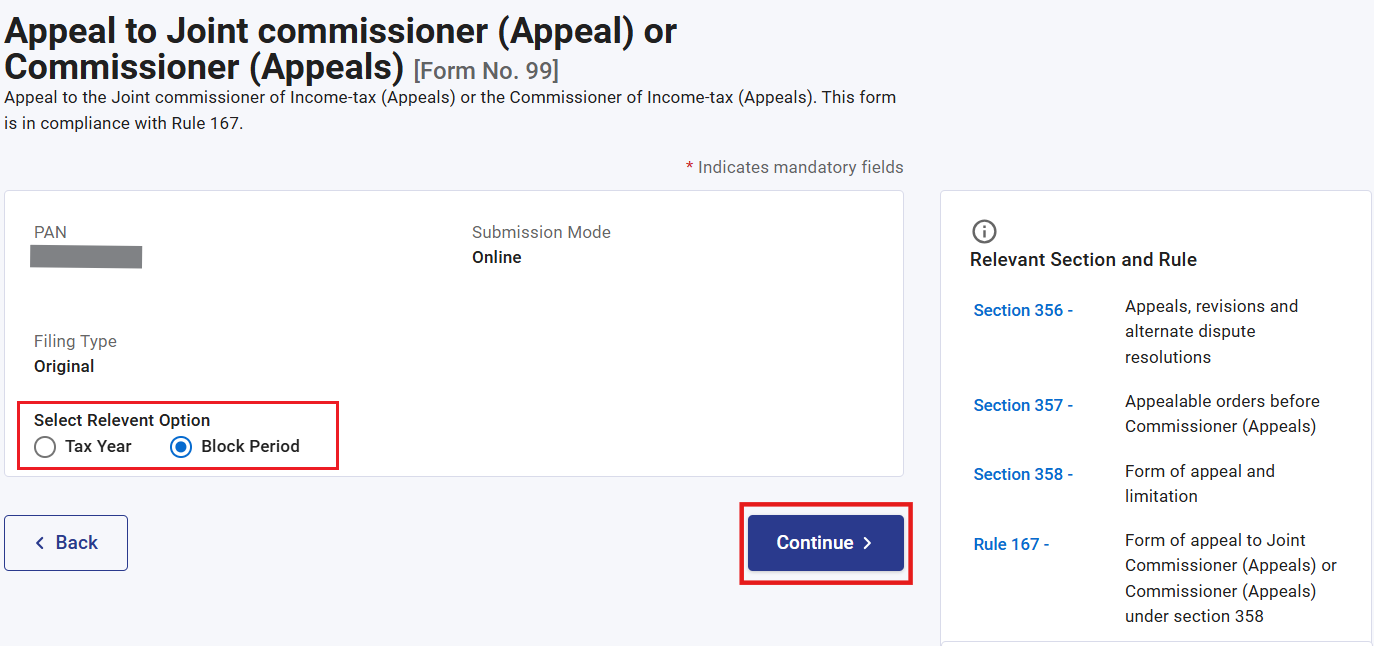
Step 3: Select the Relevant option (Tax Year/Block Period), Tax Year and click ‘Continue’.
Note:
• If you are filing Appeal in TAN Login Year type will be Tax Year. Select the Tax year from the Dropdown menu and click ‘Continue’.
• If you are filing Appeal for Block Period in PAN Login, no dropdown of Tax Year will appear and click ‘Continue’.
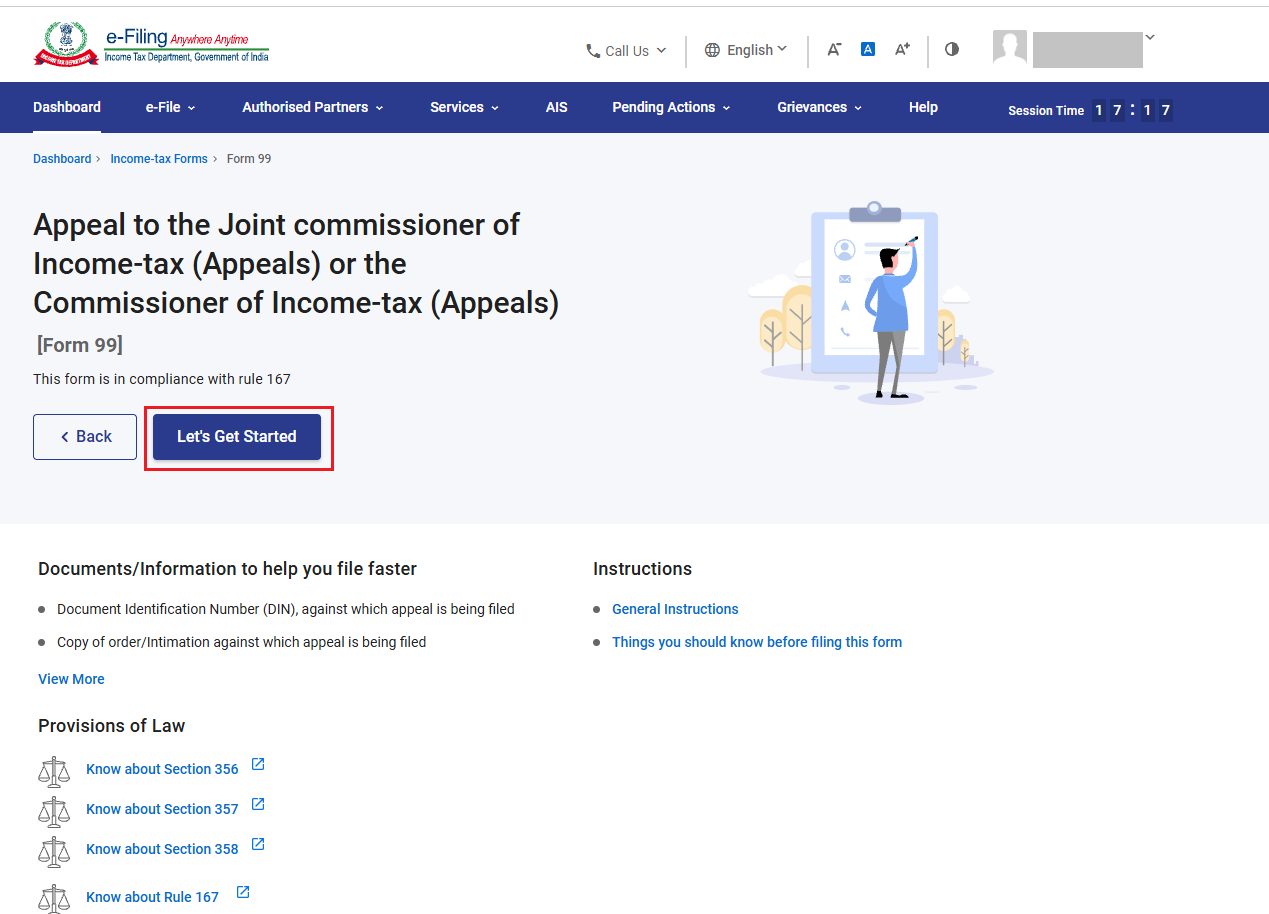
Step 4: Click on ‘Let’s Get Started’.
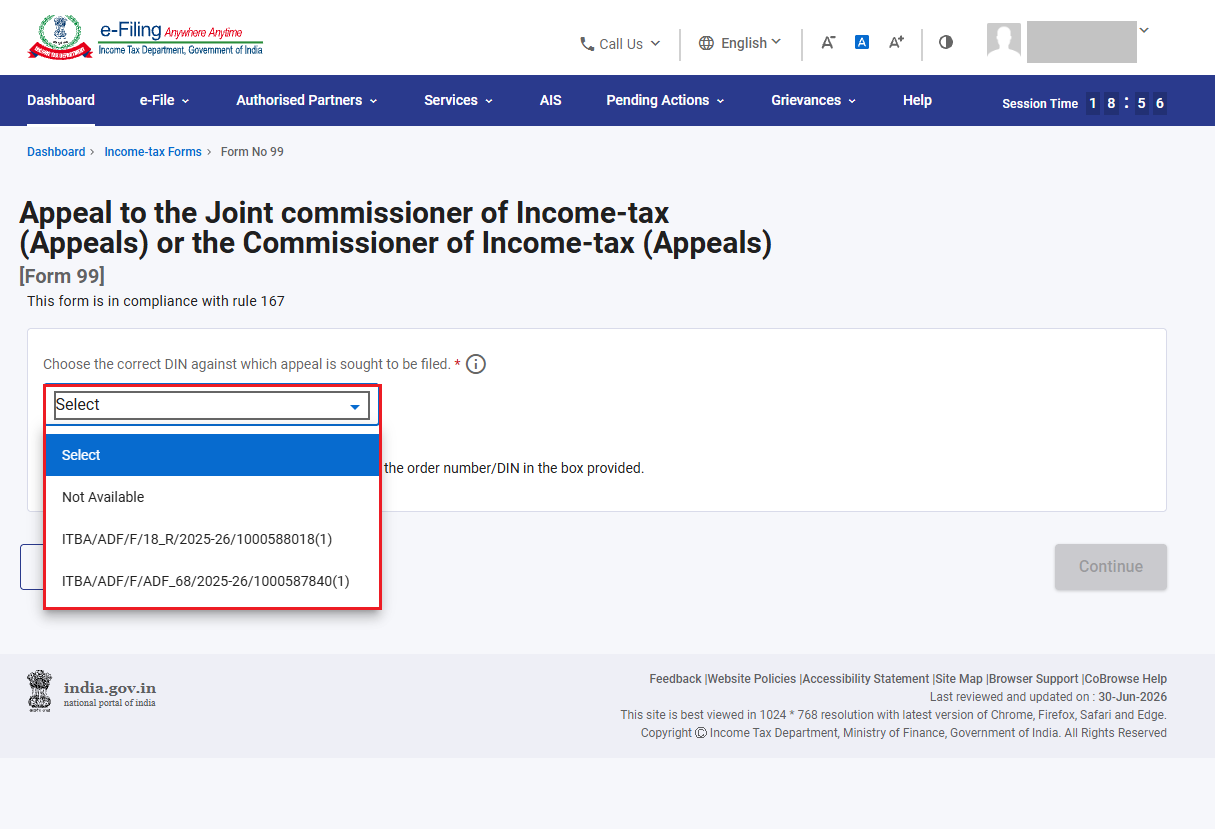
Step 5: Select ‘Not Available’ or Any DIN from the drop-down menu.
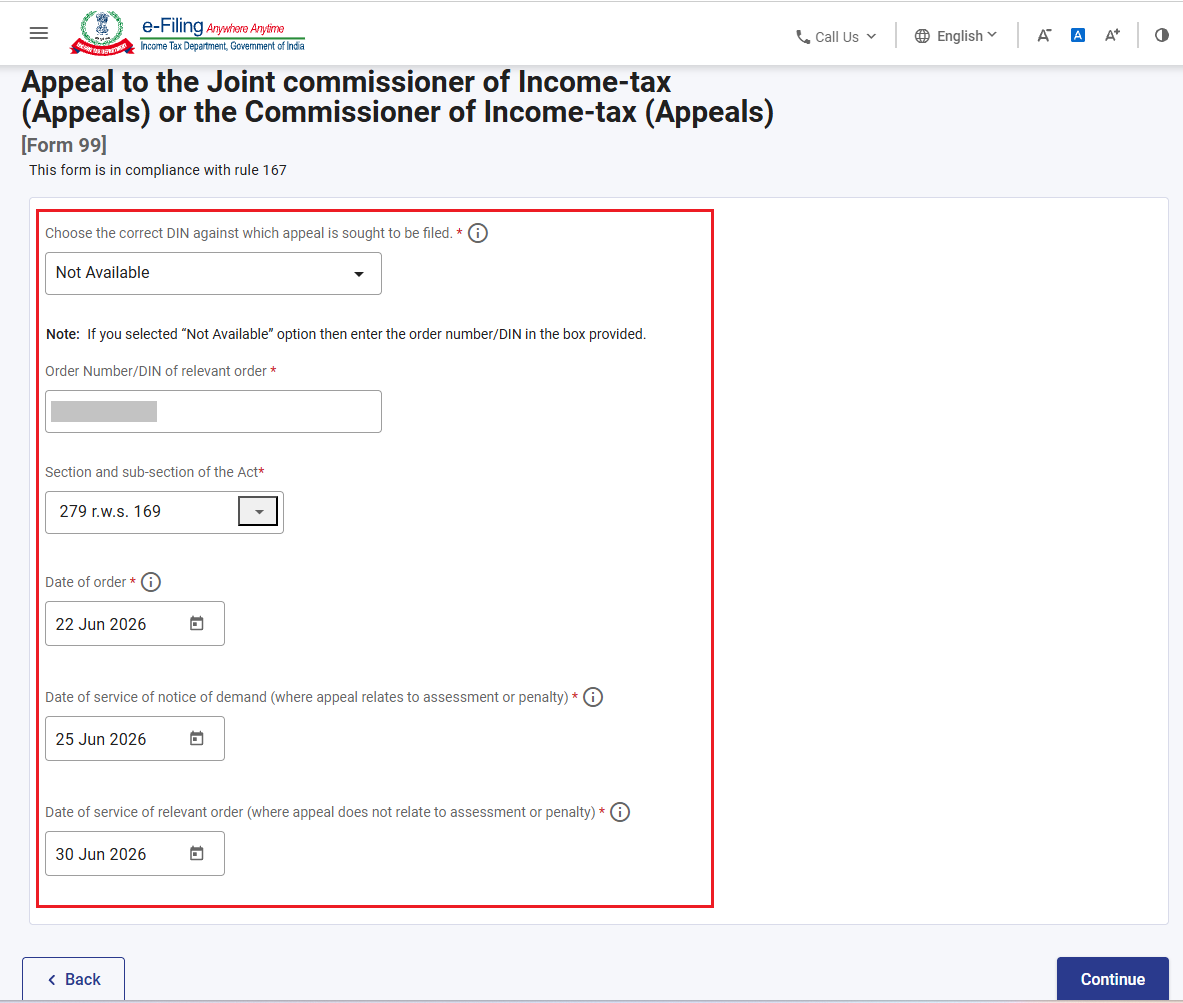
Step 5(a): If ‘Not Available’ option is selected, then please enter the order number/DIN in the box provided and other details. Please ensure that either the date of service of the notice of demand or the date of service of the relevant order is duly provided.
Step 5(b): If ‘DIN’ option is selected from dropdown menu, then relevant section and Sub-section of the Act, Date of order will be prefilled and please enter either Date of service of notice of demand or Date of service of relevant order and click ‘Continue’.
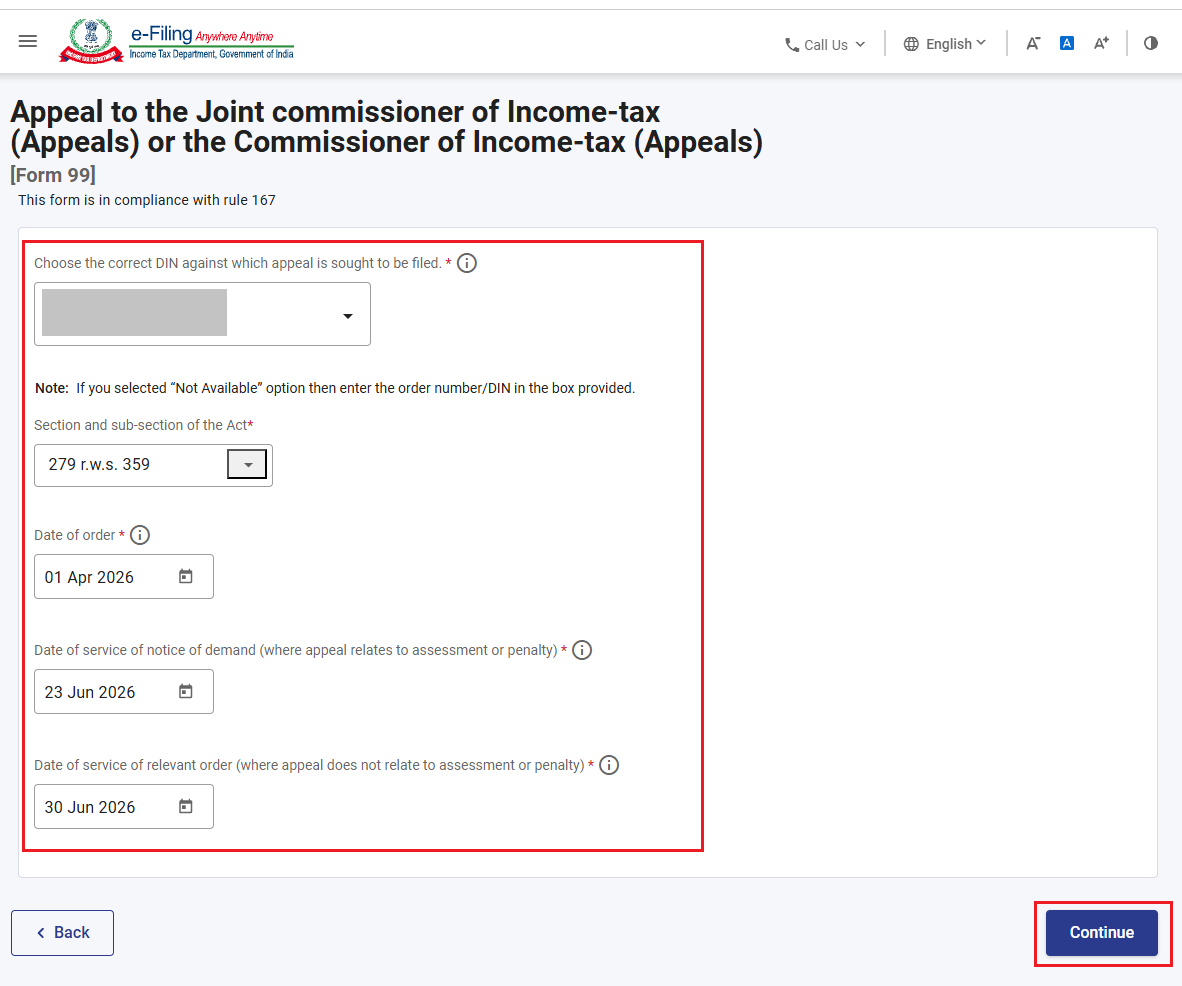
Note: Please select the relevant Section and Sub-section of the Act based on the Tax Year or Block Period option selected on the landing screen.
Step 6: Enter the necessary details and confirm all the tabs.
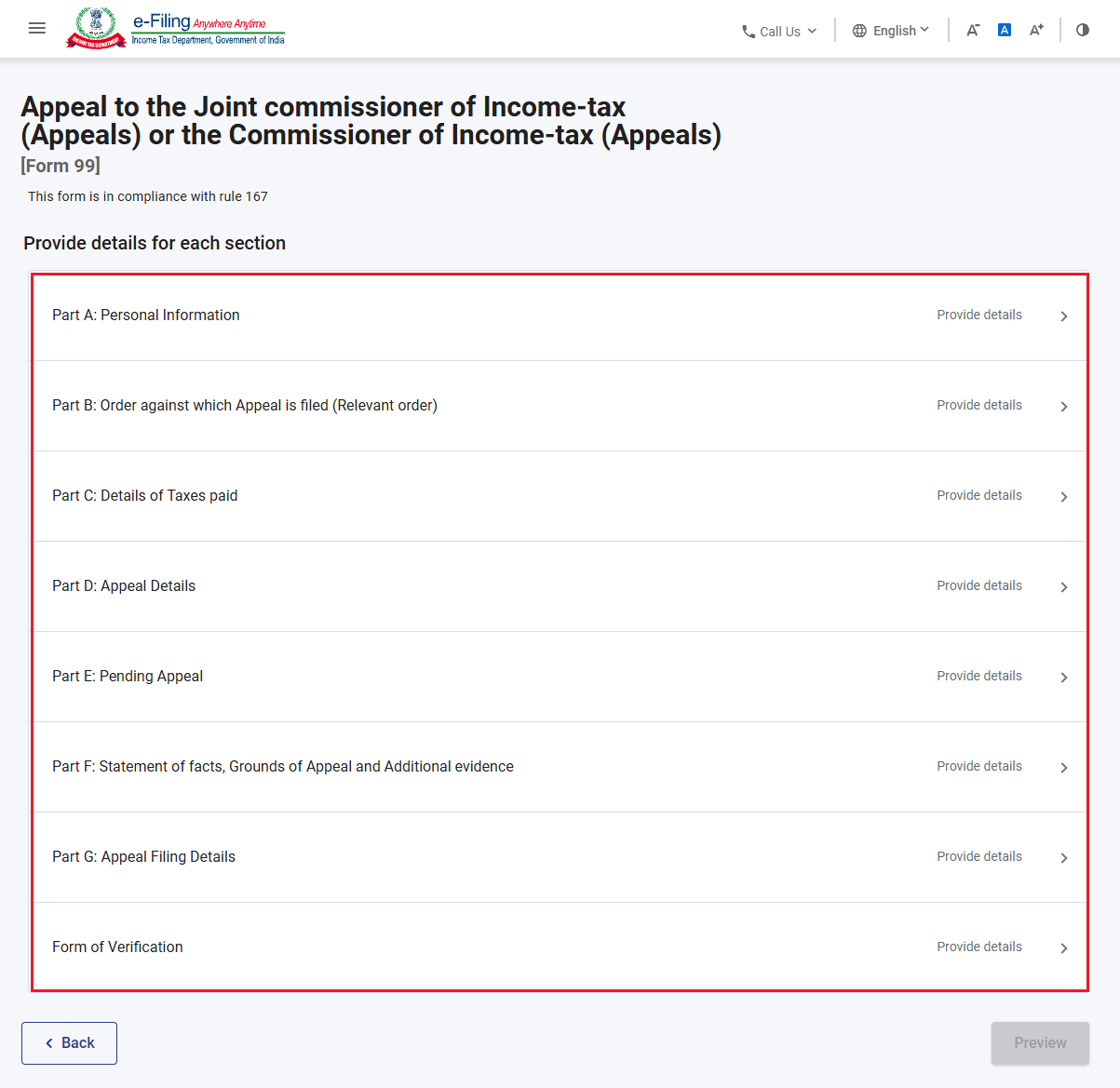
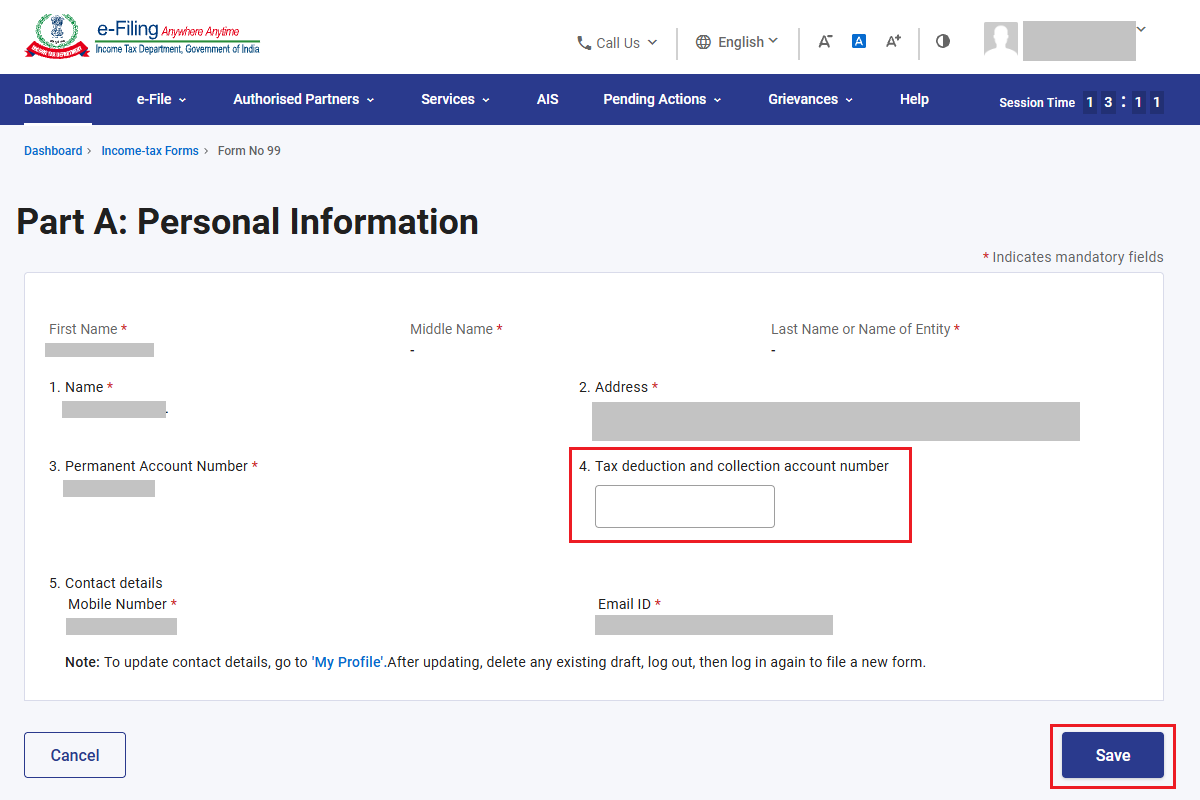
Step 7: Please click on the ‘Personal Information’ tab, enter the TAN (optional), and then click on ‘Save’.
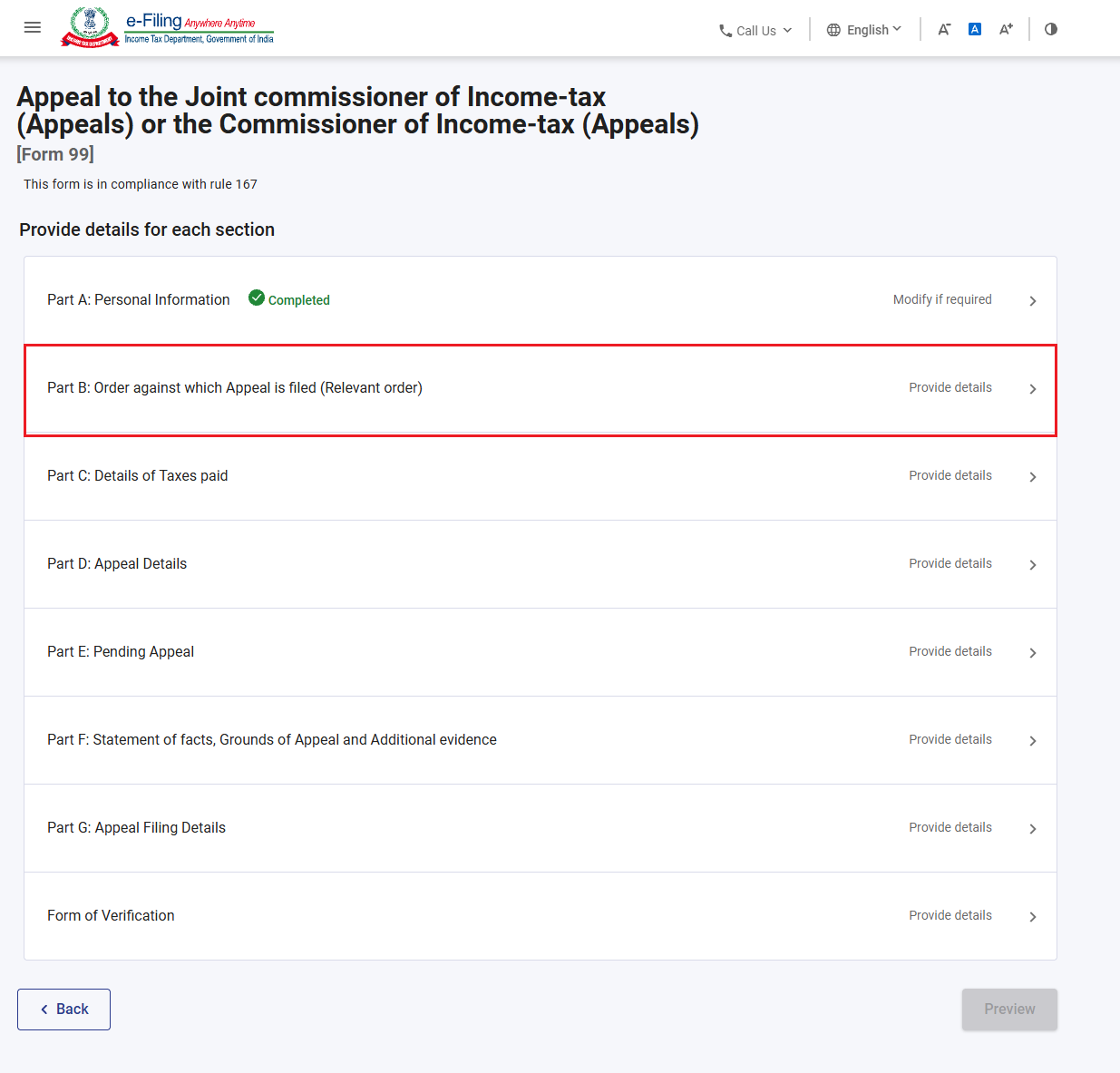
Step 8: The ‘Personal Information’ tab has been confirmed. Please proceed to click on the ‘Order Against Which Appeal is Filed (Relevant Order)’ tab.
Step 9: The order details will be pre-filled. Please enter the designation of the Income Tax Authority who passed the order and attach the copy of the order/intimation appeal and the copy of the Notice of Demand. Thereafter, click on ‘Save’.
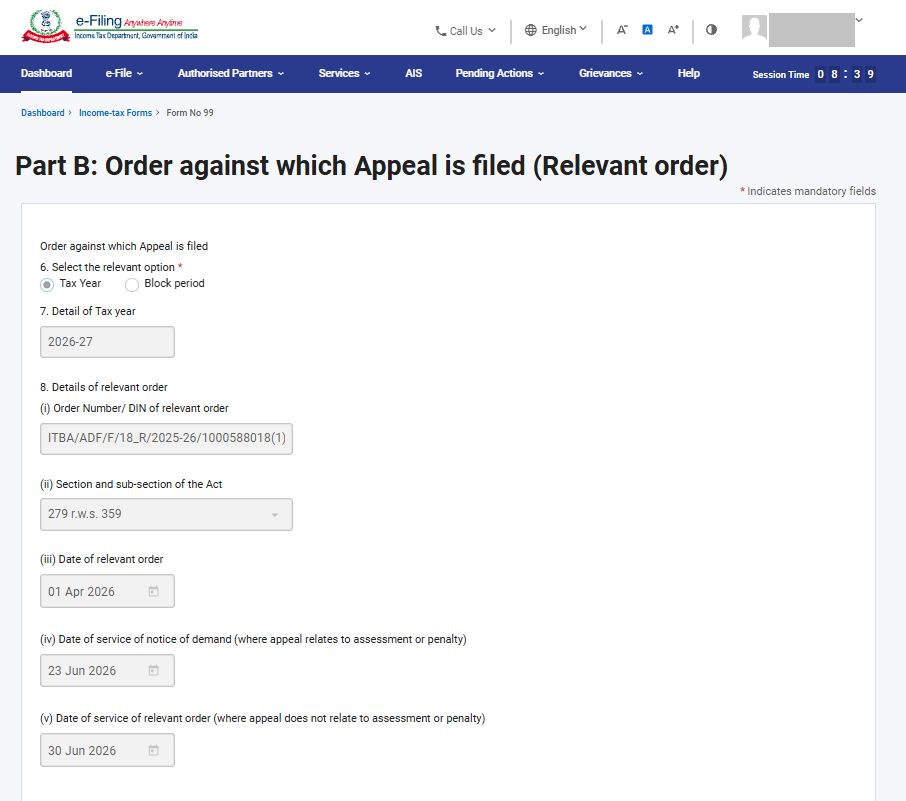
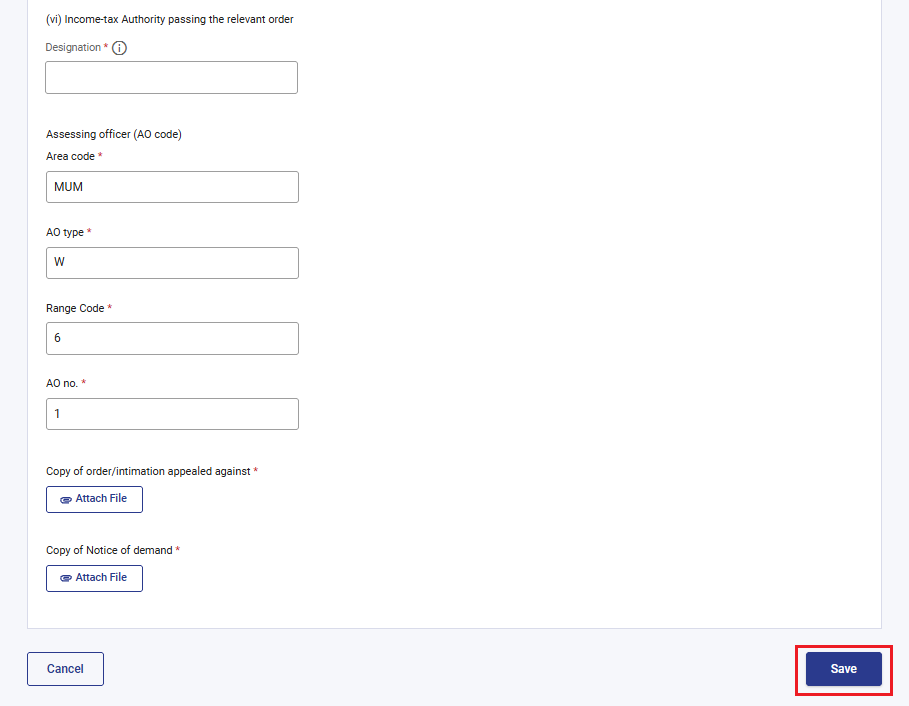
Note: If appeal is filed using a TAN login, the year type will be automatically selected as the tax year, and the other details will also be auto filled. Please click on ‘Save’.
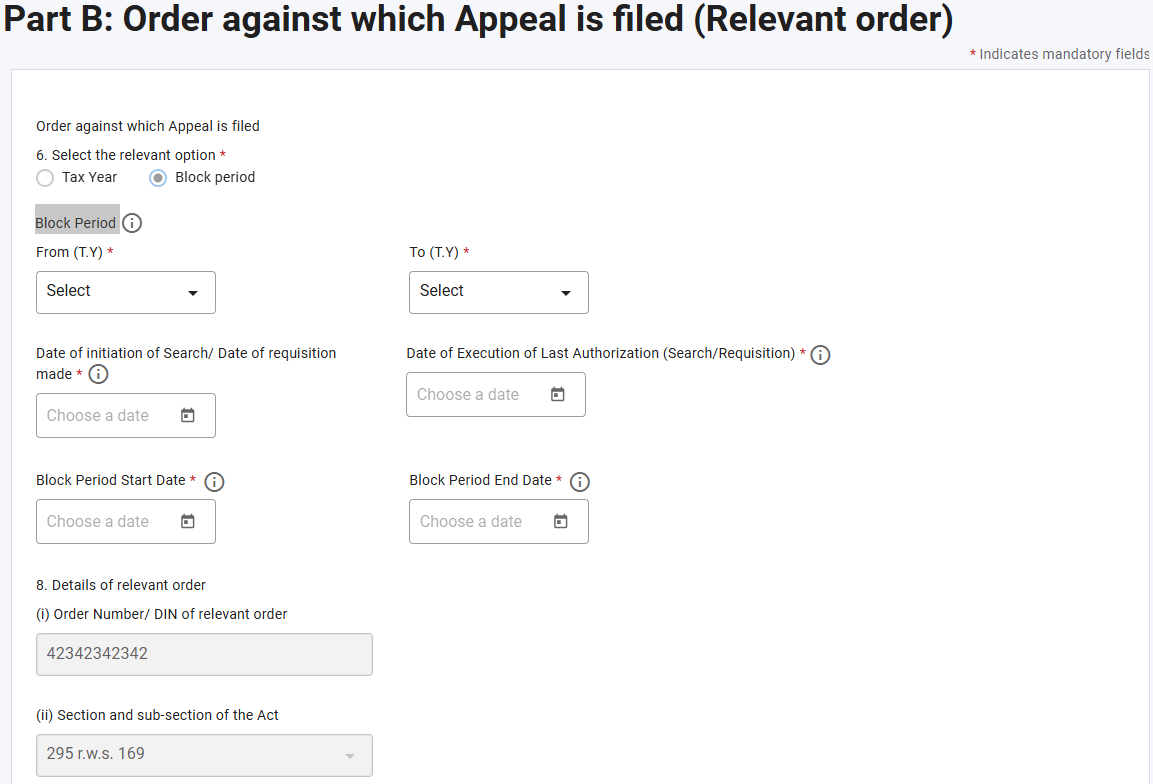
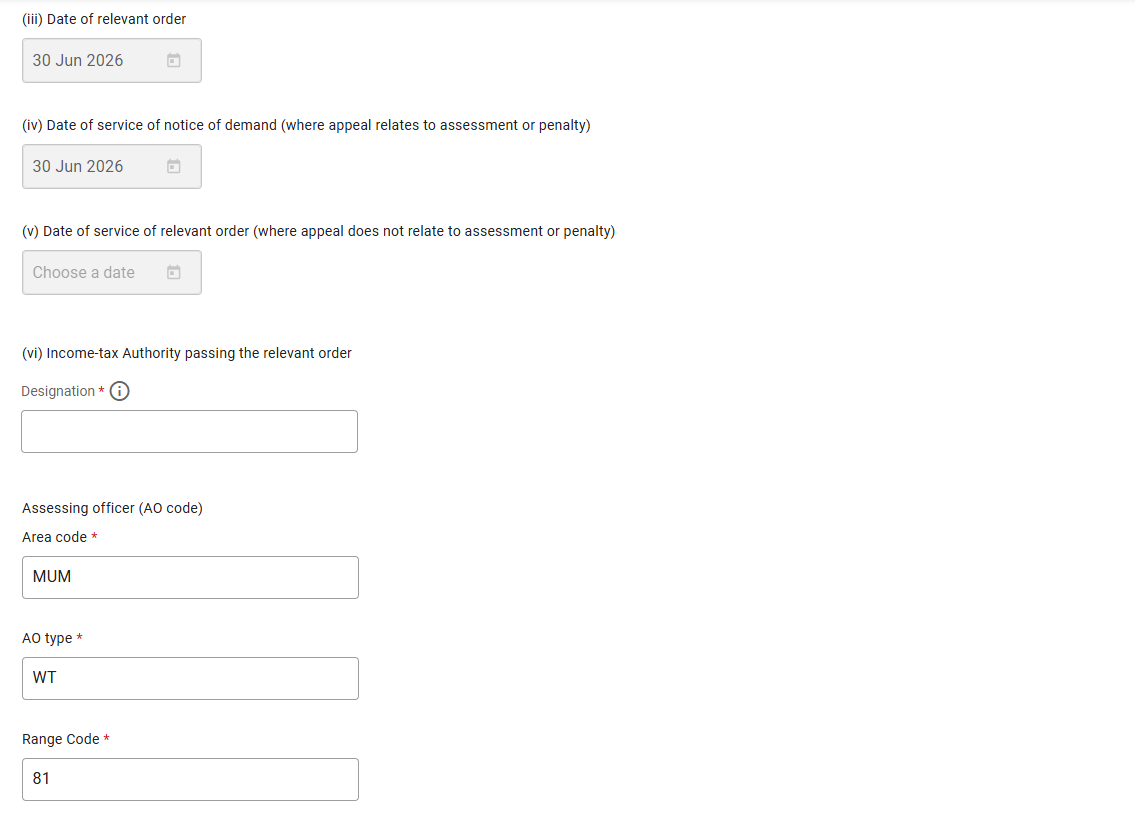
In cases pertaining to a Block Period, where a DIN has been selected on the landing screen, the Block Period, Date of Initiation of Search/Date of Requisition, Date of Execution of Last Authorization (Search/Requisition), Block Period Start Date, Block Period End Date, and relevant order details shall be auto populated.
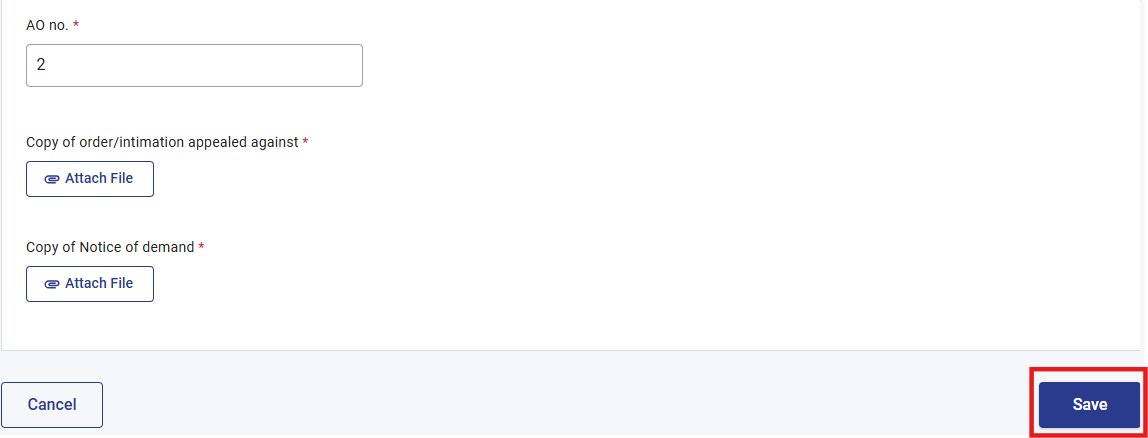
Please specify the designation of the Income Tax Authority who has passed the order and upload the following documents: a copy of the order/intimation being appealed against and a copy of the Notice of Demand. Upon completion of these steps, kindly click on the ‘Save’ button to proceed.
Step 10: The ‘Order Against Which Appeal is Filed’ tab has been confirmed. Please proceed to click on the ‘Details of Taxes Paid’ tab.
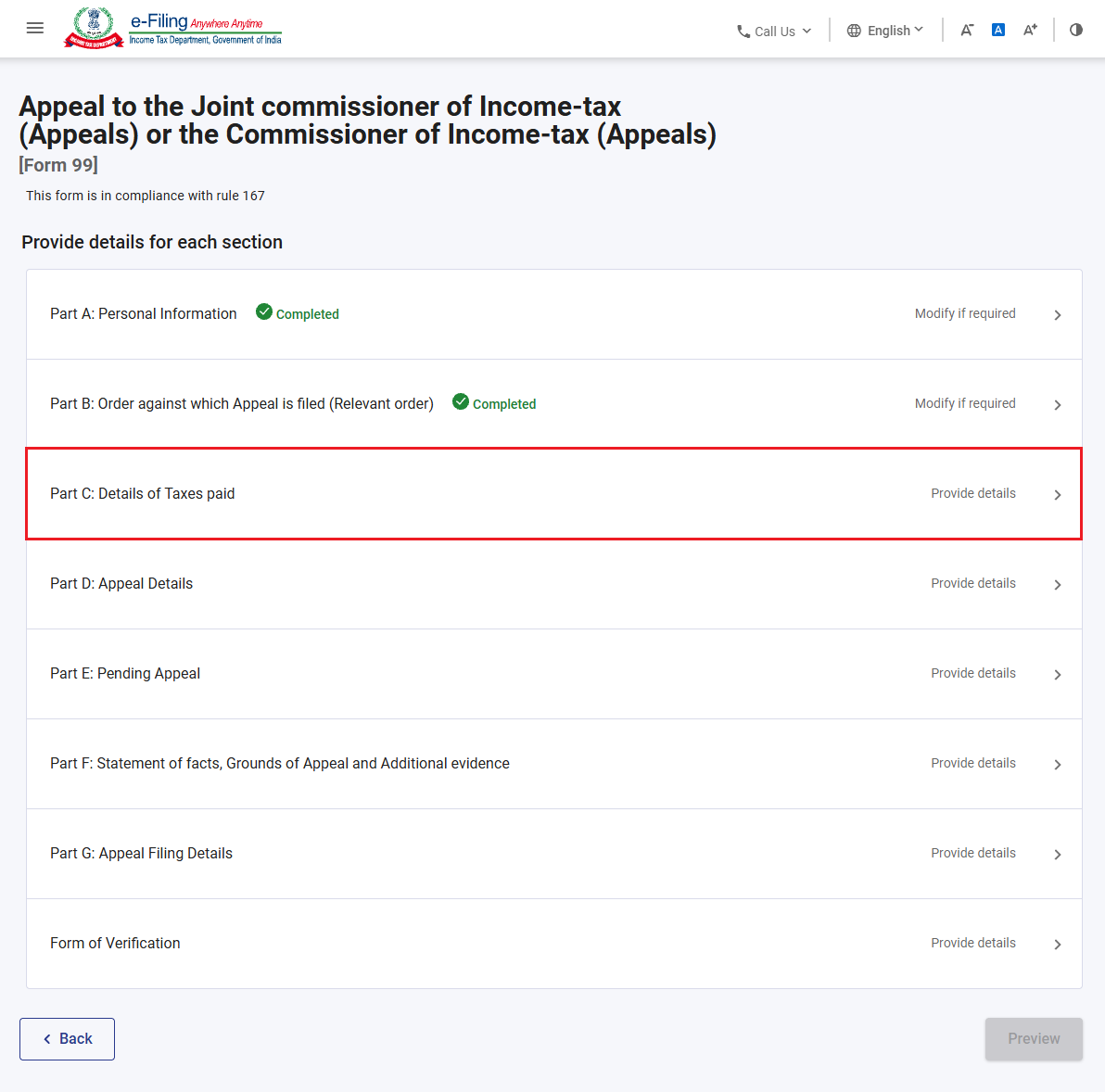
Step 11: Please select either ‘Yes’ or ‘No’ in the relevant fields. Upon selecting ‘Yes’, the additional fields will be enabled for further input.
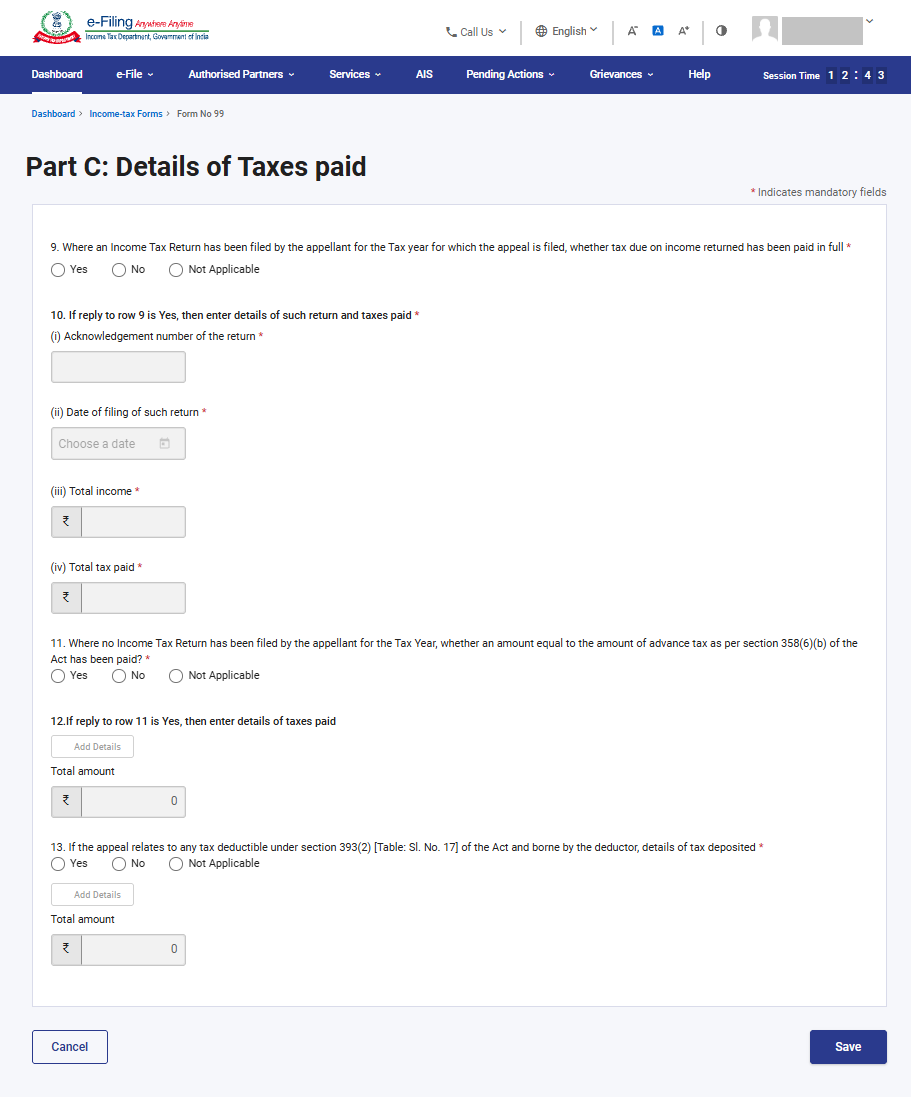
Note: For TAN login appeal, field no. 9,10,11 & 12 will be auto selected as ‘Not Applicable/disabled’.
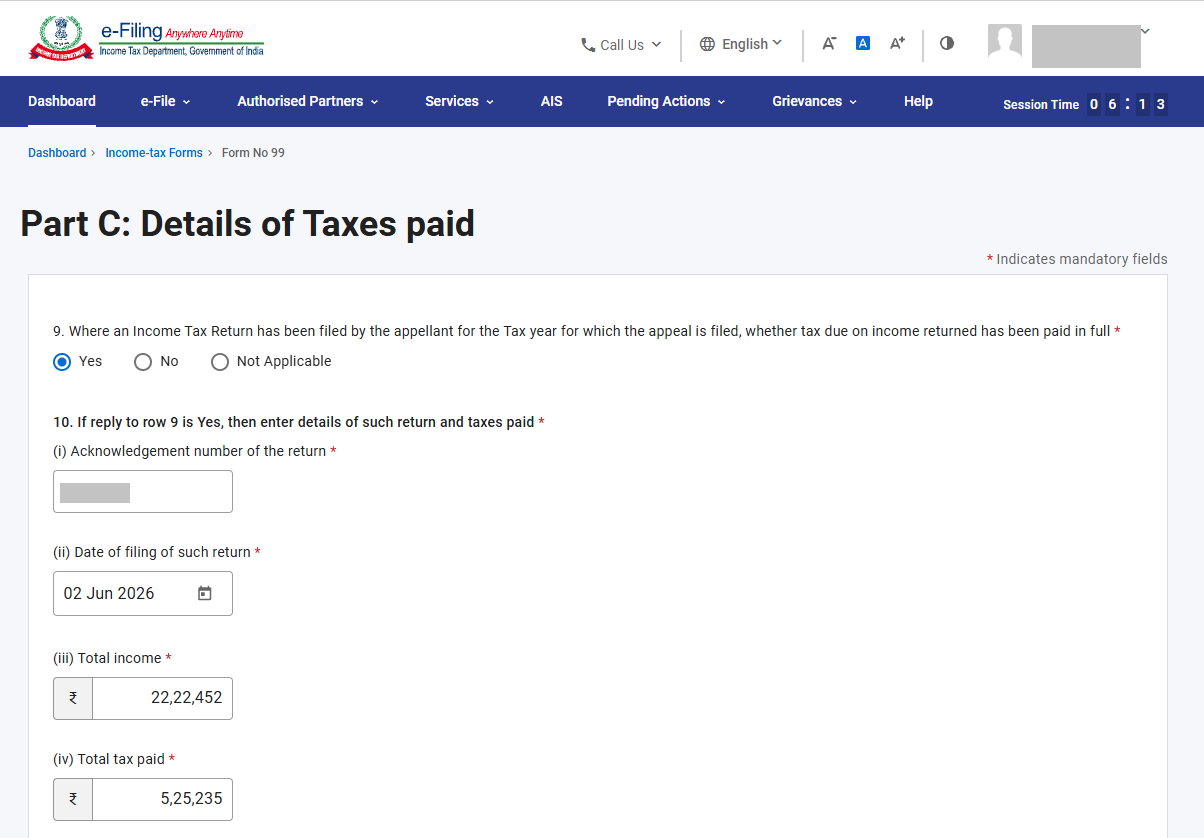
Step 11(a): Where a return has been filed by the appellant for the Tax year in connection with which the appeal is filed, whether tax due on income returned has been paid in full?
If ‘Yes’ is selected (other fields will be Auto selected) please enter below details:
• Acknowledgement No.
• Date of filing
• Total Income, and
• Total Taxes Paid.
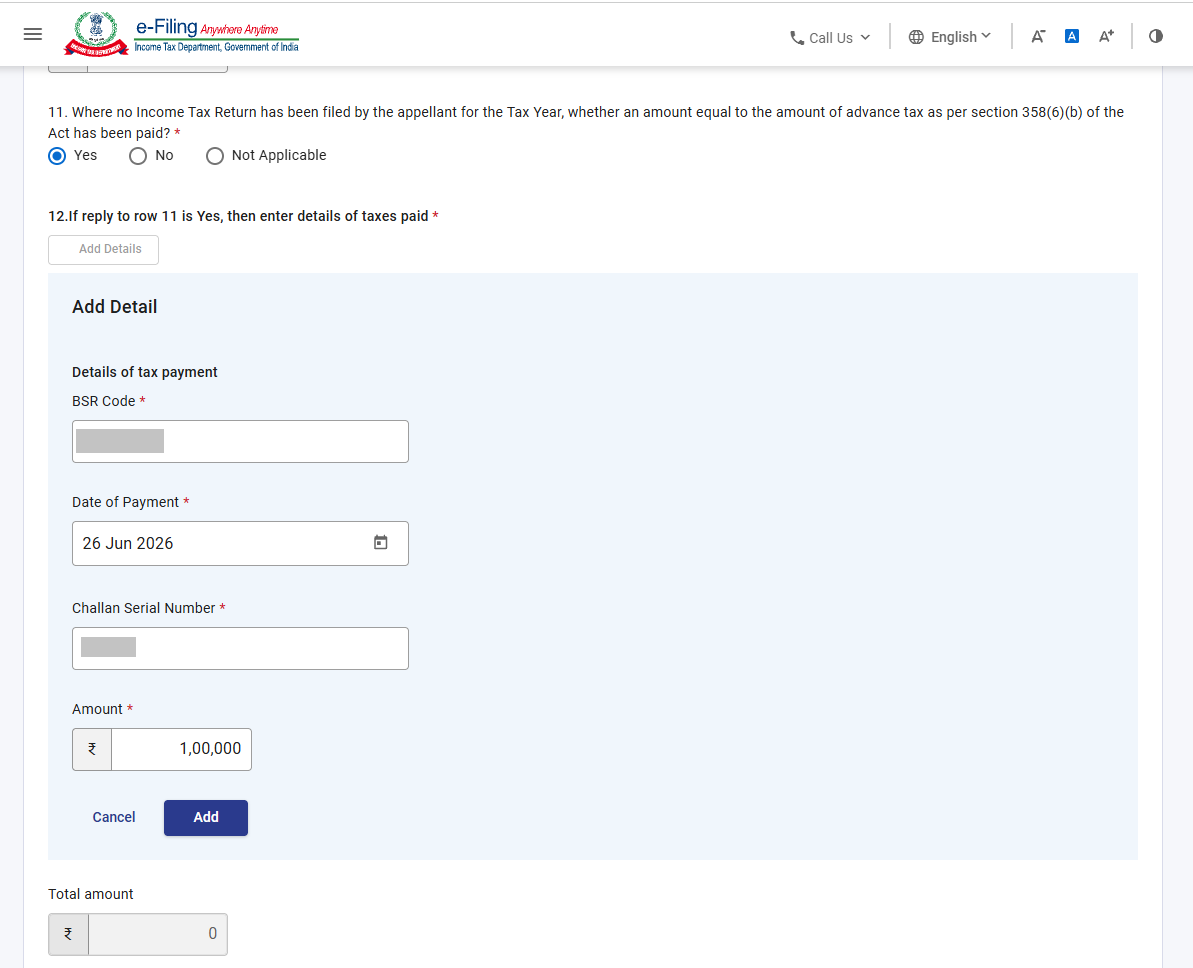
Step 11(b): Where no Income Tax Return has been filed by the appellant for the Tax Year, whether an amount equal to the amount of advance tax as per section 358(6)(b) of the Act has been paid?
If ‘Yes’ is selected, add details of tax payment and click on ‘Add’.
Step 11(c): If the appeal relates to any tax deductible under section 393(2) [Table: Sl. No. 17] of the Act and is borne by the deductor, provide the details of the tax deposited.
If ‘Yes’ is selected, add the tax payment details and click on ‘Add’.
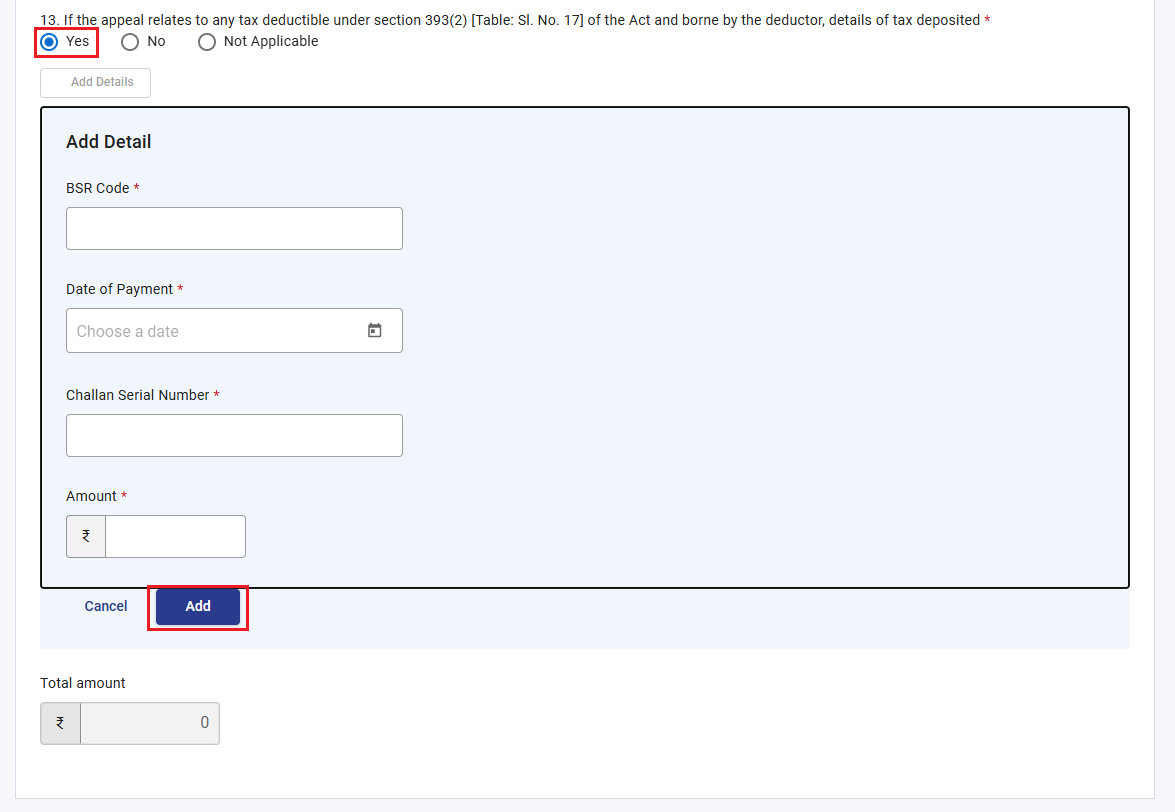
Step 12: The ‘Details of Taxes Paid’ tab has been confirmed. Please proceed to click on the ‘Appeal Details’ tab.
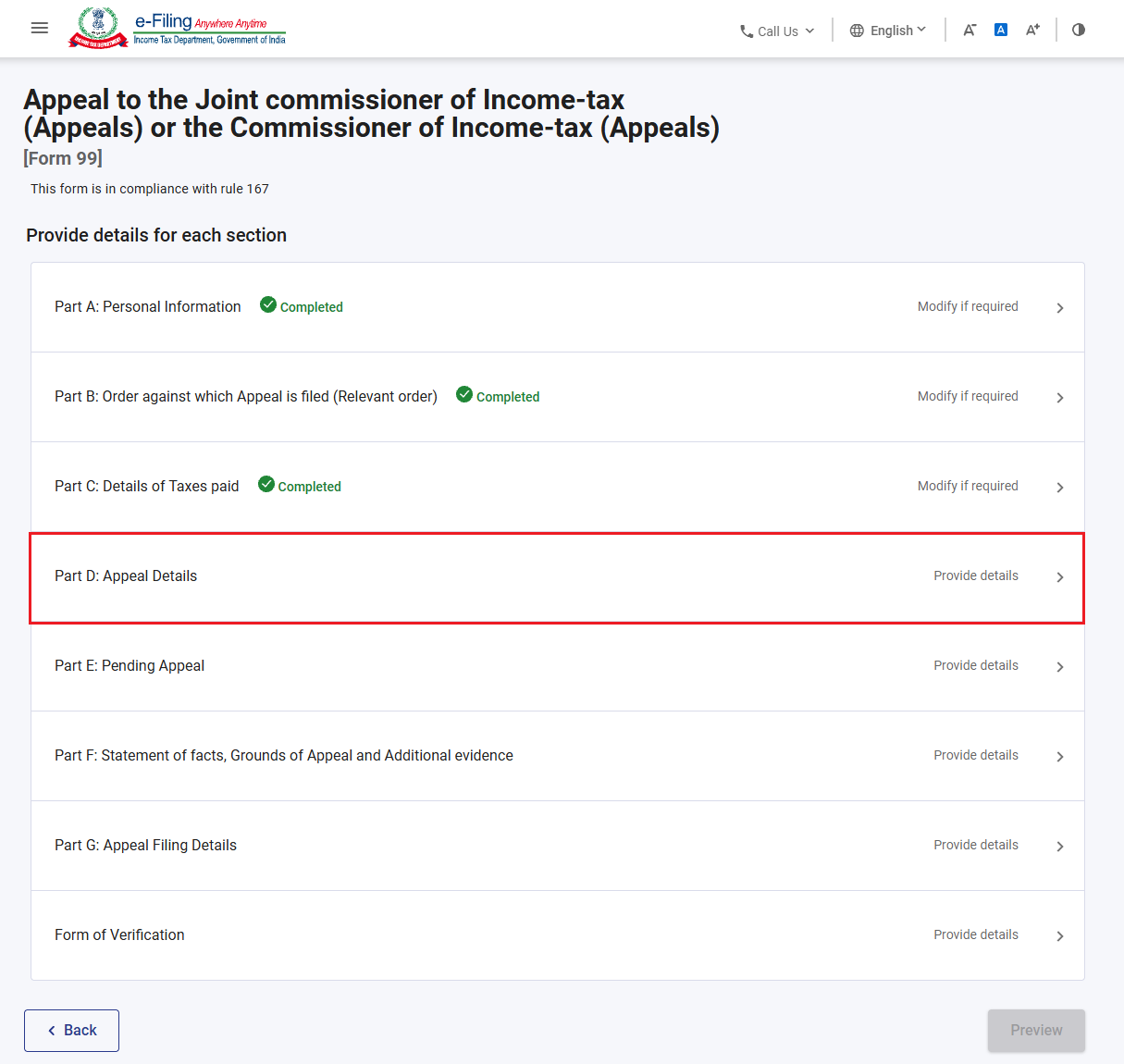
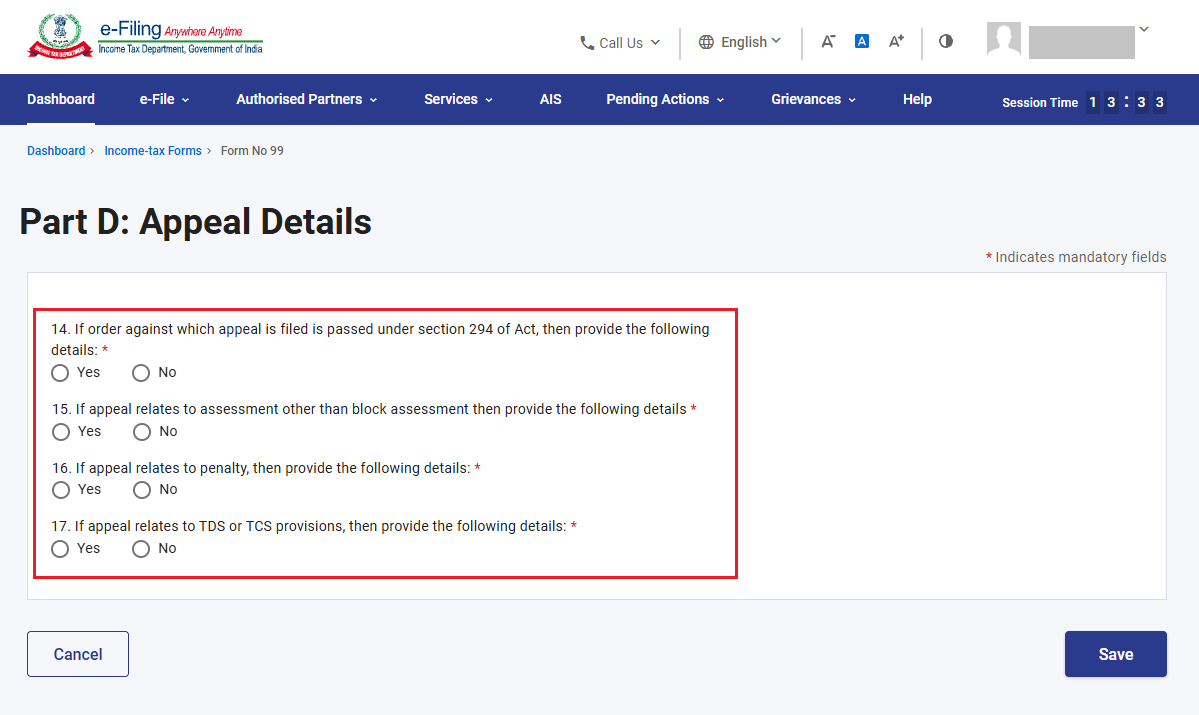
Step 13: Please select ‘Yes’ or ‘No’ to indicate whether the appeal relates to any assessment, penalty, TDS, or TCS provisions.
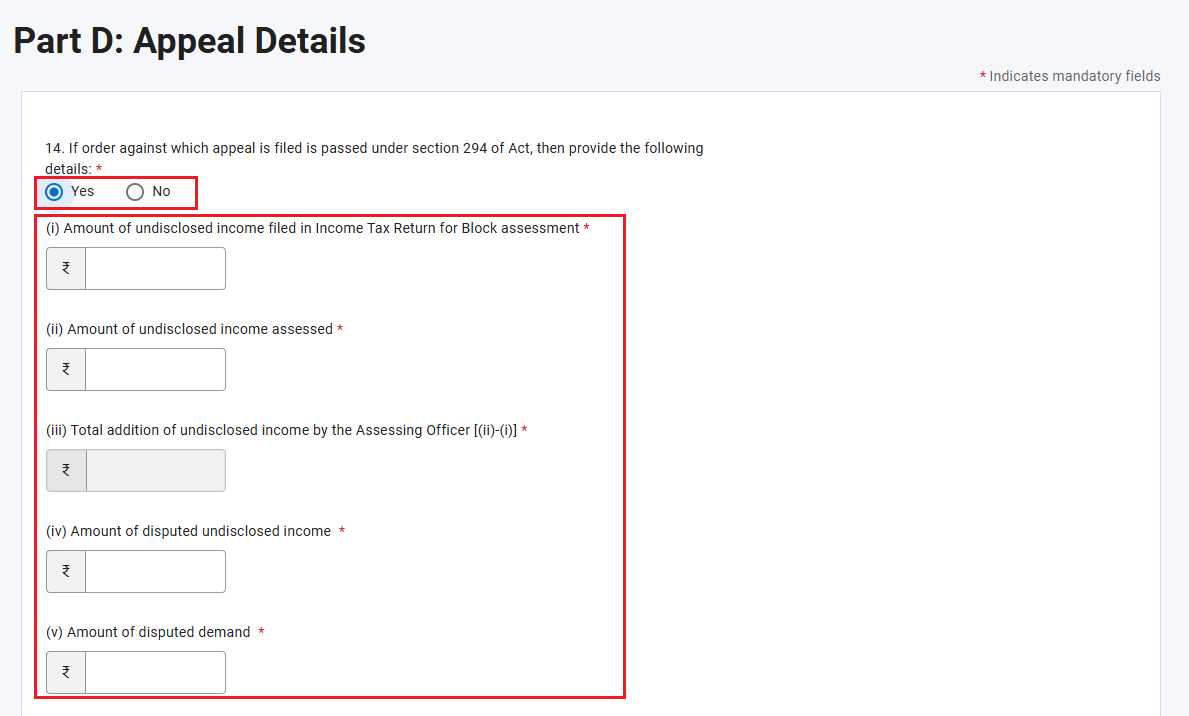
Step 13(a): If order against which appeal is filed is passed under section 294 of Act.
If ‘Yes’ is selected, the other fields will be automatically populated with ‘No’. Please enter the required details.
Step 13(b): If appeal relates to assessment other than block assessment.
If ‘Yes’ is selected, the other fields will be automatically populated with ‘No’. Please enter the required details.
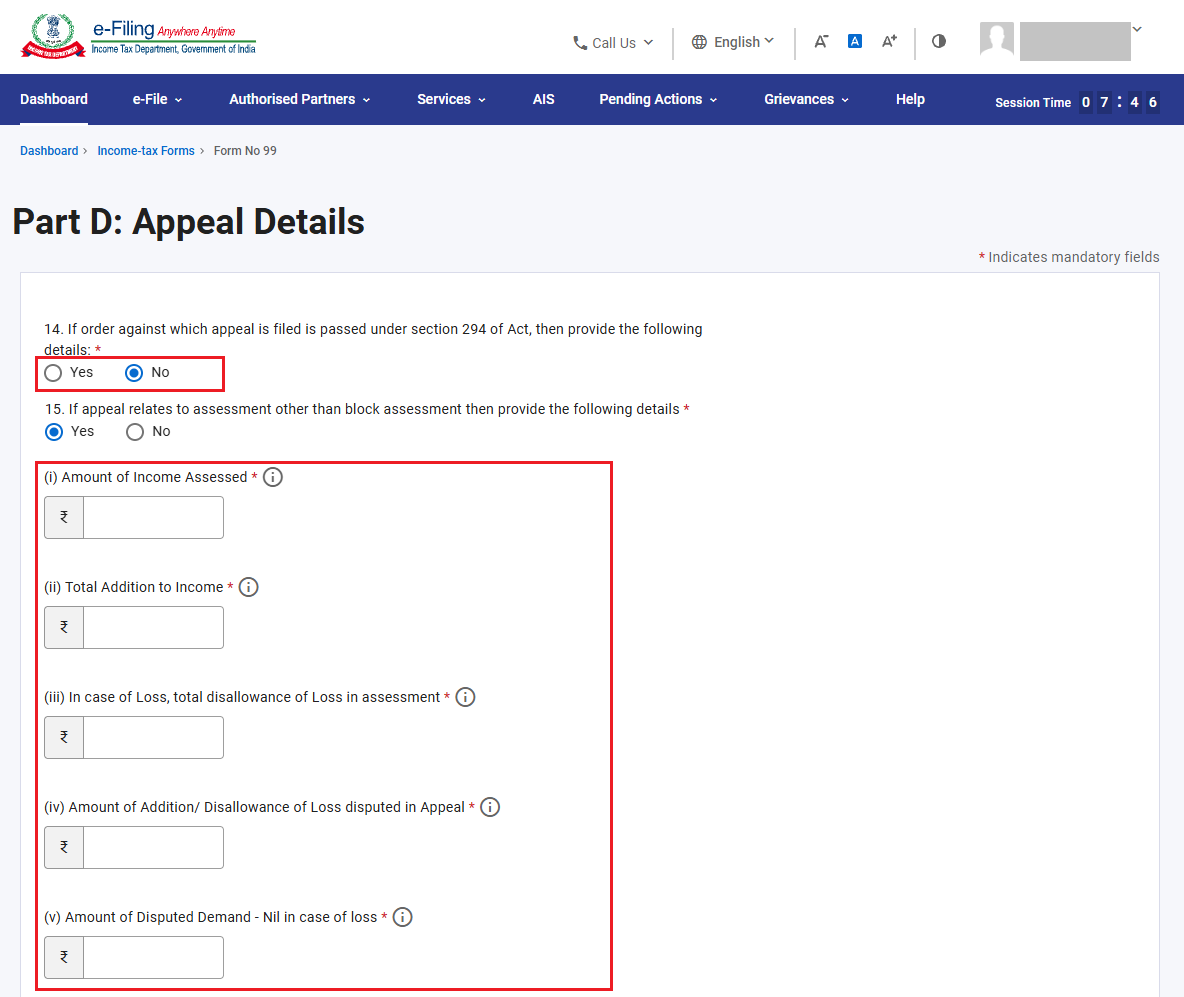
Step 13(c): If appeal relates to penalty.
If ‘Yes’ is selected, the other fields will be automatically populated with ‘No’. Please enter the required details.
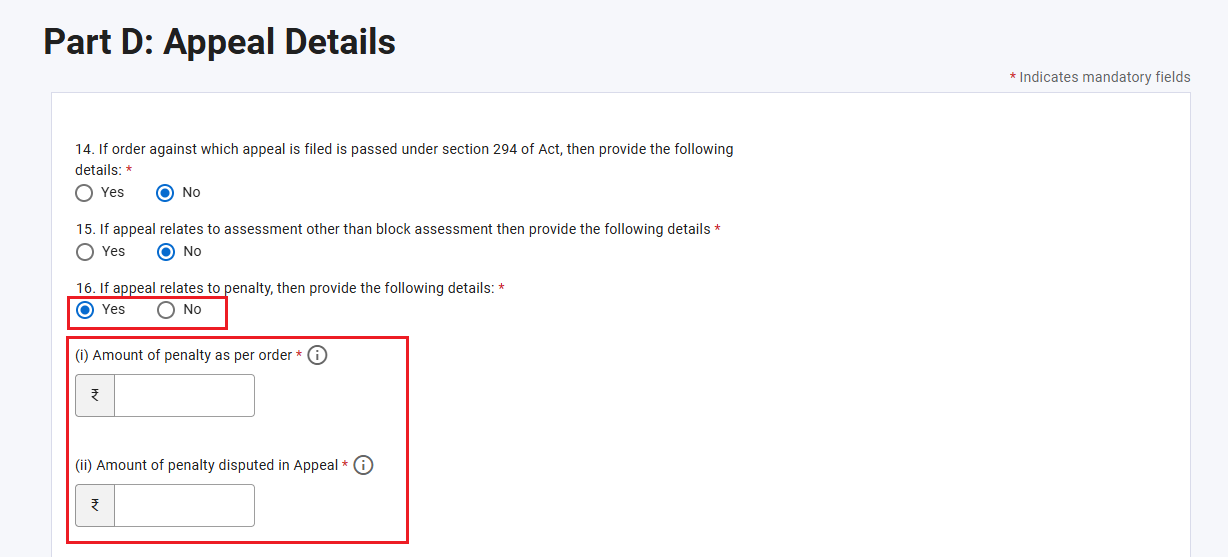
Step 13(d): If appeal relates to TDS or TCS provisions.
If ‘Yes’ is selected, the other fields will be automatically populated with ‘No’. Please enter the required details.
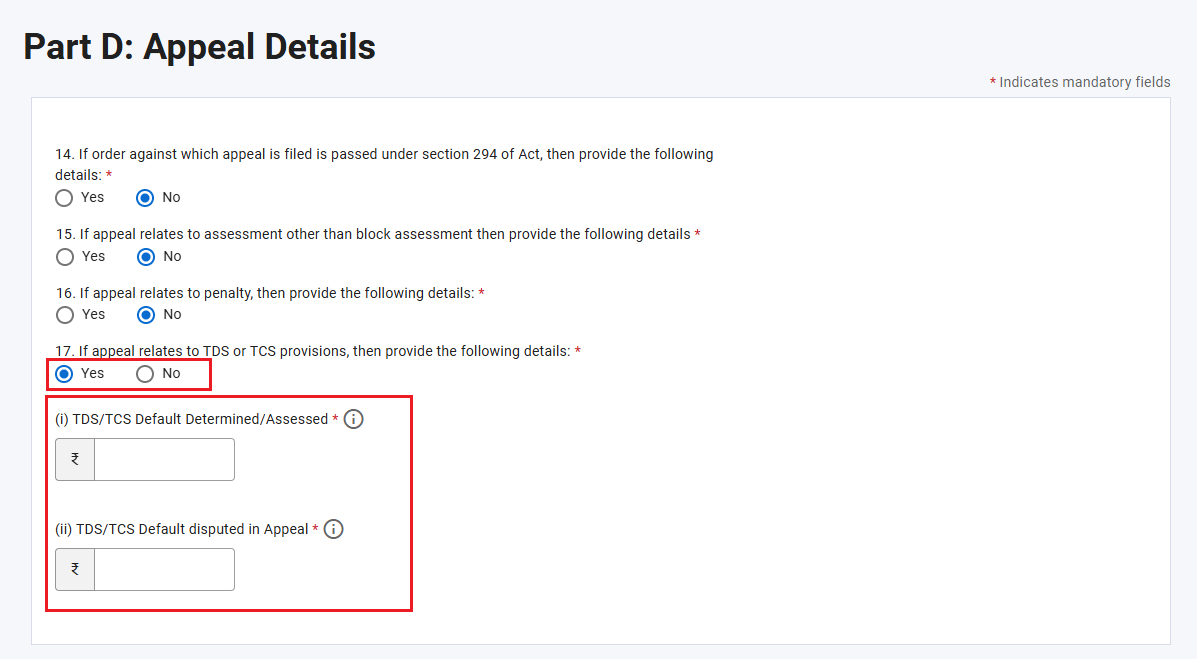
Step 14: The Appeal Details tab has been confirmed. Please click on ‘Pending Appeal’.
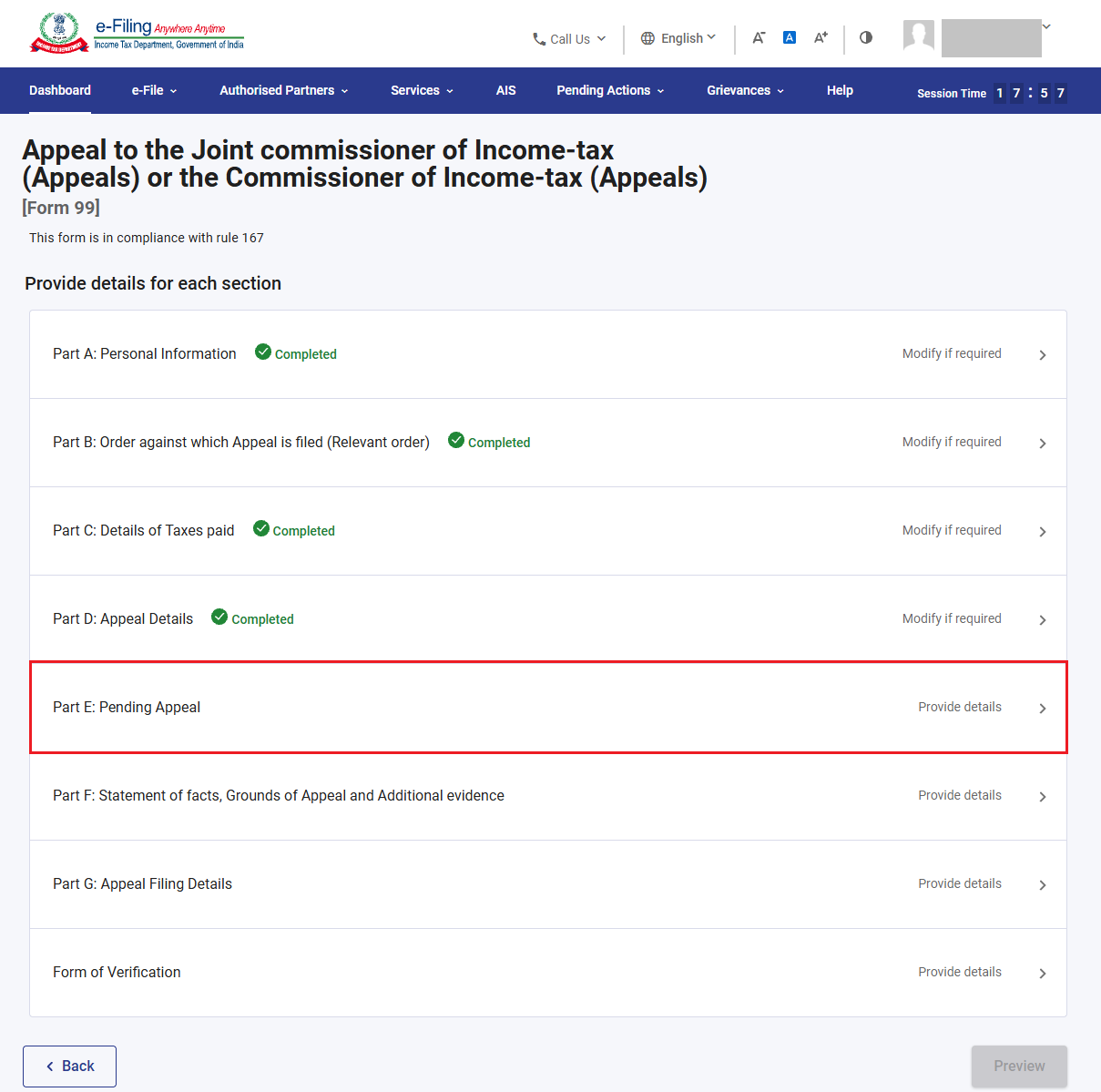
Step 15: Please select ‘Yes’ or ‘No’ to indicate whether any appeal is pending with any Joint Commissioner (Appeals) or Commissioner (Appeals), and then click on ‘Save’.
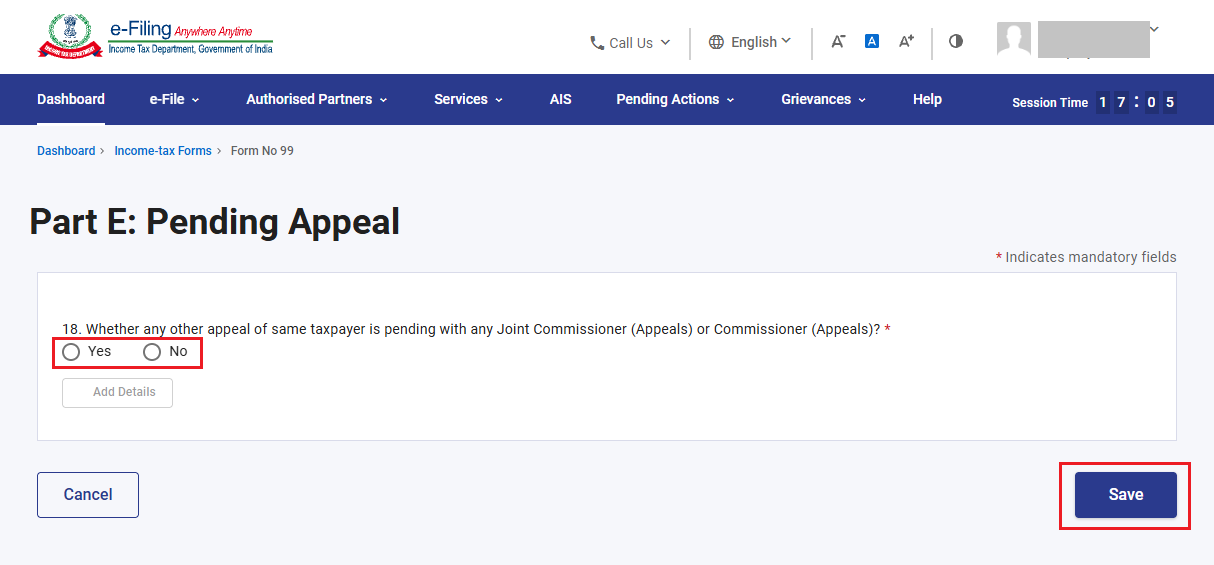
Step 15(a): If ‘Yes’ is selected, please provide the relevant details.
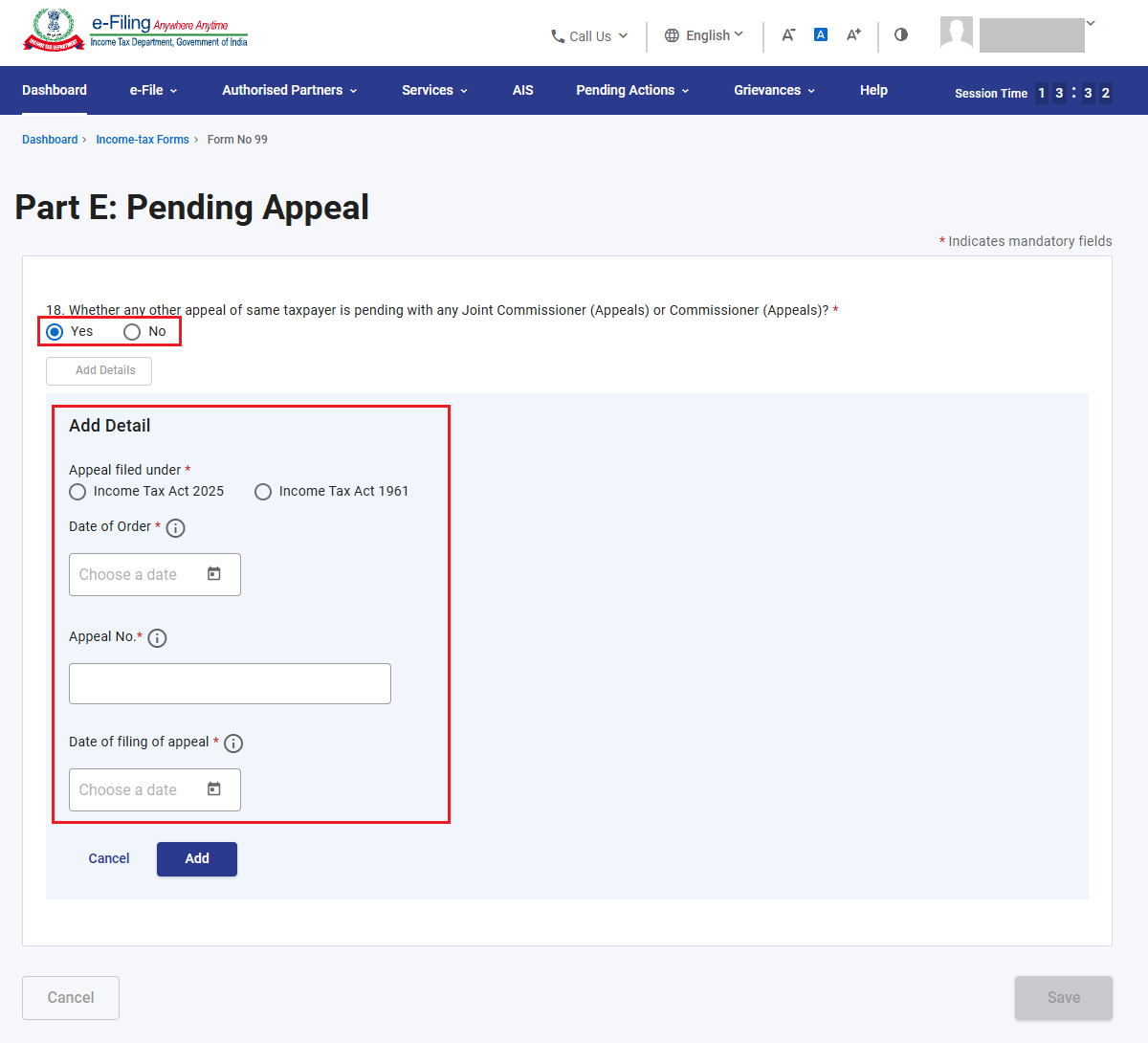
Please note if details of pending appeal are entered in last filed form 99, the pending appeal details will be prefilled and the ‘Yes’ option will be selected.
Step 15(b): If ‘No’ is selected, please click on the ‘Save’ button to confirm the tab.
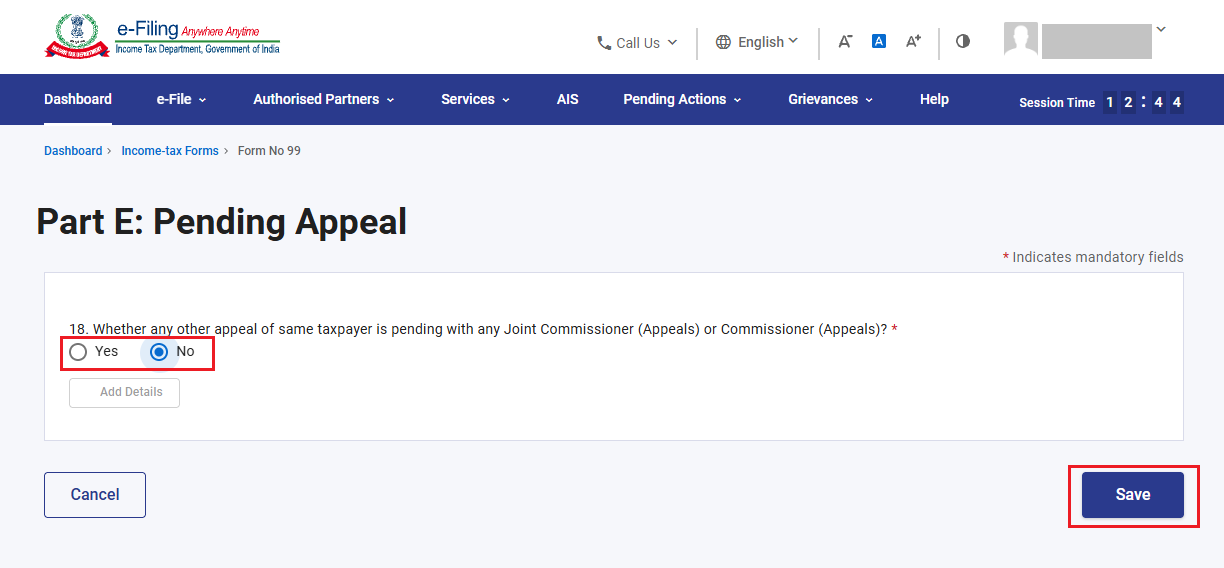
Step 16: The Pending Appeal tab has been confirmed. Please click on the ‘Statement of Facts’, ‘Grounds of Appeal’, and ‘Additional Evidence’ tabs.
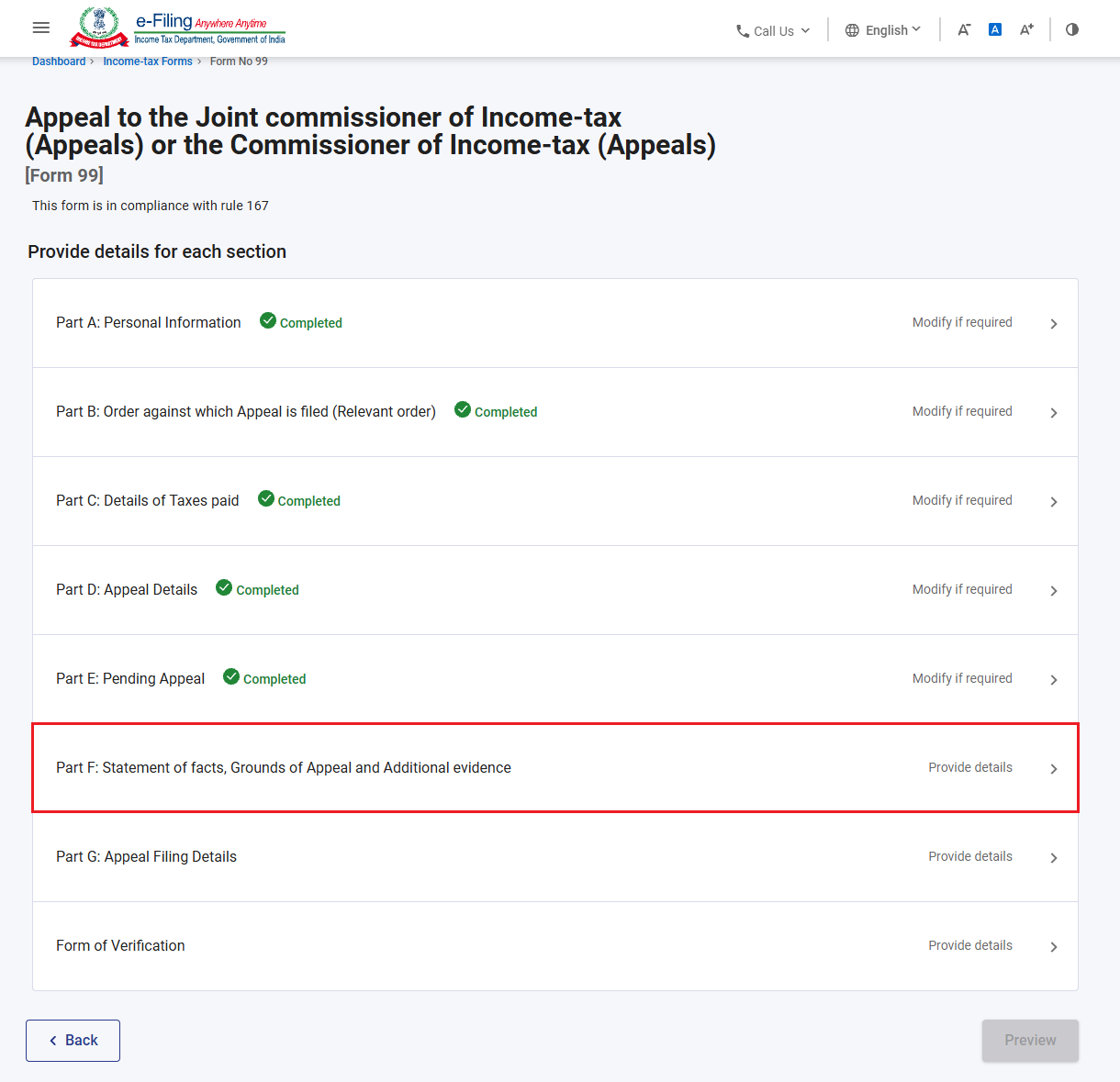
Step 17: Please attach the facts of the case and provide details of the grounds of appeal, the documentary evidence relied upon, and any additional evidence (if applicable). Click on ‘Add Details’ to enter the information, and then click on ‘Save’.
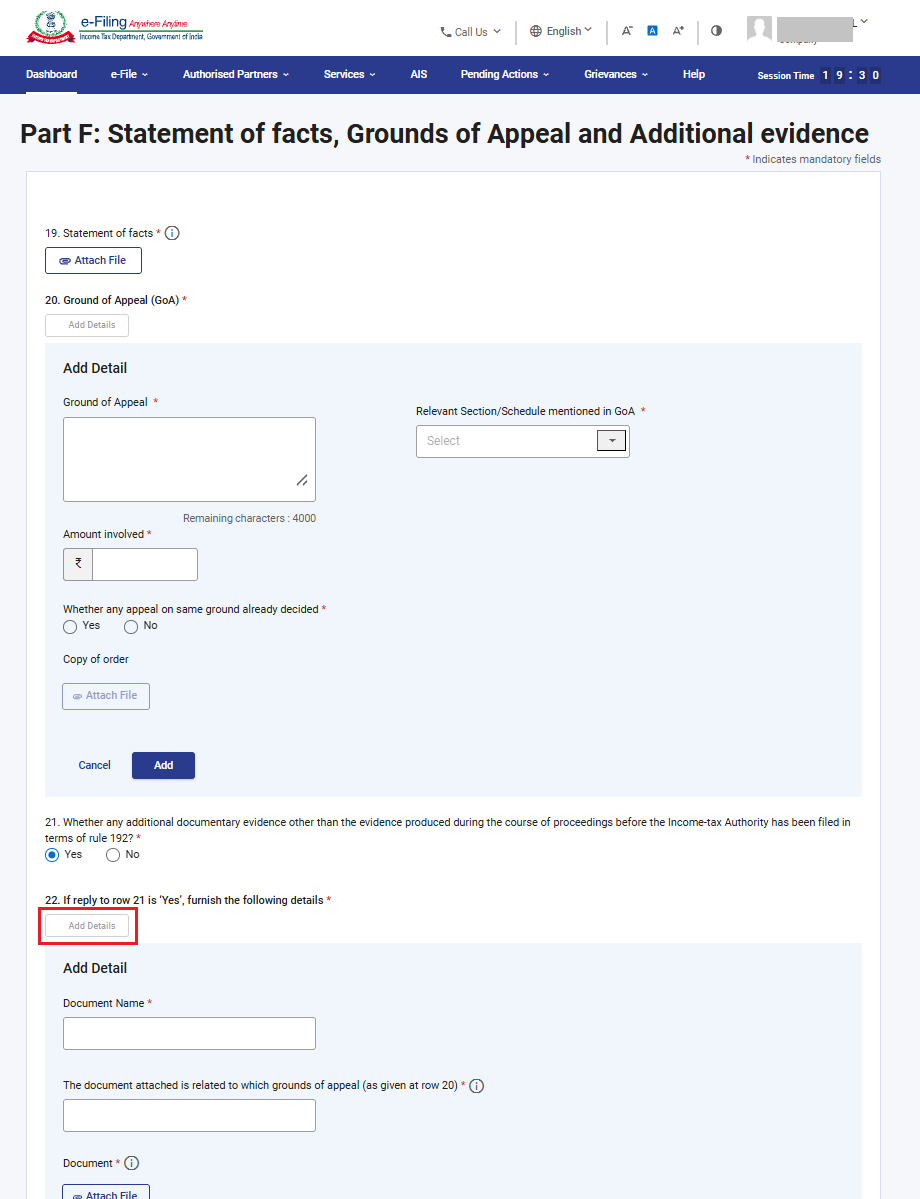
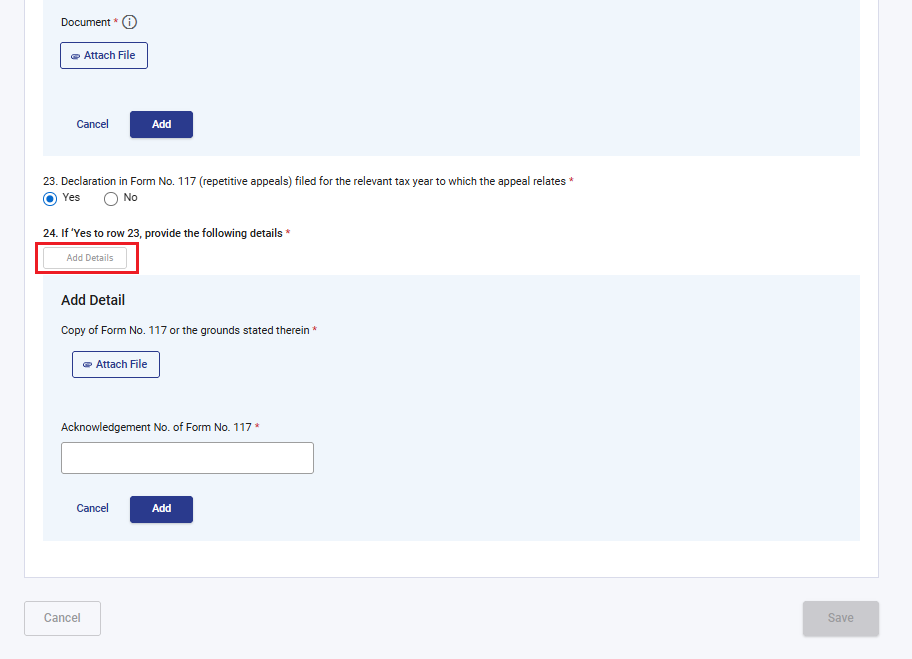
Note: Only numbers and commas are allowed in field where the document attached is related to which grounds of appeal (as given at row 20).
Step 18: The ‘Statement of Facts’, ‘Grounds of Appeal’, and ‘Additional Evidence’ tab has been confirmed. Please proceed to click on the ‘Appeal Filing Details’ tab.
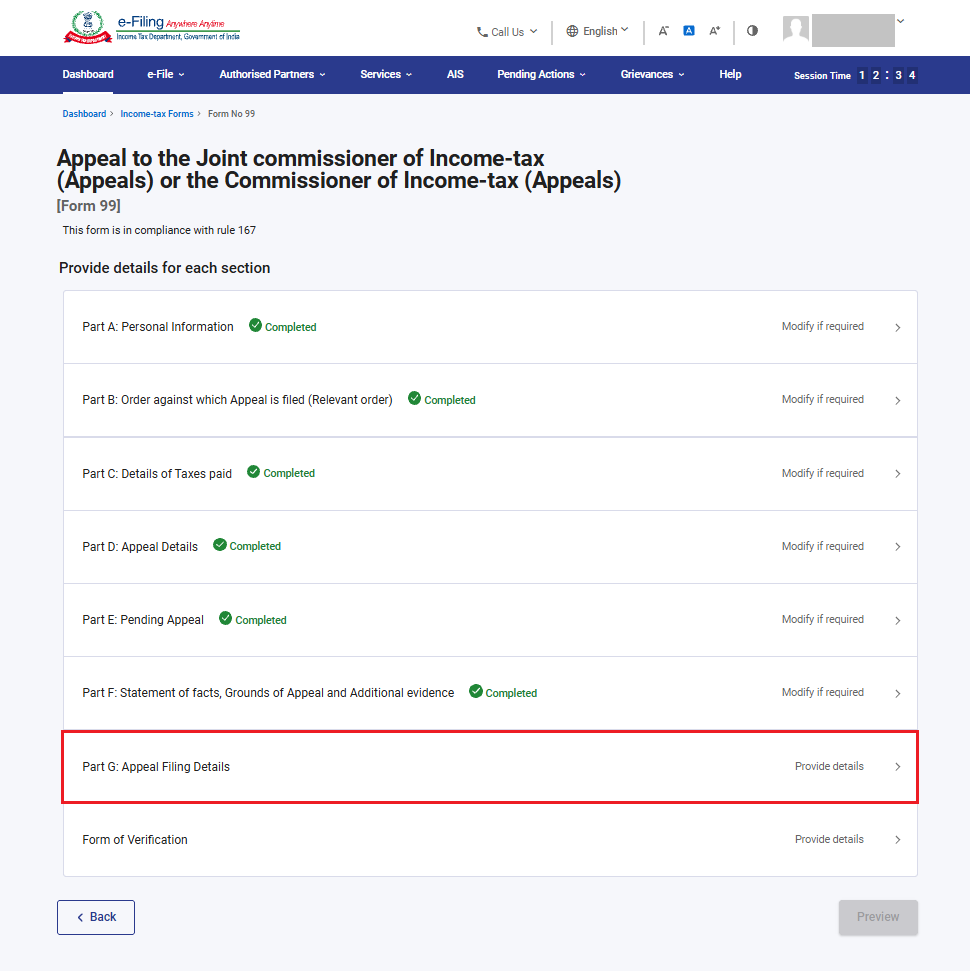
Step 19: In field 26 ‘Yes’ will be prefilled on the basis of number of days delays in filing appeal is more than 0 otherwise No will be prefilled.
If ‘Yes’ is prefilled, please provide the grounds for condonation of delay in field 27.
If ‘No’ is prefilled, field 27 will be disabled.
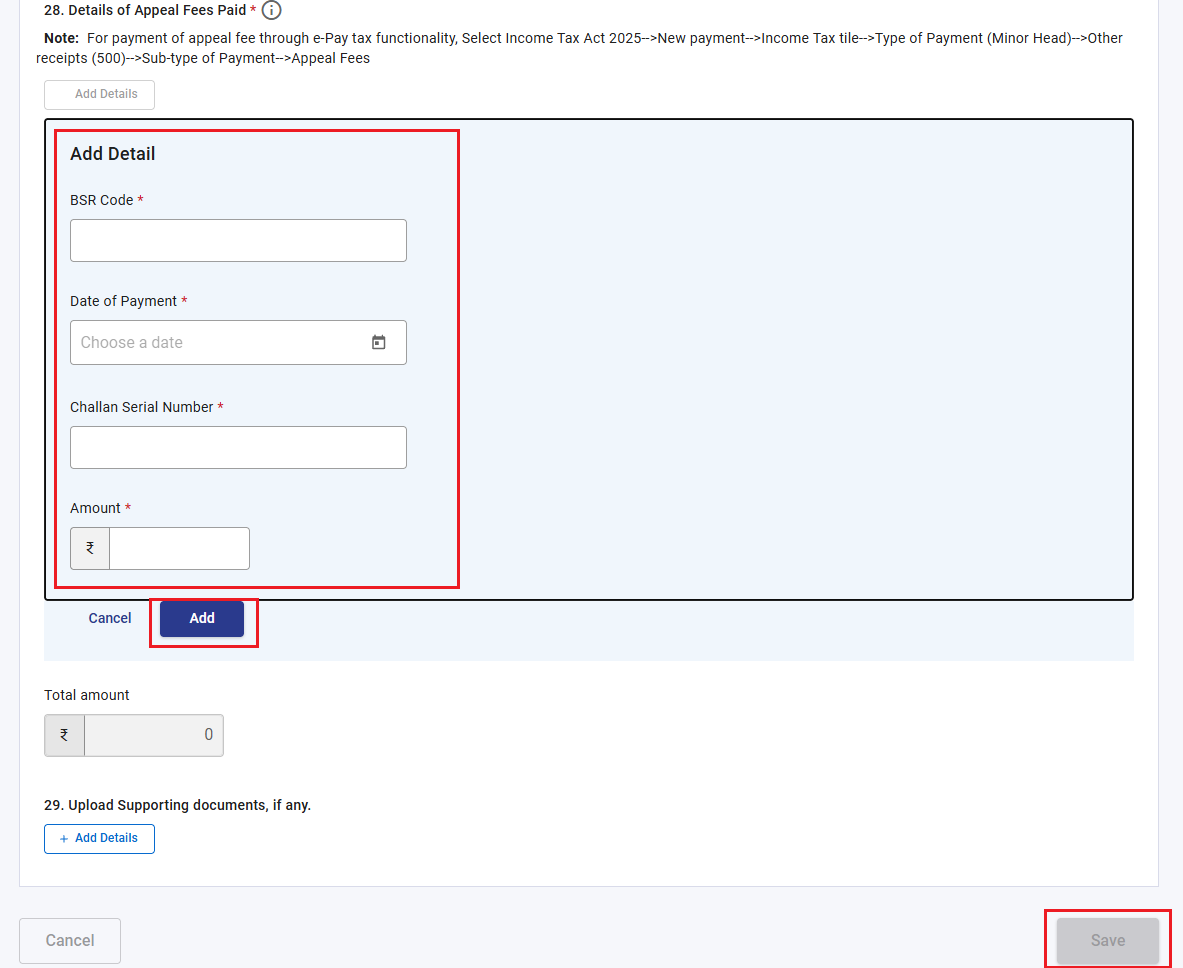
Enter the details of the appeal filing fees paid, click on ‘Add’, and then click on ‘Save’. Amount of fees will be accepted in 250, 500 or 1000.
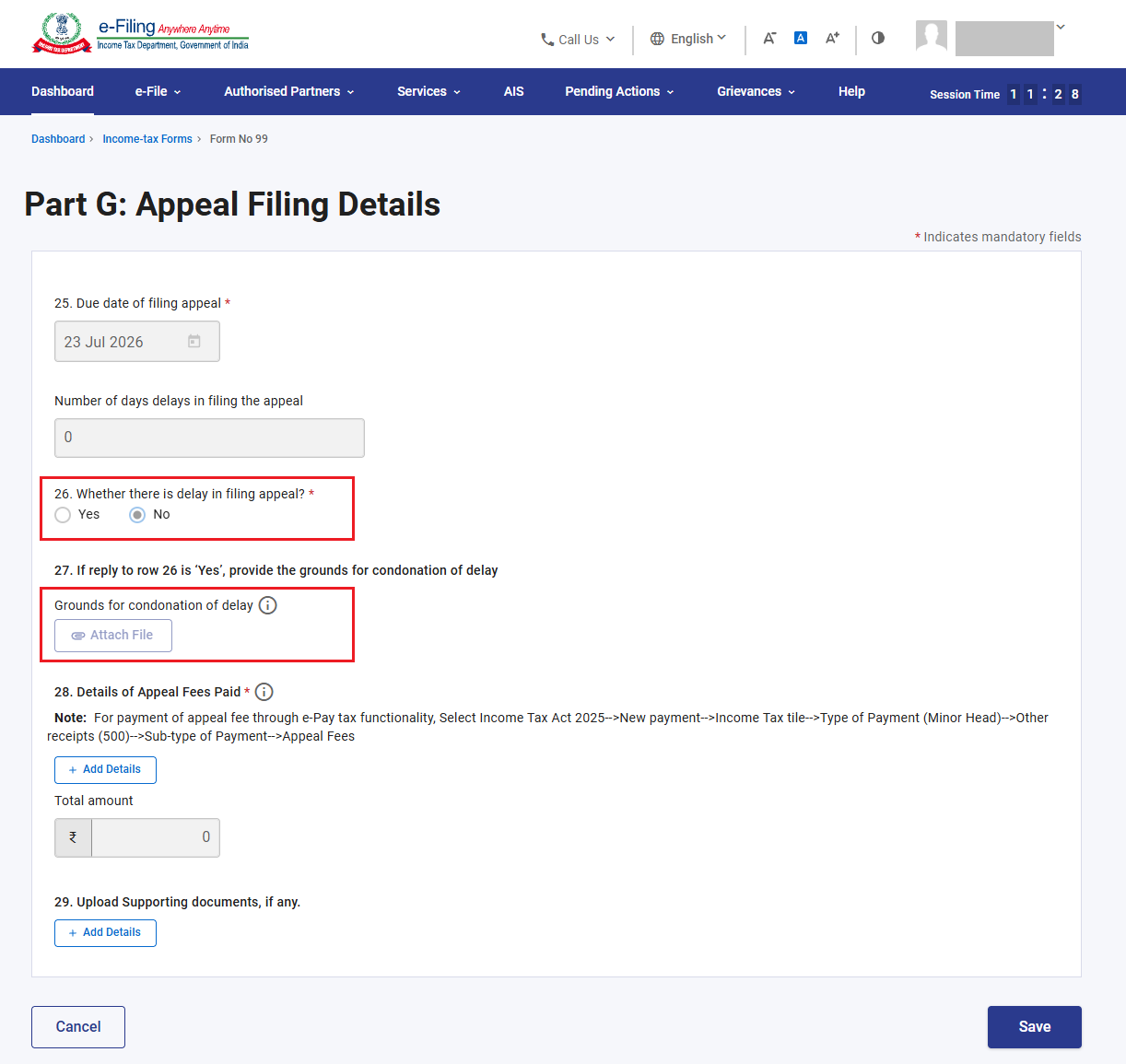
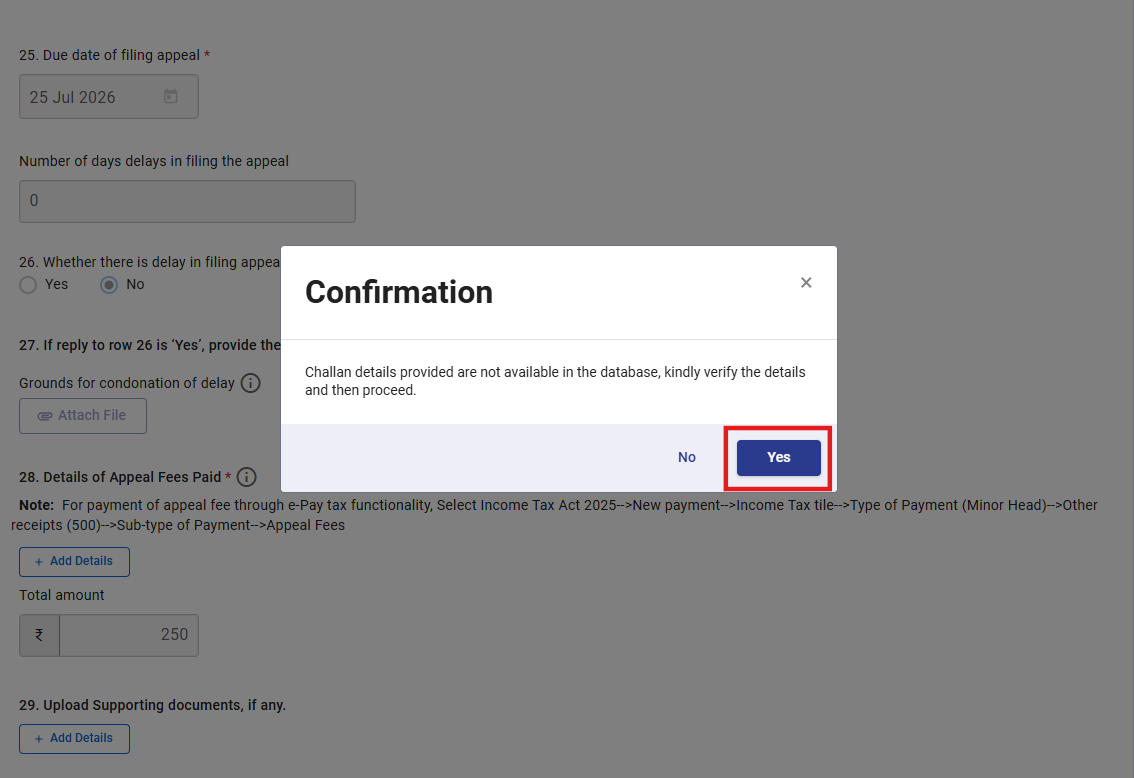
Please note that if the appeal fee details are not available in the database, you are required to select ‘Yes’ and proceed with filing the form.
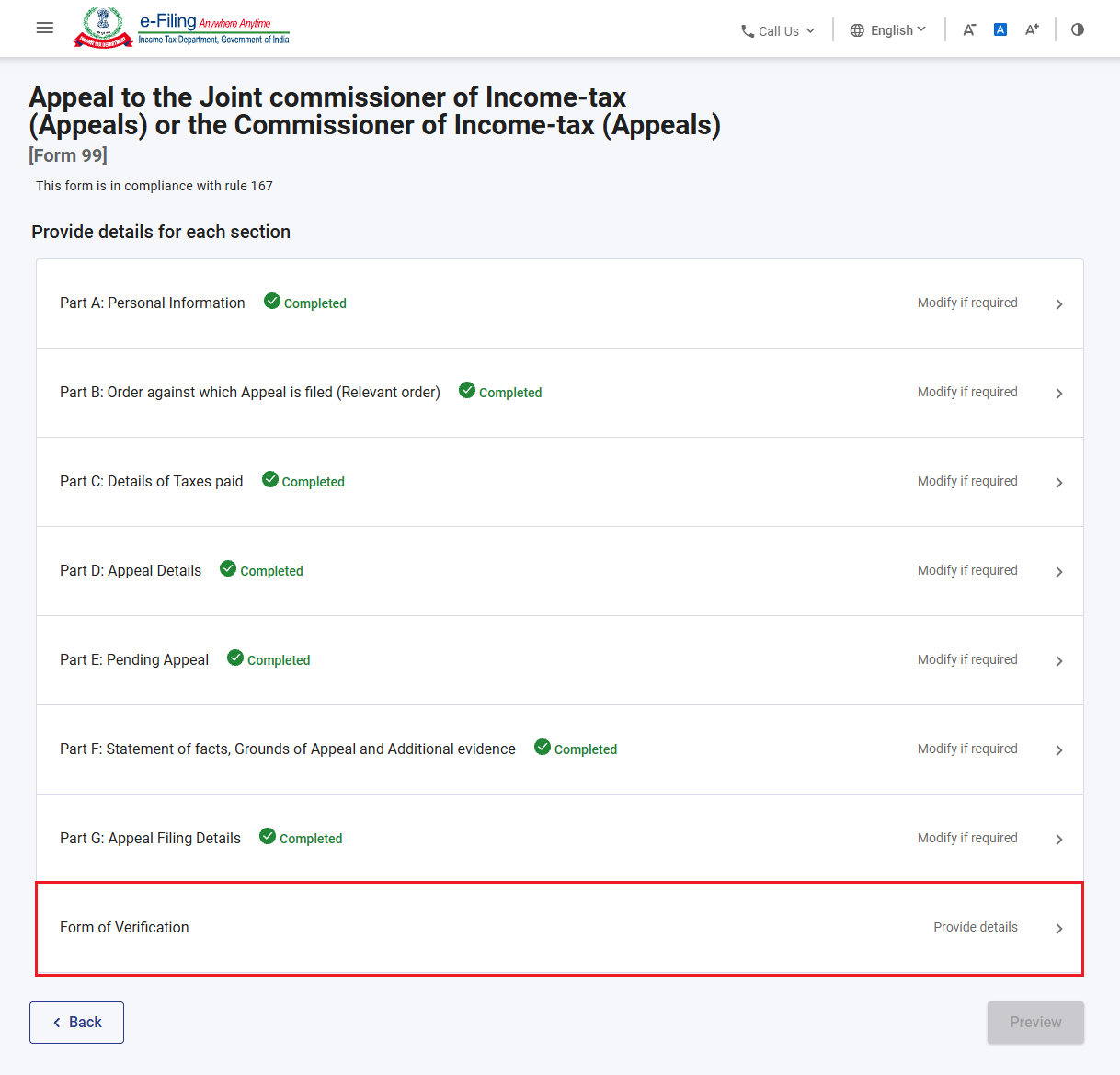
Step 20: The ‘Appeal Filing Details’ tab has been confirmed. Please proceed to click on the ‘Verification’ tab.
Step 21: Please confirm the checkbox and click on the ‘Save’ button.
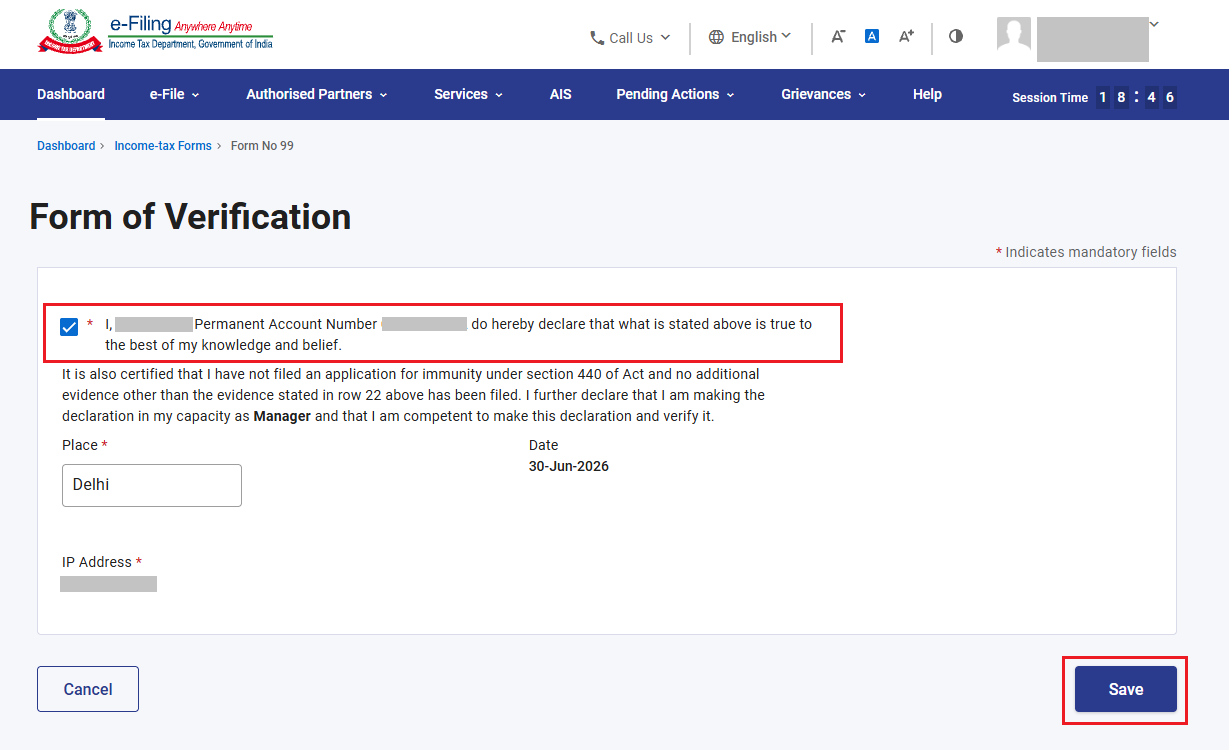
Please note in case of TAN login, you need to specify the designation.
Step 22: All tabs have been confirmed. Please click on ‘Preview’.
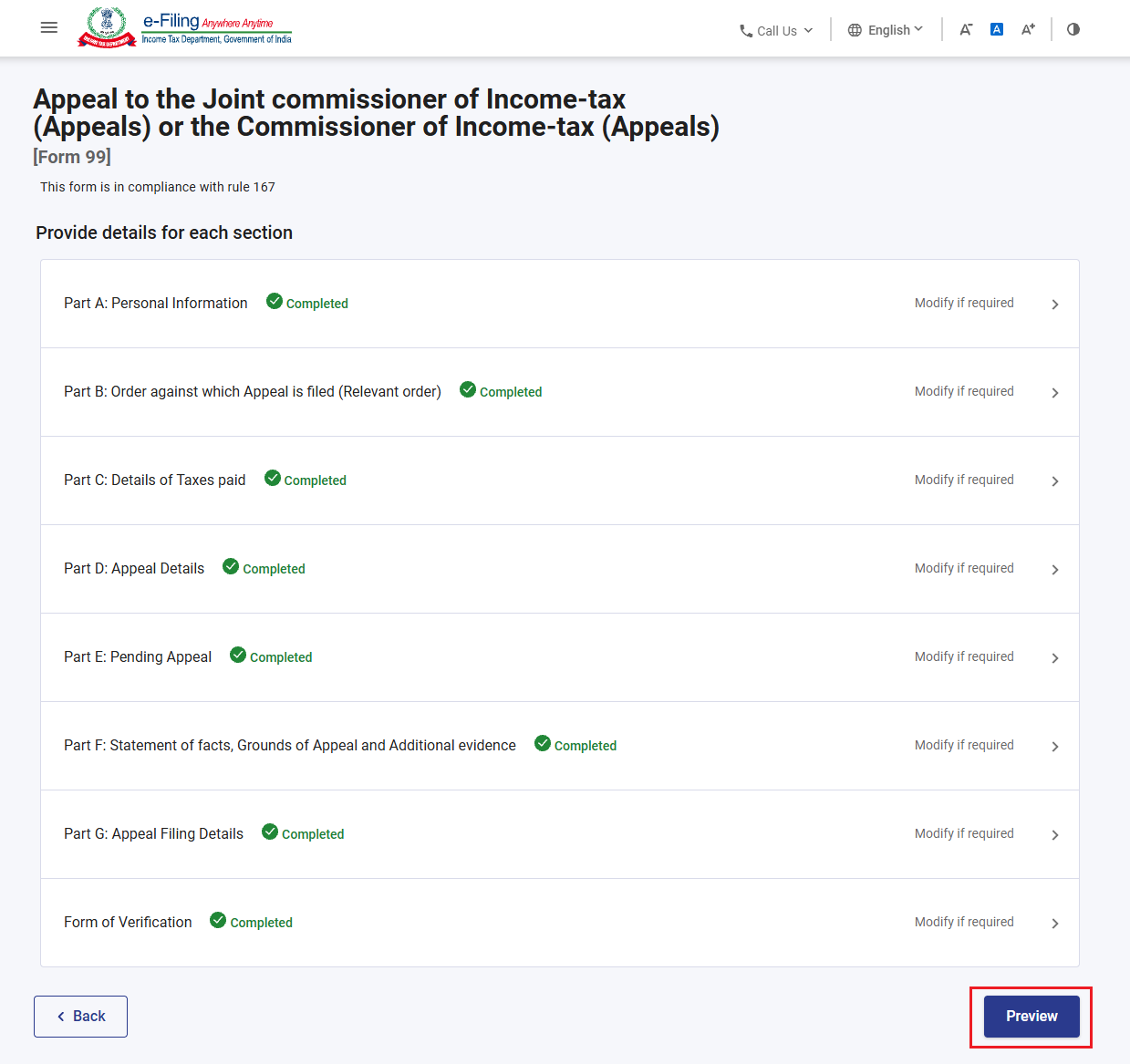
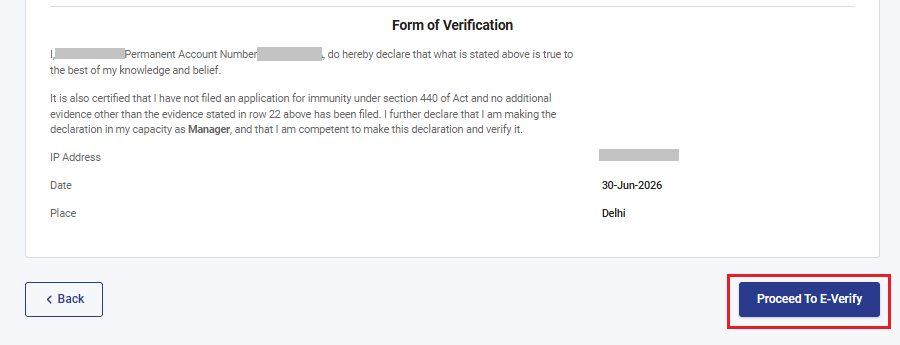
Step 23: This is the preview of the appeal filing. Please click on ‘Proceed to E-Verify’.
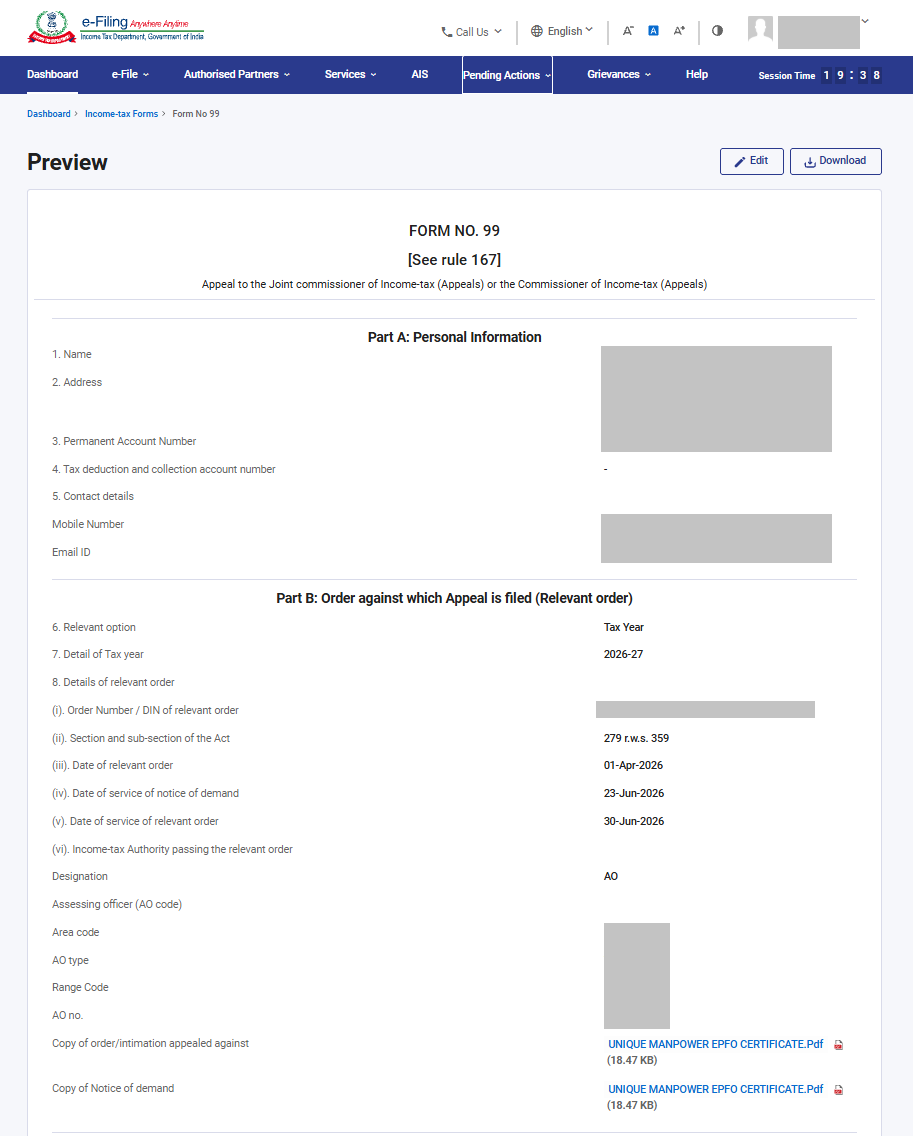
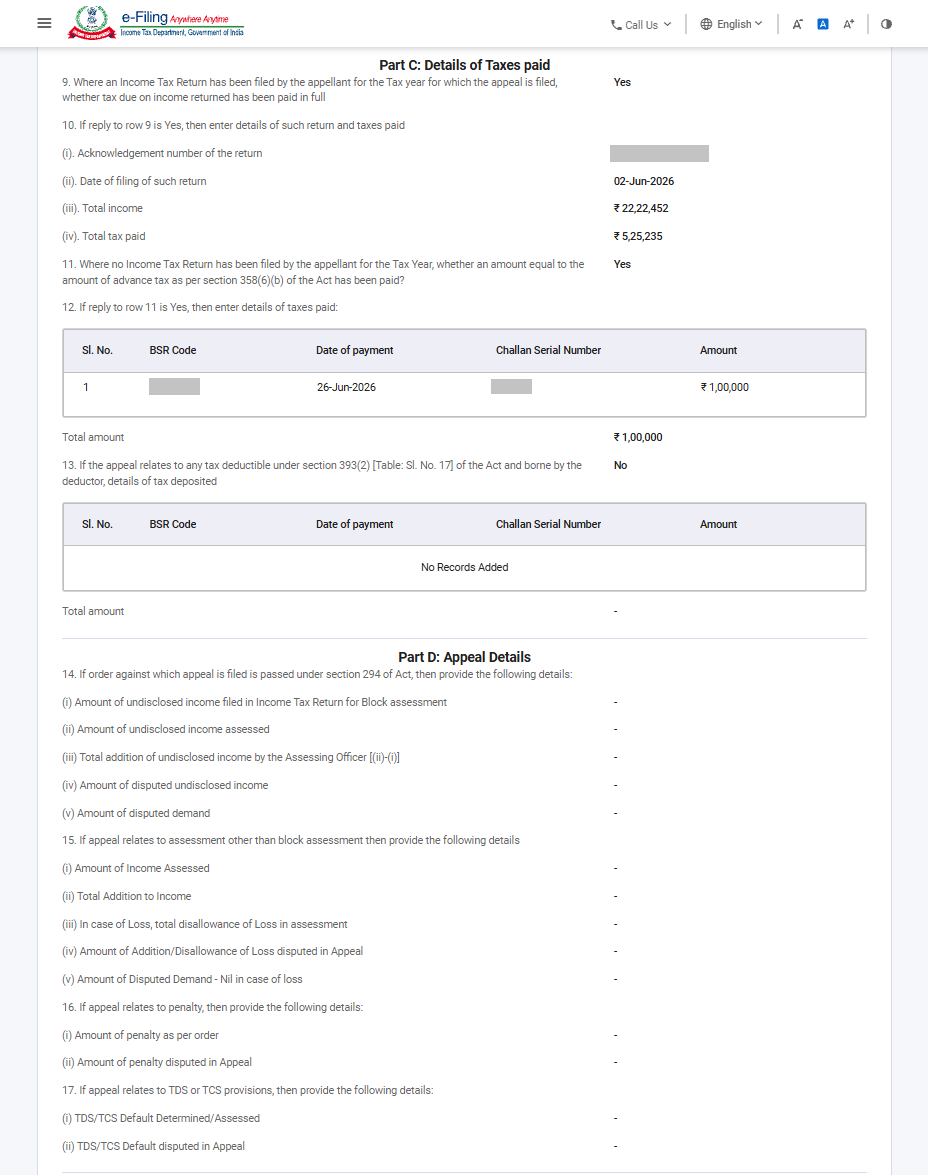
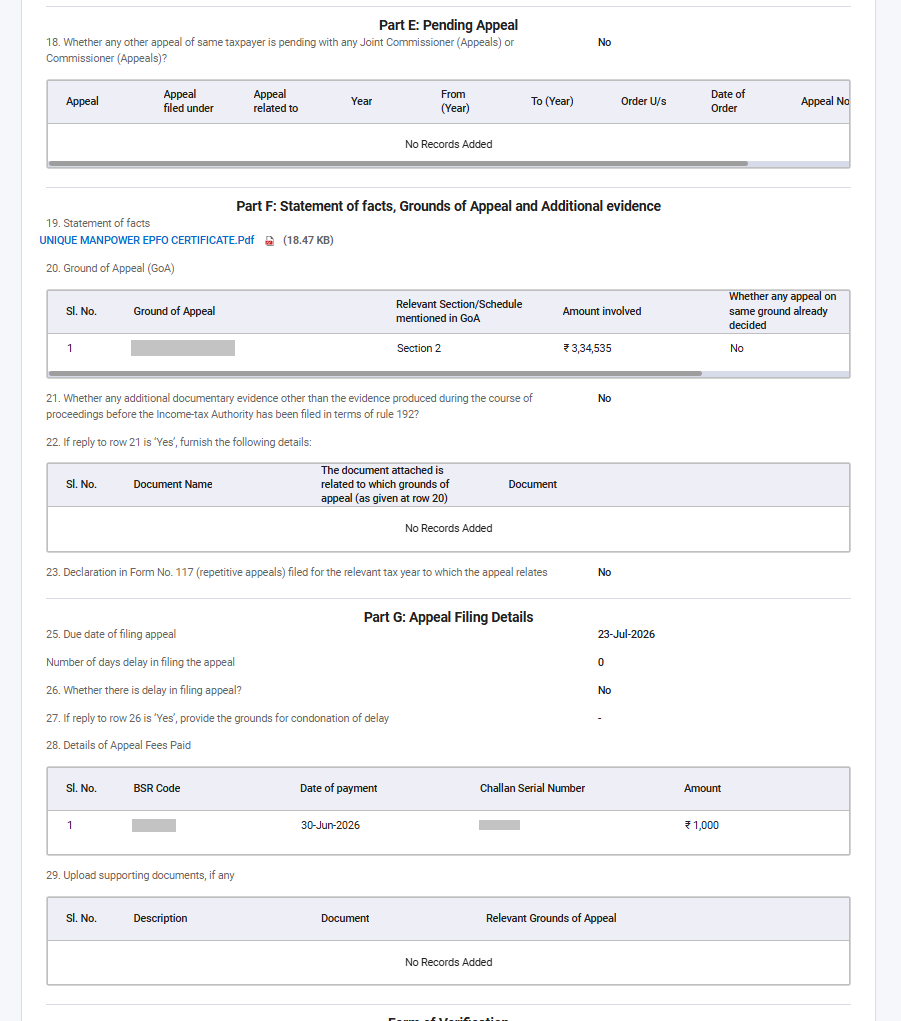
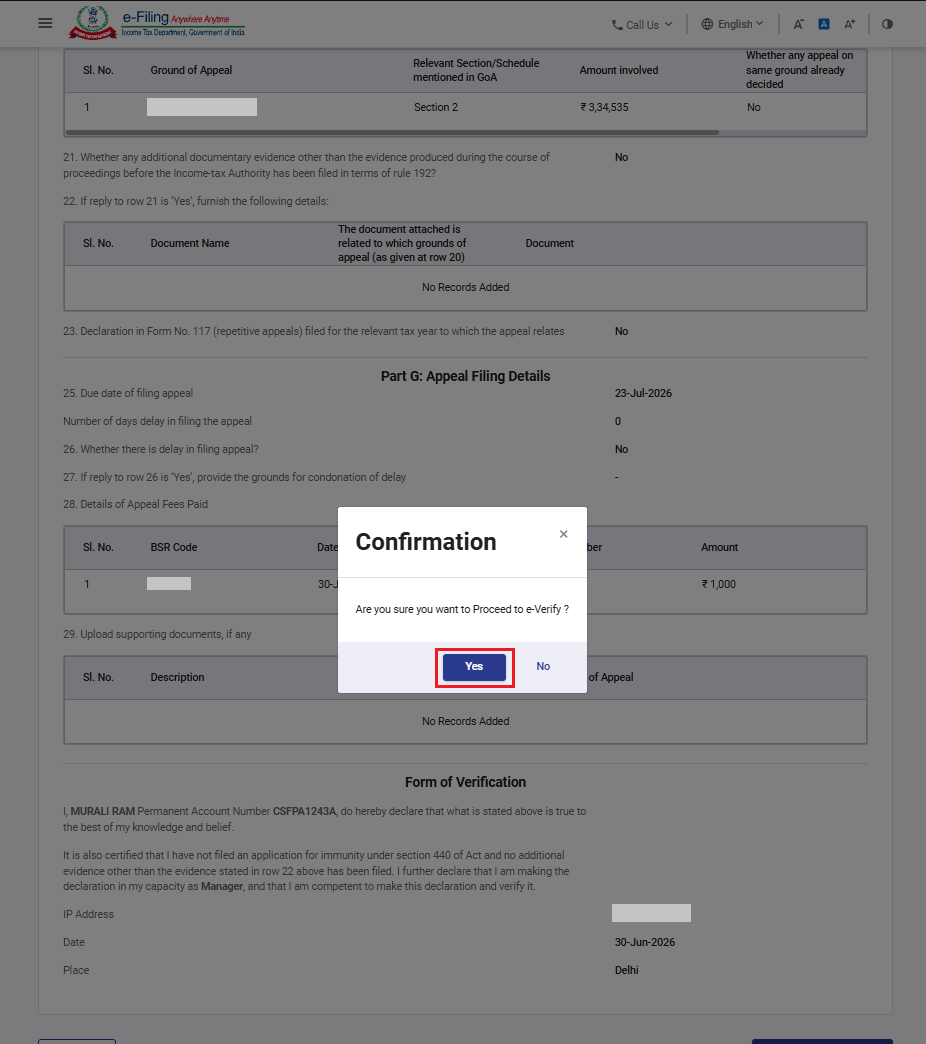
Step 24: A confirmation pop-up for e-Verification will appear. Please click on ‘Yes’ to proceed.
Step 25: Select the appropriate method for e-verification.
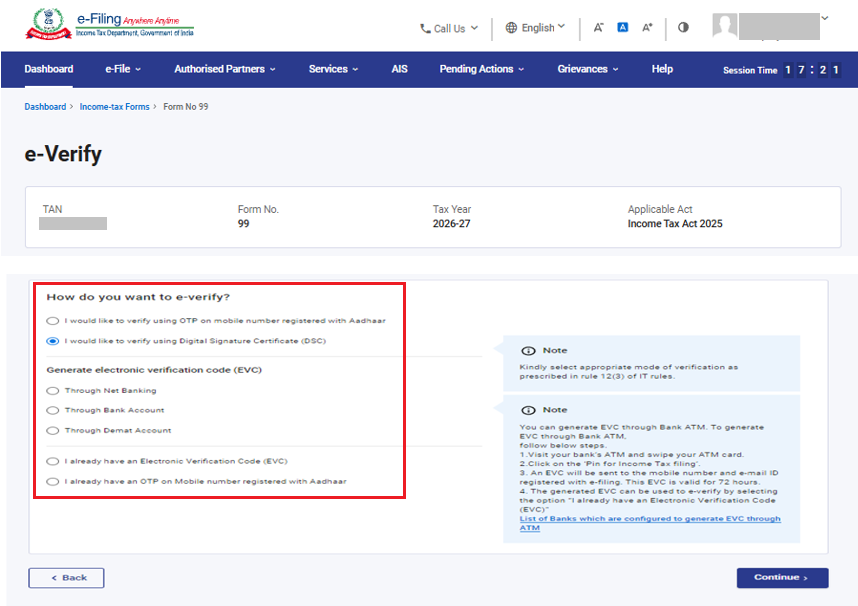
Note: Only DSC option will be available for verification if the Return of Income is required to be verified using DSC.
Step 26: After e-verification you will receive the success message on screen along with transaction ID.
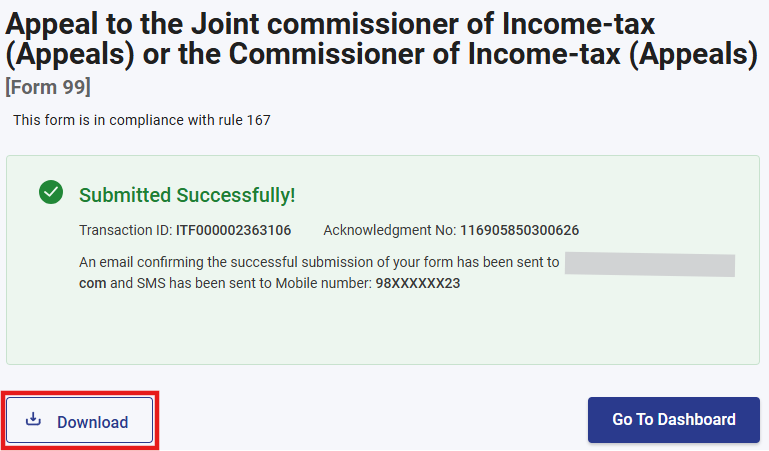
Click on the download button to download the Acknowledgement receipt.
Step 27: This is the Acknowledgement receipt of Form 99.