



Form No. 1(28/2024) User Manual
1. Overview
Form No. 1 is a statement-cum-declaration that must be furnished by IFSC Units (payees) to any payer in order to claim no deduction of TDS on specified payments under Section 395 read with Section 147 of the Income tax Act 2025.
2. Prerequisites for availing this service
- You should be a registered user on the e-Filing portal
- Status of PAN of the taxpayer should be "Active"
- The entity must be a valid IFSC Unit and eligible to claim deduction under 147 of the Act
- Before filing, the unit must finalize: for ten consecutive tax years out of fifteen years beginning from the relevant tax year, under Section 147
- Assessee must have the valid and active DSC in case of verification done through DSC mode
3. About the Form
3.1 Purpose
- To indicate the ten consecutive tax years for which the IFSC Unit elects to avail the tax holiday under Section 147.
- To allow payers for not deducting of TDS on specified payments upon receipt of Form No. 1.
3.2 Who can file it?
The payee, i.e., a Unit of IFSC, which satisfies both of the following conditions, can file Form No. 1:
- It is a registered IFSC Unit operating in an International Financial Services Centre (such as GIFT IFSC), and
- It has opted to claim deduction under Section 147 of the Income tax act 2025 for any 10 consecutive tax years out of 15 years.
3.3 Form at a Glance
Form 1-28 has three headings:
- Details of the IFSC
- Statement – cum- Declaration
- verification
4. Step-by-Step Guide
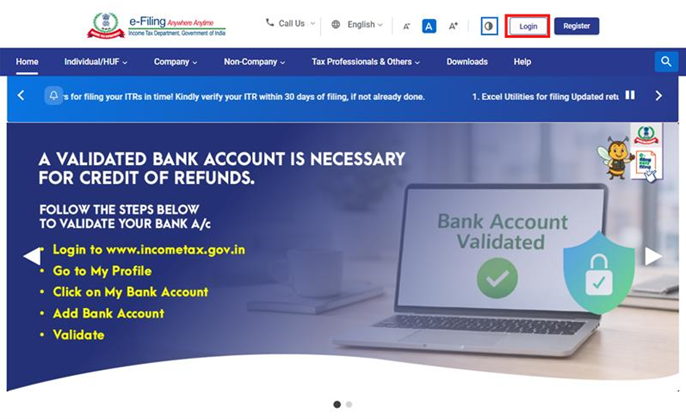
Step 1: Log in to the e-Filing portal with your User ID and Password.
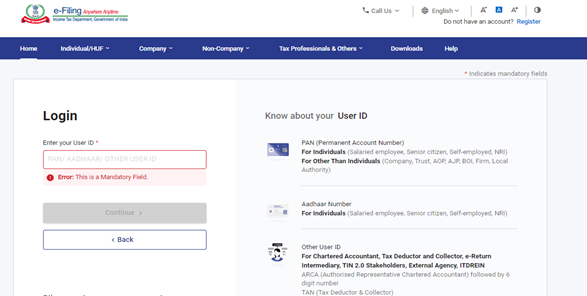
Step 2: Enter the User ID (PAN) and Password
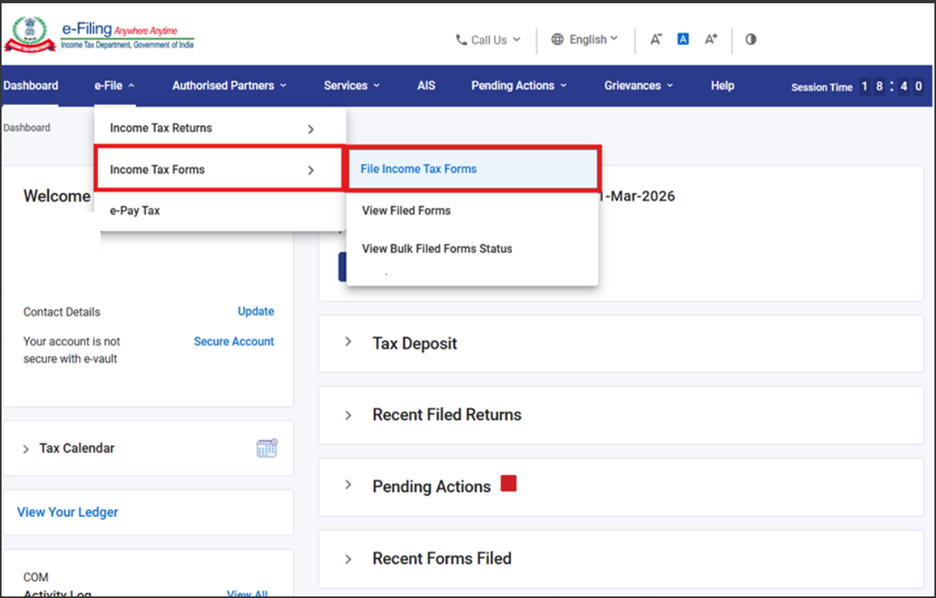
Step 3: Go to e-file >Income Tax Forms > File Income Tax Forms
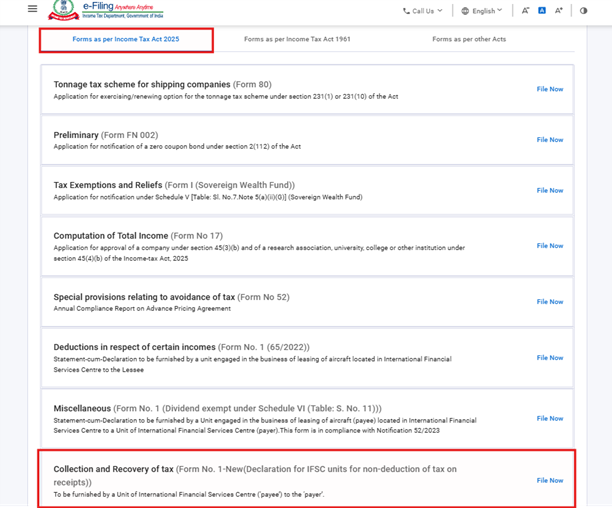
Step 4: Select the Forms as per Income Tax Act 2025 tab, select Form No.1-New, and click the File Now button
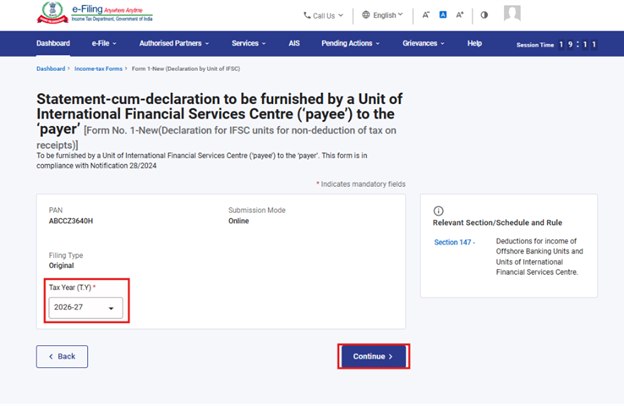
Step 5: Select the applicable Tax Year (T.Y) and click on Continue
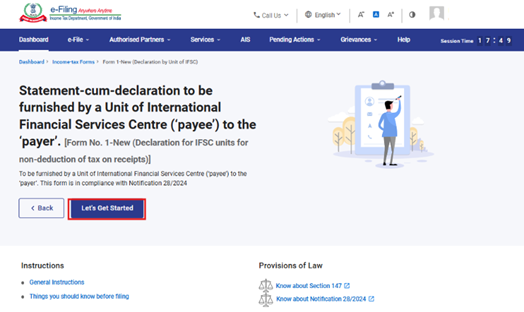
Step 6: Click on Let’s Get Started
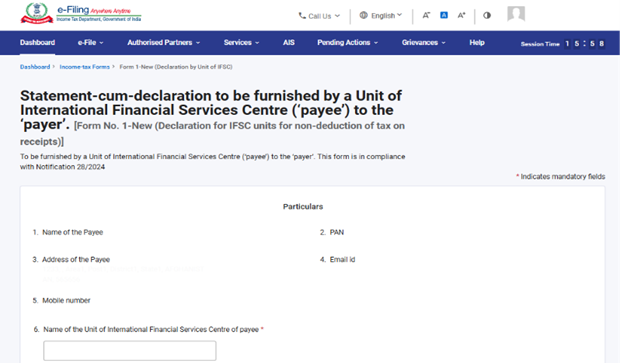
Step 7: Upon clicking Let's Get Started, the user is navigated to the form. Once the relevant data entered, then click on save draft for saving the data and click on preview PDF for further procced.
Note:
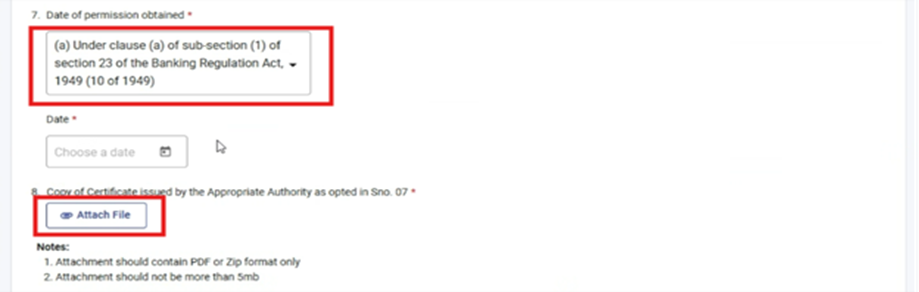
- Sno: 6 contains the Name and address of the IFSC unit.
- Sno:7 contains the details of registration like under which act IFSC get registred and date of registration.
- Sno.8 contains the attachment panel where user needs to upload the copy of registration issued by the authority based on act selected in Sno:07.
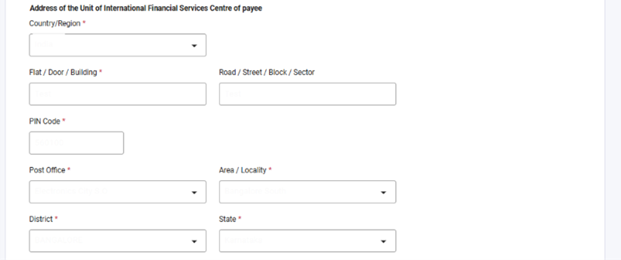
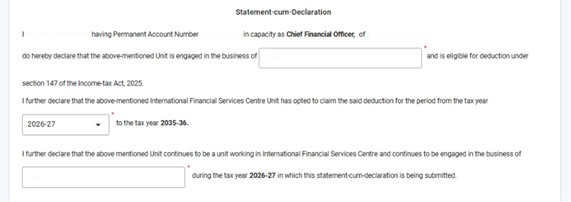
Note: Statement-cum-declarant contains the details of the declarant, Nature of the business of IFSC Unit and along with the year “from and until” which the deduction is applicable.
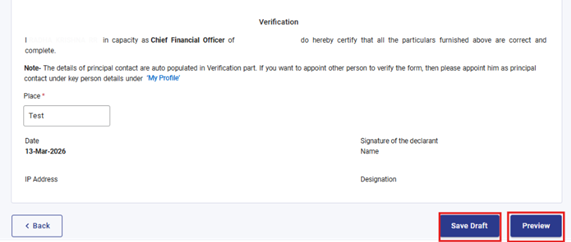
Note: Verification contains the details of the verifier/declarant along with the Place, date and IP address.
After saving the details, click Preview
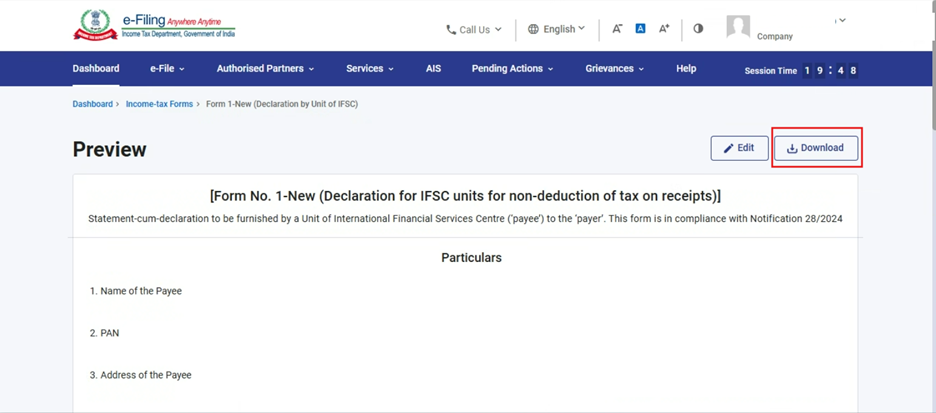
Step 8: Review the details and can download the preview PDF by clicking the download button on the Preview page and click Proceed to e-Verify.
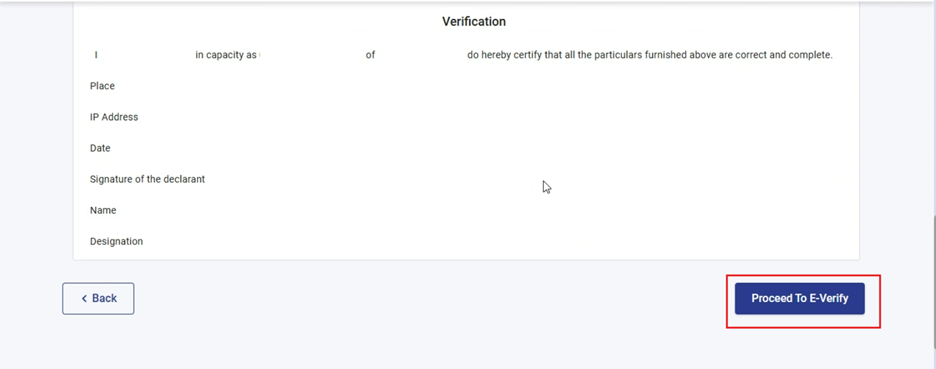
Step 9: Upon clicking Proceed to e-Verify, a confirmation popup appears. Click proceed to file the form.
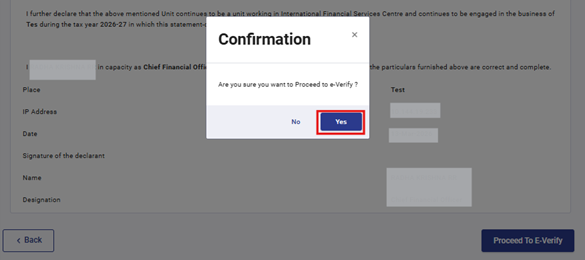
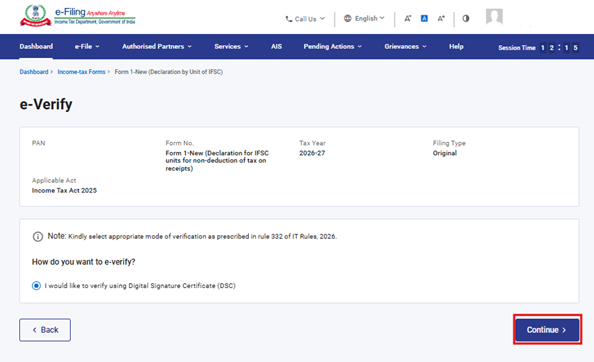
Step 10: On clicking Yes, you will be navigated to the e-Verify page where you can verify the Form 1-New- 28/2024 using DSC/EVC (as applicable).
Note: Refer to the How to e-Verify user manual to learn more.
Step 11: After successful e-Verification, a success message is displayed along with a Transaction ID and Acknowledgement Receipt Number. Please keep a note of the Transaction ID and Acknowledgement Receipt Number for future reference. You will also receive a confirmation message on the email ID(s) and mobile number(s) registered with the e-Filing portal.
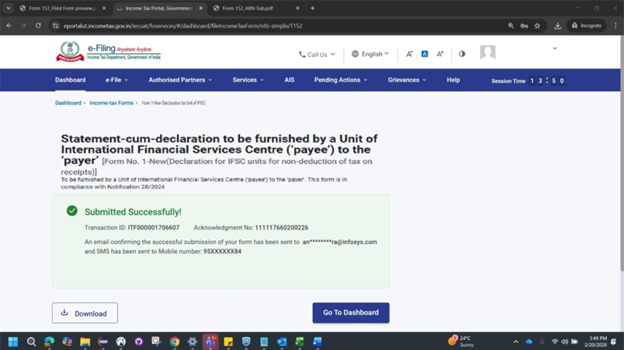
After successful submission of form 1-New-28/2024 the user can view the filled form under - On your Dashboard, click e-File > File Income Tax Forms > View Filed Forms> View Filed Form tab under Income Tax Act 2025.
Note: Refer view filled form user manual to learn more.
5. Related Topics
• Login
• Dashboard
• How to e-Verify
• Register DSC
6. Glossary
| Acronym/Abbreviation | Description/Full Form |
| DSC | Digital Signature Certificate |
| EVC | Electronic Verification Certificate |
| ARN | Acknowledgement Receipt Number |
| PY | Previous Year |
| FY | Financial Year |
| TY | Tax Year |



