Form 143 User Manual
1. Overview
Form No. 143 is a quarterly statement filed by collectors who are responsible for collecting tax at source on specified goods and transactions involving sale of scrap, tendu leaves, liquor, forest produce, parking lot, toll plaza, mining & quarrying, overseas remittance, foreign tour packages etc.
These collectors are required to file Form 143 every quarter to report the details of tax collected on such payments. This form must be submitted within the prescribed below due dates:
| Quarter | Period | Due Date |
| Q1 | April – June | 31st July of the financial year |
| Q2 | July – September | 31st October of the financial year |
| Q3 | October – December | 31st January of the financial year |
| Q4 | January – March | 31st May of the following financial year |
Filing of Form No. 143 in a timely and accurate manner is important as:
• It will ensure that accurate and complete tax credit is passed onto the collectees. Consequently, it will also eliminate scope for collectee related grievances.
• The collector would be able to avoid legal challenges associated with non-compliance including late filing fee u/s 427 and penal proceedings u/s 461 and 465(2)(g).
2. Prerequisites for availing this service
• The Collector must have a valid TAN and it should be registered on e-Filling portal.
• Downloaded Updated version of Return Preparation Utility (RPU) from NSDL (Protean) website
• A valid FVU file generated through Return Preparation Utility (RPU).
• DSC is registered on e-Filling portal (If uploading through DSC)
3. Step-by-Step Guide
3.1 How to File Form 143
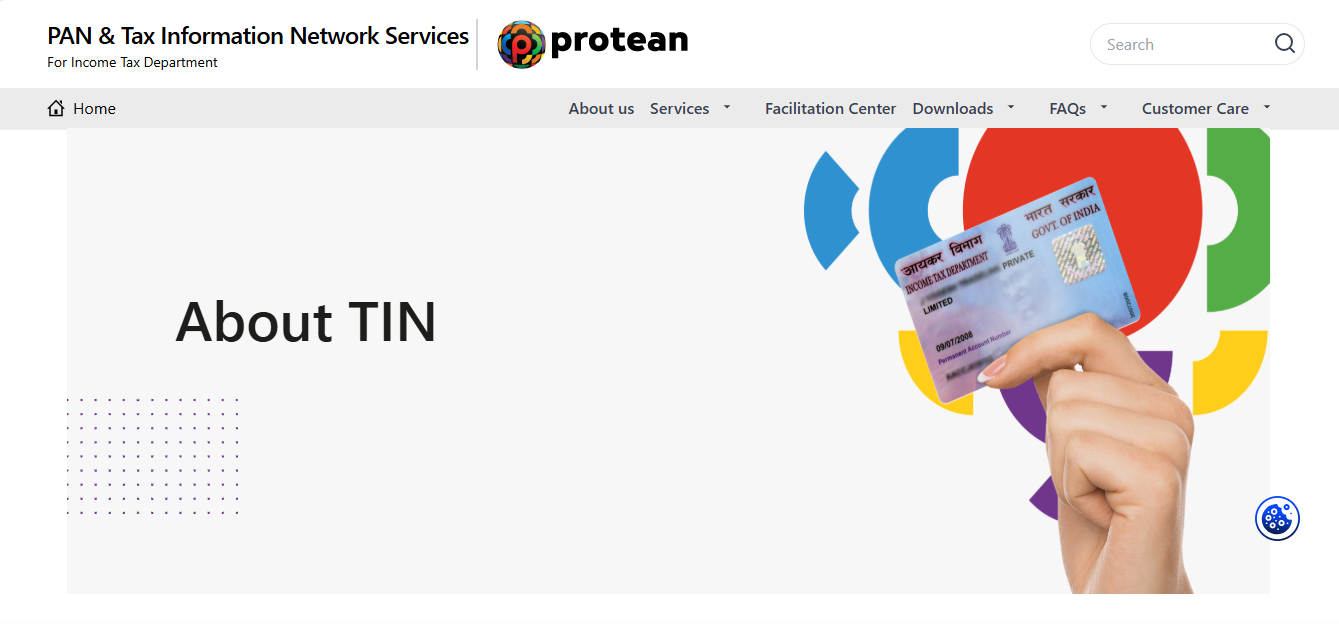
Step 1: Visit NSDL(Protean) portal.
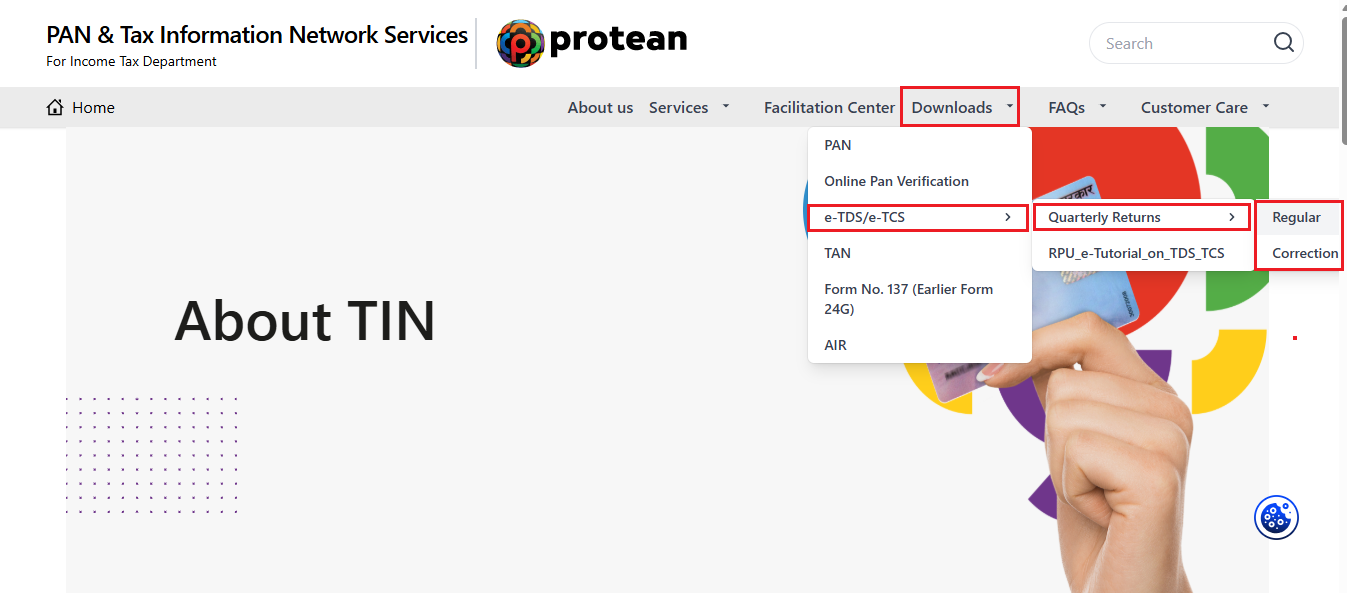
Step 2: Go to ‘Downloads’ > ‘e-TDS/e-TCS’ > ‘Quarterly return’ > ‘Regular/Correction’.
Step 3: Download the updated/Latest version of ‘Return Preparation Utility (RPU)’.
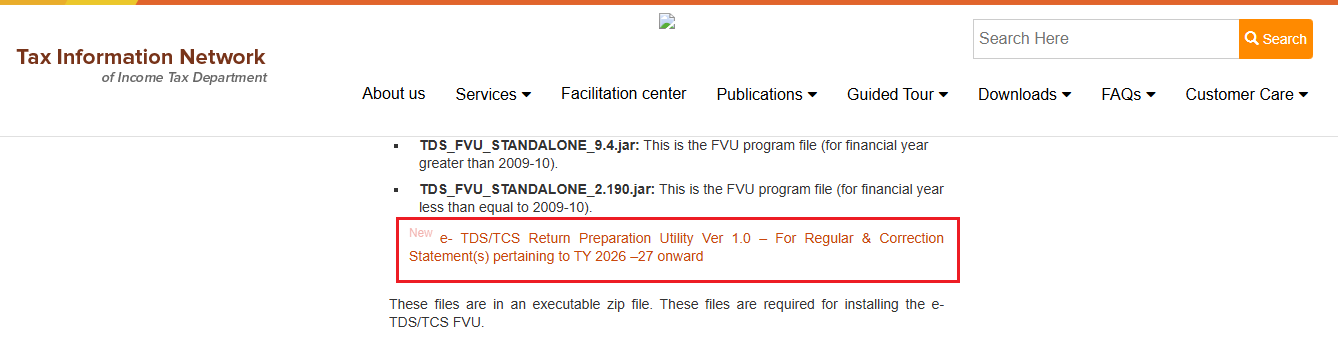
Step 4: Fill in the details in RPU, validate it, generate the FVU file and convert it in to .zip file.
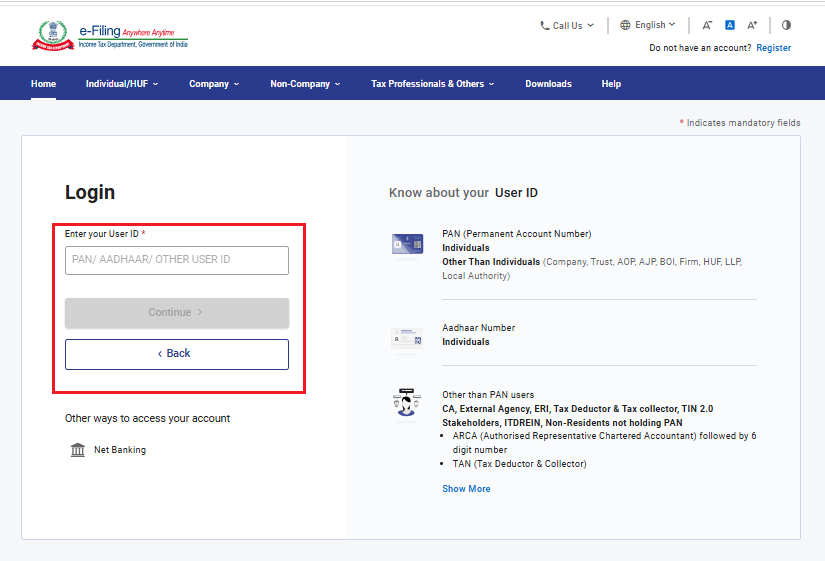
Step 5: Login to the e-Filing portal using TAN.
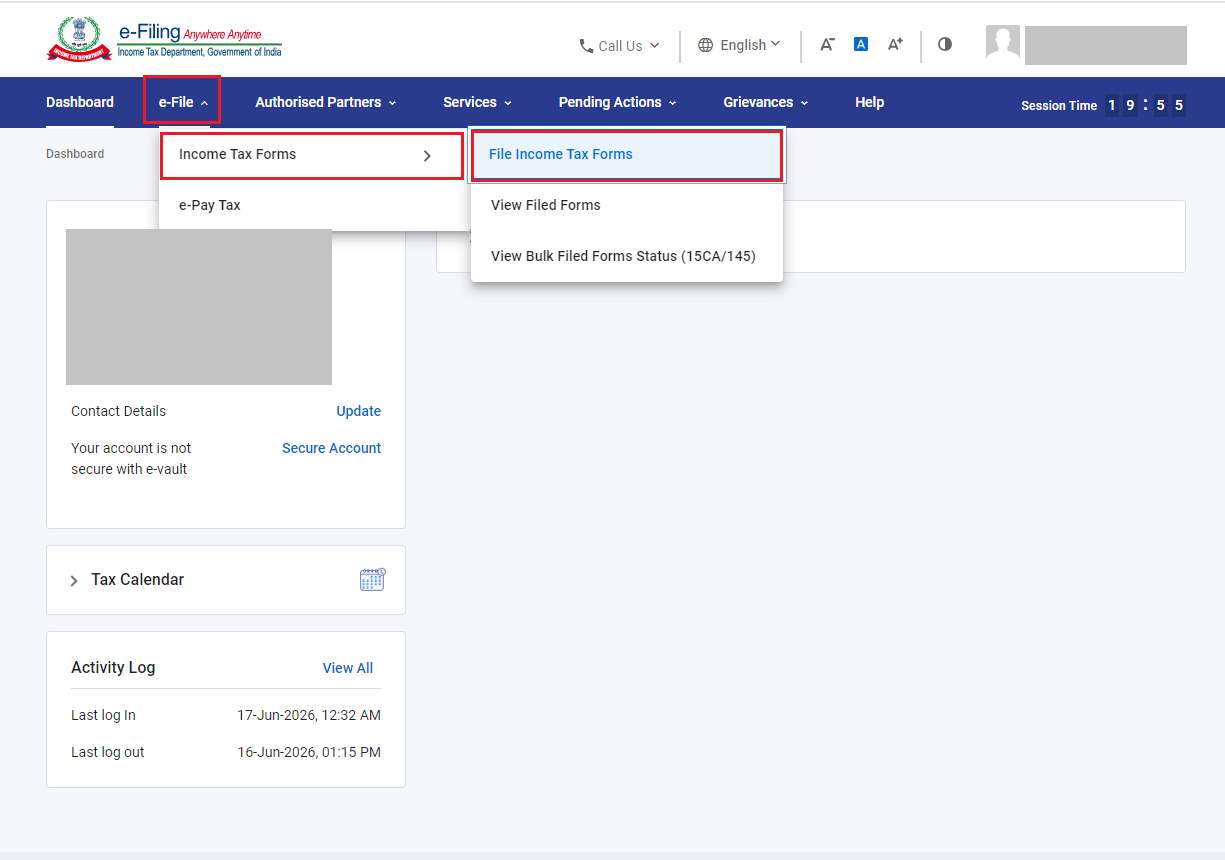
Step 6: Go to ‘e-File’ > ‘Income Tax Forms’ > ‘File Income Tax Forms’.
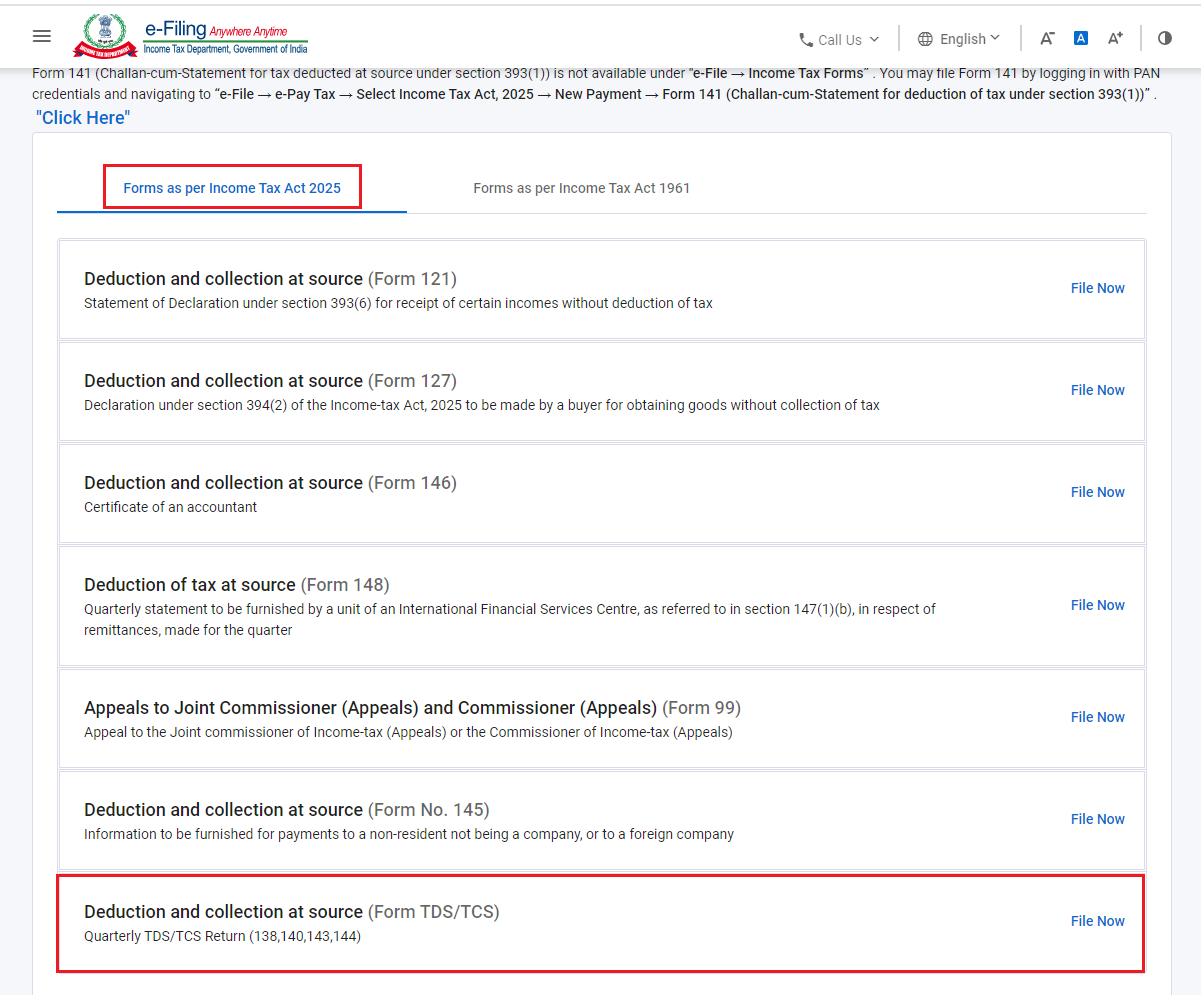
Step 7: Under ‘Forms as Per Income Tax Act 2025’ category Select ‘Deduction and Collection at source (Form TDS/ TCS)’ and click ‘File Now’.
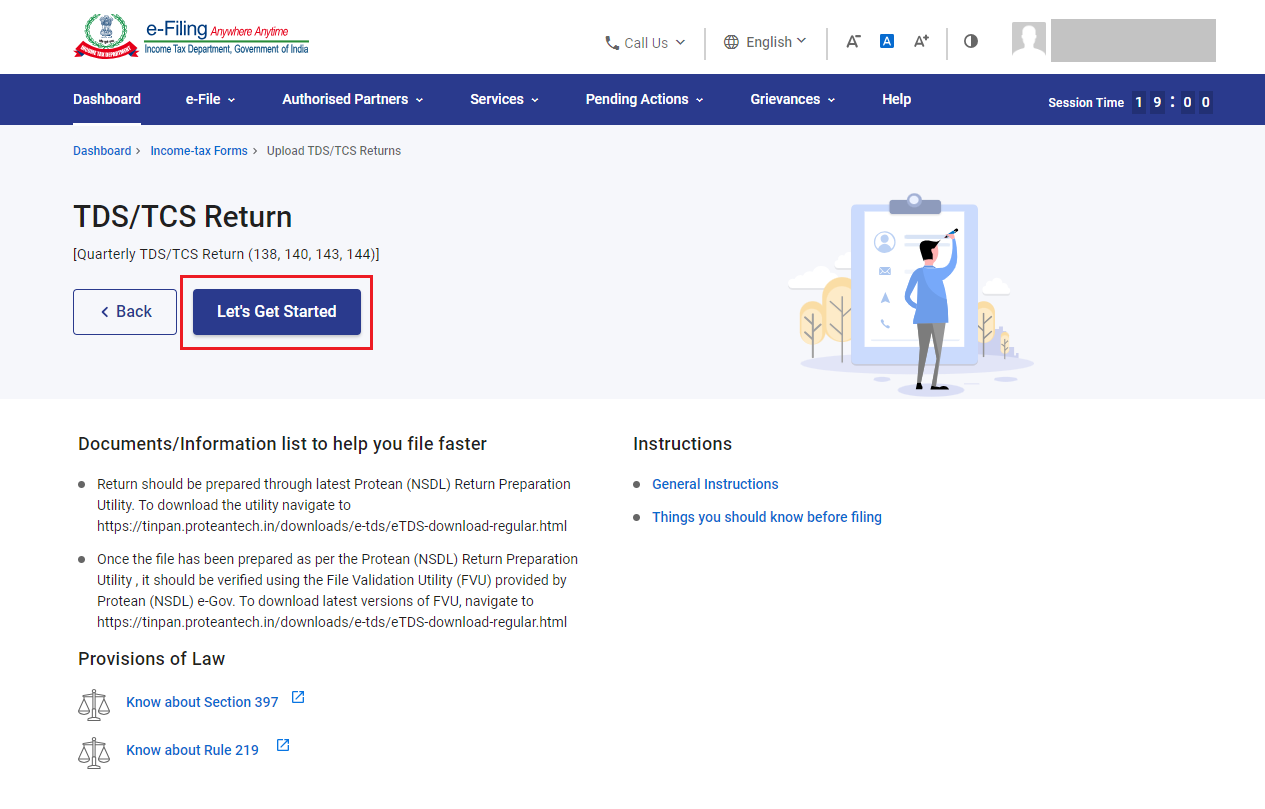
Step 8: Read the Instruction to file the Form and click on ‘Let’s get Started’.
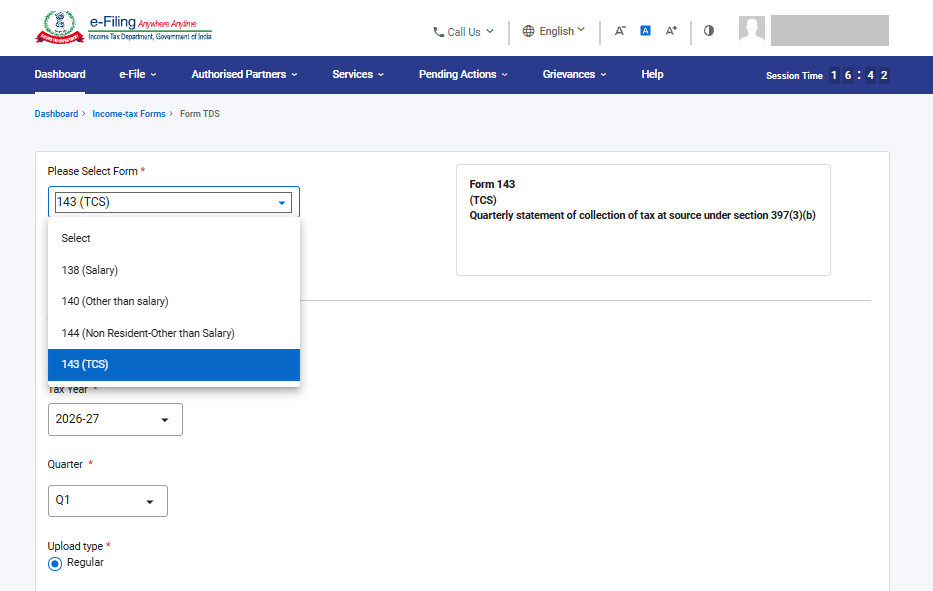
Step 9: On Form page, select ‘Form 143’ from the dropdown, select applicable Tax Year, Quarter and Upload Type (Regular/correction)
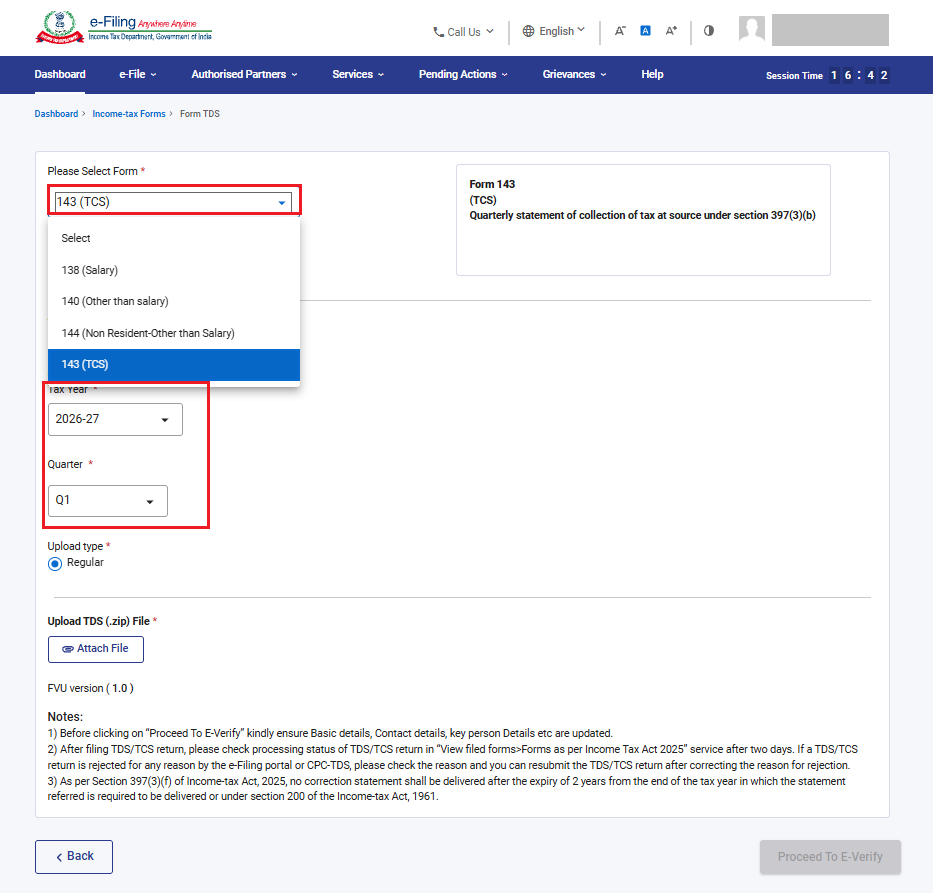
Step 10: Now click on ‘Upload’ and upload the zip file containing .FVU file prepared and click on ‘Proceed to E-Verify’.
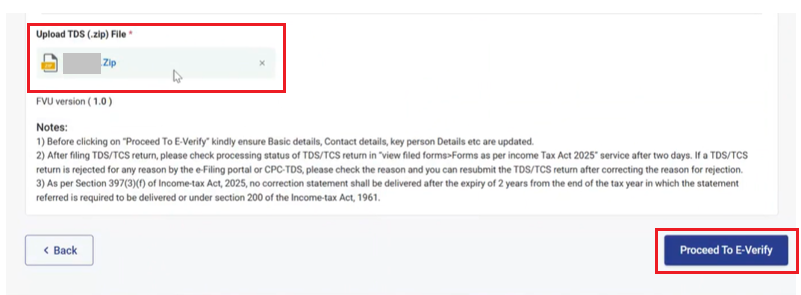
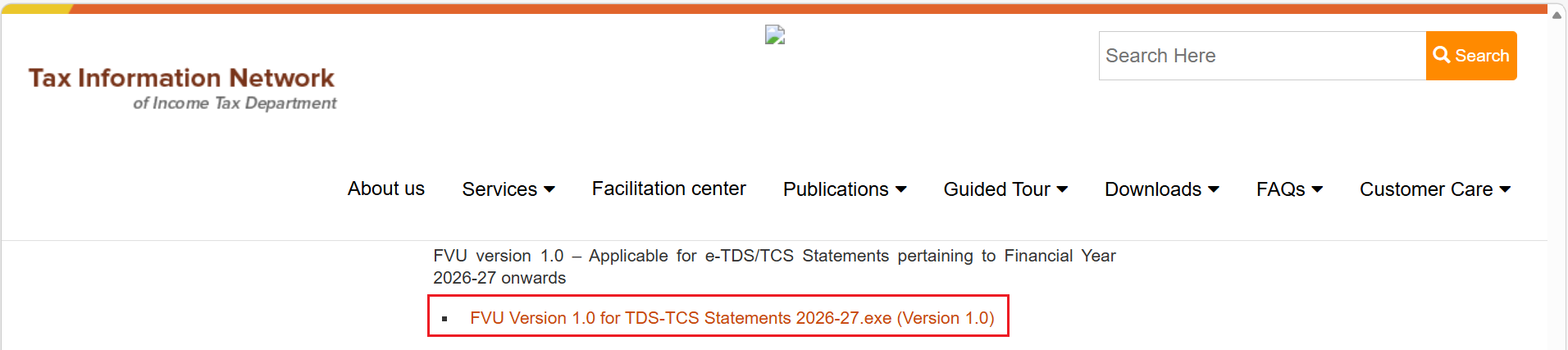
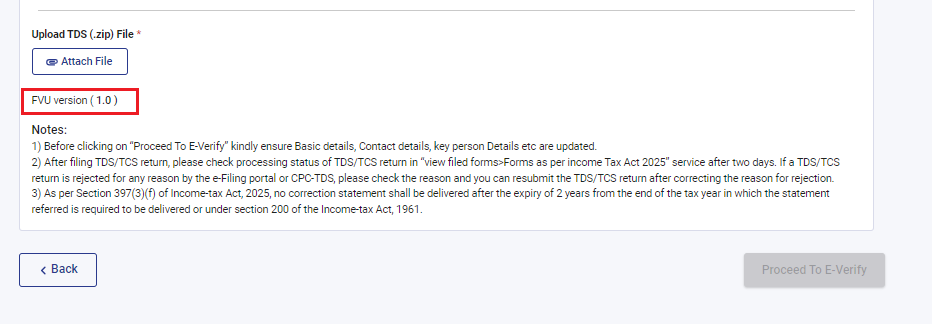
Please Note: Ensure you are uploading correct/updated version of FVU file matching with FVU version shown on form screen of e-Filing portal.
PROTEAN Version:
e-Filing Version:
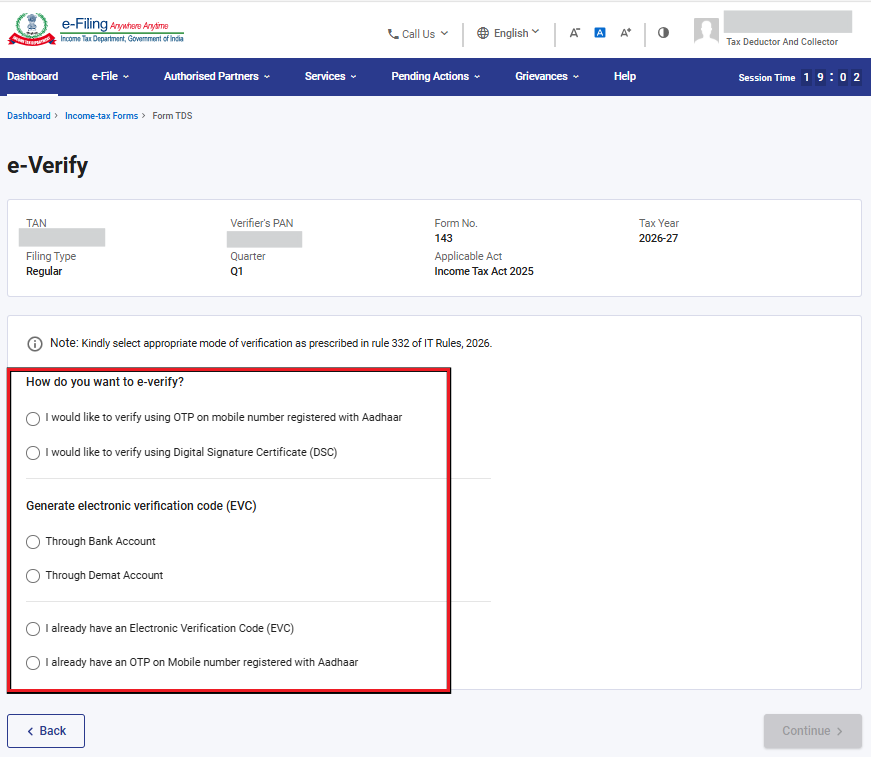
Step 11: Select the appropriate method of verification and e-Verify the form and form will be submitted and you will receive the communication on registered email ID and Mobile no. for the same.
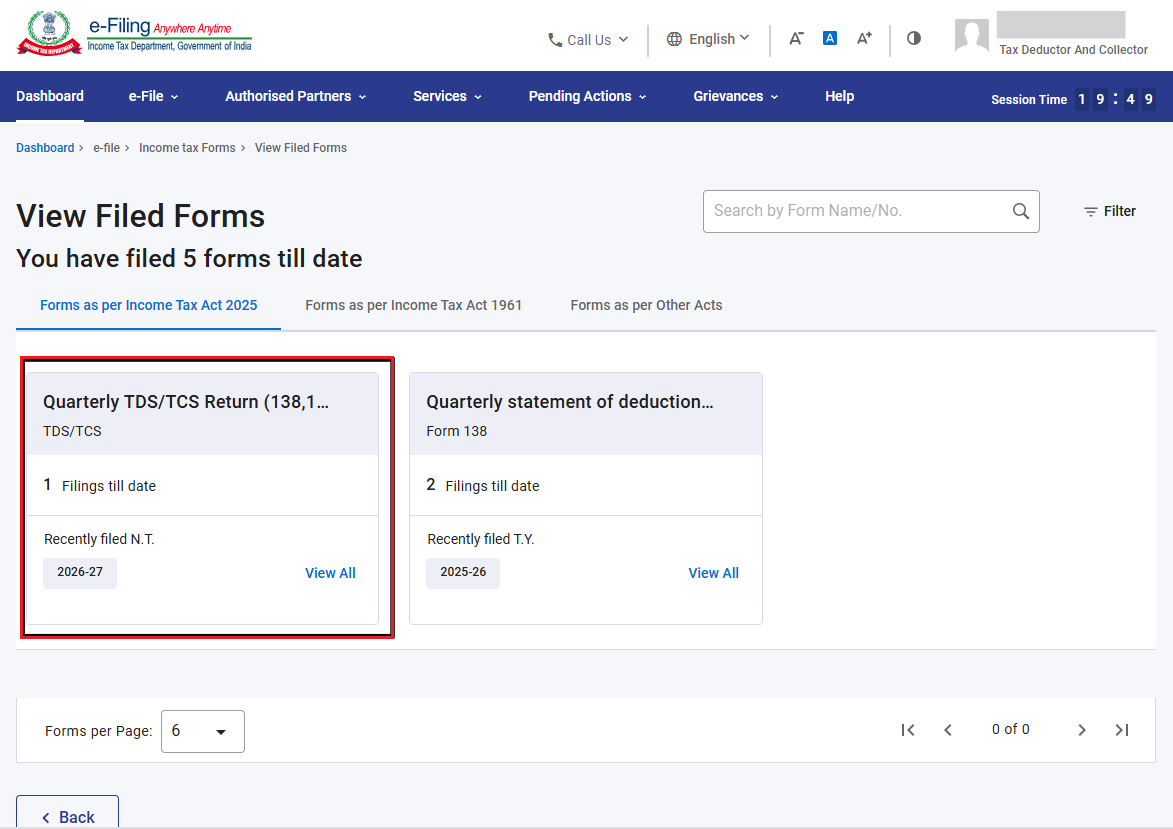
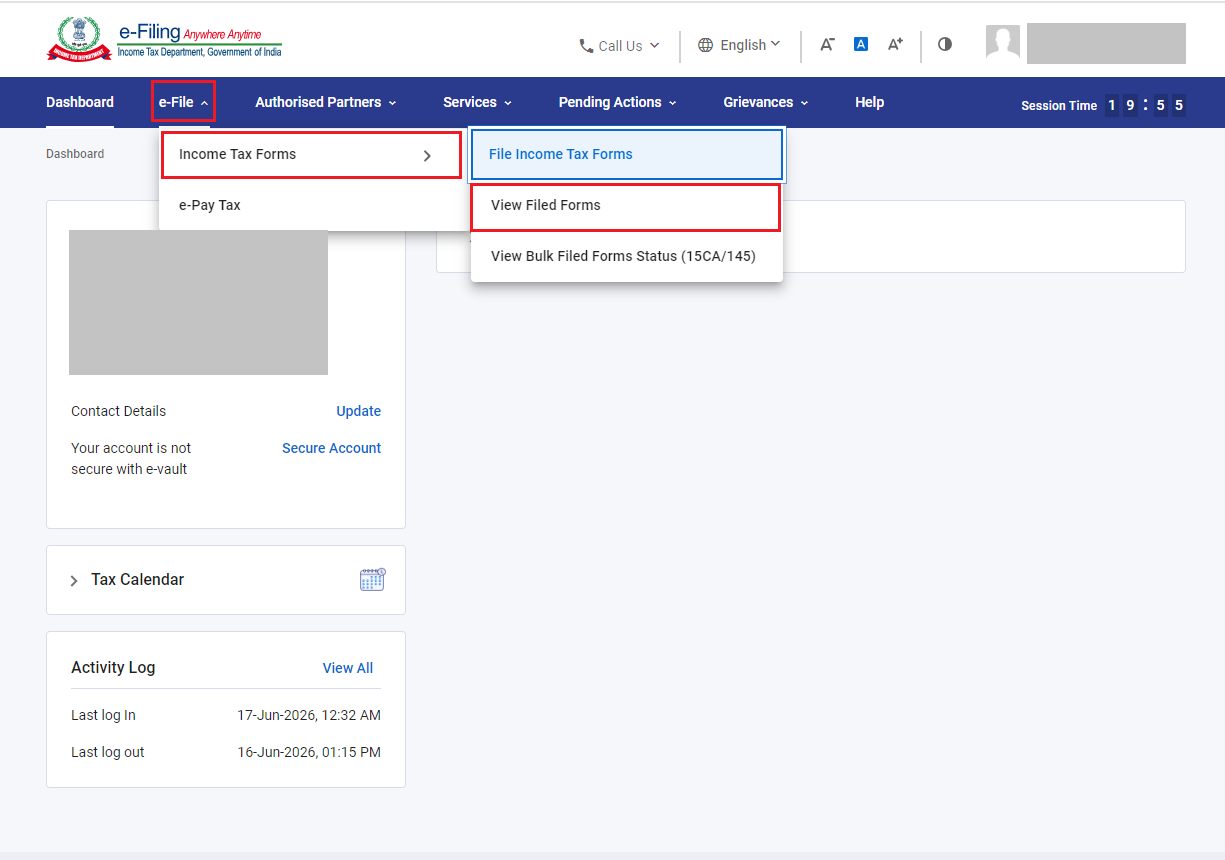
Step 12: Now, if you want to view the submitted form, go to ‘e-File’ > ‘Income Tax Forms’ > ‘View Filed Forms’.
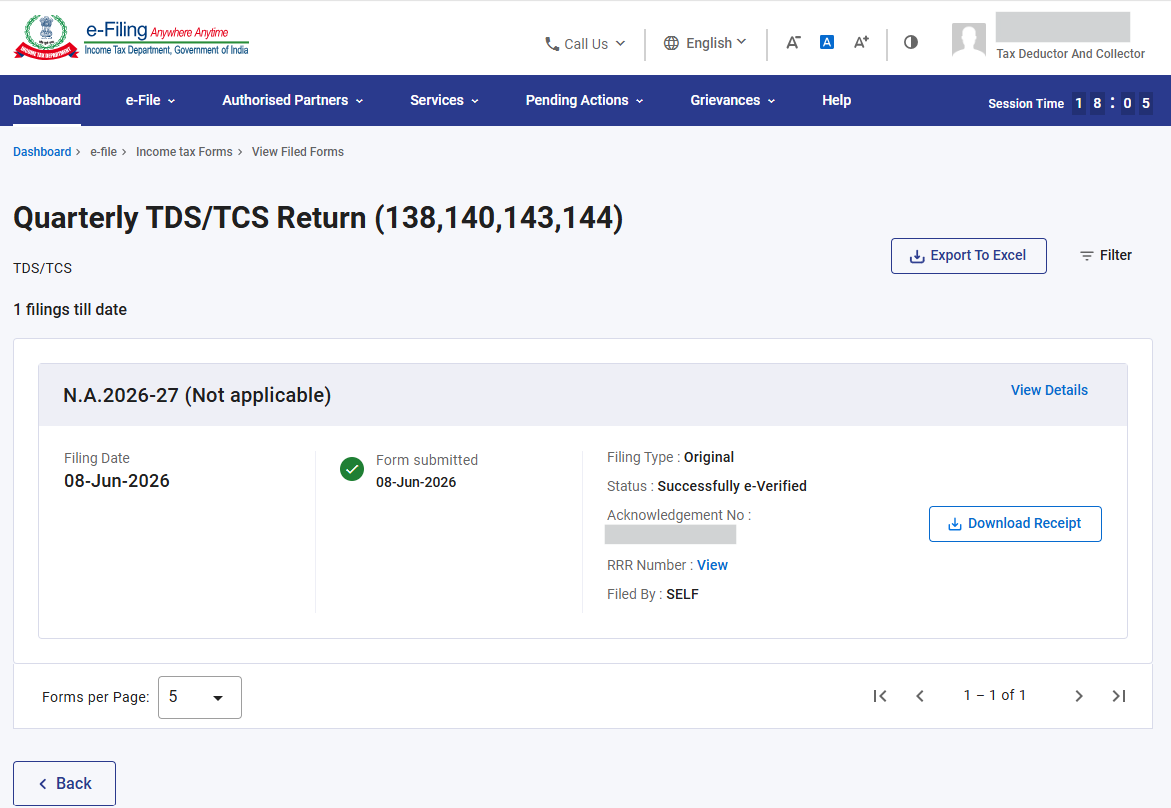
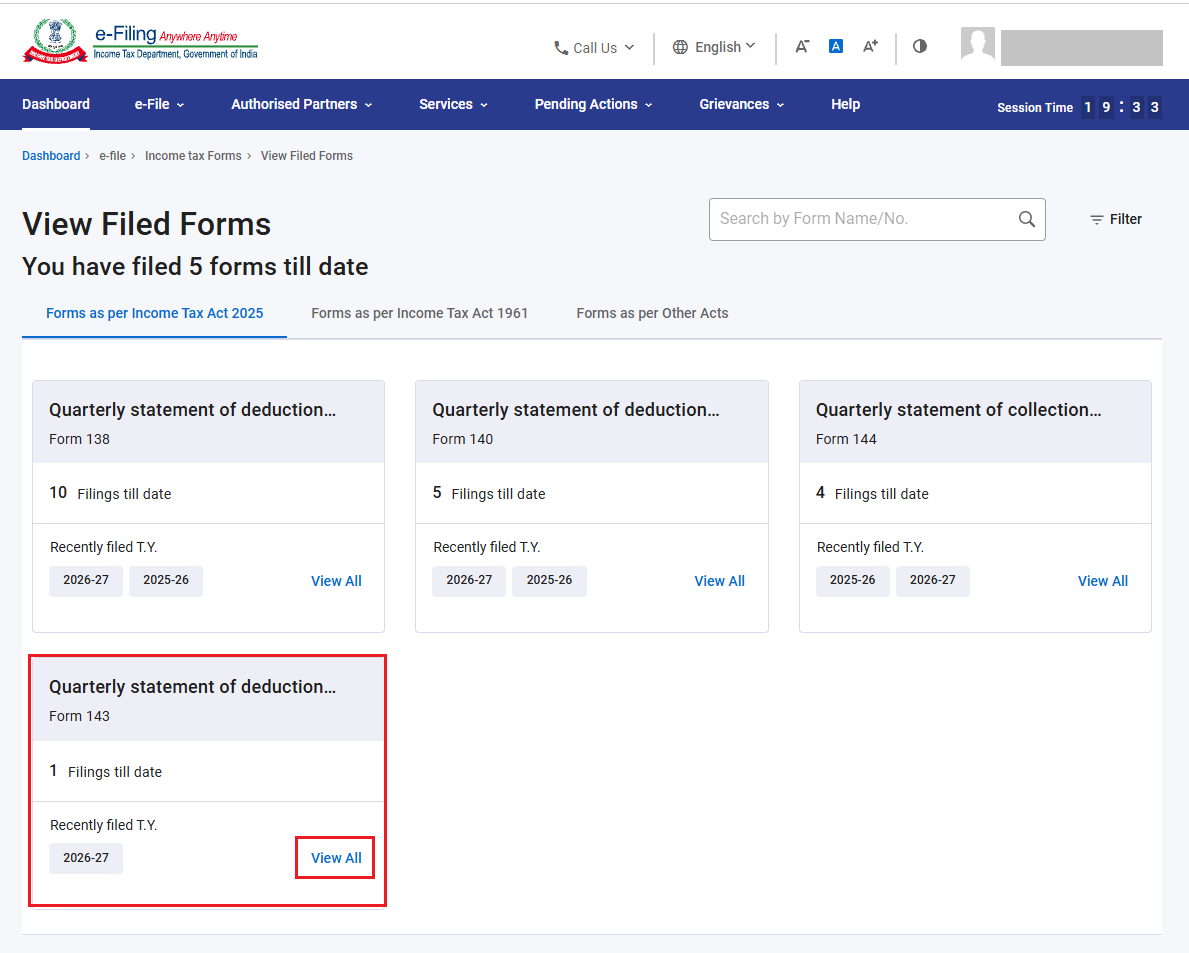
Step 13: Here you will see submitted Form 143. Click on ‘View all’.
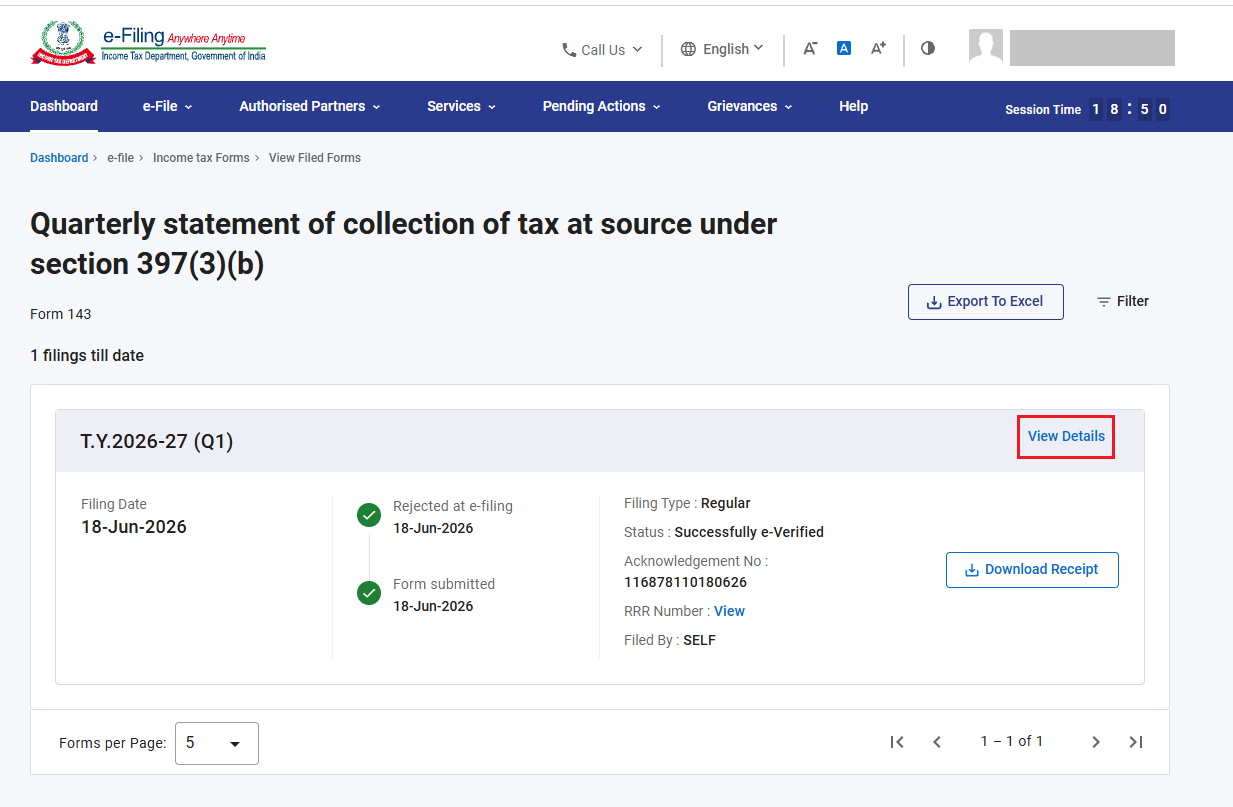
Step 14: Here, you can see the status of form whether its accepted or rejected after validation of uploaded FVU file. Click on ‘View Details’ to check the rejection reason (if form is rejected).
Please Note:
• If validation is successful: Status of form will be accepted and the same will be sent to TRACES for further processing.
• If validation is not successful: Status of Form will be rejected, and you will receive the communication on your registered email ID (primary) for the rejection with reason of rejection.
Step 15: Here you can see the rejection reason of form.
Reason: Invalid FVU file
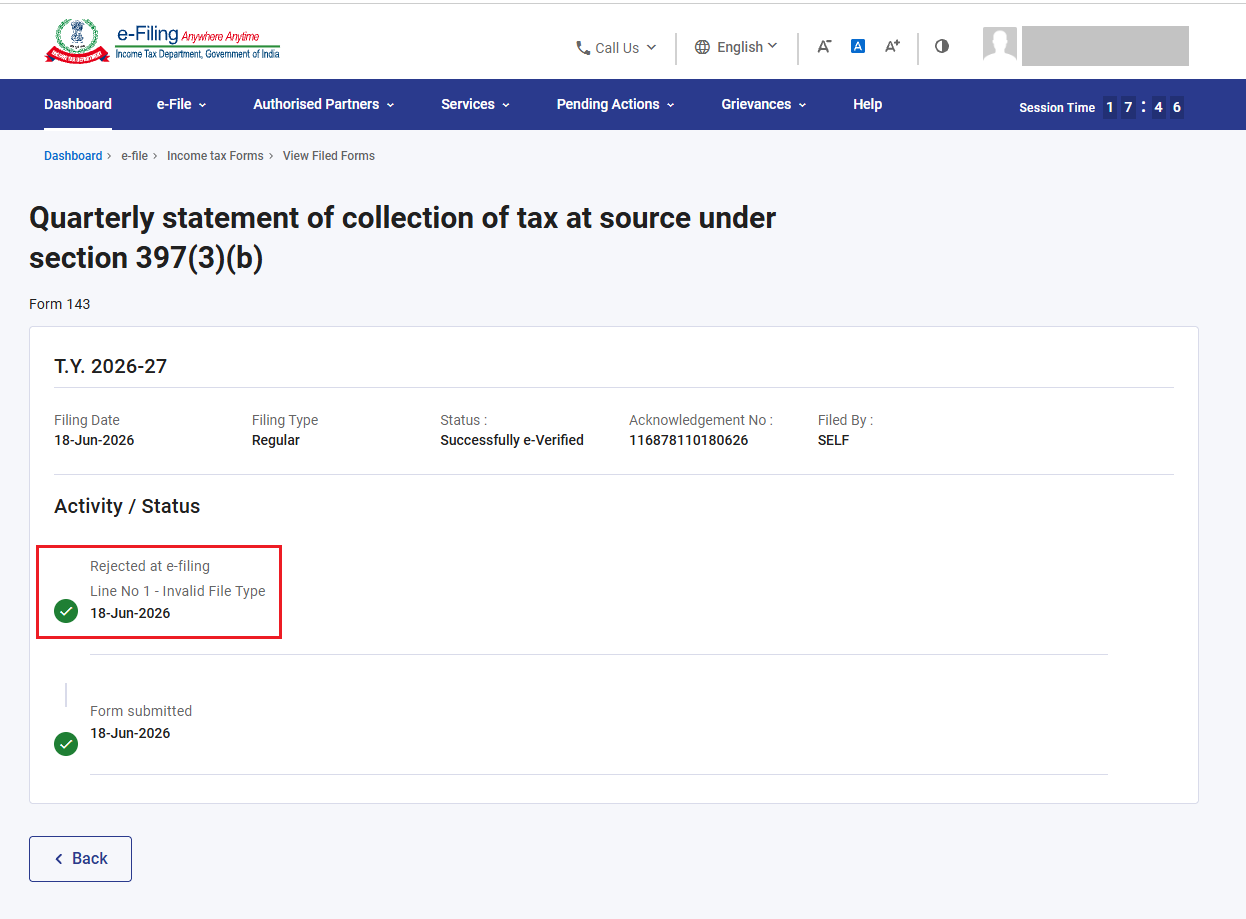
Please Note: There can be many possible reasons for rejection of form, but few reasons are listed below:
1. Wrong selection of Tax year
2. Multiple filing of forms for same Quarter
3. Mismatch in the FVU version downloaded and uploaded on portal. Ensure you are uploading updated Version of FVU on e-Filing portal
4. While filing regular statement, correction statement FVU file was uploaded and vice versa.
5. TAN mentioned in the FVU file is not matching with the logged in TAN
6. In case of correction, RRR number mentioned in the FVU file does not match with the RRR number entered in the landing screen of the form.
Step 16: If Form is rejected, rectify the error by uploading correct FVU (.zip file) and file the form.
Note: Post filing of Form 143, if the form appears under the tile mentioned below, it indicates that the form is yet to be processed. Kindly wait until the processing is completed. Once the form is processed, you will receive an email communication indicating the status of the form, i.e., Acceptance or Rejection.