Form 92 User Manual
1. Overview
Form 92 is a quarterly statement required to be furnished by specified funds or stock brokers in respect of non-resident clients, as prescribed in Rule 157. The form contains details such as name, contact details, country of residence, Tax Identification Number, and unique identification numbers of such non-resident clients.
Form 92 must be furnished quarterly, within 15 days from the end of each quarter.
2. Applicability of Form 92
Form 92 is applicable for:
• Specified Funds defined under Rule 157, and
• Stock brokers dealing with non-resident clients.
3. Due Date to file Form 92
Form 92 must be furnished quarterly, within 15 days from the end of each quarter.
Below are the due dates:
| Quarter | Period | Due Date |
| Q1 | April – June | On or before July 15th of financial year |
| Q2 | July – September | On or before October 15th financial year |
| Q3 | October – December | On or before January 15th financial year |
| Q4 | January – March | On or before April 15th financial year |
4. Prerequisites for availing this service
• Taxpayer is registered at e-filing portal.
• Taxpayer has valid Username (PAN) and Password of E-filing 2.0 portal.
• Status of PAN of the Taxpayer is ‘Active’ as per PAN database
• Taxpayers should have a valid DSC. It should be registered at e-filing portal & not expired.
• Declaration received from each non-resident as referred to in Rule 157 (Annexure A-1)
• Unique number issued by the foreign government (If TIN is not available)
5. Step-by-Step Guide
5.1 How to File Form 92
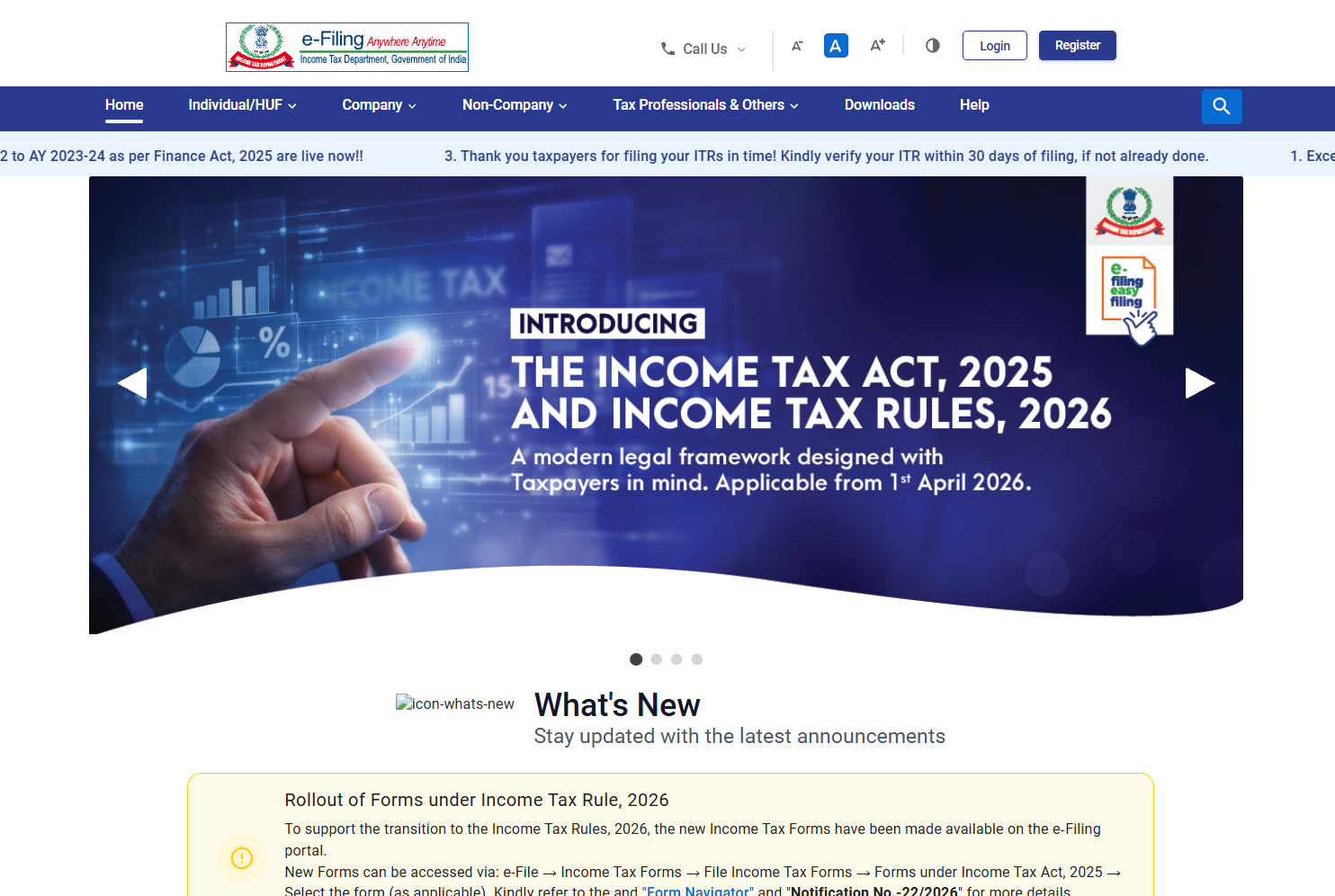
Step 1: Visit Income Tax e-Filing portal (www.incometax.gov.in).
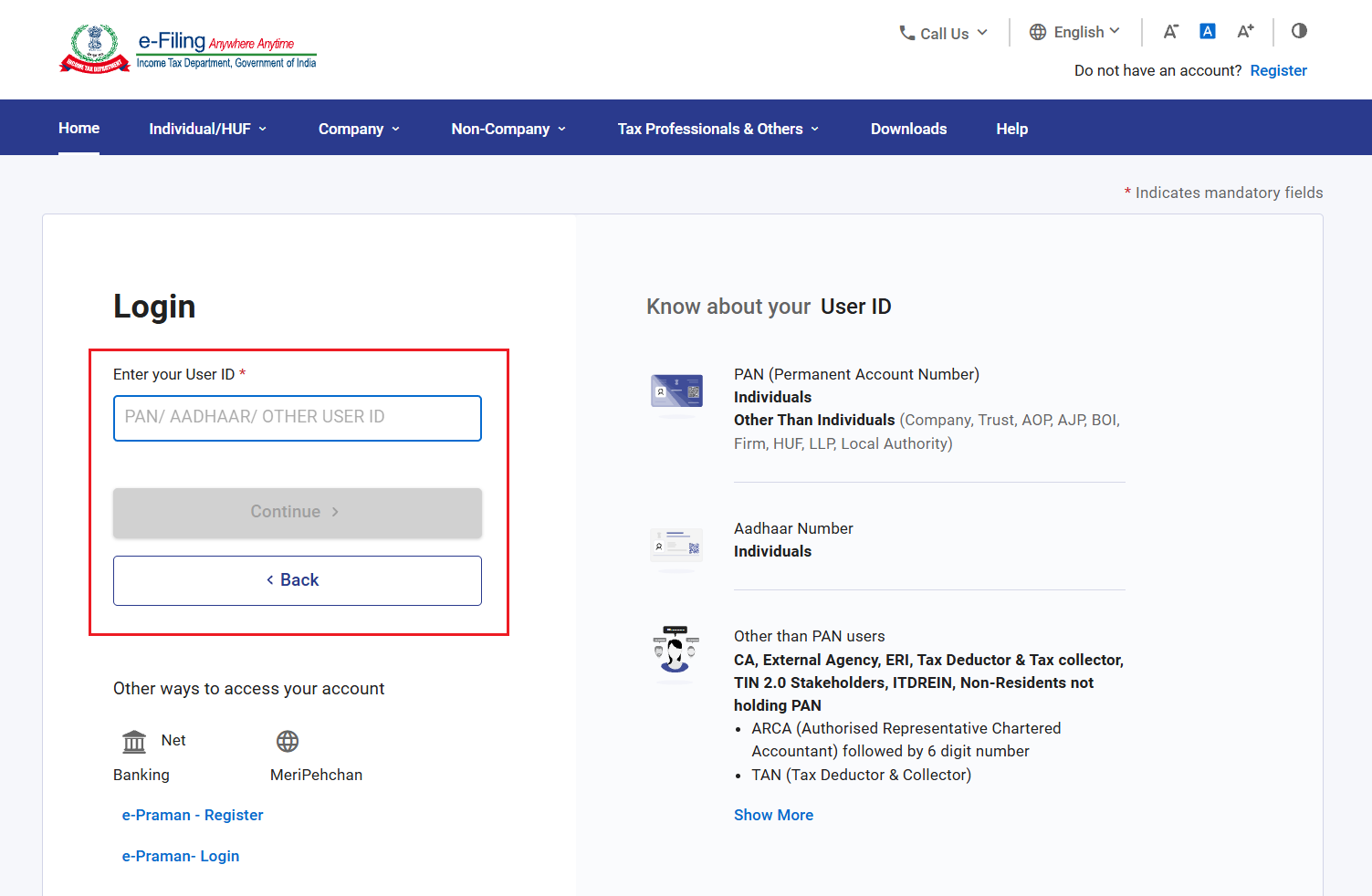
Step 2: Login with User ID (PAN) and password.
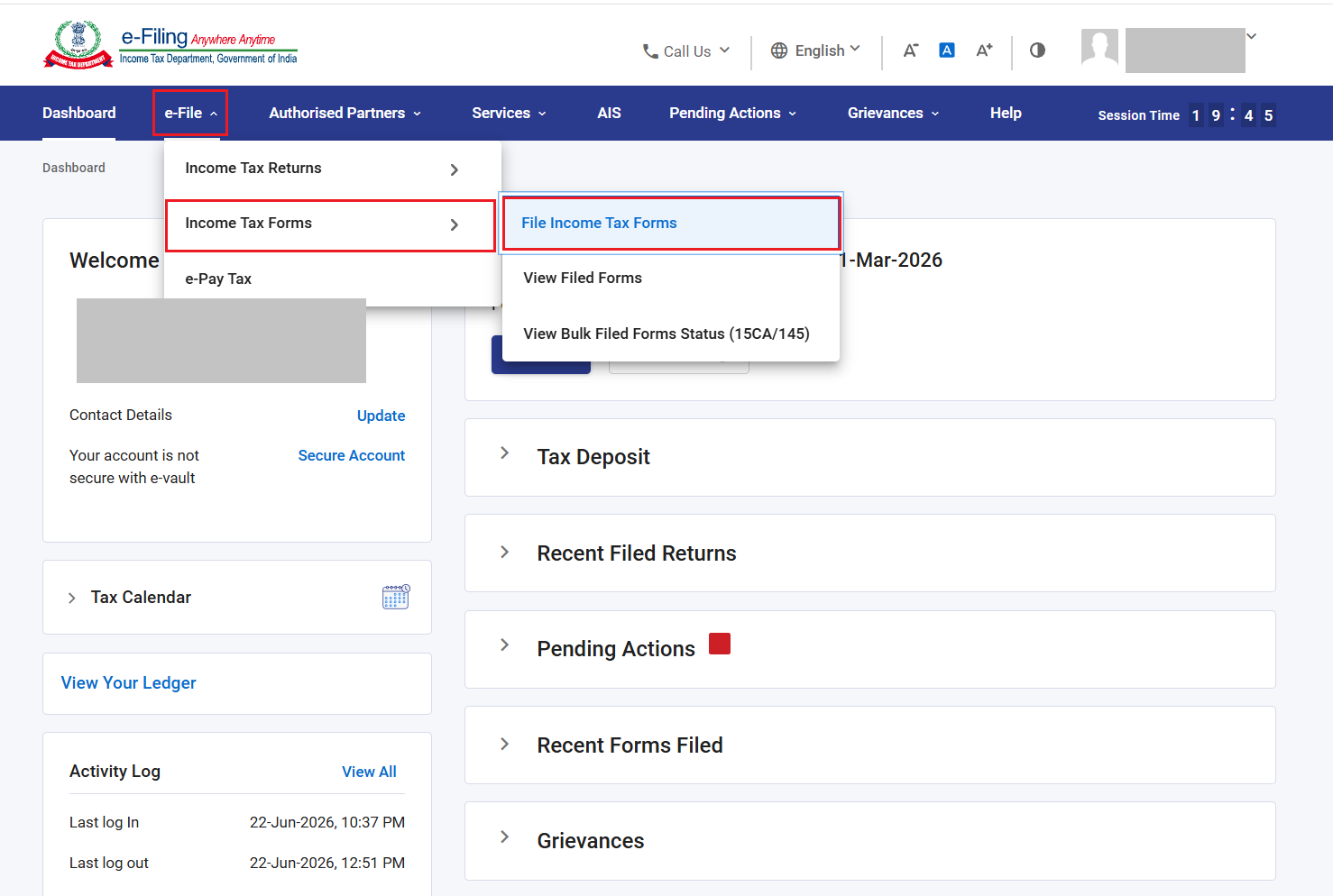
Step 3: After logging in, go to ‘e-File’ > ‘Income Tax Forms’ > ‘File Income Tax Forms’.
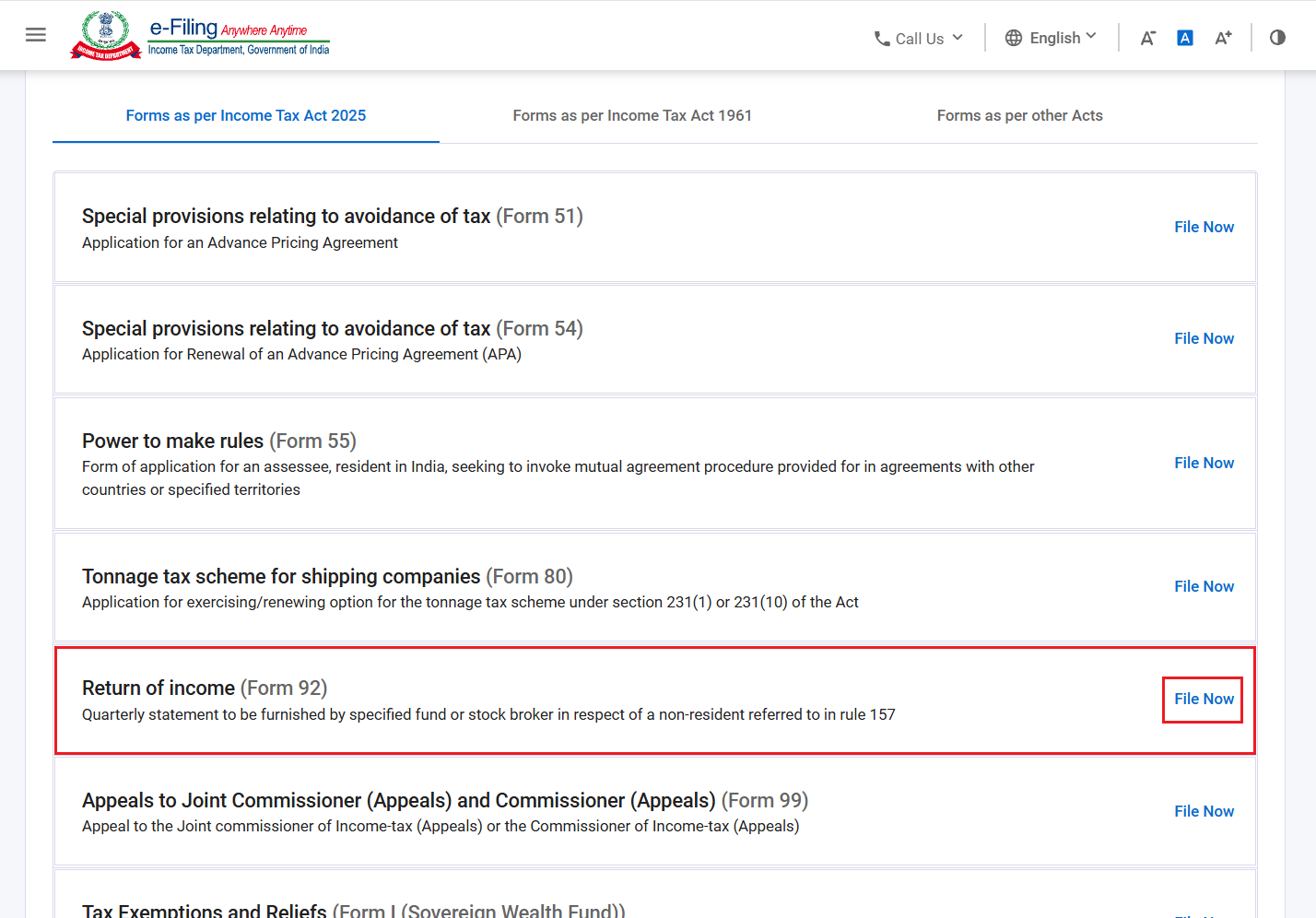
Step 4: Under ‘Forms as Per Income Tax Act 2025’ tab, select ‘Form 92’ and click ‘File Now’.
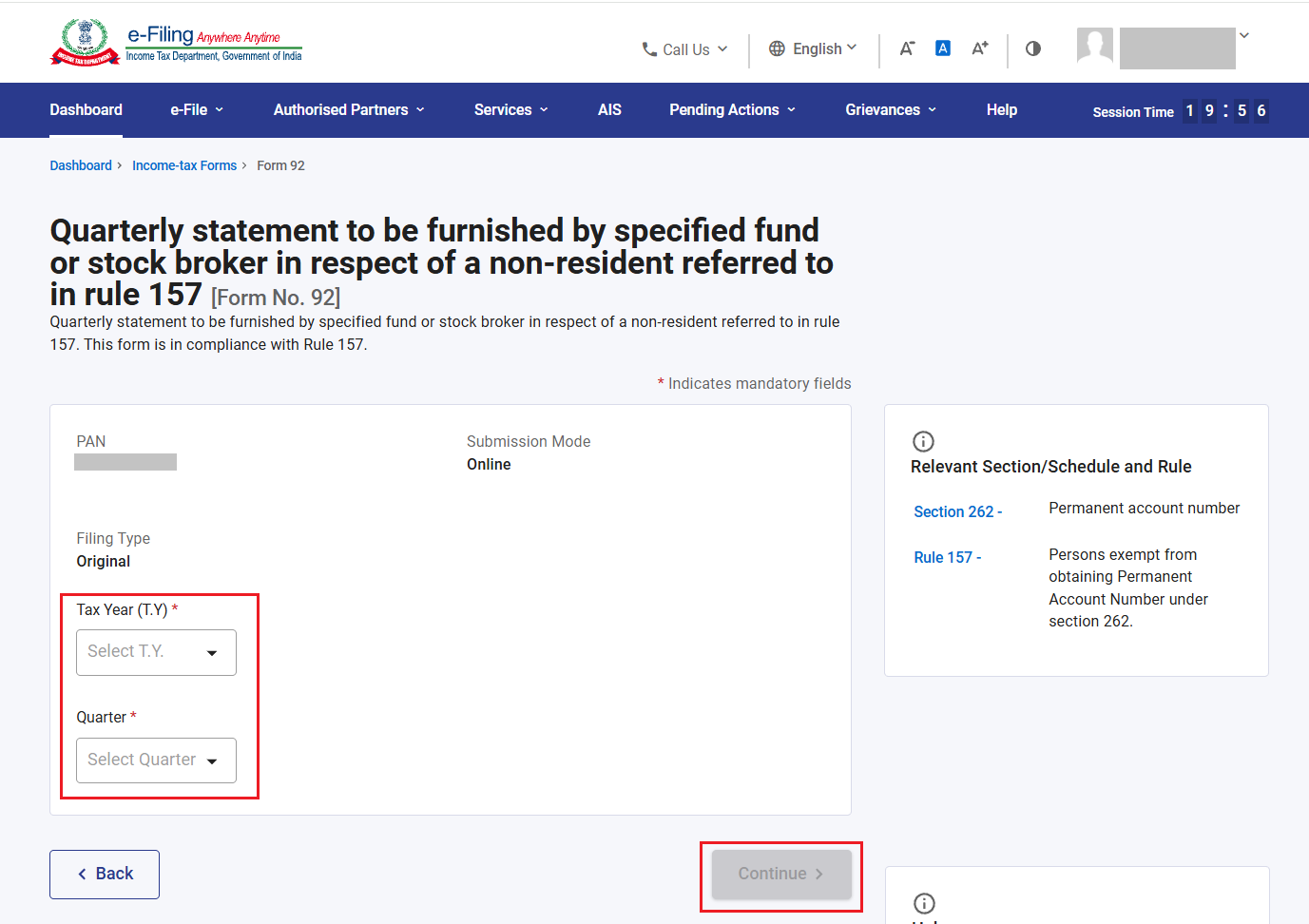
Step 5: On the form page, select Applicable Tax Year, Quarter and click ‘Continue’.
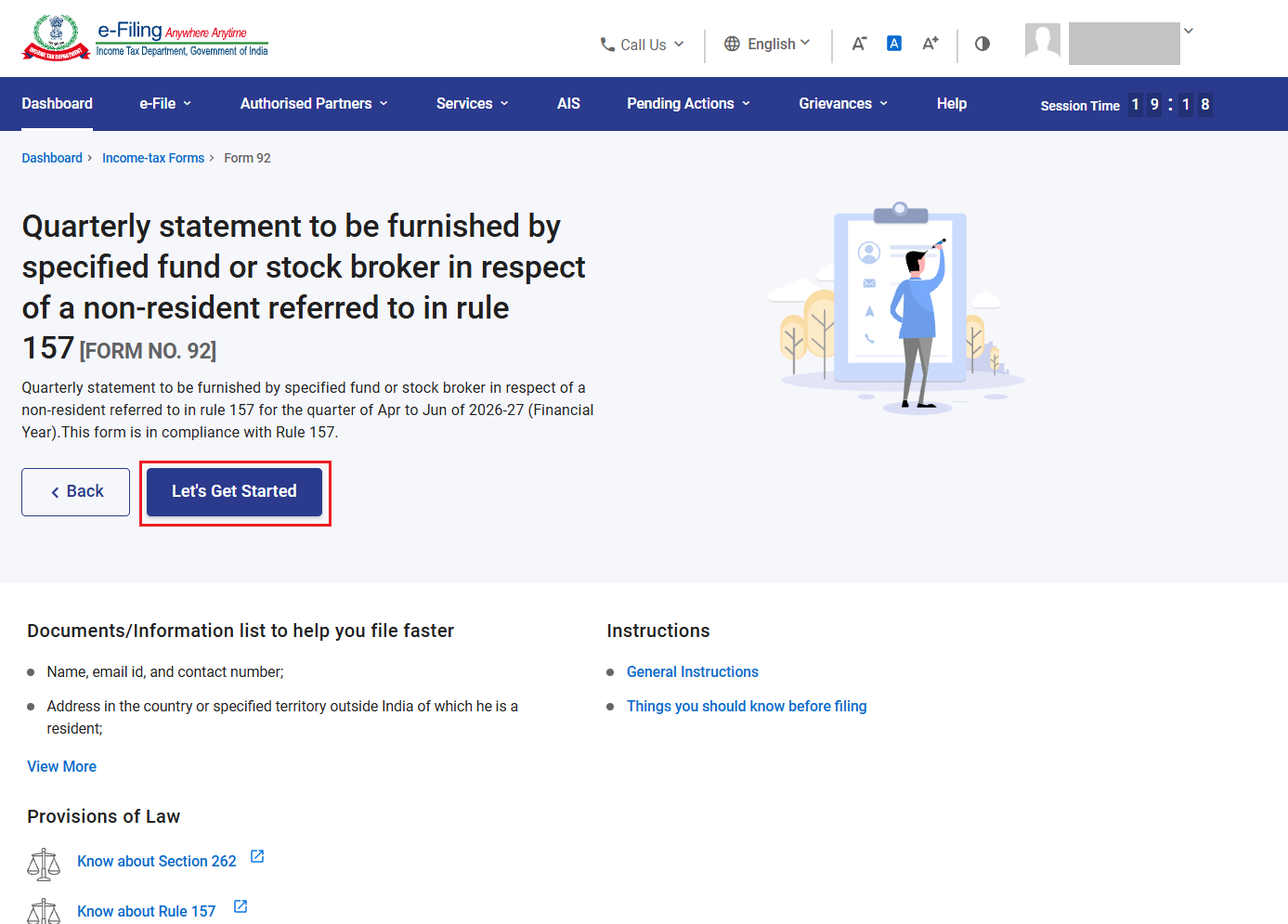
Step 6: Read the instruction to file the form and click on ‘Let’s get Started’.
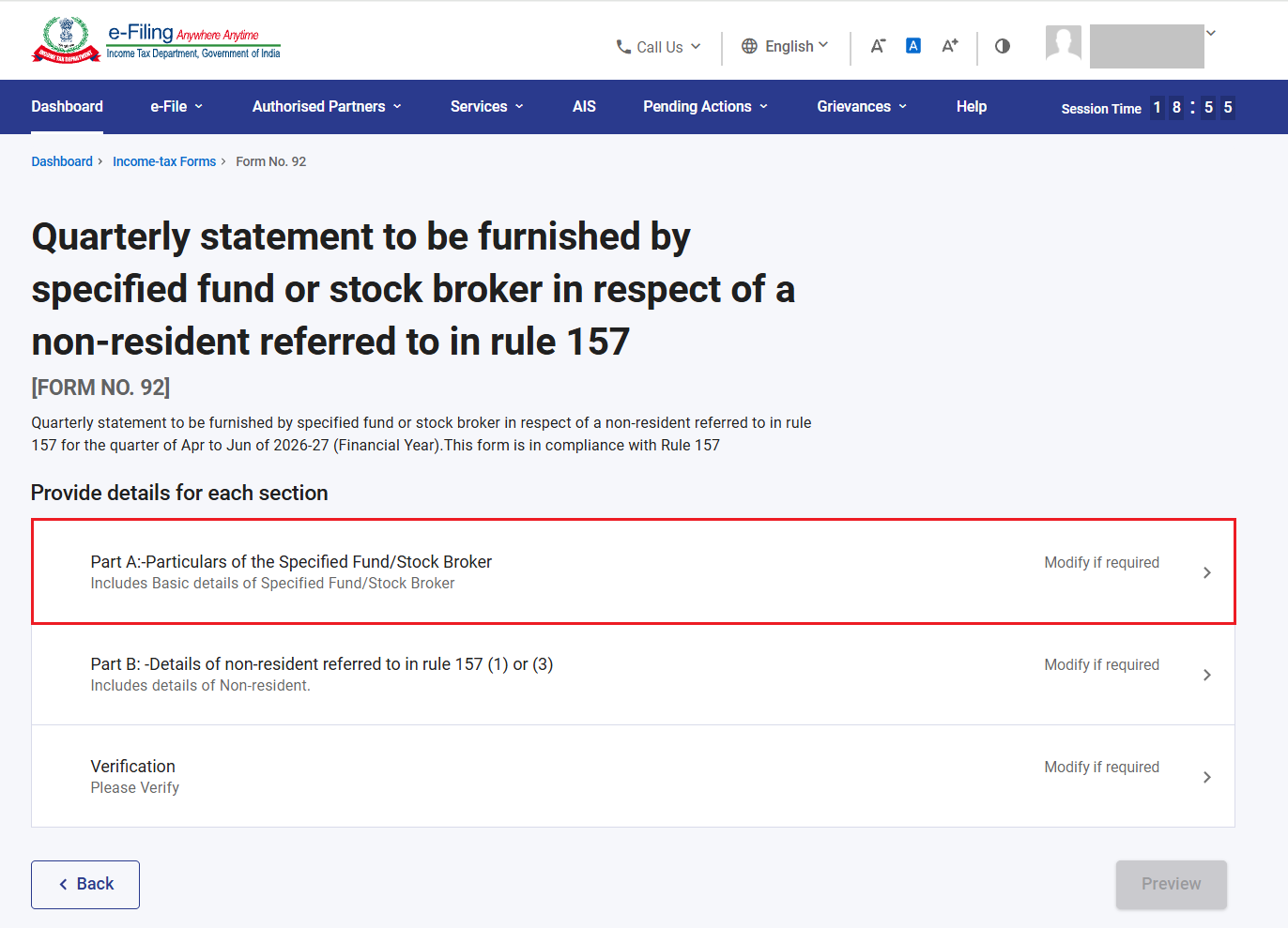
Step 7: Form 92 has 3 sections:
1. Part A- Particulars of specified fund/stock broker
2. Part B- Details of non-resident referred to in rule 157 (1) or (3).
3. Verification
To complete the form, complete each section of the form.
Now, click on ‘Part A- Particulars of Specified fund/Stock broker’.
Step 8: Basic information (Name, Address, Email ID etc) of Specified fund / Stock broker will be prefilled from profile section. If you want to change/update, go to ‘My profile’ and change the information. Additionally,
• Select Category (Specified Fund/ Stock broker) applicable to you.
• Attach the declaration obtained from non-resident.
• Enter your SEBI/IFSC registration number.
• Type of Specified Fund (in case of Specified fund)
Click ‘Save’.
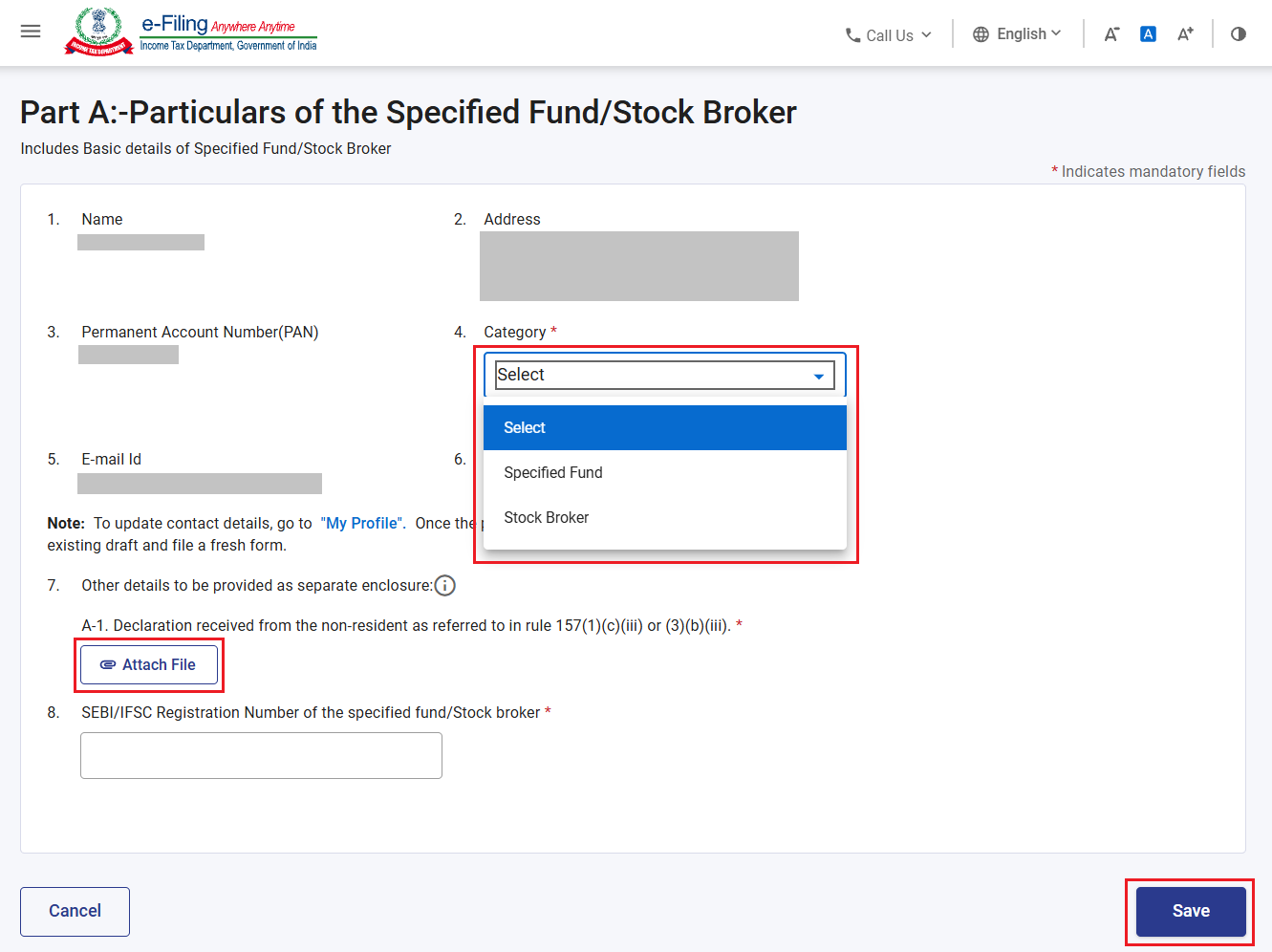
Step 9: Part A is completed. Now, click on ‘Part B- Details of non-resident referred to in rule 157 (1) or (3)’ of Income Tax Rule 2026’
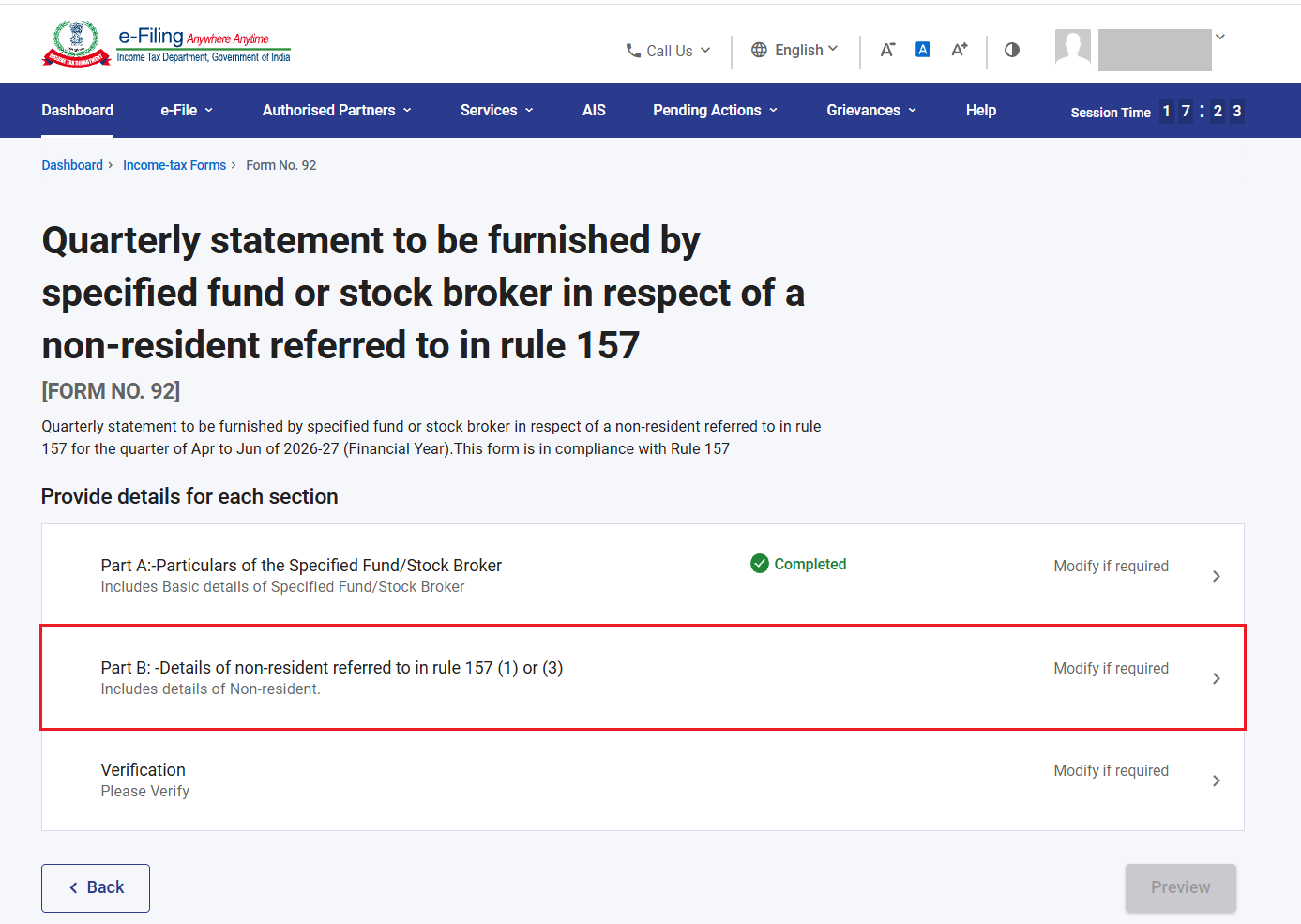
Step 10: In ‘Part B- Details of non-resident referred to in rule 157 (1) or (3)’ the details of non-resident clients needs to be furnished.
• If Records are up to 50, click on ‘+Add Details’ button and add the records. The details entered under Part B will be reflected in a table once added.
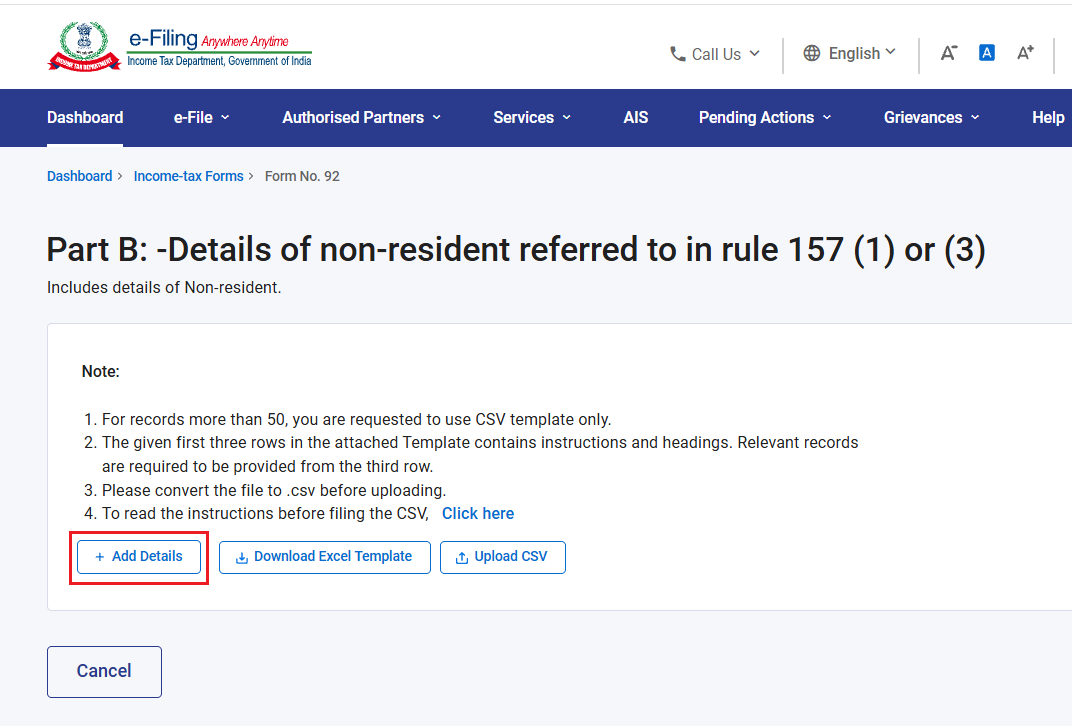
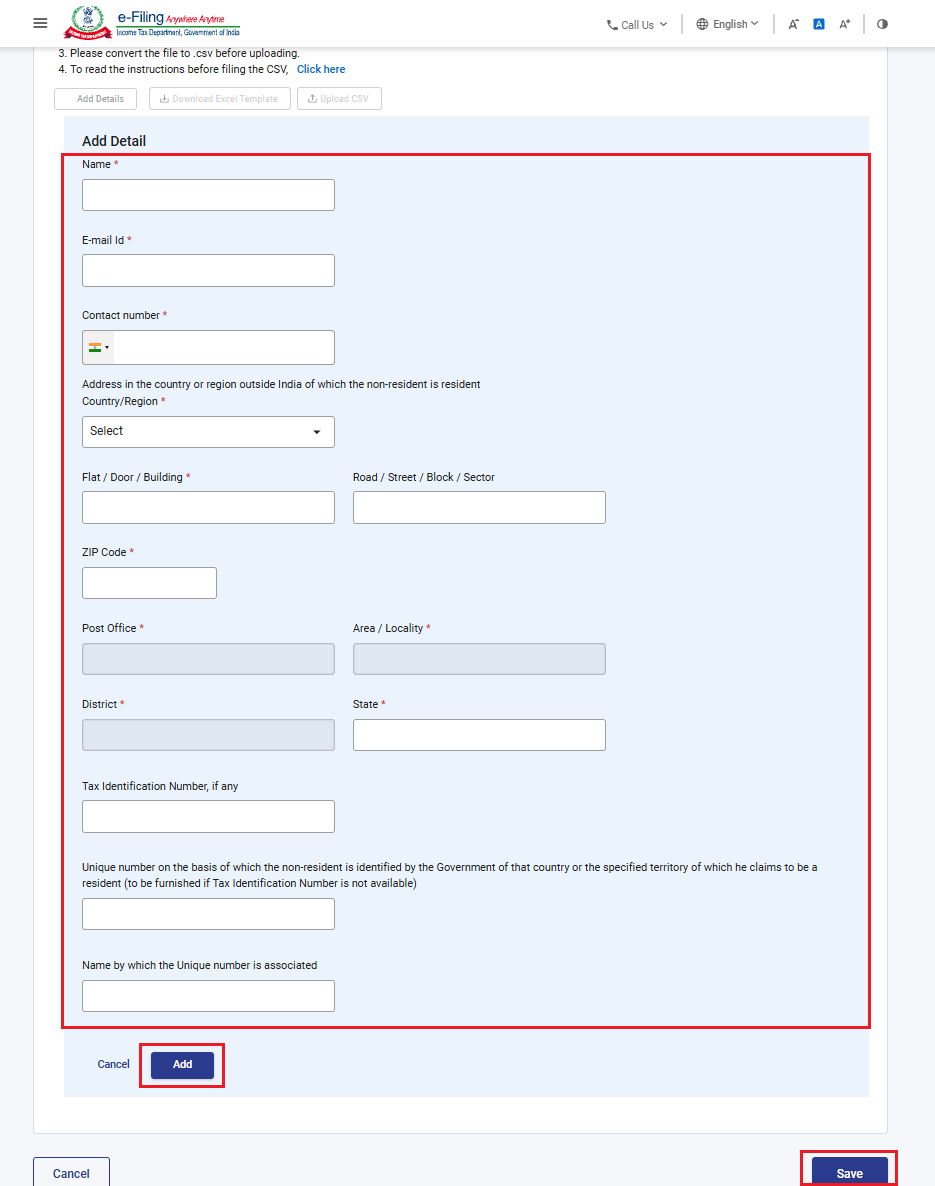
• To add the record of non-resident with the option of ‘+Add Details’, furnish information: Name, Address, email ID, contact number, Tax Identification number, etc and click add as below and then click ‘Save’.
• If records are more than 50, please click on ‘Download Excel Template’, furnish the details and convert it into .CSV format.
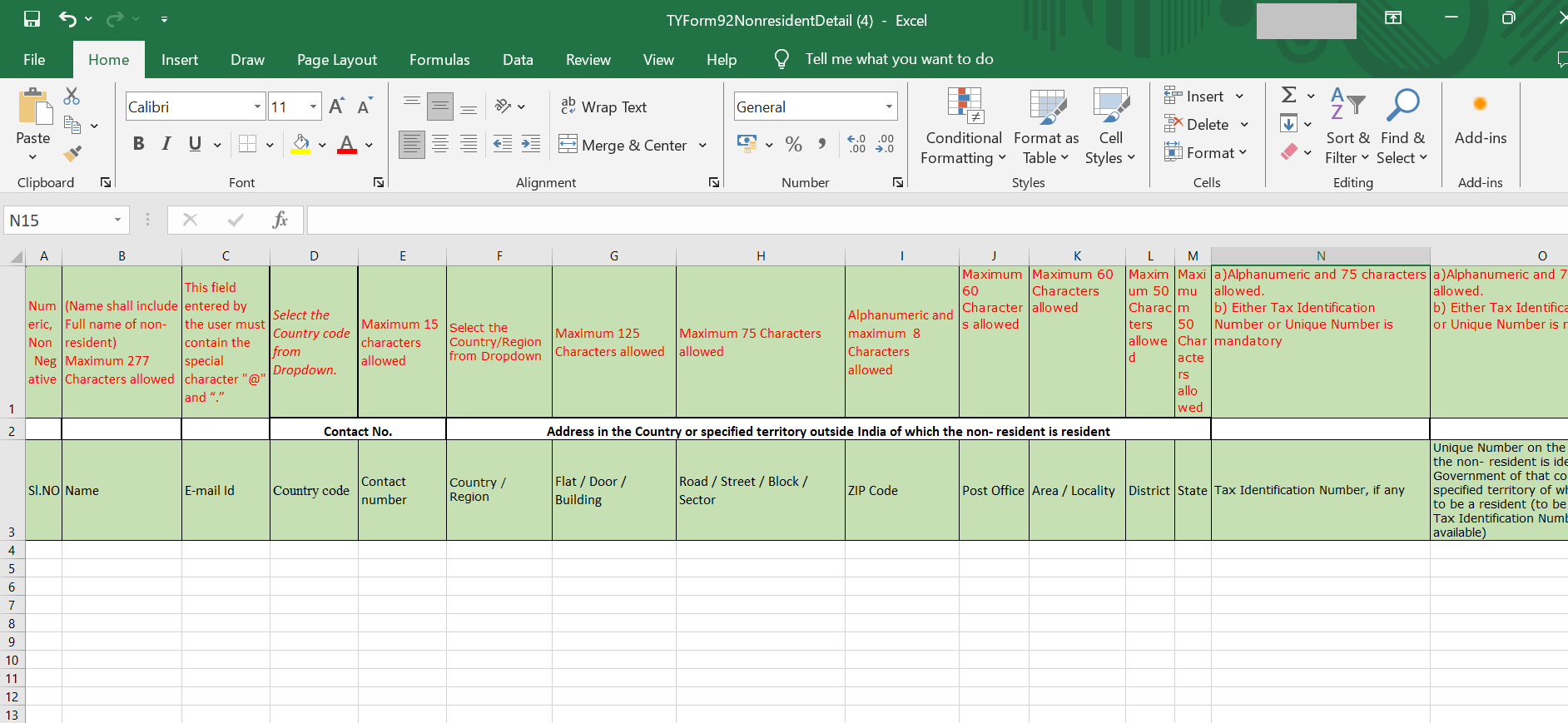
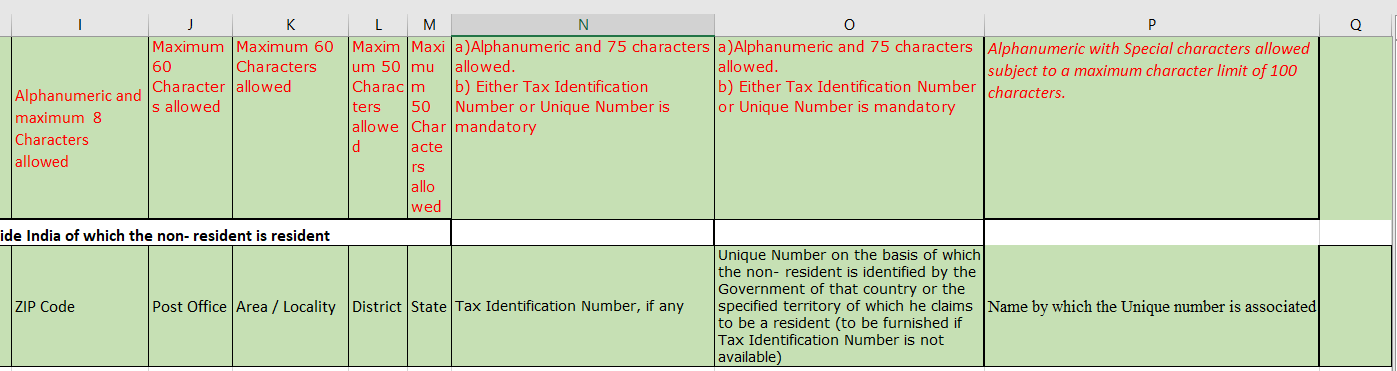
• After clicking the 'Download Excel Template' button, the Excel file will be downloaded in below format (Column A to Column P). In first row of excel template instructions are provided for entering data in excel. In second and third rows, headings and sub-headings are provided. Accordingly, the user needs to fill data from fourth row.
• Download the Instruction sheet by clicking on hyperlink ‘Click here’ and fill the information in excel sheet accordingly to avoid any error in uploading .CSV file.
• After entering data in the downloaded excel template, save the data in the excel template by clicking ‘File’ > ‘Save As’ or ‘Alt+F+A’. Select the ‘CSV (Comma delimited)’ from the drop down in ‘Save as type’ and then click Save. The excel file will be saved in CSV format.
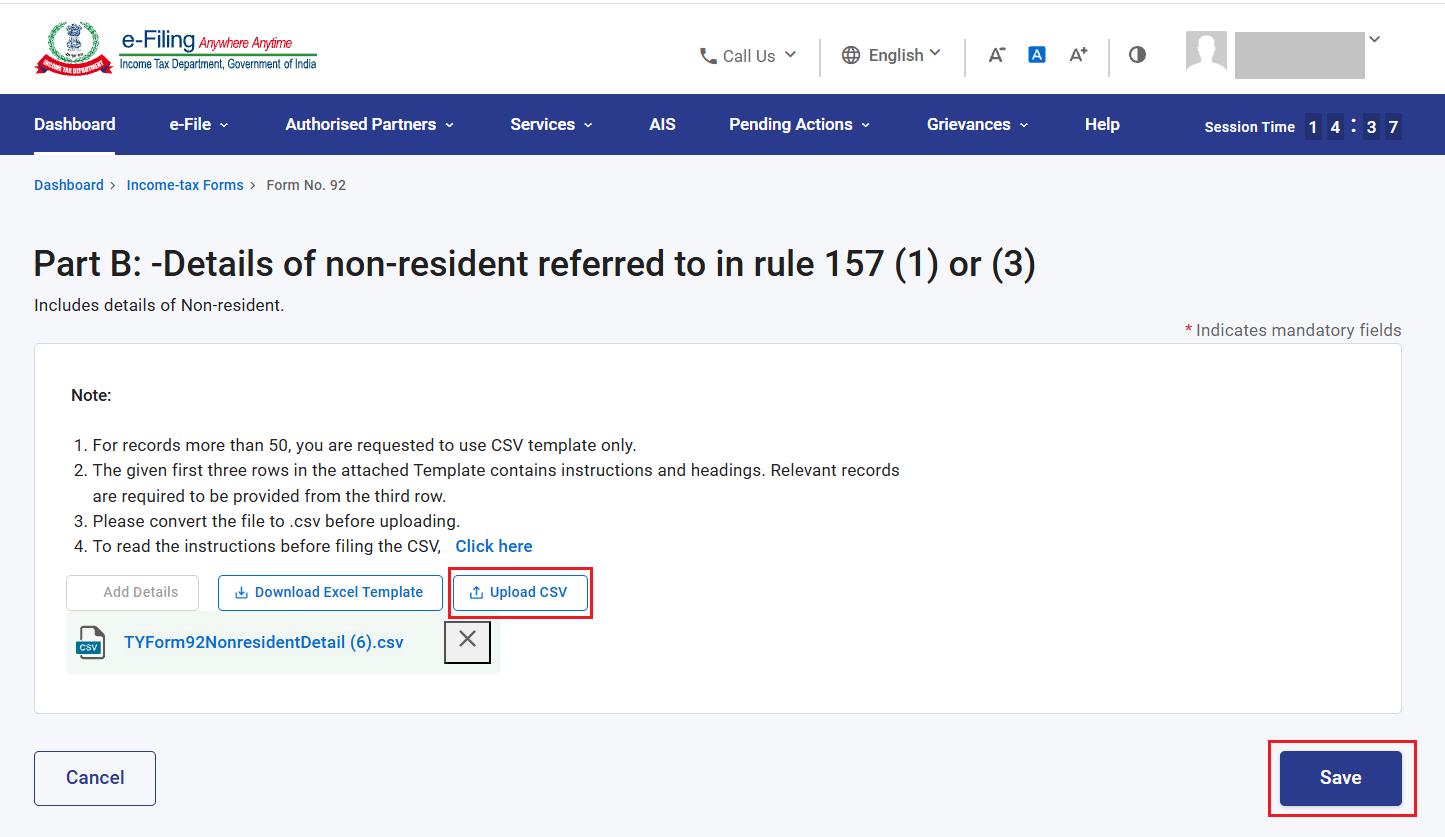
• Now, upload the .CSV file by clicking on ‘Upload CSV’ button. If there is no error in uploaded file, Click ‘Save’.
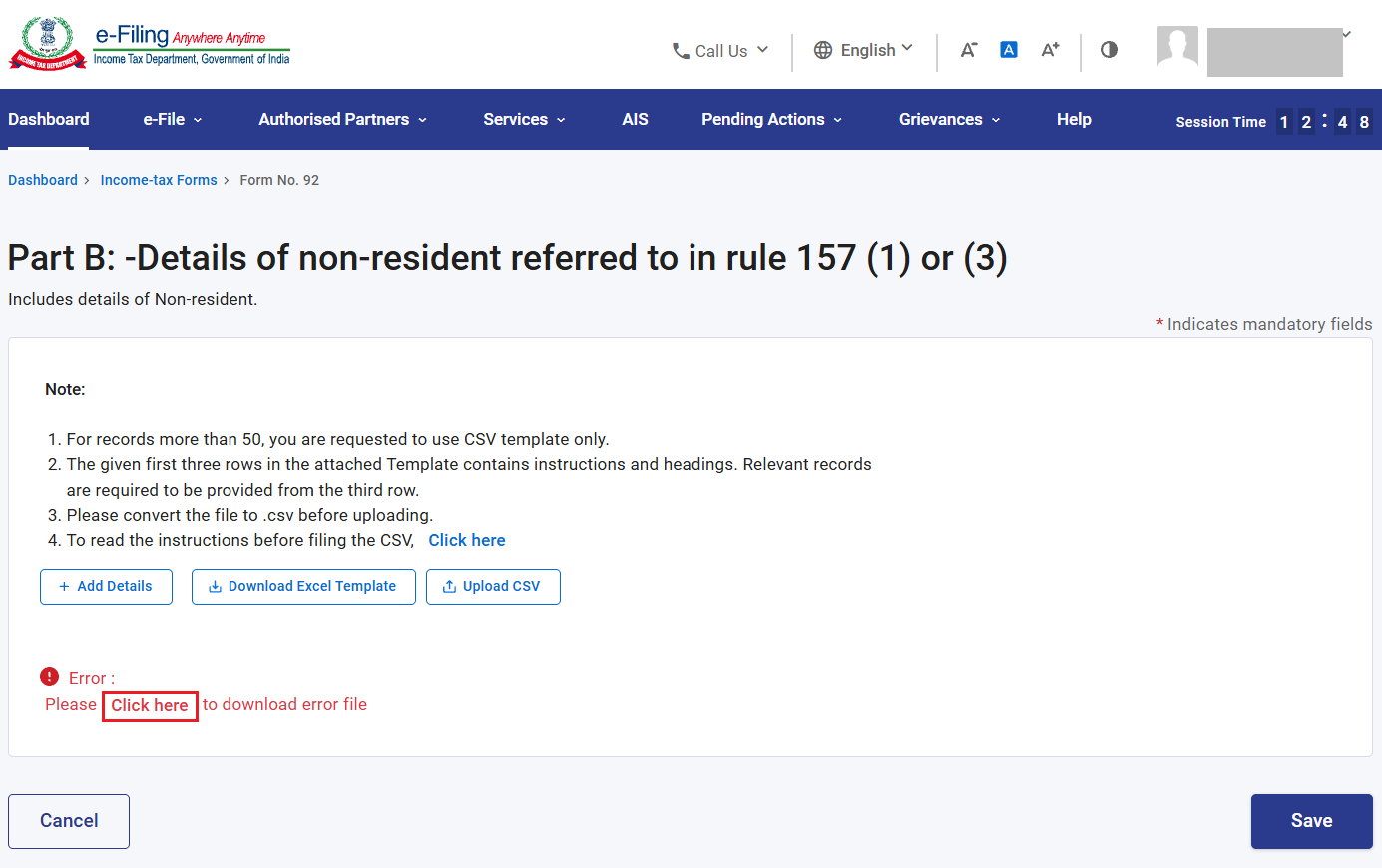
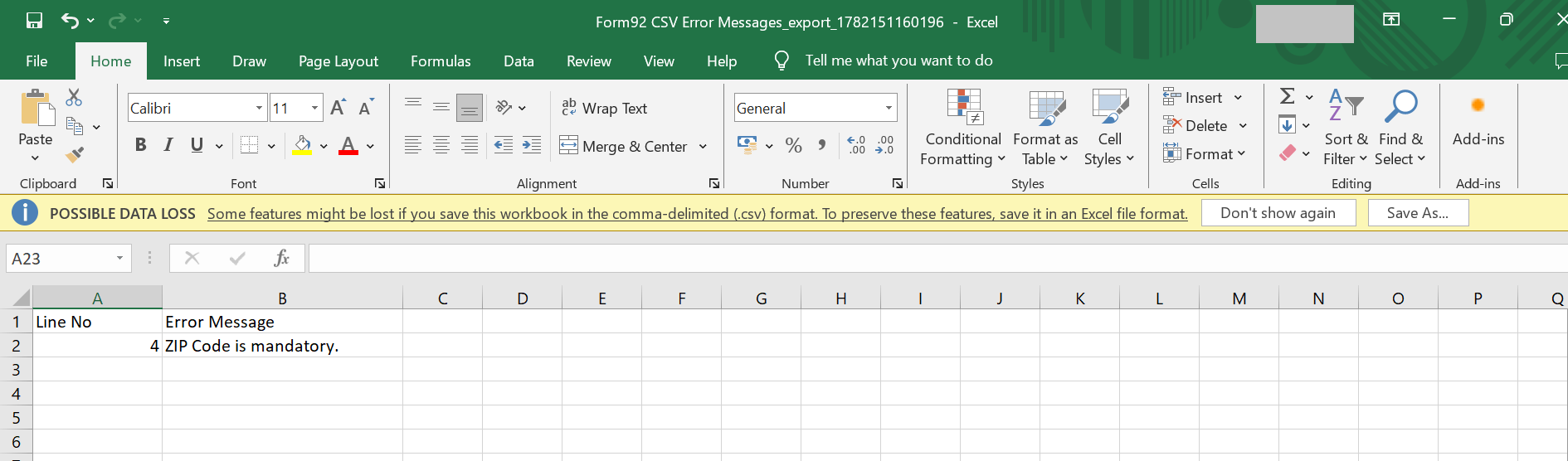
• If there is error in uploaded .CSV file, click on ‘Click here to download error file’ and check the error.
• Rectify the error in below error sheet and upload the .CSV file again. You can refer the instruction sheet to rectify the error.
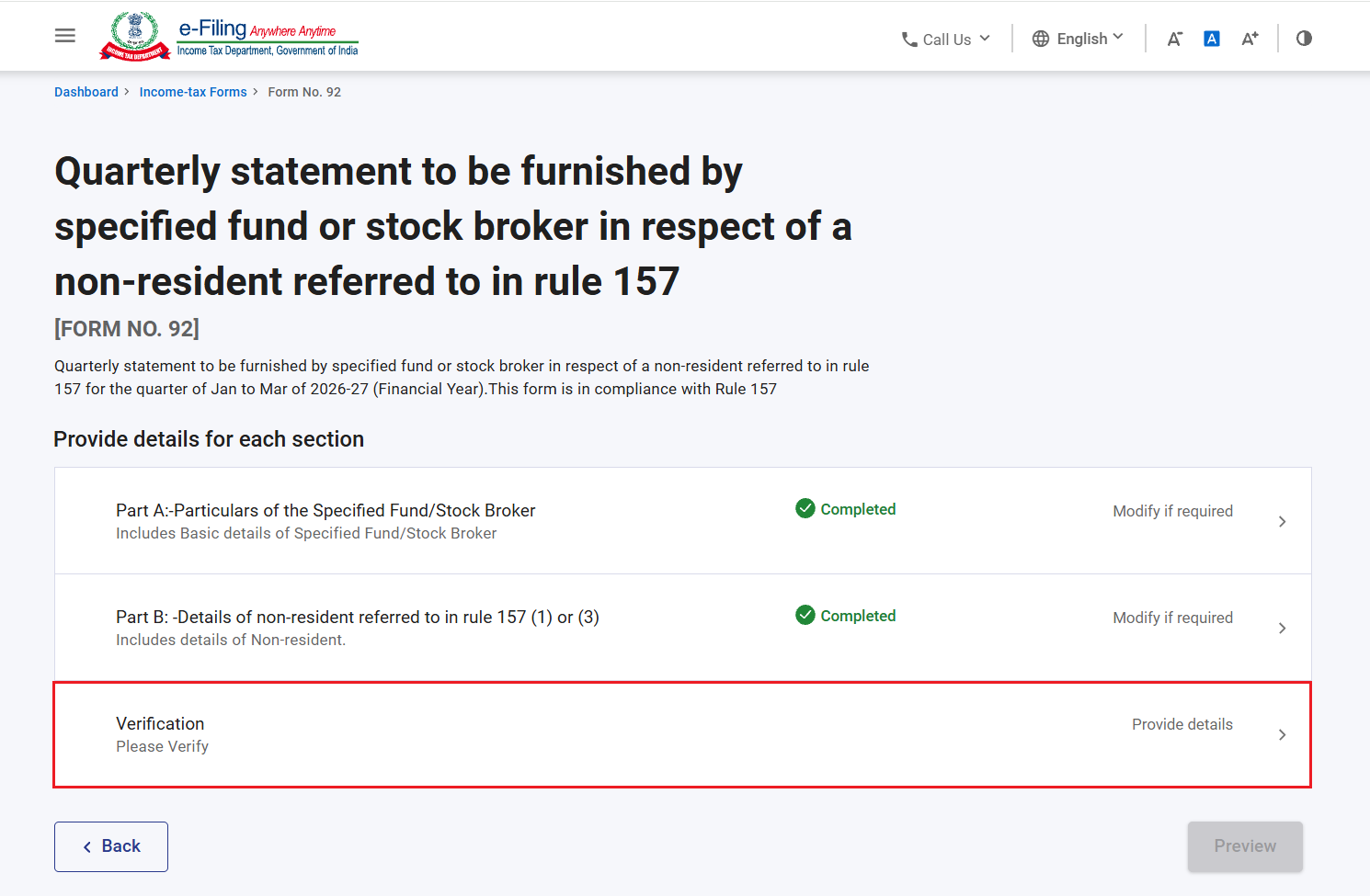
Step 11: Part B is completed. Now, click on ‘Verification’ panel.
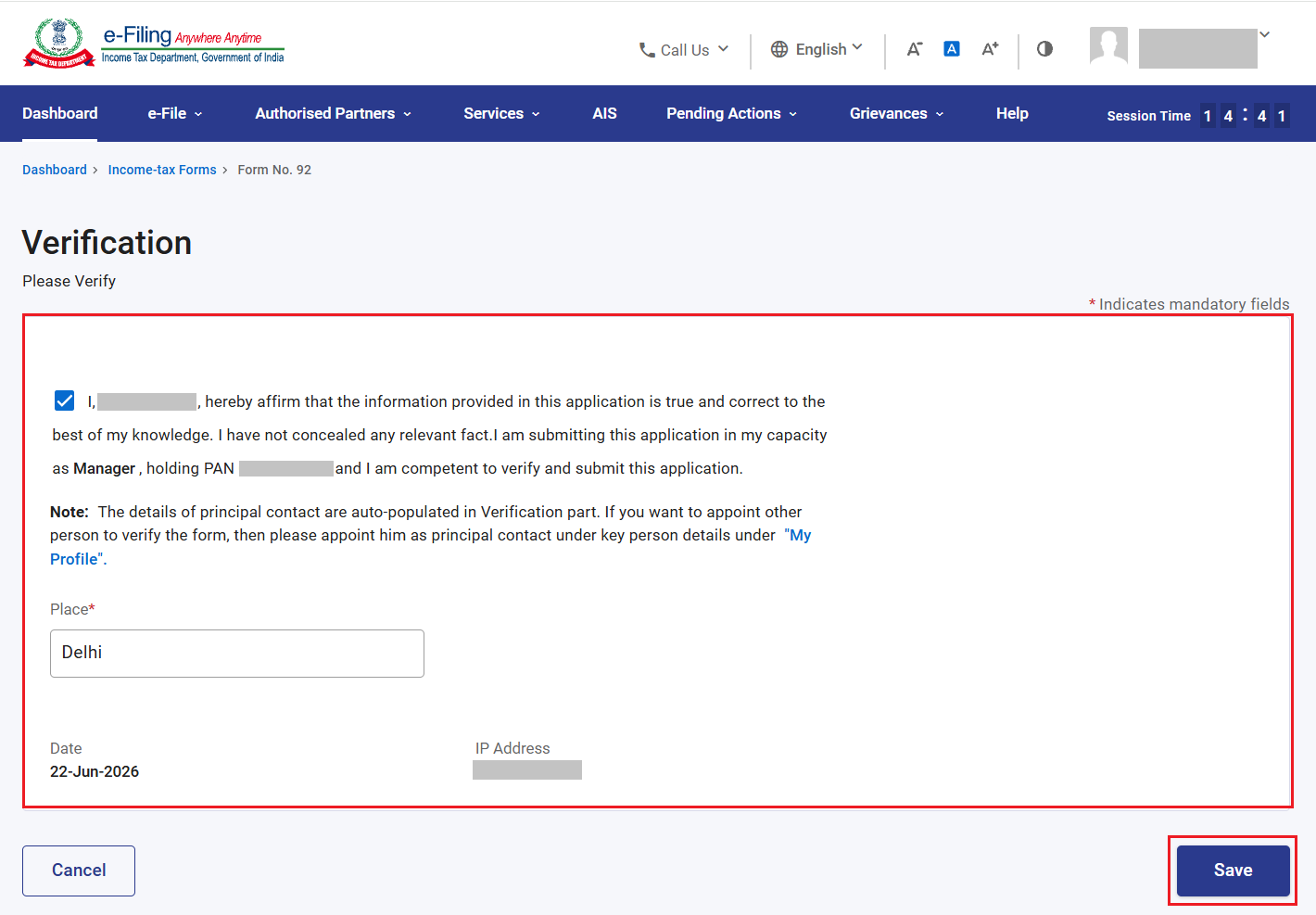
Step 12: Confirm the checkbox and enter place. Click ‘Save’.
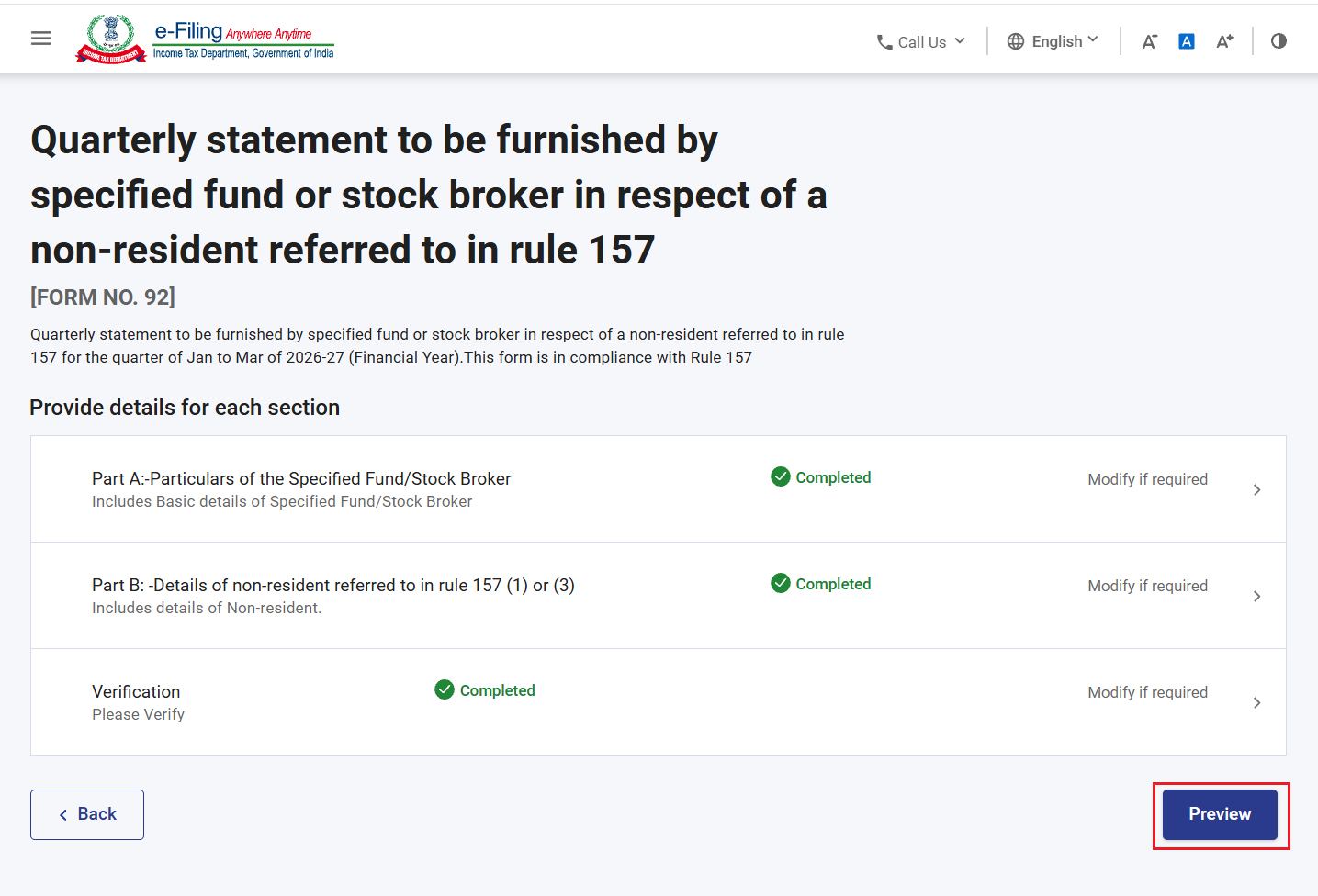
Step 13: All the three sections are completed. Click ‘Preview’.
Step 14: Verify the details in the preview of form. Click ‘Proceed to E-Verify’. By clicking the ‘Download’ button, the user can download the preview PDF and verify the details before proceeding with e verification.
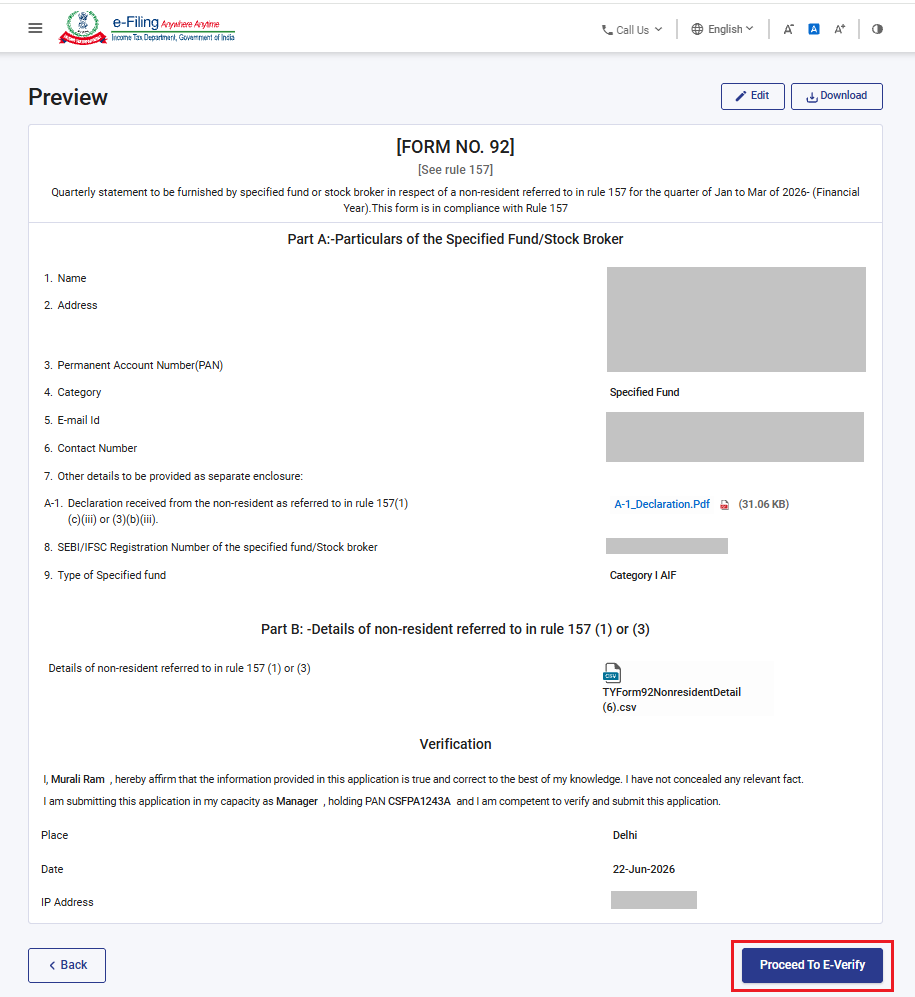
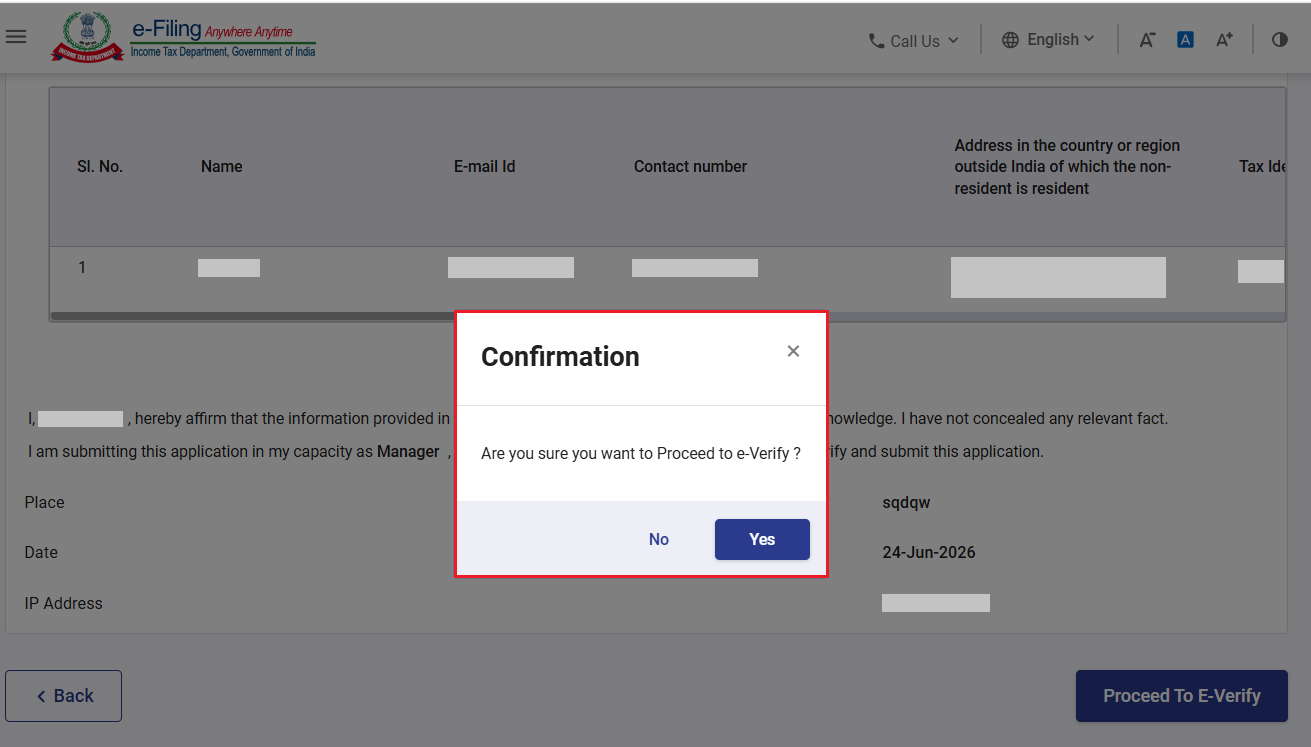
Step 15: Post clicking on ‘Proceed to E-Verify’ button, a popup confirmation displaying that you would like to proceed to e-Verify. Click on Yes.
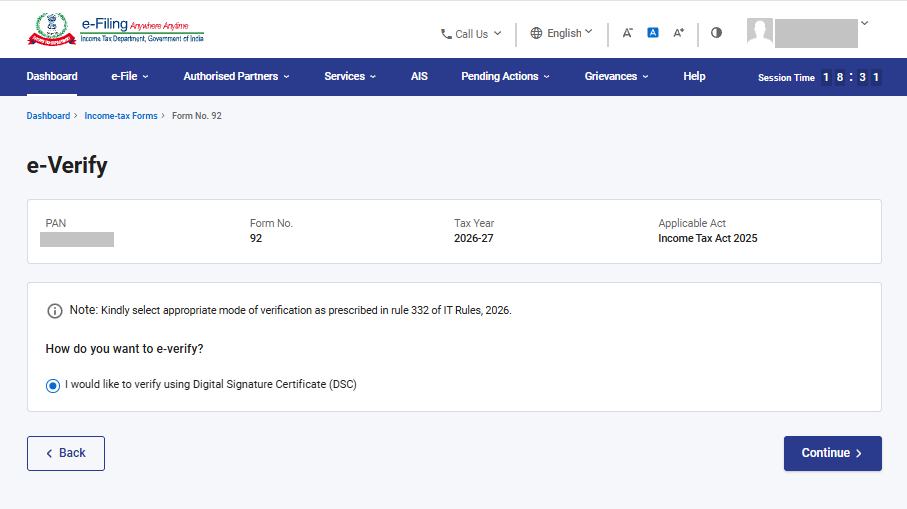
Step 16: On clicking ‘Yes’, you will be navigated to the e-Verify page where you can verify the Form 92 using DSC/EVC (as applicable).
Note: Refer to the How to e-Verify user manual to learn more.
Step 17: After successful e-Verification, the form will be submitted and a success message will be displayed along with a Transaction ID and Acknowledgement Receipt Number. Please keep a note of the Acknowledgement Receipt Number and Transaction ID for future reference. You will also receive a confirmation message on the email ID and mobile number registered with the e-Filing portal.
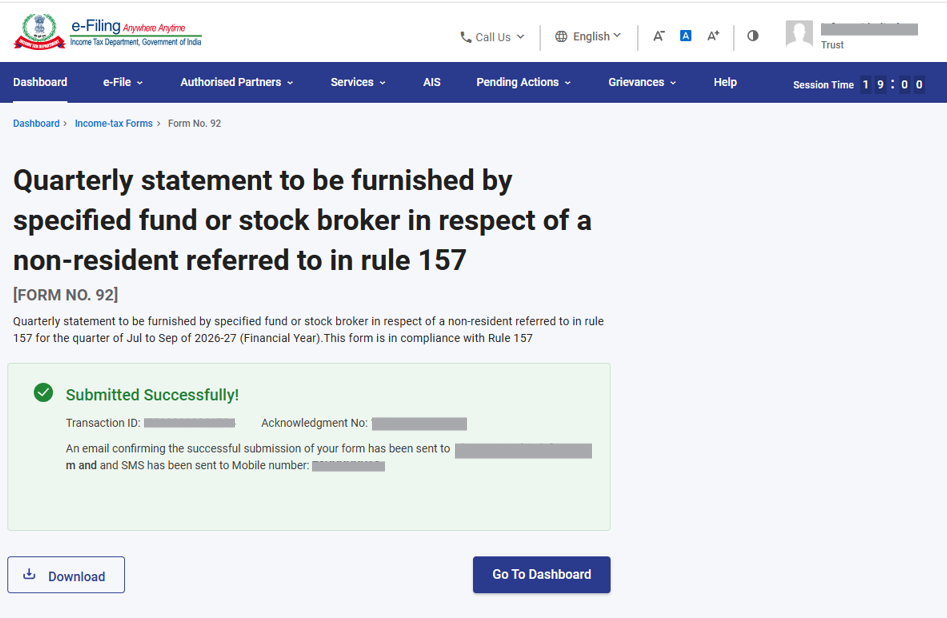
Click on ‘Download’ button to download the Acknowledgement receipt.
5.2. How to view filed form?
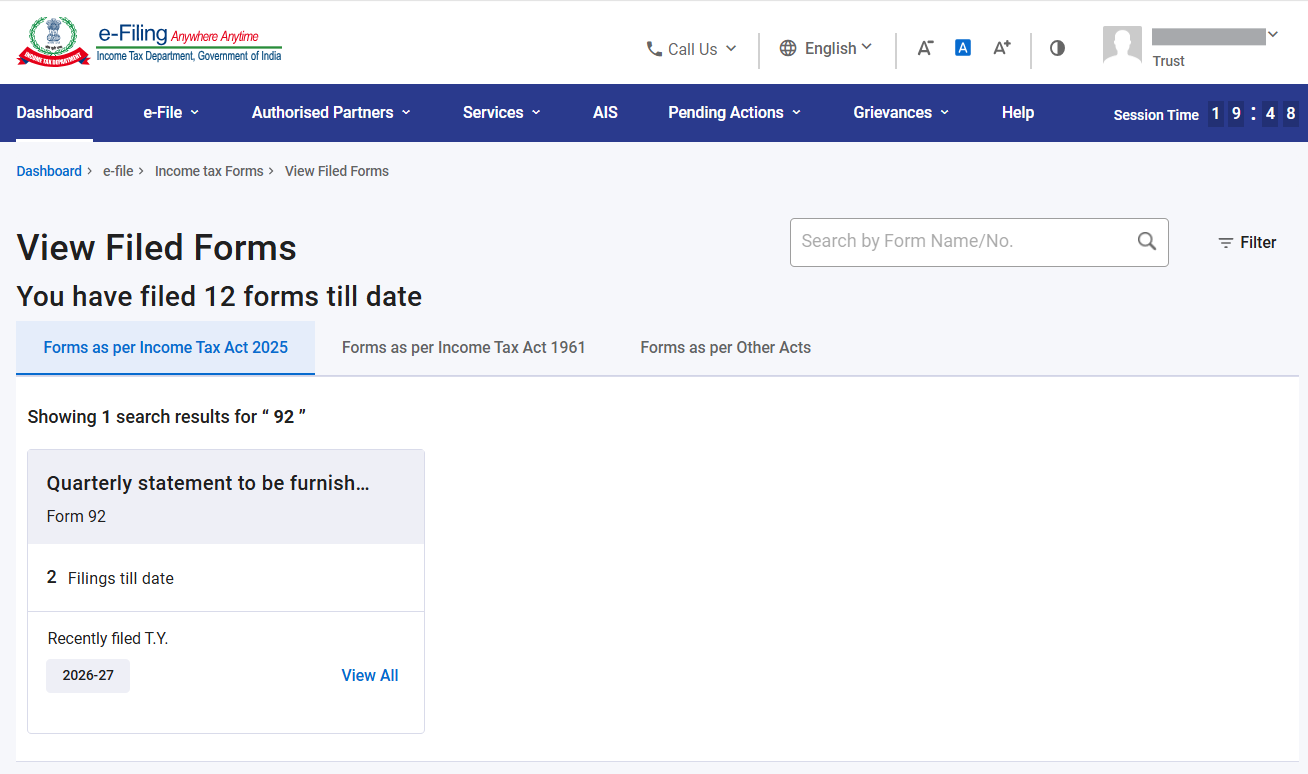
After successful submission of form 92 user can view the filed form under - Dashboard, click ‘e-File’ > ‘File Income Tax Forms’ > ‘View Filed Forms’ > ;Forms as per Income Tax Act 2025’.