



Authenticate the Notice/order issued by ITD - User Manual
1. Overview
The Authenticate Notice / Order issued by ITD service is available to both registered and unregistered users of the e-Filing portal as a pre-login service to verify the authenticity of a Notice, Order, Summons, Letter or any correspondence issued by Income Tax Authorities.
2. Prerequisites to Avail this Service
• Access to the e-Filing portal
3.Step-by-Step Guide
Step 1:Go to the e-Filing portal homepage.
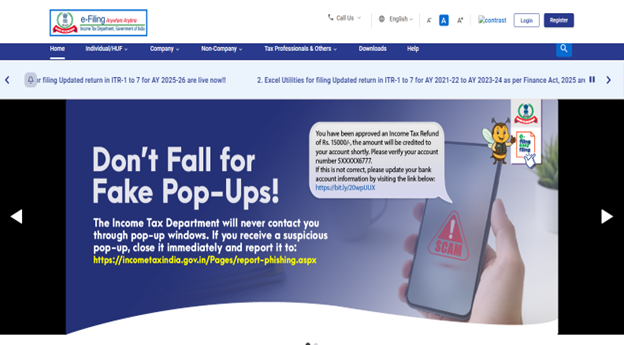
Step 2: In ‘Quick links’ section, Click on ‘Authenticate Notice / Order issued by ITD’.
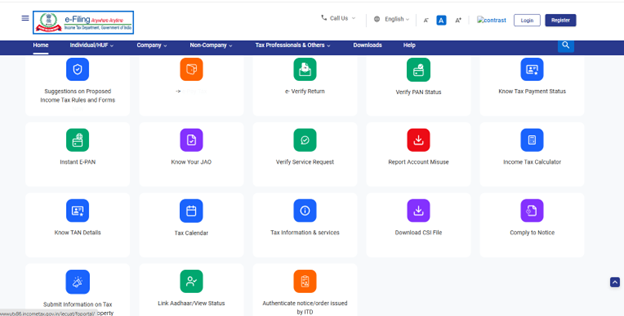
Step 3: Select either of the following options to authenticate the notice / order –
| PAN, Document type, Year Type, Date of Issue and Mobile Number |
Refer to Section 3.1 |
| Document Identification Number and Mobile Number |
Refer to Section 3.2 |
3.1: If you select the option – PAN, Document Type, Year Type, Date of Issue and Mobile Number
Step 1: Select ‘PAN, Document type, Year Type, Date of Issue and Mobile Number’ option.
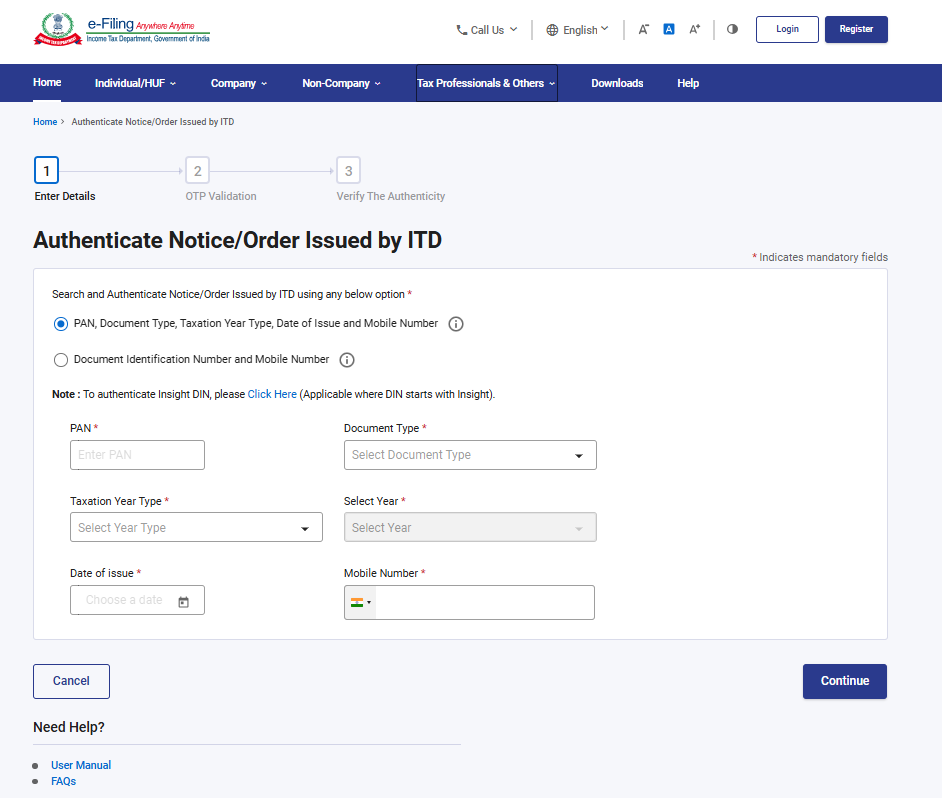
Step 2: Enter PAN, select Document Type and Year Type (Tax Year/Assessment Year), Select year, Date of Issuance, enter Mobile Number and click ‘Continue’.
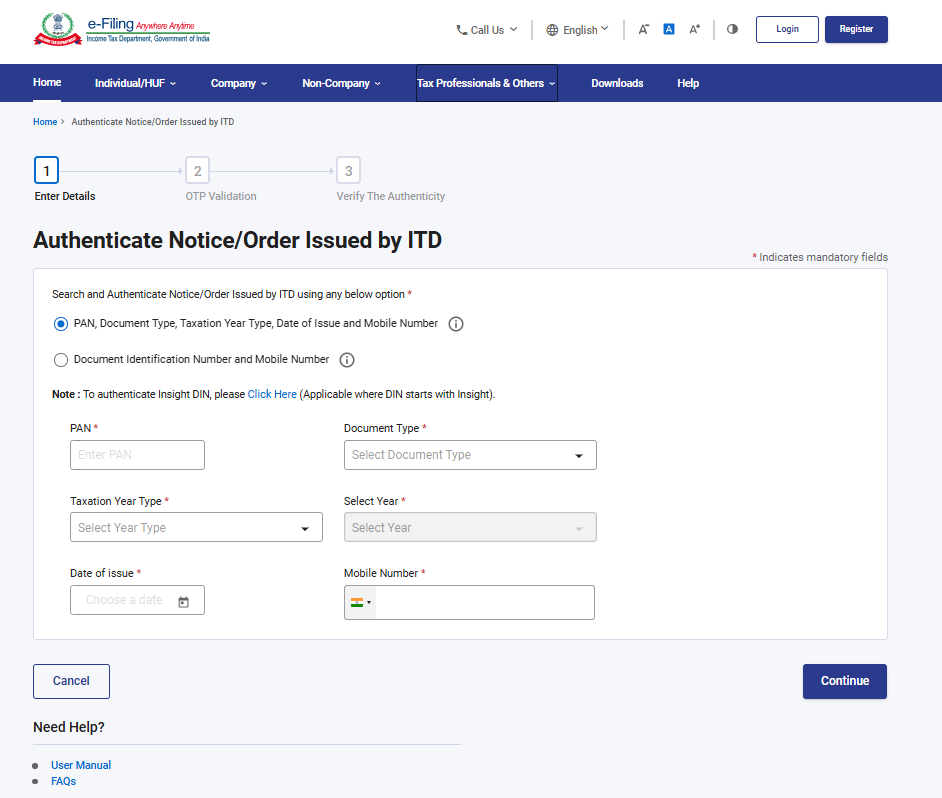
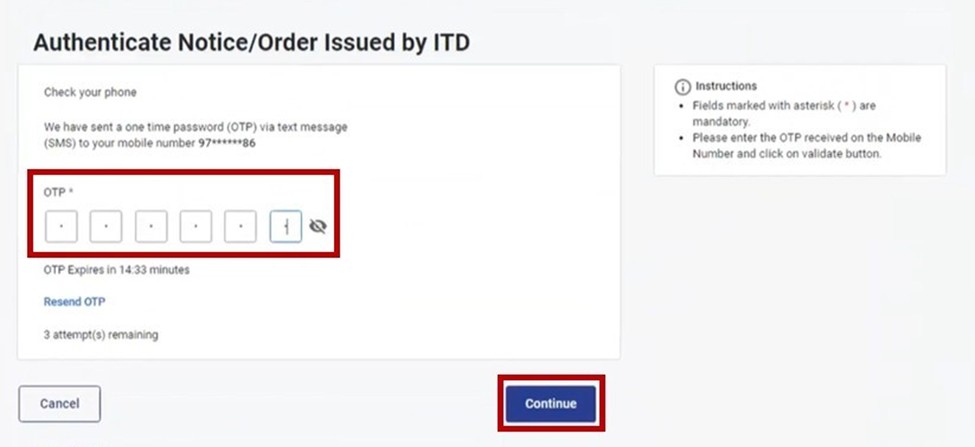
Step 3: Enter the 6-digit OTP received on the mobile number entered by you in Step 2 and click ‘Continue’.
Note:
- OTP will be valid for 15 minutes only.
- You have 3 attempts to enter the correct OTP.
- The OTP expiry countdown timer on screen tells you when the OTP will expire.
- On clicking Resend OTP, a new OTP will be generated and sent.
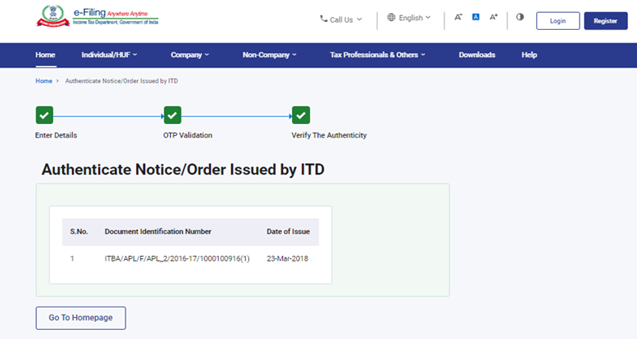
Once the OTP is validated, the document number of the notice issued along with the date of issue of the notice will be displayed.
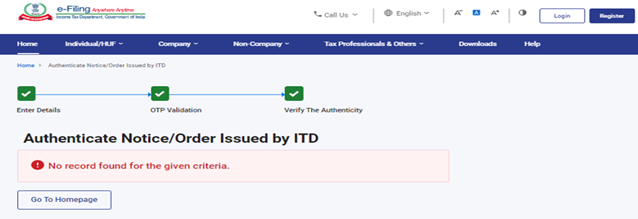
In case no notice was issued by ITD, it will display a message – No record found for the given criteria.
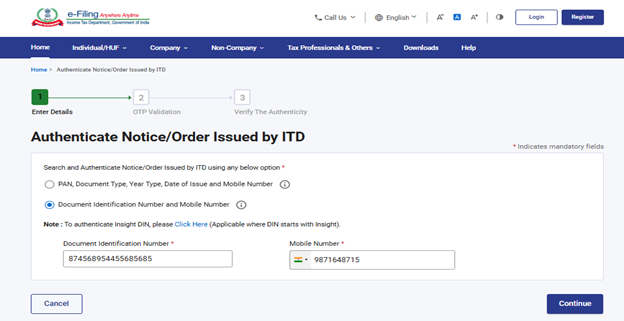
3.2: If you select the option – Document Identification Number and Mobile Number
Step 1: Select Document Identification Number and Mobile Number option.
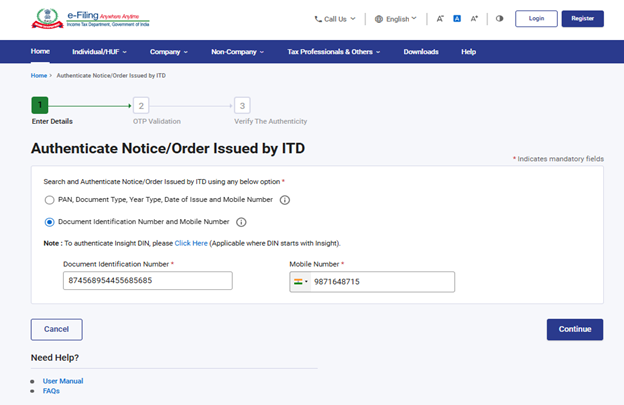
Step 2: Enter Document Identification Number and Mobile Number and click ‘Continue’.
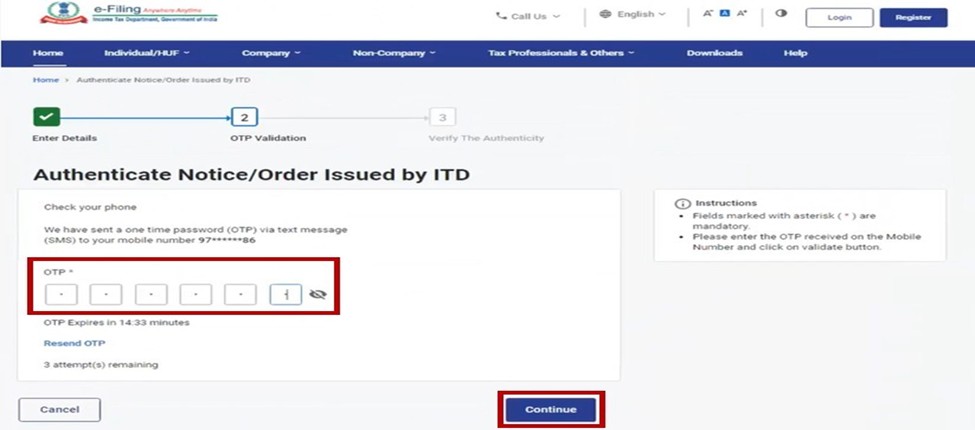
Step 3: Enter the 6-digit OTP received on the mobile number entered by you in Step 2 and click ‘Continue’.
Note:
- OTP will be valid for 15 minutes only.
- You have 3 attempts to enter the correct OTP.
- The OTP expiry countdown timer on screen tells you when the OTP will expire.
- On clicking Resend OTP, a new OTP will be generated and sent.
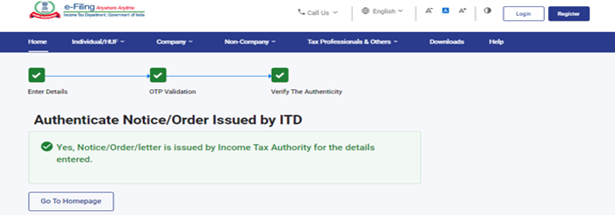
Once the OTP is validated, a message will be displayed.
If notice was issued by ITD, it will display a message – Yes Notice/order/letter is issued by Income Tax Authority for the details entered.
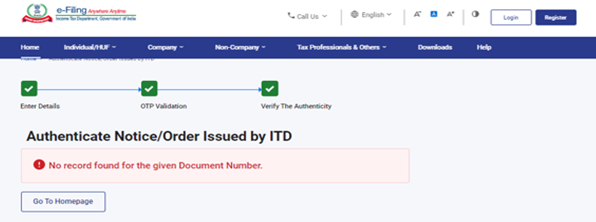
In case no notice was issued by ITD, it will display a message –
No record found for the given Document Number.
4. Related Topics



