



Form 105 & 107 User Manual
1. Overview
For certain categories of non profit organisations (NPOs), the Income tax Act, 2025 requires them to obtain regular registration or regular approval in order to continue claiming tax exemptions on income and to enable donors to claim deduction for donations. This process allows the Income tax Department to verify the organisation’s activities, objects, and compliance status on an ongoing basis and ensures that only eligible and compliant entities remain entitled to these tax benefits.
To obtain such regular registration under section 332(3) or regular approval under section 354(2) of the Income tax Act, 2025, the applicant is required to file Form 105 electronically on the Income tax e Filing portal, in accordance with Rule 181 of the Income tax Rules, 2026. Form 105 is a consolidated application form that covers both registration of non profit organisations and approval for donation related deductions, and it is generally filed when activities have commenced, provisional registration is expiring, existing registration is due for renewal, or there is a modification in the objects of the organisation.
After Form 105 is successfully submitted and examined, the Income tax Department issues an order in Form 107, granting regular registration and/or approval, as applicable, along with a 16 digit Unique Registration Number (URN). This URN serves as confirmation that regular registration or approval has been granted and must be quoted in future compliances.
Further if the applicant has made any mistake while filing Form 105, the application can be withdrawn within 7 days from the date of filing.
2. Prerequisites for availing this service
• You should be a registered user on the e-Filing portal
• Status of PAN of the taxpayer should be "Active"
• You should have a valid DSC to verify the form through DSC mode, and it must be registered on the e-filing portal and not expired
3. About the Form
3.1 Purpose
Regular registration or approval under section 332 or section 354 enables a non profit organisation to continue availing tax exemptions and permits donors to claim deduction for eligible donations. Such regular registration or approval is obtained by filing Form 105 on the e Filing portal, after which the Income tax Department examines the application.
All registered users except Individual users, on the e-Filing portal can furnish the required details in Form 105 for obtaining regular registration or/and approval u/s 332 or 354 of the Income-tax Act, 2025.
3.3 Form at a Glance
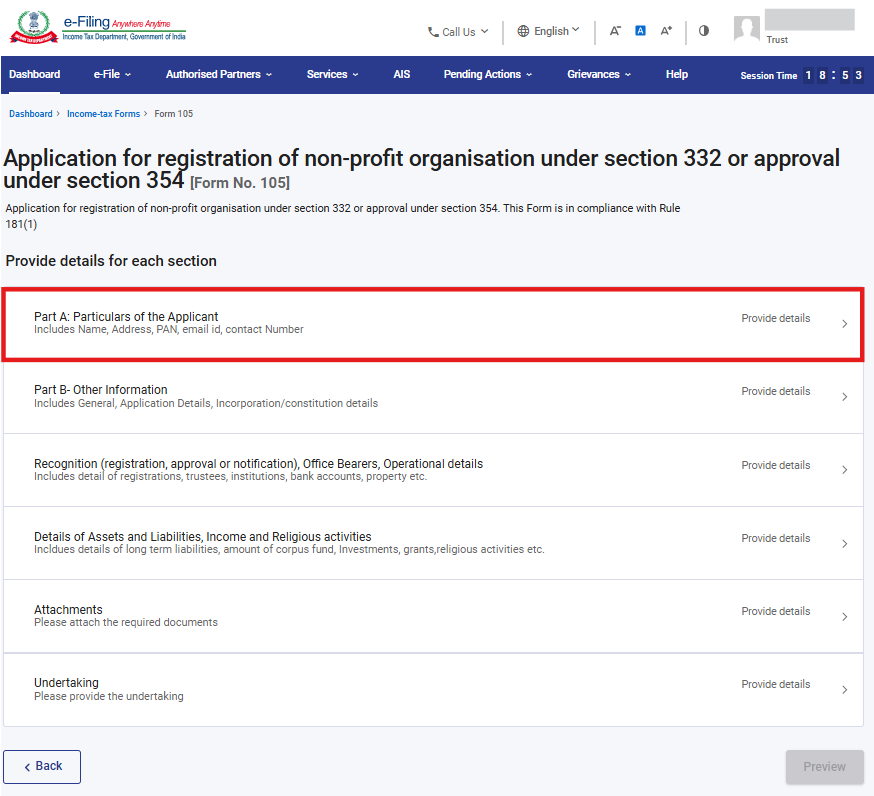
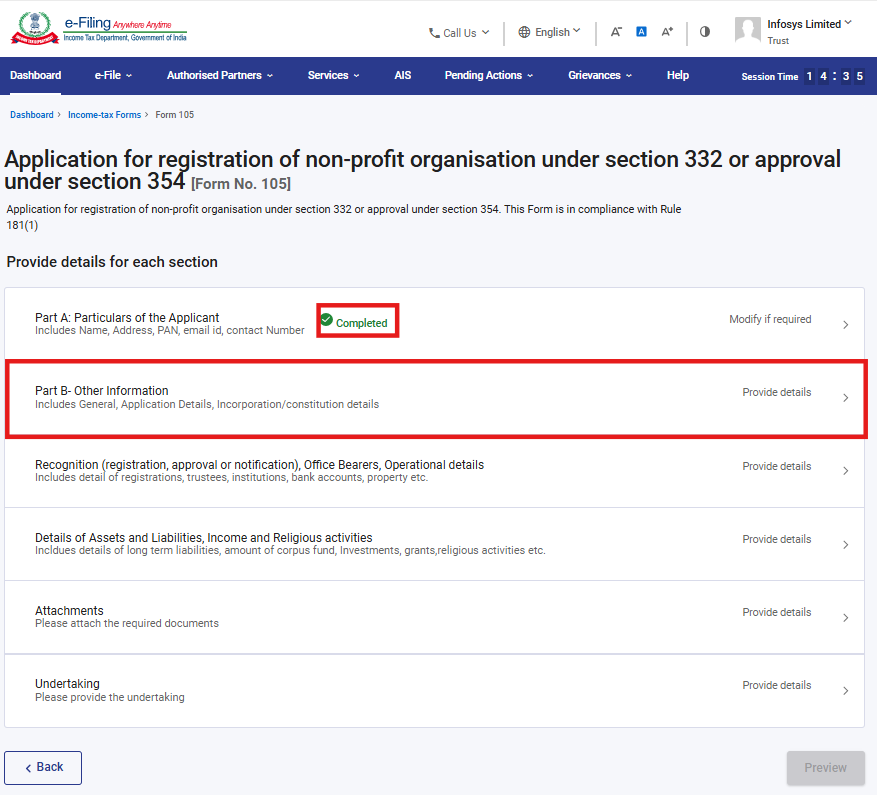
Form 105 has six panels:
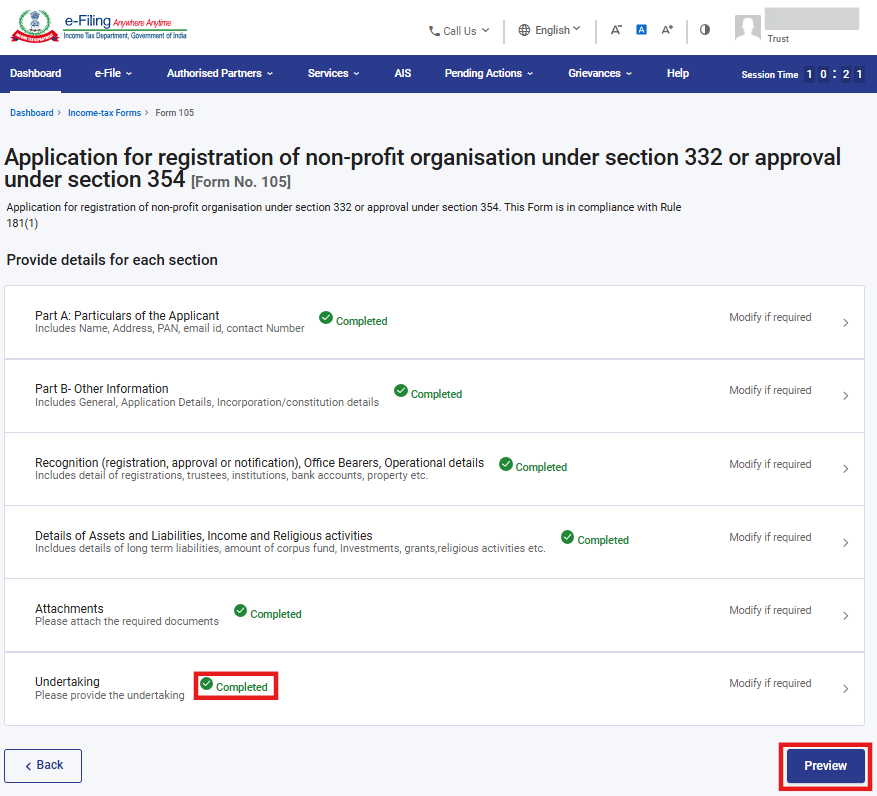
1. Part A: Particulars of the Applicant
2. Part B- Other Information
3. Recognition (registration, approval or notification), Office Bearers, Operational details
4. Details of Assets and Liabilities, Income and Religious activities
5. Attachments
6. Undertaking
4. Step-by-Step Guide
Part I: Filing of Form 105 (Original)
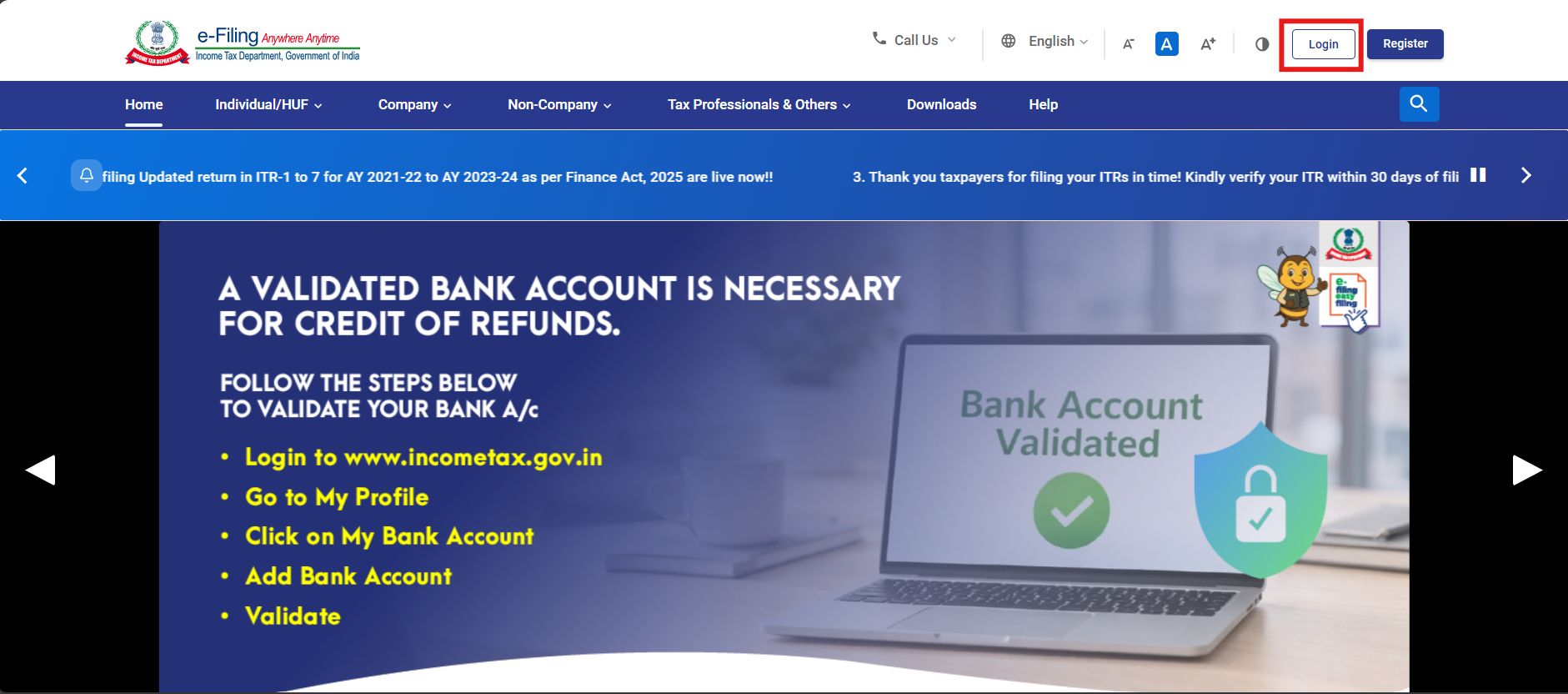
Step 1: Log in to the e-Filing portal with your User ID and Password.
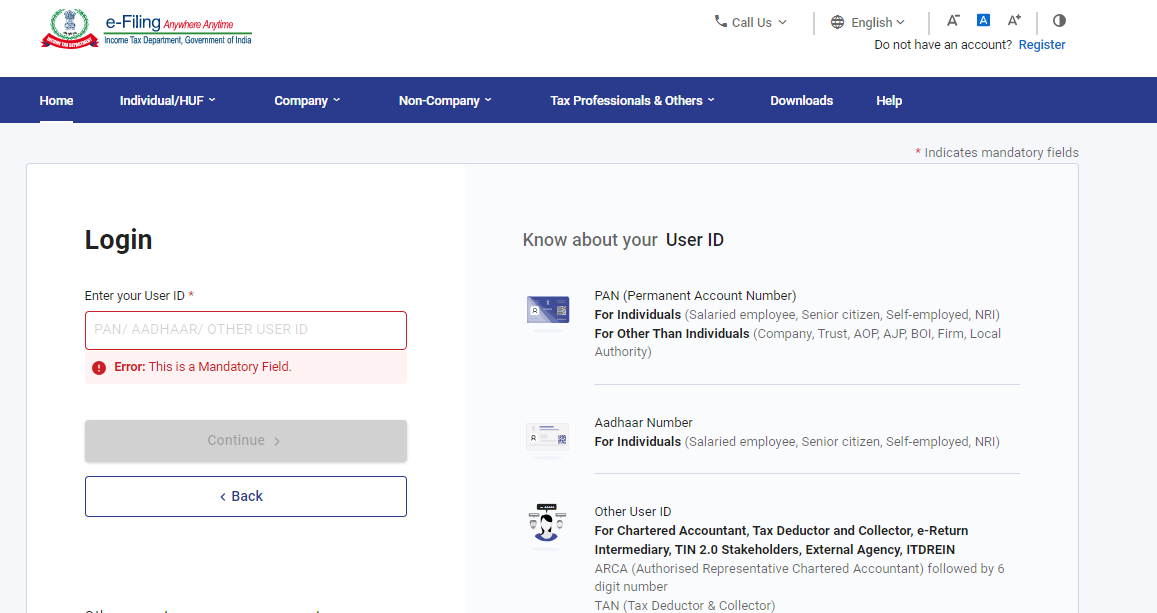
Step 2: Enter the User ID (PAN) and Password.
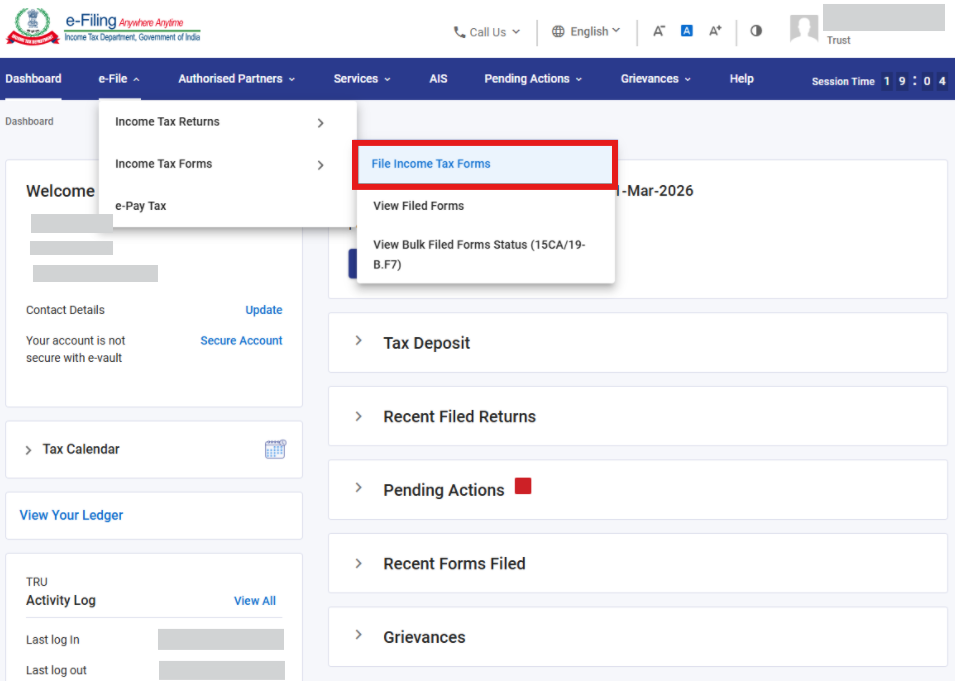
Step 3: Go to e-File >Income Tax Forms > File Income Tax Forms
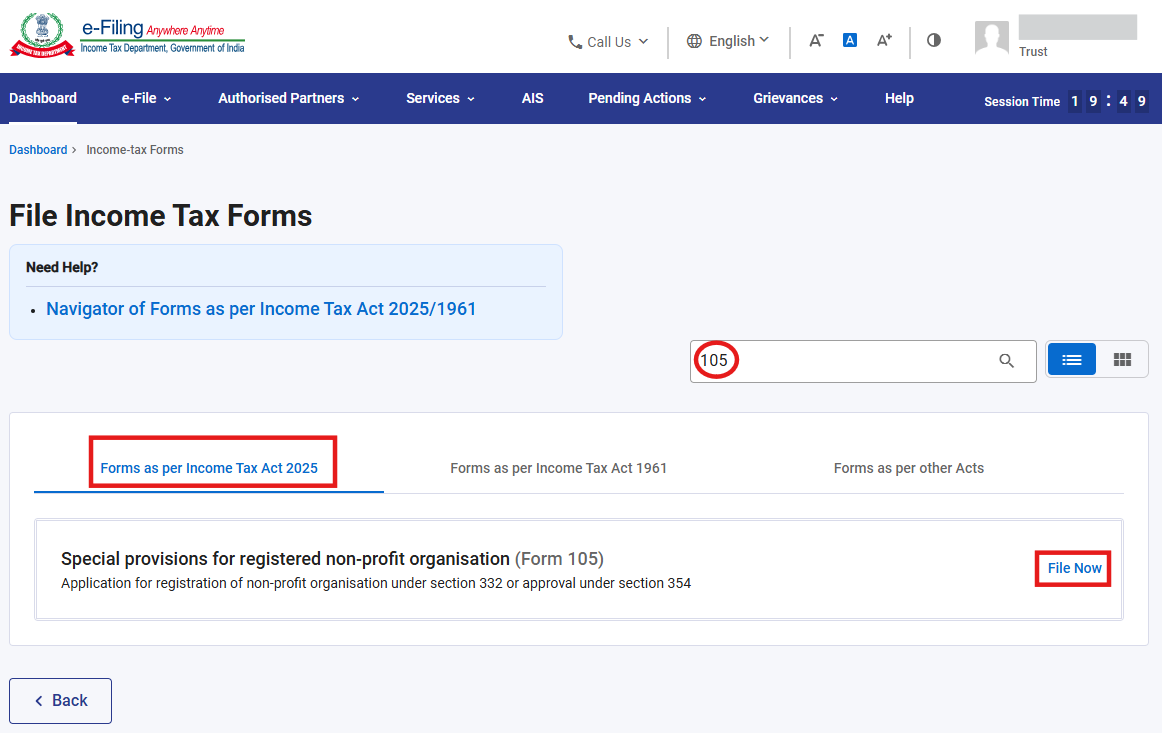
Step 4: Select the Forms as per Income Tax Act 2025 tab, search for Form 105, and click the File Now button
Step 5: Select the filing type and applicable Tax Year (T.Y) and click on Continue button.
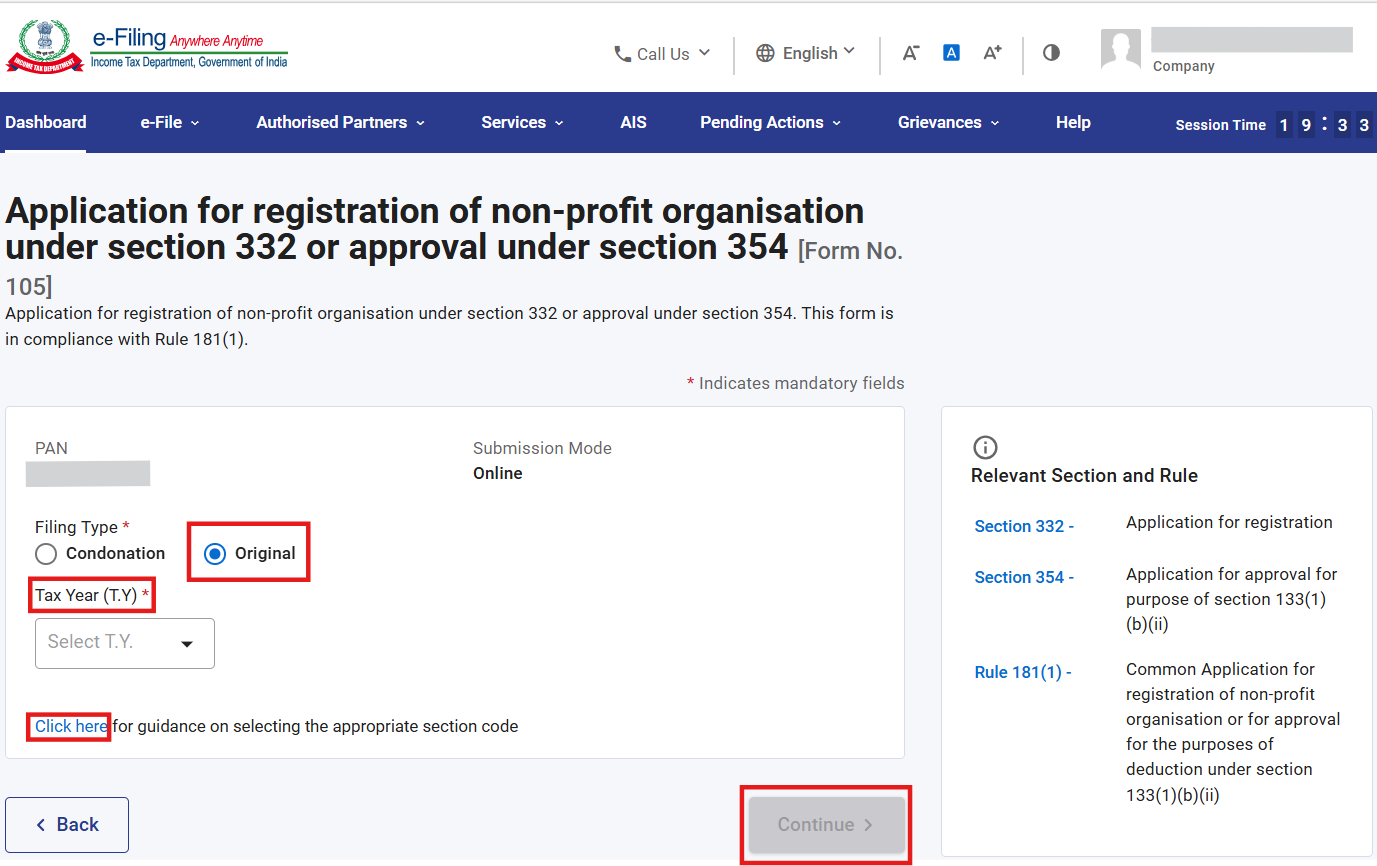
Note: For guidance on selecting the appropriate section code in Form 105, you can click on the “Click here” hyperlink to download the relevant guidance.
Step 6: Click on Let’s Get Started
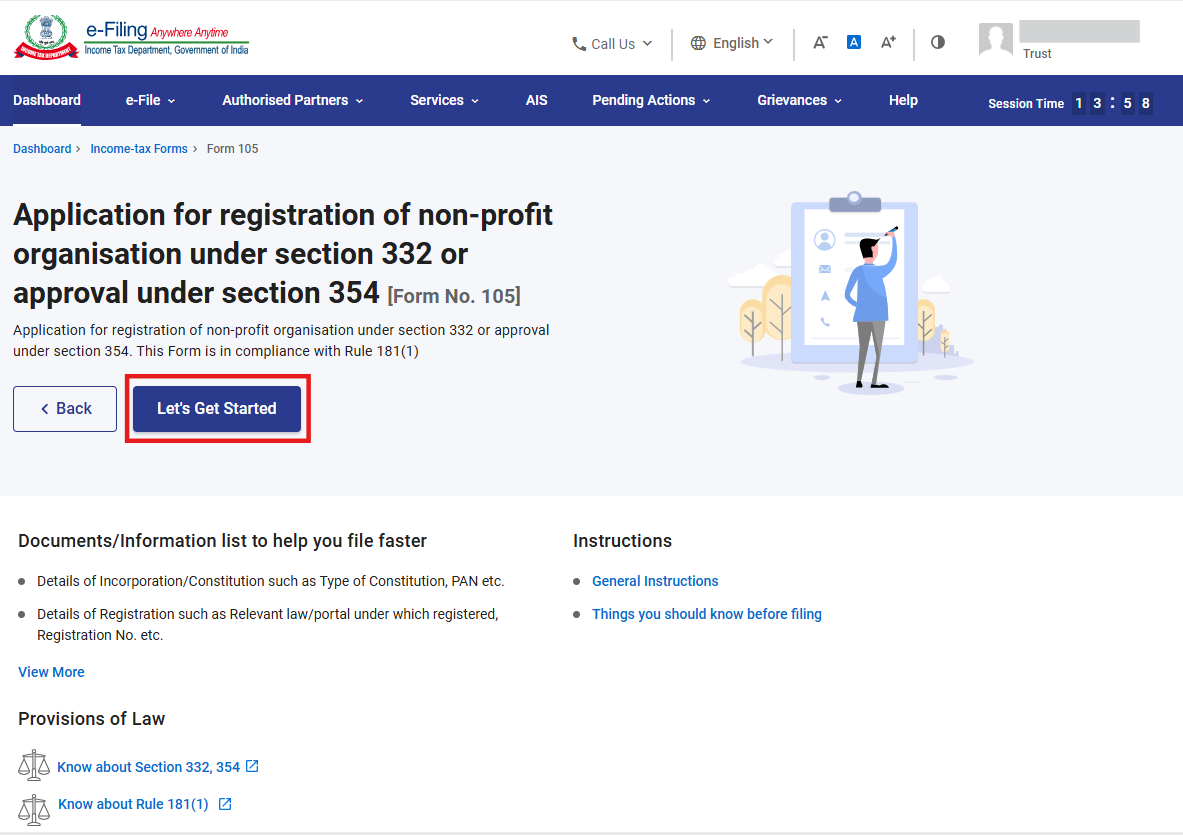
Step 7: Post clicking on Let’s Get Started button, user will be navigated to Panel screen and Select the 1st Panel: “Part A: Particulars of the Applicant
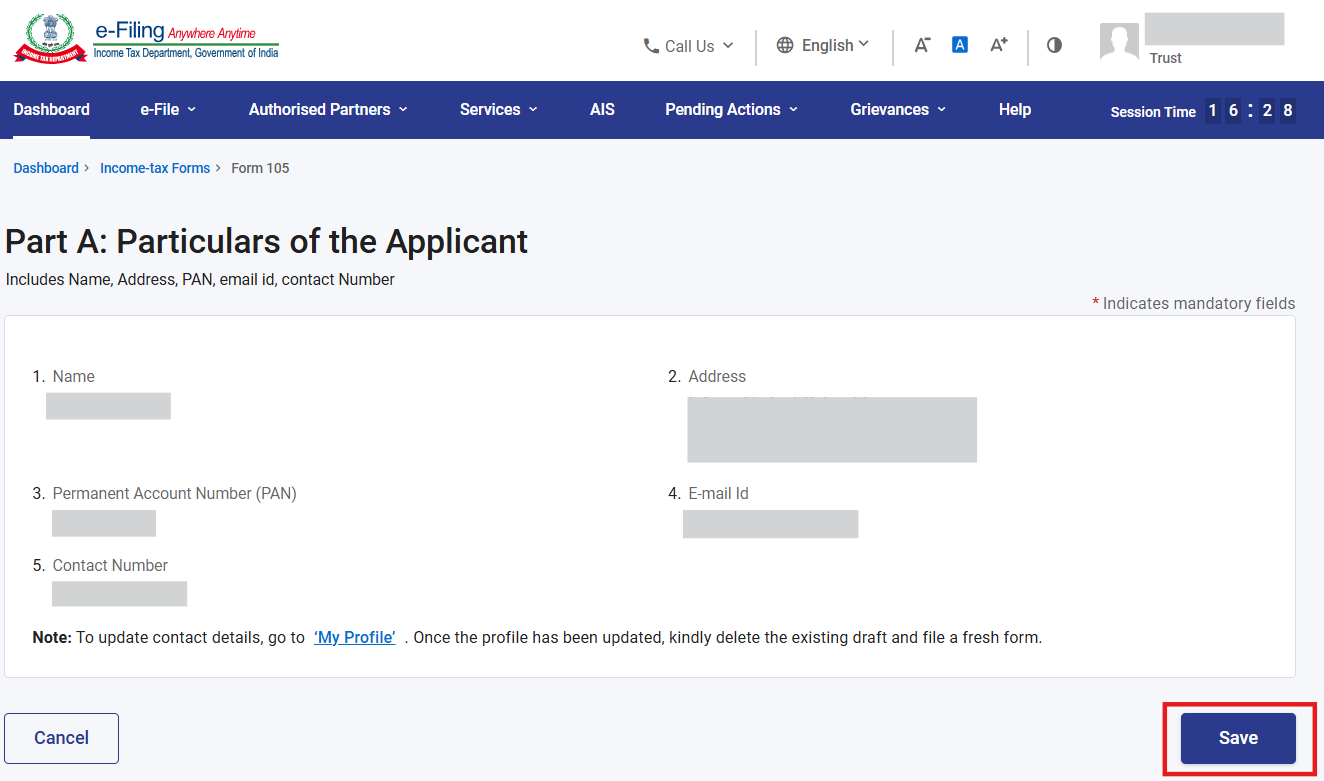
Step 8: Confirm the Particulars and click on Save.
Note: Please ensure that all mandatory details under "My Profile" section including address is completed. You can update your contact and address details by clicking on hyperlink “My Profile”.
Step 9: Post saving the 1st panel, status of panel will be displayed as Completed then select the 2nd Panel: “Part B- Other Information”
Step 10: Confirm other information and click on Save.
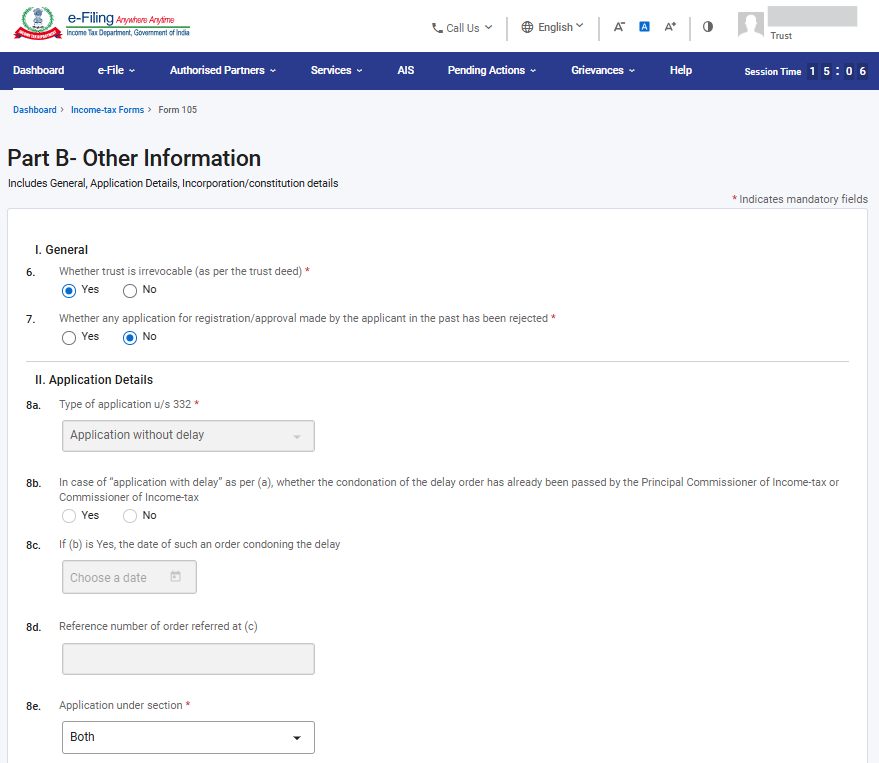
Notes:
1) One cannot file the application if the trust is revocable as per Section 332(2)(b).
2) Field 8b, 8c and 8d will be applicable only if “Application with delay” is selected under the field 8a
3) Kindly select the appropriate section (332, 354 or Both) in field no. 8e: “Application under section” based on your application type.
4) For option for registration under section 354(2), the NPO shall either have been already registered under section 332/12A/10(23)(c) or an application filed for registration under section 332(1) shall be pending or application for registration under both sections shall have to be selected. If either application filed for registration under section 332 of I.T.Act 2025 or under the relevant provisions of I.T.Act 1961 is rejected or if the earlier registration/approval under the relevant provisions of either of the Acts is withdrawn or cancelled, application for registration under section 354(2) is not allowed to be filed.
5) Re-application facility in Form 105 is available only if the rejection order in Form 107 is received on the basis of Form 105 filed under provisions of Rule 181(12) of I.T.Rules 2026. For earlier rejection orders in Form 10AD, from 1.04.2026 only original application in Form 105 shall be filed. In such cases, re-application option is not available as under the I.T.Act 1961, since there were no provisions relating to re-application under the Income Tax Act 1961.
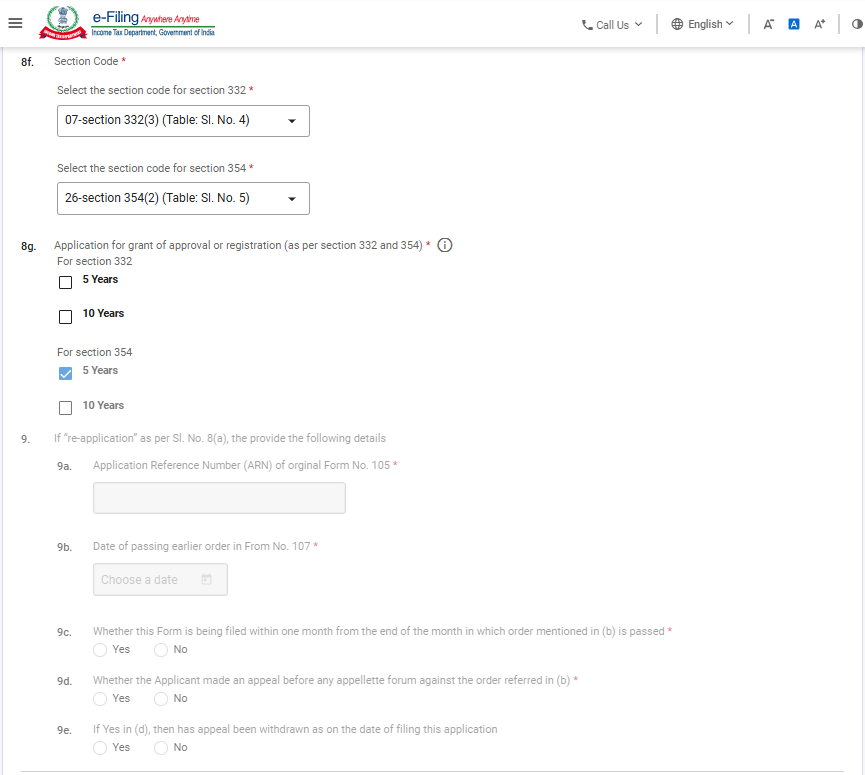
Note:
1) Kindly select the appropriate section code in field no. 8f: “Section Code”. For further guidance on section code kindly refer “Guidance on Section Codes”
2) The Field No.8g is related to the period for which registration is sought. Registration for 10 years or 5 years period is applicable only for NPOs that satisfy conditions mentioned in the provisions of Section 332(5). Please select the checkbox, as applicable. In cases where registration is sought under Section 354(2) or for both options if selected, the approval period will be 5 years for Sec. 354 (2), which will get auto-selected and appear as disabled. For 332, both 5 years and 10 years are enabled for selection at the option of Tax payer.
3) Field no. 9 will be enabled only in case if you select “Re-application” in the landing screen. Re-application functionality will be enabled shortly.
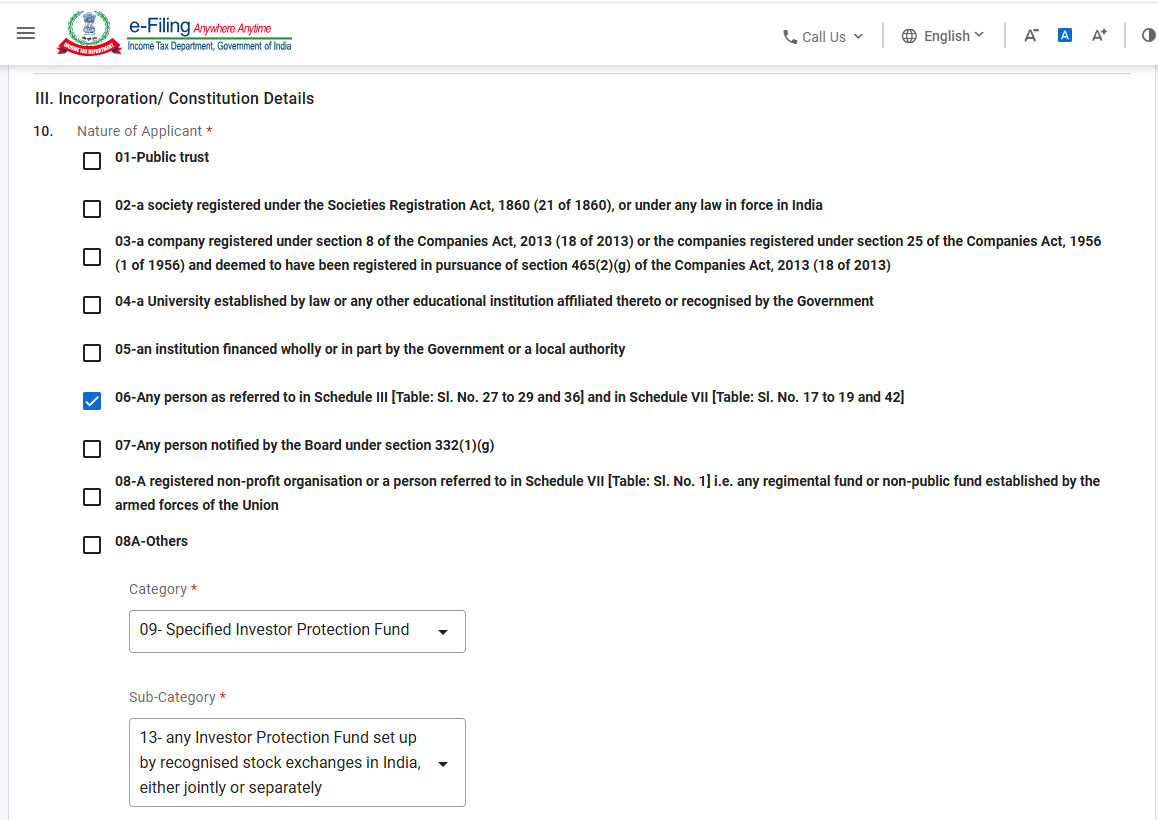
Note:
1) Kindly select the appropriate nature of applicant in field no. 10 as mentioned below:
Note 5(a)
| Code | Section | Description |
| 01 | 332(1)(a) | Public trust |
| 02 | 332(1)(b) | a society registered under the Societies Registration Act, 1860, or under any law in force in India |
| 03 | 332(1)(c) | a company registered under section 8 of the Companies Act, 2013 or the companies registered under section 25 of the Companies Act, 1956 and deemed to have been registered in pursuance of section 465(2)(g) of the Companies Act, 2013 |
| 04 | 332(1)(d) | a University established by law or any other educational institution affiliated thereto or recognised by the Government |
| 05 | 332(1)(e) | an institution financed wholly or in part by the Government or a local authority |
| 06 | 332(1)(f) | Any person as referred to in Schedule III [Table: Sl. No. 27 to 29 and 36] and in Schedule VII [Table: Sl. No. 10 to 19 and 42] |
| 07 | 332(1)(g) | Any person notified by the Board under section 332(1)(g) |
| 08 | 354(1) | A registered non-profit organisation or a person referred to in Schedule VII [Table: Sl. No. 1] i.e. any regimental fund or non-public fund established by the armed forces of the Union |
| 08A | Others | |
|
In case of option code 06 is selected in 5(a) above then below options of 5(b) will be enabled: Note 5(b): |
||
| 09 | Specified Investor Protection Fund | |
| 10 | Specified body or authority or Board or Trust or Commission | |
| 12 | Specified university, hospital or other institution | |
| Further if code 09 selected in 5(b) above, you are required to select one option from below | ||
| 13 | any Investor Protection Fund set up by recognised stock exchanges in India, either jointly or separately | |
| 14 | Any Investor Protection Fund set up by commodity exchanges in India, either jointly or separately | |
| 15 | Any Investor Protection Fund set up as per the regulations by a depository. | |
| Further if code 10 selected in 5(b) above, you are required to select one option from below | ||
| 16 | A body or authority or Board or Trust or Commission (by whatever name called), or a class thereof, other than those covered under Schedule VII (Table: Sl. No. 42) | |
| 17 | Any body or authority or Board or Trust or Commission, not being a company, which has been established or constituted by or under a Central Act or State Act with one or more of the following purposes, — (a) dealing with and satisfying the need for housing accommodation; (b) planning, development or improvement of cities, towns and villages; (c) regulating, or regulating and developing, any activity for the benefit of the general public; or (d) regulating any matter, for the benefit of the general public, arising out of the object for which it has been created. |
|
| Further if code 12 selected in Note 5(b) above, you are required to select one option from below | ||
| 25 | Any University or other educational institution wholly or substantially financed by the Government. | |
| 26 | Any hospital or other institution wholly or substantially financed by the Government. | |
| 27 | Any University or other educational Institution whose aggregate annual receipts does not exceed five crore rupees. | |
| 28 | Any hospital or other institution whose aggregate annual receipts does not exceed five crore rupees. | |
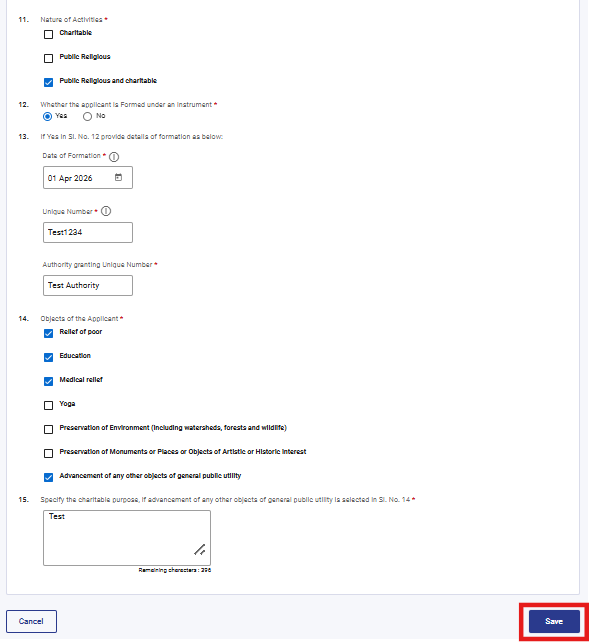
Note:
1) Field no. 14: “Objects of the Applicant” will be enabled only if you select option other than public religious under field no.11: “Nature of Activities”
2) If "354" or "Both" is selected in Field No. 8e – Application under section, then only the following two options will be available in Field No. 11 – Nature of Activities:
Charitable
Public Religious and Charitable
No other activity options will be displayed for selection
Step 11: Post saving the 2nd panel, status of the panel will be displayed as Completed then select the 3rd Panel: “Recognition (registration, approval or notification), Office Bearers, Operation details”
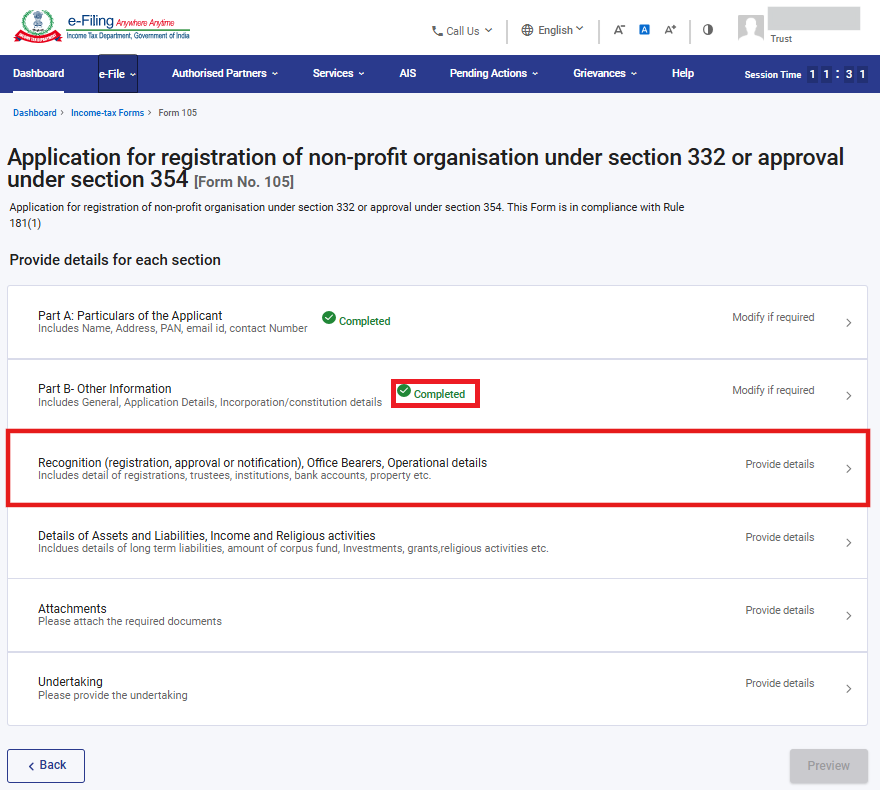
Step 12: Kindly fill all the applicable details and click on Save.
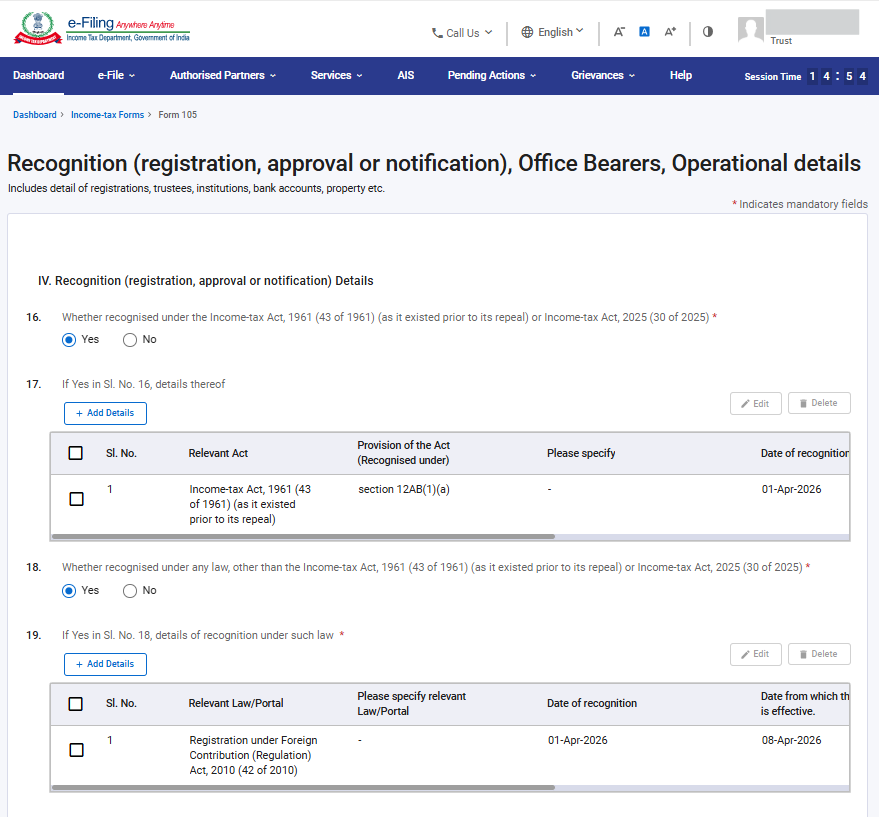
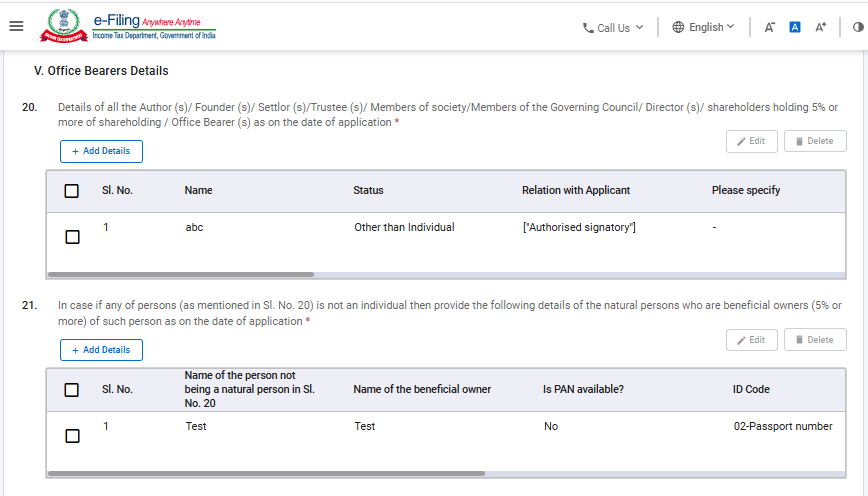
1. In field 20, if you have selected option “Other than Individual” in “status” field then field no. 21 will be enabled and mandatory. Further in ID code field in field no. 20 only PAN, TIN and others options will be displayed. Also, in field 20, shareholding,if any, of all the office bearers shall be given in the relevant column therein.
2. If field 20, if you have selected option “Individual” in “status” field then in ID code field PAN, TIN, Passport number, Elector's photo identity number and others options will be displayed
3. In field 21, details all persons holding more than 5% of share in the persons (other than individuals) mentioned in field 20.
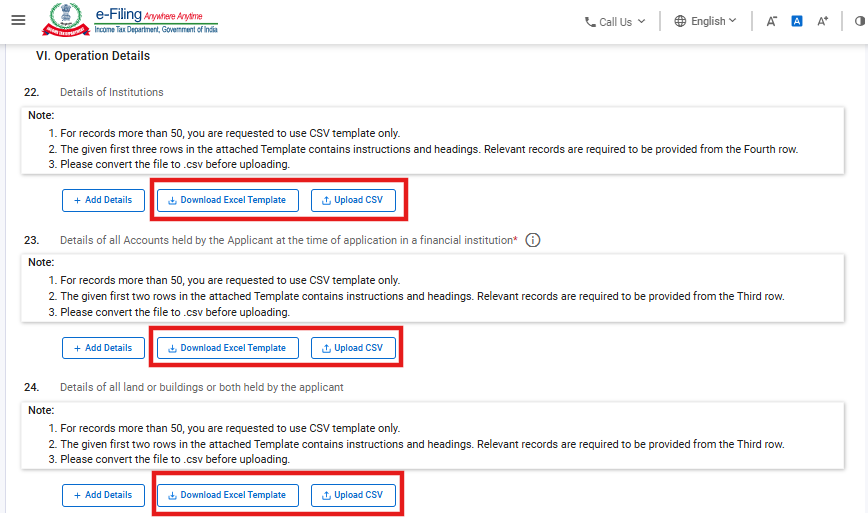
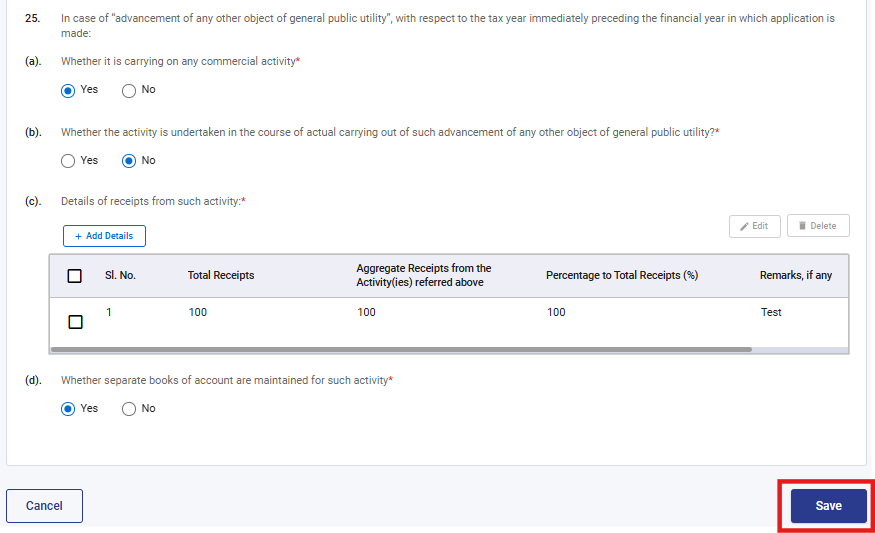
You can provide details in Field Nos. 22, 23, and 24 either by using the Add Details option or by uploading a CSV file. If the number of records is 50 or less, you may use either option. However, if the number of records is more than 50, details must be provided through the CSV upload option only.
Detail of institution
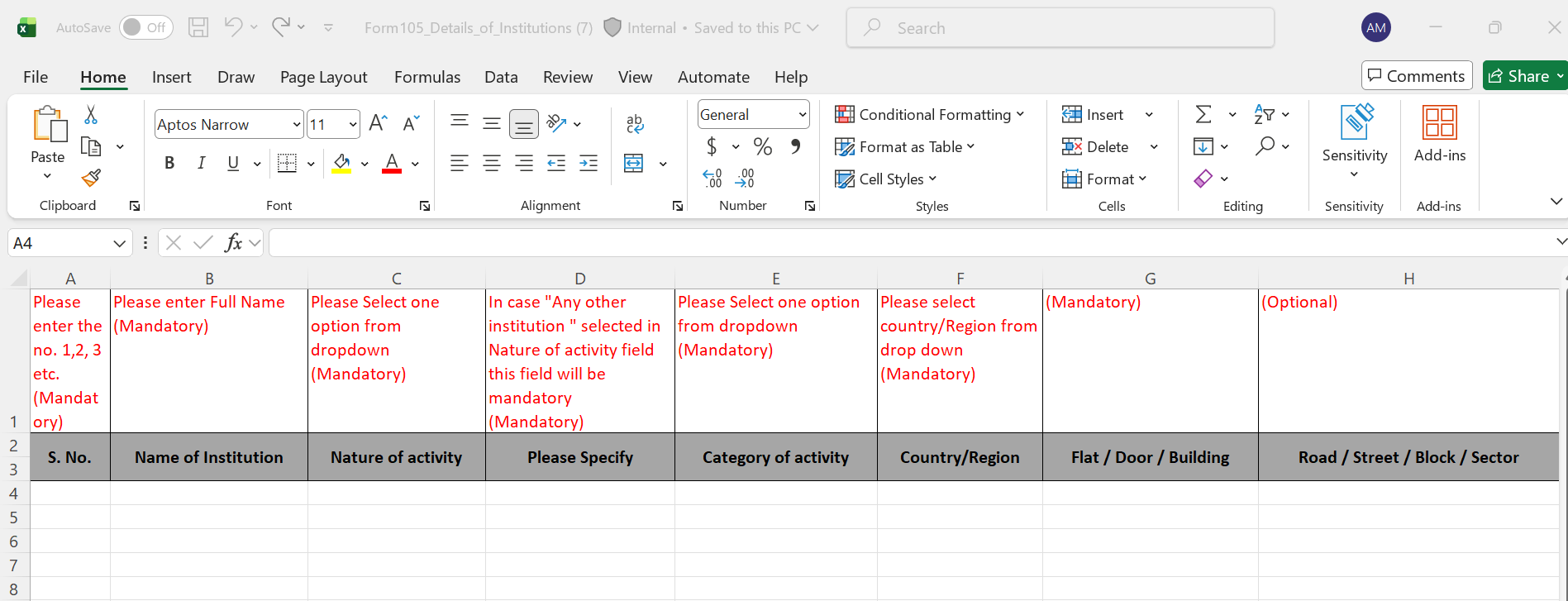
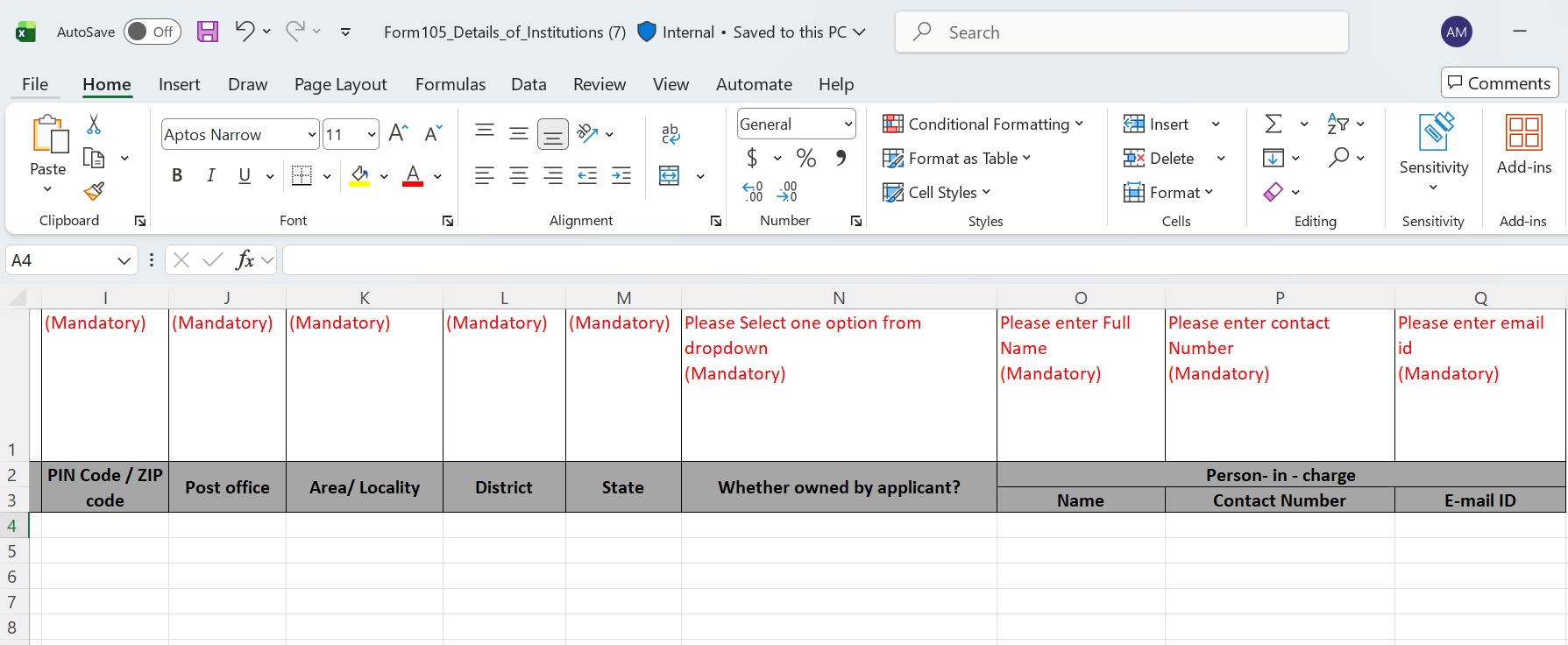
Notes:
Follow the below mentioned instructions to fill the above excel template:
| Field Name | Instruction | Mandatory field (Yes/No) | Length of the character |
| Sl. No. | Enter the serial numbers starting from 1 | Yes | |
| Name of Institution | Enter the name of institution | Yes | 277 Characters maximum |
| Nature of activity | Select one option from dropdown School College University Hospital Yoga institute Religious places Any other institution |
Yes | |
| Please Specify | In case "Any other institution " selected in Nature of activity field this field will be mandatory | No | 100 Characters |
| Category of activity | Select one option from dropdown Charitable Religious Commercial |
Yes | |
| Country/Region | Select from dropdown | Yes | Refer: Annexure I |
| Flat / Door / Building | Enter the Flat/ Door/ Building | Yes | 60 characters maximum |
| Road / Street / Block / Sector | Enter the Road / Street / Block / Sector | No | 60 characters maximum |
| PIN Code / ZIP code | Enter valid Pincode/ZIP code | Yes |
In case of Pin code it must contain 6 digits In case of ZIP code Alphanumeric is allowed |
| Post Office | Enter the post office of the relevant Pincode | Yes | 60 characters maximum |
| Area/ Locality | Enter the Area/ Locality | Yes | 60 characters maximum |
| District | Enter the District | Yes | 50 characters maximum |
| State | Enter the State | Yes | 50 characters maximum |
| Whether owned by applicant? | Select an option from dropdown Yes No |
Yes | |
| Person- in - charge | |||
| Name | Please enter Name | Yes | 277 Characters maximum |
| Enter the contact Number with country code of the declarant | Yes | 14 digits Mobile Number | |
| Email id | Enter the valid Email ID of the declarant | Yes |
Maximum 64 alphanumeric characters This field must contain the special character "@" and “.” |
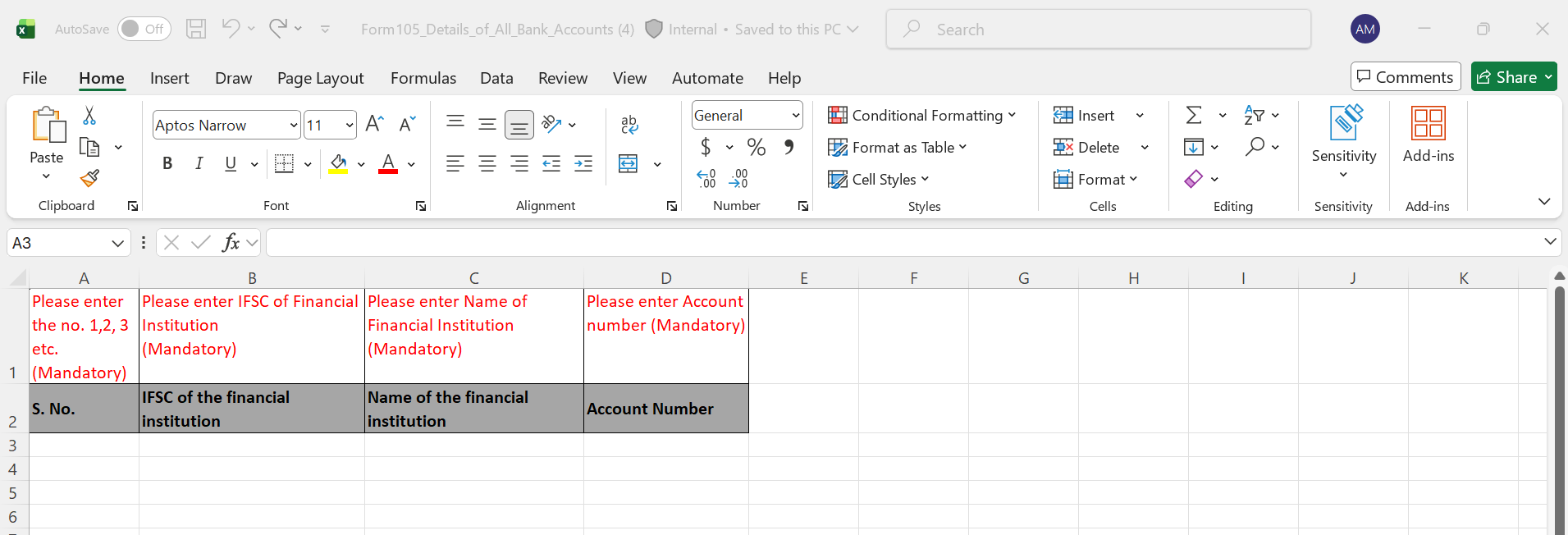
Details of All Bank Accounts
Notes:
Follow the below mentioned instructions to fill the above excel template:
| Field Name | Instruction | Mandatory field (Yes/No) | Length of the character |
| Sl. No. | Enter the serial numbers starting from 1 | Yes | |
| IFSC of the financial Institution | Enter the IFSC of institution | Yes | First 4 Alphabet 0 next 6 alphanumeric |
| Name of the financial Institution | Enter the Name of institution | Yes | 277 Characters maximum |
| Account Number | Enter the Name of institution | Yes | 20 digits |
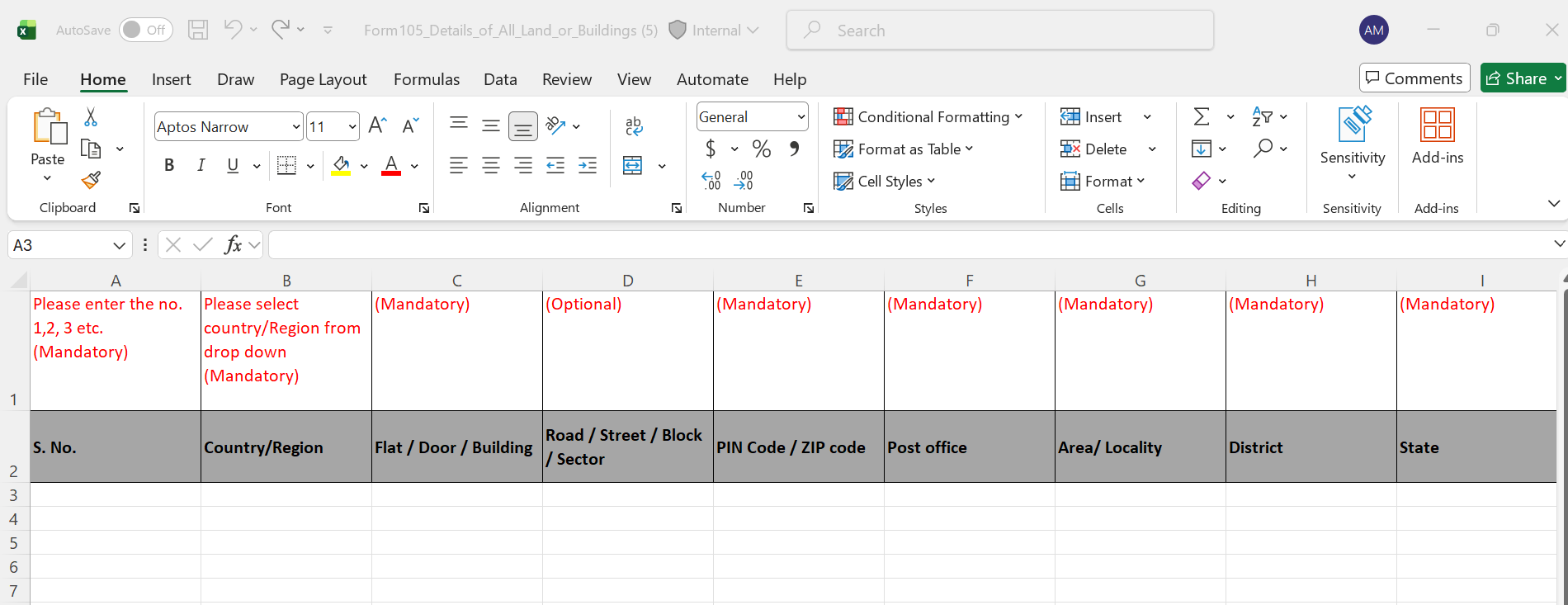
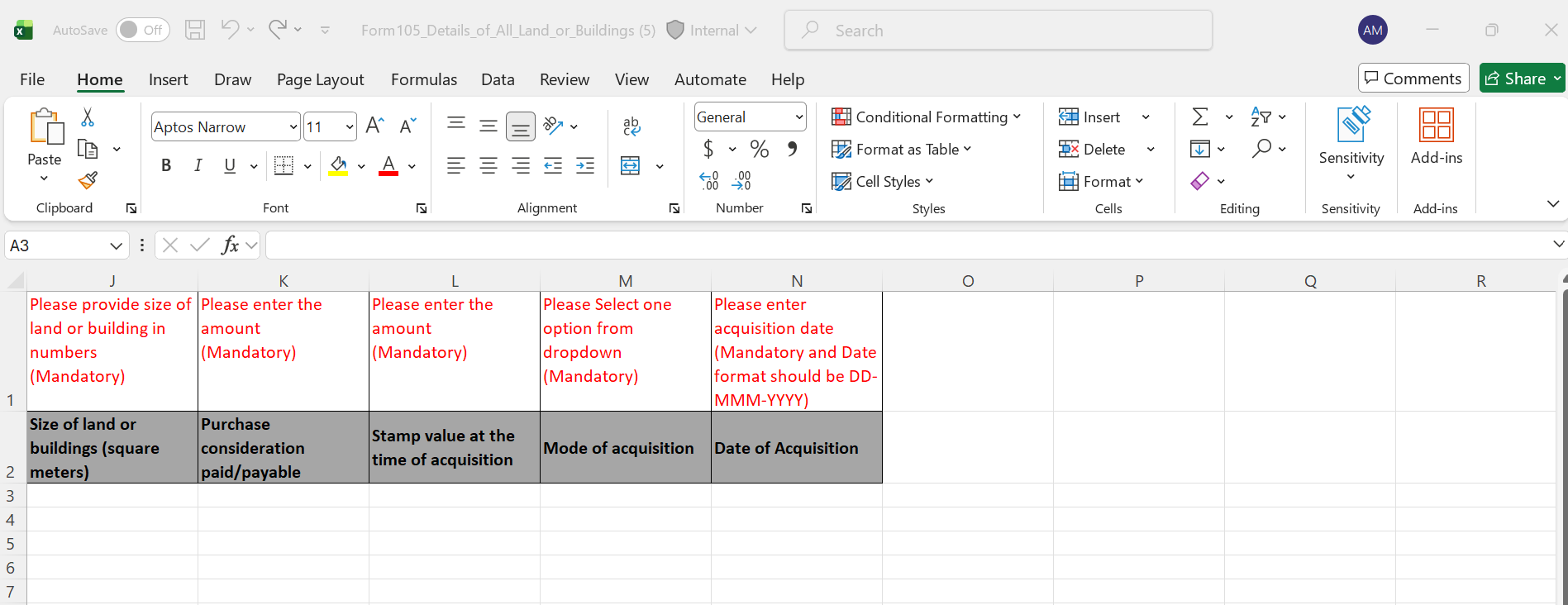
Details of all land or buildings or both
Notes:
Follow the below mentioned instructions to fill the above excel template:
| Field Name | Instruction | Mandatory field (Yes/No) | Length of the character |
| Sl. no. | Enter the serial numbers starting from 1 | Yes | |
| Country/Region | Select from dropdown | Yes | Refer: Annexure I |
| Flat / Door / Building | Enter the Flat/ Door/ Building | Yes | 60 characters maximum |
| Road / Street / Block / Sector | Enter the Road / Street / Block / Sector | No | 60 characters maximum |
| PIN Code / ZIP code | Enter valid Pincode/ZIP code | Yes |
In case of Pin code it must contain 6 digits In case of ZIP code Alphanumeric is allowed |
| Post Office | Enter the post office of the relevant Pincode | Yes | 60 characters maximum |
| Area/ Locality | Enter the Area/ Locality | Yes | 60 characters maximum |
| District | Enter the District | Yes | 50 characters maximum |
| State | Enter the State | Yes | 50 characters maximum |
| Size of land or buildings (square meters) | Enter the size of land or buildings (square meters) Numbers with decimal allowed | Yes | 14 digit maximum & 2 digit of decimal |
| Purchase consideration paid/payable | Enter the size of land or buildings (square meters) Amount without decimal | Yes | 14 digit maximum |
| Stamp value at the time of acquisition | Enter the size of land or buildings (square meters) Amount without decimal is allowed | Yes | 14 digit maximum |
| Mode of acquisition | Please select one option from dropdown Acquired Gifted |
Yes | |
| Date of Acquisition | Enter date of acquisition | Yes | DD-MMM-YYYY |
Annexure I
|
COUNTRY DESCRIPTION |
|
Afghanistan |
|
Aland Islands |
|
Albania |
|
Algeria |
|
American Samoa |
|
Andorra |
|
Angola |
|
Anguilla |
|
Antarctica |
|
Antigua And Barbuda |
|
Argentina |
|
Armenia |
|
Aruba |
|
Australia |
|
Austria |
|
Azerbaijan |
|
Bahamas |
|
Bahrain |
|
Bangladesh |
|
Barbados |
|
Belarus |
|
Belgium |
|
Belize |
|
Benin |
|
Bermuda |
|
Bhutan |
|
Bolivia (Plurinational State Of) |
|
Bonaire, Sint Eustatius And Saba |
|
Bosnia And Herzegovina |
|
Botswana |
|
Bouvet Island |
|
Brazil |
|
British Indian Ocean Territory |
|
Brunei Darussalam |
|
Bulgaria |
|
Burkina Faso |
|
Burundi |
|
Cambodia |
|
Cameroon |
|
Canada |
|
Cape Verde |
|
Cayman Islands |
|
Central African Republic |
|
Chad |
|
Chile |
|
China |
|
Christmas Island |
|
Cocos (Keeling) Islands |
|
Colombia |
|
Comoros |
|
Congo |
|
Congo, The Democratic Republic Of The |
|
Cook Islands |
|
Costa Rica |
|
Cote D'Ivoire |
|
Croatia |
|
Cuba |
|
Curacao |
|
Cyprus |
|
Czech Republic |
|
Denmark |
|
Djibouti |
|
Dominica |
|
Dominican Republic |
|
Ecuador |
|
Egypt |
|
El Salvador |
|
Equatorial Guinea |
|
Eritrea |
|
Estonia |
|
Ethiopia |
|
Falkland Islands (Malvinas) |
|
Faroe Islands |
|
Fiji |
|
Finland |
|
France |
|
French Guiana |
|
French Polynesia |
|
French Southern Territories |
|
Gabon |
|
Gambia |
|
Georgia |
|
Germany |
|
Ghana |
|
Gibraltar |
|
Greece |
|
Greenland |
|
Grenada |
|
Guadeloupe |
|
Guam |
|
Guatemala |
|
Guernsey |
|
Guinea |
|
Guinea-Bissau |
|
Guyana |
|
Haiti |
|
Heard Island And Mcdonald Islands |
|
Holy See (Vatican City State) |
|
Honduras |
|
Hong Kong |
|
Hungary |
|
Iceland |
|
India |
|
Indonesia |
|
Iran, Islamic Republic Of |
|
Iraq |
|
Ireland |
|
Isle Of Man |
|
Israel |
|
Italy |
|
Jamaica |
|
Japan |
|
Jersey |
|
Jordan |
|
Kazakhstan |
|
Kenya |
|
Kiribati |
|
Korea, Democratic People'S Republic Of |
|
Korea, Republic Of |
|
Kuwait |
|
Kyrgyzstan |
|
Lao People 'S Democratic Republic |
|
Latvia |
|
Lebanon |
|
Lesotho |
|
Liberia |
|
Libya |
|
Liechtenstein |
|
Lithuania |
|
Luxembourg |
|
Macao |
|
Macedonia, The Former Yugoslav Republic Of |
|
Madagascar |
|
Malawi |
|
Malaysia |
|
Maldives |
|
Mali |
|
Malta |
|
Marshall Islands |
|
Martinique |
|
Mauritania |
|
Mauritius |
|
Mayotte |
|
Mexico |
|
Micronesia, Federated States Of |
|
Moldova, Republic Of |
|
Monaco |
|
Mongolia |
|
Montenegro |
|
Montserrat |
|
Morocco |
|
Mozambique |
|
Myanmar |
|
Namibia |
|
Nauru |
|
Nepal |
|
Netherlands |
|
New Caledonia |
|
New Zealand |
|
Nicaragua |
|
Niger |
|
Nigeria |
|
Niue |
|
Norfolk Island |
|
Northern Mariana Islands |
|
Norway |
|
Oman |
|
Others |
|
Pakistan |
|
Palau |
|
Palestine, State Of |
|
Panama |
|
Papua New Guinea |
|
Paraguay |
|
Peru |
|
Philippines |
|
Pitcairn |
|
Poland |
|
Portugal |
|
Puerto Rico |
|
Qatar |
|
Reunion |
|
Romania |
|
Russian Federation |
|
Rwanda |
|
Saint Barthelemy |
|
Saint Helena, Ascension And Tristan Da Cunha |
|
Saint Kitts And Nevis |
|
Saint Lucia |
|
Saint Martin (French Part) |
|
Saint Pierre And Miquelon |
|
Saint Vincent And The Grenadines |
|
Samoa |
|
San Marino |
|
Sao Tome And Principe |
|
Saudi Arabia |
|
Senegal |
|
Serbia |
|
Seychelles |
|
Sierra Leone |
|
Singapore |
|
Sint Maarten (Dutch Part) |
|
Slovakia |
|
Slovenia |
|
Solomon Islands |
|
Somalia |
|
South Africa |
|
South Georgia And The South Sandwich Islands |
|
South Sudan |
|
Spain |
|
Sri Lanka |
|
Sudan |
|
Suriname |
|
Svalbard And Jan Mayen |
|
Swaziland |
|
Sweden |
|
Switzerland |
|
Syrian Arab Republic |
|
Taiwan, Province Of China |
|
Tajikistan |
|
Tanzania, United Republic Of |
|
Thailand |
|
Timor-Leste |
|
Togo |
|
Tokelau |
|
Tonga |
|
Trinidad And Tobago |
|
Tunisia |
|
Turkey |
|
Turkmenistan |
|
Turks And Caicos Islands |
|
Tuvalu |
|
Uganda |
|
Ukraine |
|
United Arab Emirates |
|
United Kingdom |
|
United States |
|
United States Minor Outlying Islands |
|
Uruguay |
|
Uzbekistan |
|
Vanuatu |
|
Venezuela, Bolivarian Republic Of |
|
Viet Nam |
|
Virgin Islands, British |
|
Virgin Islands, U.S. |
|
Wallis And Futuna |
|
Western Sahara |
|
Yemen |
|
Zambia |
|
Zimbabwe |
Step-13: Post saving the 3rd panel, status of the panel will be displayed as Completed then select the 4th Panel: “Details of Assets and Liabilities, Income and Religious activities”
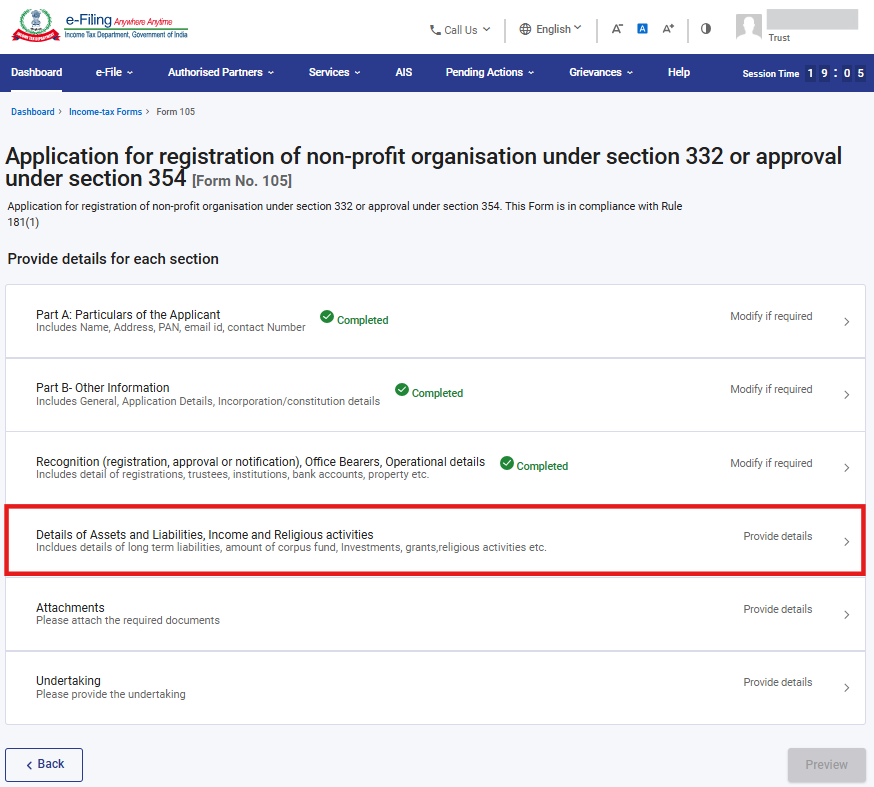
Step 14: Kindly fill all the applicable details and click on Save.
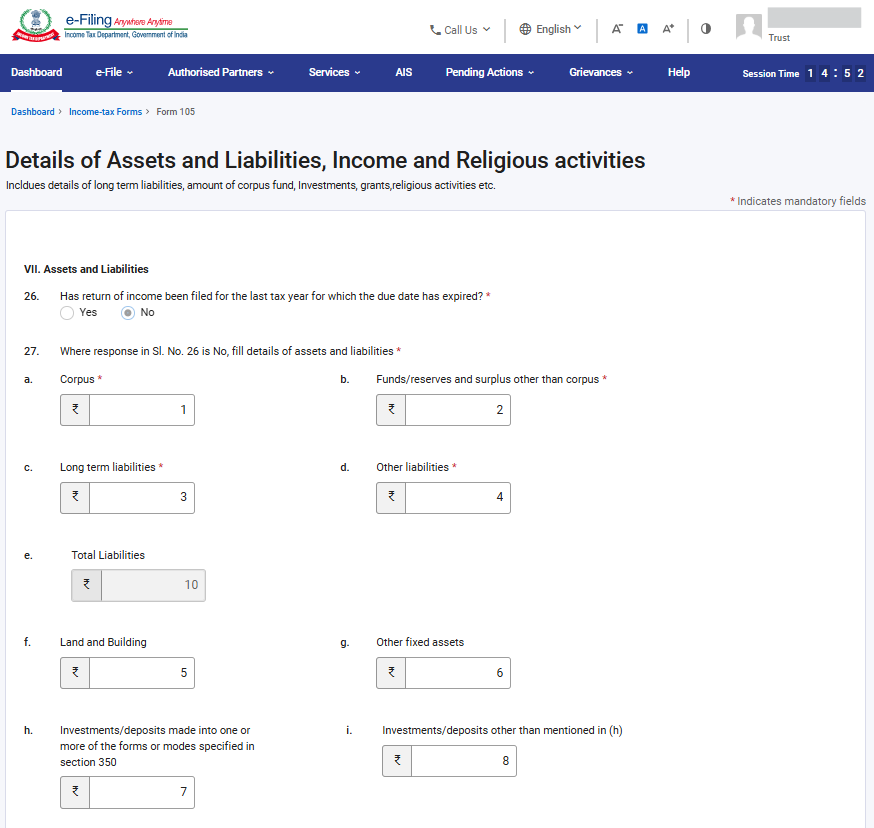
Note:
1) Field no. 26 will be pre-filled with Yes or No on the basis of return of income furnished for which due date has expired.
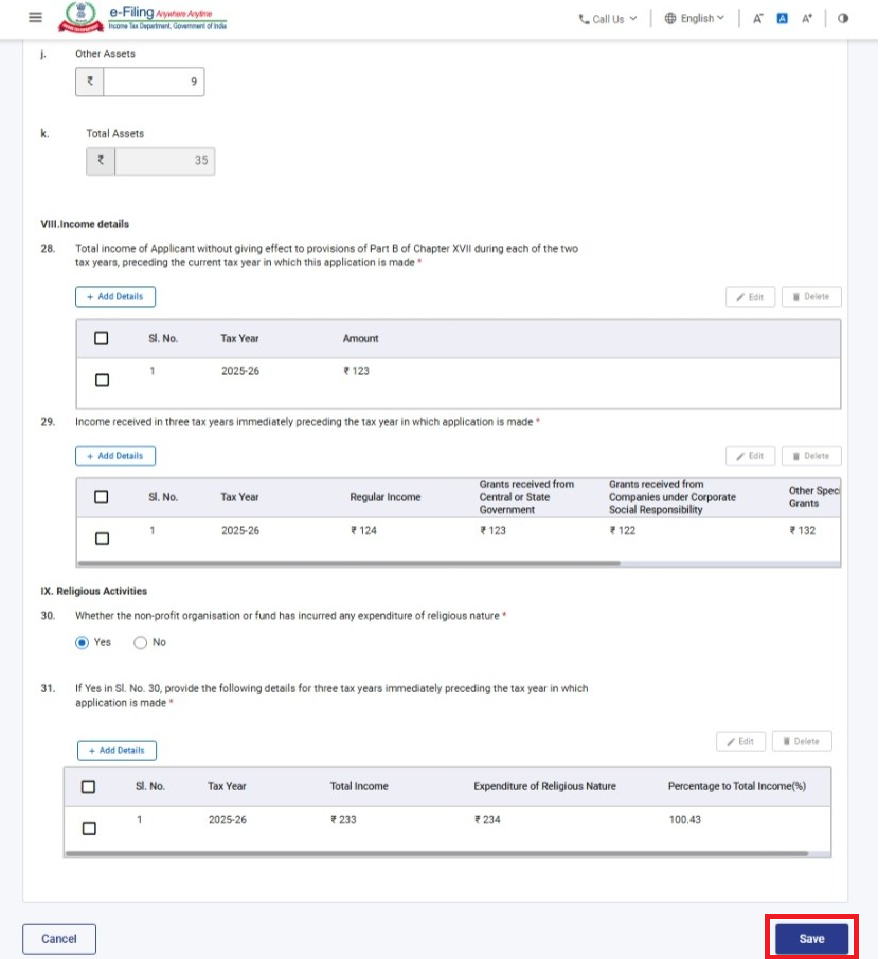
Note:
1) Field no. 30 & 31 will be enabled only if option either Section 354 or Both is selected under field no. 8e: “Application under section”
Step 15: Post saving the 4th panel, status of the panel will be displayed as Completed then select the 5th Panel: “Attachments”
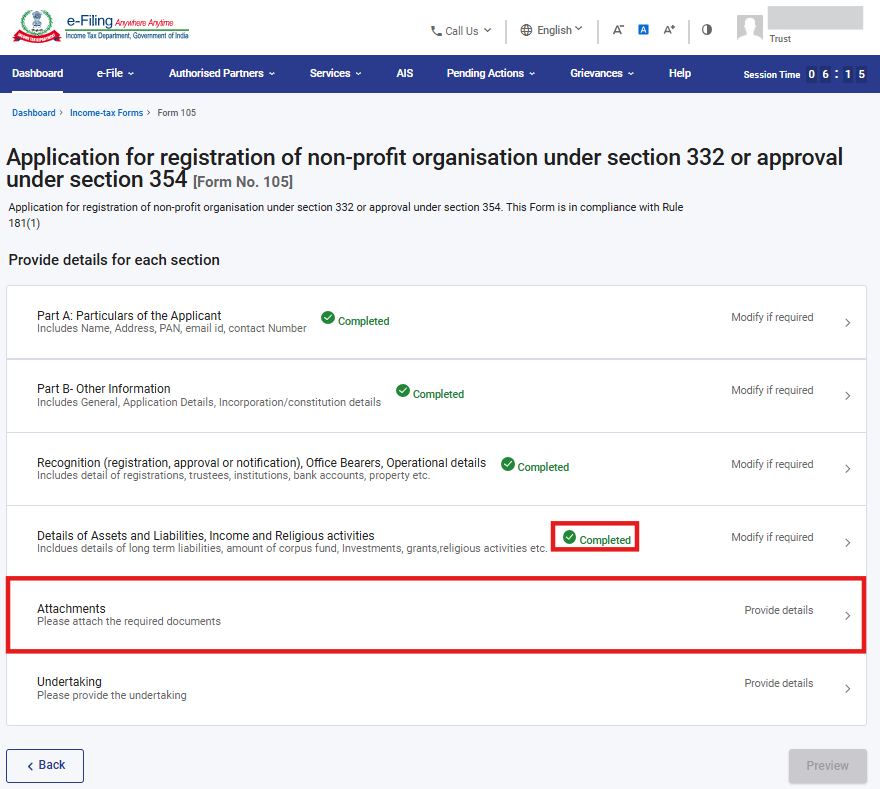
Step 16: Attach the relevant documents and click on Save.
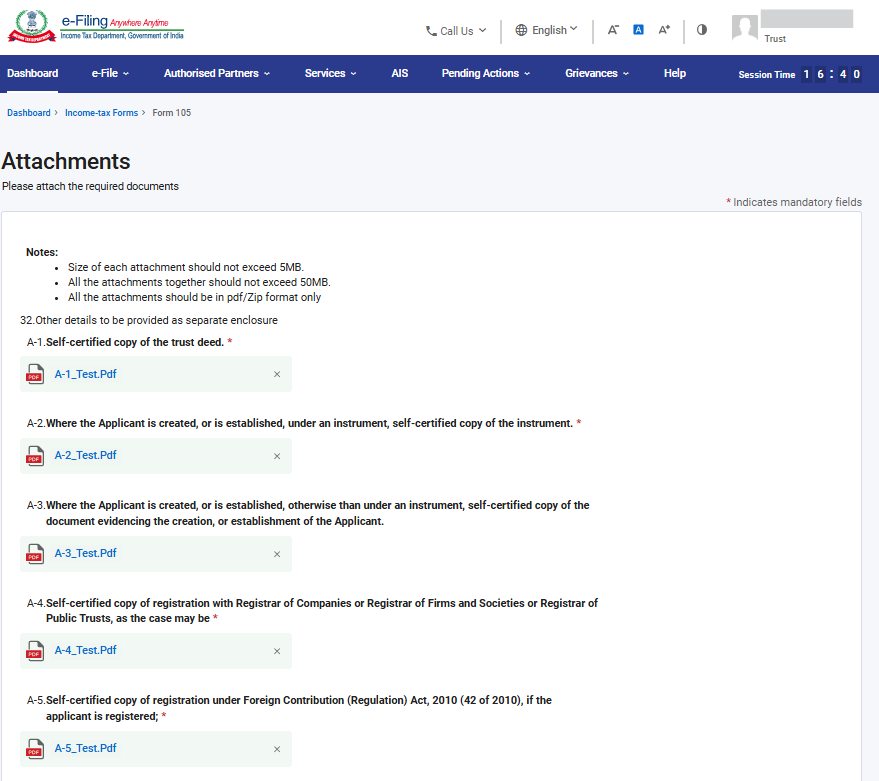
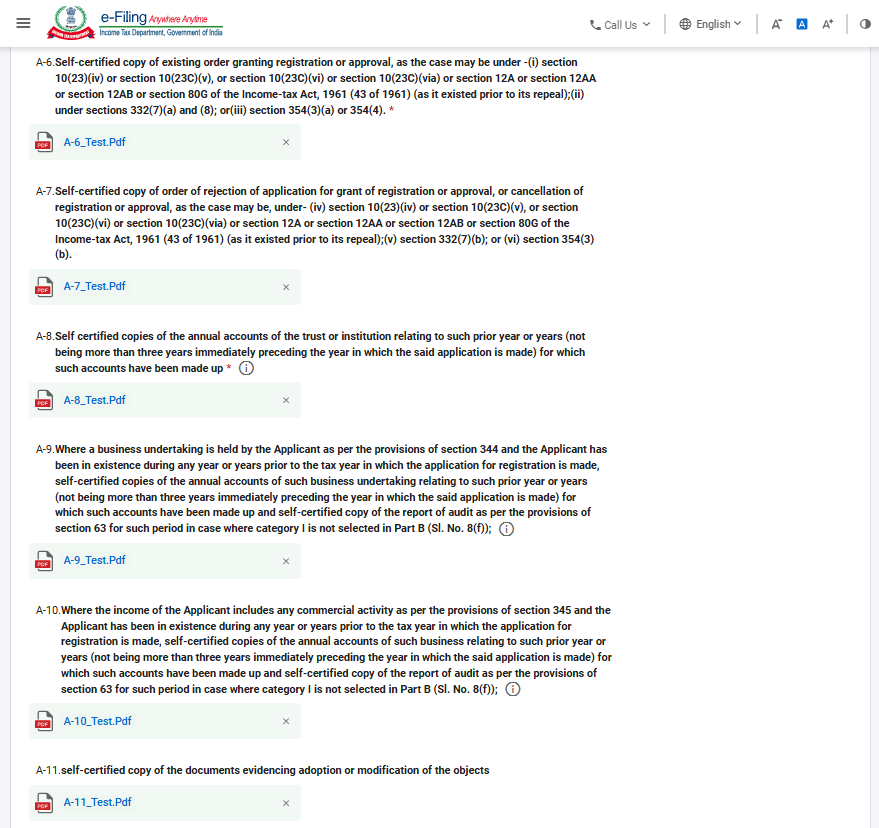
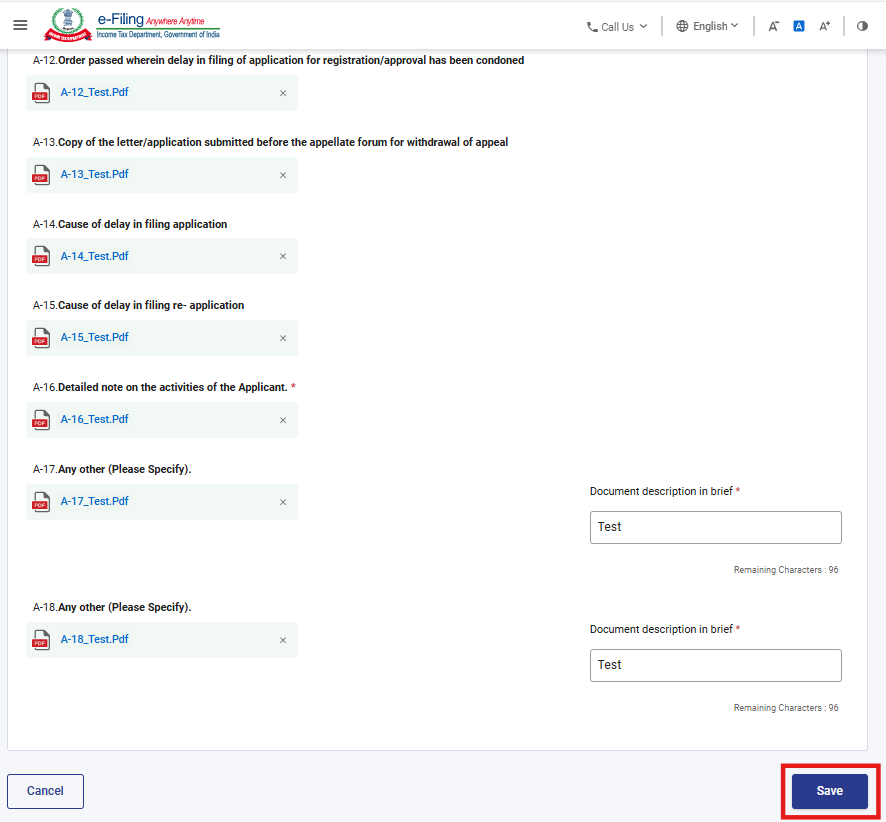
*all starred attachments are mandatory.
Step 17: Post saving the 5th panel, status of the panel will be displayed as completed then select the 6th Panel: “Undertaking”
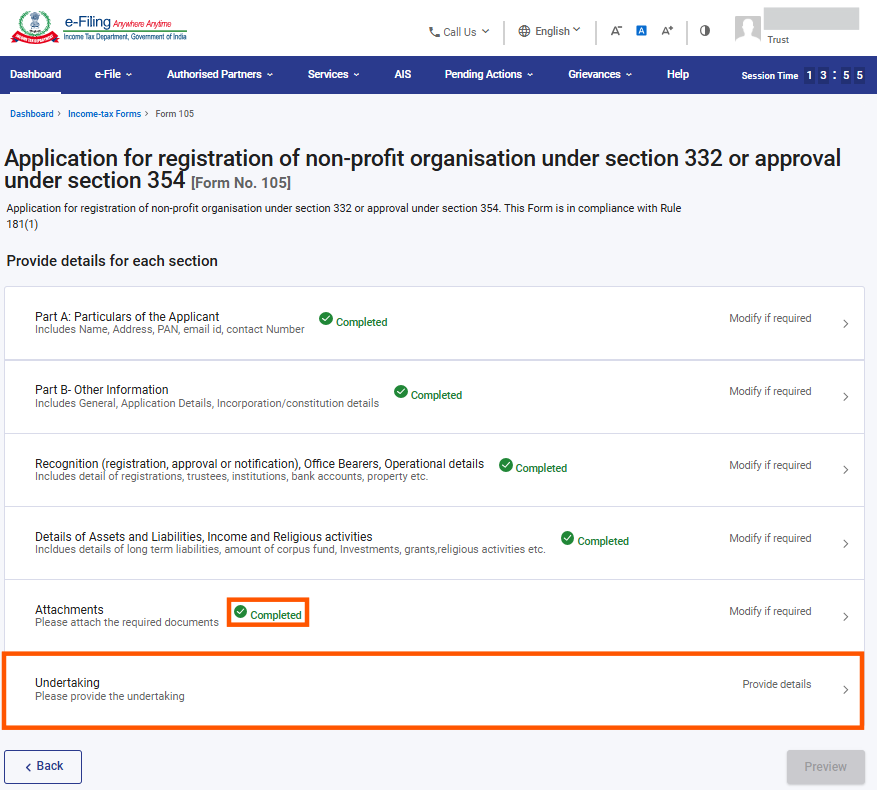
Step 18: Confirm the undertaking and click on Save.
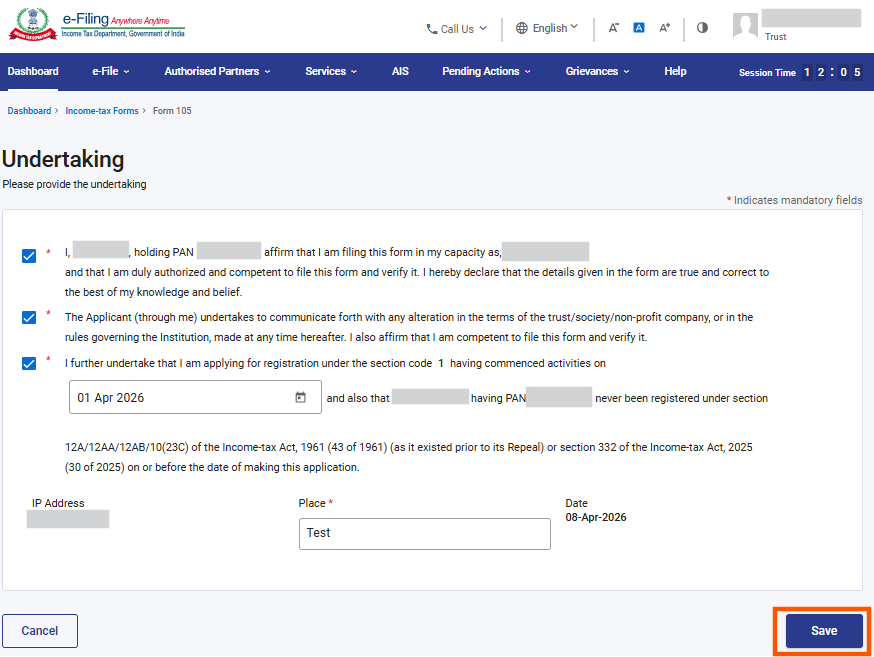
Step 19: Post saving the 6th panel, status of the panel will be displayed as Completed then click on Preview.
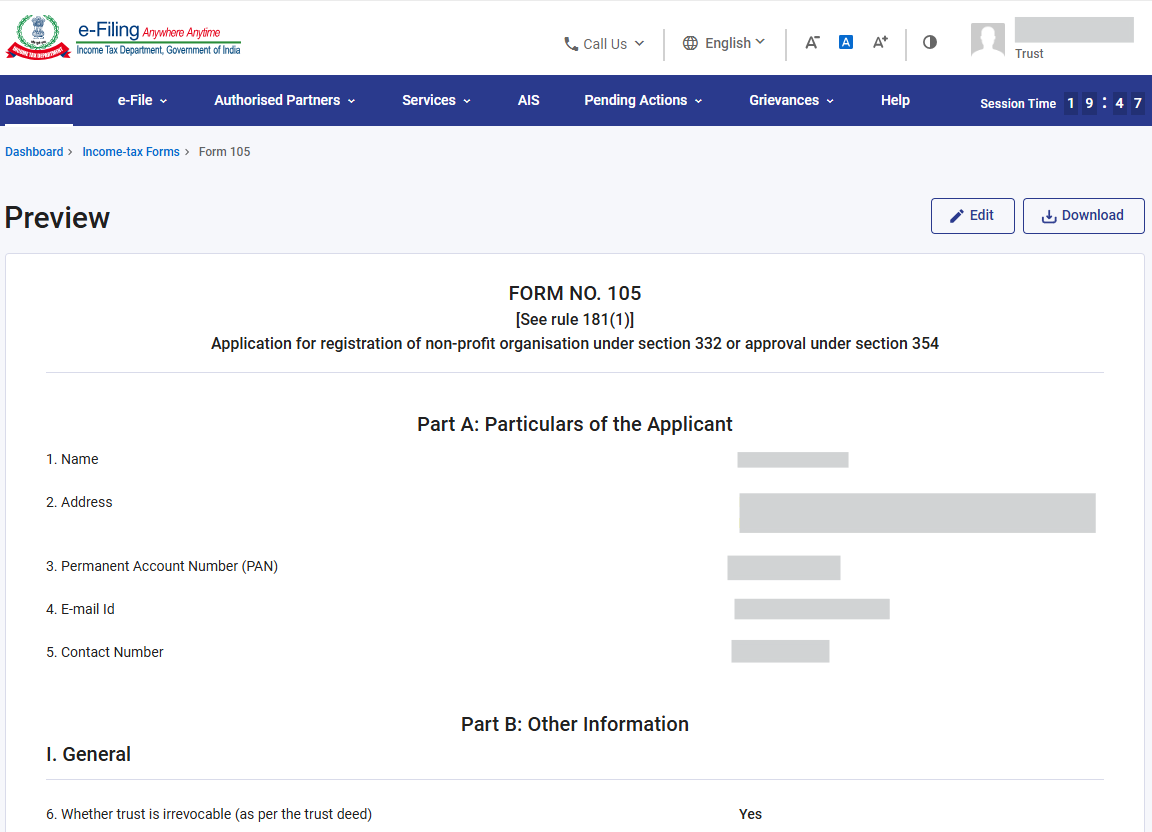
Step 20: On the Preview page, verify the details and click Proceed To E-Verify.
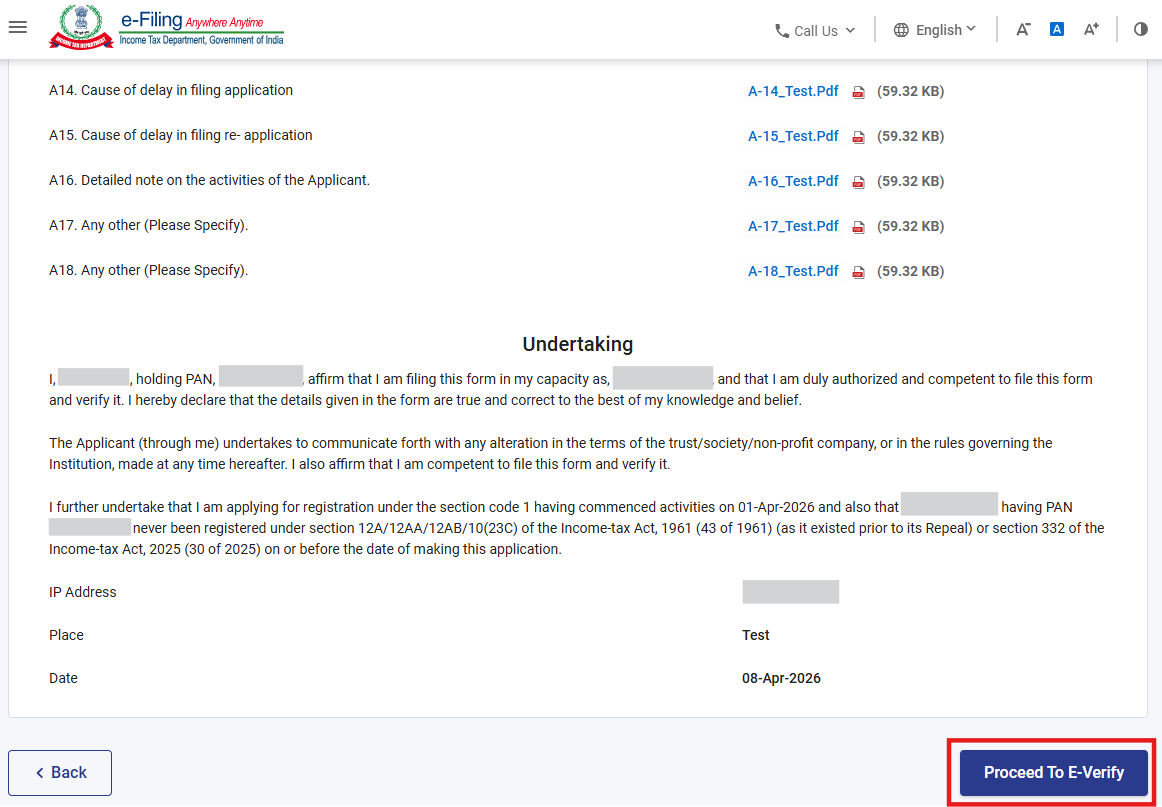
Step 21: Post clicking on Proceed To E-Verify button, a popup confirmation displaying that you would like to proceed to e-Verify. Click on Yes
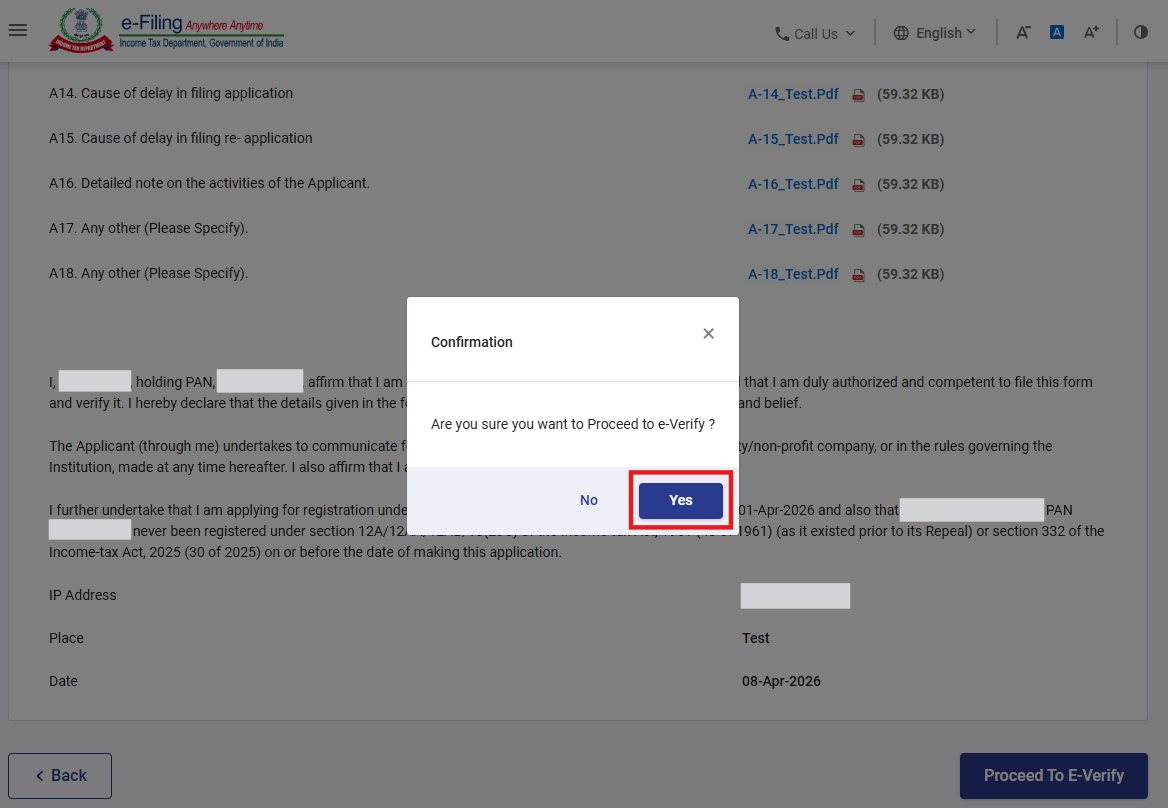
Step 22: On clicking Yes, you will be navigated to the e-Verify page where you can verify the Form 105 using EVC/DSC (as applicable).
Note: Refer to the How to e-Verify user manual to learn more
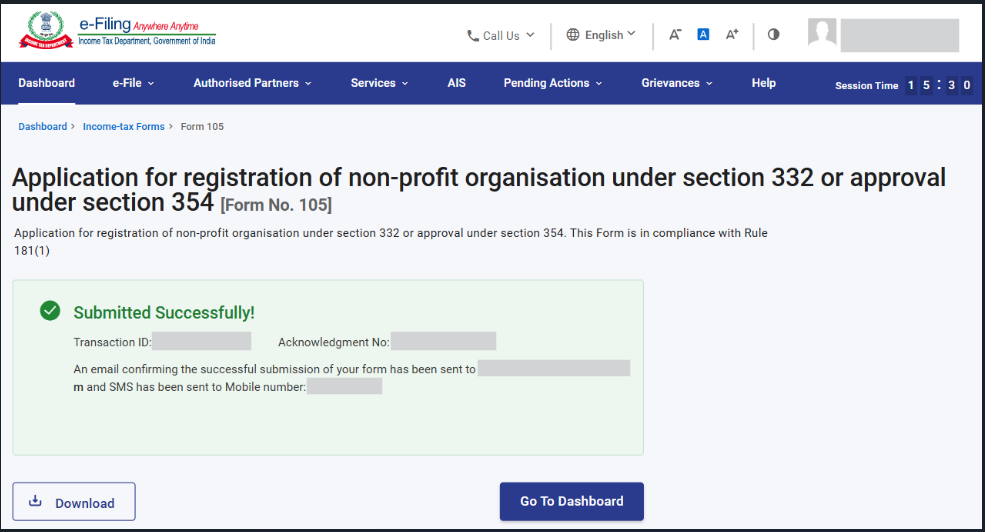
After successful e-Verification, a success message is displayed along with a Transaction ID and Acknowledgement Receipt Number. Please keep a note of the Transaction ID and Acknowledgement Receipt Number for future reference. You will also receive a confirmation message on the email ID(s) and mobile number(s) registered with the e-Filing portal.
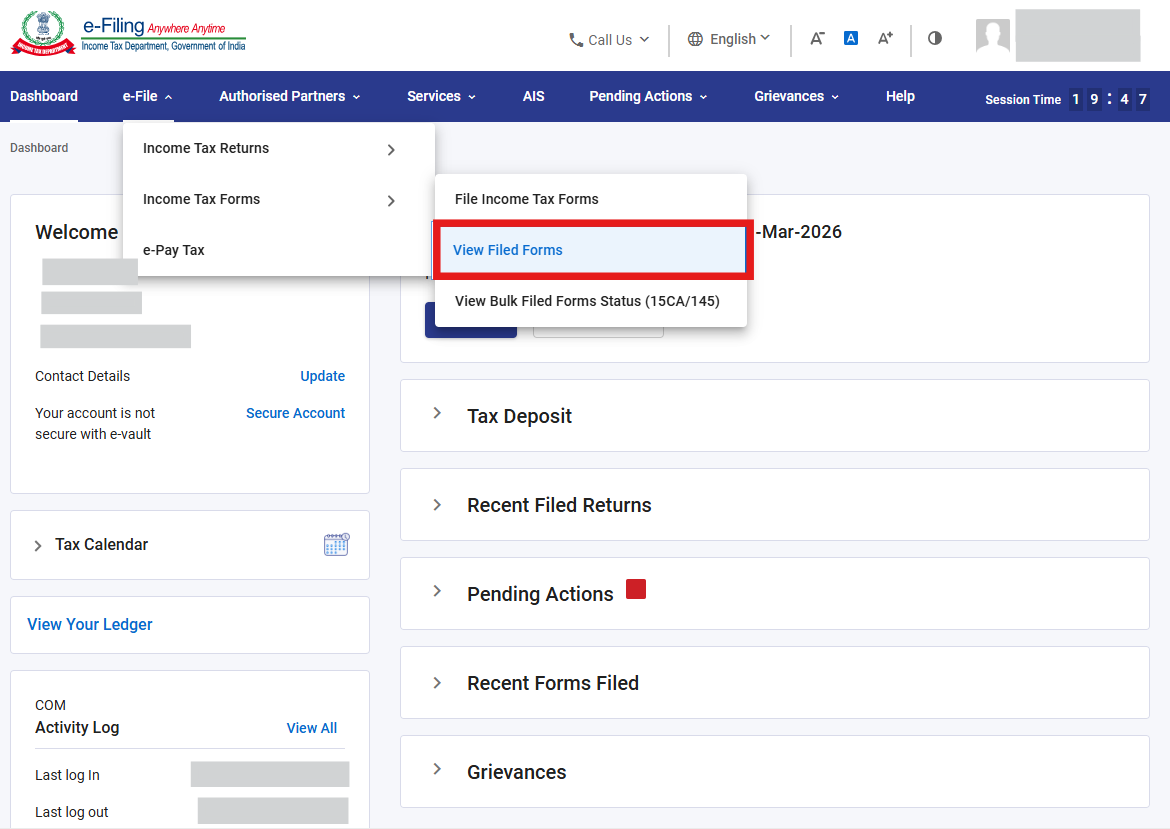
Step-23: You can download the Form 105 filed form, ARN and Attachments from the View filed form screen. To navigate to the screen, go to e-File >Income Tax Forms > View Filed Forms
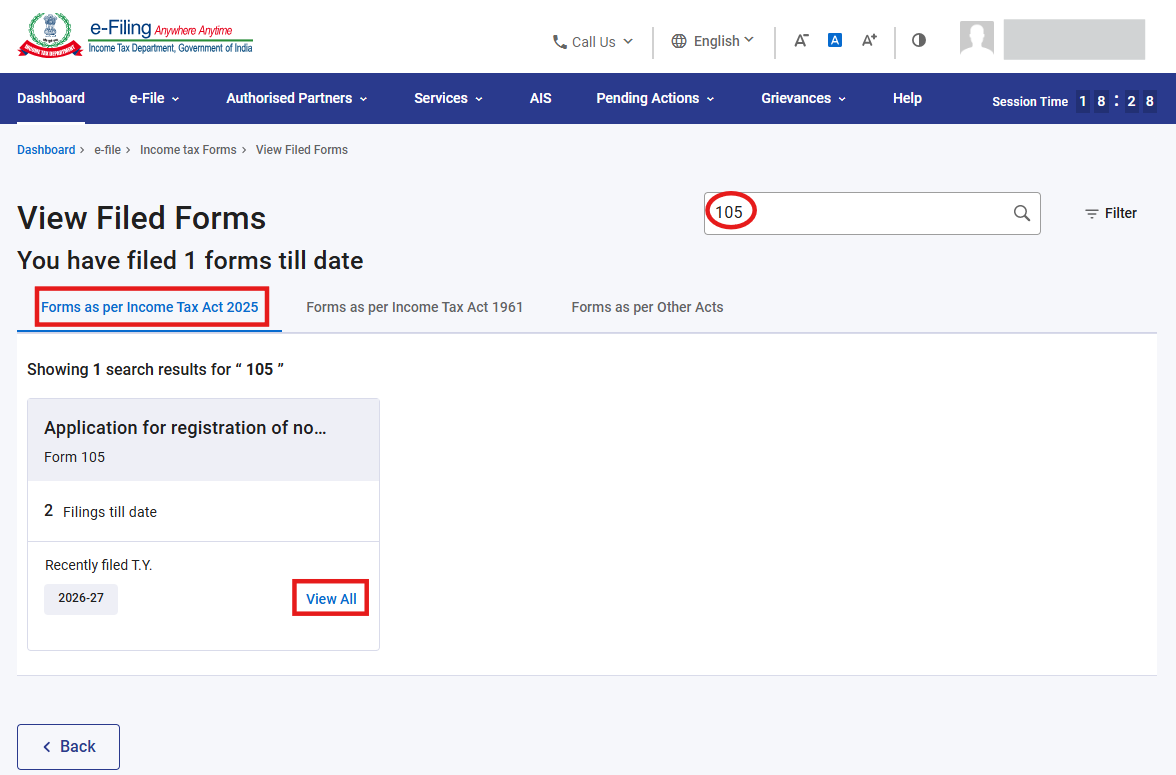
Step-24: Select the Forms as per Income Tax Act 2025 tab, search for Form 105, and click “View All” button.
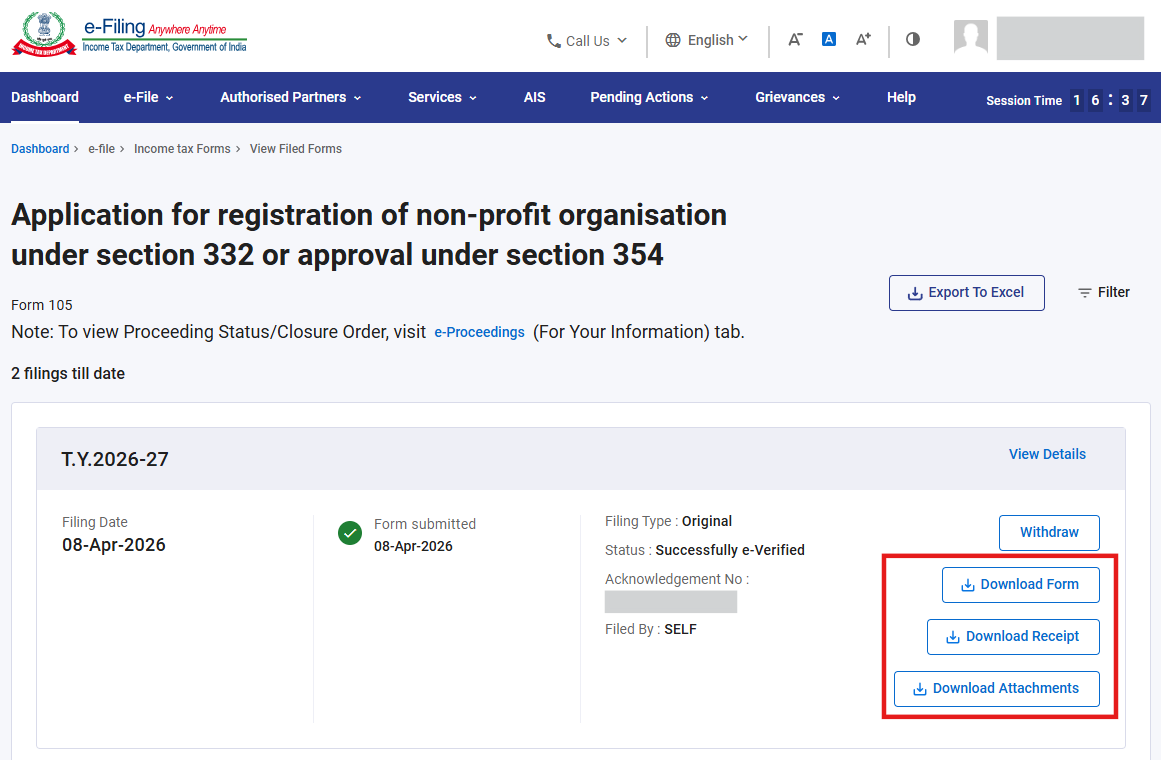
Step-25: On click of View All button in the previous step-19, you will be navigated to View Filed Forms screen as mentioned below in which you can download the filed form, receipt and attachments
Part II: Filing of Form 105 (Condonation)
Step 1: Select the filing type and applicable Condonation Year and click on Continue button.
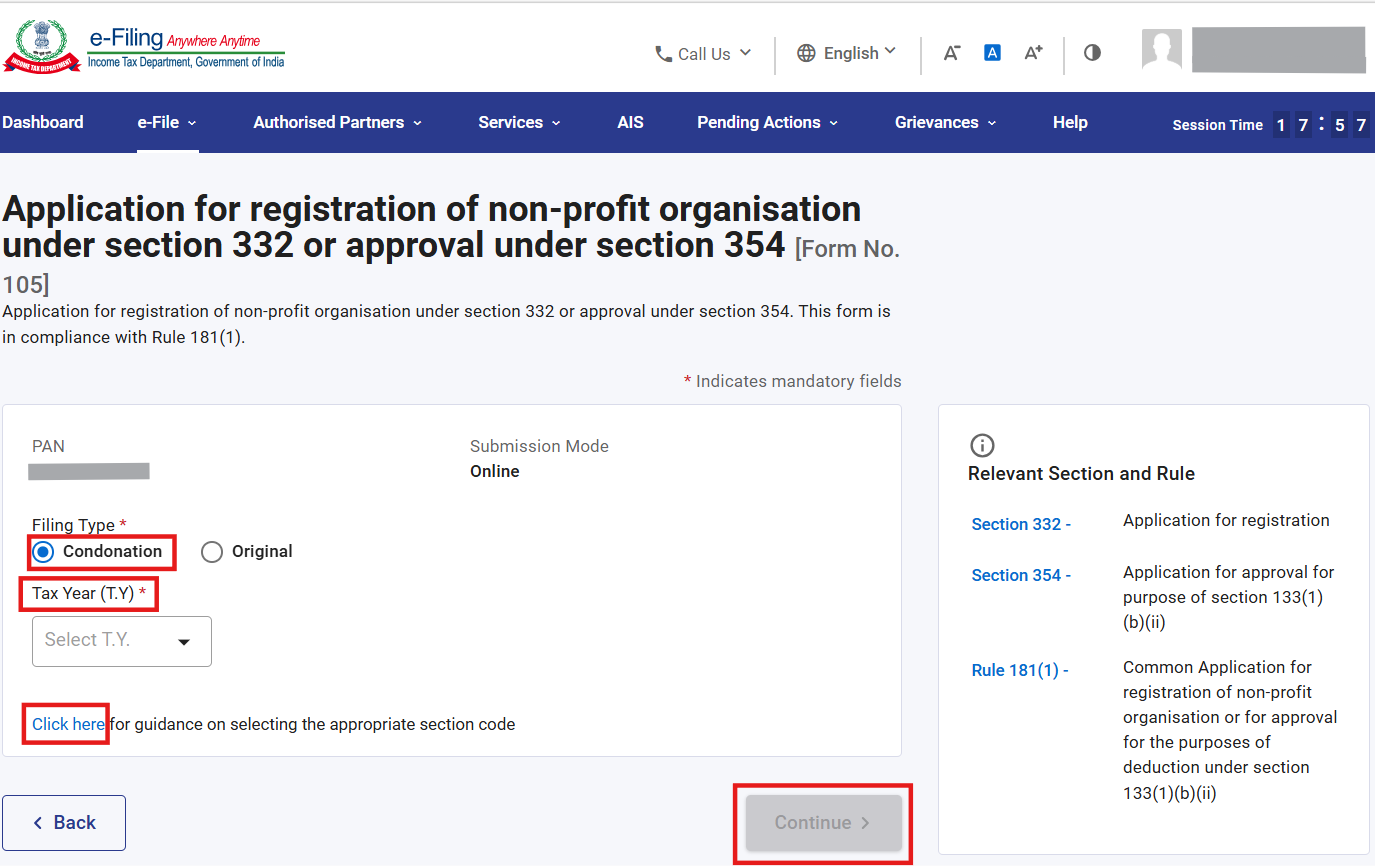
Please Note Condonation is applicable for section 332 only.
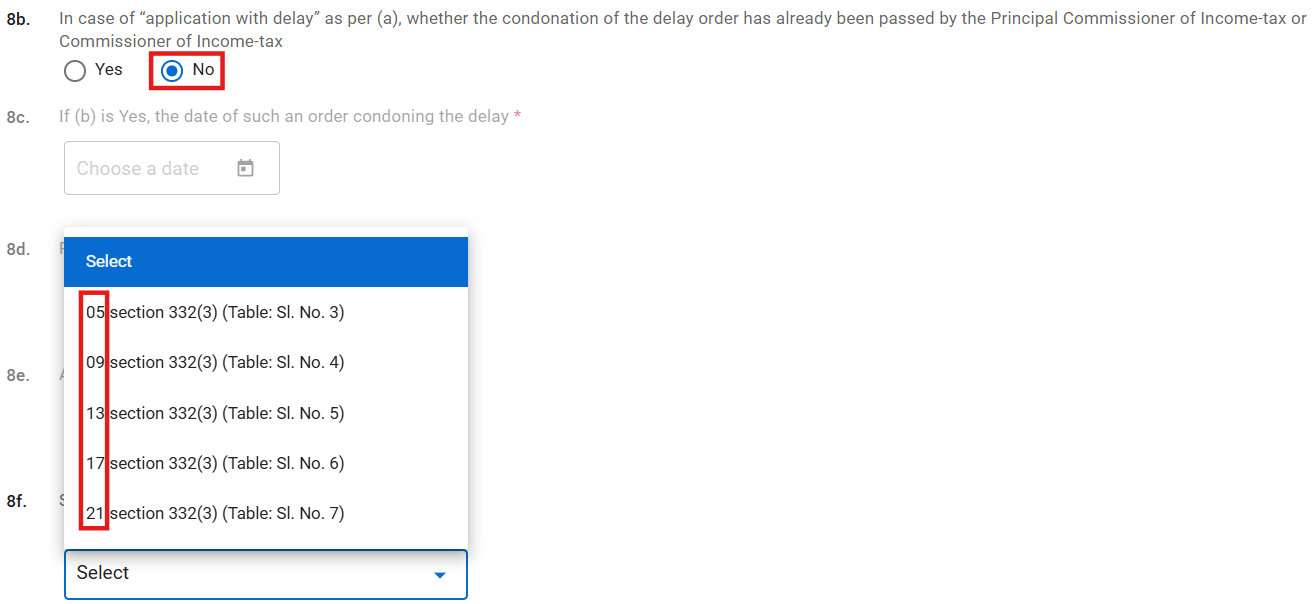
Step 2: After selection of condonation radio button at landing screen, you need to select “yes” or “no” radio button in field 8b. If you selects “Yes” in field 8b then you need to provide details in fields 8c. and 8d.
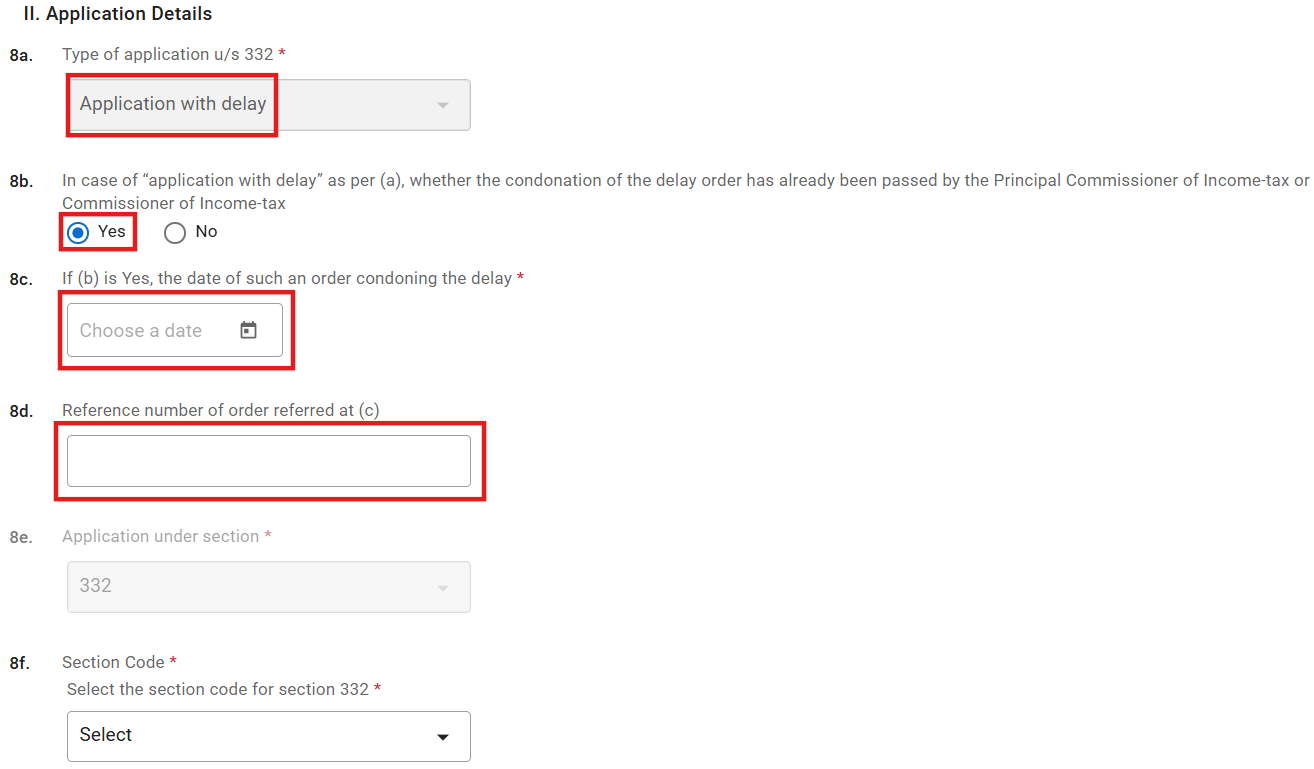
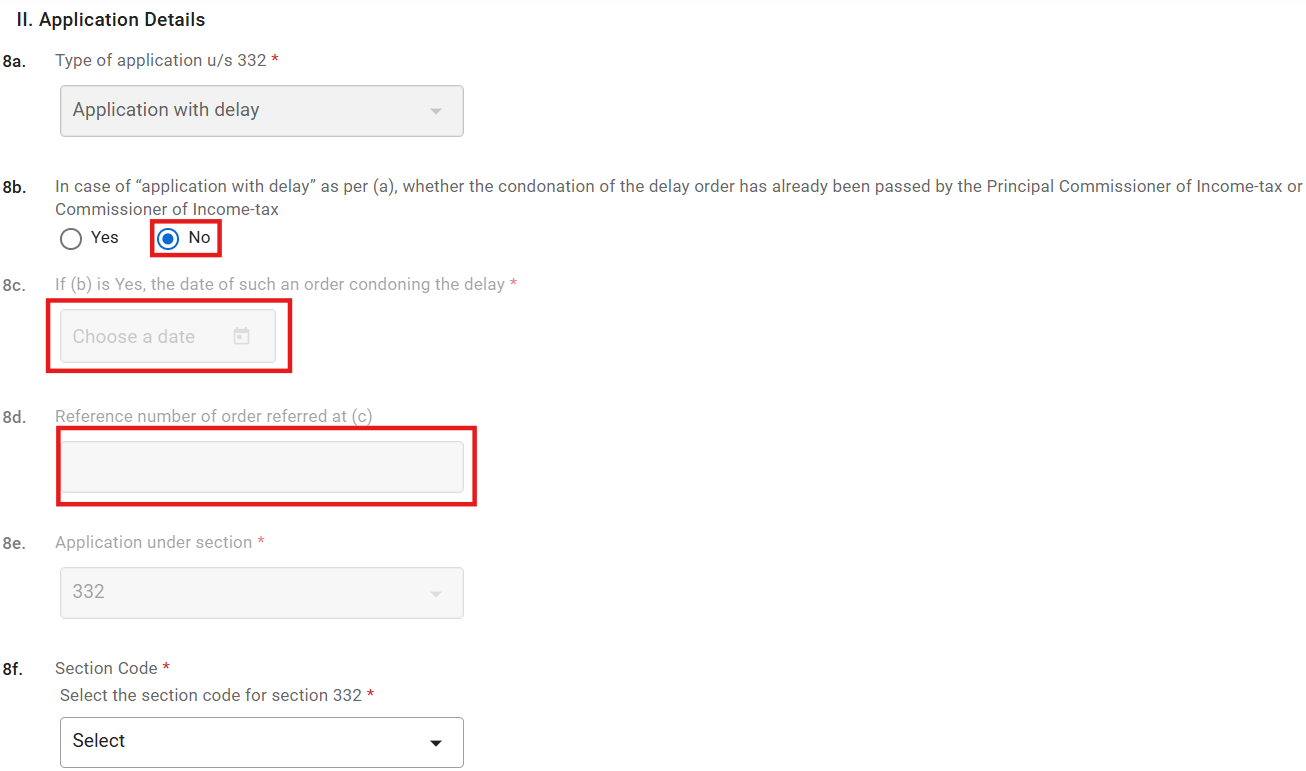
If you will select “No” in field 8b. then field 8c. and 8d. will be disabled.
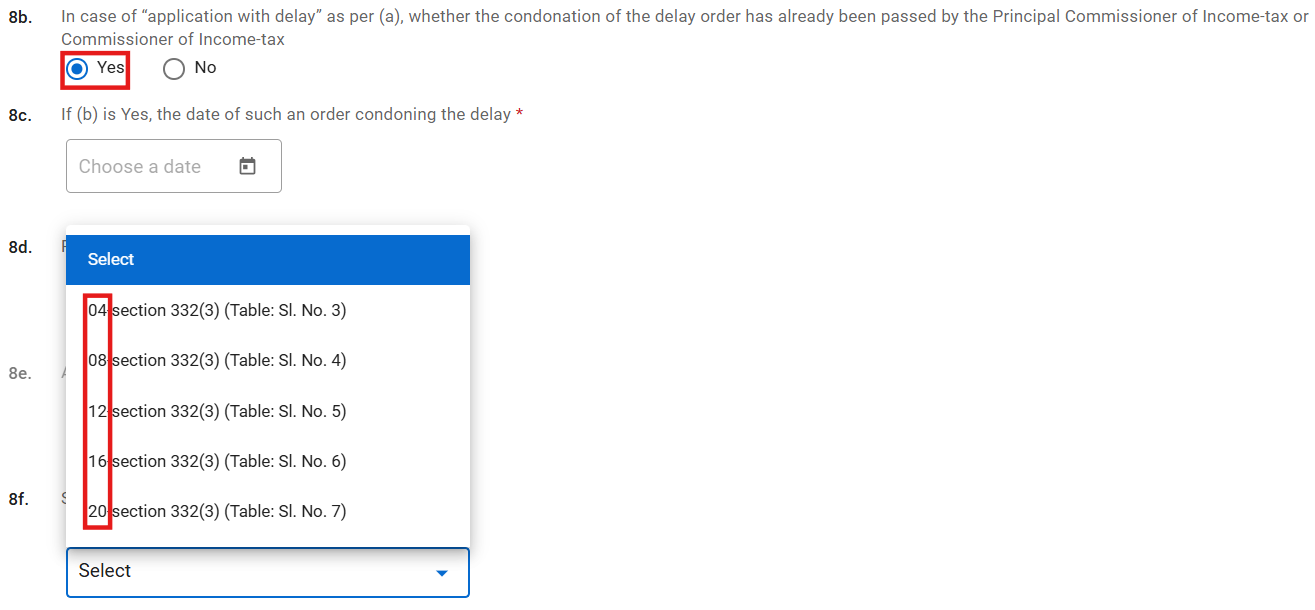
Please Note If you selects “Yes” in field 8b. then section code 04, 08, 12, 16, 20 will be enabled in field no. 8f.
If you have selected “No” in field 8b. then section code 05, 09, 13, 17, 21 will be enabled in field no. 8f.
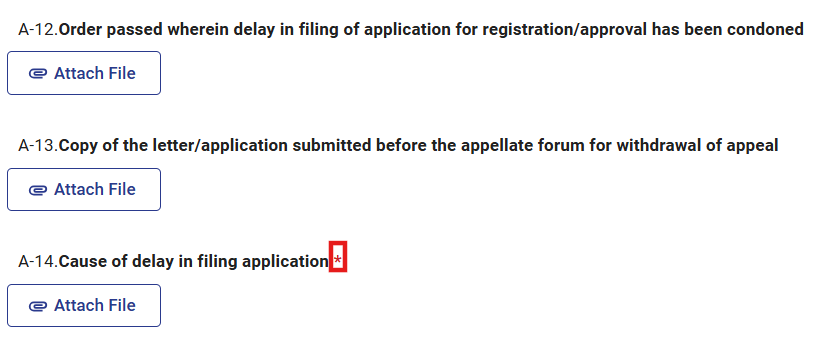
Step 3: If you selected “No” in field 8b. then “A-14.” will be mandatory in attachment panel.
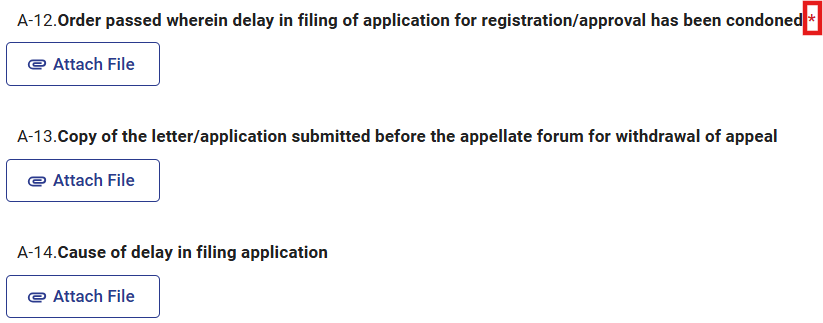
If you selected “Yes” in field 8b. then “A-12” will be mandatory in attachment panel.
Part-III: Procedure for withdrawal of Form 105
Kindly note that withdrawal of Form 105 functionality is available for only 7 days from the date of filing of Form 105. Post 7 days, you cannot withdraw Form 105.
Step-1: You should navigate to View Filed Forms Screen by following the steps (19 to 21) mentioned in Part A above and click on Withdraw button
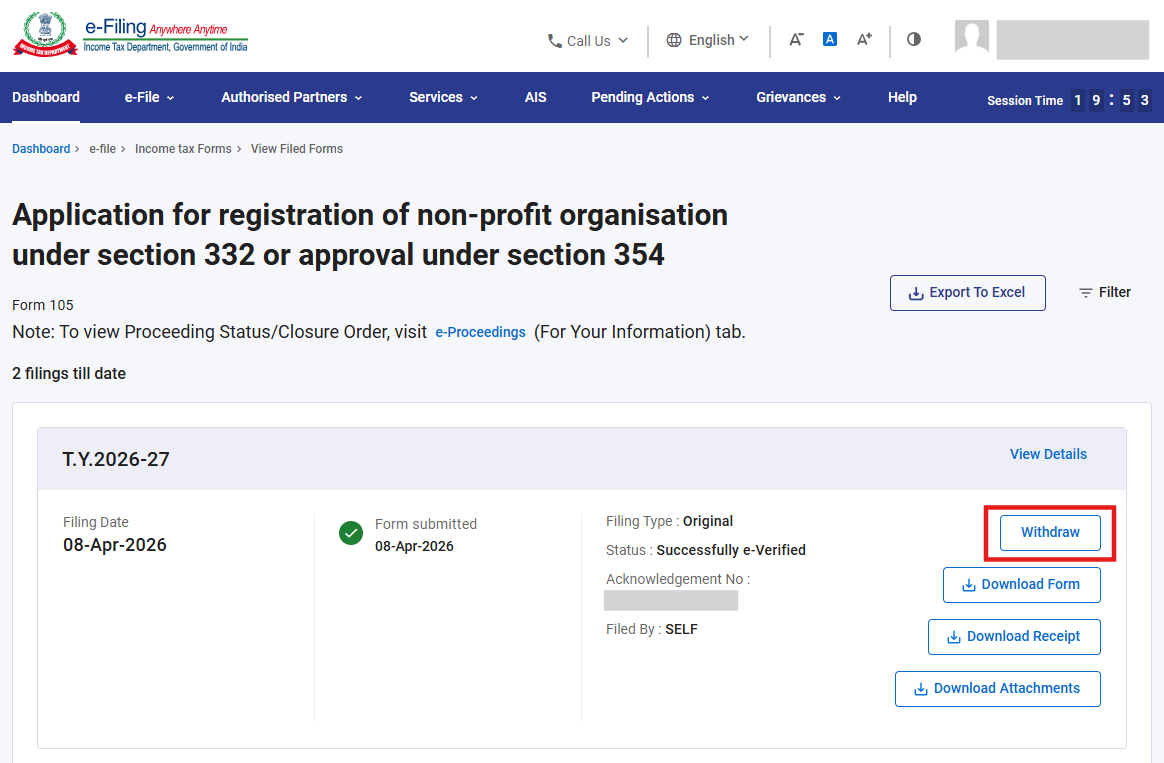
Step-2: Post clicking on Withdraw button, you are required to provide the reason of withdrawal and click on Continue button
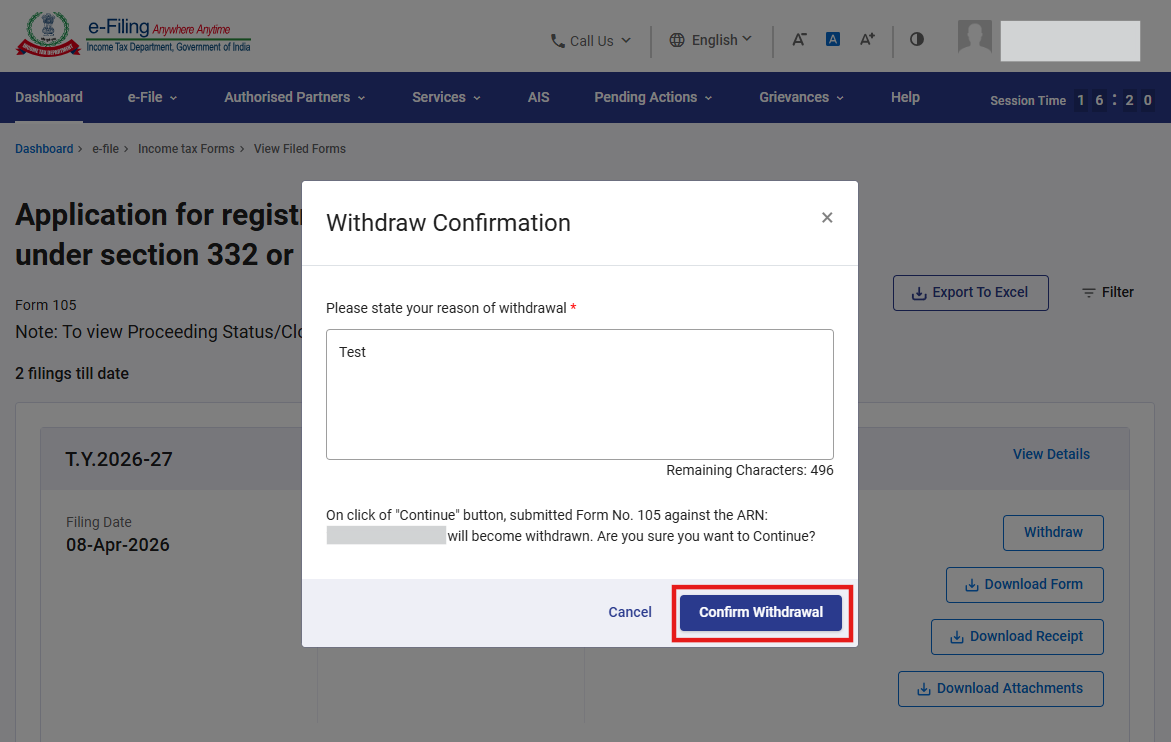
Step-3: Post clicking on Continue button, a success message is displayed along with a Transaction ID. Please keep a note of the Transaction ID for future reference. Click on “Go Back To View Filed Forms” button
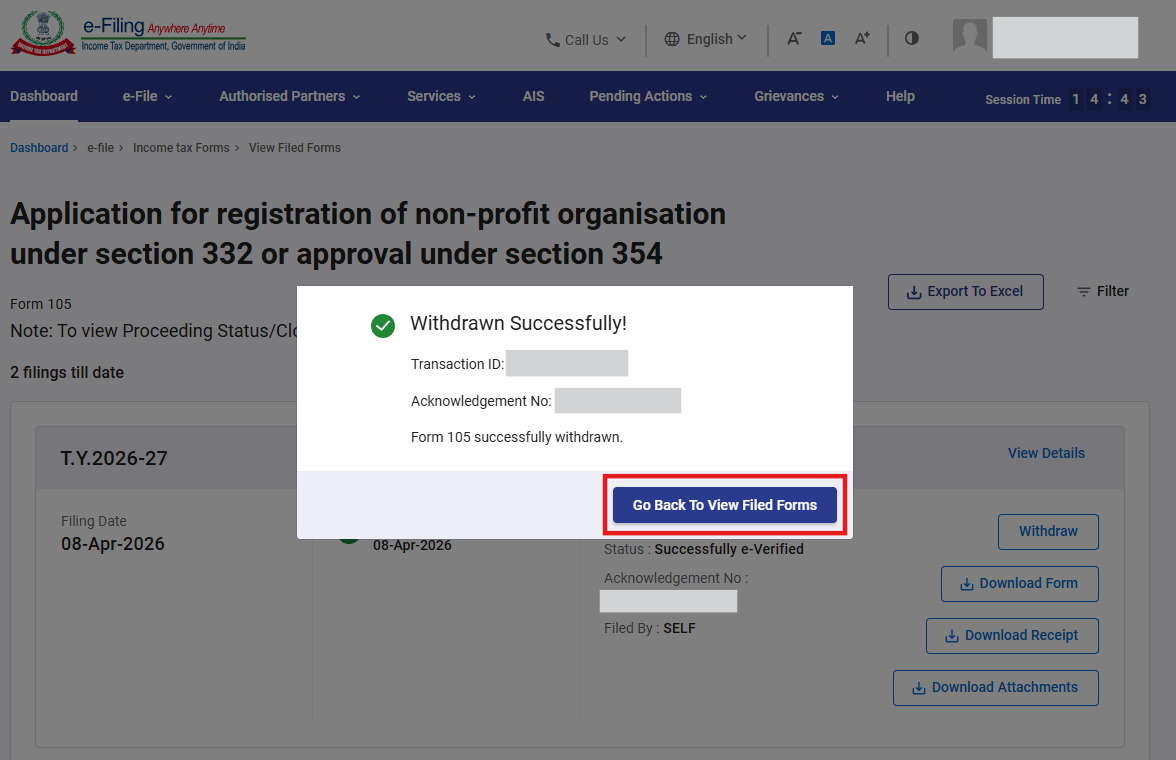
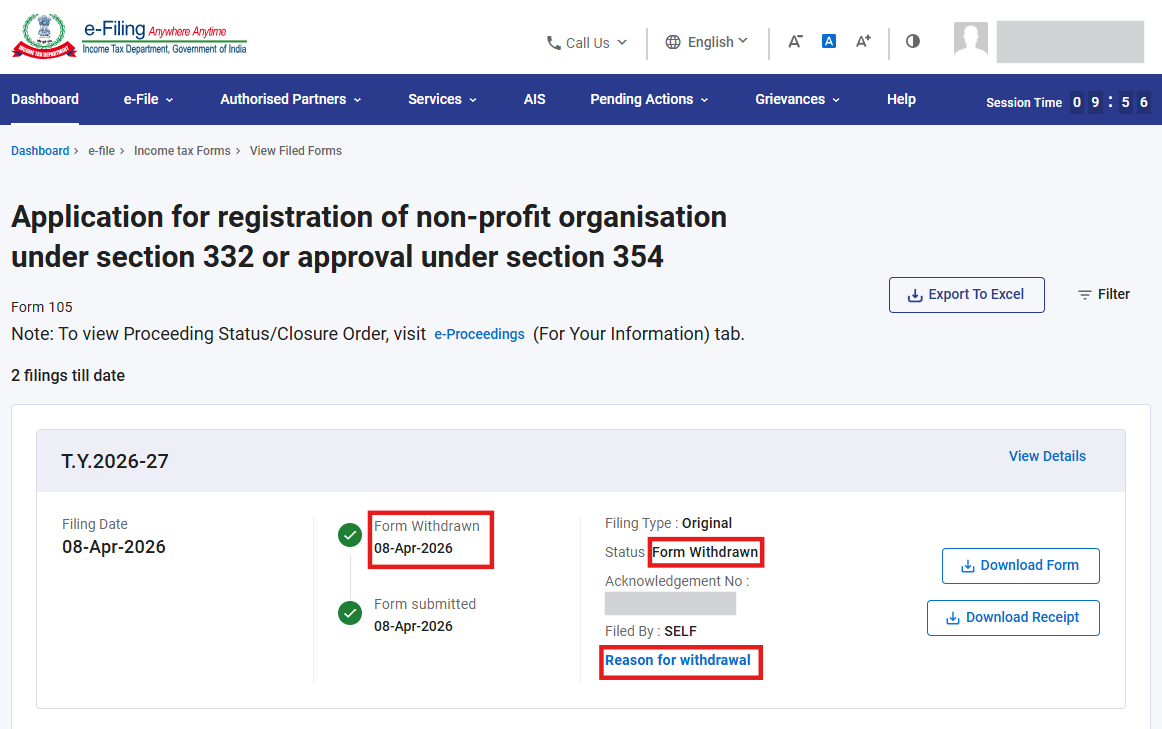
Step-4: Post clicking on “Go Back To View Filed Forms” button, you will be navigated to view filed form screen, where the life cycle and status of form will get updated as Form Withdrawn and if you want to check the reason of withdrawal, click on Reason for withdrawal hyperlink
Part-IV: Procedure to check the status of Form 107
Option-1: Post filing of Form 105, you can check the status of Form 107 by navigating to Dashboard> Pending Actions > E-Proceedings > For your Action tab
(or)
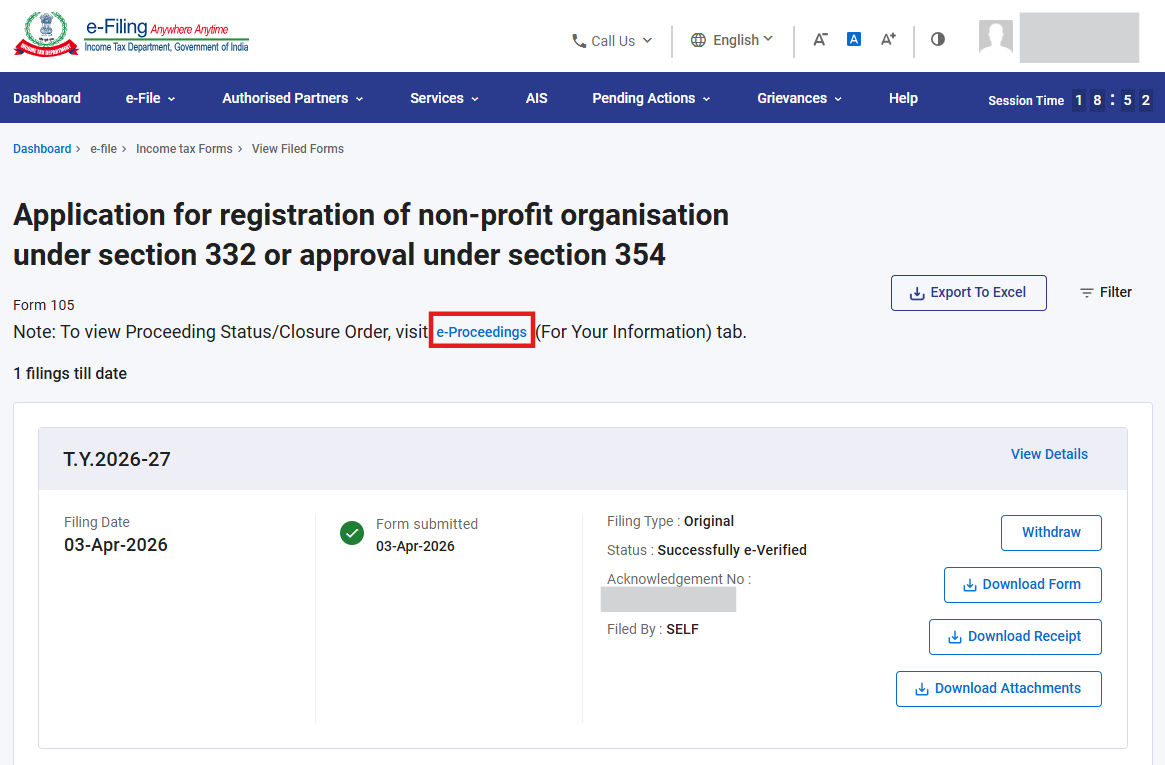
Option-2: Post filing of Form 105, you can check the status of Form 107 by navigating to Dashboard> e-File > Income Tax Forms > View Filed Forms > Forms as per Income Tax Act 2025 tab > Form 105 > Click on “e-Proceedings” hyper link as displayed in the below image:
5. Related Topics
Login
Dashboard
How to e-Verify
Income Tax Forms (Upload)
Generate EVC
Register as Authorize signatory /Register as Representative-Request Submission
6. Glossary
| Acronym/Abbreviation | Description/Full Form |
| DSC | Digital Signature Certificate |
| EVC | Electronic Verification Code |
| ARN | Acknowledgement Receipt Number |
| TY | Tax Year |



