Form 1 (52/2023) User Manual
1. Overview
Form No. 1 is a simple declaration form used by companies that are located in an International Financial Services Centre (IFSC) and are in the business of leasing aircraft.
This form allows them to avoid TDS (tax deduction) on certain dividend payments they receive from Company located in IFSC.
This form can be filed by Companies and their Authorized Signatory/Representative Assesses whose unit are in IFSC on efiling portal in Online Mode and Payee shall furnish filed form PDF and Acknowledgement to Payer based on which Payer will stop deduction of TDS on Dividend Payments done by it.
2. Prerequisites Before Filing the Form
Before a company can file Form No. 1, the following conditions must be true:
✔ The company must:
• Be located in an IFSC.
• Be mainly doing the business of aircraft leasing.
✔ The dividend they receive:
• Must be eligible for tax exemption under Schedule VI (Table S. No. 11) of the Income-tax Act 2025.
✔ The form must:
• Be signed by an authorized person (as per section 265 of Income-tax Act 2025).
• Be given to the company paying the dividend.Once the paying company receives this filed form, it will not deduct TDS on those dividend payments.
3. About the Form
Purpose of Form 1
This form is used to declare that:
• The company filing the form is eligible for tax exemption on the dividend it receives.
• It is still operating in the IFSC and is still engaged in aircraft leasing.
• After giving this form, the payer company can stop deducting TDS on dividend payments.
Why this form exists
The government issued Notification 52/2023 to make sure TDS is not deducted on certain dividend payments between IFSC aircraft leasing units.
Who Can File Form No. 1 (52/2023)
Form No. 1 can be filed by:
✔ The recipient (payee) company
A company that:
• Is located in an International Financial Services Centre,
• Is primarily engaged in aircraft leasing, and
• Receives dividend from another similar IFSC company.
✔ Person authorized to sign
The form must be signed by someone who is allowed to verify income tax returns for that company (as per section 265 of Income-tax Act 2025).
4. Step by Step guide to File Form No. 1
Step 1: Log in to the e-Filing portal with your User ID and Password.
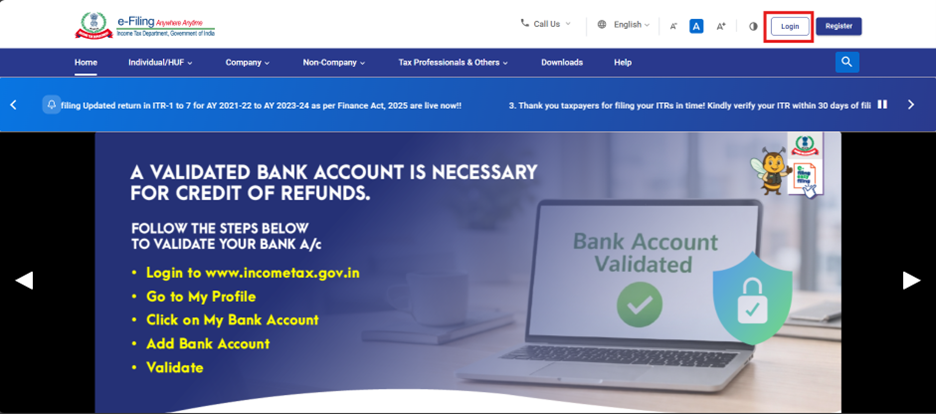
Step 2: Enter the User ID (PAN) and Password.
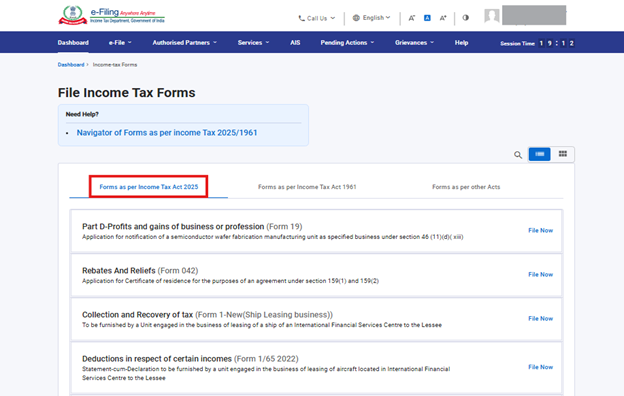
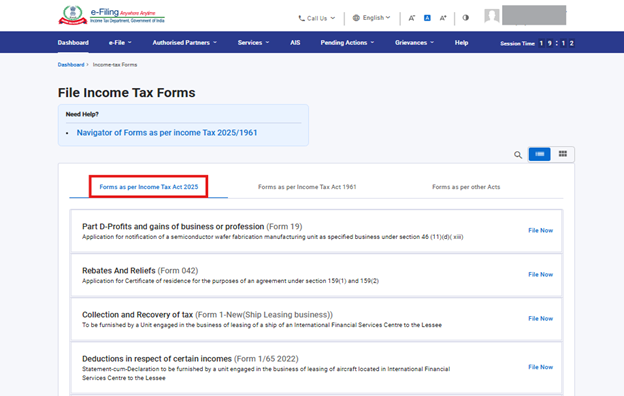
Step 3 : Go to e-File >Income Tax Forms > File Income Tax Forms.
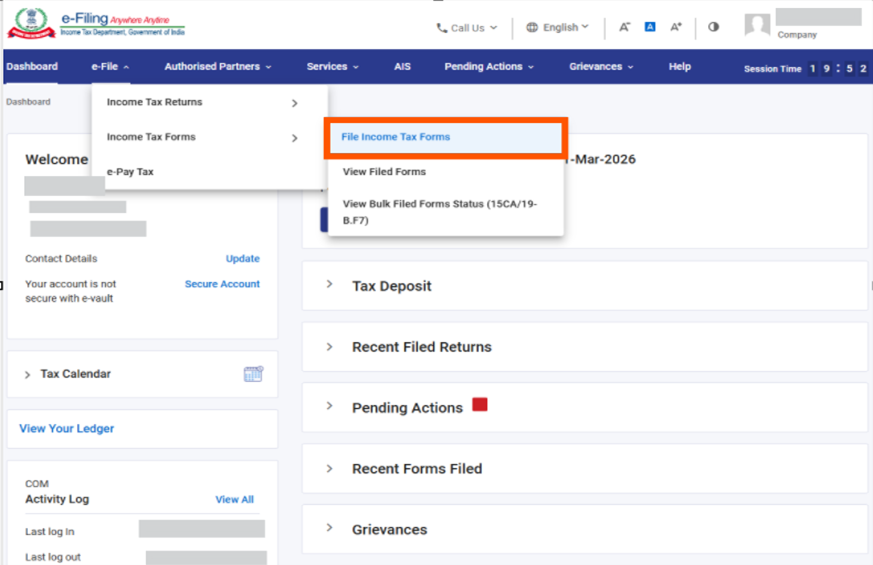
Step 4: Select Tab “Forms as per Income tax Act 2025”
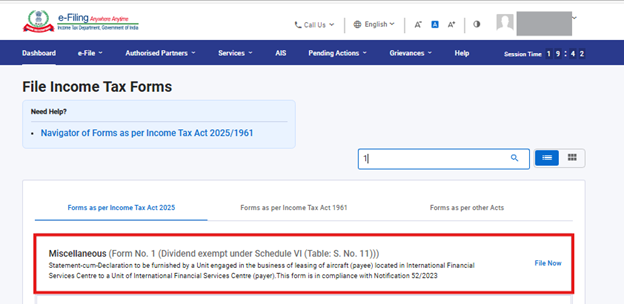
Step 5: Select/ Search Form 1 (52/2023) [Dividend exempt under Schedule VI (Table: S. No. 11)]
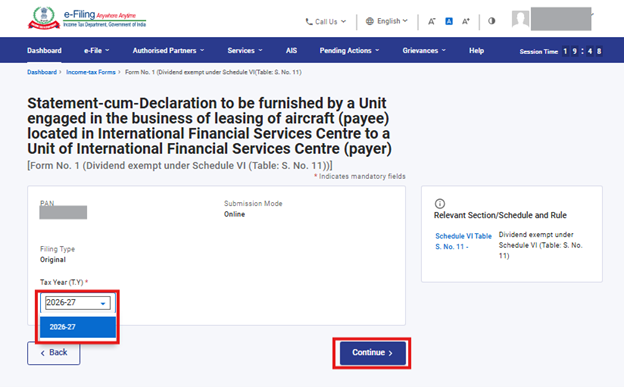
Step 6: Select Tax Year then click on Continue.
Step 7: Click on Let’s Get Started
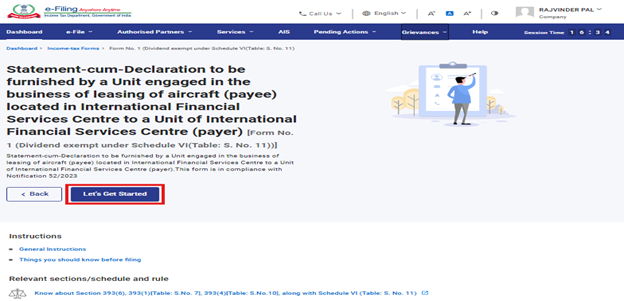
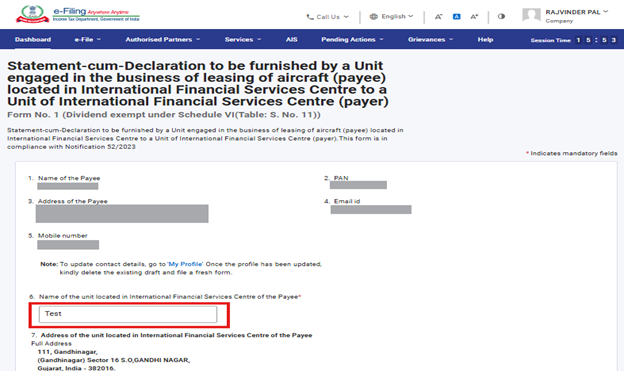
Step 8: When the user clicks “Let’s Get Started”, Form 1 (52/2023) will be displayed.
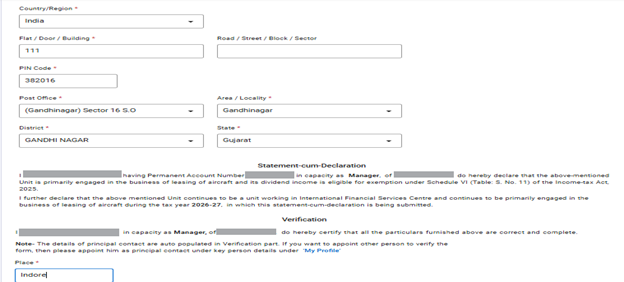
Users must fill in all the blank fields. Fields marked with an asterisk (* )are mandatory.
Mandatory Information
The user is required to enter:
• Name of the unit located in IFSC of the payee,Mandatory fields in the Address section and Place
Prefilled Information
Certain details will be automatically prefilled in the form, such as:
• Name of the payee, PAN, Address of the payee, Email ID, Mobile number
Updating Prefilled Details
If the user wishes to update any of the prefilled information:
• Click the “My Profile” hyperlink and update the necessary basic details.
• The updated details will be reflected in the form.
Statement cum Declaration
Details of the Principal Contact will also be prefilled based on the Key Person information available in My Profile.
If the user needs to update Principal Contact details:
• Navigate to My Profile using the hyperlink provided in the panel.
• Update the required information accordingly.

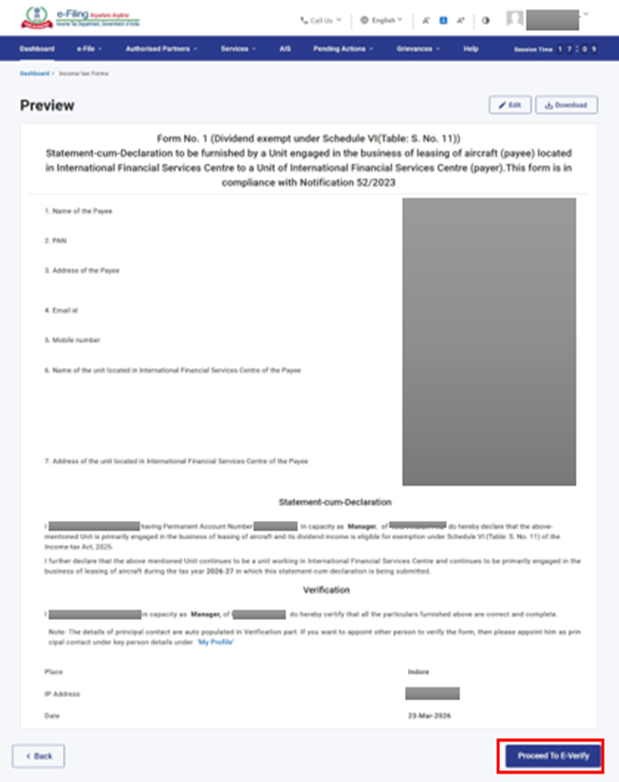
Step 9: When you click on preview, you will be redirected to Preview screen where you will reverify Information filled and click on Proceed to E-Verify Button.
Step 10: After clicking on Proceed to E-Verify Pop up message will come select yes to proceed.
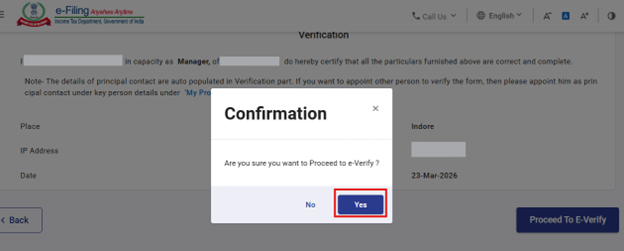
Step 11: On clicking Yes, you will be taken to the e-Verify page.
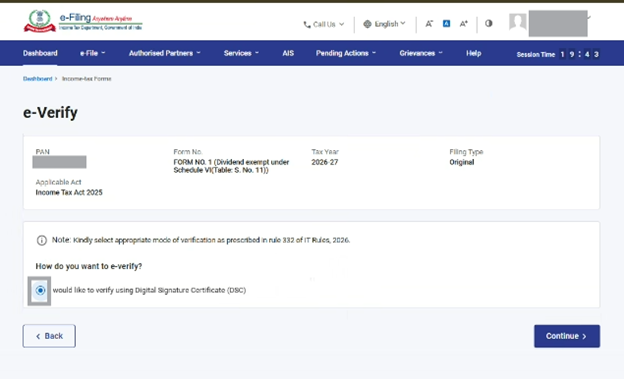
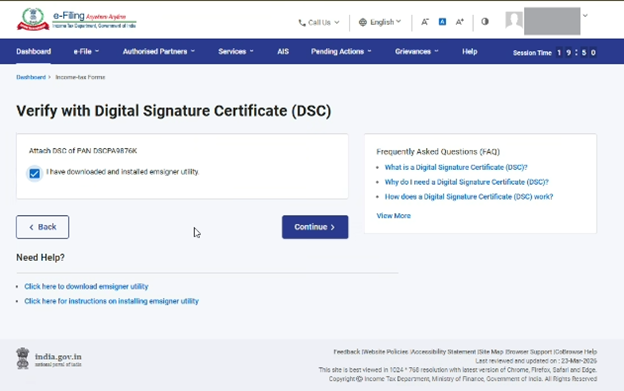
Select Provider and Certificate of DSC from Dropdown thereafter enter password of DSC and click on sign.
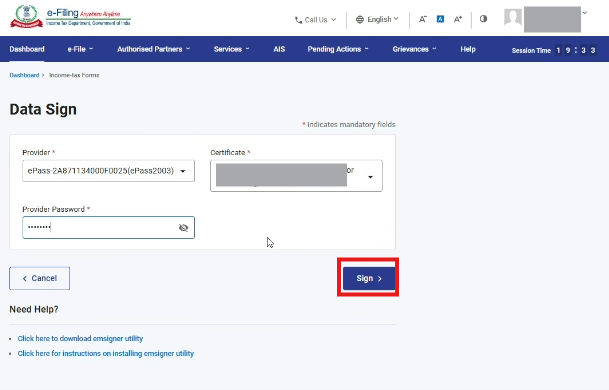
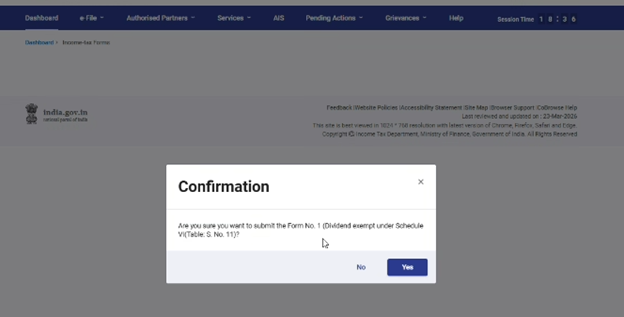
Once you click on Sign button confirmation popup will appear, user needs to select yes in order to proceed.
Note: Refer to the How to e-Verify user manual to learn more.
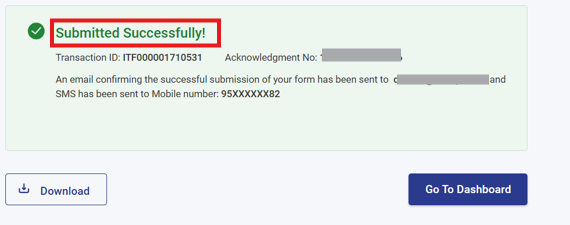
After successful e-Verification, a success message is displayed along with a Transaction ID and Acknowledgement Number. Please keep a note of the Transaction ID and Acknowledgement Number for future reference. You will also receive a confirmation message on your email ID and mobile number registered with the e-Filing portal.
Step 12: On clicking Yes, Form will be submitted successfully.