



Form 1 (Ship Leasing Business) User Manual
1. Overview & Purpose of the form
If a ‘Lessee’ pays rent for leasing a ship from a Unit located in an International Financial Services Centre (being the ‘lessor’), then as per Notification No.57/2023 dated 1st August 2023, the lessee does not have to deduct TDS on this rent if following conditions are satisfied.
The Lessor must-
• Give Lessee a statement in Form No.1 (Ship Leasing business), specifying therein the tax year for which they are claiming tax benefits for under Section 147 of Income-tax Act, 2025.
The Lessee must-
• Once they receive Form No.1 (Ship Leasing Business), Lessee shall not deduct Tax from the payments made to the lessor.
• They must also report these payments (on which no TDS was cut) in their regular TDS return, if applicable.
2. Prerequisites for filing
• The user shall be a registered user on the e-Filing portal.
• Status of PAN of the user should be "Active".
• Users should have a valid DSC to verify the form through DSC mode, and it must be registered on the e-filing portal and not expired
3. Who can file it?
All registered users except Individual, HUF and Artificial Judicial person, on the e-Filing portal can file Form No.1 (Ship Leasing Business) for availing the benefits of Notification No.57/2023 dated 1st August 2023.
4. Step-by-Step Guide
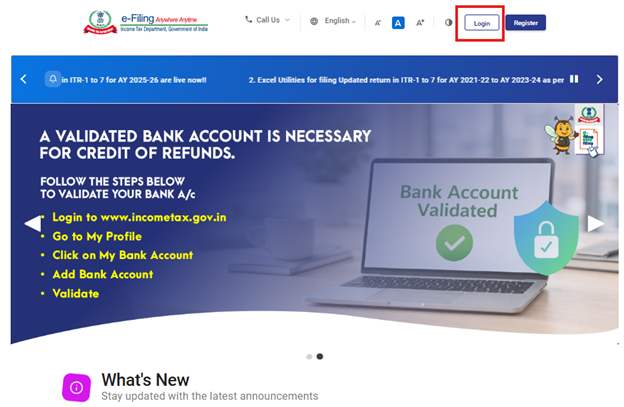
Step 1: Log in to the e-Filing portal with your User ID and Password.
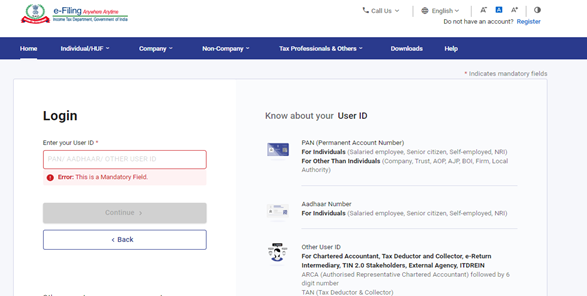
Step 2: Enter the User ID (PAN) and Password and click on ‘Continue’.
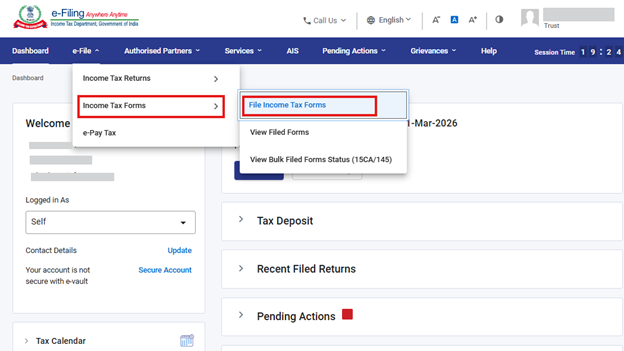
Step 3: Go to e-file >Income Tax Forms > File Income Tax Forms.
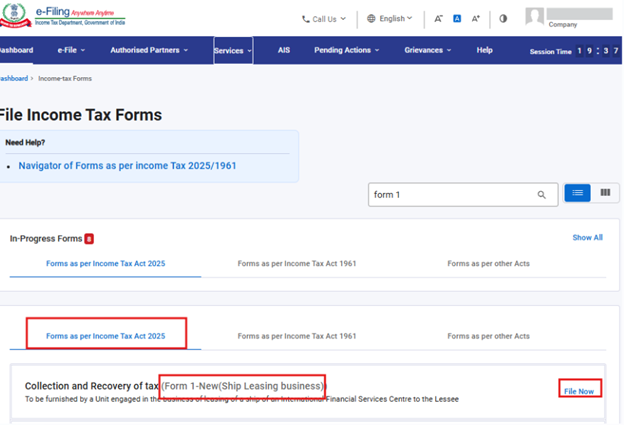
Step 4: Select the ‘Forms as per Income Tax Act 2025’ tab.
Tax Act, 2025 and select “Form 1 (Ship leasing Business)’ and click File now.
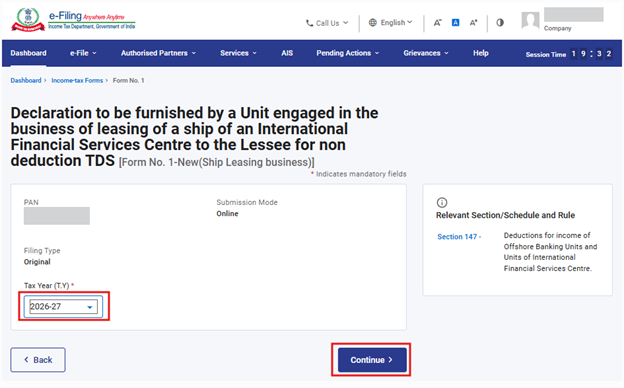
Step 5: Select the applicable Tax Year (T.Y) and click on Continue button.
Step 6. Click on Let’s Get Started.
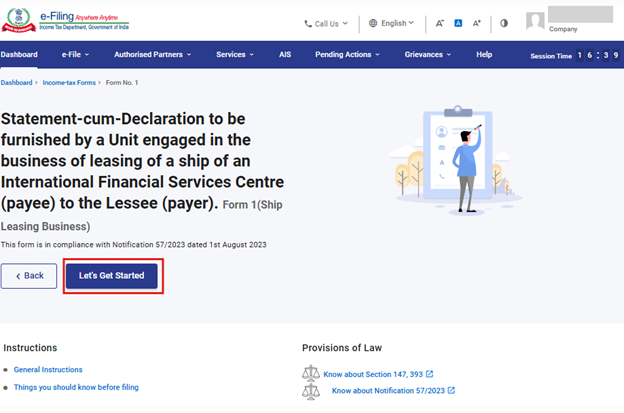
Step 7: Post clicking on ‘Let’s Get Started’, user will be navigated to Form screen.
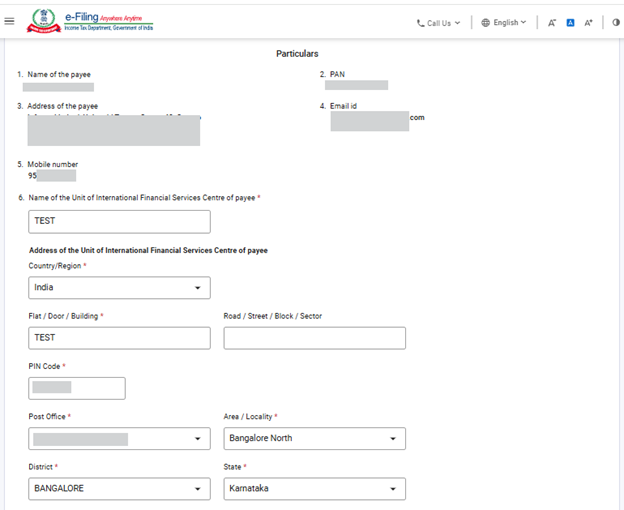
Once the User is navigated to the form, user shall enter the details asked for inside the form. The fields inside the form may be prefilled to the extent possible.
Note: Please ensure that all mandatory details under "My Profile" section including address are completed. If the user updates any detail in the “My Profile” section, please delete the draft created, if any, and file the form afresh so that the changes are properly reflected.
In Field 6 user shall enter details of name and address of Unit of the IFSC of the payee.
In Field 7, the user must enter the date on which permission was obtained from the appropriate authority. The corresponding certificate or order copy must be attached in Field 8.
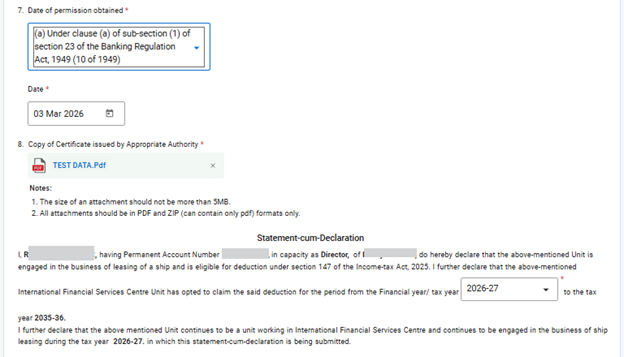
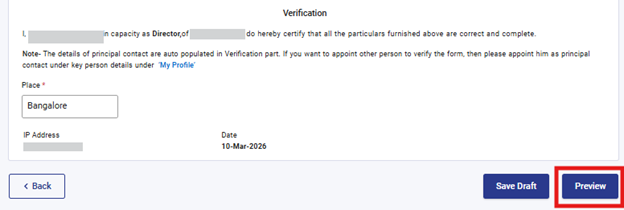
After completing all entries, the user can choose to either save the form or proceed to the preview page for submission.
The Preview button will become active only after all mandatory fields have been filled. Users shall click on Preview to proceed.
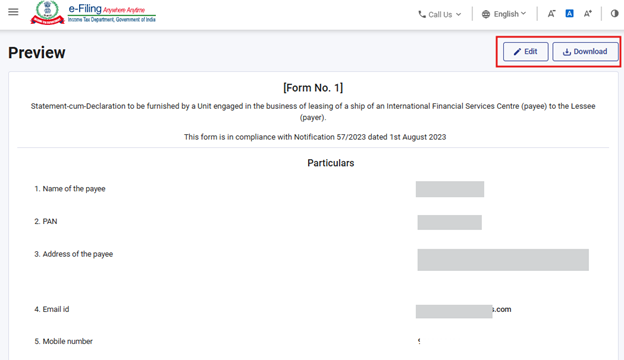
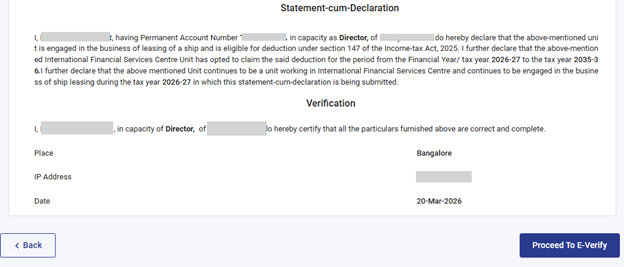
Step 8: On click of “preview” button, user shall be navigated to Preview screen where he can verify the details provided and later shall click on “Proceed To E-Verify”.
All the fields and inputs provided by the user in the form will be displayed on the preview screen. The user should review these details before proceeding. If any changes are required, the user can click the “Edit” button to modify the information within the form. The user also has the option to download the preview screen as a PDF, but this PDF is only a copy of the pre filing view and NOT the final filed form.
To continue with the filing process, the user must click the “Proceed To E-Verify” button.
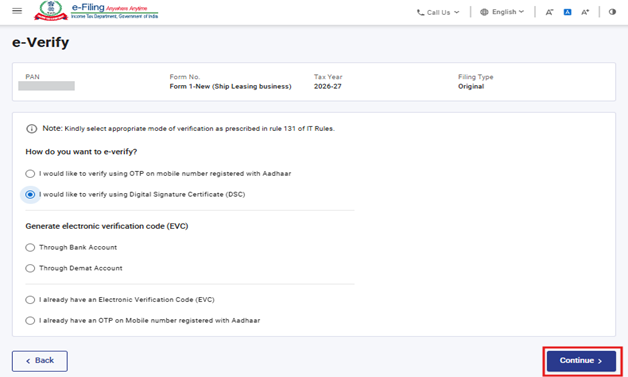
Step 9: On clicking Yes, users will be navigated to the ‘E-Verify’ page where user can verify the Form No.1 (Ship Leasing Business) using OTP/EVC/DSC (as applicable to the logged in PAN). The user shall click on ‘Continue’ button to submit the form.
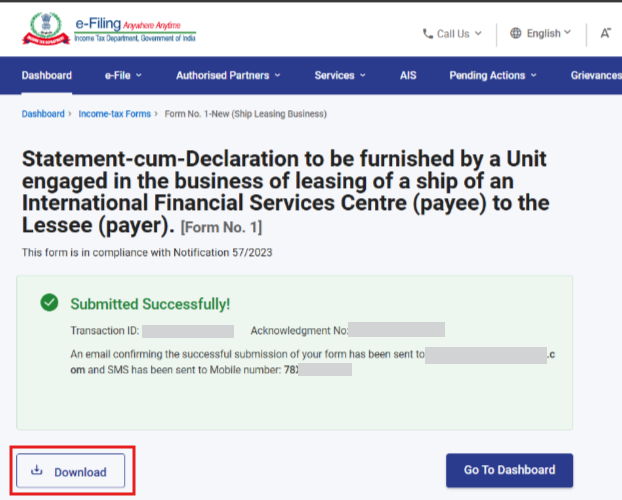
Step 10: Once the form is successfully submitted, confirmation message shall be displayed on the screen.
After successful e-Verification, a success message is displayed along with a Transaction ID and Acknowledgement Receipt Number. Please keep a note of the Transaction ID and Acknowledgement Receipt Number for future reference. You will also receive a confirmation message on the email ID(s) and mobile number(s) registered with the e-Filing portal.
Click on Download button to download the Acknowledgement receipt.
Step 12: After successful submission of Form No. 1(Ship Leasing Business) the user can view the filled form under - On your Dashboard, click e-File > File Income Tax Forms > View Filed Forms> View Filed Form tab under Income Tax Act 2025.
Note: Refer view filled form user manual to learn more.
Note: Refer to the How to e-Verify user manual to learn more.
5. Related Topics
6.Glossary
| Acronym/Abbreviation | Description/Full Form |
| DSC | Digital Signature Certificate |
| EVC | Electronic Verification Certificate |
| ARN | Acknowledgement Receipt Number |
| PY | Previous Year |
| FY | Financial Year |
| TY | Tax Year |



