



Form 127 User Manual
1. Overview
Under Section 394 of the Income Tax Act, 2025, a seller is required to collect tax from the buyer on the purchase value of specified goods. This tax must be collected either when the seller records the amount payable by the buyer in the accounts or when the seller receives payment, whichever occurs earlier. However, tax collection is not required when the buyer is a resident of India and provides a written declaration in duplicate stating that the goods will be used for manufacturing, processing, production, or power generation and not for trading purposes.
As Rule 212 of the Income Tax Rules, 2026, this declaration must be submitted in Form 127 and duly verified. The buyer must provide the declaration in duplicate to the seller, who is then responsible for forwarding one copy to the Chief Commissioner or Commissioner of Income Tax by the seventh day of the month following the month in which the declaration was received.
This Form can be filed by online mode through TAN login only.
This User manual Contains the Step-by-Step process of-
How to File Form 127 (Declaration under section 394(2) of the Act to be made by a buyer for obtaining goods without collection of tax)
2. Prerequisites for availing this service
• Taxpayer is registered at e-filing portal.
• Taxpayer has valid Username (TAN) and Password of E-filing 2.0 portal.
• Status of TAN of the Taxpayer is "Active" as per TAN database.
• Taxpayers should have a valid DSC to verify form through DSC Mode. It should be registered on an e-filing portal & not expired.
3. About the Form
3.1 Purpose
Objective of filing this form is to provide the Declaration under section 394(2) of the Income-tax Act, 2025 to be made by a buyer for obtaining goods without collection of tax.
3.2 Who can use it?
Form 127 contains four parts. Part A, Part B, Attachments and Declaration.
Part A of the Form 127 along with the details of declarations filed in Part B in CSV file, is required to be furnished by a seller for non-deduction of TDS to the Chief Commissioner or Commissioner, on or before the seventh day of the month next following the month in which the declaration in Part B of Form 127 was furnished to him.
Part B is relating to the declaration under section 394(2) to the effect that any of the goods referred to in Section 394(1) [Table: Sl. No. 1 to 5)] are to be utilized for the purposes of manufacturing, processing or producing articles or things and not for trading purposes shall be in Form No 127 that shall be made by the buyer while purchasing the goods. The Part B shall be filed manually by the Buyer with seller who shall consolidate details of all the declarations filed with him in CSV file.
3.3 Form at a Glance
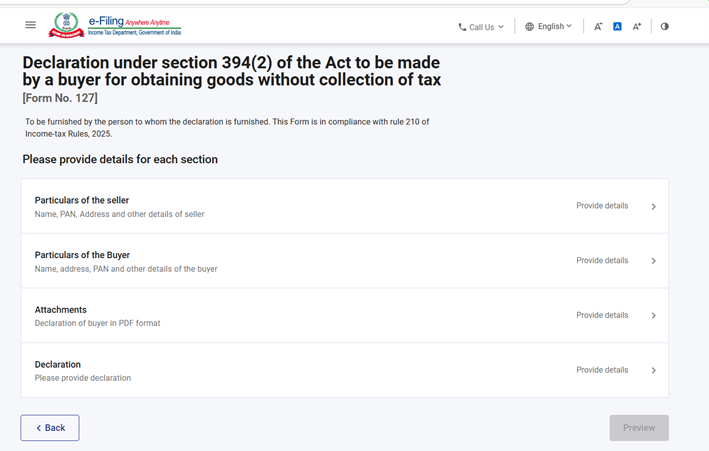
Form 127 has following 4 parts-
- Part A: Particulars of the seller (Name, PAN, Address and other details of seller)(It shall be filed through efiling by Seller by incorporating the details of Part A before the competent authority)
- Part B: Particulars of the Buyer (Name, PAN, Address and other details of buyer) (It shall be filed by buyer manually with seller)
- Attachments (Declaration of buyer in PDF format)
- Declaration
4. Step-by-Step Guide
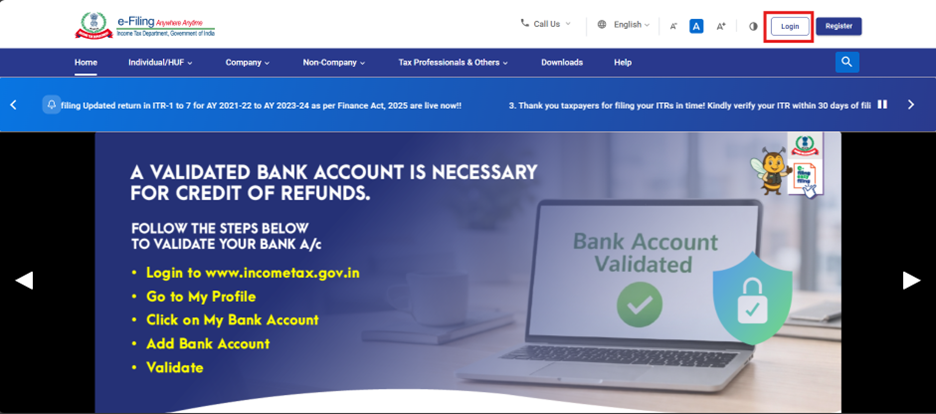
Step 1: Log in to the e-Filing portal with your User ID and Password.
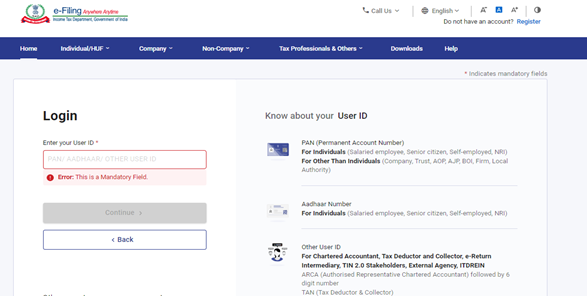
Step 2: Enter the User ID (TAN) and Password.
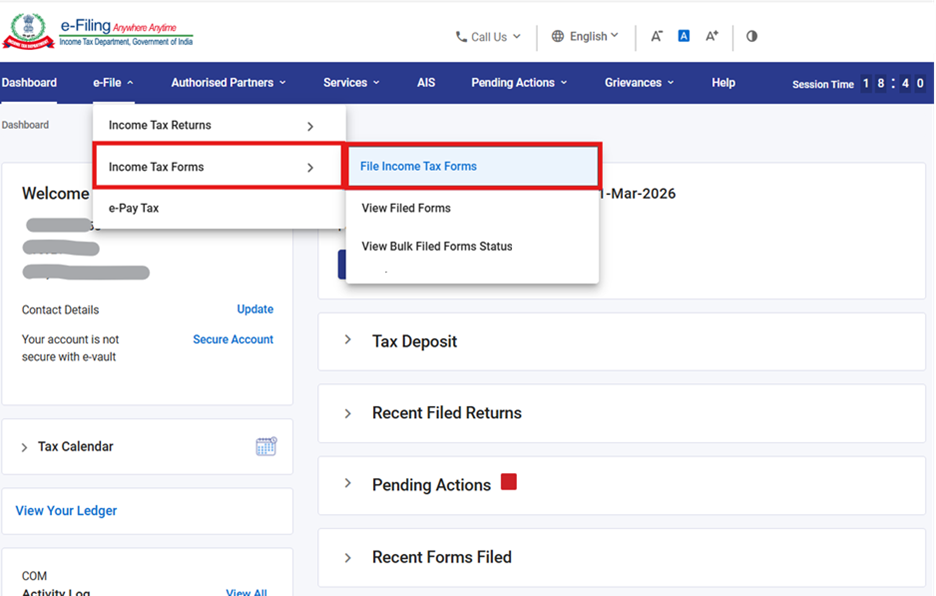
Step 3: On your Dashboard, click e-File > Income Tax Forms > File Income Tax Forms.
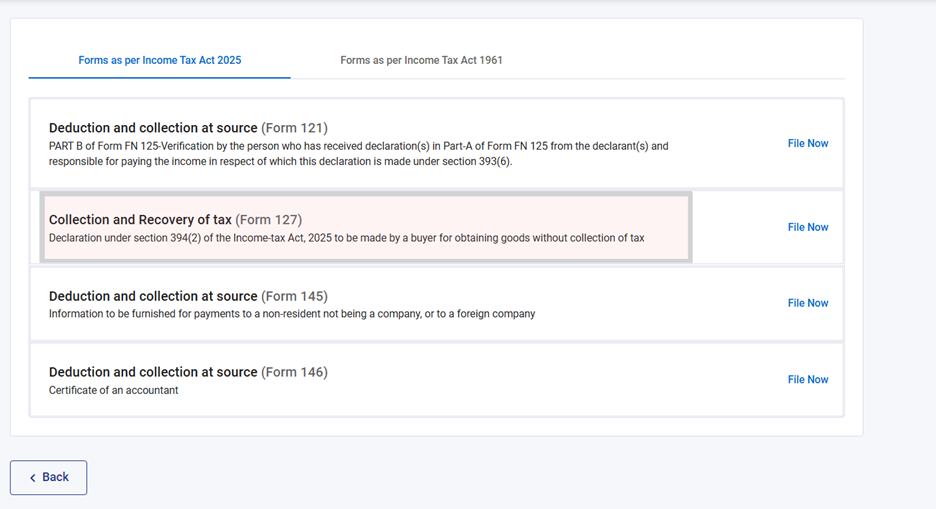
Step 4: Select the Forms as per Income Tax Act 2025-tab, search for Form 127, and click the File Now button.
Step 5: Check the TAN, Submission Mode and Select the Filing type radio button and Tax year and Month from the drop-down menu. Click on Continue button.
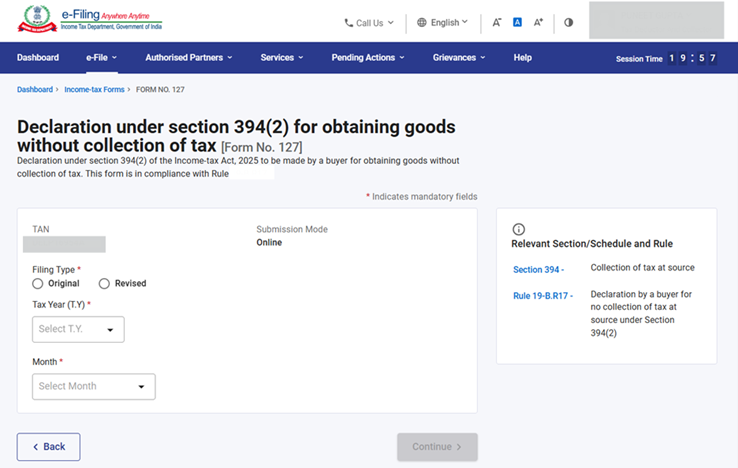
Note – Revision functionality is allowed for this form. Originally filed Form 127 for a particular month can be revised but only once. To revise the form please select the Filing type radio button as “Revised”.
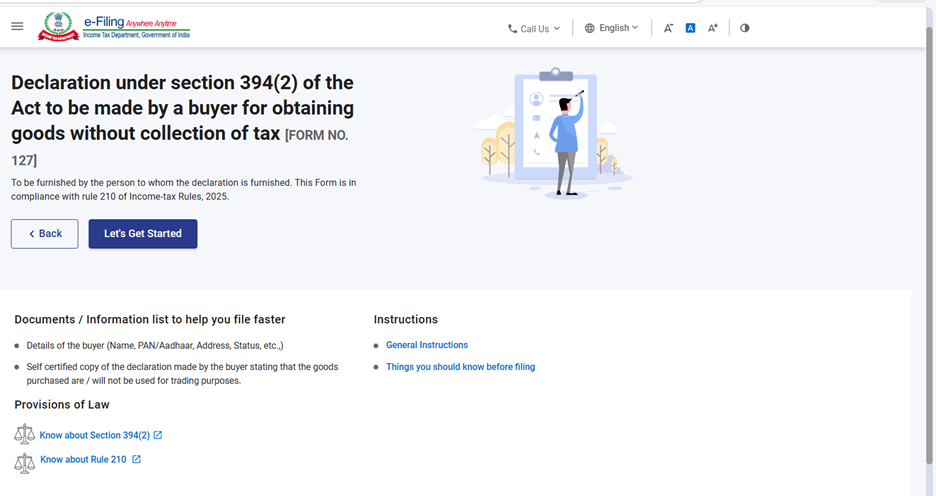
Step 6. Click on the hyperlinks to read the instructions and close the pop ups and click on let’s get started to file the form.
Step 7: Post clicking on Let’s Get Started screen, user will be navigated to Panel screen. Click on each section and provide details. There are 4 sections in this form 127.
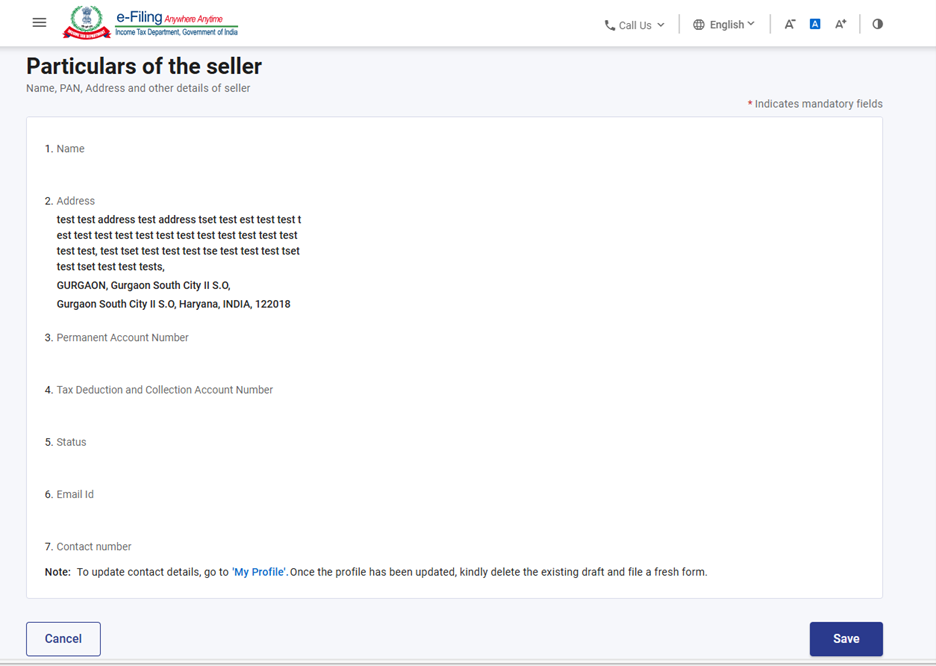
Step 8: Select the 1st Panel: “Part A and Confirm the Particulars of the seller and click Save. Part A of the form entails basic information such as Name, PAN, Address and other details of seller.
Note: Please ensure that all mandatory details under "My Profile" section including address are completed. You can update your contact and address details by clicking on hyperlink “My Profile”.
Step 9: Post saving the 1st panel, select the 2nd Panel: Particulars of the Buyer. It entails Name, PAN, Address and other details of buyer. Users need to download the template after clicking on Download Template.
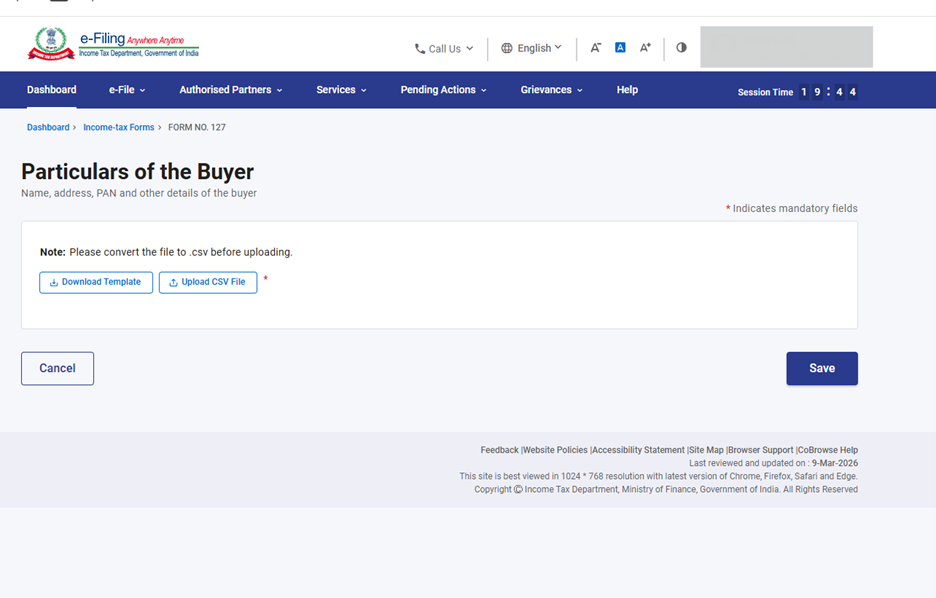
Step 10: After clicking the ‘Download Template’ button, an Excel file will be downloaded. In 1st row of excel template instructions are provided for entering data in excel. In 2nd row the user needs to fill in the data accordingly.
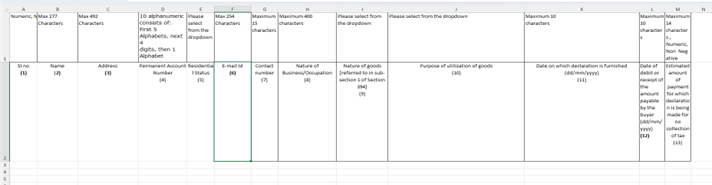
Notes:
- Please prepare CSV as per instruction provided in the template.
- Please convert the file to .csv before uploading.
- After filling in the downloaded excel template, save the data in the excel template. Then click File > Save As or Alt+F+A. Select the ‘CSV (Comma delimited)’ from the drop down in Save as type and then click Save. The filled in excel file will be saved in CSV format. This CSV format needs to be uploaded onto the portal.
- Follow the Below-mentioned instructions to fill the above excel template:
|
Field Name |
Instruction |
Mandatory field (Yes/No) |
Length of the character |
|
Name |
Enter Name of the Buyer |
Yes |
Max 277 |
|
Address |
Enter Address of the Buyer |
Yes |
Max 492 |
|
Permanent Account Number |
Enter PAN of the Buyer |
Yes |
10 alphanumeric consists of: |
|
Residential Status |
Select Status from the |
Yes |
Select value from the dropdown |
|
E-mail Id |
Enter Email id of buyer |
Yes |
Max 254 Characters |
|
Contact Number |
Enter Contact Number |
Yes |
Maximum 15 |
|
Nature of Business/Occupation |
Provide detail of business/occupation of the buyer |
Yes |
Maximum 400 characters |
|
Nature of goods [referred to in sub-section 1 of Section 394] |
Select the Nature of goods |
Yes |
Select value from the dropdown |
|
Purpose of utilization of goods |
Select the purpose of |
Yes |
Select value from the dropdown |
|
Date on which declaration is furnished |
Enter the date on which |
Yes |
Maximum 10 characters |
|
Date of debit or receipt of the amount payable by the buyer |
Enter the Date of debit or receipt of the amount payable by the buyer in |
Yes |
Maximum 10 characters |
|
Estimated amount of payment for which declaration is being made for no collection of tax |
Enter the Estimated amount of payment for which declaration is being made for no collection of tax |
Yes |
Maximum 14 characters , Numeric, Non-Negative |
Step 11: Click the Upload CSV File button upload the CSV file and click Save.
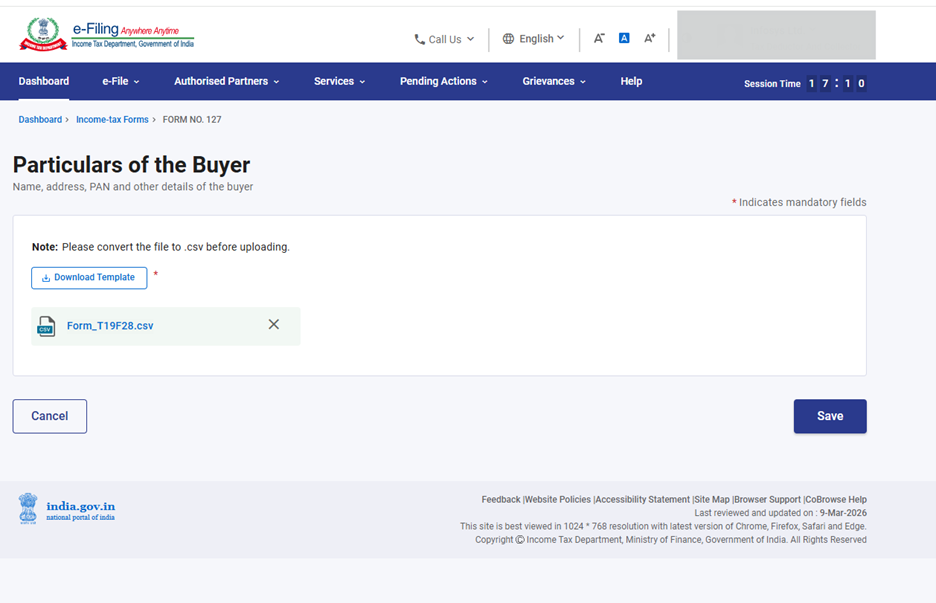
Note - If Any wrong details entered or mandatory fields are blank then error will be shown. The user has to enter the correct details and upload the CSV file again.
Step 12: Post saving the 2nd Panel, select the 3rd Panel: Attachments. Please attach the relevant documents and click on Save.
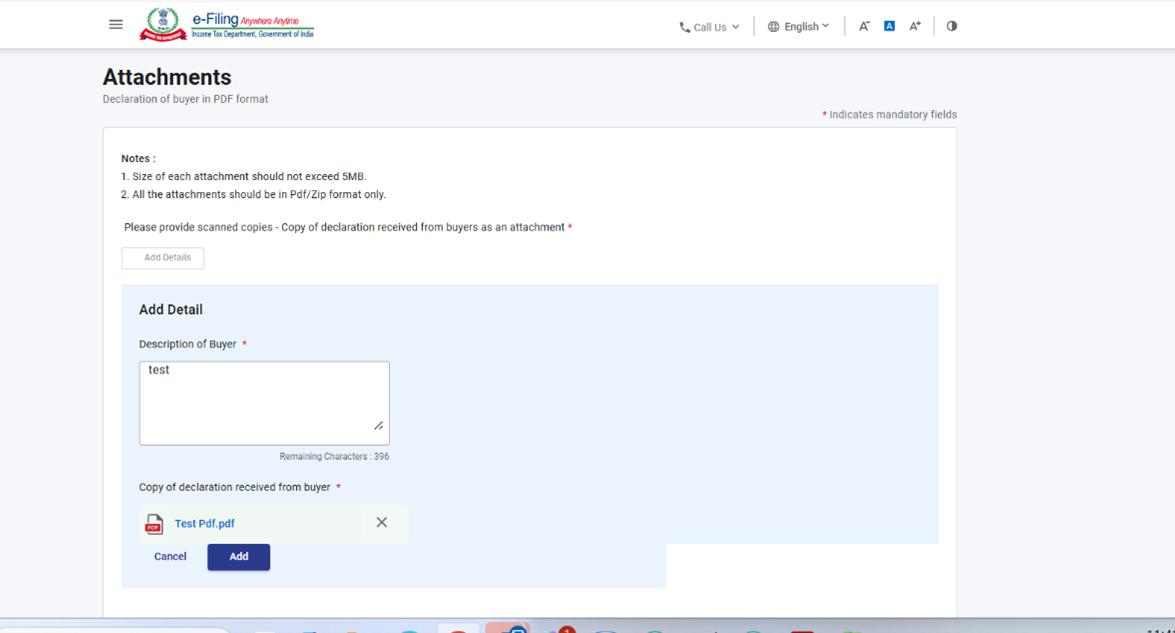
Step 13: Post saving the 3rd panel, select the “Declaration” Panel.
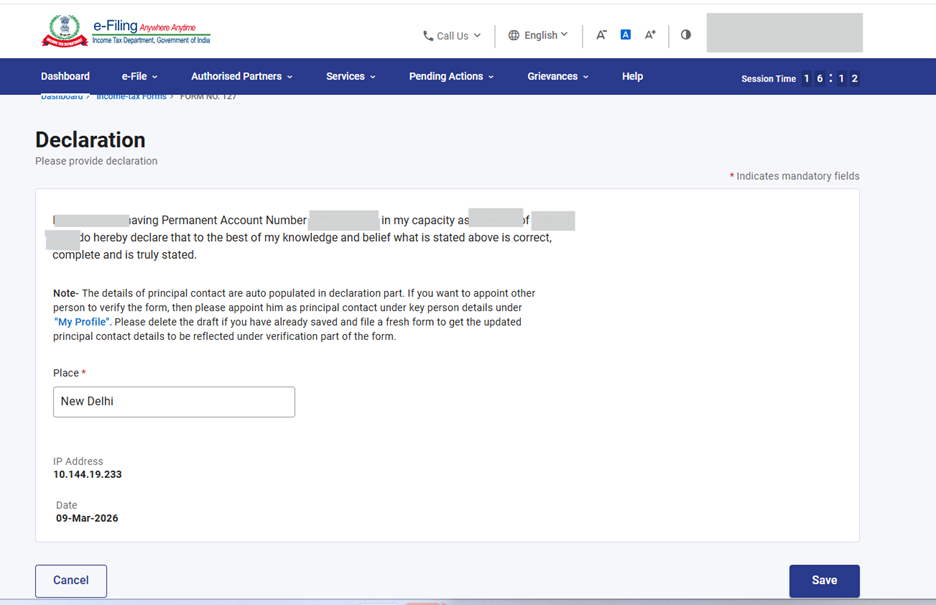
Step 14: Post saving the 4th panel, status of panel will be displayed as Completed then Preview button will be enabled.
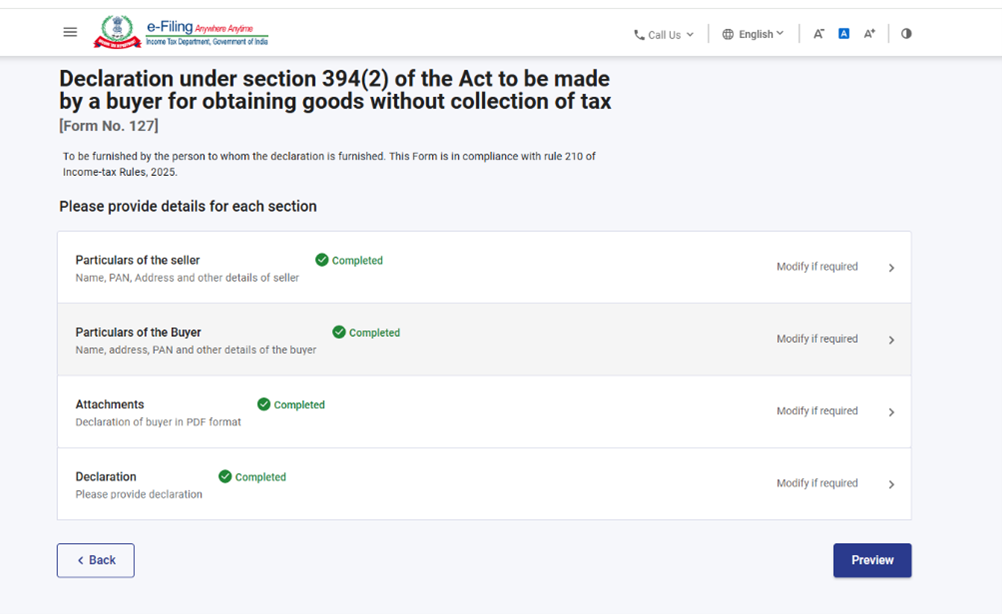
Step 15: On the Preview page, verify the details and click Proceed to E-Verify.
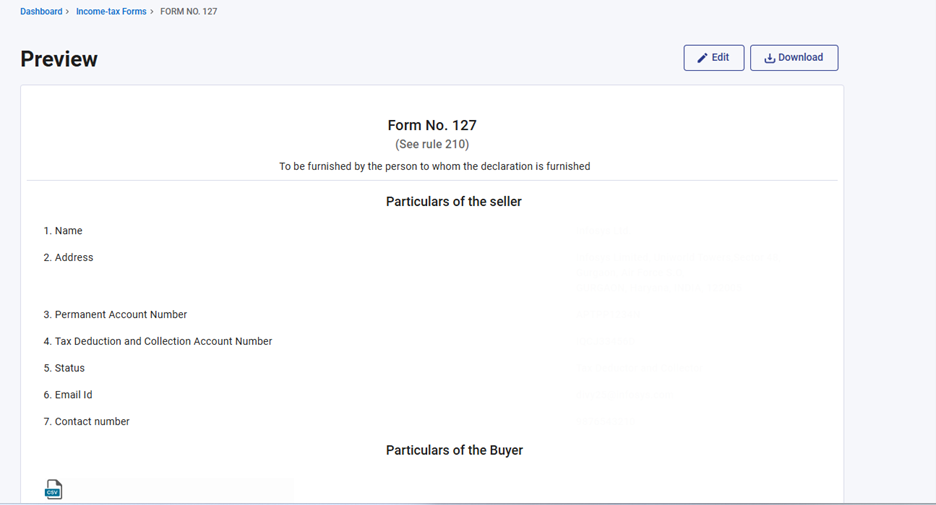
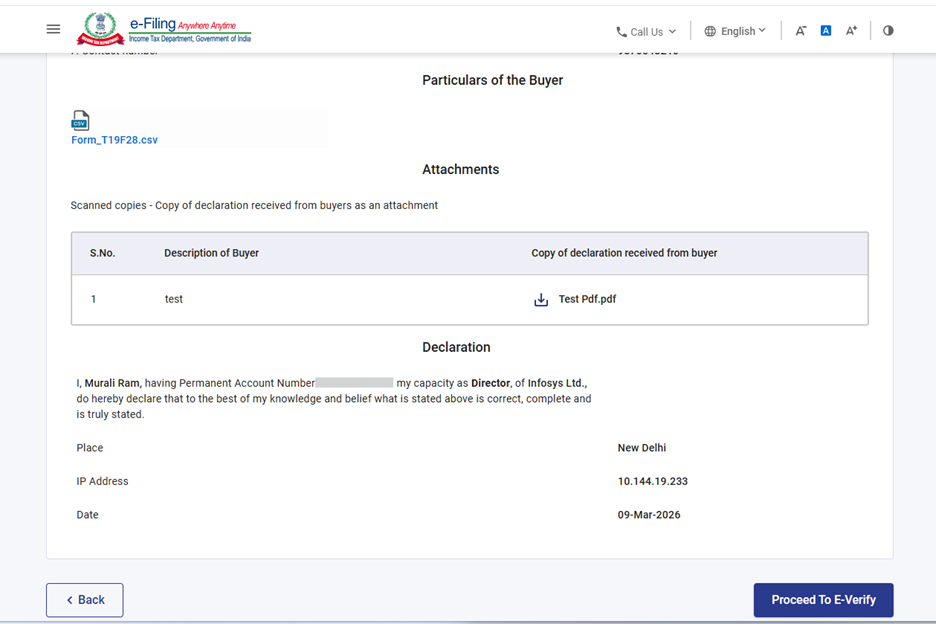
Step 16: Post clicking on Proceed to E-Verify button, a popup confirmation displaying that you would like to proceed to E-Verify. Click on Yes.
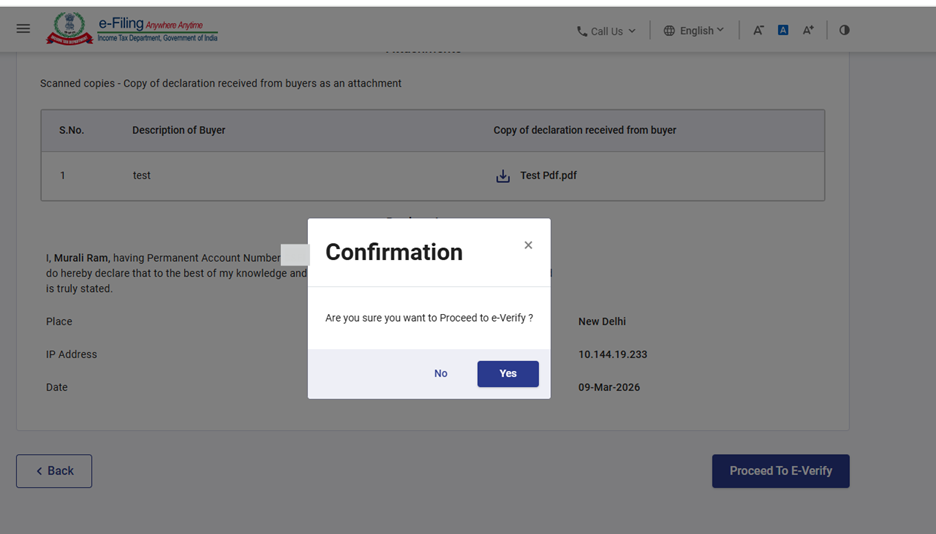
Step 17: On clicking Yes, you will be navigated to the E-Verify page where you can verify the Form 127 using EVC/DSC (as applicable).
Note: Refer to the How to e-Verify user manual to learn more.
Step 18: After successful e-Verification, a success message is displayed along with a Transaction ID and Acknowledgement Receipt Number. Please keep a note of the Transaction ID and Acknowledgement Receipt Number for future reference. You will also receive a confirmation message on the email ID(s) and mobile number(s) registered with the e-Filing portal.
Click on download button to download the Acknowledgement receipt
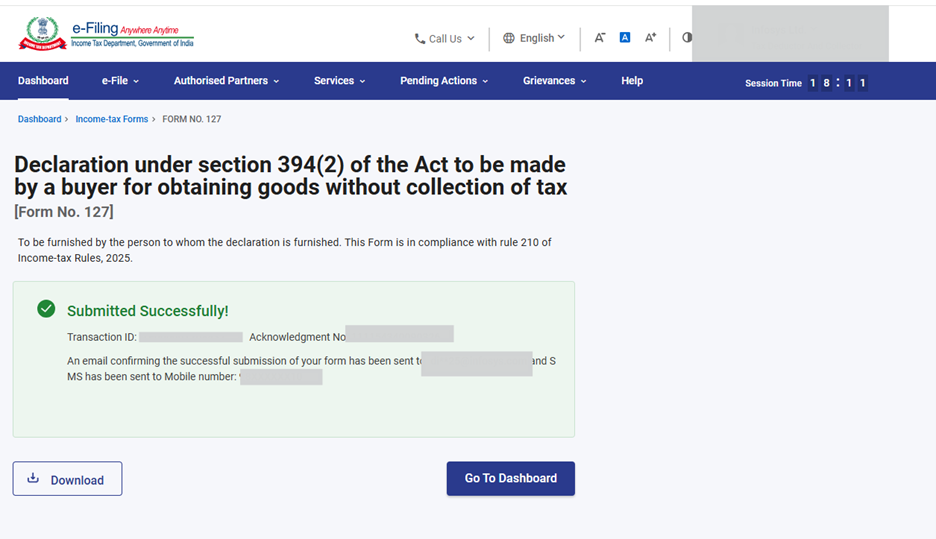
Step 19: After successful submission of form 127 the user can view the filled form under - On your Dashboard, click e-File > File Income Tax Forms > View Filed Forms> View Filed Form tab under Income Tax Act 2025.
Note: Refer view filled form user manual to learn more.
5. Related Topics
• Login
• Dashboard
• How to e-Verify
• Register DSC
6. Glossary
|
Acronym/Abbreviation |
Description/Full Form |
|
DSC |
Digital Signature Certificate |
|
EVC |
Electronic Verification Certificate |
|
ARN |
Acknowledgement Receipt Number |
|
PY |
Previous Year |
|
FY |
Financial Year |
|
TY |
Tax Year |



