



Form 17 User Manual
1. Overview & Purpose of the form
Form No. 17 is an application that an applicant submits to the Jurisdictional Commissioner of Income Tax (CIT). Any Research association, University, College or Other institution wanting approval under Section 45(4)(b) of the Income-tax Act, 2026 may file this form.
The form must be filed with the CIT during the year immediately preceding the tax year for which approval is sought. It must be verified by the person who is authorized to verify the applicant’s Return of Income. If the applicant is claiming exemption under Schedule III (Table Sl. No. 23), an additional annexure must also be filled, which is provided within the Form No. 17.
2. Prerequisites for availing this service
• The user shall be a registered on the e-Filing portal and shall have a valid User Id.
• Status of PAN of the user should be "Active".
• Users should have a valid DSC, if user wishes to verify the form through DSC mode, and it must be registered on the e-filing portal and not expired.
3. Who can use it?
Any registered users, other than Individual and HUF, who have a valid PAN on the e-Filing portal can apply for Form No.17.
4. Step-by-Step Guide
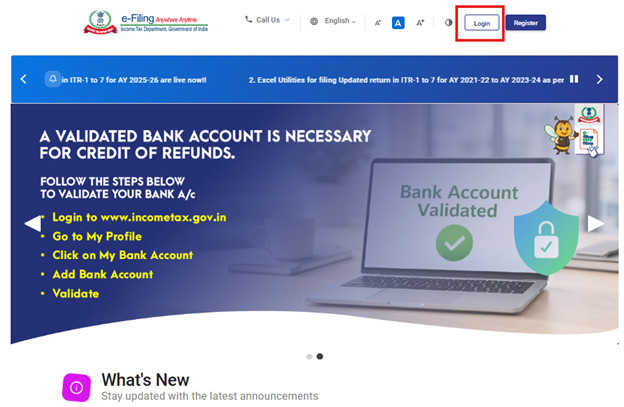
Step 1: User shall Log in to the e-Filing portal with the registered User ID and Password.
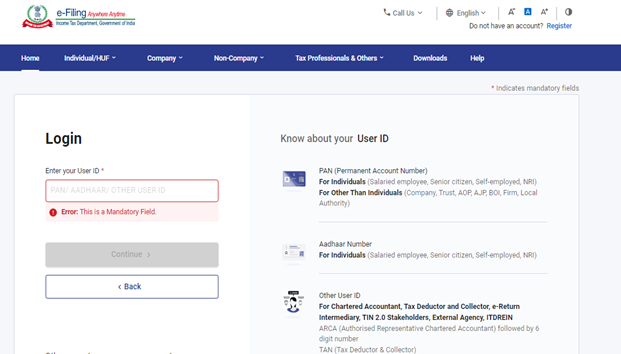
Step 2: Enter the User ID (PAN) and Password and click ‘Continue’.
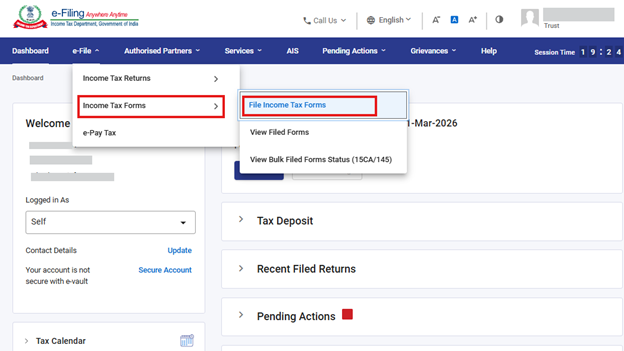
Step 3: Go to e-file >Income Tax Forms > File Income Tax Forms.
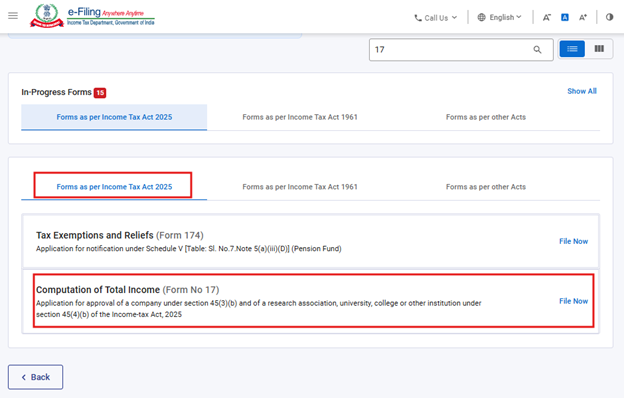
Step 4: Select the Form as per Income Tax Act 2025 tab.
Click on Forms as per Income Tax Act, 2025 and select “Form No.17” and click “File now”.
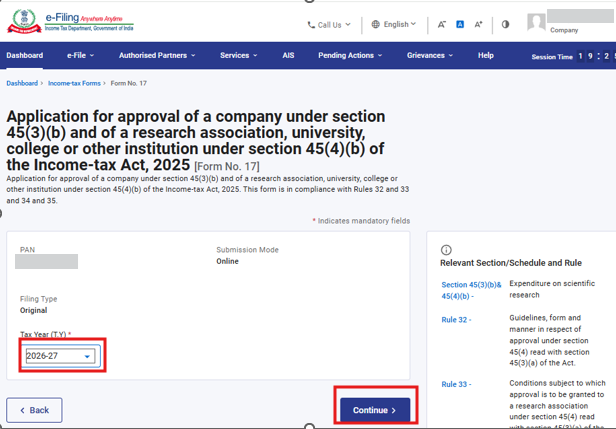
Step 5: User shall select the applicable Tax Year (T.Y) and click on Continue button.
Step 6: Click on Let’s Get Started to proceed.
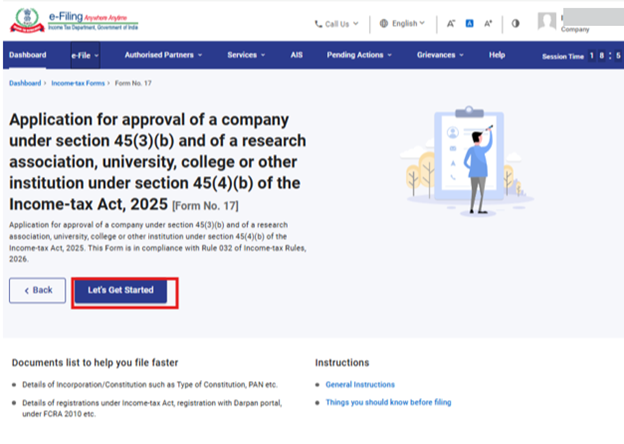
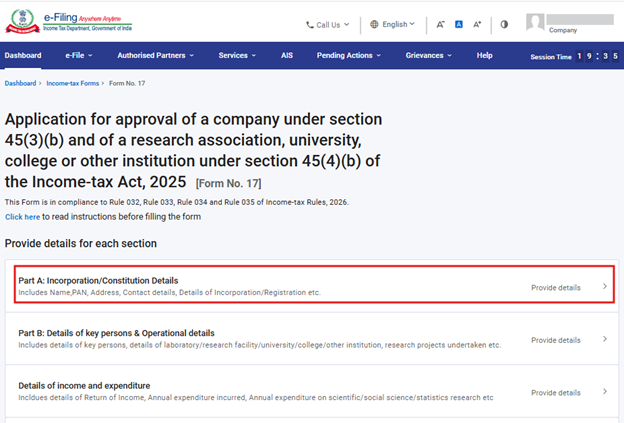
Step 7: Post clicking on ‘Let’s Get Started’ user will be navigated to Panel screen.
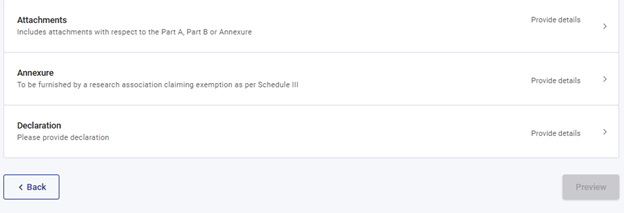
Form No. 17 is divided into six panels, namely-
i) Part A: Incorporation/Constitution Details
ii) Part B: Details of Key persons & Operational details
iii) Details of Income and Expenditure
iv) Attachments
v) Annexure
vi) Declaration
Users need to fill in the details and save each panel before moving to the next. To start, the user should select the first panel and begin entering the required information.
It is recommended that the user download the instruction sheet and read the instructions carefully before filing the form.
User can click on the “Click here” button, given above the panels, to download the sheet.
The user can select the 1st Panel- Part A: Incorporation/Constitution Details and fill in the required details.
Step 8: Please verify and enter the required details in 1st panel and click on Save.
The user shall enter the details asked for inside the panel. This panel may be prefilled to the extent possible. After completing all entries, the user shall select ‘Save’ to save the details and proceed to next panel.
Note: Please ensure that all mandatory details under "My Profile" section including address are completed. If the user updates any detail in the “My Profile” section, please delete the existing draft and file the form afresh so that the changes are properly reflected.
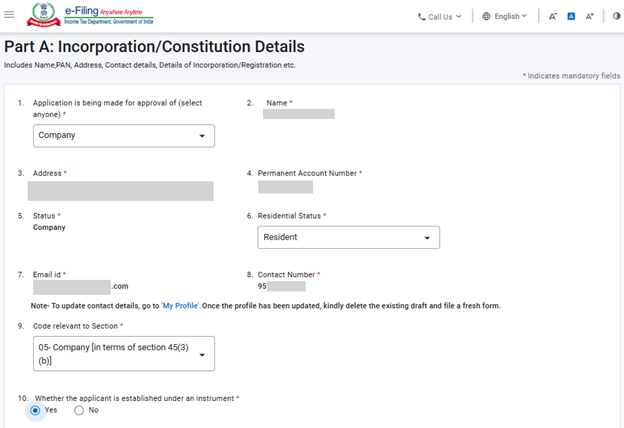
Field 9 has a dropdown list where the user can choose the section code that applies to the entity. The options shown here depend on what the user has selected from among the entities mentioned in Field 1, so only the relevant section codes will appear. The list of section codes is given in the Instruction sheet.
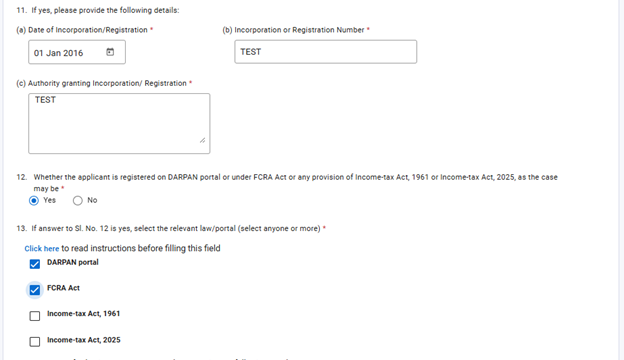
Field 13 shall be enabled only if “yes” is selected in field 12. The user can tick more than one Law/portal under which the entity is registered.
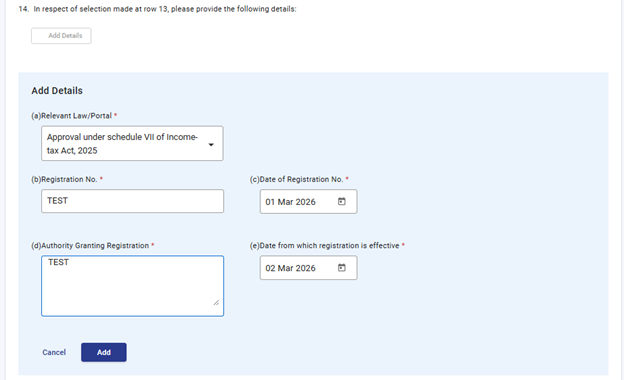
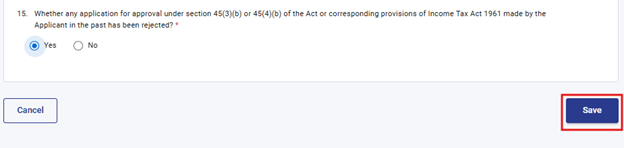
Field 14 user shall enter details by clicking on ‘Add Details’ button. Once all required fields inside the table are filled, then user can click on'Save'. Up to 50 records may be added by clicking on “add details” again. Users can edit/delete the record by selecting the check box.
Step 9: Post saving the 1st panel, select the 2nd Panel- Part B: Details of key persons & Operational details.
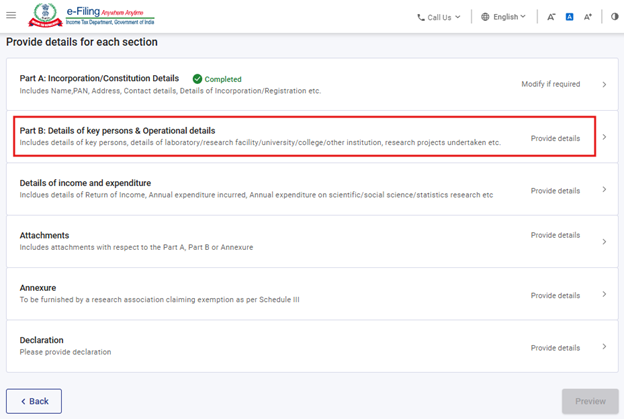
Step 10: Enter the details in 2nd panel and click on Save.
This panel consists of tables in which user shall enter details by clicking on ‘Add Details’ button. Once all required fields inside the table are filled, then user can click on ‘Save’. More than 1 record may be added by clicking on “add details” again. Users can edit/delete the record by selecting the check box.
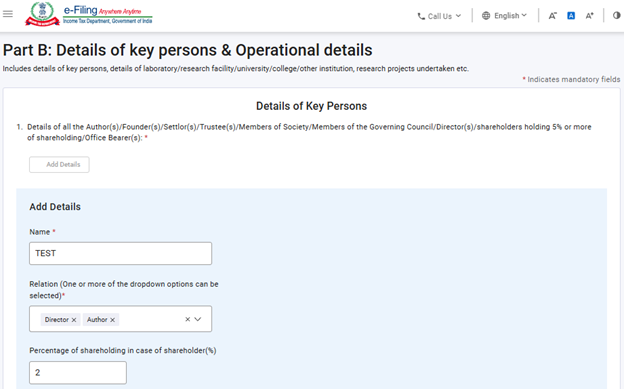
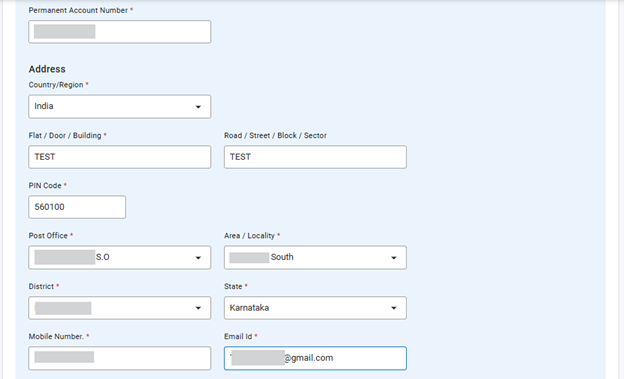
In Field 1, users shall give details of each Author(s)/Founder(s)/Settlor(s)/Trustee(s)/Members of Society/Members of the Governing Council/Director(s)/shareholders holding 5% or more of shareholding/Office Bearer(s) of the Entity. Users can add details for up to 50 key persons in this section. For each key person, more than one relationship can be added in a single record, if applicable.
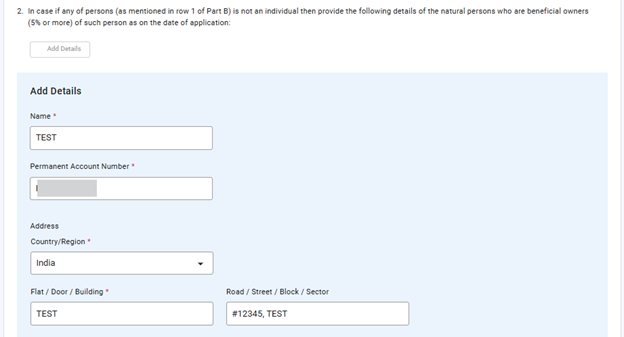
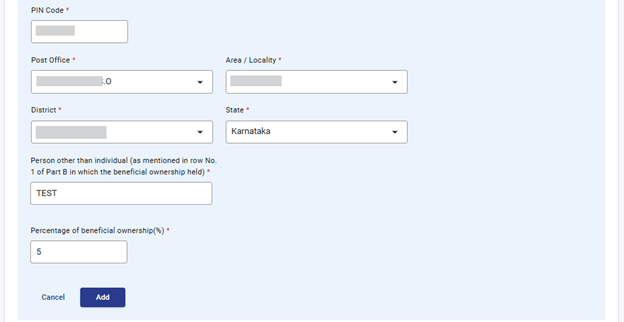
In Field 2, user shall enter details of the natural persons who are beneficial owners (5% or more) of persons other than Individual, mentioned in Field 1. Up to 50 records may be entered in this field.
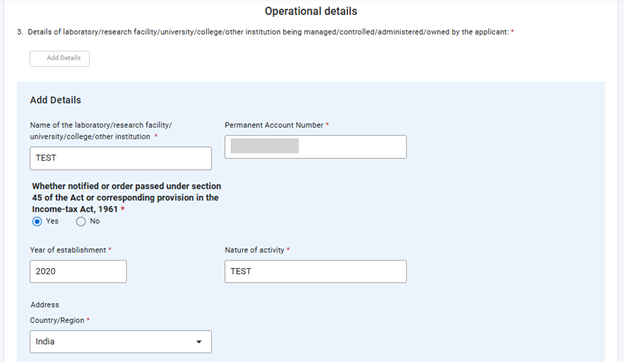
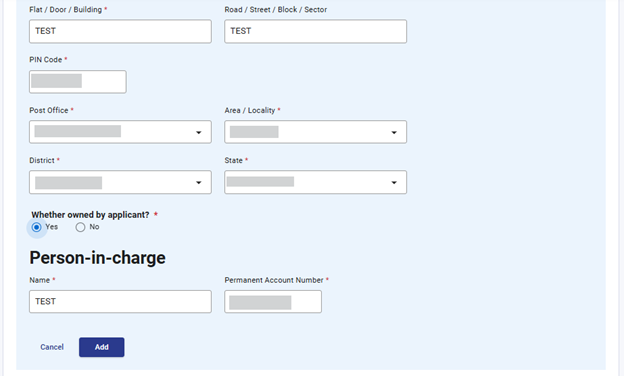
In field 3, user shall enter details of up to 50 laboratory or research facility or university or college/other institution being managed/controlled/administered/owned by the applicant.
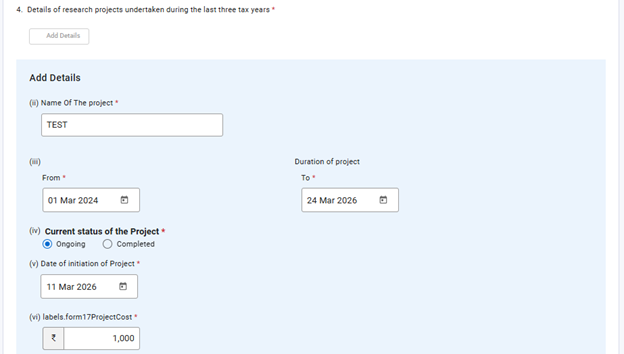
In Field 4, User shall details of Research projects undertaken during last 3 tax years. Up to 50 records may be entered in this field.


Step 11: Post saving the 2nd panel, select the 3rd Panel- Details of income and expenditure.
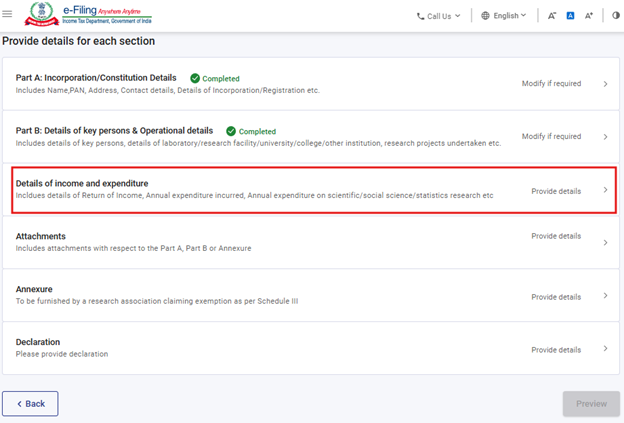
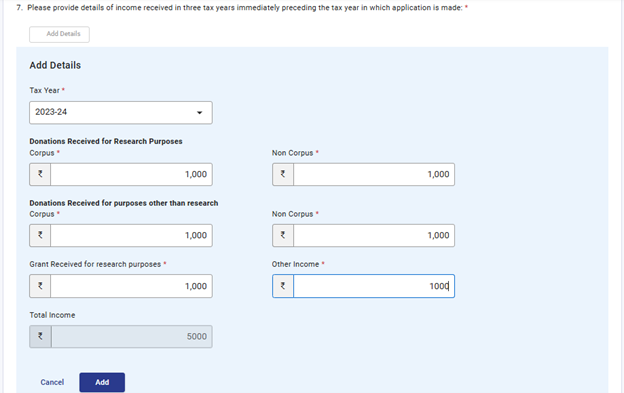
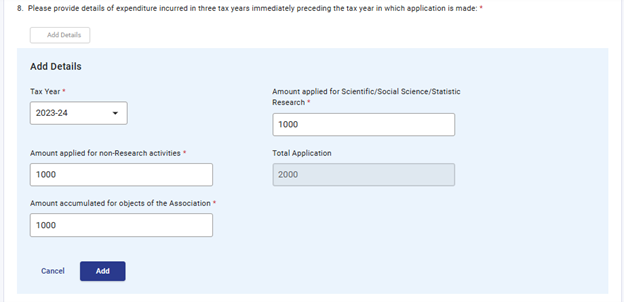
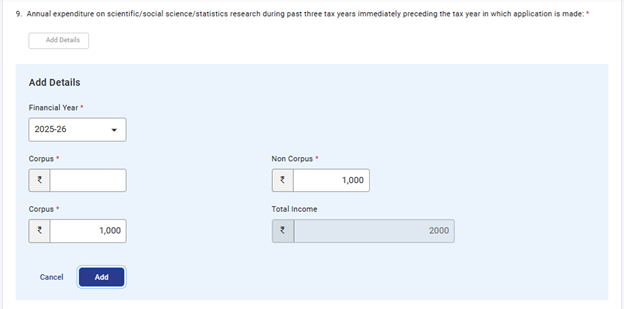
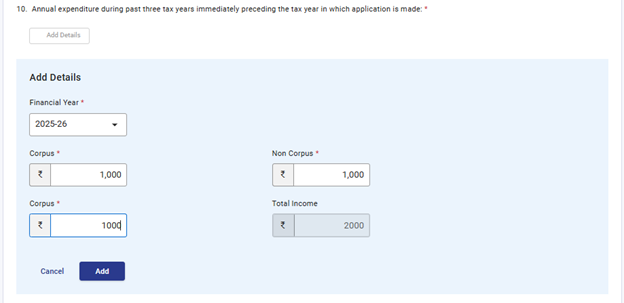
Step 12: Enter the details in ‘Details of income and expenditure’ panel and click ‘Save’ to proceed.
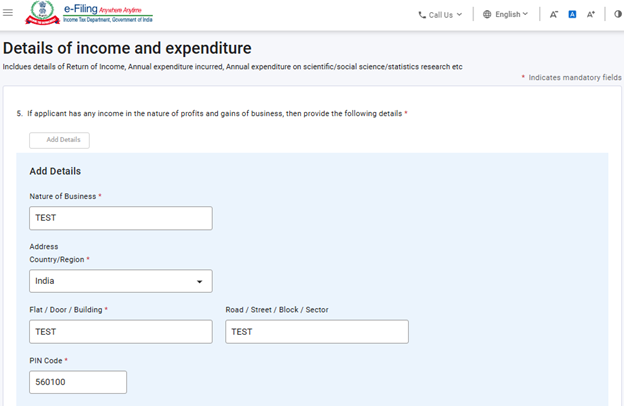
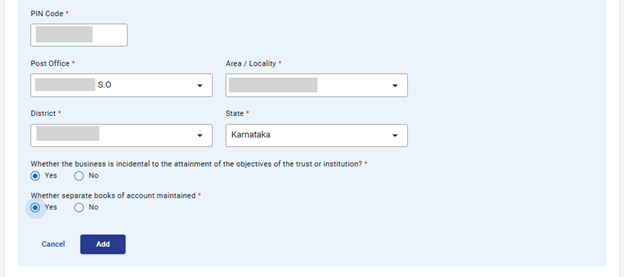
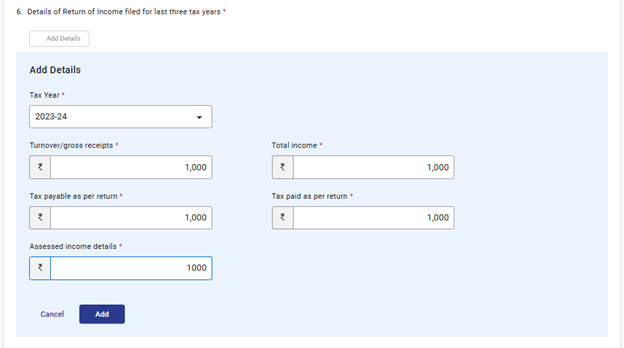
In Fields 6 to Field 11, the users can enter information for prior three Tax Years. If the user has been in existence for less than three years, then provide details only for the Tax years applicable to the user. If there is no amount to report in any field, the user may simply enter “Zero.”

Step 13: Post filing 3rd panel, User shall proceed to Panel 4- Attachments.
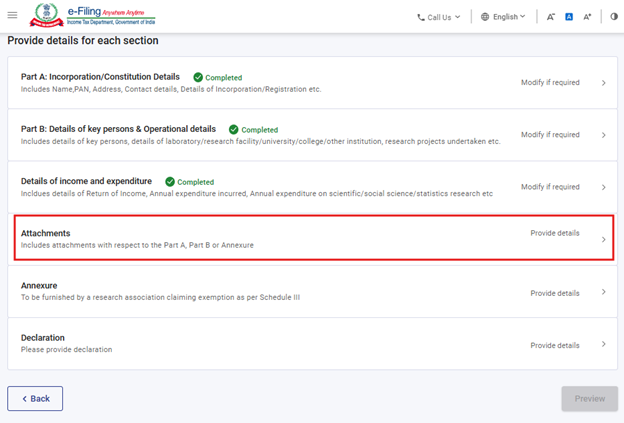
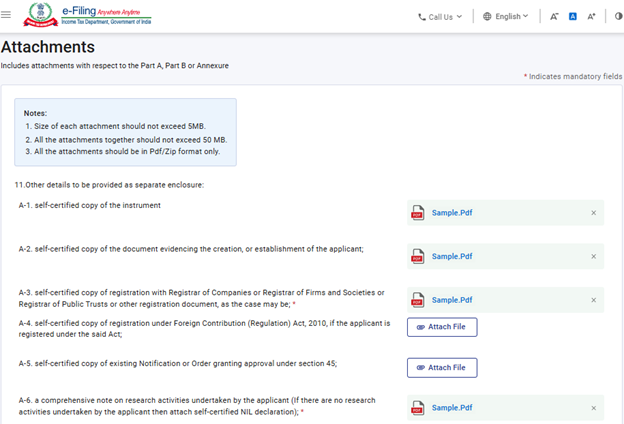
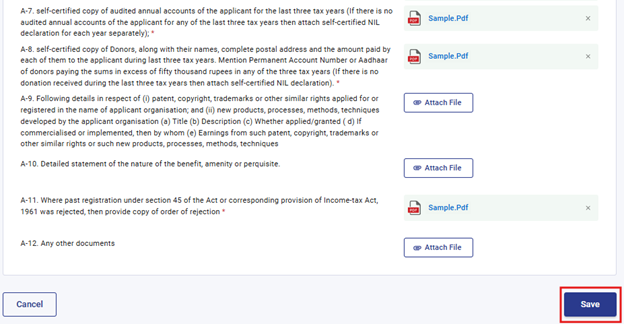
Step 14: User shall enter the details in the Fulfilment of Conditions Panel. Select ‘Save’ to procced further.
*Indicates mandatory attachments. User can also attach any other documents which he wants to submit in ‘A-12’ attachment.
Step 15: Post Attachments panel, User shall proceed to Panel 5- Annexure.
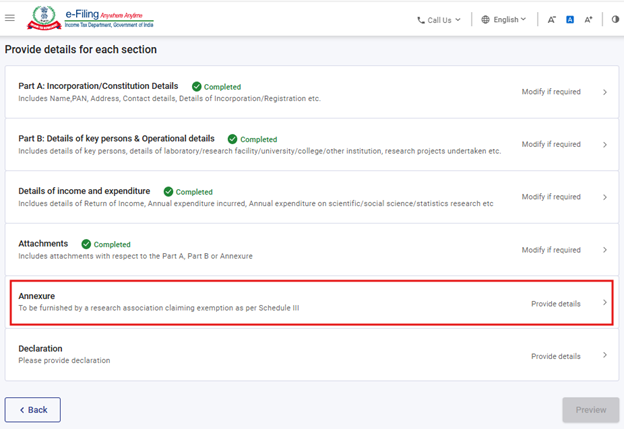
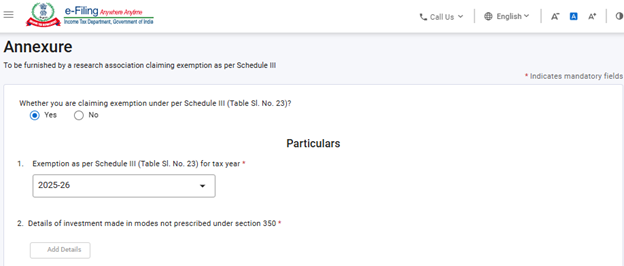
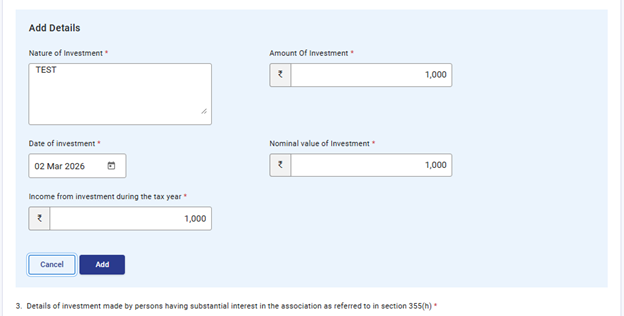
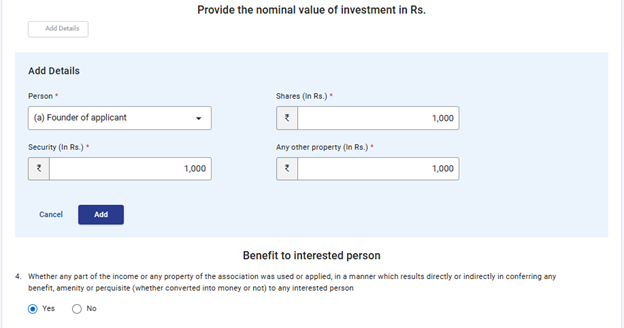
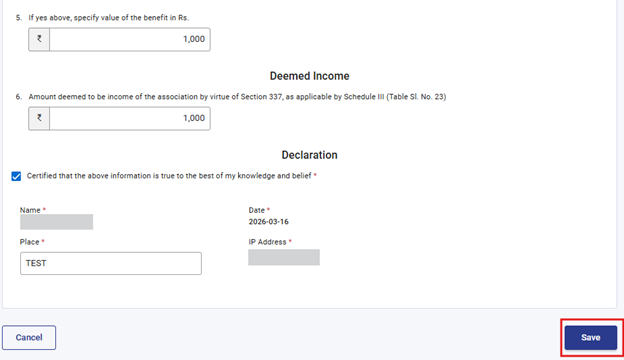
Step 16: User shall enter the details in the Annexure Panel. Select ‘Save’ to proceed further.
Annexure panel must be filed by a taxpayer who is claiming exemption under Schedule III of the Act. This panel will be enabled when user selects “Yes” button for the 1st field in this panel.
Step 17: Post Annexure panel, User shall proceed to Panel 6- Declaration.
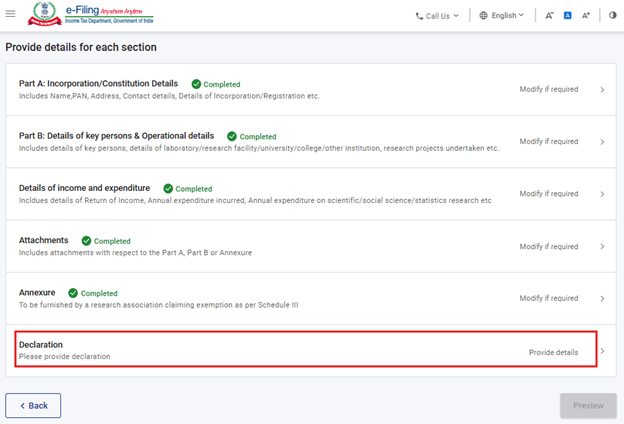
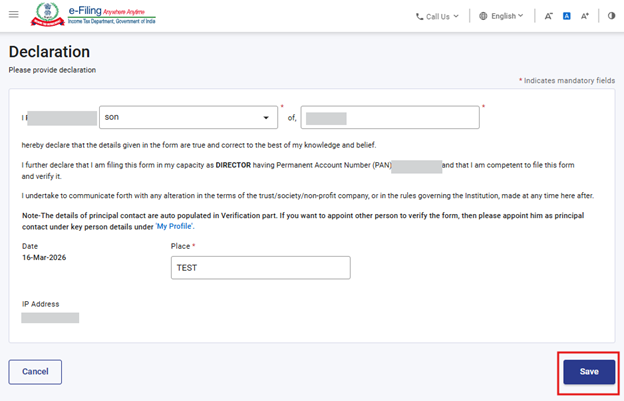
Step 18: User shall enter the details in the Declaration Panel. Select ‘Save’ to procced further.
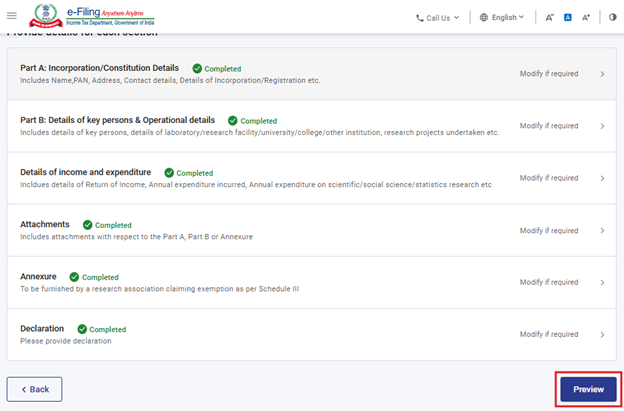
Step 19: After all the panels are saved, “completed” mark shall appear in front of the panel heading. Select “Preview” button to proceed further.
If any panel is incomplete, “Not completed” mark shall appear. Users shall click on such panel, enter the required details and save the panel. Then user may proceed to “Preview”.
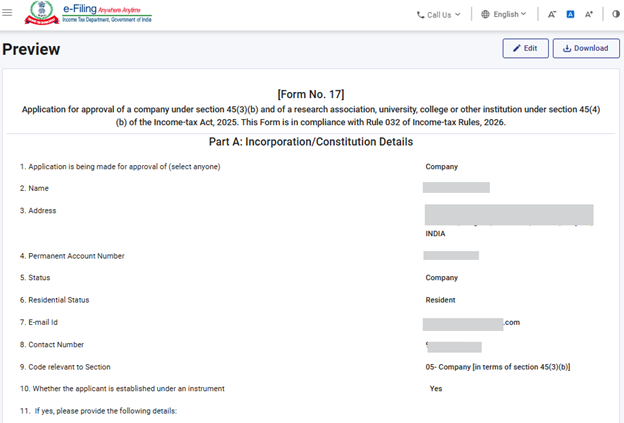
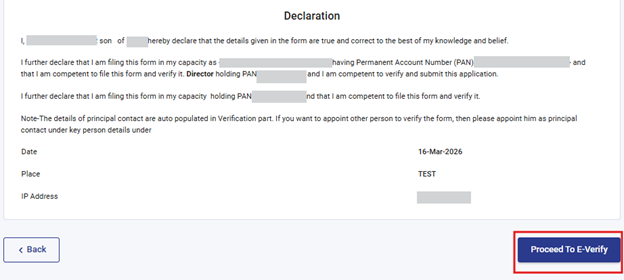
Step 20: On click of “preview” button, user shall be navigated to Preview screen where he can verify the details provided and later shall click on “Procced To E-Verify”.
All the fields and inputs provided by the user in the form, will be displayed on the preview screen. The user should review these details before proceeding. If any changes are required, the user can click the “Edit” button to modify the information within the form. The user also has the option to download the preview screen as a PDF, but this PDF is only a copy of the pre filing view and NOT the final filed form.
To continue with the filing process, the user must click the “Proceed To E-Verify” button.
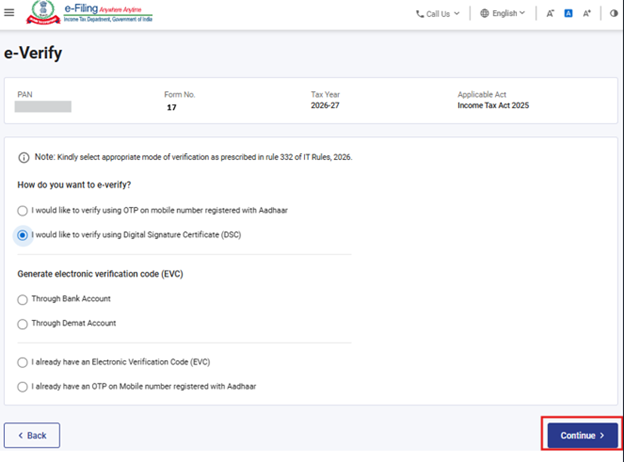
Step 21: User will be navigated to the ‘E-Verify’ page where he can verify Form No.17 using OTP/EVC/DSC. The user shall click on ‘Continue’ button to submit the form.
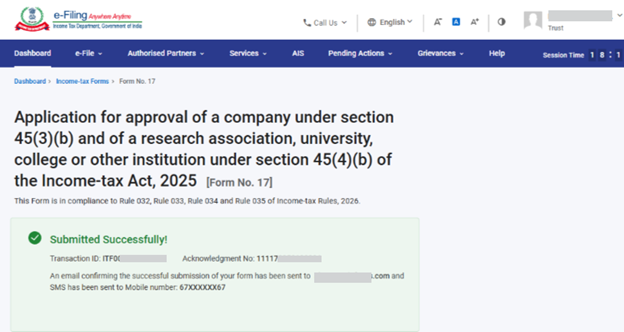
Step 22: Once the form is successfully submitted, confirmation message shall be displayed on the screen.
After successful e-Verification, a success message is displayed along with a Transaction ID and Acknowledgement Receipt Number. Please keep a note of the Transaction ID and Acknowledgement Receipt Number for future reference. You will also receive a confirmation message on the email ID(s) and mobile number(s) registered with the e-Filing portal.
Click on Download button to download the Acknowledgement receipt.

Step 23: After successful submission of Form No. 17 the user can view the filled form under - On your Dashboard, click e-File > File Income Tax Forms > View Filed Forms> View Filed Form tab under Income Tax Act 2025.
Note: Refer view filled form user manual to learn more.
Note: Refer to the How to e-Verify user manual to learn more.
5. Related Topics
• Login
• Dashboard
• How to e-Verify
• Register DSC
6.Glossary
|
Acronym/Abbreviation |
Description/Full Form |
|
DSC |
Digital Signature Certificate |
|
EVC |
Electronic Verification Certificate |
|
ARN |
Acknowledgement Receipt Number |
|
PY |
Previous Year |
|
FY |
Financial Year |
|
TY |
Tax Year |



