



Form 174
1. Overview
Form 174 is filed by an Pension fund to avail 100% tax exemption to their dividend, interest, any sum referred to in section 92(2)(k) of Income Tax Act, 2025 and capital gains arising from under an investment made by a specified person in India, whether in the form of debt or share capital or unit.
2. Prerequisites for availing this service
• Taxpayer is registered at e-filing portal.
• Taxpayer has valid Username (PAN) and Password of E-filing 2.0 portal.
• Status of PAN of the Taxpayer is "Active" as per PAN database.
• Taxpayer should have a valid DSC to verify form through DSC Mode. It should be registered at e-filing portal & not expired.
3. About the Form
3.1 Purpose
Objective of filing this form is to avail 100% tax exemption to their dividend, interest, any sum referred to in section 92(2)(k) of Income Tax Act, 2025 and capital gains arising from under an investment made by a specified person in India, whether in the form of debt or share capital or unit.
3.2 Who can use it?
Form 174 is filed by an Pension fund - as per Schedule V [Table: Sl. No.7.Note 5(a)(iii)(D)] of the Income-tax Act, 2025. A pension fund which is specified by the Central Government, by notification for this purpose and fulfils conditions specified in such notification; and satisfies such other conditions as prescribed.
3.3 Form at a Glance
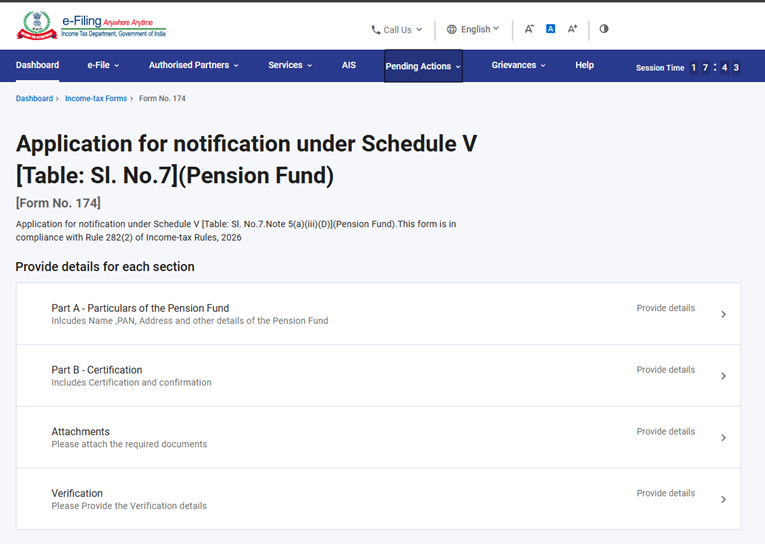
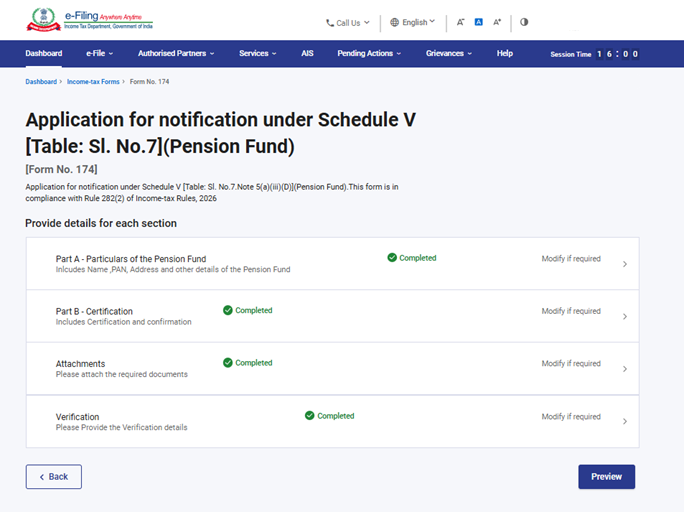
Form 174 has four panels:
- Part A - Particulars of the Pension Fund
- Part B - Certification
- Attachments
- Verification
4. Step-by-Step Guide
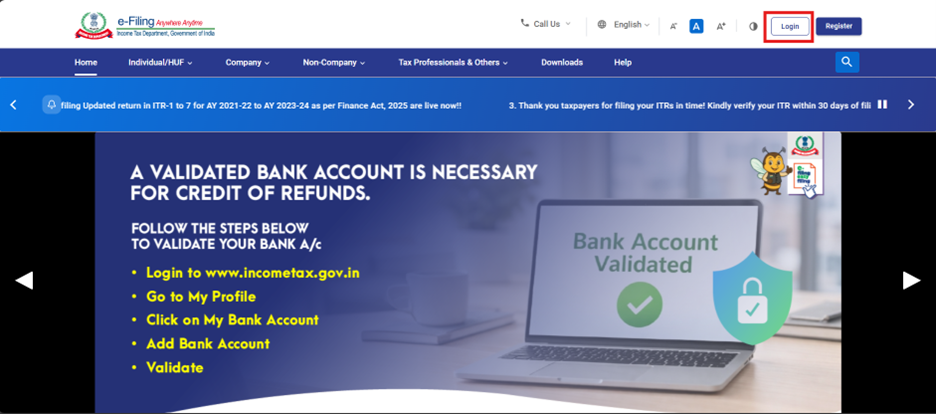
Step 1: Log in to the e-Filing portal with your User ID and Password.
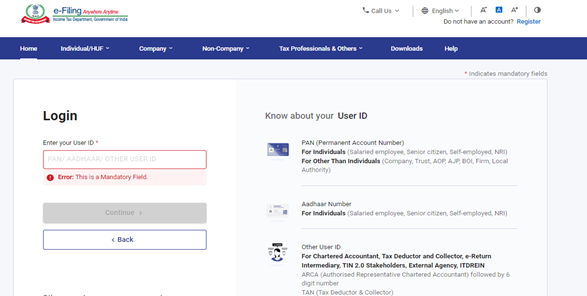
Step 2: Enter the User ID (PAN) and Password.
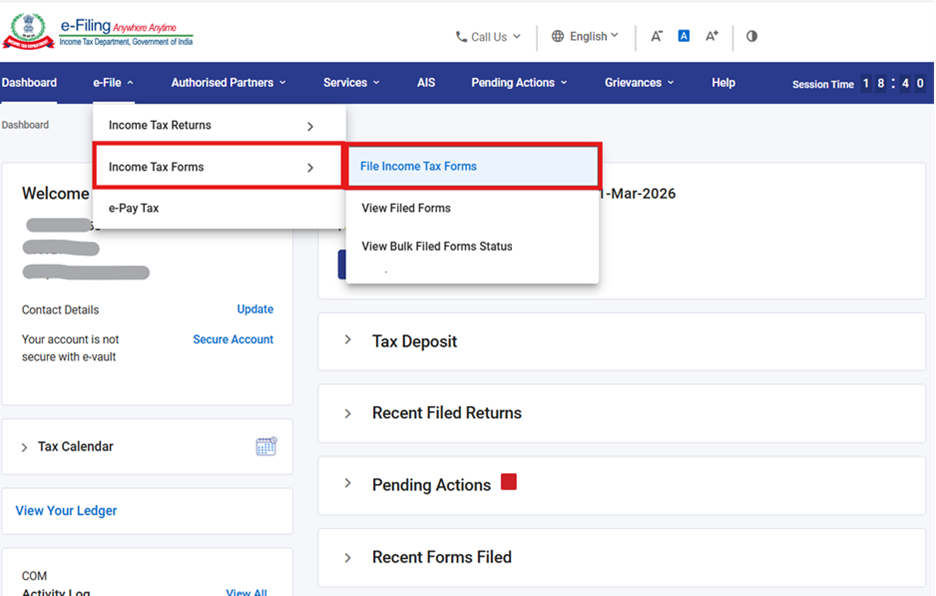
Step 3: Go to e-file >Income Tax Forms > File Income Tax Forms.
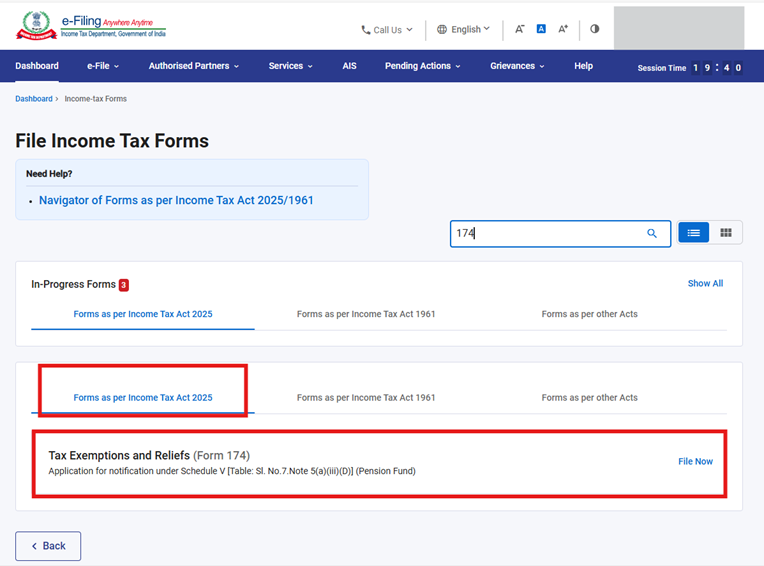
Step 4: Of the three tabs, please Select the Forms as per Income Tax Act 2025 tab, select or search for Form 174, and click the File Now button.
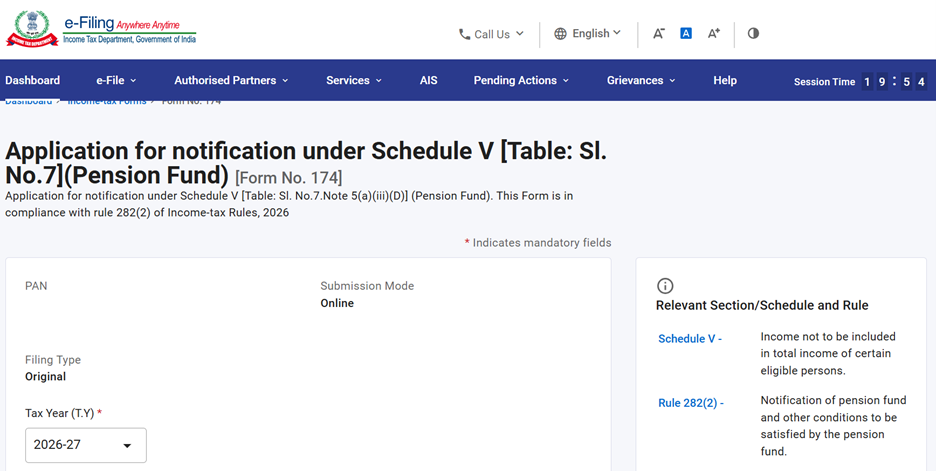
Step 5: Check the PAN, Submission Mode, Filing Type and select the applicable Tax Year (T.Y) and click on Continue button.
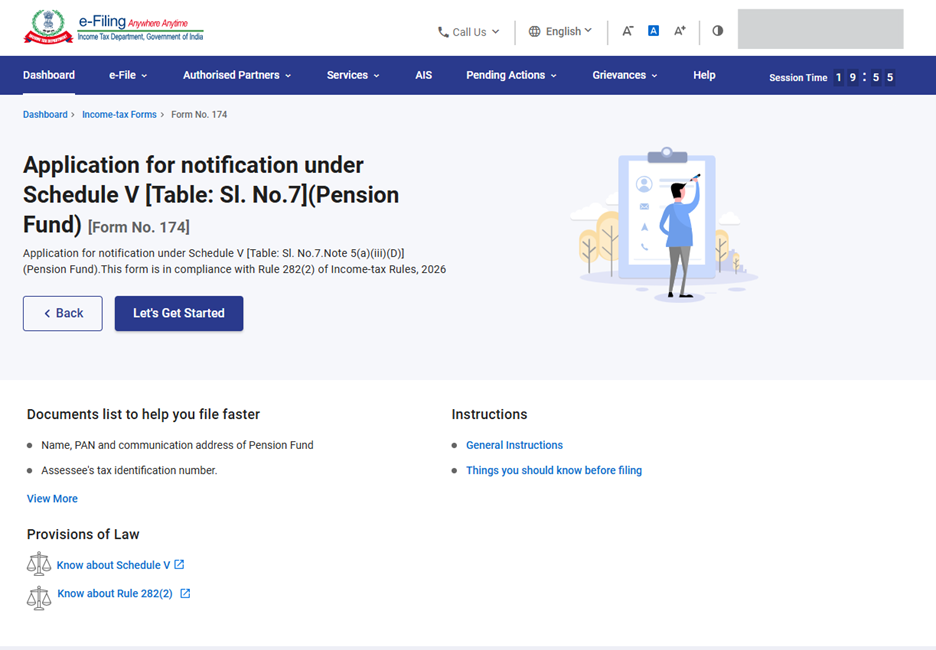
Step 6: Click on Let’s Get Started.
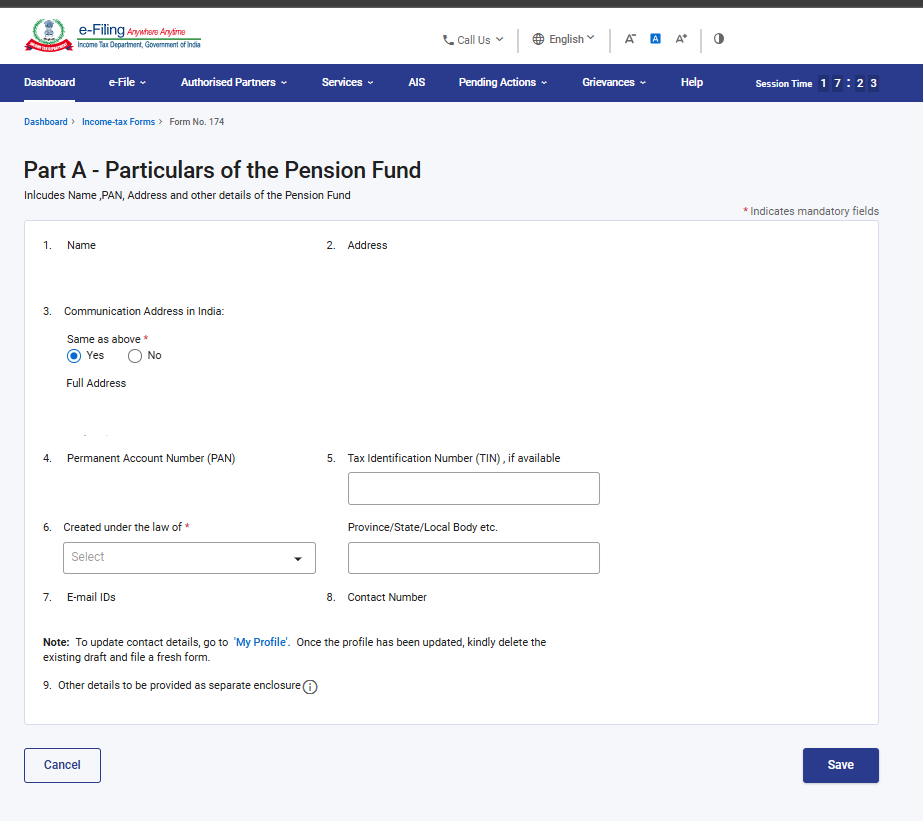
Step 7: Upon clicking "Let's Get Started", the user will be navigated to the Panel screen. Select the 1st Panel: Part A - Particulars of the Pension Fund to proceed. Fill the relevant details, verify and click Save.
Note: Please ensure that all mandatory details under "My Profile" section including address is completed. You can update your contact and address details by clicking on hyperlink “My Profile”.
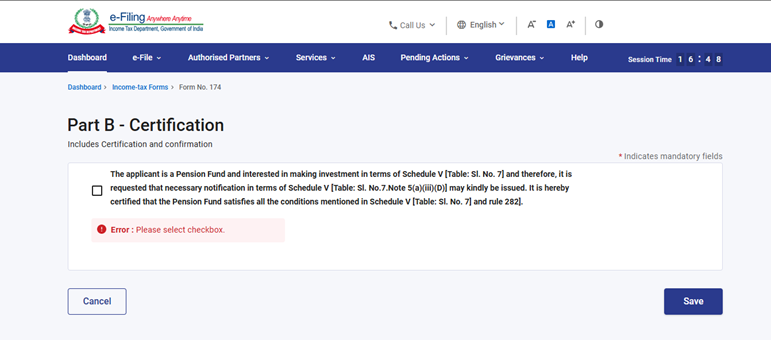
Step 8: Post saving the 1st panel, select the 2nd Panel: Part B – Certification.
Please click on the checkbox and click on Save.
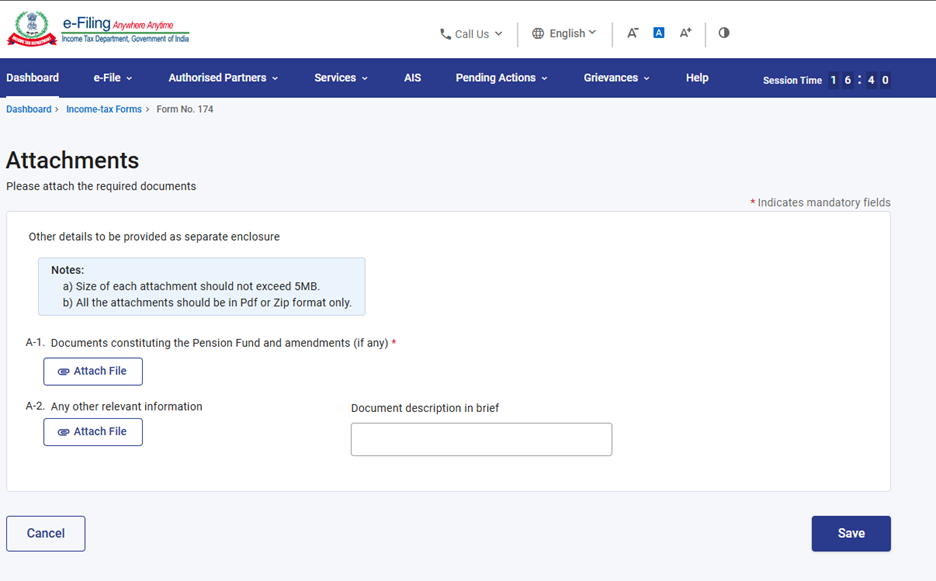
Step 9: Post saving the 2nd panel, select the 3rd Panel: Attachment. Please attach the relevant documents in this panel “Attachments” and click on Save.
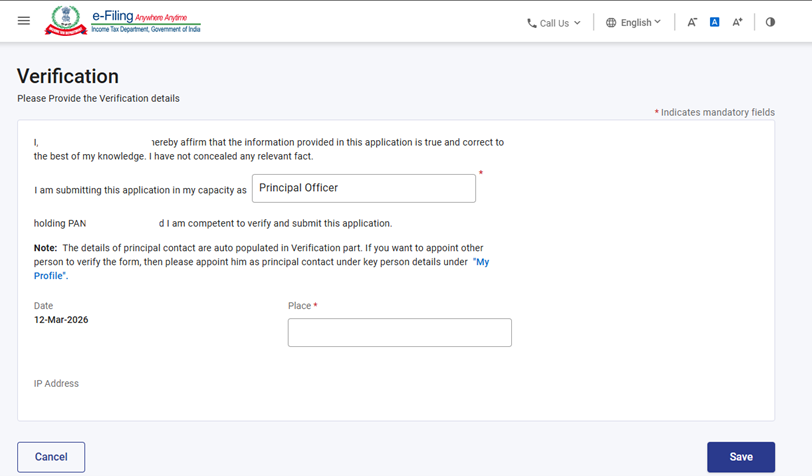
Step 10: Post saving the 3rd panel, select the “Verification” Panel. Confirm the Verification panel and click on Save.
Step 11: Post saving the Verification panel, status of panel will be displayed as Completed then Preview button will be enabled.
Step 12: On the Preview page, verify the details and click Proceed to e-Verify.
Note: By clicking the “Download” button, the user can download the preview PDF and verify the details before proceeding with e verification.
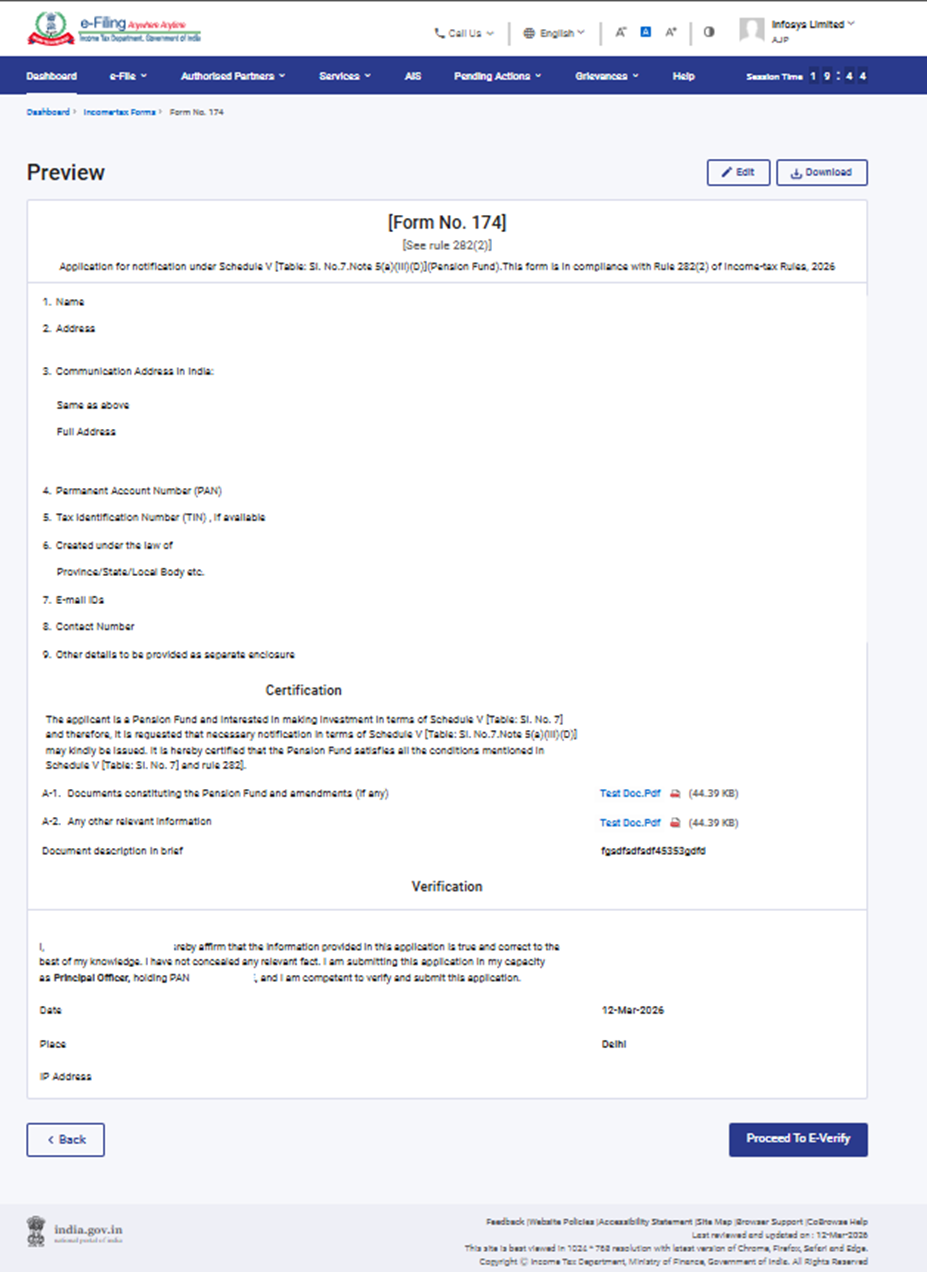
Step 13: Post clicking on Proceed to E-Verify button, a popup confirmation displaying that you would like to proceed to E-Verify. Click on Yes.
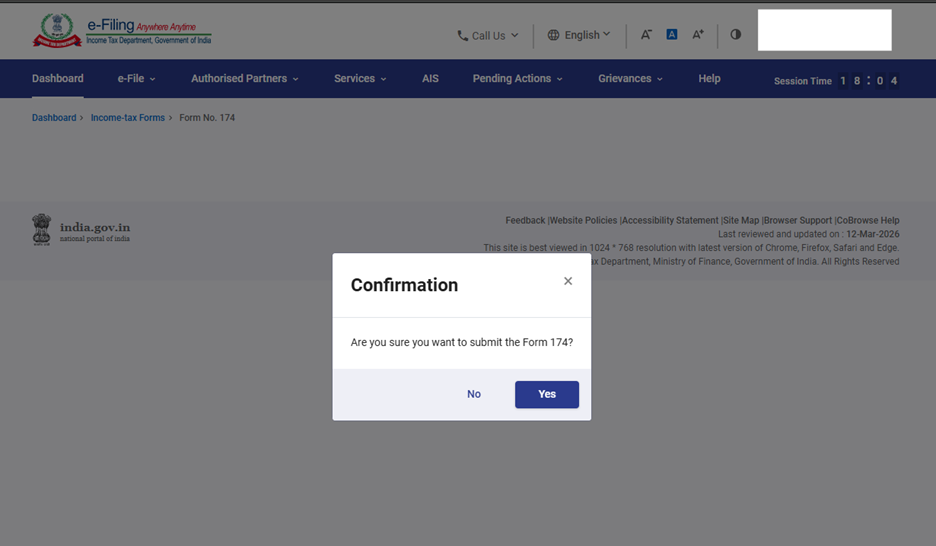
Step 14: On clicking Yes, you will be navigated to the E-Verify page where you can verify the Form 174 using DSC/EVC.
Note: Refer to the How to e-Verify user manual to learn more.
Step 15: After successful e-Verification, a success message is displayed along with a Transaction ID and Acknowledgement Receipt Number. Please keep a note of the Transaction ID and Acknowledgement Receipt Number for future reference. You will also receive a confirmation message on the email ID(s) and mobile number(s) registered with the e-Filing portal.
Click on download button to download the Acknowledgement receipt.
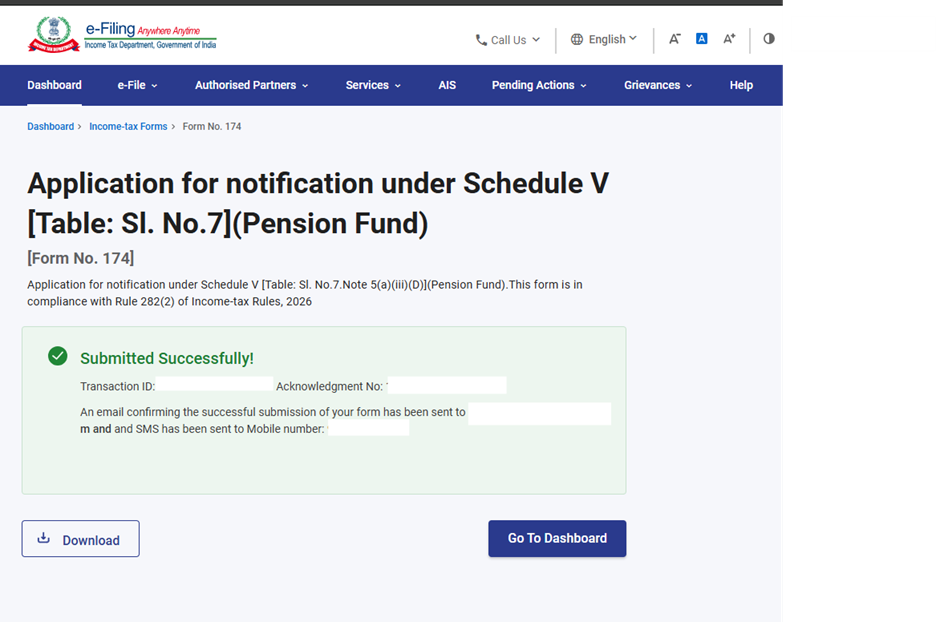
After successful submission of form 189 the user can view the filled form under - On your Dashboard, click e-File > File Income Tax Forms > View Filed Forms> View Filed Form tab under Income Tax Act 2025.
Note: Refer view filled form user manual to learn more.
5. Related Topics
• Login
• Dashboard
• How to e-Verify
• Register DSC
6. Glossary
| Acronym/Abbreviation | Description/Full Form |
| DSC | Digital Signature Certificate |
| EVC | Electronic Verification Certificate |
| ARN | Acknowledgement Receipt Number |
| PY | Previous Year |
| FY | Financial Year |
| TY | Tax Year |



