



Form18 User manual
1. Overview
- Form 18 is the application form used to seek notification of an affordable housing project as a specified business under Section 46 of the Income Tax Act, 2025. An assessee must file this form with the Member (IT), CBDT to obtain official government notification for the project
- Filed with the intention to claim a deduction under Section 46 of the Income Tax Act, 2025 for the capital expenditure incurred on developing and constructing a housing project under the Affordable Housing Scheme.
2. Prerequisites for availing this service
- You should be a registered user on the e-Filing portal
- Status of PAN of the taxpayer should be "Active"
- You should have a valid DSC to verify the form through DSC mode, and it must be registered on the e-filing portal and not expired
3. About the Form
3.1 Purpose
The purpose of Form 18 is to formally apply to the CBDT for notification of an affordable housing project under Section 46(11)(d)(vii)
3.2 Who can use it?
Form 18 can be used by any assessee that has developed or is developing an affordable housing project and seeks official notification of the project as a specified business under Section 46.
3.3 Form at a Glance
Form 18 has seven panels:
1. Particulars of the assessee
2. Particulars of the specified business
3. Details of proposed project
4. Fulfilment of conditions
5. Other details
6. Attachments
7. Declaration
4. Step-by-Step Guide
Step 1: Log in to the e-Filing portal with your User ID and Password.
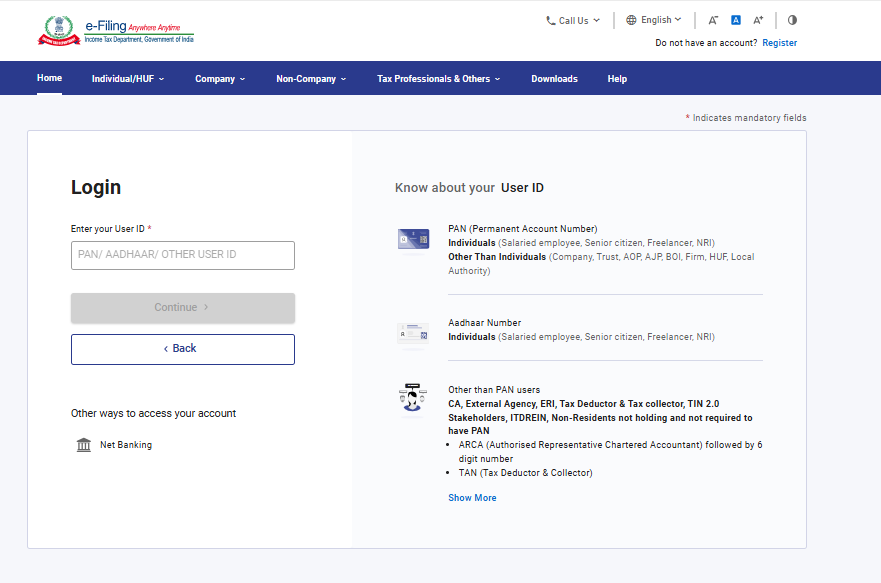
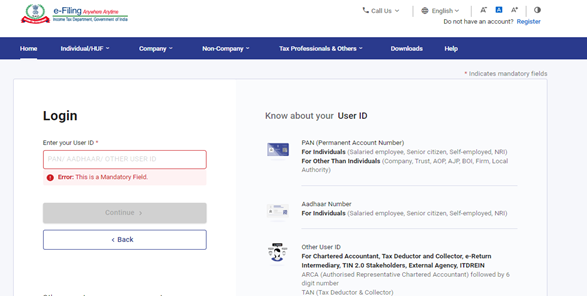
Step 2: Enter the User ID (PAN) and Password.
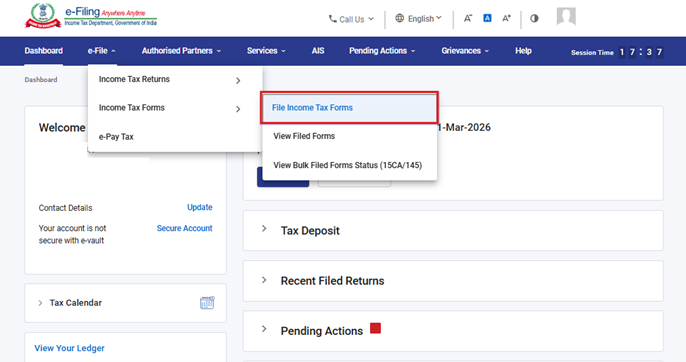
Step 3: Go to e-file >Income Tax Forms > File Income Tax Forms
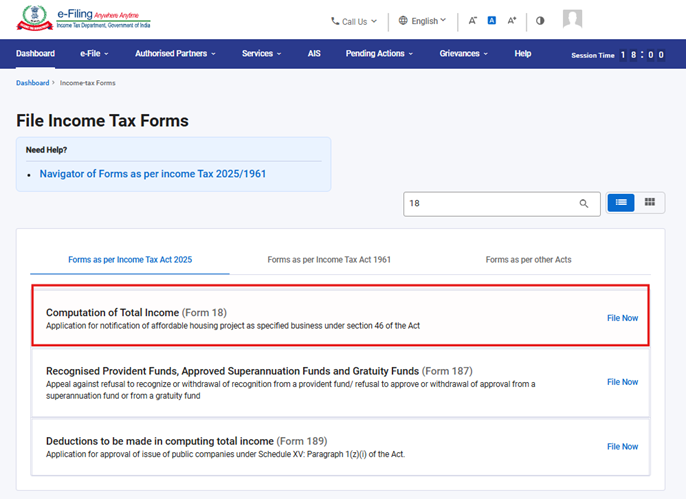
Step 4: Under the Forms as per Income Tax Act 2025 tab, select Form 18 and click File Now
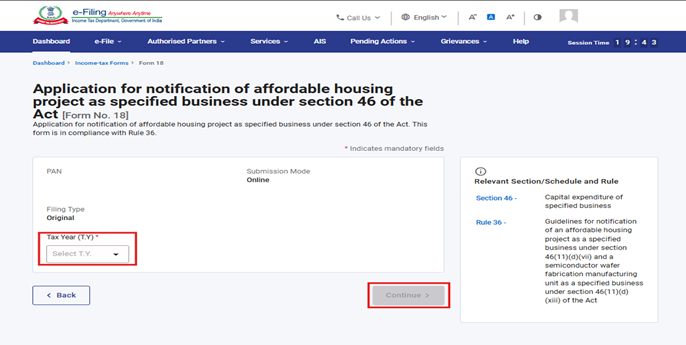
Step 5: Select the applicable Tax Year (T.Y) and click Continue.
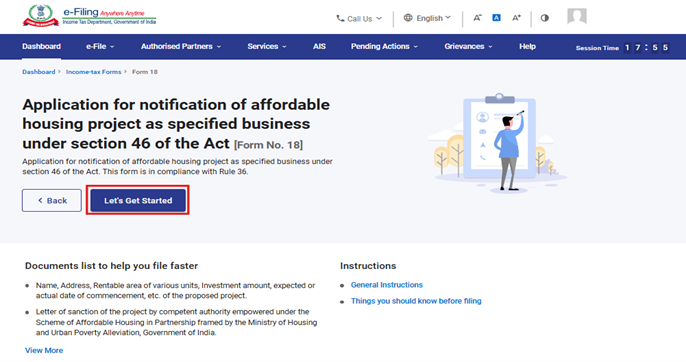
Step 6. Click on Let’s Get Started
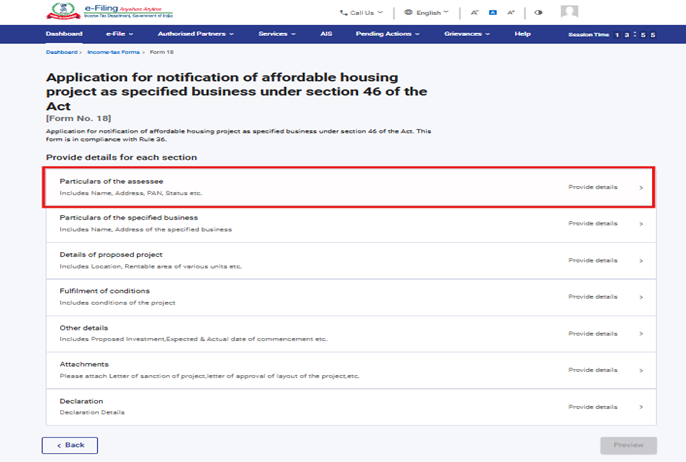
Step 7: Upon clicking Let's Get Started, the user is navigated to the Panel screen. Select the first panel: Particulars of the Assessee to proceed.
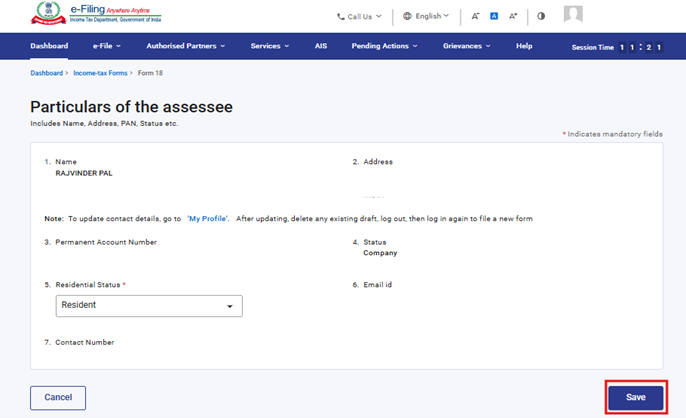
Step 8: Verify the particulars, enter the Residential status and click Save.
Note: Please ensure that all mandatory details under "My Profile" section including address are completed. You can update your contact and address details by clicking on hyperlink “My Profile”.
Step 9: After saving the first panel, select the second panel: Particulars of the Specified Business
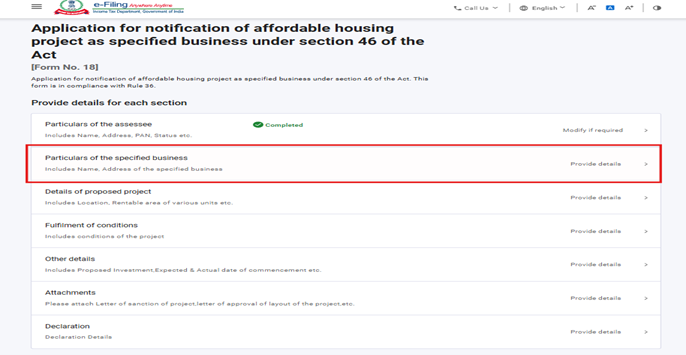
Step 10: Fill the relevant details under the Particulars of the Specified Business panel, then click Save.
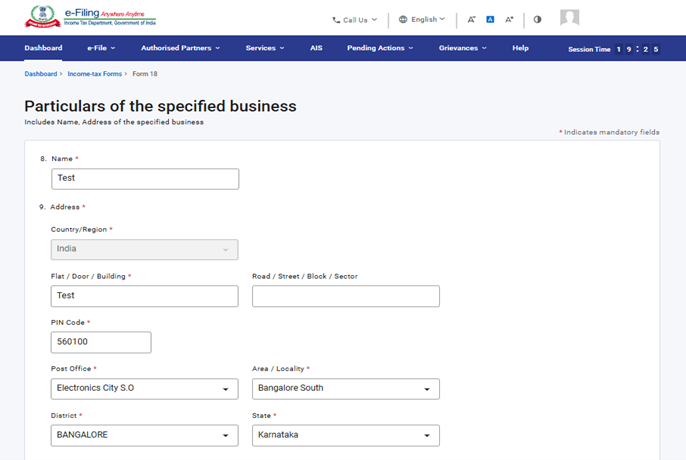
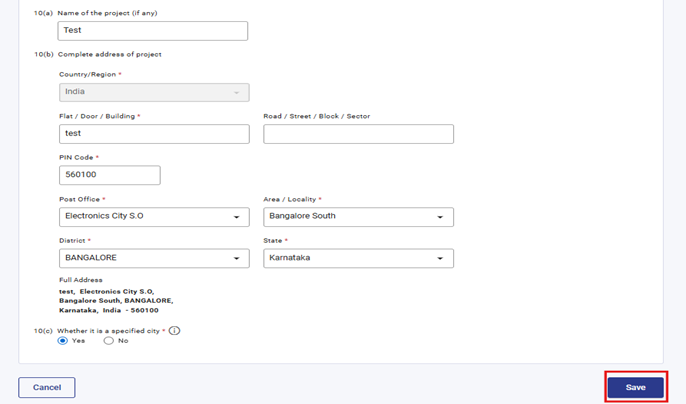
Step 11: After saving the second panel, select the third panel: Details of Proposed Project.
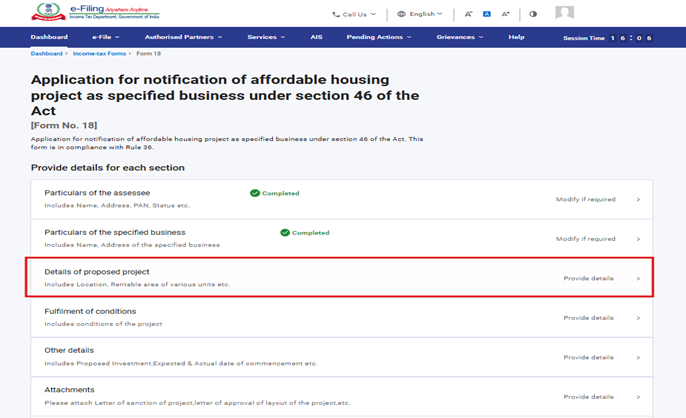
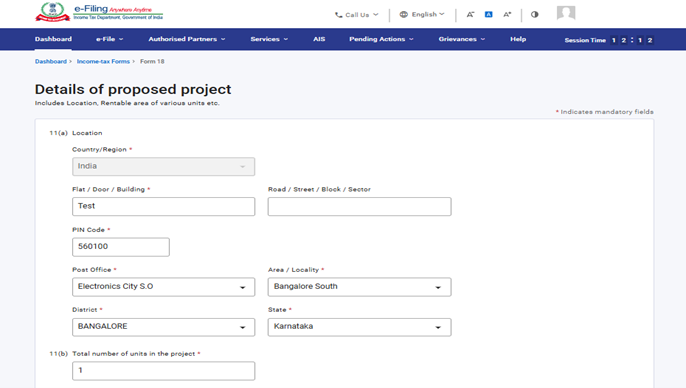
Step 12: Fill the relevant details in “Details of proposed project” panel and click Save.
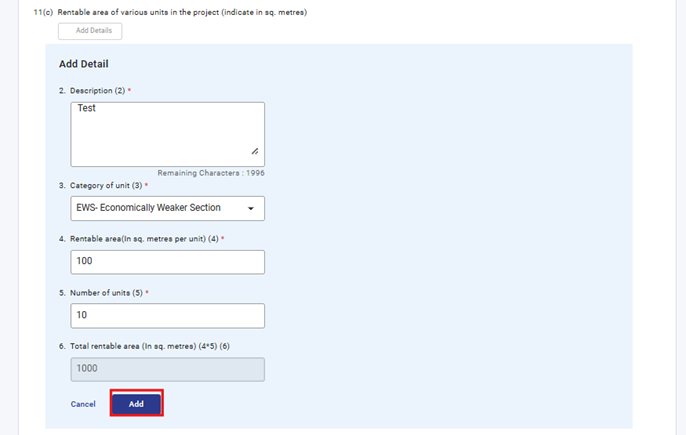
Under Serial No. 11(c), select 'Add Details', fill in the required fields, and click 'Add' to proceed.
Note: - The field No 3‘Category of unit’ contains the dropdown menu, users can select an option from the available list.
Field No. 6 is an auto‑calculated field derived from the values entered in Fields 4 and 5.
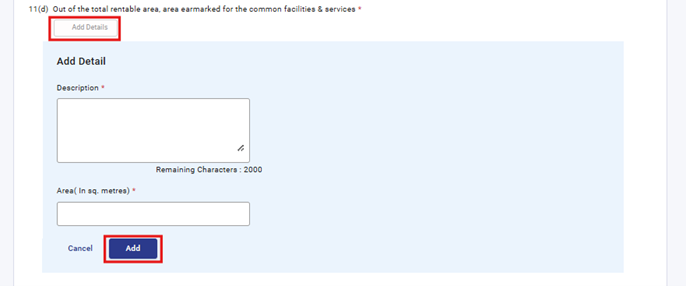
Under Serial No. 11(d), select 'Add Details', complete the required fields, and click 'Add' to proceed.
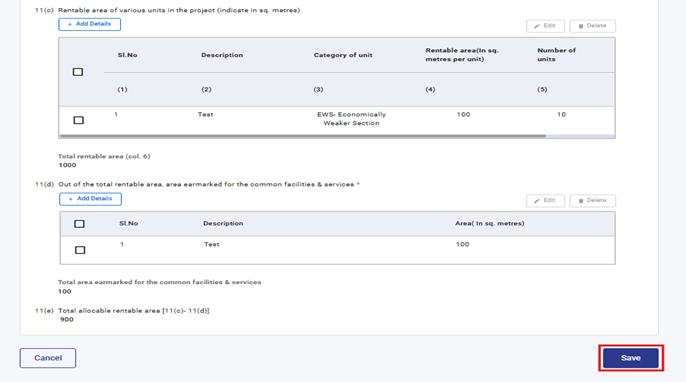
The details entered under Serial No. 11(c) and 11(d) will be reflected in a table once added. user can add up to 50 records by clicking the ‘Add Details’ button.
Note: - Based on the number of entries added in the table, the total for Fields 11(c) and 11(d) will be auto calculated.
Step 13: After saving the third panel, select the fourth panel: Fulfilment of Conditions
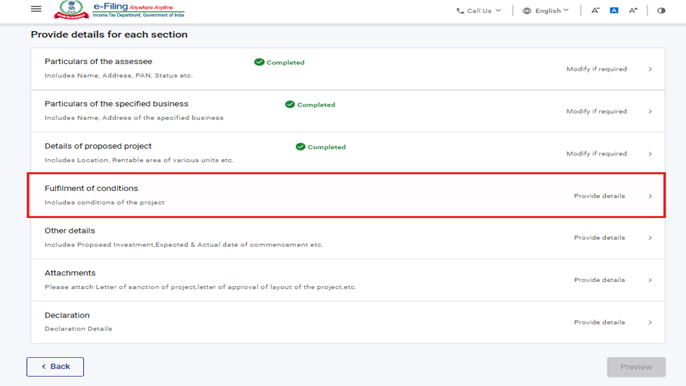
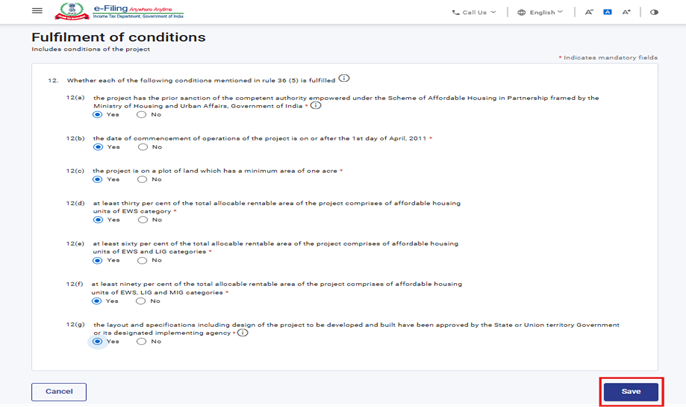
Step 14: Fill Fulfilment of conditions panel and click Save.
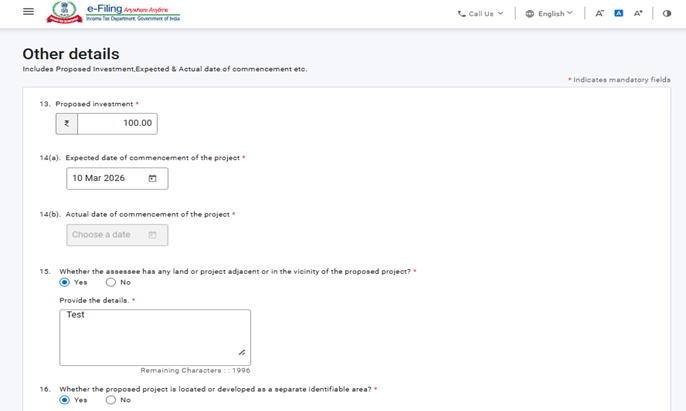
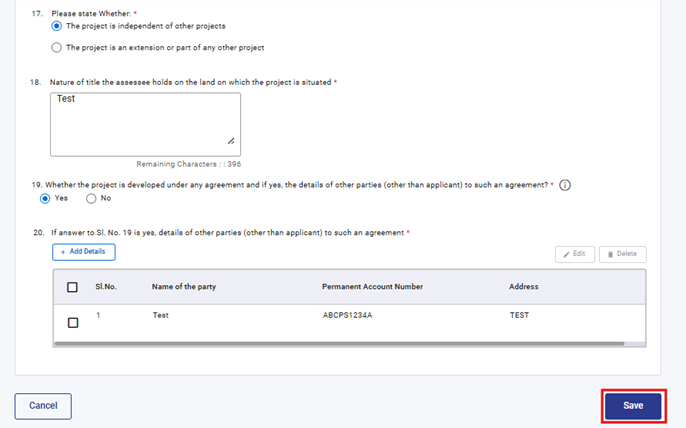
Step 15: Fill the relevant details in “Other details” panel and click Save. Field No 20 will get enabled if user selects “Yes” in field No 19, user can add details by clicking “Add details” button and save it.
Step 16: After saving the fifth panel, select the sixth panel: Attachments
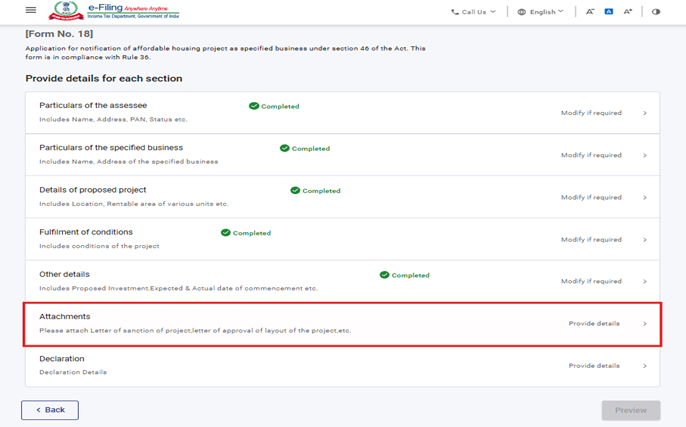
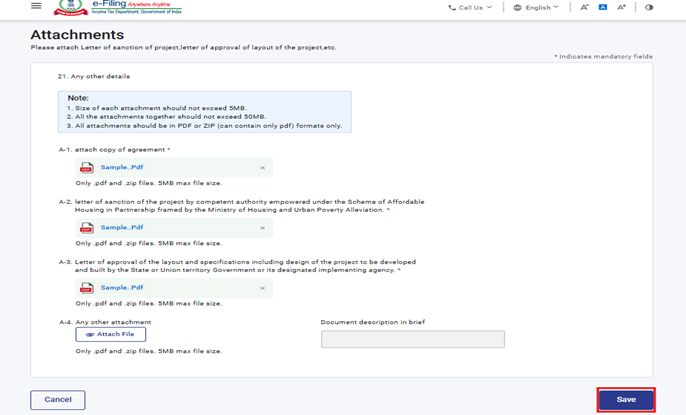
Step 17: Please attach the mandatory attachments in “Attachments” panel and click Save
Note: To attach “Any Other Attachment,” the user can use the A 4 file upload button. Once an attachment is uploaded, entering a description becomes mandatory.
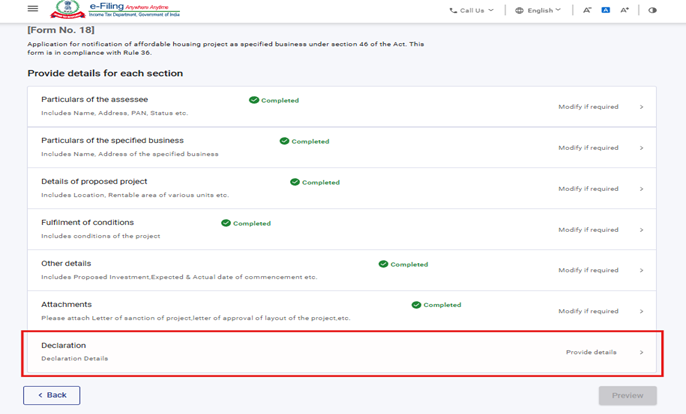
Step 18: After saving the sixth panel, select the Declaration panel
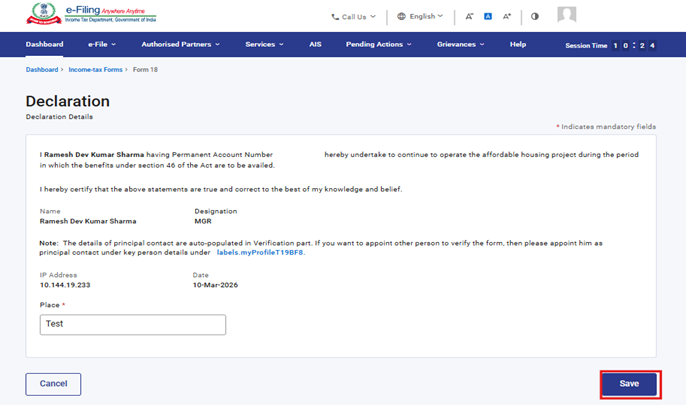
Step 19: Fill and verify the details in Declaration panel and click Save.
Step 20: Post saving the Declaration panel, click Preview.
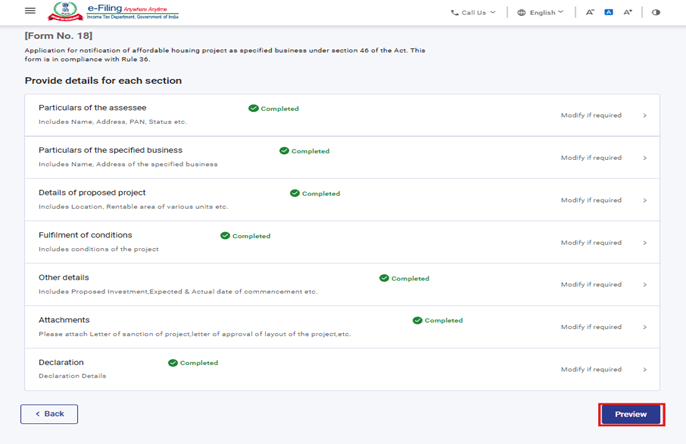
Step 21: On the Preview page, verify the details and click Proceed to e-Verify.
Note: By clicking the “Download” button, the user can download the preview PDF and verify the details before proceeding with e verification
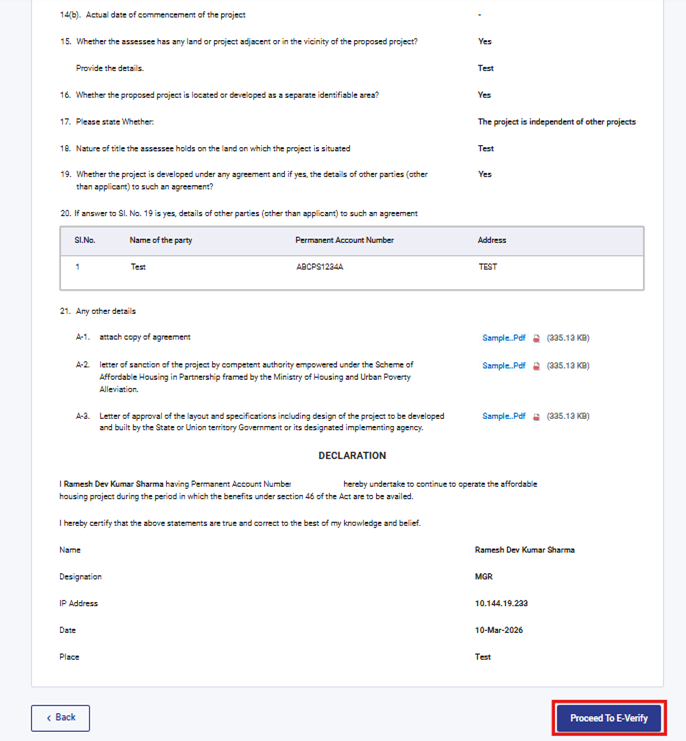
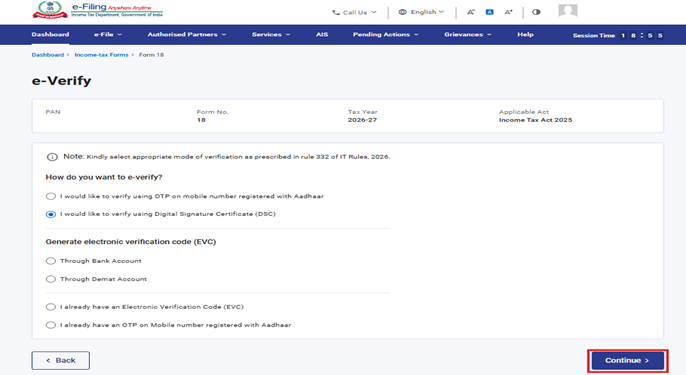
Step 22: Post clicking on Proceed to e-Verify button, a popup confirmation displaying that you would like to proceed to e-Verify. Click on Yes
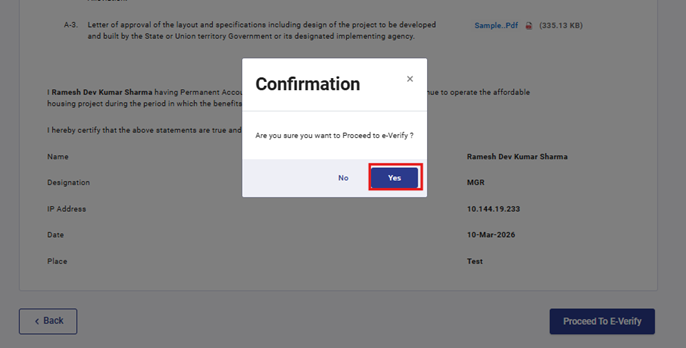
Step 23: On clicking Yes, you will be navigated to the e-Verify page where you can verify the Form 18 using DSC/EVC (as applicable).
Note: Refer to the How to e-Verify user manual to learn more
Step 24: After successful e-Verification, a success message is displayed along with a Transaction ID and Acknowledgement Receipt Number. Please keep a note of the Transaction ID and Acknowledgement Receipt Number for future reference. You will also receive a confirmation message on the email ID(s) and mobile number(s) registered with the e-Filing portal.
Click on download button to download the Acknowledgement receipt.
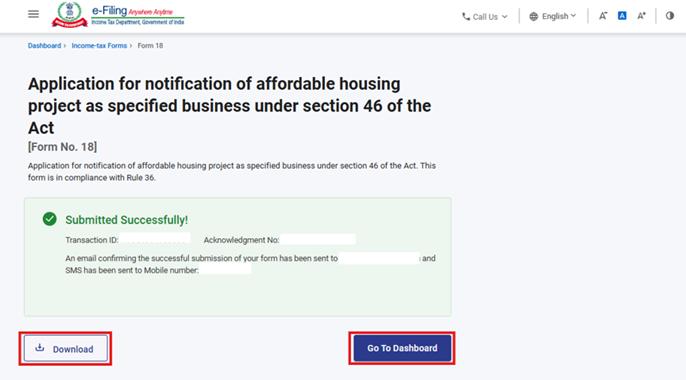
After successful submission of form 18 the user can view the filled form under - On your Dashboard, click e-File > File Income Tax Forms > View Filed Forms> View Filed Form tab under Income Tax Act 2025.
Note: Refer view filled form user manual to learn more
5. Related Topics
• Login
• Dashboard
• How to e-Verify
• Register DSC
6.Glossary
|
Acronym/Abbreviation |
Description/Full Form |
|
DSC |
Digital Signature Certificate |
|
EVC |
Electronic Verification Certificate |
|
ARN |
Acknowledgement Receipt Number |
|
PY |
Previous Year |
|
FY |
Financial Year |
|
TY |
Tax Year |



