



Form 180 User Manual
1. Overview
- Form 180 is a compliance form used by employee welfare funds to seek recognition as an approved fund under the Income Tax Act, 2025.
- This form applies to funds that are set up as a trust, receive regular employee contributions, utilize their income solely for employee welfare,and invest only in the prescribed modes specified under Section 350.
- Approval granted by the Principal Commissioner or Commissioner remains valid for up to three tax years, after which the fund must apply again for continued approval.
2. Prerequisites for availing this service
- You should be a registered user on the e-Filing portal.
- Status of PAN of the taxpayer should be "Active".
- You should have a valid DSC to verify the form through DSC mode, and it must be registered on the e-filing portal and not expired.
3. About the Form
3.1 Purpose
- The purpose of Form 180 is to formally request tax exemption approval from the Principal Commissioner or Commissioner.
- By submitting this form, an employee welfare fund demonstrates eligibility for exemption by declaring that it meets the legal conditions relating to formation, contributions, utilization of income, and permitted investments.
3.2 Who can file it?
Any fund established for the welfare of employees or their dependents, where such employees are members of the fund, and the fund is:
- Established for purposes notified by the Board
- Formed under a trust evidenced by a trust deed
- Funded by employees through periodical subscriptions
3.3 Form at a Glance
Form 180 has four panels:
1. Part A: Particulars of the Applicant (Trust/Fund)
2. Part B: Residential Information
3. Attachments
4. Verification
4. Step-by-Step Guide
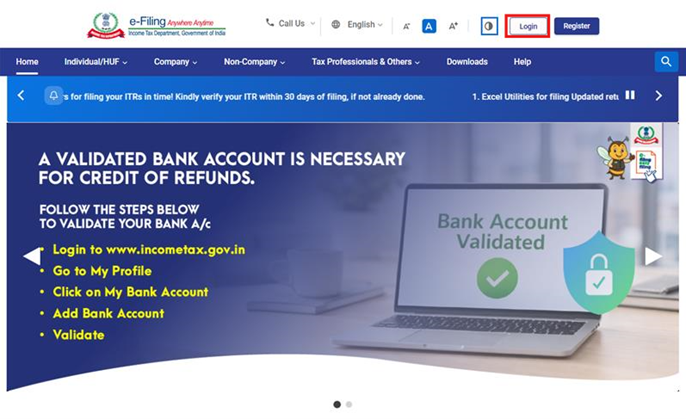
Step 1: Log in to the e-Filing portal with your User ID and Password.
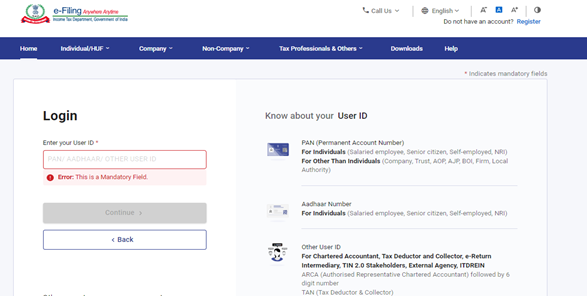
Step 2: Enter the User ID (PAN) and Password.
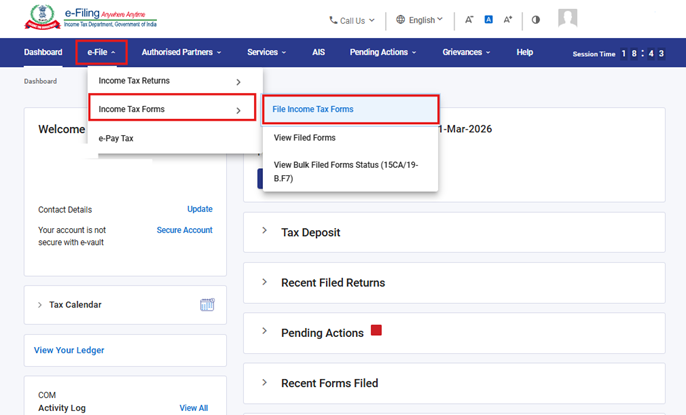
Step 3: Go to e-file >Income Tax Forms > File Income Tax Forms.
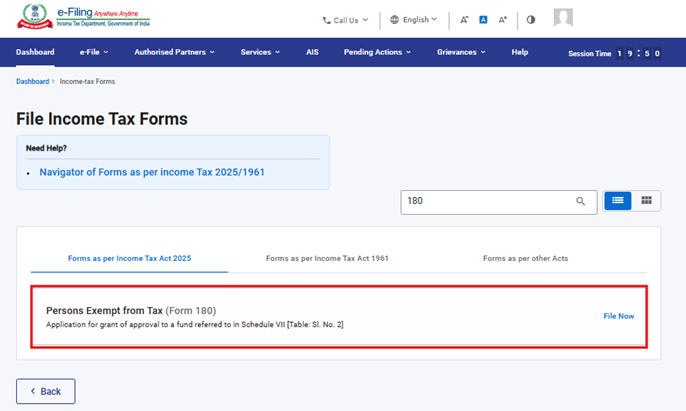
Step 4: Select the Forms as per Income Tax Act 2025 tab, select Form 180, and click the File Now button.
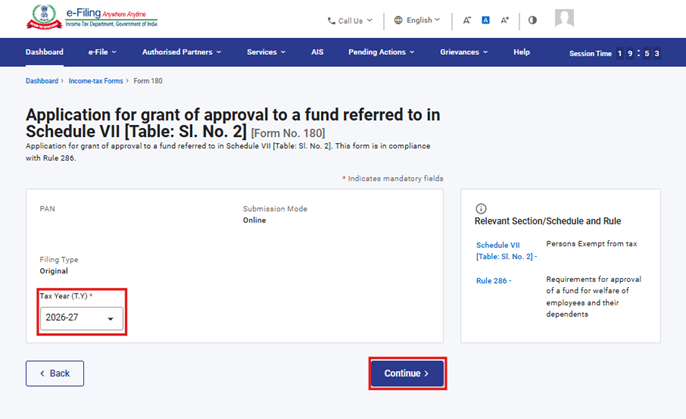
Step 5: Select the applicable Tax Year (T.Y) and click on Continue button.
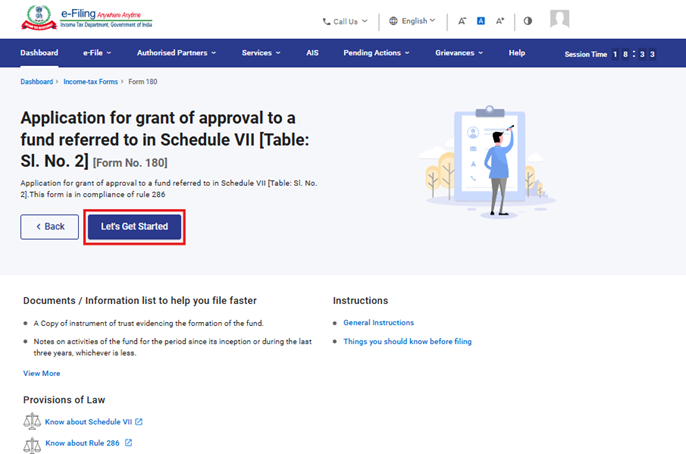
Step 6: Click on Let’s Get Started.
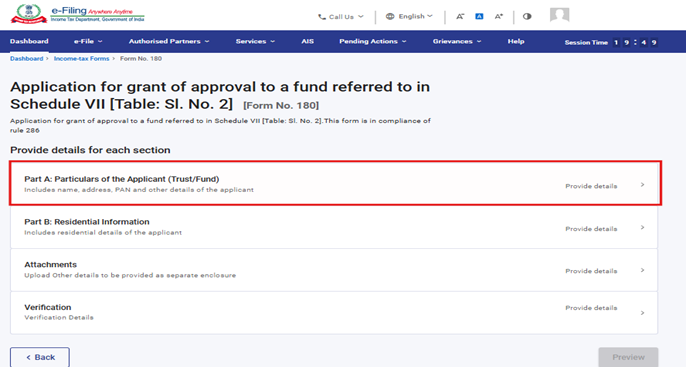
Step 7: Upon clicking Let's Get Started, the user is navigated to the Panel screen. Select the first panel: Part A: Particulars of the Applicant (Trust/Fund)
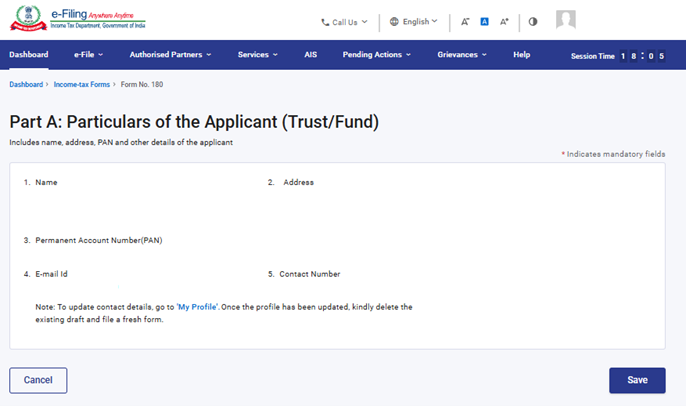
Step 8: Verify the Particulars and click on Save.
Note: Please ensure that all mandatory details under "My Profile" section including address are completed. You can update your contact and address details by clicking on hyperlink “My Profile”.
Step 9: After saving the first panel, select the second panel: Part B: Residential Information.
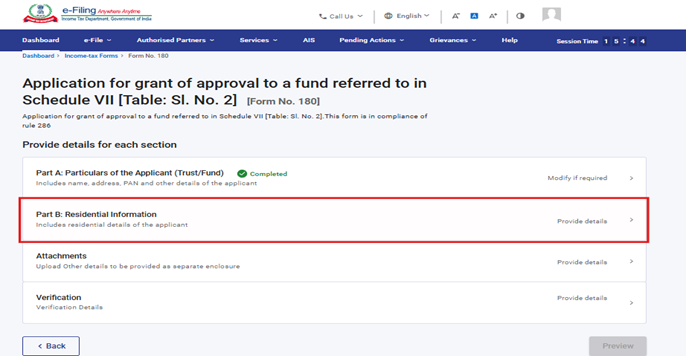
Step 10: Fill in and verify the details under the Part B: Residential Information panel, then click Save.
The field No 8 ‘Objects of the fund’ contains the dropdown menu, user can select an option from the available list.
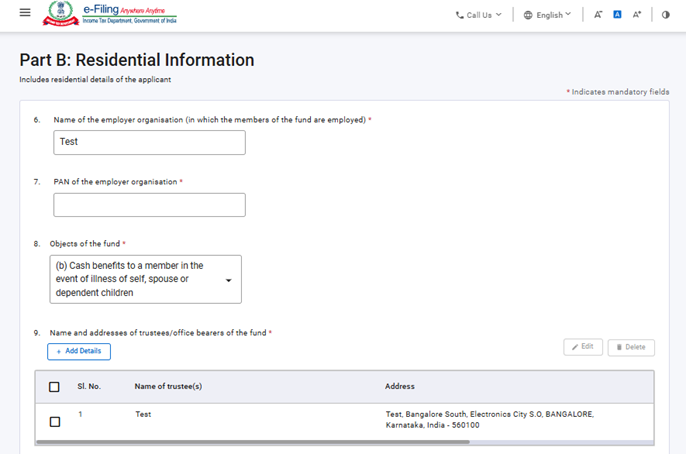
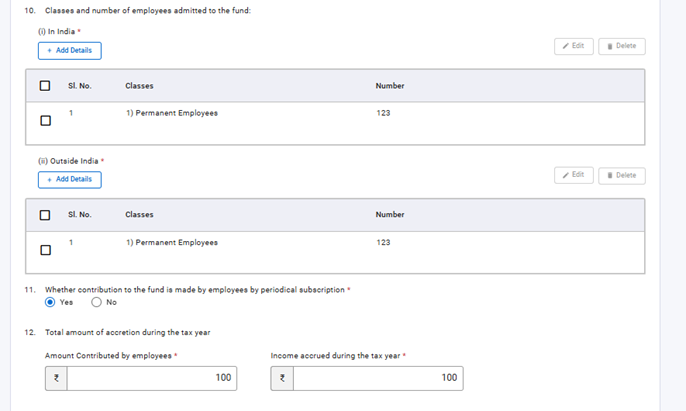
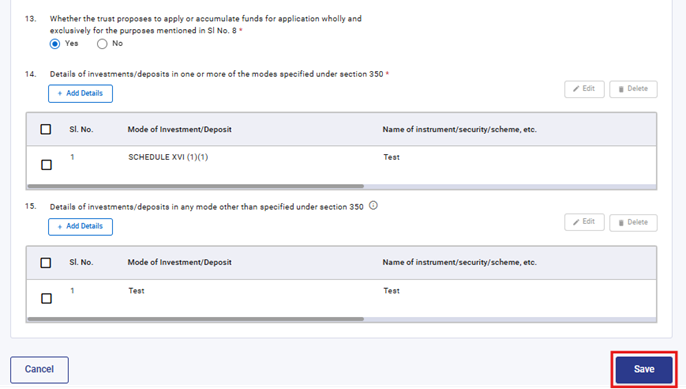
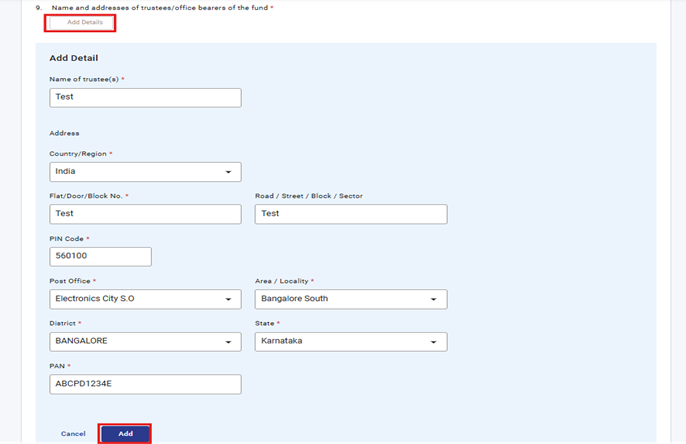
Under Serial No. 9, Click 'Add Details', provide the relevant details, and click 'Add' to proceed.
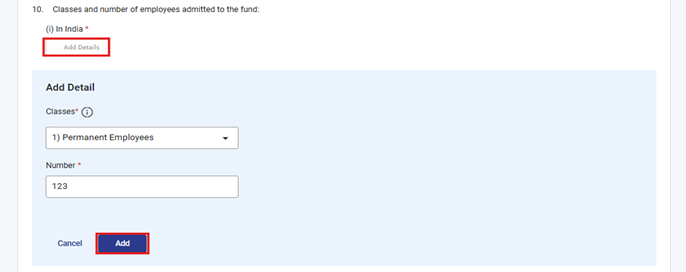
Under Serial No. 10(i), select 'Add Details', complete the required fields, and click 'Add' to proceed. The field ‘Classes’ contains the dropdown menu, user can select an option from the available list.
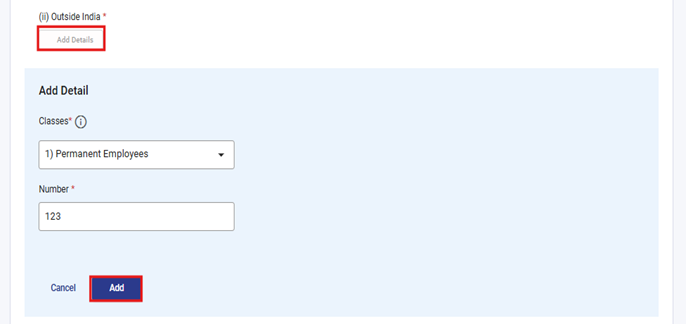
Under Serial No. 10(ii), select 'Add Details', complete the required fields, and click 'Add' to proceed. The field ‘Classes’ contains the dropdown menu, user can select an option from the available list.
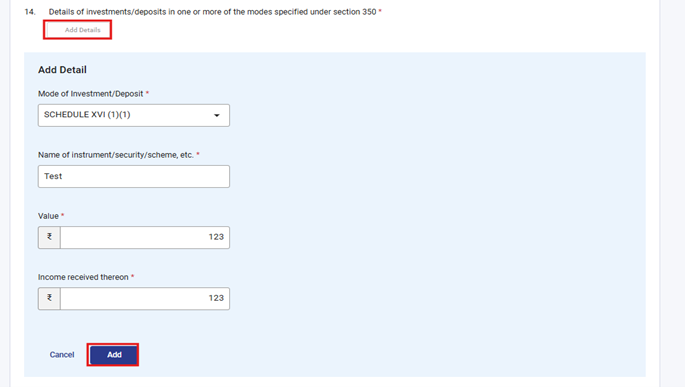
Under Serial No. 14, select 'Add Details', complete the required fields, and click 'Add' to proceed. The field ‘Mode of Investment /Deposit’ contains the dropdown menu, user can select an option from the available list.
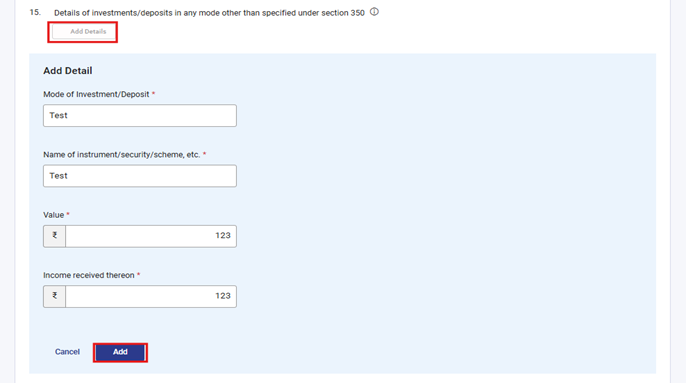
Under Serial No. 15, select 'Add Details', fill the required fields, and click 'Add' to proceed.
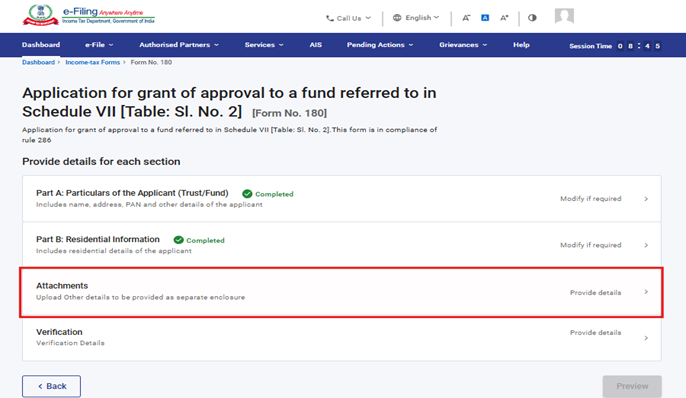
Step 11: After saving the third panel, navigate to the fourth panel: Attachments.
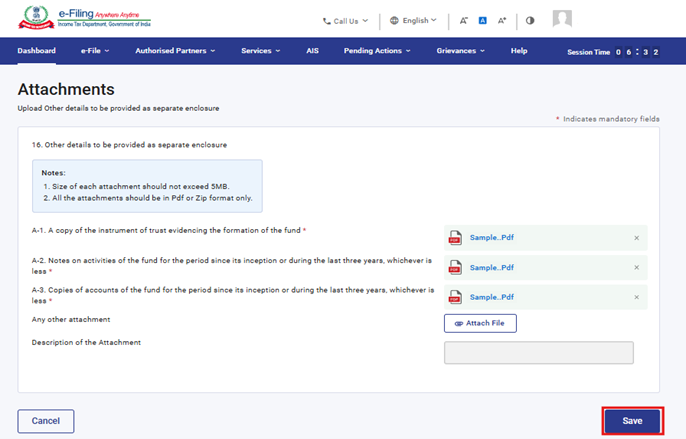
Step 12: Attach the relevant documents and click Save.
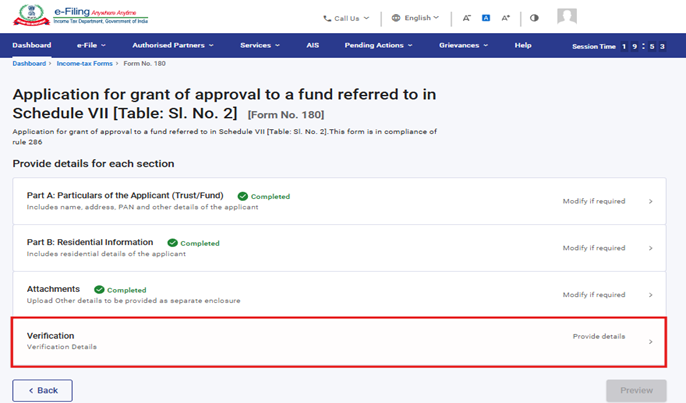
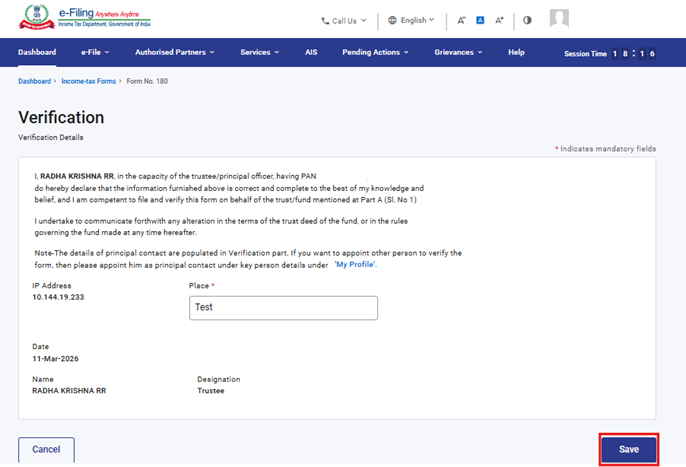
Step 13: After saving the third panel, select the Verification panel.
Step 14: Confirm the undertaking and click Save.
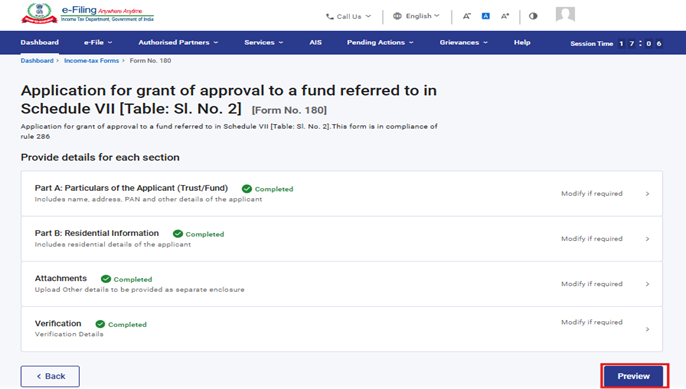
Step 17: After saving the Verification panel, click Preview.
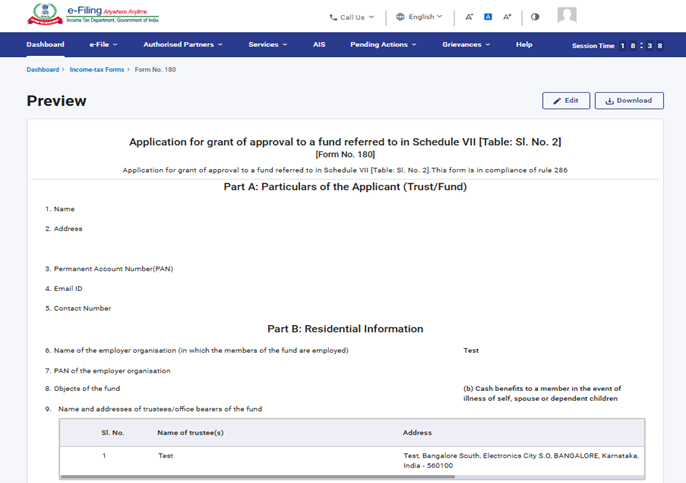
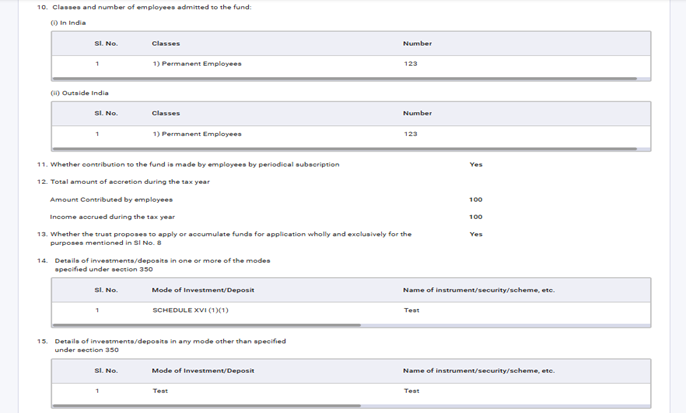
Step 18: Review the details on the Preview page and click Proceed to e-Verify.
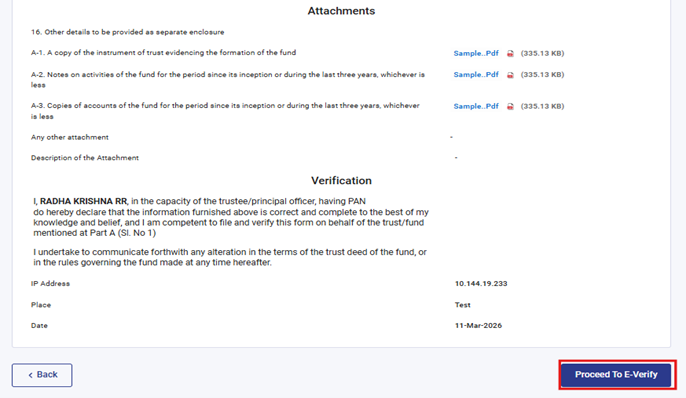
Step 19: Upon clicking Proceed to e-Verify, a confirmation popup appears. Click Yes to proceed.
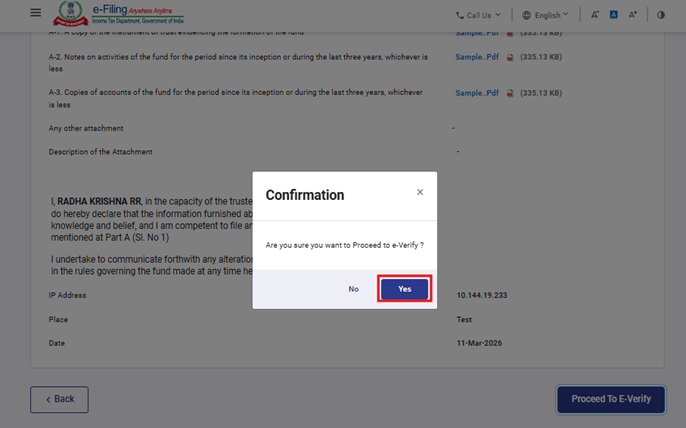
Step 20: On clicking Yes, you will be navigated to the e-Verify page where you can verify the Form 180 using DSC/EVC (as applicable).
Note: Refer to the How to e-Verify user manual to learn more.
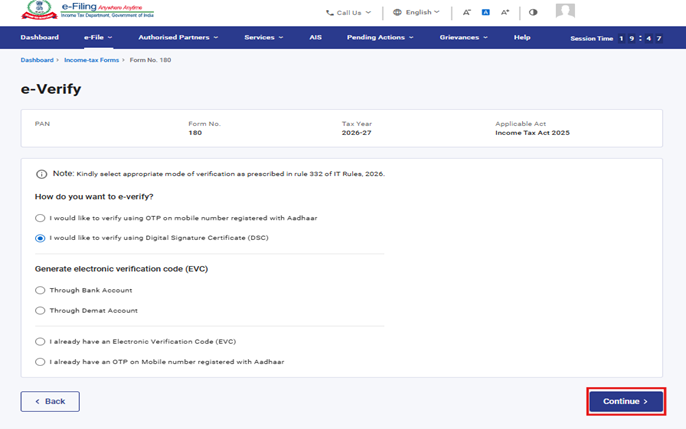
Step 21: After successful e-Verification, a success message is displayed along with a Transaction ID and Acknowledgement Receipt Number. Please keep a note of the Transaction ID and Acknowledgement Receipt Number for future reference. You will also receive a confirmation message on the email ID(s) and mobile number(s) registered with the e-Filing portal.
Click on download button to download the Acknowledgement receipt.
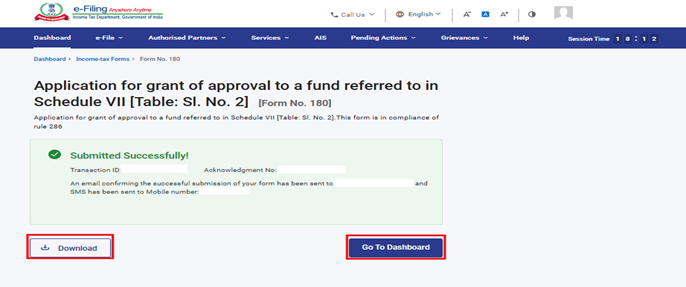
After successful submission of form 180 the user can view the filled form under - On your Dashboard, click e-File > File Income Tax Forms > View Filed Forms> View Filed Form tab under Income Tax Act 2025.
Note: Refer view filled form user manual to learn more.
5. Related Topics
• Login
• Dashboard
• How to e-Verify
• Register DSC
6.Glossary
| Acronym/Abbreviation | Description/Full Form |
| DSC | Digital Signature Certificate |
| EVC | Electronic Verification Certificate |
| ARN | Acknowledgement Receipt Number |
| PY | Previous Year |
| FY | Financial Year |
| TY | Tax Year |



