



Form 51 User Manual
1. Overview
Transfer pricing can create uncertainty when international transactions are involved, as the price must be at arm's length to avoid future disputes. To provide certainty in advance and reduce litigation, the Income Tax Department allows taxpayers to enter into an Advance Pricing Agreement (APA) for such transactions.
Form 51 is the application used to request an APA. It can be filed for a unilateral, bilateral, or multilateral agreement, along with the prescribed fee. The same form also allows the applicant to request rollback, so that the agreed approach can be applied to earlier years, wherever permitted by the rules.
Form 51 should be filed before the start of the first relevant tax year in case of ongoing transactions, or before undertaking the transaction in respect of remaining transactions. It must be submitted to the appropriate authority based on the type of APA being sought.
Form 51 is available on the incometax efiling portal and can be submitted online only.
2. Prerequisites for availing this service
- You should be a registered user having valid User ID and Password on the e-Filing portal.
- Status of PAN of the taxpayer should be "Active"
- PAN and Aadhaar are linked (recommended)
- You should have a valid DSC to verify the form if you choose to verify it through DSC mode, and it must be registered on the e-filing portal and not expired
3. About the Form
3.1 Purpose
Form 51 serves as the application form for taxpayers seeking an Advance Pricing Agreement (APA) with the Central Board of Direct Taxes (CBDT), enabling businesses to establish transfer pricing methods for their international transactions in advance, thereby minimizing disputes and enhancing tax certainty.
Under the new Incometax Rules, 2026, Forms 3CED and 3CEDA have been consolidated into the new Form 51, which will additionally facilitate the extension of agreed APA transfer pricing methodologies to prior years, promoting consistency and reducing ongoing or potential tax controversies.
3.2 Who can use it?
All registered users on the eFiling portal can submit Form 51 for providing the details required for applying for an Advance Pricing Agreement, including the request for rollback wherever applicable, as permitted under the relevant provisions of the Incometax Act and Rules.
3.3 Form at a Glance
Form 51 has four panels:
1. Part A: Particulars of the Applicant
2. Part B: Other Details
3. Attachments
4. Verification
4. Step-by-Step Guide
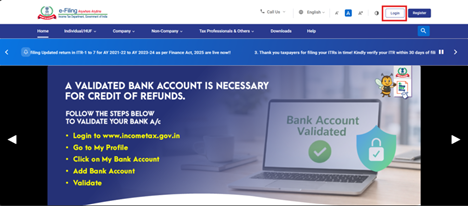
Step 1: Log in to the e-Filing portal with your User ID and Password.
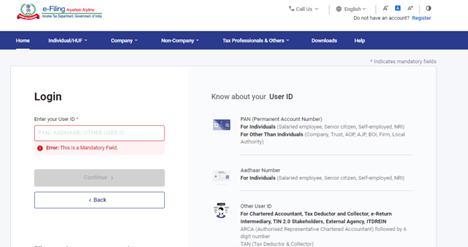
Step 2: Enter the User ID (PAN) and Password.
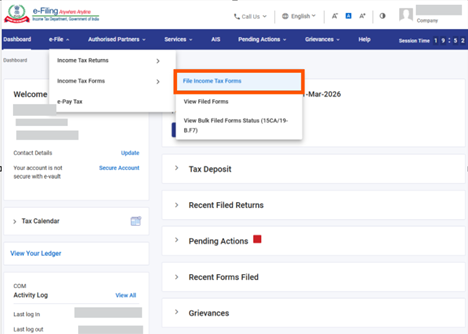
Step 3: Go to e-File >Income Tax Forms > File Income Tax Forms.
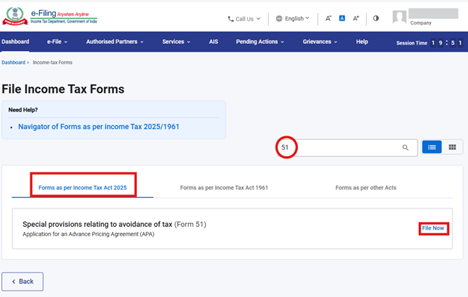
Step 4: Select the Forms as per Income Tax Act 2025 tab, search for Form 51, and click the File Now button.
Step 5: Check the PAN, Submission Mode, Filing Type and click on Continue button.
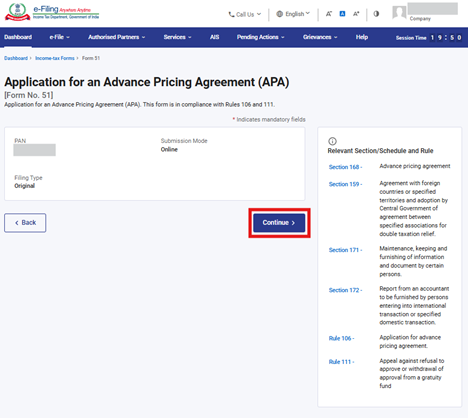
Step 6: Click on Let's Get Started.
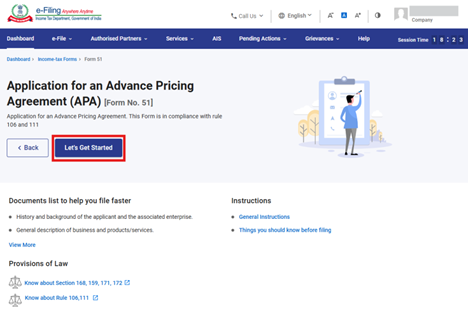
Step 7: Post clicking on Let's Get Started button, you will be navigated to Panel screen and Select the 1st Panel: "Part A: Particulars of the Applicant".
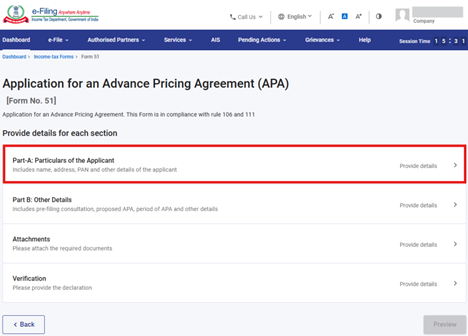
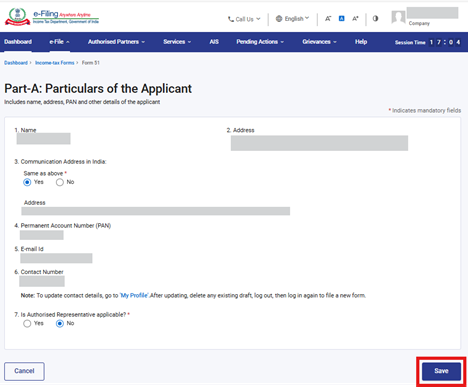
Step 8: Confirm the Particulars and click on Save.
Note: Please ensure that all mandatory details under "My Profile" section including address is completed. You can update your contact and address details by clicking on hyperlink "My Profile".
Step 9: Post saving the 1st panel, status of panel will be displayed as Completed then select the 2nd Panel: "Part B: Other Details".
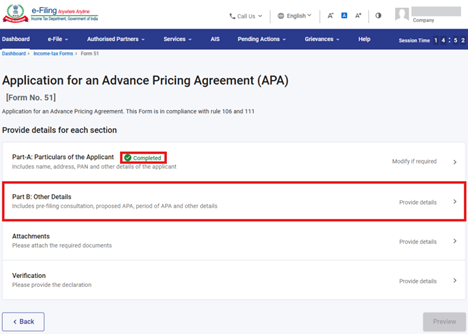
Step 10: Fill the required details in the 2nd Panel and click on Save.
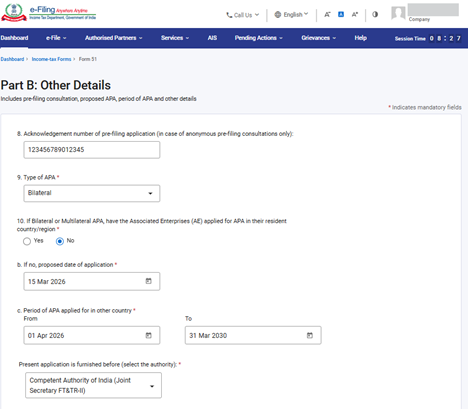
Notes:
Field no. 10 is applicable only in case Bilateral or Multilateral APA is selected in field no. 9 (Type of APA)
If you are applying for unilateral APA, please select "Pr. CCIT (IT)" under the field "Present application is furnished before". If the multilateral or bilateral APA is with countries in North America including Caribbean Islands and Europe, please select "Competent Authority of India (Joint Secretary FT&TR-I)". Else Select, "Competent Authority of India (Joint Secretary FT&TR-II)" under the field "Present application is furnished before".
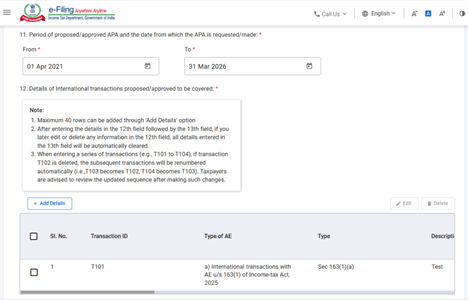
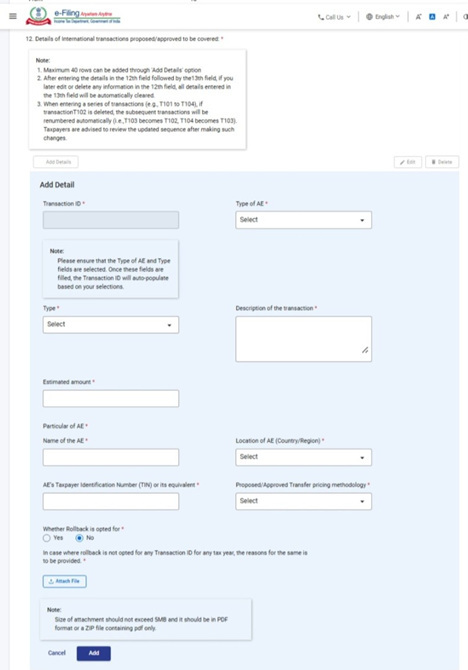
Notes:
Kindly read the instructions mentioned in the Note under field no. 12: Details of International transactions proposed/approved to be covered".
Transaction ID will be generated only when you select the Type of AE and Type field.
If you are not opting for rollback for any particular transaction, you need to attach the document containing the reason for the same.
Notes:
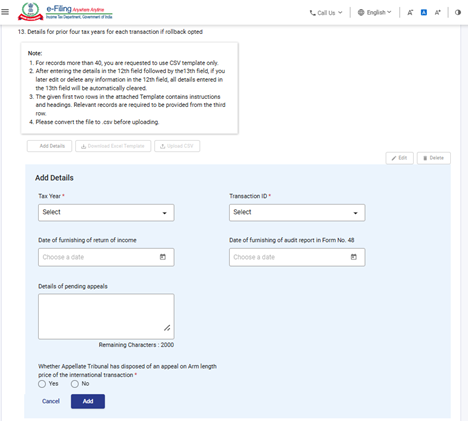
Field no. 13 will be enabled only in case if yes is selected for the field "Whether Rollback is opted for" under field no. 12.
Kindly read the instructions mentioned in the Note under field no. 13: "Details for prior four tax years for each transaction if rollback opted"
Tax Years will be displayed on the basis of the period selected in the 11th field: Period of proposed/approved APA and the date from which the APA is requested/made:". For example if period selected is from 01st April 2026 to 31st March 2031 then the rollback tax years will be displayed from TY 2022-23 to TY 2025-26.
Transaction ID's for which rollback is being opted for in field no. 12 will be displayed under the Transaction ID field.
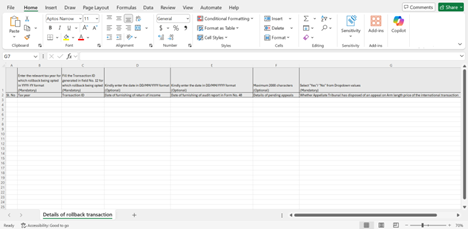
If you wants to enter more than 40 records in field no. 13, then you should download the excel template, fill the details, convert the excel file into .CSV format and upload the same.
Notes:
Follow the below mentioned instructions to fill the above excel template:
|
Field Name |
Instruction |
Mandatory field (Yes/No) |
Length of the character |
|
Sl.No |
Enter the serial numbers starting from 1 |
Yes |
|
|
Tax year |
Enter the relevant tax year for which rollback being opted in YYYY-YY format |
Yes |
7 characters in the below mentioned format: |
|
Transaction ID |
Enter the Transaction ID generated in field No. 12 for which rollback being opted |
Yes |
|
|
Date of furnishing of return of income |
Enter the date on which return of income is furnished for that respective tax year |
No |
Enter the date in the below mentioned format |
|
Date of furnishing of audit report in Form No. 48 |
Enter the date on which audit report in Form No. 48 is furnished for that respective tax year. |
No |
Enter the date in the below mentioned format |
|
Details of pending appeals |
Enter the pending appeals details |
No |
2000 characters maximum |
|
Whether Appellate Tribunal has disposed of an appeal on Arm length price of the international transaction |
Select Yes or No from the dropdown |
Yes |
|
Notes:
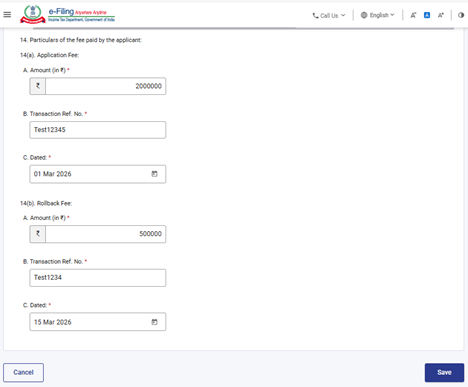
Field No. 14(b): Rollback Fee will be enabled only when you have selected "Yes" for the field "Whether Rollback is opted for" in field no. 12.
As per the rule 106 and 111 of Income-tax rules, 2026, you need to provide the details of application fee, rollback fee paid and you need to attach the copy of the fee paid in A-27 under the attachment panel.
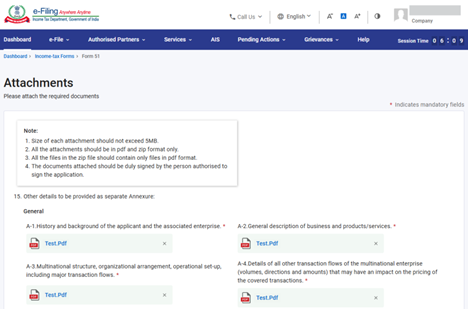
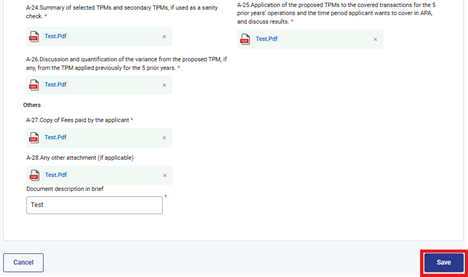
Step 11: Post saving the 2nd panel, status of panel will be displayed as Completed then select the 3rd Panel: "Attachments".
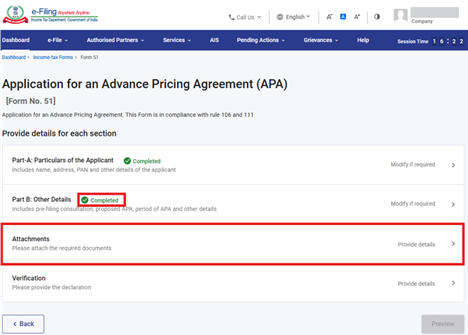
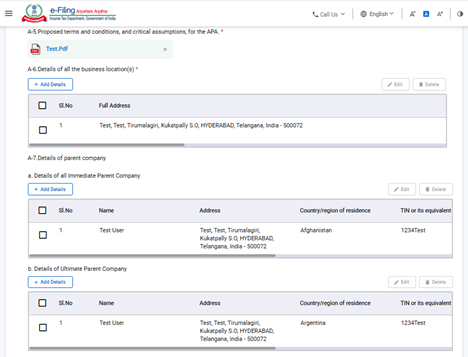
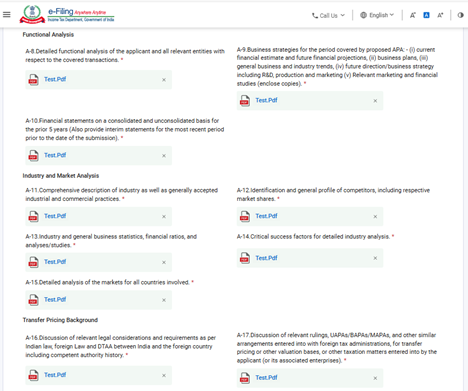
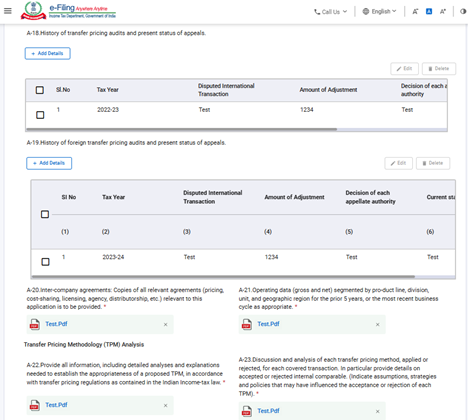
Step 12: Attach the required documents/details in the 3rd panel and click on Save.
Step 13: Post saving the 3rd panel, status of panel will be displayed as Completed then select the 4th Panel: "Verification".
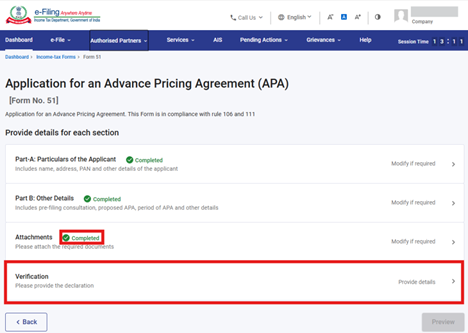
Step 14: Fill the required details in the 4th panel and click on Save.
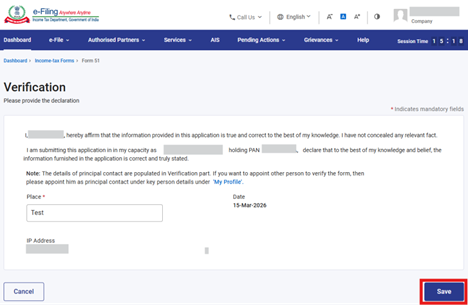
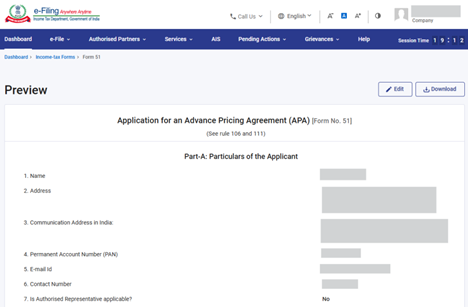
Step 15: Post saving the 4th panel, status of panel will be displayed as Completed then click on Preview.
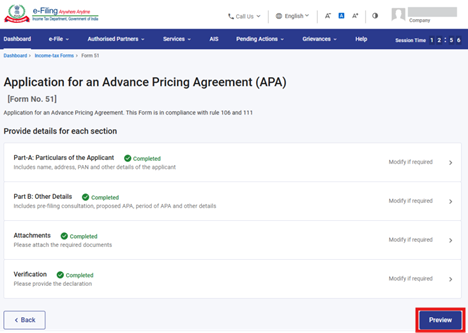
Step 16: On the Preview page, verify the details and click Proceed To E-Verify.
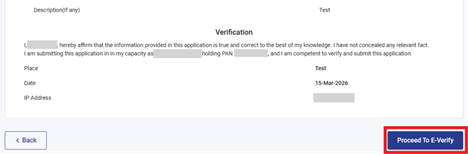
Step 17: Post clicking on Proceed To E-Verify button, a popup confirmation displaying that you would like to proceed to e-Verify. Click on Yes.
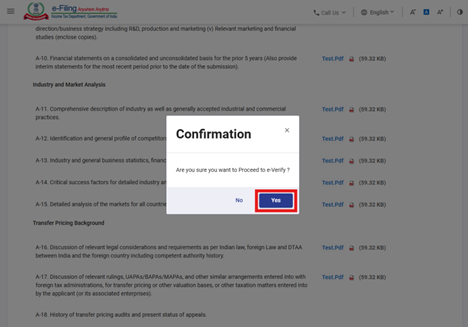
Step 18: On clicking Yes, you will be navigated to the e-Verify page where you can verify the Form 51 using EVC/DSC (as applicable).
Note: Refer to the How to e-Verify user manual to learn more.
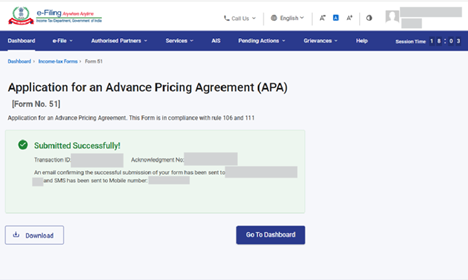
After successful e-Verification, a success message is displayed along with a Transaction ID and Acknowledgement Receipt Number. Please keep a note of the Transaction ID and Acknowledgement Receipt Number for future reference. You will also receive a confirmation message on the email ID(s) and mobile number(s) registered with the e-Filing portal.
5. Related Topics
• Login
• Dashboard
• How to e-Verify
• Generate EVC
• Authorize / Register as Representative
6. Glossary
|
Acronym/Abbreviation |
Description/Full Form |
|
DSC |
Digital Signature Certificate |
|
EVC |
Electronic Verification Code |
|
ARN |
Acknowledgement Receipt Number |
|
TY |
Tax Year |



