



Form 52 User Manual
1. Overview
Once an assessee enters into an Advance Pricing Agreement by filing Form No. 51 with Income Tax Department, he is required to file an Annual Compliance Report which informs the APA Authorities that the taxpayer has complied with the terms of the APA for the covered transactions.
According to Rule 113 of Income-tax Rules 2026, such Annual Compliance Report shall be filed in Form No. 52. The assessee shall file the annual compliance report for each year covered in the agreement, within thirty days of the due date of filing the income-tax return for that year, or within ninety days of entering into an agreement whichever is later and send it to Principal Chief Commissioner of Income-tax (International Taxation).
2. Prerequisite for availing this service
• You should be a registered user having valid User-ID and Password on the e-filing portal.
• Status of PAN of the taxpayer should be "Active"
• PAN and Aadhaar are linked.
• You should have a valid DSC to verify the form if you are e-verifying via DSC, and it must be registered on the e-filing portal and should not be expired.
• There should be a valid APA between the assessee and Income-tax Department.
3. About the Form
3.1 Purpose
Form 52 is an annual compliance report filed by an assessee who has entered into an Advance Pricing Agreement with the Income-tax Department. The filing is intended to establish that assessee has complied with the terms of the APA.
3.2 Who can file it?
All registered users on the e-filing portal who have entered into an Advance Pricing Agreement (APA) with the Income-tax Department should submit Form 52.
3.3 Form at a Glance
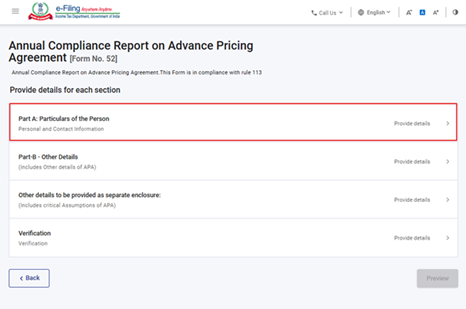
Form 52 has four panels:
1. Part A: Particulars of the Person
2. Part B – Other Details
3. Other details to be provided as separate enclosure
4. Verification
4. Step-by-Step Guide
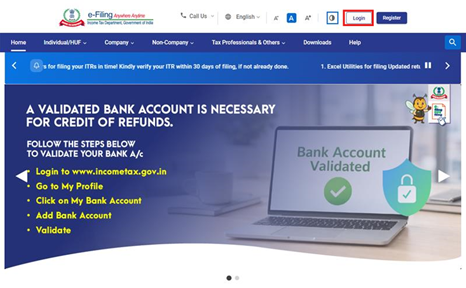
Step 1 - Log in to the e-Filing portal with your User ID and Password.
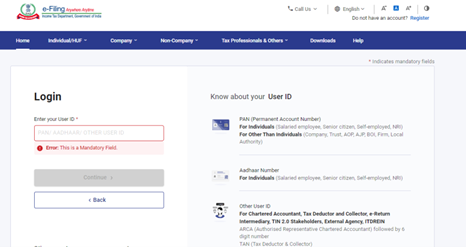
Step 2 - Enter the User ID (PAN) and Password.
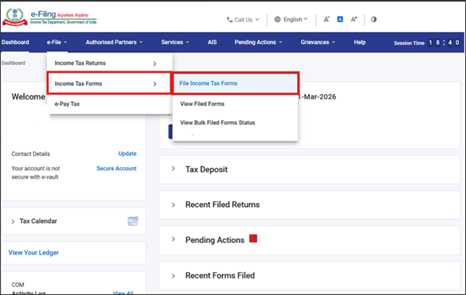
Step 3 – Go to e-File > Income Tax Forms > File Income Tax Forms.
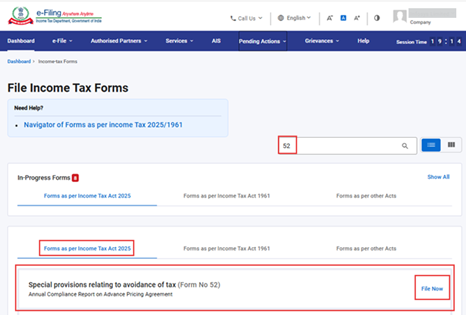
Step 4 – Select/Search the form under Forms as per Income Tax Act 2025 tab and click on File Now button.
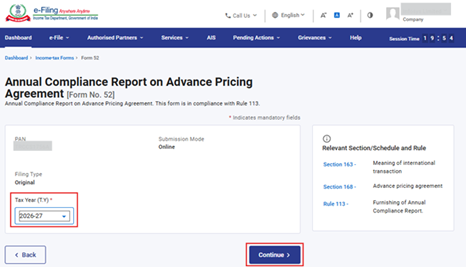
Step 5 – Select the applicable Tax Year and click on Continue.
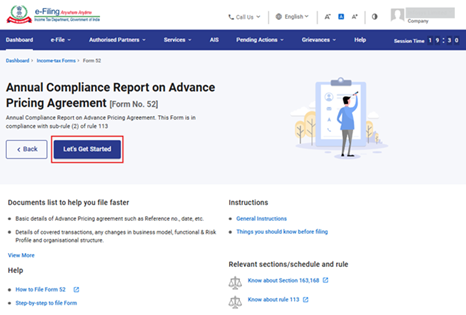
Step 6 – Click on Let's Get Started.
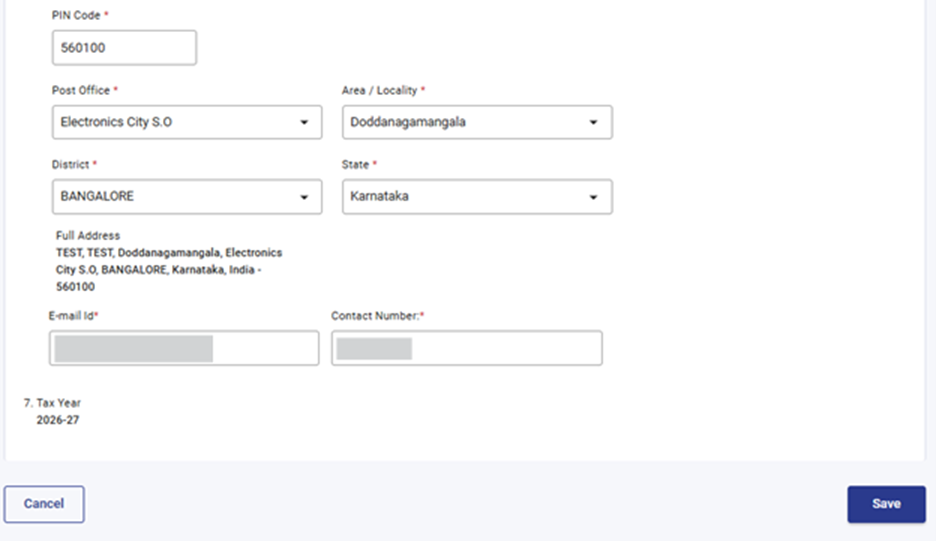
Step 7 – Upon clicking Let's Get Started button, the user is navigated to the Form screen. Select the first panel i.e. "Part A: Particulars of the Person".
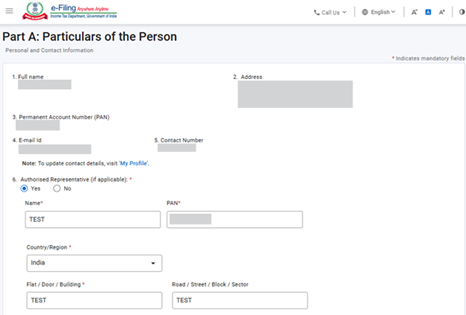
Step 8 – Verify and confirm the Particulars and click on Save.
Note: Please ensure that all mandatory details under "My Profile" section including address are completed. You can update your contact and address details by clicking on hyperlink "My Profile".
Note: If "Yes" is selected in the field no. 6 – Authorised Representative, then the details of Authorised Representative have to be filled by the user himself.
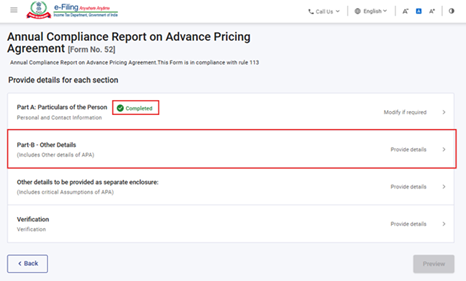
Step 9 – Post saving the first panel, status of the panel will be displayed as "Completed". Now select the second panel i.e. "Part B – Other Details".
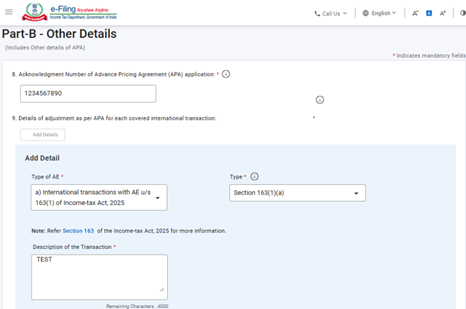
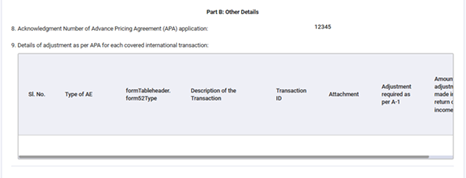
Step 10 – Fill the required details in the second panel and click on save button.
Notes:-
a) In field no. 9 "Add Details" button is given to provide details with respect to the adjustments as per APA. Multiple entries can be made.
b) The detailed calculation for the field "Adjustments required as per A-1" must be provided in the mandatory attachment. The attachment template is available under the Notes section and should be downloaded and completed accordingly
c) The attachment should not exceed 5 MB in size and must be submitted in .pdf or .zip format.
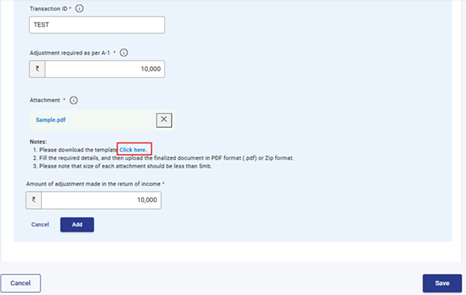
Step 11 - Post saving the second panel, status of the panel will be displayed as "Completed". Now select the third panel i.e. "Other details to be provided as separate enclosure".
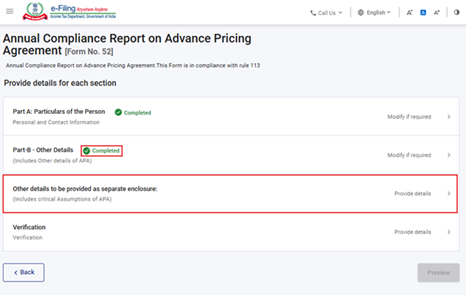
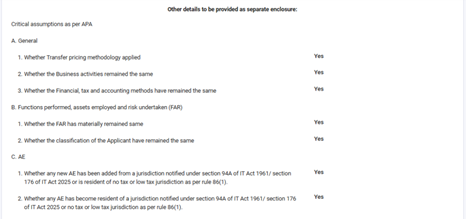
Step 12 – Fill the required details in third panel and click on save button.
Note:-
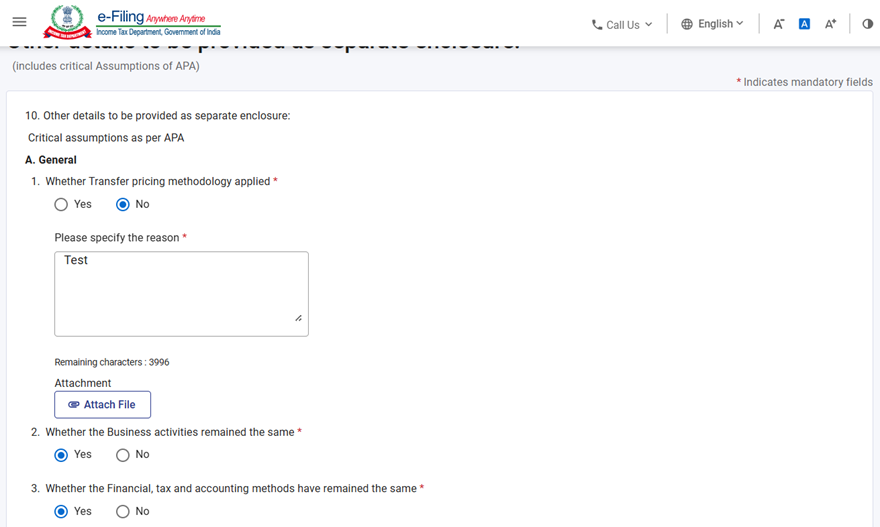
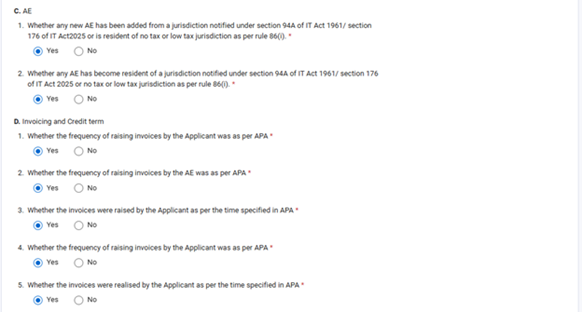
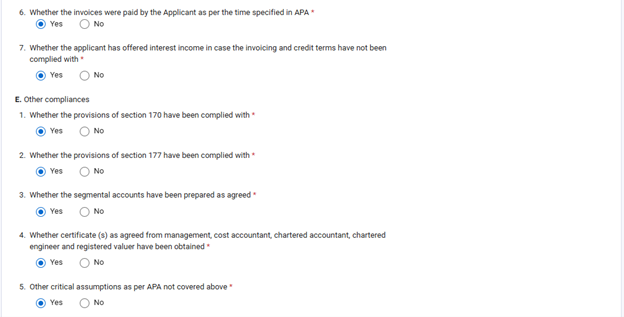
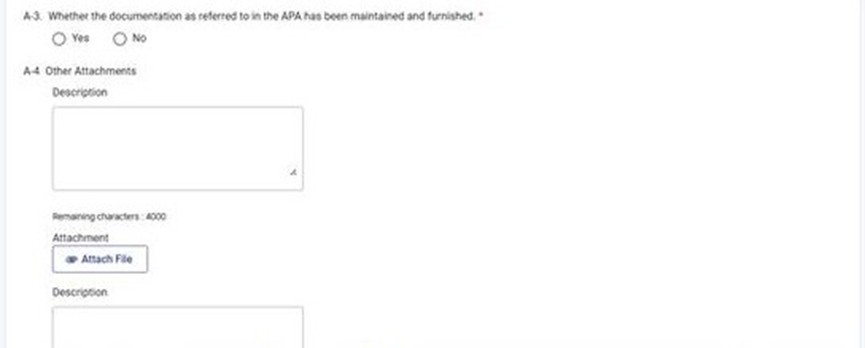
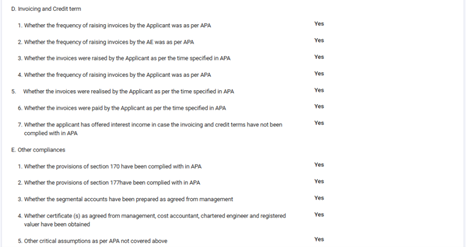
a) This panel contains a set of questions regarding critical assumptions and other details with respect to Advance Pricing Agreement for which the assessee is required to select either "Yes" or "No", as applicable. The assessee should carefully read each question and choose the appropriate option based on the relevant facts and applicability.
b) If the user selects "No" than he is required to provide the reasons(mandatory) along with an attachment(optional).
c) In Field A – 4, the assessee is required to upload additional supporting documents whichever is applicable. The attachment button will be a mandatory field if the user enters a description.

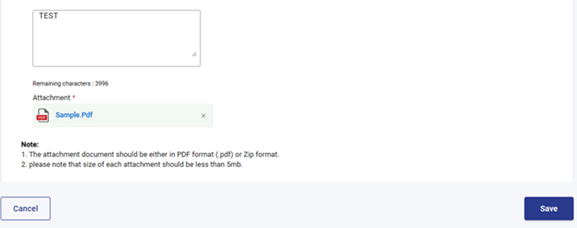
Step 13 - Post saving the third panel, status of the panel will be displayed as "Completed". Now select the fourth panel i.e. "Verification".
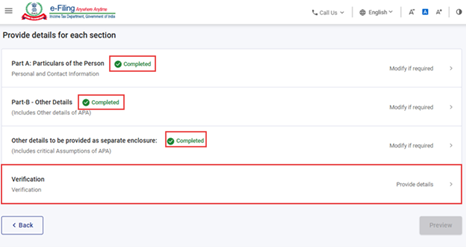
Step 14 - Verify the details in the fourth panel which is getting auto populated from the "Key Person Details" of the login PAN and click on save button.
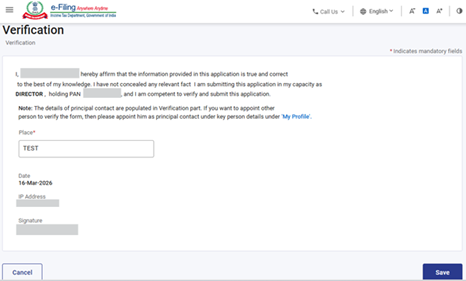
Step 15 - Post saving the fourth panel, status of all the panels will be displayed as "Completed". Now click on preview button.
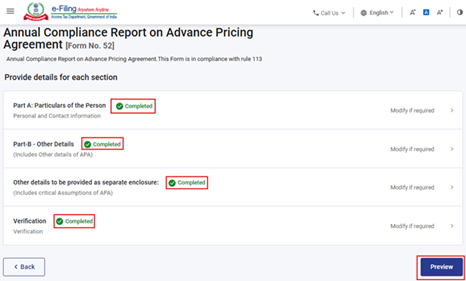
Step 16 - Review the details and click Proceed to e-Verify. User can download the preview PDF by clicking on the download button.
Note: User can verify the data like details entered in UI screen is correct or not. In case any data is missing or is wrong, then user can click on edit button to correct the data.
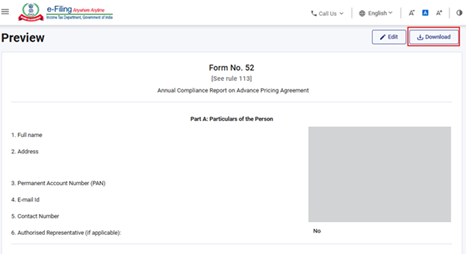
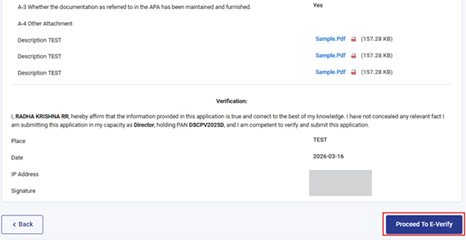
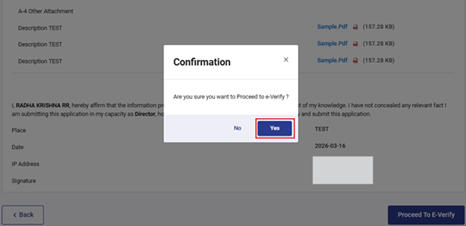
Step 17 – Post clicking on "Proceed to E-Verify" button, a confirmation popup will be displayed. User should select "Yes" to proceed with verification, otherwise select "No" to return to preview screen.
Step 18 - On clicking Yes, you will be navigated to the e-Verify page where you can verify the Form 52 using EVC/DSC (as applicable).
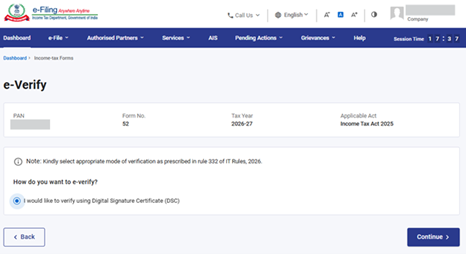
Note: Refer to the How to e-Verify user manual to learn more.
Step 19 - After successful e-Verification, a success message is displayed along with a Transaction ID and Acknowledgement Receipt Number. Please keep a note of the Transaction ID and Acknowledgement Receipt Number for future reference. You will also receive a confirmation message on the email ID(s) and mobile number(s) registered with the e-Filing portal.
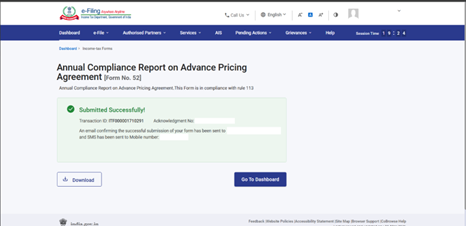
After successful submission of Form 52, the user can view the filed form under - On your Dashboard, click e-File > Income Tax Forms > View Filed Forms> View Filed Form tab under Income Tax Act 2025.
Note: Refer view filled form user manual to learn more.
5. Related Topics
6. Glossary
| Acronym/Abbreviation | Description/Full Form |
| DSC | Digital Signature Certificate |
| EVC | Electronic Verification Certificate |
| ARN | Acknowledgement Receipt Number |
| TY | Tax Year |
| APA | Advance Pricing Agreement |



