Condonation request for filing Statutory Forms_ User Manual
1. Overview
Sometimes it may happen that due to un-avoidance circumstances we could not file income tax Statutory Forms within the time allowed. In such cases, system does not allow filing of Statutory Forms for that period.
subject to the permission by the appropriate competent authority of Income Tax. Any person who did not furnish his income tax Statutory Forms due to circumstances beyond his control, can file income tax Statutory Forms.
This facility of condonation request available on Income Tax e-filing portal can be used by Taxpayer who did not file forms before the due date.
2. Prerequisites for availing this service
- Registered user on the e-Filing portal with valid username and password.
- Taxpayer did not file Statutory Forms within the time limit.
3. About the Facility
3.1 Purpose
3.2 Who can use it?
This facility of condonation request can be used by Taxpayer who did not file forms before the due date.
4. How to Raise Condonation requests to file Forms
Step 1: Log in to the e-Filing portal using your user ID and password.
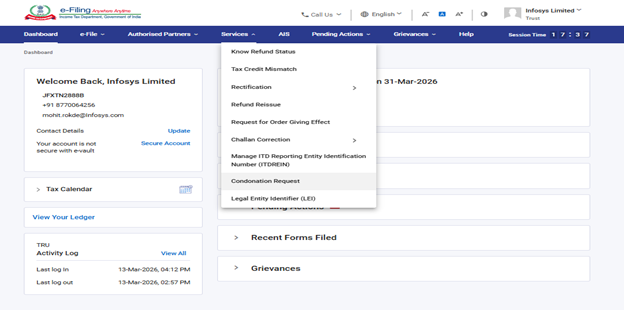
Step 2: On your Dashboard, click 'Services' > 'Condonation Request'.
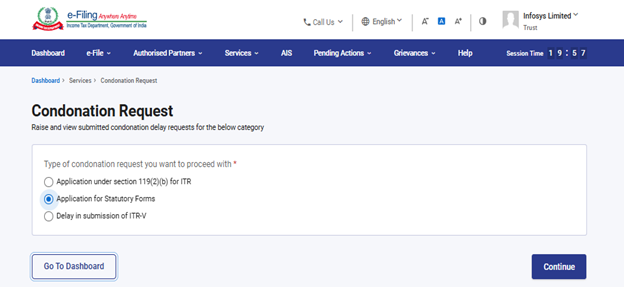
Step 3: On Condonation Request page select 'Application for Statutory Forms' and click 'Continue'.
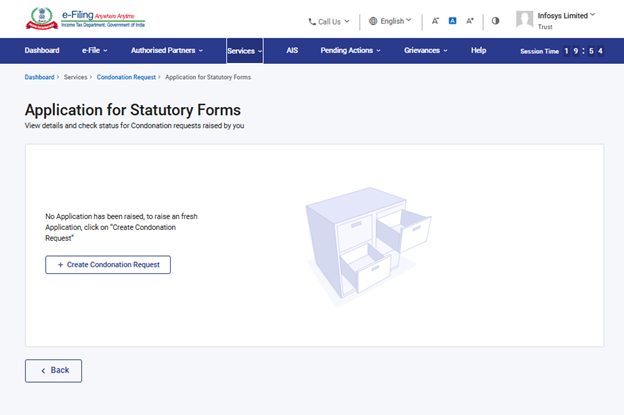
Step 4: Click '+Create Condonation Request' to raise the request.
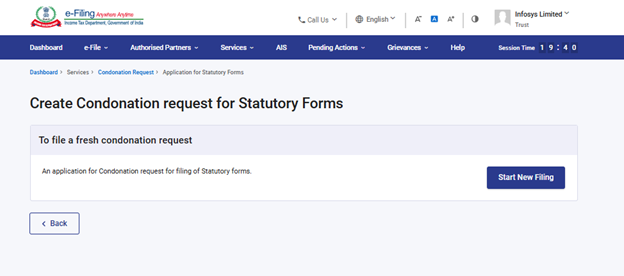
Step 5: Click on 'Start New Filing'.
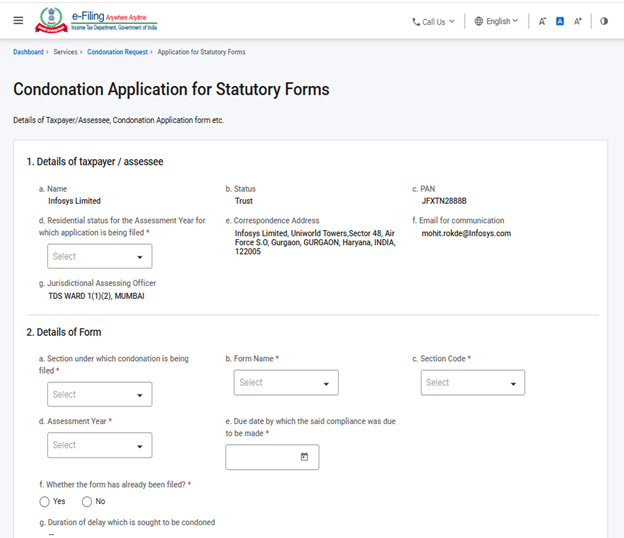
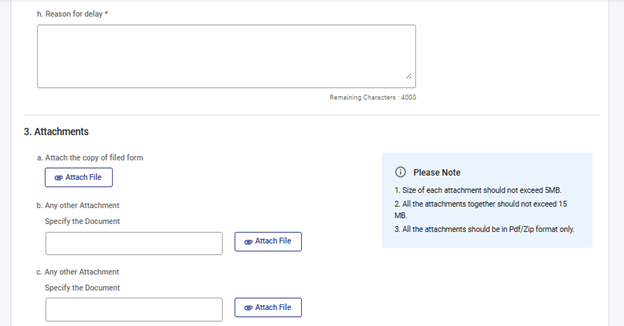
Step 6: Enter the required information (Residential status, Details related to form not filed, write reason of delay of form and attach necessary attachments) Click on 'Proceed to e-Verify'.
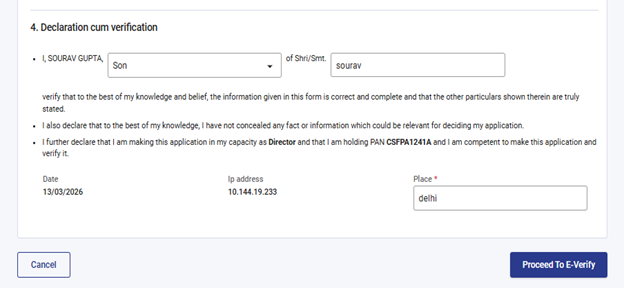
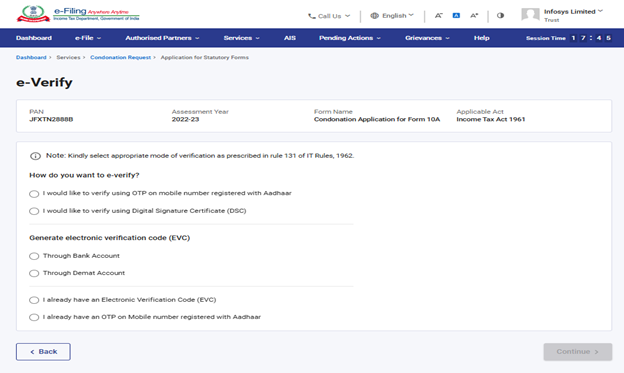
Step 7: Select the suitable method for the verification and click 'Continue'.
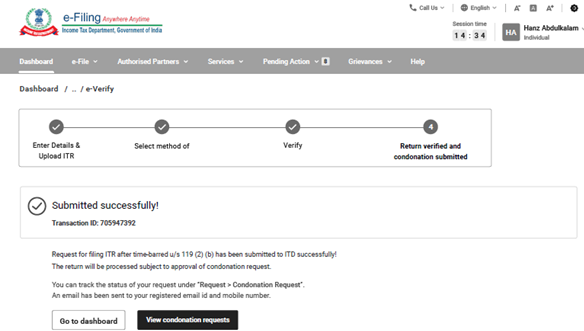
Step 8: After verification your request will be submitted, and transaction Id will be generated. You will also receive the confirmation on registered mail Id and Mobile No.
You can view the Condonation request by clicking on 'View Condonation Request'.
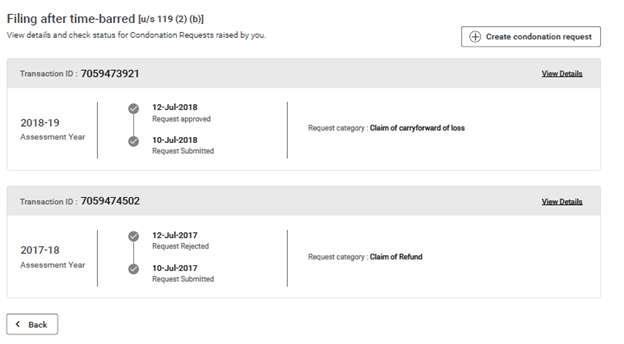
Step 9: Here are the condonation requests raised by you click on 'View Details' to view the details of condonation request.
Please click on the checkbox and click on Save.
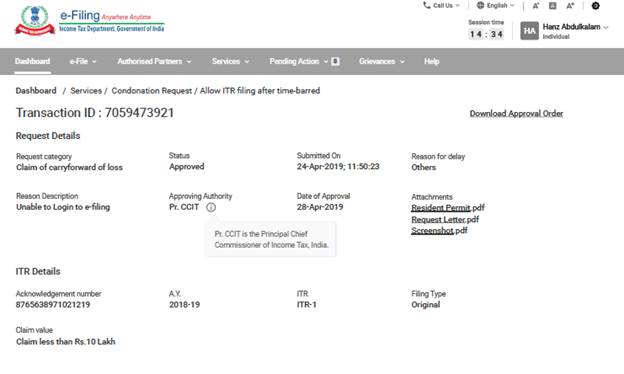
Step 10: Here are the Details of the condonation request. You can also download the Approval letter by clicking on 'Download Approval Letter'.