



Form 1 User Manual
1. Overview & Purpose of the form
A stock exchange must meet certain conditions to qualify under section 2(92) of the Act for derivatives trading. It must have SEBI’s approval and follow all SEBI guidelines, record and store complete client details including unique client IDs and PAN numbers and maintain a full audit trail of all cash and derivatives transactions. Once a transaction is entered into the system it cannot be deleted or modified.
However, if any client codes are changed, the Stock Exchange must report all transactions where the client codes were changed after they were first entered into the system by filing Form No. 1. This form must be filed within 15 days from the end of the month in which such modification takes place.
2. Prerequisites for availing this service
• The user shall be a registered user on the e-Filing portal.
• Status of PAN of the user should be "Active".
• Users should have a valid DSC, if user wished to verify the form through DSC mode, and it must be registered on the e-filing portal and not expired.
3. Who can use it?
Any Company having valid PAN, registered on the e-Filing portal can apply Form No.1 for changes in the client codes.
4. Step-by-Step Guide
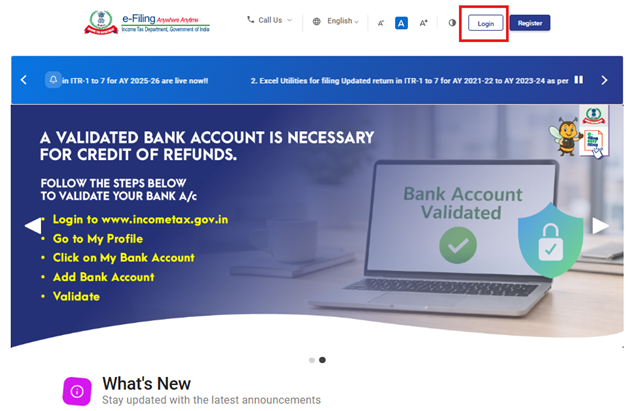
Step 1: User shall Log in to the e-Filing portal with the registered User ID and Password.
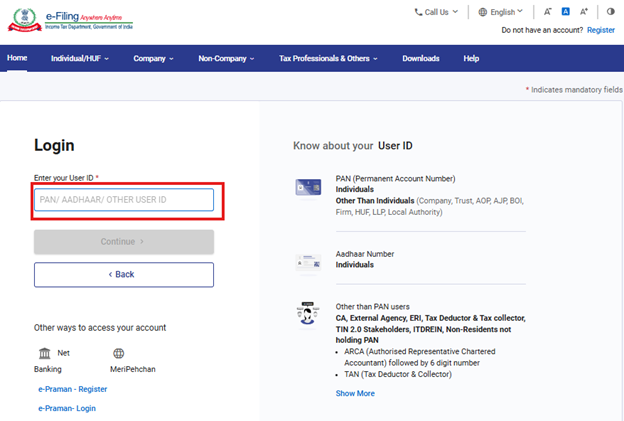
Step 2: Enter the User ID (PAN) and Password and click on ‘Continue’.
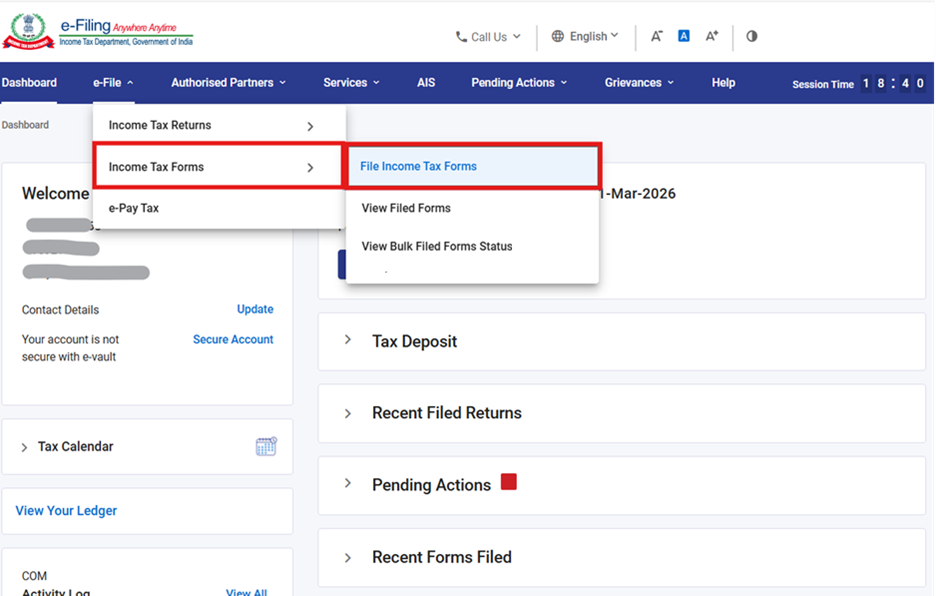
Step 3: Next, Go to e-file >Income Tax Forms > File Income Tax Forms.
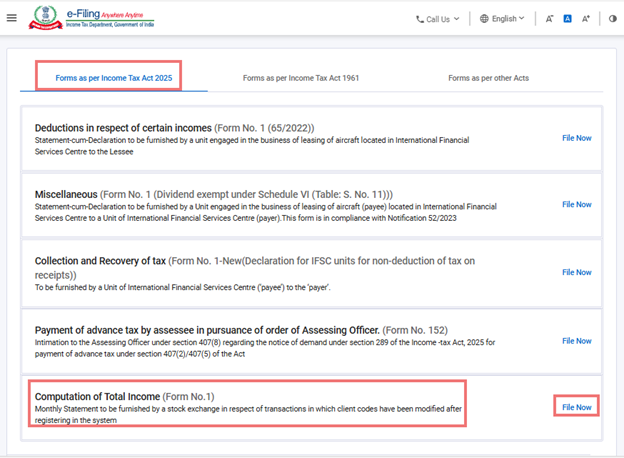
Step 4: Select the Form as per Income Tax Act 2025 tab.
Click on Forms as per Income Tax Act, 2025 and select “Form No.1” and click File now.
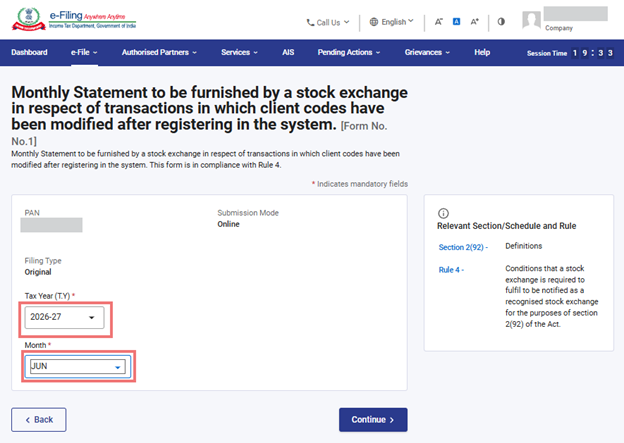
Step 5: User shall select the applicable Tax Year (T.Y) & Month and click on Continue button.
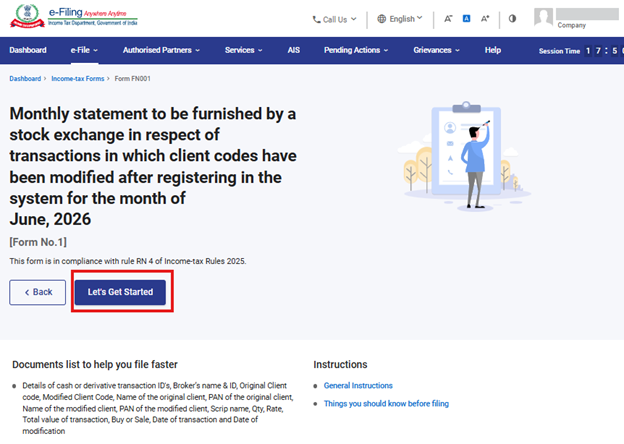
Step 6: Click on Let’s Get Started
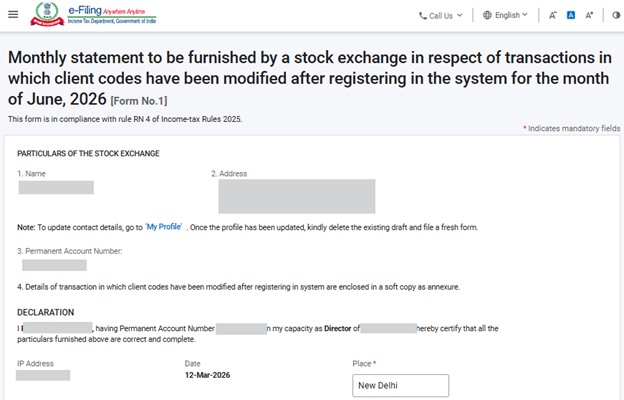
Step 7: Post clicking on ‘Let’s Get Started’, user will be navigated to Form screen.
In the Form screen, user shall enter the details asked for inside the form. The fields in the form are prefilled to the extent possible.
Note: Please ensure that all mandatory details under "My Profile" section including address are completed. If the user updates any detail in the “My Profile” section, please delete the existing draft and file the form afresh so that the changes are properly reflected.
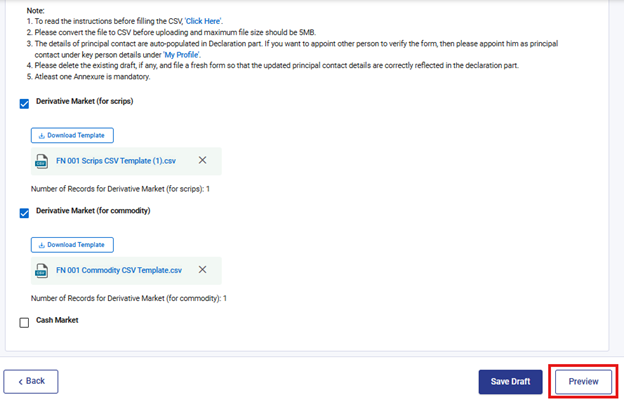
The form has three CSV files, and the user can select the applicable CSV by ticking the checkbox. Once the CSV is selected, download the same by clicking ‘Download Template’ button. Instructions for filling in the CSV are provided at point 1 of the Note, provided in the form.
After clicking the ‘Download Template’ button, under Derivative Market (for scrips) and/or Cash Market, an Excel file will be downloaded with the following fields.
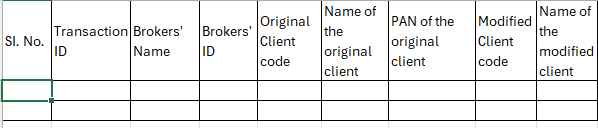
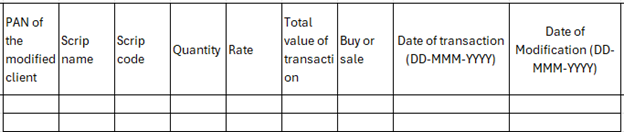
If the user selects Derivative Market (for Commodity) the following excel template will be downloaded.
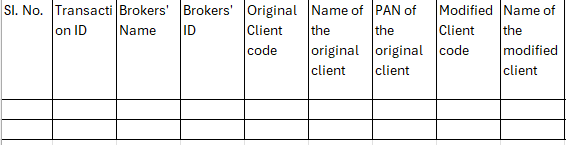
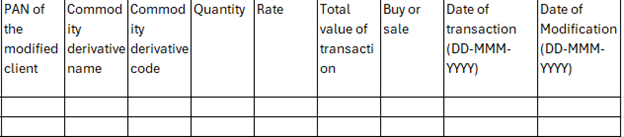
Below are the instruction points to fill the above CSV files.
Derivative Market (for scrips) & Cash Market-
| S.No |
Field Name |
Instruction |
Mandatory Field (Yes/No) |
Length of the field |
|
1 |
Sl. No. |
Enter the serial number in sequence. |
Yes |
14 digits, Numeric, Non‑Negative |
|
2 |
Transaction ID |
Enter the transaction ID generated for the trade executed. |
Yes |
Maximum 100 characters |
|
3 |
Broker’s Name |
Enter name of the Broker registered with stock exchange. |
Yes |
Maximum 250 characters |
|
4 |
Broker’s ID |
Enter the unique code provided to the Broker registered with stock exchange. |
Yes |
Maximum 100 characters |
|
5 |
Original Client code |
Enter the original client code who has executed the trade. |
Yes |
Maximum 100 characters |
|
6 |
Name of the original client |
Enter the name of the client who has executed the trade. |
Yes |
Maximum 250 characters |
|
7 |
PAN of the original client |
Enter the PAN of the client who has executed the trade. |
Yes |
10 alphanumeric: First 5 alphabets, next 4 digits, then 1 alphabet |
|
8 |
Modified Client code |
Enter the modified code. |
Yes |
Maximum 100 characters |
|
9 |
Name of the modified client |
Enter the modified name of the client, if there is any modification, else same as original name. |
Yes |
Maximum 250 characters |
|
10 |
PAN of the modified client |
Enter the modified PAN of the client, if there is any modification, else same as original PAN. |
Yes |
10 alphanumeric consists of: First 5 Alphabets, next 4 digits, then 1 Alphabet |
|
11 |
Scrip Name |
Enter the name of the Scrip in which trade has been executed. |
Yes |
Maximum 100 characters |
|
12 |
Scrip Code |
Enter the code of the Scrip in which trade has been executed. |
Yes |
Maximum 100 characters |
|
13 |
Quantity |
Enter the amount of Quantity for which trade has been executed. |
Yes |
14 digits Numeric, Non- |
|
14 |
Rate |
Enter the rate per scrip in ₹, at which trade has been executed. |
Yes |
14 digits Numeric, Non- |
|
15 |
Total value of transaction |
Enter the total transaction value in ₹. (Quantity* Rate) |
Yes |
14 digits |
|
16 |
Buy or sale |
Select whether the transaction is of buy or sell nature, as given in Dropdown. |
Yes |
- |
|
17 |
Date of transaction |
Enter the date on which transaction has been executed. Date of transaction can be on or before the date of modification. |
Yes |
Enter the date in the below mentioned format |
|
18 |
Date of modification |
Enter the date on which modification has been made. The date shall fall within the month selected for which the form is filed. |
Yes |
Enter the date in the below mentioned format |
Note: In Serial no 9 & 10, if there is no change in the name or Pan number of client, same values can be entered as the name or pan of original client entered in serial no. 6 & 7.
Derivative Market (for commodity)-
|
S.No |
Field Name |
Instruction |
Mandatory Field (Yes/No) |
Length of the field |
|
1 |
Sl. No. |
Enter the serial number in sequence. |
Yes |
14 digits, Numeric, Non‑Negative |
|
2 |
Transaction ID |
Enter the transaction ID generated for the trade executed. |
Yes |
Maximum 100 characters |
|
3 |
Broker’s Name |
Enter name of the Broker registered with stock exchange. |
Yes |
Maximum 250 characters |
|
4 |
Broker’s ID |
Enter the unique code provided to the Broker registered with stock exchange. |
Yes |
Maximum 100 characters |
|
5 |
Original Client code |
Enter the original client code who has executed the trade. |
Yes |
Maximum 100 characters |
|
6 |
Name of the original client |
Enter the name of the client who has executed the trade. |
Yes |
Maximum 250 characters |
|
7 |
PAN of the original client |
Enter the PAN of the client who has executed the trade. |
Yes |
10 alphanumeric: First 5 alphabets, next 4 digits, then 1 alphabet |
|
8 |
Modified Client code |
Enter the modified code. |
Yes |
Maximum 100 characters |
|
9 |
Name of the modified client |
Enter the modified name of the client, if there is any modification, else same as original name. |
Yes |
Maximum 250 characters |
|
10 |
PAN of the modified client |
Enter the modified PAN of the client, if there is any modification, else same as original PAN. |
Yes |
10 alphanumeric consists of: First 5 Alphabets, next 4 digits, then 1 Alphabet |
|
11 |
Commodity derivative name |
Enter the name of the Commodity Derivative in which trade has been executed. |
Yes |
Maximum 100 characters |
|
12 |
Commodity derivative code |
Enter the code of the Commodity Derivative in which trade has been executed. |
Yes |
Maximum 100 characters |
|
13 |
Quantity |
Enter the amount of Quantity for which trade has been executed. |
Yes |
14 digits Numeric, Non- |
|
14 |
Rate |
Enter the rate per commodity in ₹, at which trade has been executed. |
Yes |
14 digits Numeric, Non- |
|
15 |
Total value of transaction |
Enter the total transaction value in ₹. (Quantity* Rate) |
Yes |
14 digits Numeric, Non- |
|
16 |
Buy or sale |
Select whether the transaction is of buy or sell nature, as given in Dropdown. |
Yes |
- |
|
17 |
Date of transaction |
Enter the date on which transaction has been executed. Date of transaction can be on or before the date of modification. |
Yes |
Enter the date in the below mentioned format |
|
18 |
Date of modification |
Enter the date on which modification has been made. The date shall fall within the month selected for which the form is filed. |
Yes |
Enter the date in the below mentioned format |
Note: In Serial no 9 & 10, if there is no change in the name or Pan number of client, same values can be entered into as the name or pan of original client entered in serial no. 6 & 7.
After filling in the downloaded excel template, the user saves the data in the excel template. Then click File > Save As or Alt+F+A. Select the ‘CSV (Comma delimited)’ from the drop down in Save as type and then click Save. The filled in excel file will be saved in CSV format. This CSV format shall be uploaded on the portal by clicking on “Upload Template” button.
After completing all entries in the form, the user can choose either to save the form or proceed to the preview page for submission.
The Preview button will become active only after all mandatory fields have been filled. Users shall click on Preview to proceed.
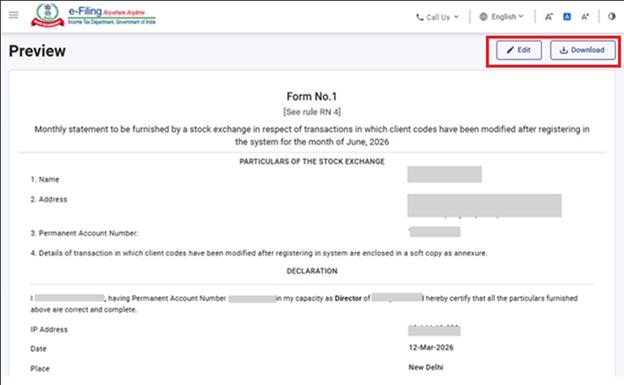
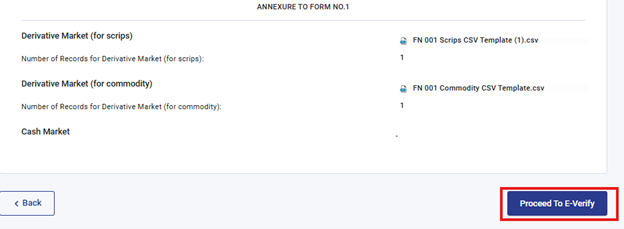
Step 8: On click of “preview” button, user shall be navigated to Preview screen where he can verify the details provided and later shall click on “Proceed To E-Verify”.
All the fields and inputs provided by the user in the form, will be displayed on the preview screen. The user should review these details before proceeding. If any changes are required, the user can click the “Edit” button to modify the information within the form. The user also has the option to download the preview screen as a PDF, but this PDF is only a copy of the pre filing view and NOT the final filed form.
To continue with the filing process, the user must click the “Proceed To E-Verify” button.
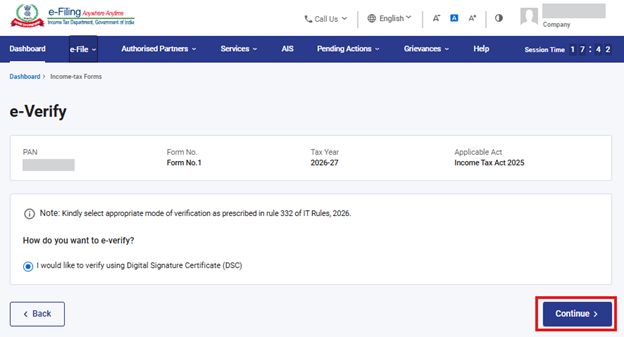
Step 9: On clicking ‘Proceed to E-Verify’ button, user will be navigated to the ‘E-Verify’ page where he can verify Form No.1 using DSC. The user shall click on ‘Continue’ button to submit the form.
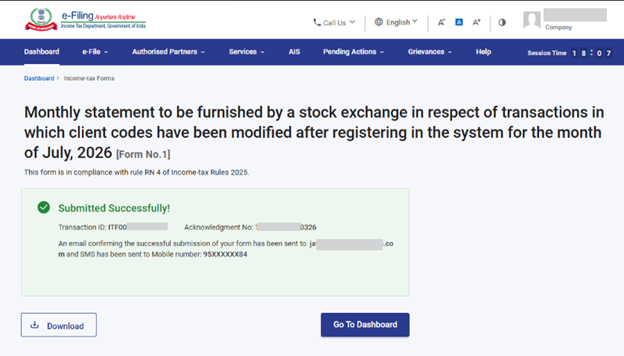
Step 10: Once the form is successfully submitted, confirmation message shall be displayed on the screen.
After successful e-Verification, a success message is displayed along with a Transaction ID and Acknowledgement Receipt Number. Please keep a note of the Transaction ID and Acknowledgement Receipt Number for future reference. You will also receive a confirmation message on the email ID(s) and mobile number(s) registered with the e-Filing portal.
Click on download button to download the Acknowledgement receipt
Step 11: After successful submission of Form No. 1 the user can view the filled form under - On your Dashboard, click e-File > File Income Tax Forms > View Filed Forms> View Filed Form tab under Income Tax Act 2025.
Note: Refer view filled form user manual to learn more
Note: Refer to the How to e-Verify user manual to learn more
5. Related Topics
6. Glossary
| Acronym/Abbreviation | Description/Full Form |
| DSC | Digital Signature Certificate |
| EVC | Electronic Verification Certificate |
| ARN | Acknowledgement Receipt Number |
| PY | Previous Year |
| FY | Financial Year |
| TY | Tax Year |



