



Form 104 & 106 User Manual
1. Overview
For certain types of entities, the Income Tax Act requires them to obtain provisional registration or approval before they begin their activities or before they can claim specific tax exemptions or benefits. This registration helps the Income Tax Department to verify the basic details of the applicant in advance and ensures that only eligible entities are allowed to claim these benefits in the future.
To obtain this provisional registration or approval, applicants must file Form 104 online on the eFiling portal. After the form is successfully submitted, the Income Tax Department issues an order in Form 106, along with a 16digit Unique Registration Number (URN). This URN confirms that the provisional registration or approval has been granted.
Further if the applicant has made any mistake while filing Form 104, the application can be withdrawn within 7 days from the date of filing.
2. Prerequisites for availing this service
• You should be a registered user on the e-Filing portal
• Status of PAN of the taxpayer should be "Active"
• You should have a valid DSC to verify the form through DSC mode, and it must be registered on the e-filing portal and not expired
3. About the Form
3.1 Purpose
Provisional registration or approval under section 332 or section 354 enables an applicant to be formally recognised by the Income Tax Department before availing certain taxrelated benefits.
Such registration or approval can be obtained by filing Form 104 on the eFiling portal. Once the application is filed, the Department issues Form 106, which confirms the registration/approval and provides a Unique Registration Number (URN).
3.2 Who can use it?
All registered users except Individual users, on the e-Filing portal can furnish the required details in Form 104 for obtaining provisional registration or approval u/s 332 or 354 of the Income-tax Act, 2025.
3.3 Form at a Glance
Form 104 has four panels:
1. Part A: Particulars of the Applicant
2. Part B: Other Information
3. Attachments
4. Undertaking
4. Step-by-Step Guide
Part I: Filing of Form 104
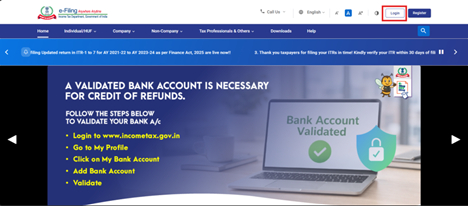
Step 1: Log in to the e-Filing portal with your User ID and Password.
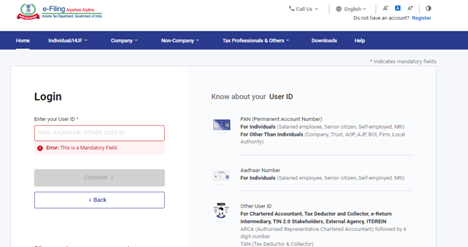
Step 2: Enter the User ID (PAN) and Password.
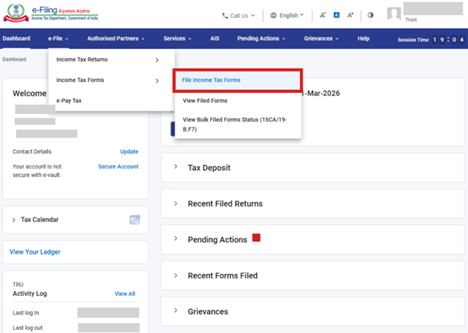
Step 3 : Go to e-File >Income Tax Forms > File Income Tax Forms.
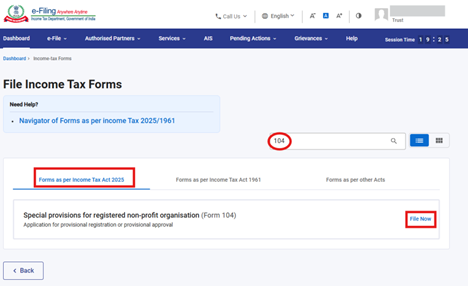
Step 4: Select the Forms as per Income Tax Act 2025 tab, search for Form 104, and click the File Now button.
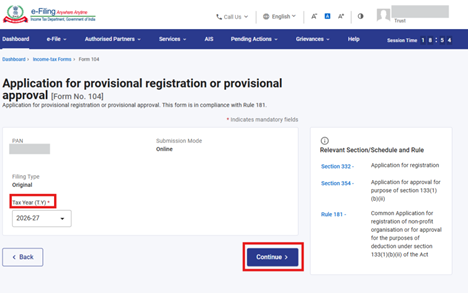
Step 5: Select the applicable Tax Year (T.Y) and click on Continue button.
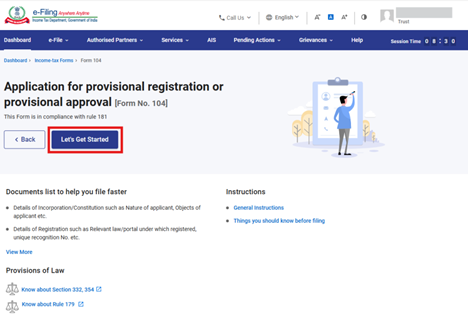
Step 6. Click on Let's Get Started.
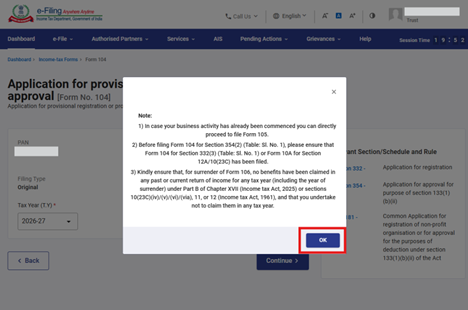
Step 7 : Post clicking on Let's Get Started button, user will be navigated to notes and click on Ok button to continue.
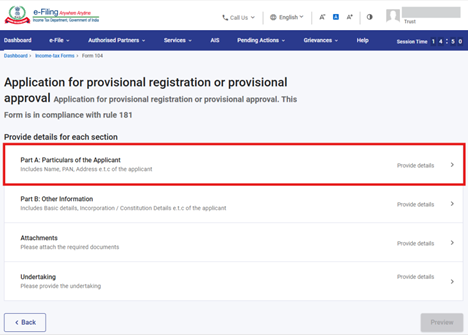
Step 8: Post clicking on Ok, user will be navigated to Panel screen and Select the 1st Panel: "Part A: Particulars of the Applicant".
Step 9: Confirm the Particulars and click on Save.
Note: Please ensure that all mandatory details under "My Profile" section including address is completed. You can update your contact and address details by clicking on hyperlink "My Profile".
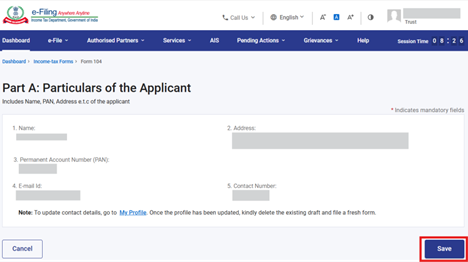
Step 10: Post saving the 1st panel, status of panel will be displayed as Completed then select the 2nd Panel: "Part B: Other Information".
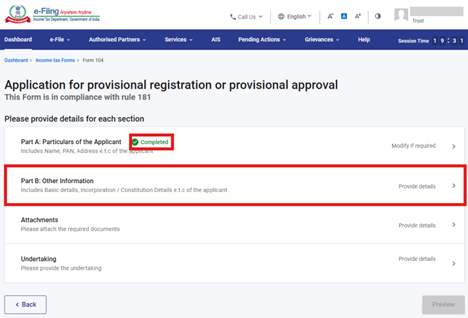
Step 11: Confirm other information and click on Save.

Notes: Kindly select the appropriate section code in field no. 6: "Application for" based on your application type:
|
Section Code |
Description |
|
01 |
Provisional registration under Section 332(3)(activities not commenced) |
|
02 |
Provisional approval under Section 354(2) for the purpose of Section 133(1)(b)(ii) (activities not commenced) |
|
03 |
Both provisional registration and approval under Sections 332(3) and 354(2). |
- If you have already commenced business activities then this form 104 is not applicable to you. You are requested to file Form 105 for registration or approval.
- You cannot file the application if the trust is revocable as per Section 332(2)(b).
- Kindly select the appropriate nature in field no. 11 as mentioned below:
|
Code |
Description |
|
01 |
Public trust |
|
02 |
a society registered under the Societies Registration Act, 1860, or under any law in force in India |
|
03 |
a company registered under section 8 of the Companies Act, 2013 or the companies registered under section 25 of the Companies Act, 1956 and deemed to have been registered in pursuance of section 465(2)(g) of the Companies Act, 2013 |
|
04 |
a University established by law or any other educational institution affiliated thereto or recognised by the Government |
|
05 |
an institution financed wholly or in part by the Government or a local authority |
|
06 |
Any person as referred to in Schedule III [Table: Sl. No. 27 to 29 and 36] and in Schedule VII [Table: Sl. No. 10 to 19 and 42] |
|
07 |
Any person notified by the Board under section 332(1)(g) |
|
08 |
A registered non-profit organisation or a person referred to in Schedule VII [Table: Sl. No. 1] i.e. any regimental fund or non-public fund established by the armed forces of the Union |
|
08A |
Others |
|
09 |
Specified Investor Protection Fund- any Investor Protection Fund set up by recognised stock exchanges in India, either jointly or separately |
|
10 |
Specified Investor Protection Fund- Any Investor Protection Fund set up by commodity exchanges in India, either jointly or separately |
|
11 |
Specified Investor Protection Fund- Any Investor Protection Fund set up as per the regulations by a depository. |
|
12 |
Specified body or authority or Board or Trust or Commission- A body or authority or Board or Trust or Commission (by whatever name called), or a class thereof, other than those covered under Schedule VII (Table: Sl. No. 42) |
|
13 |
Specified body or authority or Board or Trust or Commission- Any body or authority or Board or Trust or Commission, not being a company, which has been established or constituted by or under a Central Act or State Act with one or more of the following purposes, — (a) dealing with and satisfying the need for housing accommodation; (b) planning, development or improvement of cities, towns and villages; (c) regulating, or regulating and developing, any activity for the benefit of the general public; or (d) regulating any matter, for the benefit of the general public, arising out of the object for which it has been created. |
|
14 |
Specified university, hospital or other institution- Any University or other educational institution wholly or substantially financed by the Government. |
|
15 |
Specified university, hospital or other institution- Any hospital or other institution wholly or substantially financed by the Government. |
|
16 |
Specified university, hospital or other institution- Any University or other educational Institution whose aggregate annual receipts does not exceed ₹ 5,00,00,000 |
|
17 |
Specified university, hospital or other institution- Any hospital or other institution whose aggregate annual receipts does not exceed ₹ 5,00,00,000 |
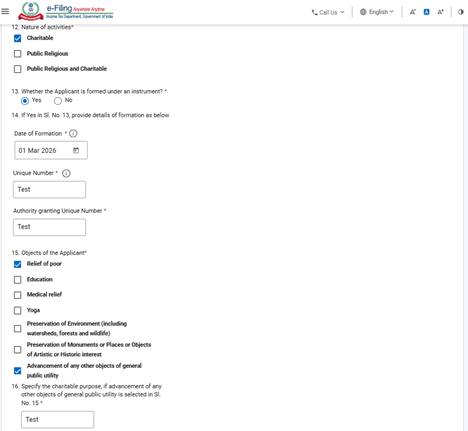
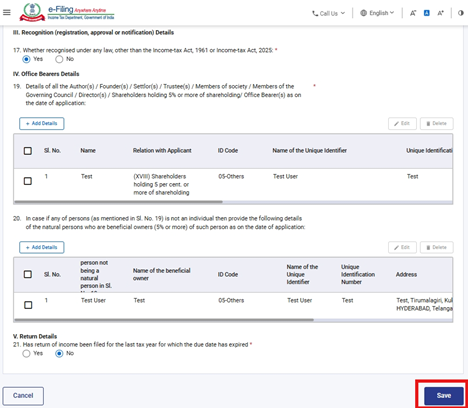
Step 11: Post saving the 2nd panel, status of the panel will be displayed as Completed then select the 3rd Panel: "Attachments".
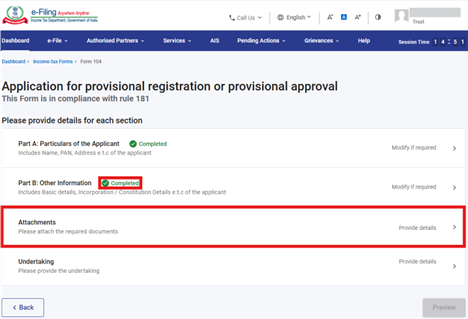
Step 12: Attach the relevant documents and click on Save.
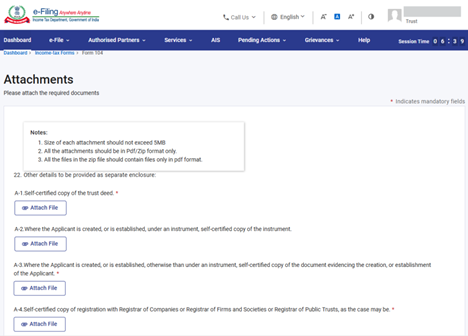
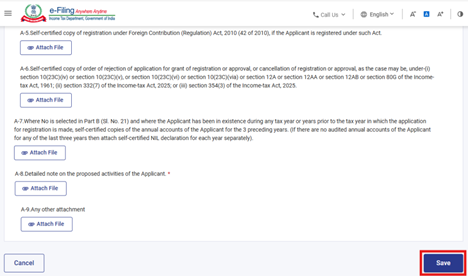
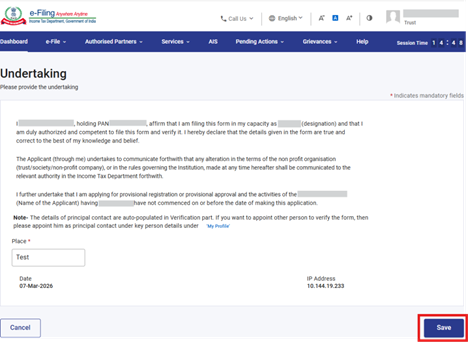
Step 13: Post saving the 3rd panel, status of the panel will be displayed as completed then select the 4th Panel: "Undertaking".
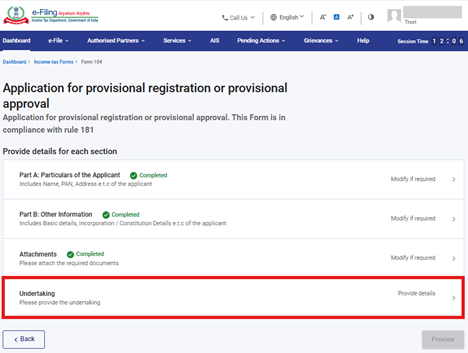
Step 14: Confirm the undertaking and click on Save.
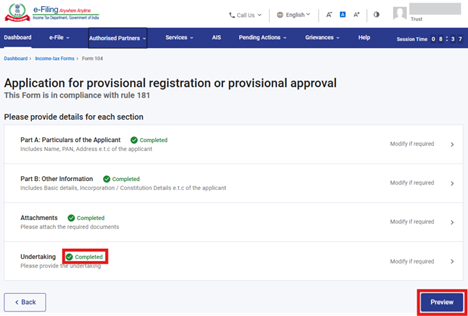
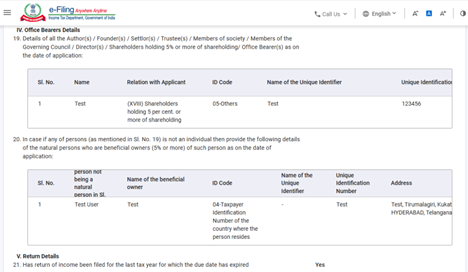
Step 15: Post saving the 4th panel, status of the panel will be displayed as Completed then click on Preview.
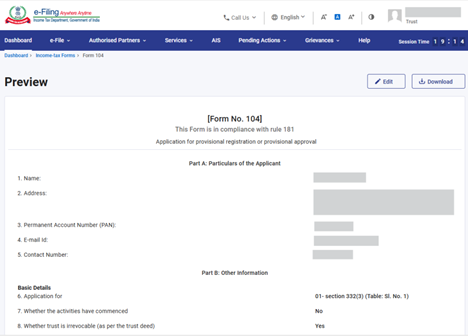
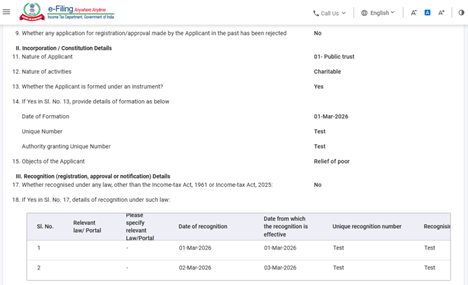
Step 16: On the Preview page, verify the details and click Proceed To E-Verify.
Step 17: Post clicking on Proceed To E-Verify button, a popup confirmation displaying that you would like to proceed to e-Verify. Click on Yes.
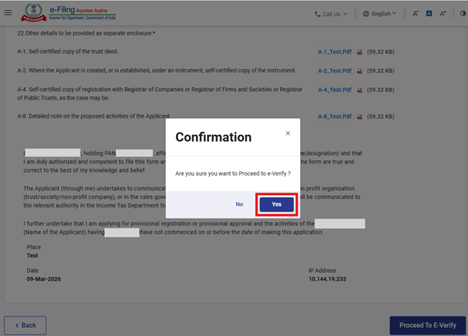
Step 18: On clicking Yes, you will be navigated to the e-Verify page where you can verify the Form 104 using EVC/DSC (as applicable).
Note: Refer to the How to e-Verify user manual to learn more.
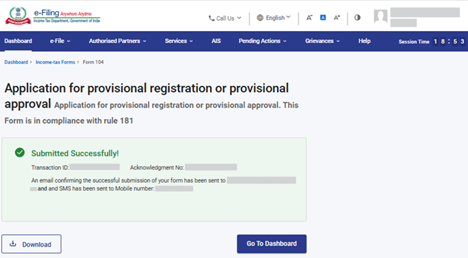
After successful e-Verification, a success message is displayed along with a Transaction ID and Acknowledgement Receipt Number. Please keep a note of the Transaction ID and Acknowledgement Receipt Number for future reference. You will also receive a confirmation message on the email ID(s) and mobile number(s) registered with the e-Filing portal.
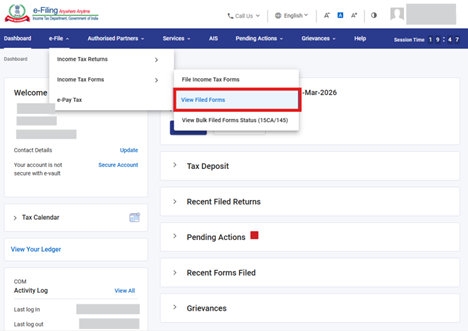
Step-19: You can download the Form 104 filed form, ARN and Attachments from the View filed form screen. To navigate to the screen, go to e-File >Income Tax Forms > View Filed Forms.
Step-20: Select the Forms as per Income Tax Act 2025 tab, search for Form 104, and click "View All" button.
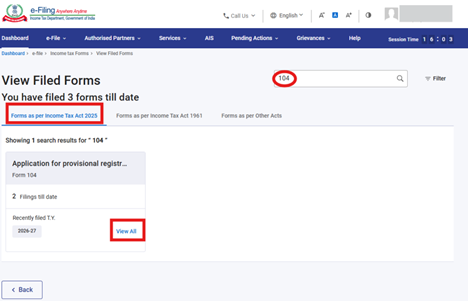
Step-21: On click of View All button in the previous step-19, you will be navigated to View Filed Forms screen as mentioned below in which you can download the filed form, receipt and attachments.
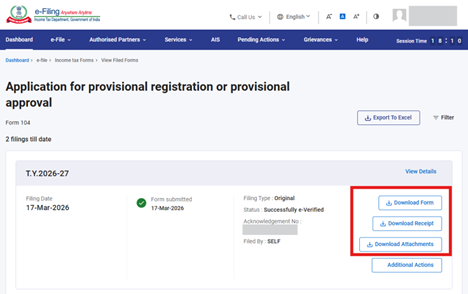
Part-II: Procedure for withdrawal of Form 104
Kindly note that withdrawal of Form 104 functionality is available for only 7 days from the date of filing of Form 104. Post 7 days, you cannot withdraw Form 104.
Step-1: You should navigate to View Filed Forms Screen by following the steps (19 to 21) mentioned in Part A above and click on Additional Actions button.
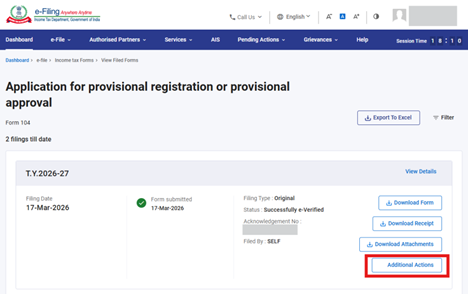
Step-2: Post clicking on Additional Actions button, "Withdraw Form 104" button will be displayed. Click on that button.
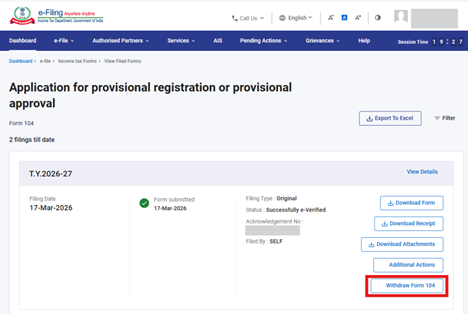
Step-3: Post clicking on Withdraw Form 104 button, you are required to provide the reason of withdrawal and click on Continue button.
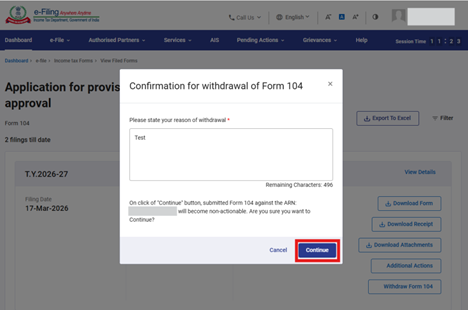
Step-4: Post clicking on Continue button, a success message is displayed along with a Transaction ID. Please keep a note of the Transaction ID for future reference. Click on "Go Back To View Filed Forms" button.
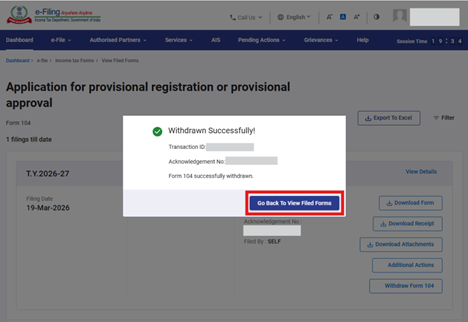
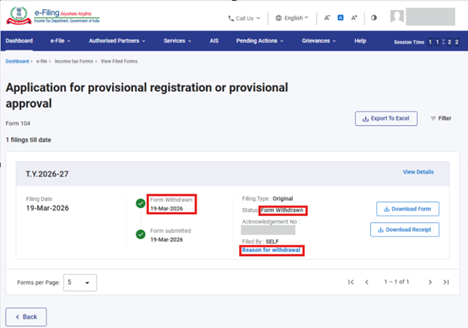
Step-5: Post clicking on "Go Back To View Filed Forms" button, you will be navigated to view filed form screen, where the life cycle and status of form will get updated as Form Withdrawn and if you want to check the reason of withdrawal, click on Reason for withdrawal hyperlink.
Part-III: Download of Form 106
Kindly note that Form 106 will be generated post 7 days from the date of filing of Form 104.
Step-1: You should navigate to View Filed Forms Screen by following the steps (19 to 21) mentioned in Part A above and click on "Additional Actions" button.

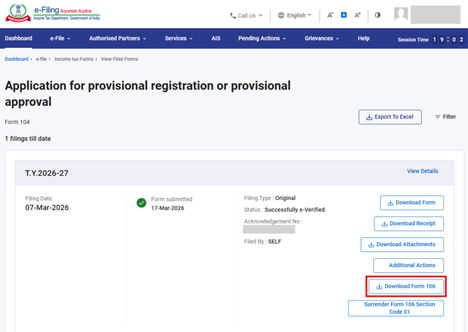
Step-2: Post clicking on Additional Actions button, "Download Form 106" button will be displayed. Click on that button to download Form 106.
Part-IV: Surrender of Form 106
Kindly note that Form 106 will be generated post 7 days from the date of filing of Form 104. You can surrender the same if you have not claimed any benefits in return of income for any tax year.
Step-1: You should navigate to View Filed Forms Screen by following the steps (19 to 21) mentioned in Part A above and click on "Additional Actions" button.
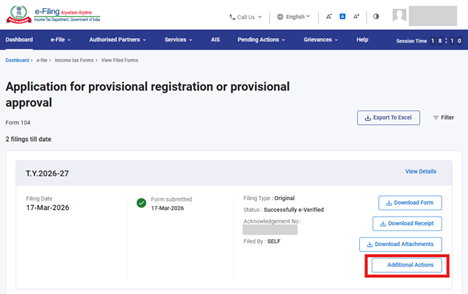
Step-2: Post clicking on Additional Actions button, "Surrender Form 106 Section Code <>" button will be displayed. Click on that button to proceed for surrender of Form 106.
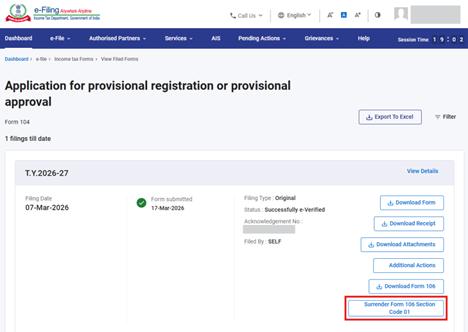
Step-3: Post clicking on "Surrender Form 106 Section Code <>", you are required to provide the declaration and reason of surrender and click on Continue button.
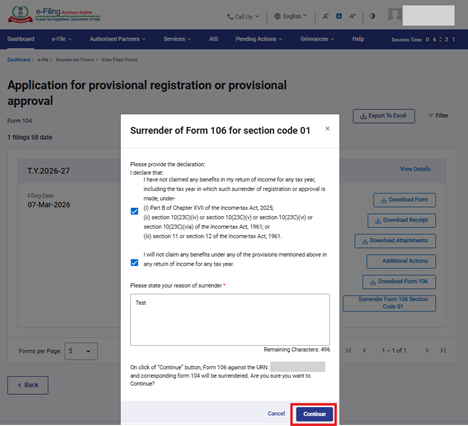
Step-4: On clicking Continue, you will be navigated to the e-Verify page where you can e-verify the surrender of Form 106 using EVC/DSC (as applicable).
Note: Refer to the How to e-Verify user manual to learn more.
7. Related Topics
• Login
• Dashboard
• How to e-Verify
• Generate EVC
• Authorize / Register as Representative
8. Glossary
|
Acronym/Abbreviation |
Description/Full Form |
|
DSC |
Digital Signature Certificate |
|
EVC |
Electronic Verification Code |
|
ARN |
Acknowledgement Receipt Number |
|
TY |
Tax Year |



