Verify Service Request User Manual
1. Overview
Verify Service Request of ERIs is available to all users on the e-Filing portal. With this service, you will be able to verify the request submitted by an e-Return Intermediary during performing particular actions on the e-Filing portal on your behalf, including filing of returns and forms.
ERIs can execute the following services on behalf of their client:
- Add Client (Registered and Unregistered Users)
- Activate Client
- Extend Client Validity
- Extend Service Validity
- Add Service
- Condonation Request for delay in submission of ITR-V
- Add Authorized Representative
- Authorize another person to act on behalf of self
- Register as Representative Assessee
- Register to act on behalf of other person
- File Income tax forms
- Refund Re-issue Request
- Rectification Request
- Condonation Request for filing ITR after time barred
- Update Primary Contact details as per Bank Account verified contact details
- Update Primary Contact details as per Demat Account verified contact details
Only after verification by your client, the request submitted by the ERI will be completed.
2. Prerequisites for availing this service
- Valid and active PAN / TAN
- An e-Return Intermediary must have initiated a request
- Transaction ID of the request submitted by the ERI
- Transaction Id of the submitted request must be valid/active at time of verifying the request
3. Step-by-Step Guide
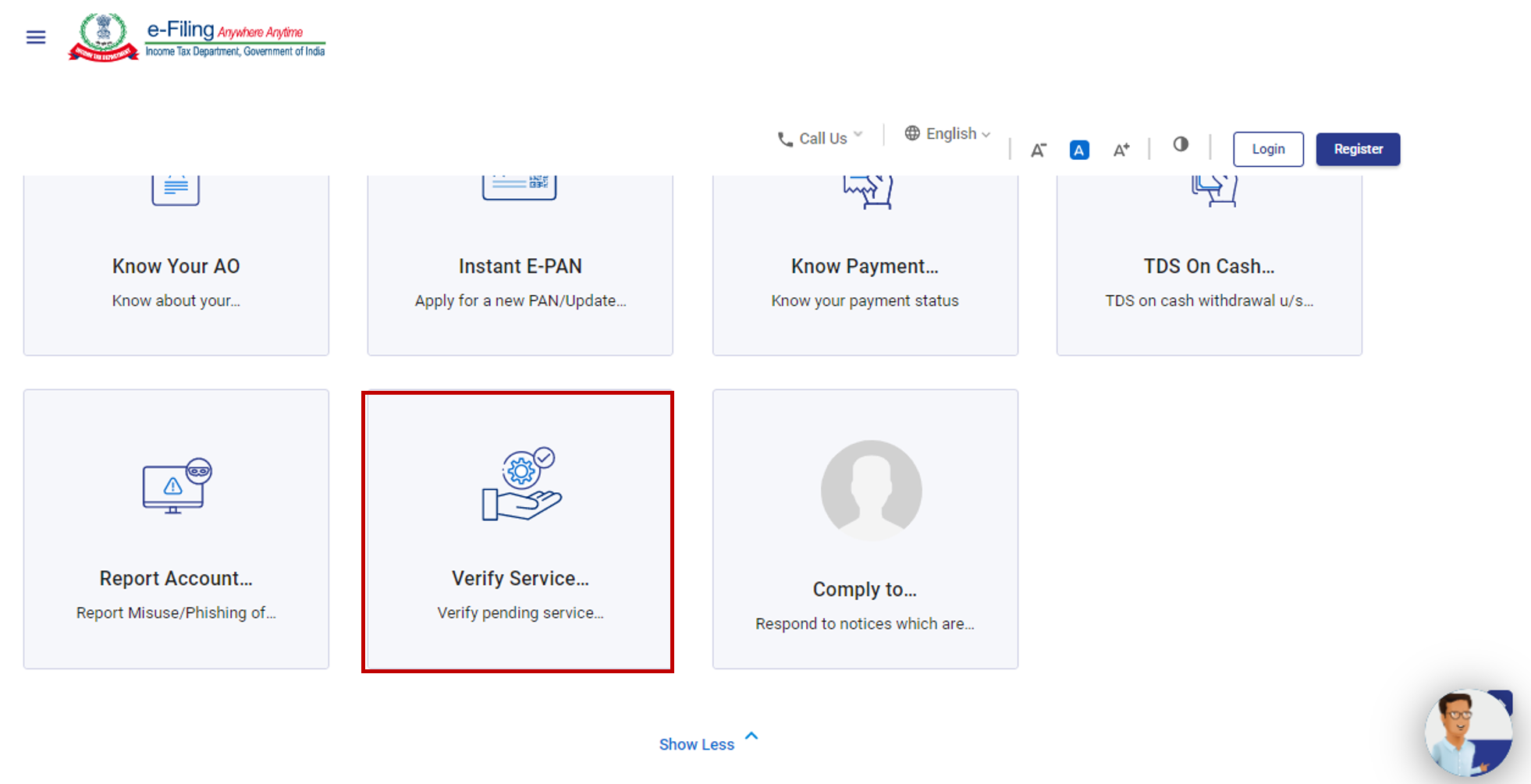
Step 1: Go to the e-Filing portal homepage and click Verify Service Request.
Step 2: On the Verify Service Request page, enter Transaction ID and PAN / TAN of the request received on your email ID and mobile number registered on the e-Filing portal. Click Validate.
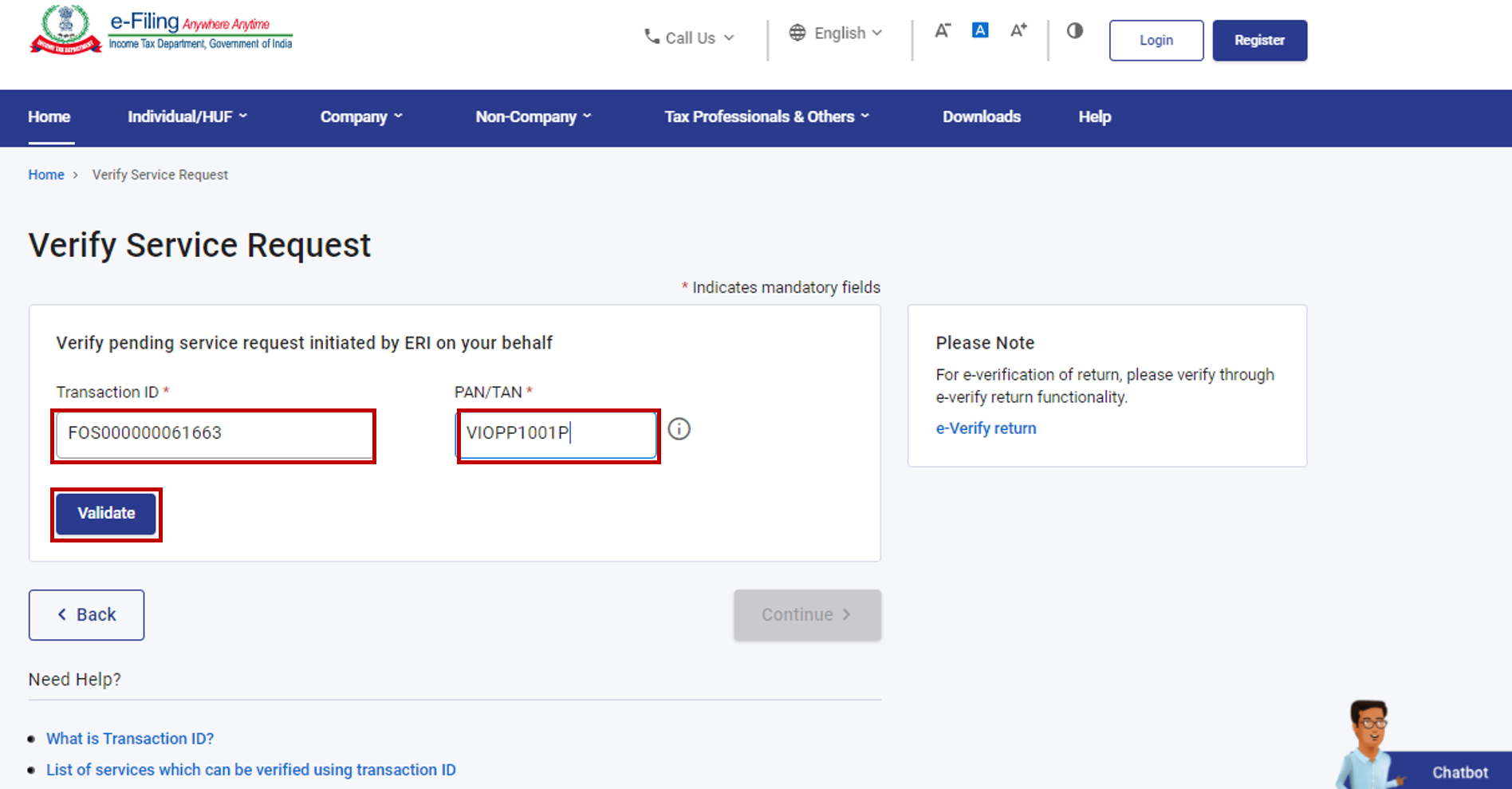
Note: If you are not registered on the portal, enter the Transaction ID received on your email ID and mobile number provided by the ERI during submission of the request.
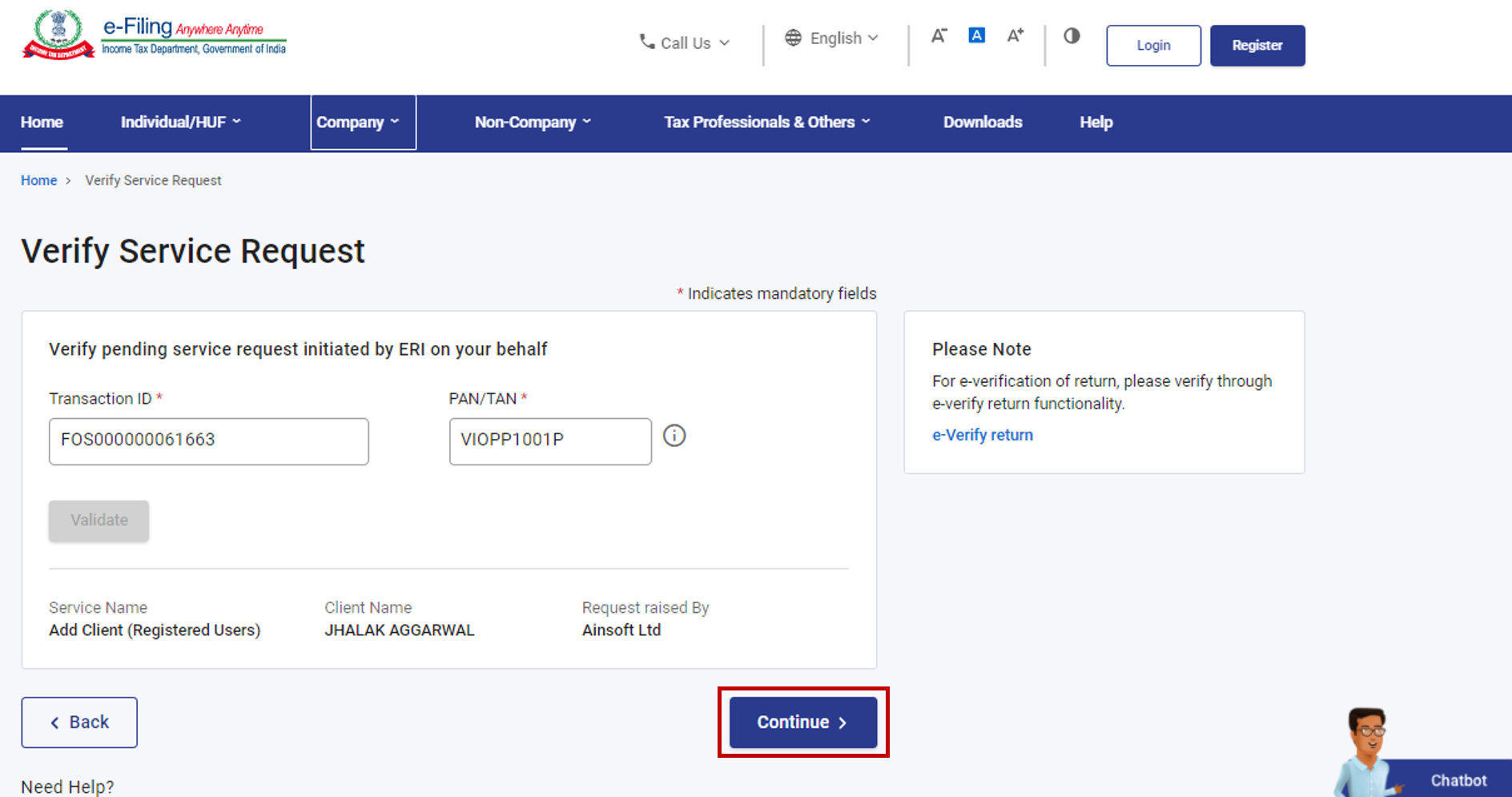
Step 3: After successful validation, click Continue.
Step 4: The mode of verification will depend on the type of request submitted by the ERI.
| Type of Request Submitted | Mode of Verification |
|
6-digit OTP received on mobile number and email ID registered on e-Filing portal |
|
Two separate 6-digit OTPs received on mobile number and email ID registered on e-Filing portal |
|
e-Verification |
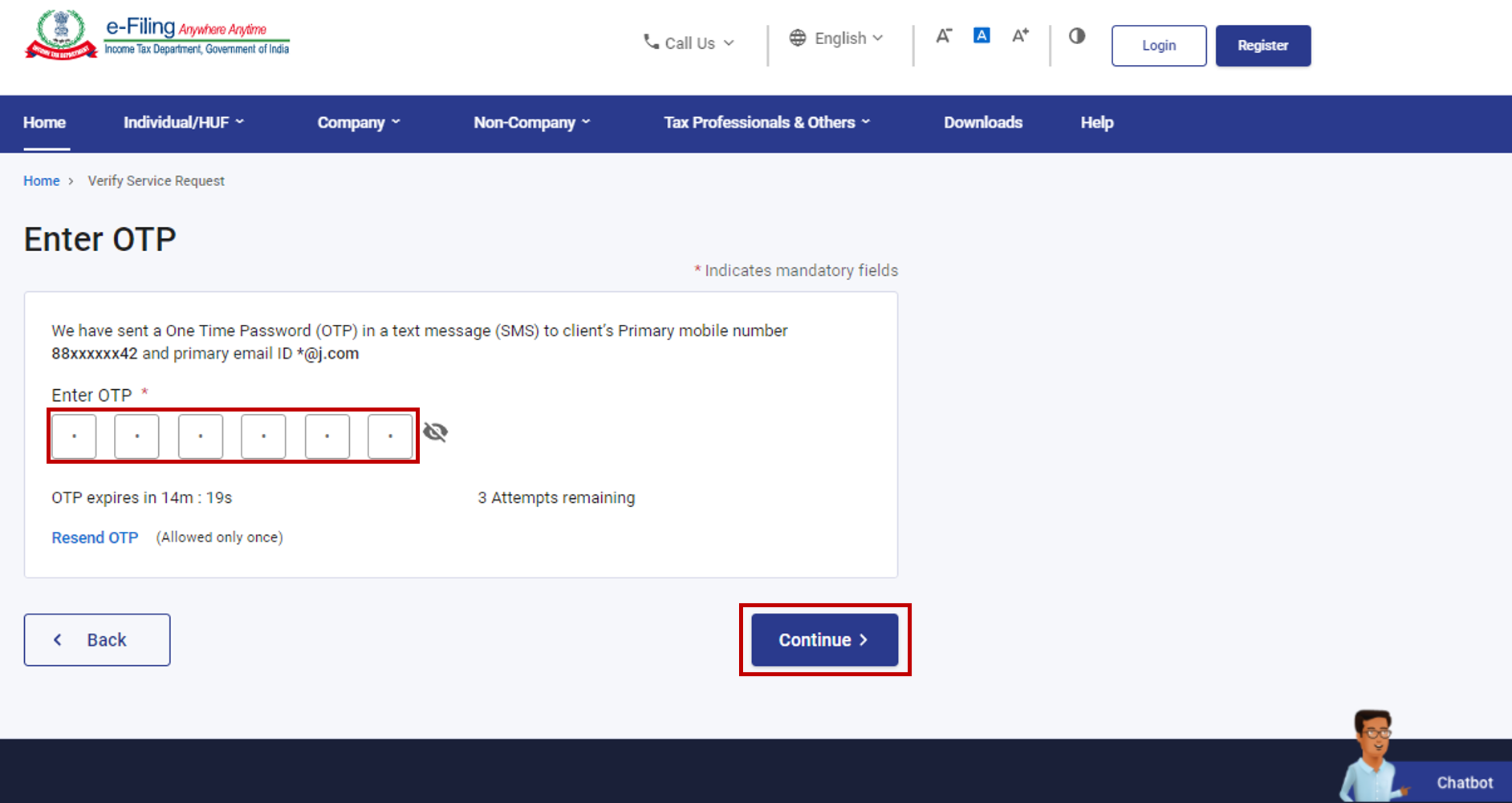
Step 5a: Enter the 6-digit OTP/OTPs (refer to the table in Step 4 for further details). Click Continue.
Note:
- OTPs will be valid for 15 minutes only.
- You have 3 attempts to enter the correct OTP.
- The OTP expiry countdown timer on screen tells you when the OTP will expire.
- On clicking Resend OTP, a new OTP will be generated and sent.
- If you are an unregistered user, you will have to enter two separate 6-digit OTPs received on your email ID and mobile number provided by your ERI while adding you as client.
Step 5b: If the ERI has requested for performing services like File Income tax forms, Refund re-issue request, Rectification request, Condonation request for filing ITR after time barred on your behalf, you have to e-Verify the request using the available options.
Note: Refer to the How to e-Verify user manual to learn more.
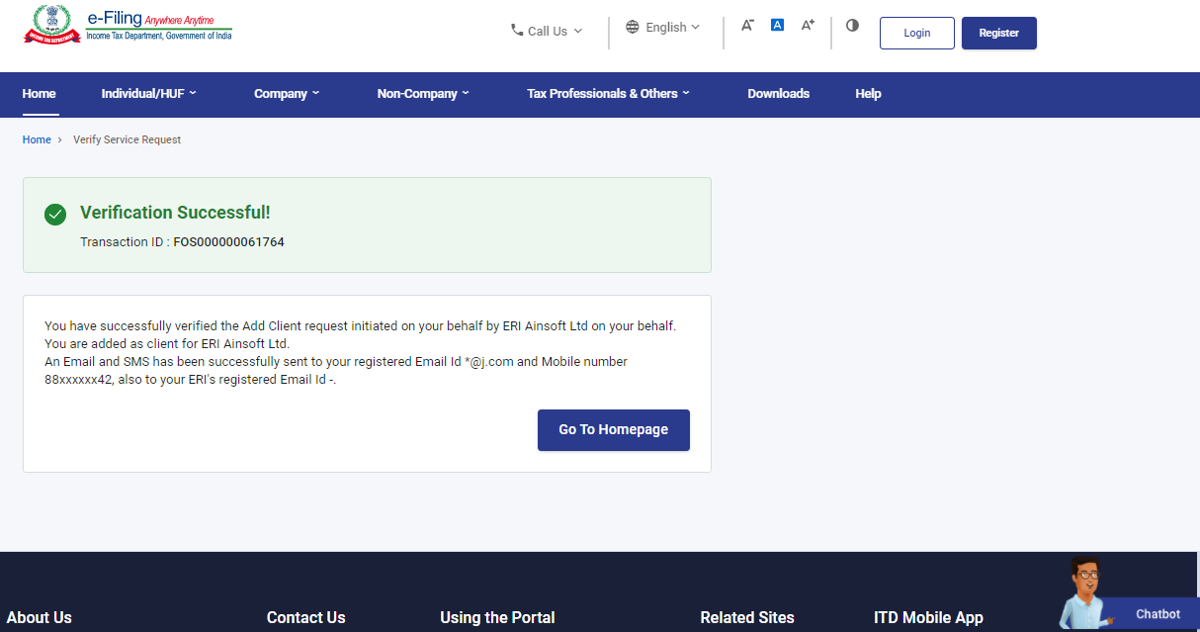
On successful verification, a success message will be displayed along with a Transaction ID. Please keep a note of the Transaction ID for future reference. You will also receive a confirmation message on your email ID and mobile number registered on the e-Filing portal.