



Form 152 User Manual
1. Overview:
Form 152 is to be filed when a person receives a demand order under section 289 of the income tax act 2025 for payment of advance tax under section 407(2)/ 407(5). It is an intimation form filed for the response to Form 151 which was issued by the Assessing Officer for the lower payment of advance tax.
2. Prerequsites for filing the Form.
- User needs to register in e-Filing Portal
- PAN and Aadhar must be linked to the assessee for filing of the Form.
- Order under section 289 should be issued for the Assessee and DIN of the order is required.
- Assessee must have the valid and active DSC in case of verification done through DSC mode.
- Mobile number should be linked with Aadhar in case of submission done through Aadhar OTP.
3. About the Form
a) Purpose of Form:
Form 152 is a statutory intimation to the Assessing Officer (AO) regarding advance tax when an assessee has received a Notice of Demand under Section 289 pursuant to Section 407(2) or 407(5) of the Income tax Act, 2025. In simple terms, it is used to inform the AO about the assessee’s position or objections concerning the advance tax demand raised by the department.
b) Who can file it?
Form 152 is filed by a person who receives an demand notice on advance tax paid and wants to say, “The tax amount mentioned in the demand notice is not correct”.
4. Form at Glance –
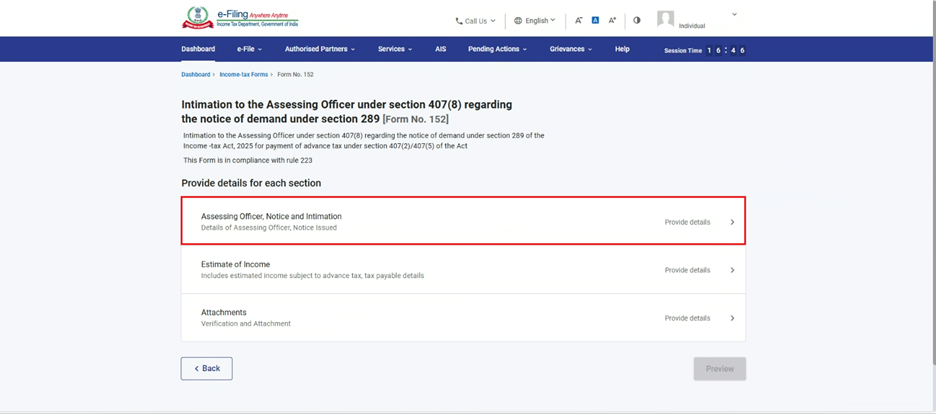
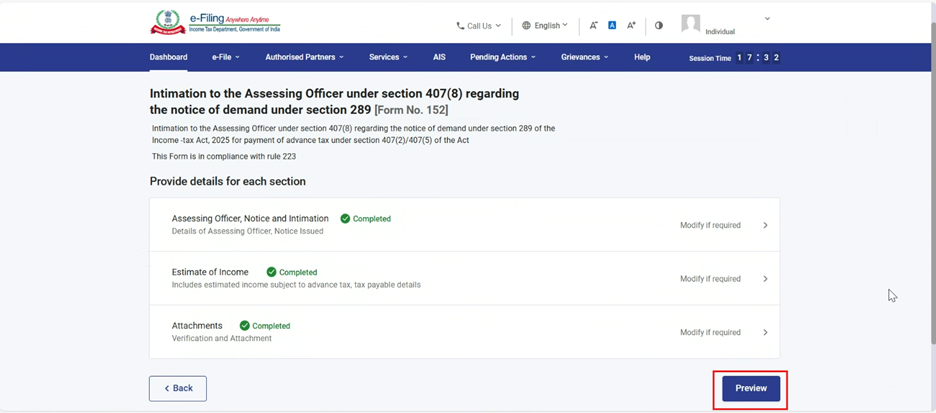
Form 152 contains 3 panels i.e.,
- Assessing Officer, Notice and Intimation
- Estimate of Income
- Attachments.
5. Step-by-Step guide:
You can fill and submit Form 152 in Online Mode - through e-Filing Portal only.
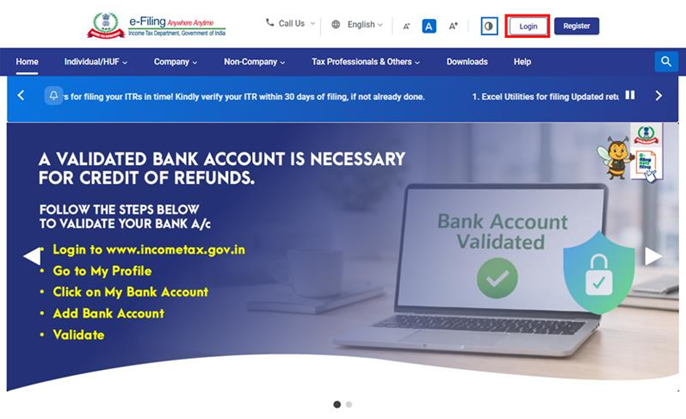
Step 1: Log in to the e-Filing portal with your User ID and Password.
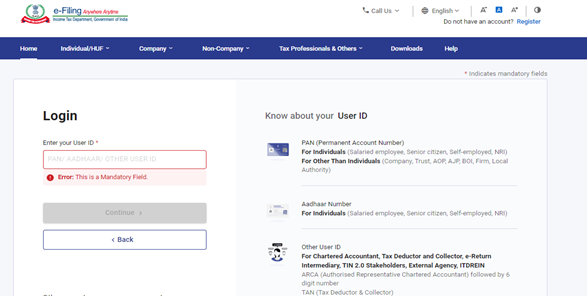
Step 2: Enter the User ID (PAN) and Password.
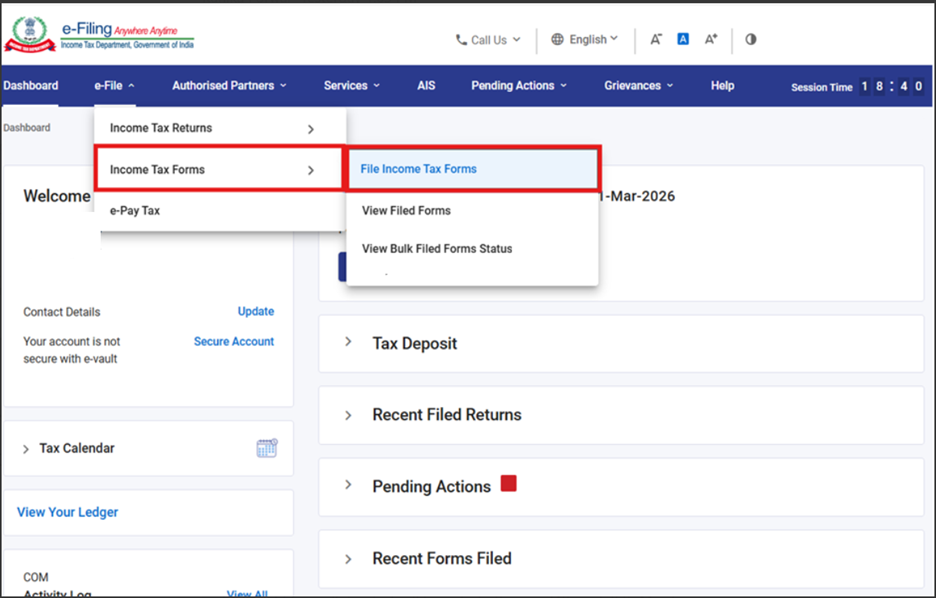
Step 3: Go to e-file >Income Tax Forms > File Income Tax Forms.
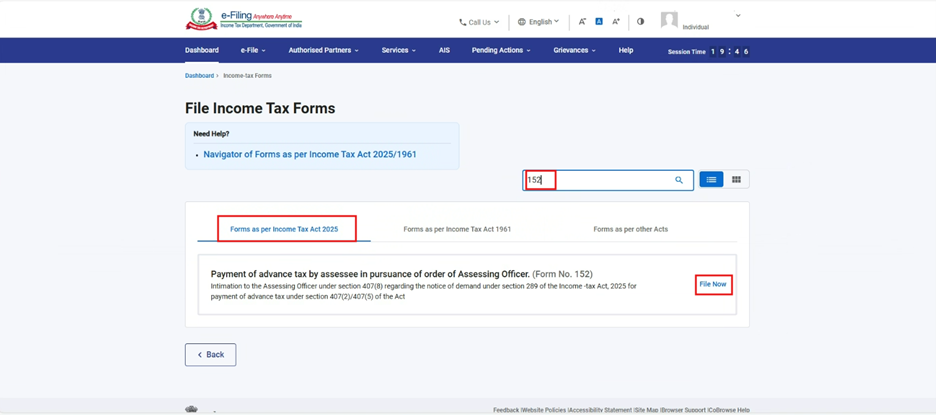
Step 4: Select the Forms as per Income Tax Act 2025 tab, select/search Form 152, and click the File Now button.
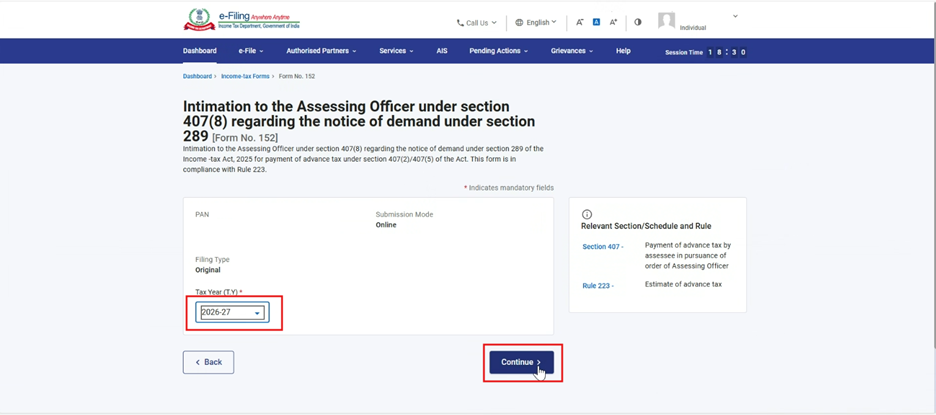
Step 5: Select the applicable Tax Year (T.Y) and click on Continue button.
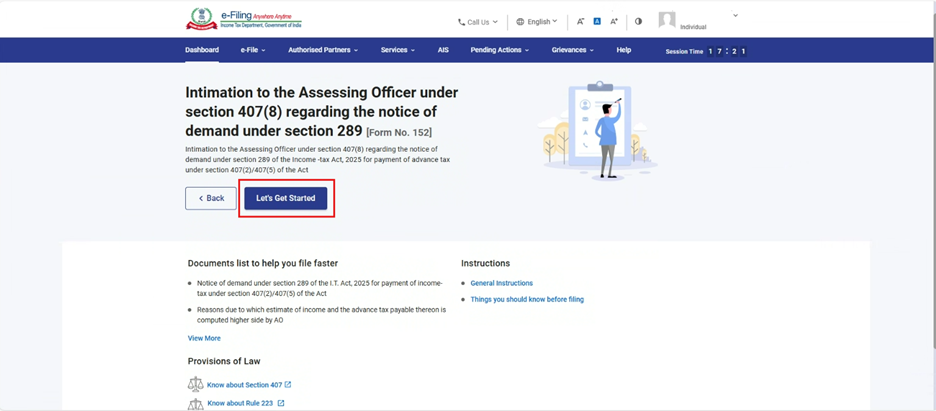
Step 6. Click on Let’s Get Started.
Step 7: Upon clicking Let's Get Started, the user is navigated to the Panel screen. Select the first panel: Assessing Officer, Notice and Intimation.
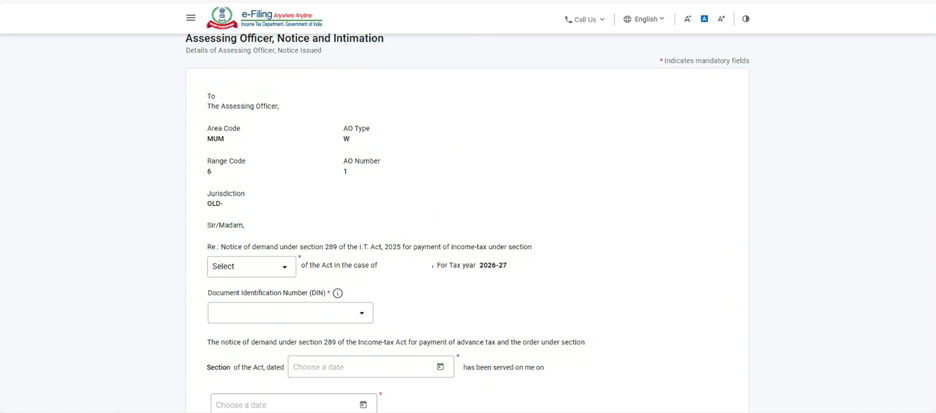
Step 8: Fill the required details and click on Save.
Note: This panel includes the details of the Assessing Officer, Order Number (DIN), date of order along with the reason for the filing the form for the response of Form 151.
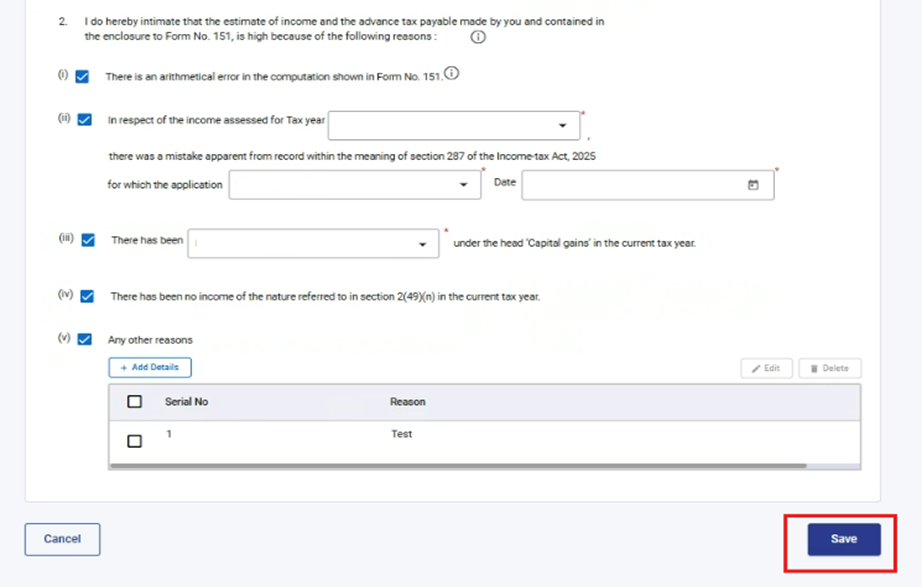
Step 9: After saving the first panel, select the second panel: Estimate of Income.
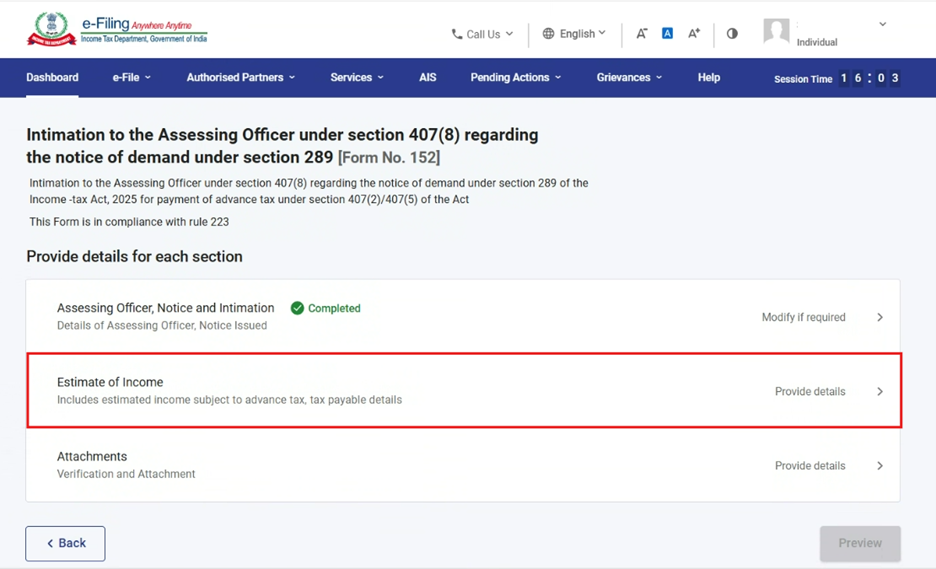
Step 10: Fill and verify the details under the Estimate of income panel, then click Save.
Note:
a) This panel includes the details of source of estimated income.
b) In point no: 3, Sno:4, it contains the details of income through profits and gains from business or profession head which includes the share of firm.
c) Point no: 6, related to the TDS details of the income.
d) Point no: 11, shows the balance Tax payable.
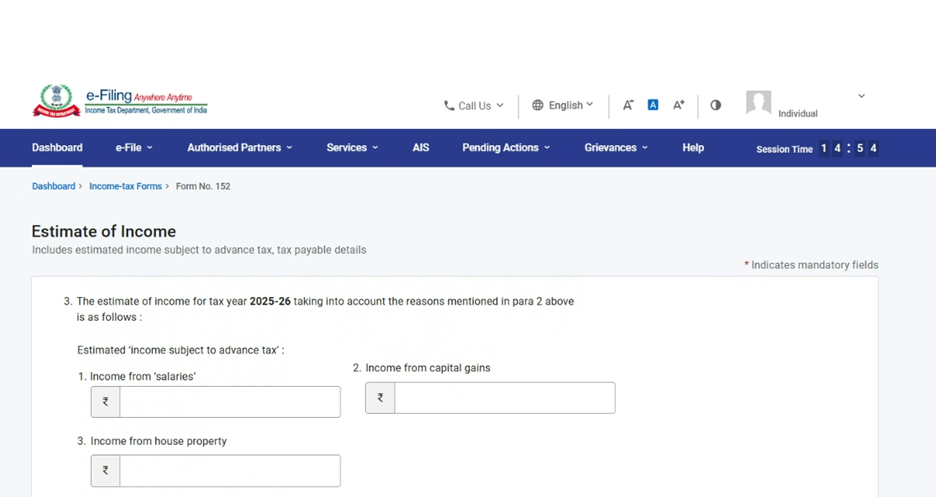
Note: On the click of “Add Details in the point no: 3, sn.04 (a) and sn.4(b), user needs to enter the required information for income from business or profession and share of income from Firm.
a) User can enter the negative values in sno.4(a) in case of any loss occur.
b) Where as in 4(b) no negative value will be allowed.
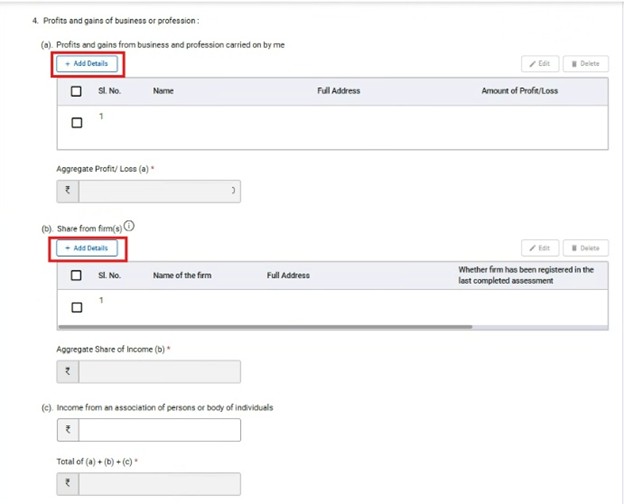
In point no: 3, Sno: 5 deals with the income from other sources where if user has any income though the interest, dividends, and any other income like lottery, etc. needs to be disclose in this serial number.
Also, in case of any carryforward losses or deductions, then user should enter those values next to Sno.5.
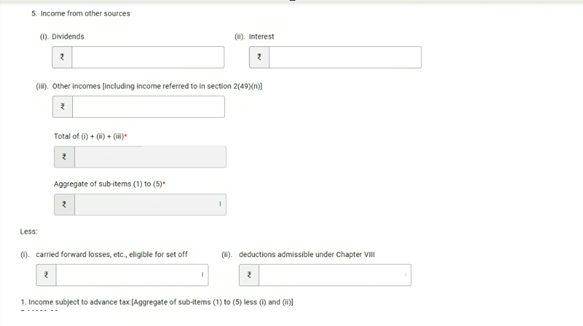
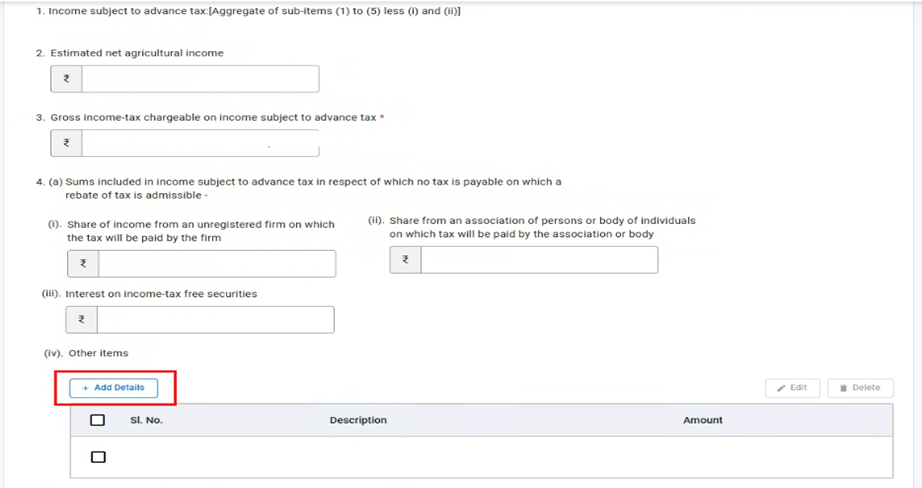
Point no:4 (a) (i) &(ii) , includes the details of income subject to advance tax payable in respect of which no tax is payable like share of income from an unregistered firm on which tax is paid by firm and share of income from AOP or BOI on which tax is paid by Association or Body
Point 4(a) (iv), contains other items in which user can click on add details and can enter the multiple row items.
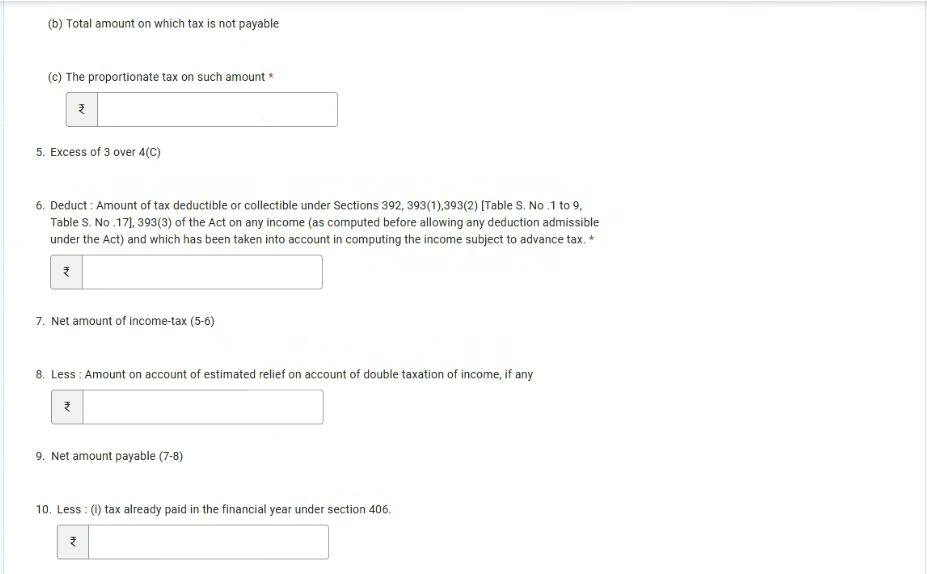
Point No : 6 relates to the details of total TDS paid on the amount which is considered for the computation of advance tax.

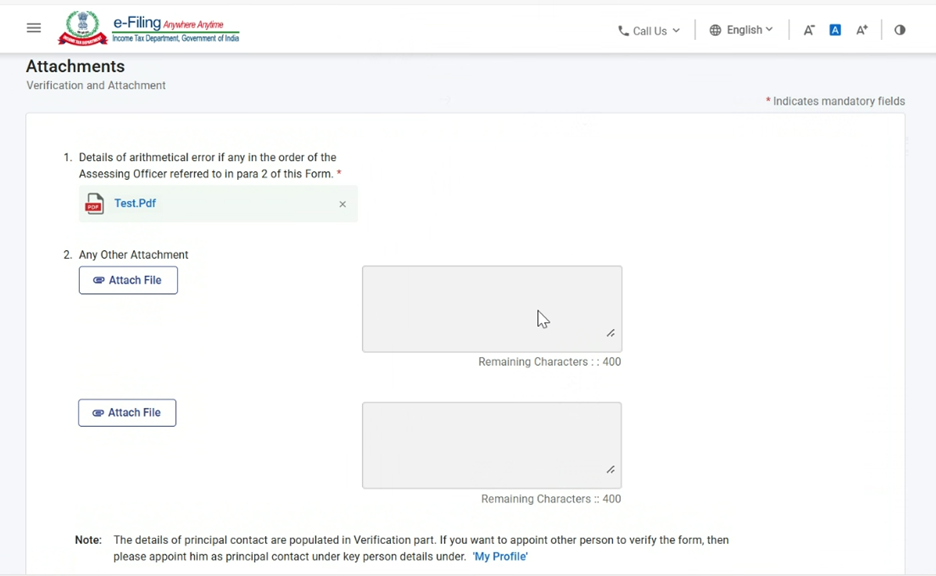
Step 11: After saving the second panel, navigate to the third panel: Attachments.
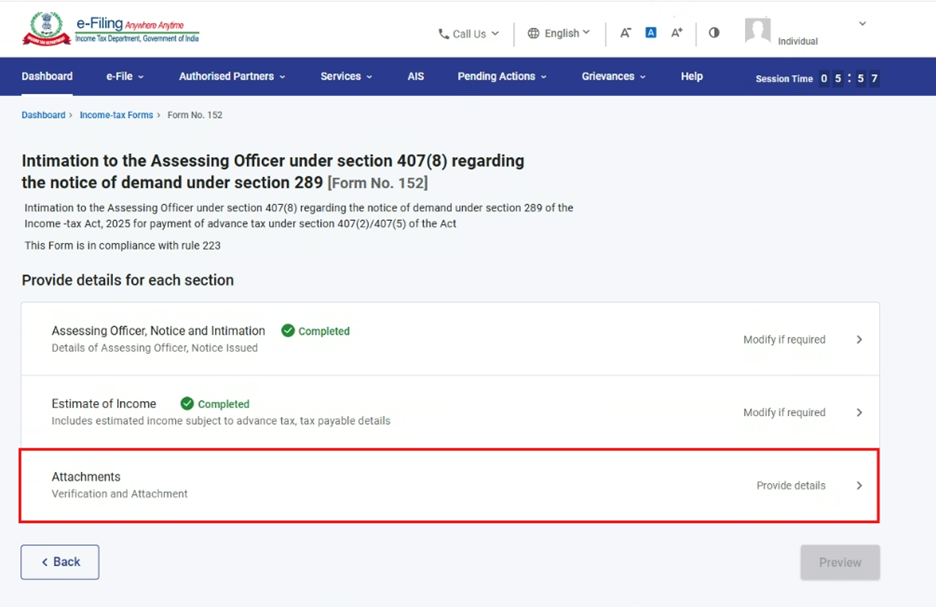
Step 12: Attach the relevant documents and click Save.
Note: Assessee needs to attach the relevant documents which prove that there is an error in the computation of advance tax by the Assessing Officer. Also, this panel captures the name of the person who estimates the advance tax also called as the name of the verifier who is verifying the form or submitting the form.
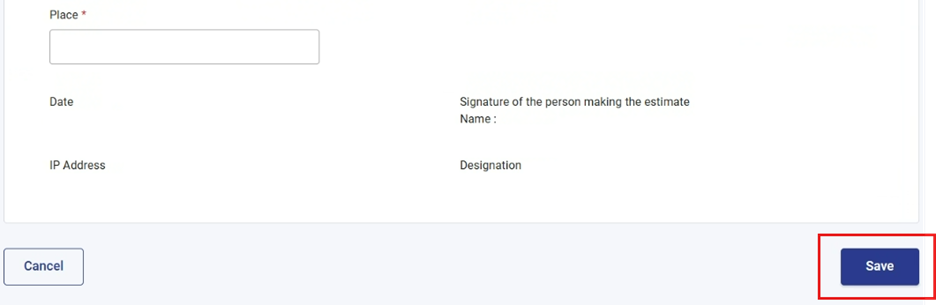
Step 13: After saving the Third Panel, click Preview.
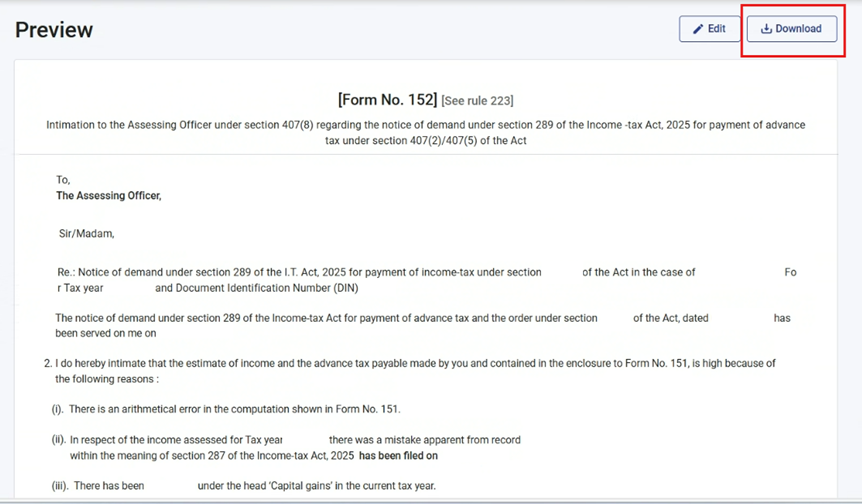
Step 14: User can review the details and can download the preview PDF by clicking the download button on the Preview page and click Proceed to e-Verify.
Note: User can verify the data like details entered in UI screen is correct or not. Incase of any data is missing or wrong, then user can click on edit button to correct the data.
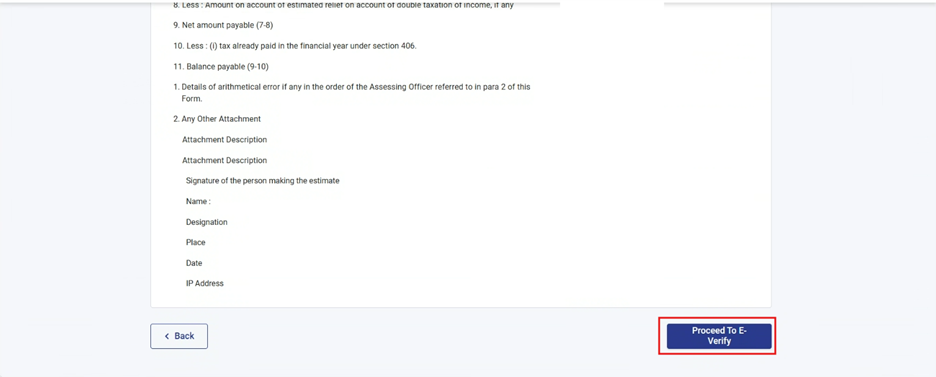
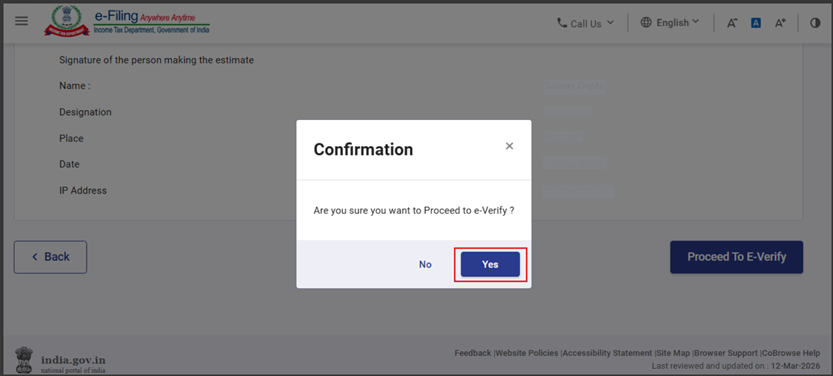
Step 15: When the user clicks “Proceed to e Verify” on the preview screen, a confirmation pop up will appear with Yes and No options. The user must select “Yes” to continue and submit the Form.
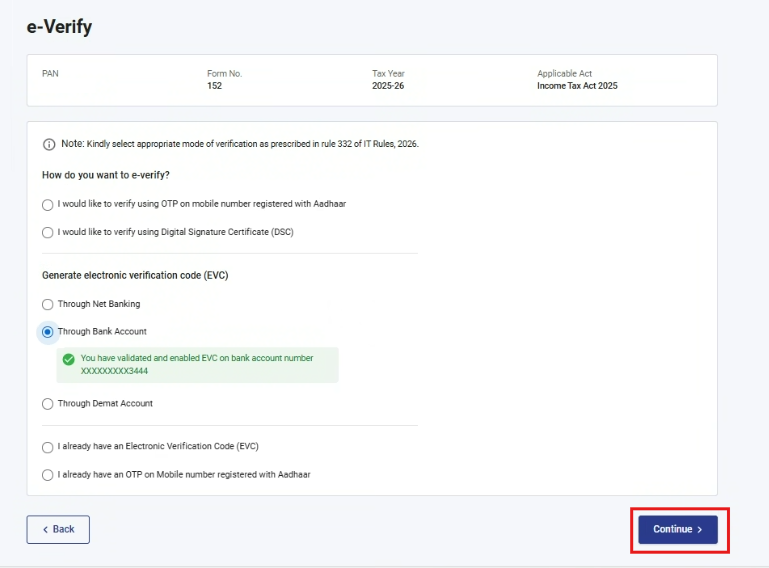
Step: 16: After selecting “Yes”, the user will be taken to the e verification page, where the Form can be submitted through a Aadhar OTP, DSC & Other EVC Modes.
Note: Refer to the How to e-Verify user manual to learn more.
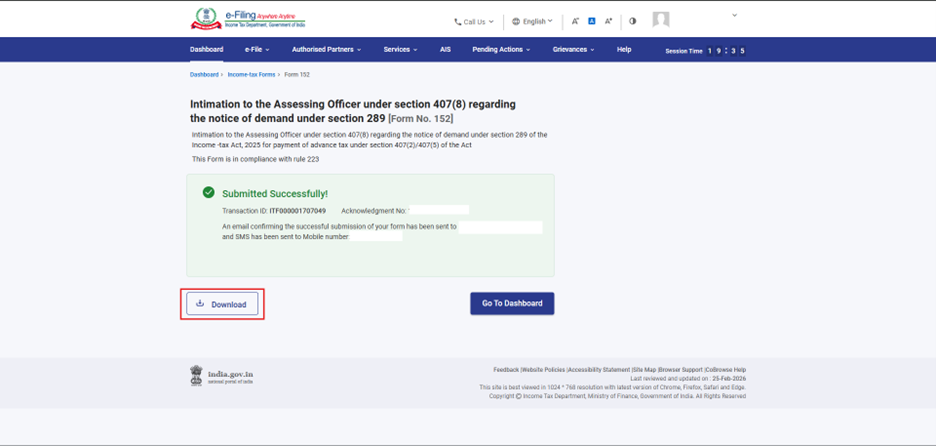
Step 17: After successful e-Verification, a success message is displayed along with a Transaction ID and Acknowledgement Receipt Number. Please keep a note of the Transaction ID and Acknowledgement Receipt Number for future reference. You will also receive a confirmation message on the email ID(s) and mobile number(s) registered with the e-Filing portal.
Click on download button to download the Acknowledgement receipt.
After successful submission of form 152 the user can view the filed form under - On your Dashboard, click e-File > Income Tax Forms > View Filed Forms> in View Filed Form tab under Income Tax Act 2025.
Note:Refer view filed form user manual to learn more.
6. Related Topics
7. Glossary
| Acronym/Abbreviation | Description/Full Form |
| DSC | Digital Signature Certificate |
| EVC | Electronic Verification Certificate |
| ARN | Acknowledgement Receipt Number |
| TY | Tax Year |



