



Form 187 User Manual
1. Overview
Form 187 is used to file an appeal to the Board (CBDT) when an employer is aggrieved by an order related to their fund. Specifically, this form can be used when:
• Recognition of a Provident Fund has been refused or withdrawn
• Approval of a Superannuation Fund has been refused or withdrawn
• Approval of a Gratuity Fund has been refused or withdrawn
This appeal must be filed within 60 days from the date of such order.
2. Prerequisites for availing this service
• You should be a registered user on the e-Filing portal
• Status of PAN of the taxpayer should be "Active"
• You should have a valid DSC to verify the form through DSC mode, and it must be registered on the e-filing portal and not expired
3. About the Form
3.1. Purpose
The purpose of Form 187 is to formally contest and seek reversal of an order that denies or withdraws recognition or approval of an employer’s Provident Fund, Superannuation Fund, or Gratuity Fund, as provided under Rules 300, 315, and 329.
3.2. Who can use it?
An employer may appeal to the Board against an order refusing or withdrawing recognition or approval of a provident, superannuation, or gratuity fund.
3.3. Time limit for appeal
An employer objecting to an order of the approving authority not granting recognition or withdrawing recognition from a provident fund/refusal to approve or withdrawal of approval from a superannuation fund or from a gratuity fund may appeal to the Board, within sixty days of such order.
3.4. Fee for Appeal
Appeal shall be accompanied by a fee of Rs 1000 as per Rule 300,315,329 of Income Tax Rules.
3.5. How to make Payment of Appeal fee
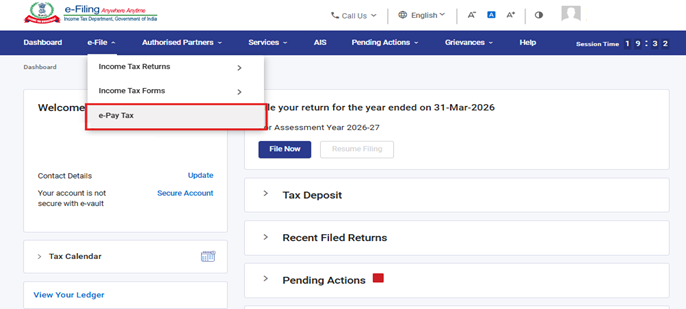
Step 1: After login to e-filing portal www.incometax.gov.in, Click on e-Pay Tax in e-File Menu on Dashboard.
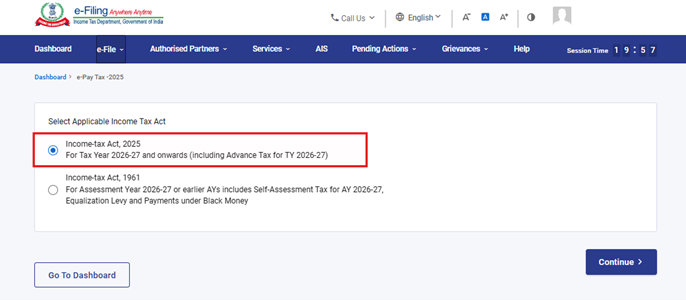
Step 2: On e-Pay Tax screen, click on “Income-tax Act,2025” and proceed to continue
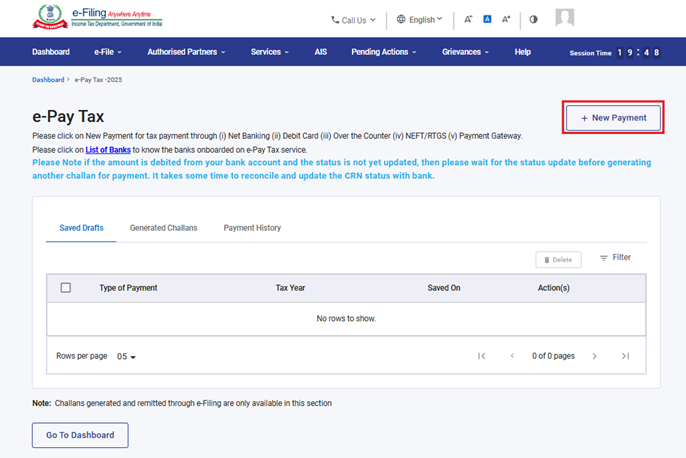
Step 3: On e-Pay Tax screen, Click on “+New Payment”.
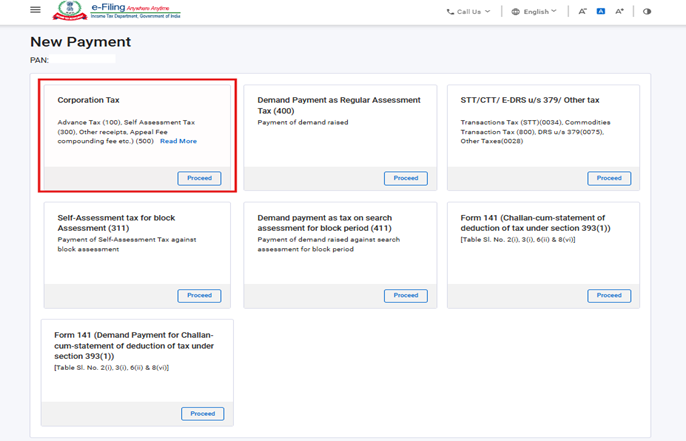
Step 4: Go to “Corporation Tax” tile and click on “Proceed”.
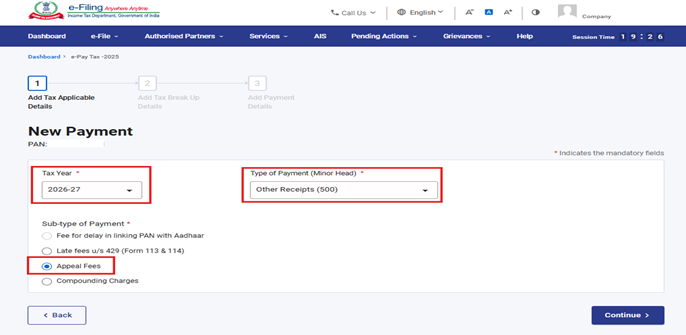
Step 5: Select the relevant Tax Year, Type of Payment (Minor Head) as Other Receipts (500) and subtype of payment as Appeal Fees.
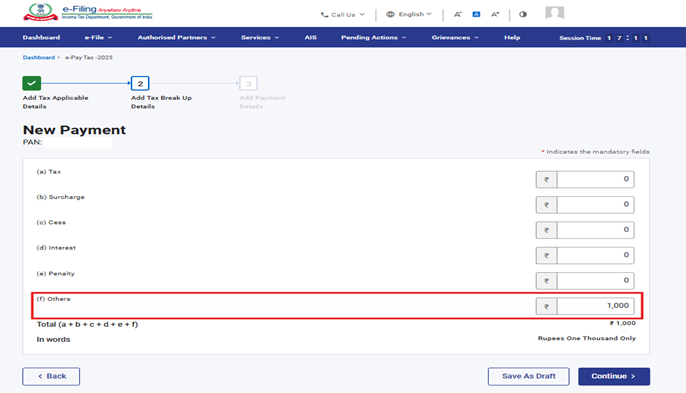
Step 6: Enter the Appeal fee Amount in “Others” field.
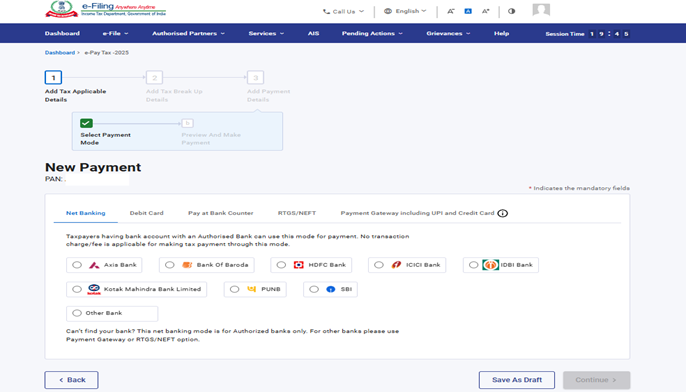
Step 6: Select the Mode of Payment and make the payment. To know the steps of payment, refer to the User Manual on e-pay tax.
3.6. Form at a Glance
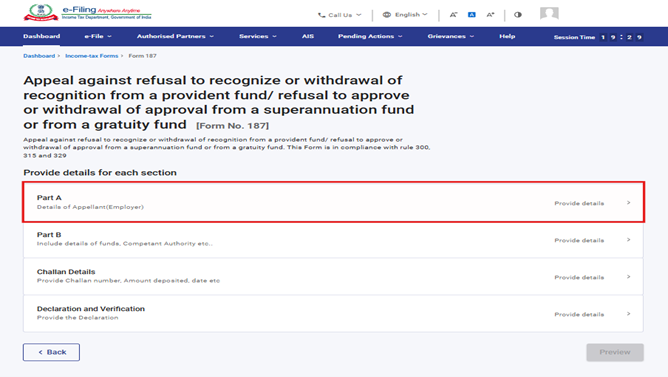
Form 187 has four panels:
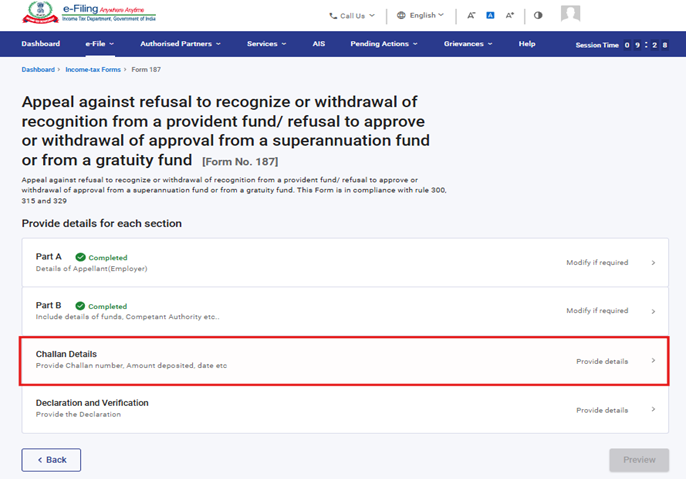
1. Part A
2. Part B
3. Challan Details
4. Declaration and Verification
4. Step-by-Step Guide
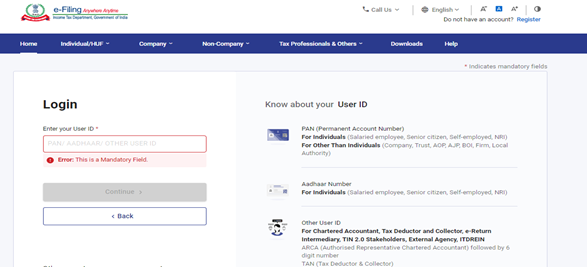
Step 1: Log in to the e-Filing portal with your User ID and Password.
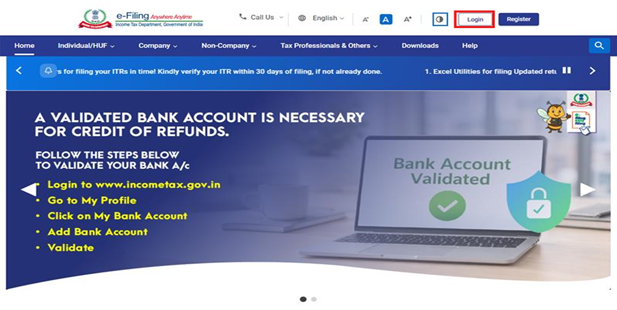
Step 2: Enter the User ID (PAN) and Password.
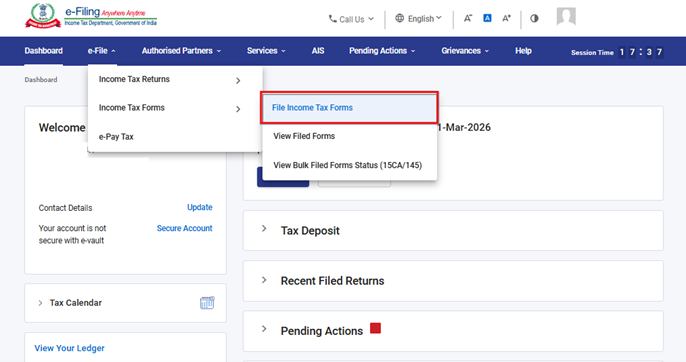
Step 3 : Go to e-file >Income Tax Forms > File Income Tax Forms
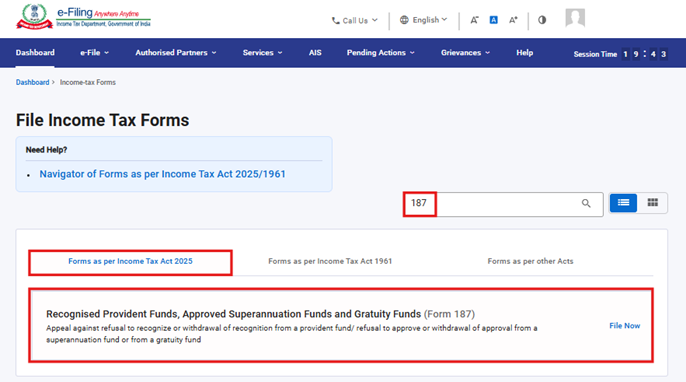
Step 4: Select the Forms as per Income Tax Act 2025 tab, select Form 187, and click “File Now” button.
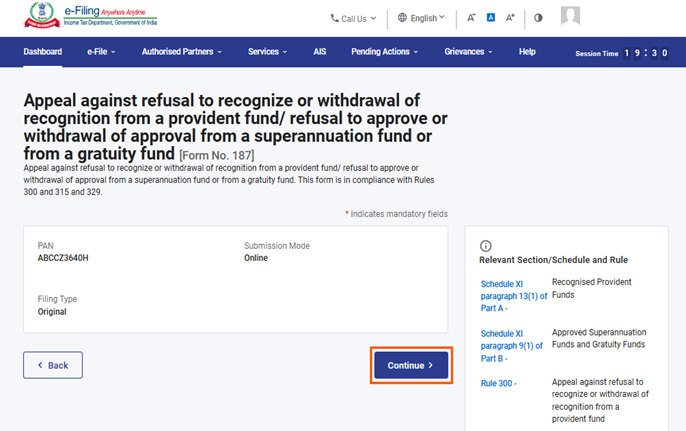
Step 5: Click on “Continue” button.
Step 6. Click on Let’s Get Started
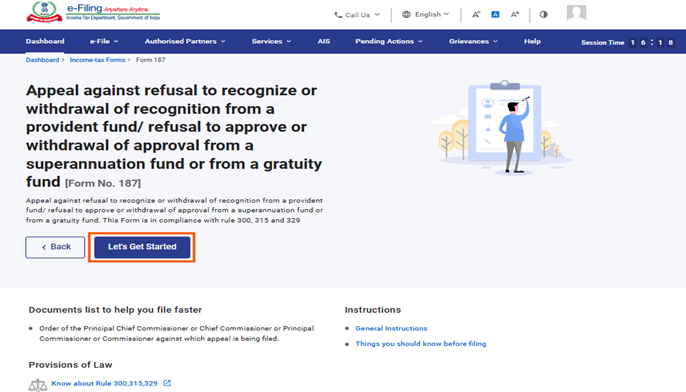
Step 7: Post clicking on Let’s Get Started screen, user will be navigated to Panel screen and Select the 1st Panel: Part A
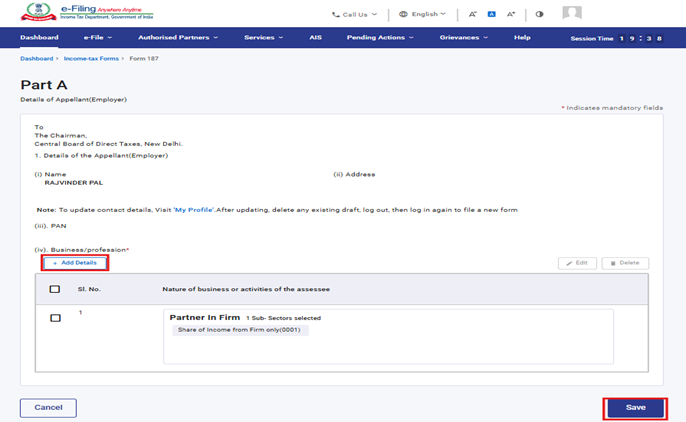
Step 8: Please fill and Verify the Particulars and click on Save.
Note: Please ensure that all mandatory details under "My Profile" section including address are completed.
You can update your contact and address details by clicking on hyperlink “My Profile”.
Business/Profession details can be added by clicking “Add Details” and selecting an option from the available list
Step 9: Post saving the 1st panel, select the 2nd Panel - Part B.
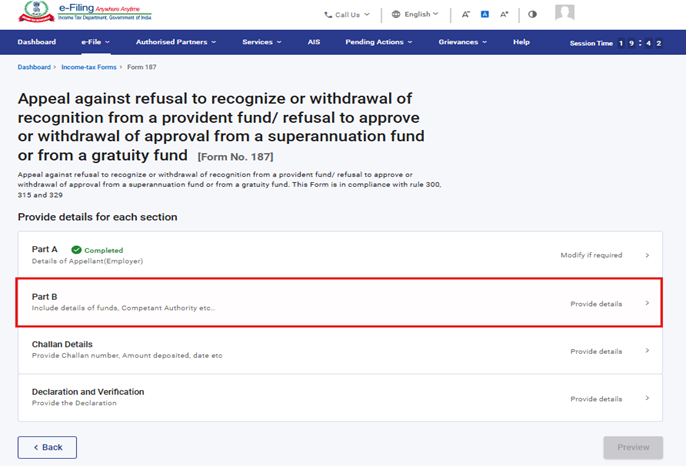
Step 10: Fill the relevant details and click on Save.
Note: Under serial No 2,3 (i) & 3(ii) fields contain the dropdown menus, users can select an option from the available list.
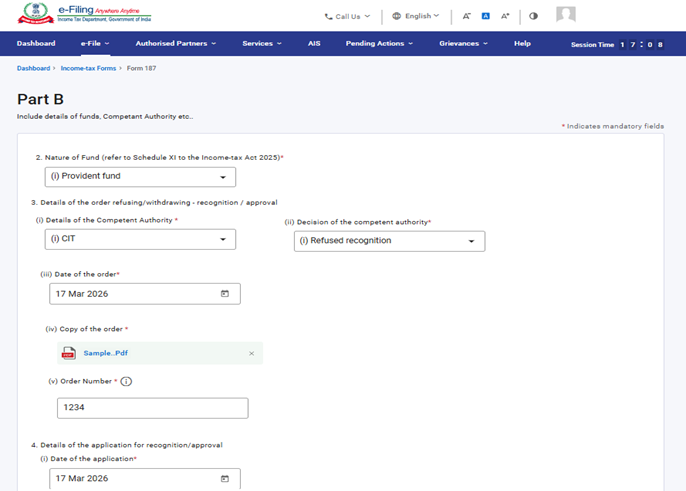
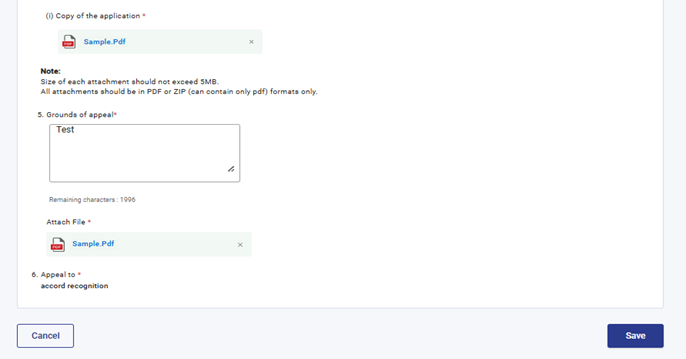
Step 11: Post saving the 2nd panel, select the 3rd Panel: Challan Details
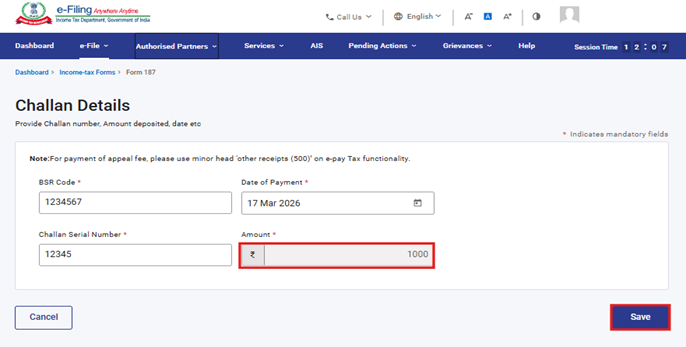
Step 12: Enter the challan details and click ‘Save’. The ‘Amount’ field will be prefilled and cannot be editable.
Step 13: Post saving the 3rd panel, select the 4th Panel: Declaration and Verification
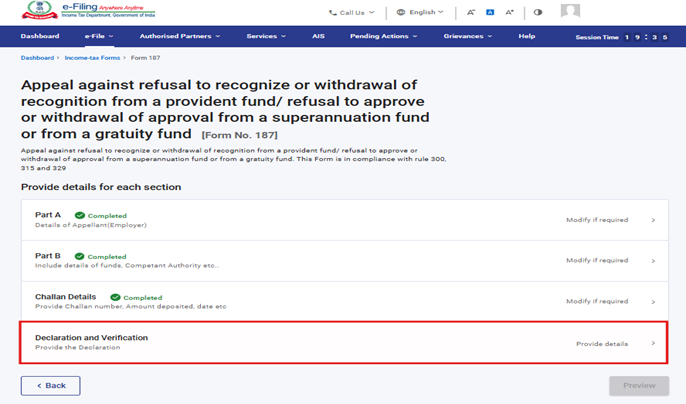
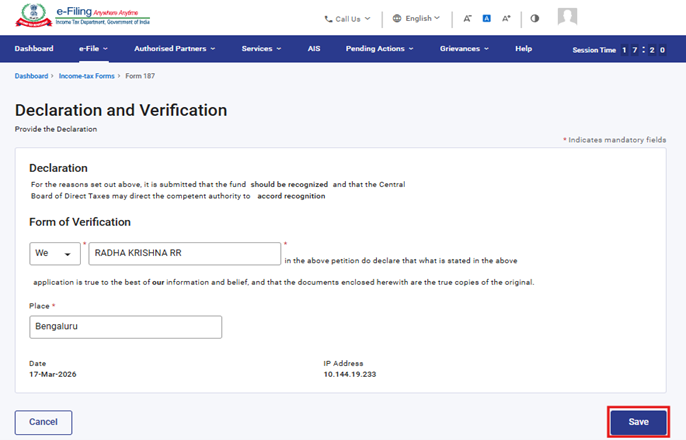
Step 14: Confirm the undertaking and click on Save.
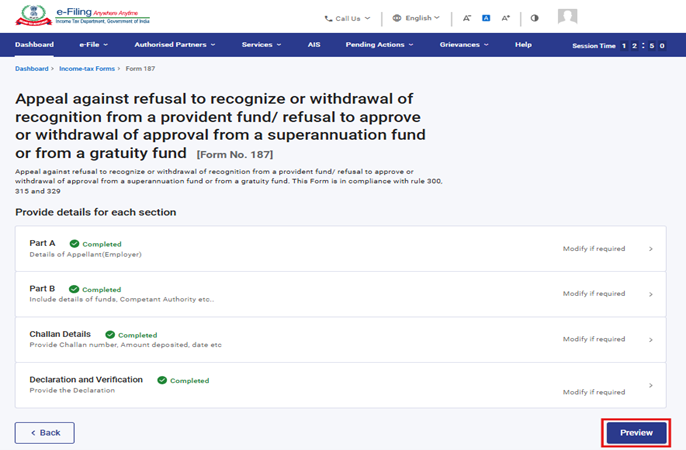
Step 15: Post saving the 4th panel, click on Preview.
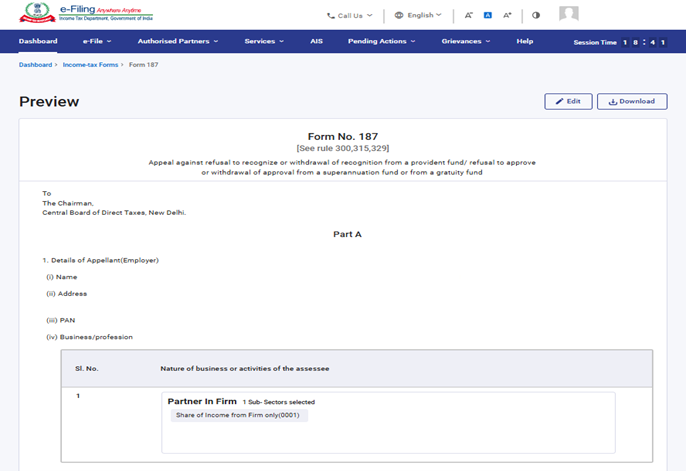
Step 16: On the Preview page, verify the details and click Proceed to e-Verify.
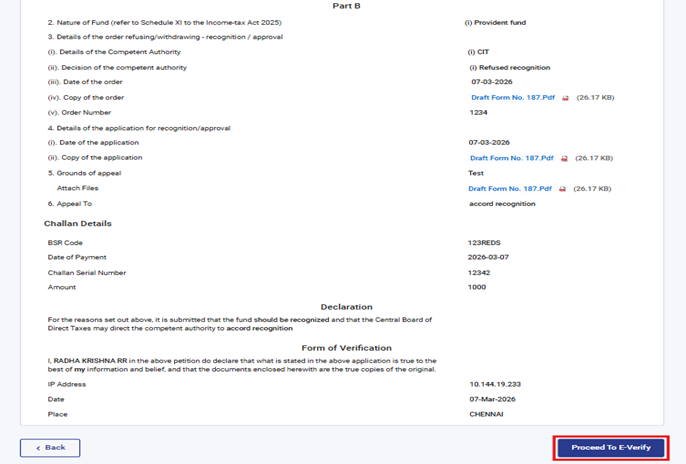
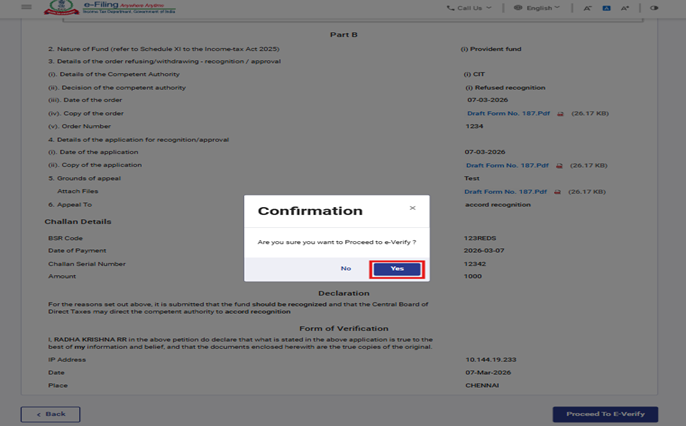
Step 17: Post clicking on Proceed to e-Verify button, a popup confirmation displaying that you would like to proceed to e-Verify. Click on Yes
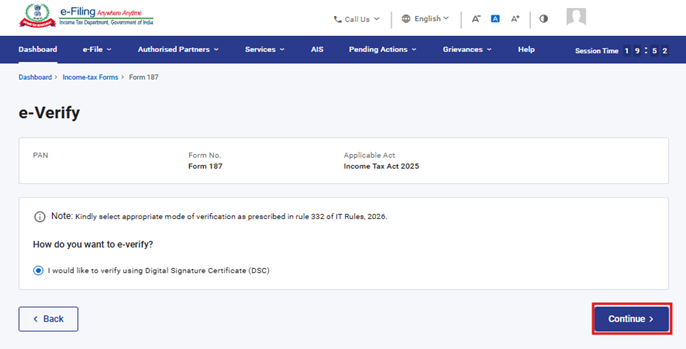
Step 18: On clicking Yes, you will be navigated to the e-Verify page where you can verify the Form 187 using DSC (as applicable). Note: Refer to the How to e-Verify user manual to learn more.
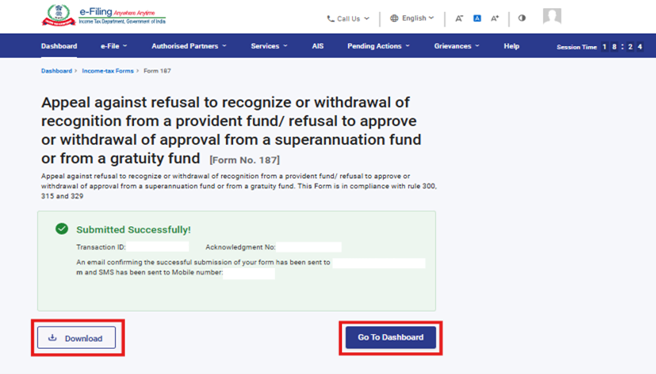
Step 19: After successful e-Verification, a success message is displayed along with a Transaction ID and Acknowledgement Receipt Number. Please keep a note of the Transaction ID and Acknowledgement Receipt Number for future reference. You will also receive a confirmation message on the email ID(s) and mobile number(s) registered with the e-Filing portal.
Click on download button to download the Acknowledgement receipt
After successful submission of form 187 the user can view the filled form under - On your Dashboard, click e-File > File Income Tax Forms > View Filed Forms> View Filed Form tab under Income Tax Act 2025.
Note: Refer view filled form user manual to learn more
5.Related Topics
6.Glossary
| Acronym/Abbreviation | Description/Full Form |
| DSC | Digital Signature Certificate |
| EVC | Electronic Verification Certificate |
| ARN | Acknowledgement Receipt Number |
| PY | Previous Year |
| FY | Financial Year |
| TY | Tax Year |



