



Form No.188 User Manual
1. Overview & Purpose of the form
Form No. 188 is application for approval of Superannuation Fund or Gratuity Fund . The trustee or trustees of the Fund must apply to the Assessing Officer for approval of such Fund, by submitting Form No.188 along with all the required documents. The approving authority can give approval to a superannuation fund or a gratuity fund if he believes it meets the required conditions.
2. Prerequisites for availing this service
- The user shall be a registered user on the e-Filing portal.
- Status of PAN of the user should be "Active".
- Users should have a valid DSC, if user wished to verify the form through DSC mode, and it must be registered on the e-filing portal and not expired.
3. Who can use it?
All registered Trusts having valid PAN on the e-Filing portal can apply for Form No.188.
4. Step-by-Step Guide
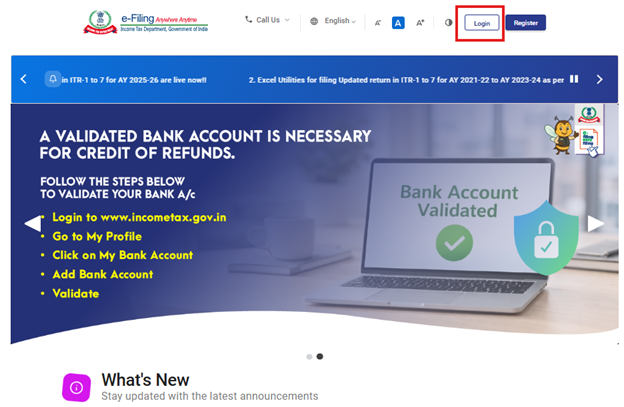
Step 1: User shall Log in to the e-Filing portal with the registered User ID and Password.
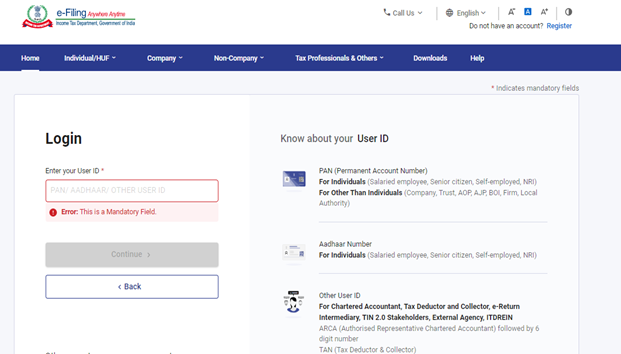
Step 2: Enter the User ID (PAN) and Password and click ‘Continue’.
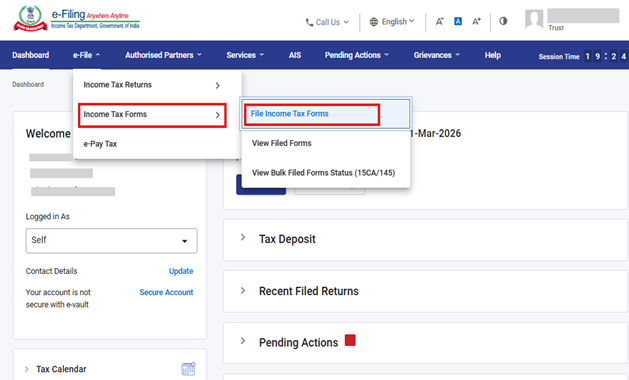
Step 3: Go to e-file >Income Tax Forms > File Income Tax Forms.
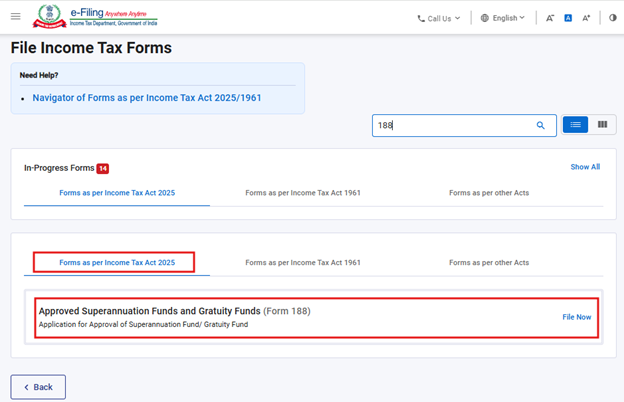
Step 4: Select the Form as per Income Tax Act 2025 tab.
Click on Forms as per Income Tax Act, 2025 and select “Form No.188” and click “File now”.
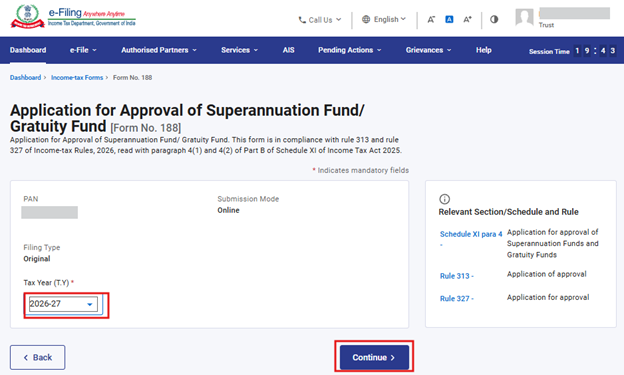
Step 5: User shall select the applicable Tax Year (T.Y) and click on Continue button.
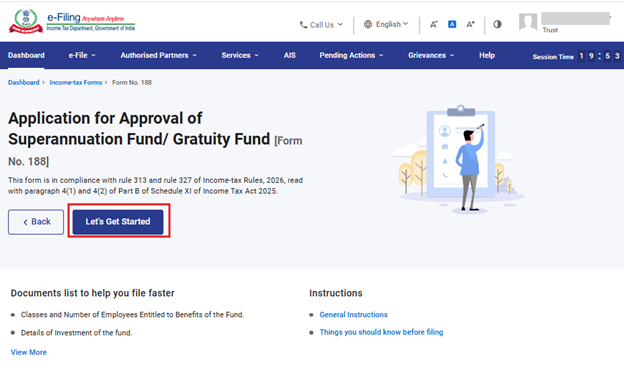
Step 6: Click on Let’s Get Started to proceed.
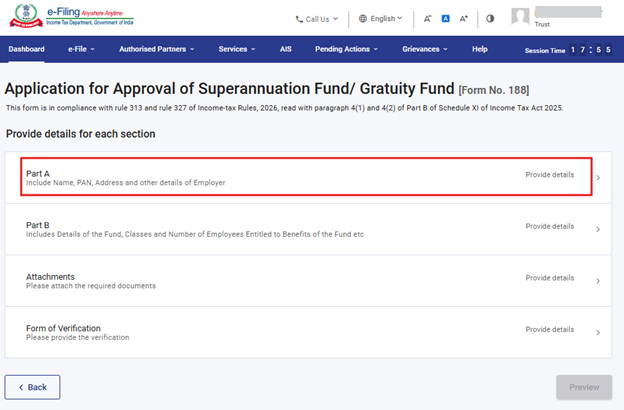
Step 7: Post clicking on ‘Let’s Get Started’ user will be navigated to Panel screen, where the user can select the 1st Panel- Part A.
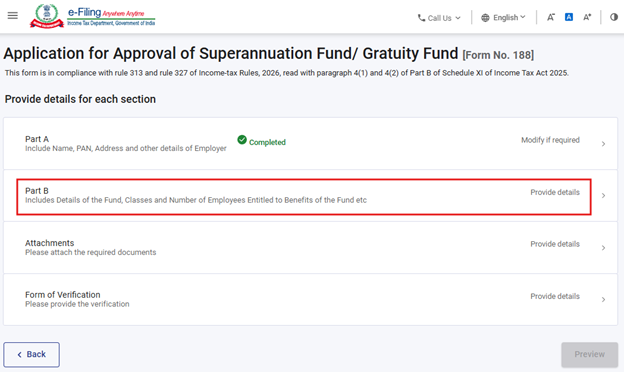
Form No. 188 is divided into four panels, namely-
- Part A
- Part B
- Annexure
- Form of Verification
Users need to fill in the details and save each panel before moving to the next. To start, the user should select the first panel- Part A and begin entering the required information.
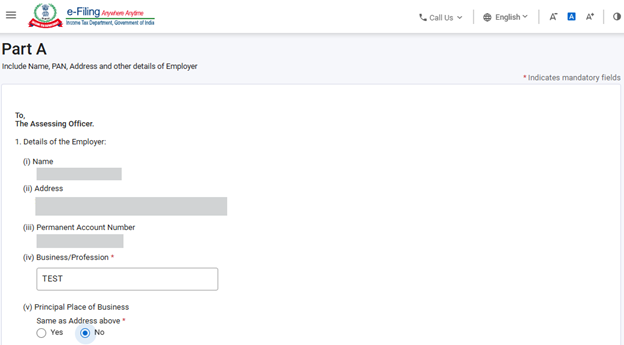
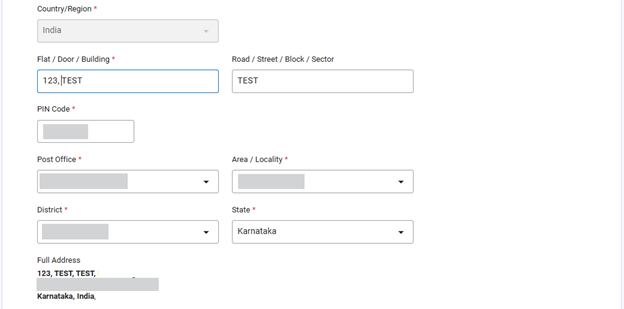
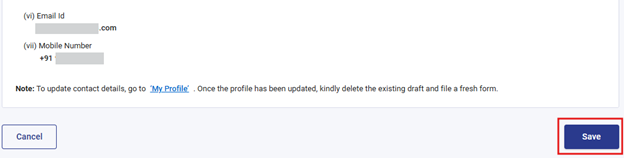
Step 8: Please verify and enter the required details in 1st panel and click on Save.
The user shall enter the details asked for inside the panel. This panel may be prefilled to the extent possible. After completing all entries, the user shall select ‘Save’ to save the details and proceed to next panel.
Note: Please ensure that all mandatory details under "My Profile" section including address are completed. If the user updates any detail in the “My Profile” section, please delete the existing draft and file the form afresh so that the changes are properly reflected.
Step 9: Post saving the 1st panel, select the 2nd Panel- Part B.
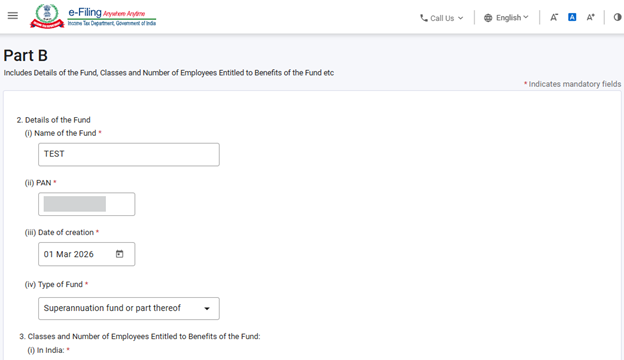
Step 10: Enter the details in 2nd panel and click on Save.
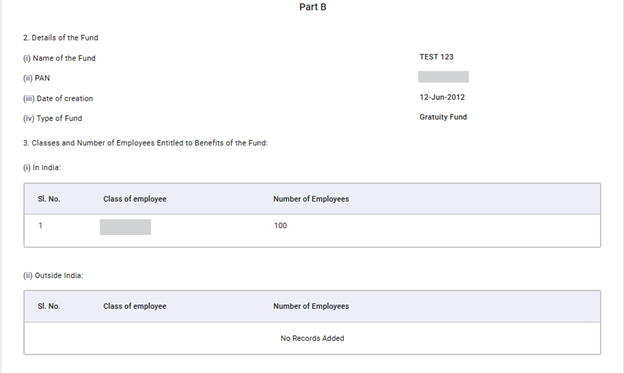
In Field 2, user shall enter details of the Fund.
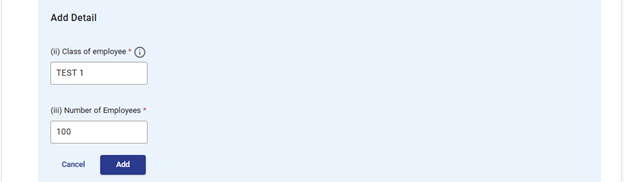
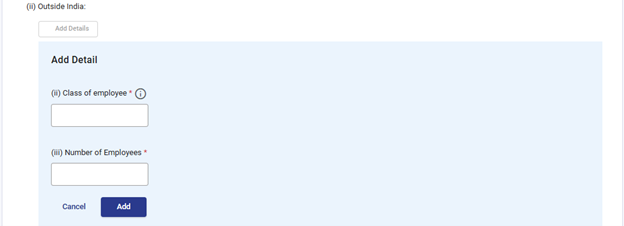
In Field 3, the user shall enter details of employees who are entitled to the benefits of the fund. The user must provide these details separately for employees in India and those outside India
The user can add up to 50 records by clicking on “Add Details” button. Users can edit/delete the record by selecting the check box.
Note: For the “Class of Employees” field, the applicant shall provide the defined class(es) of employees as per instrument/deed/ constitution of the fund.
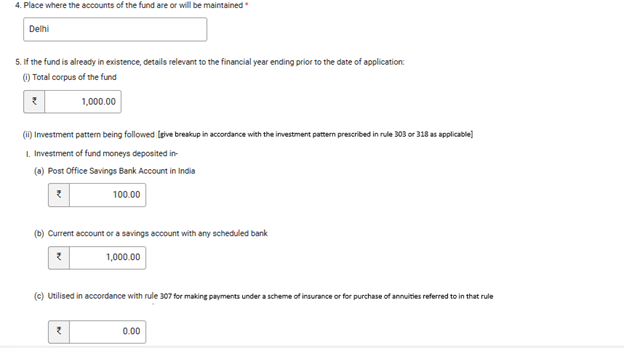
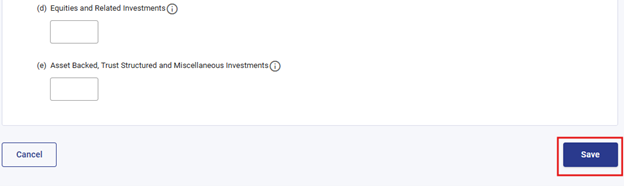
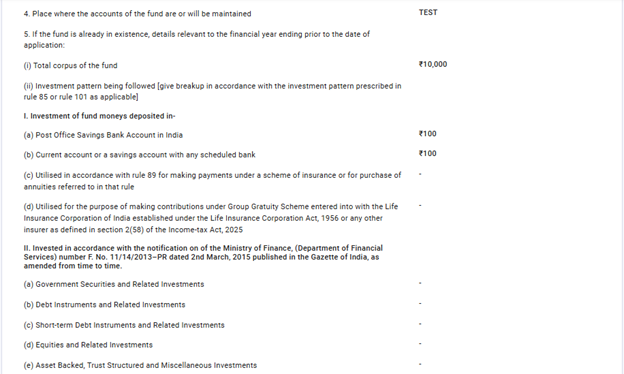
In Field 5, the user shall provide details of the corpus of the fund and the investment pattern followed by the fund.
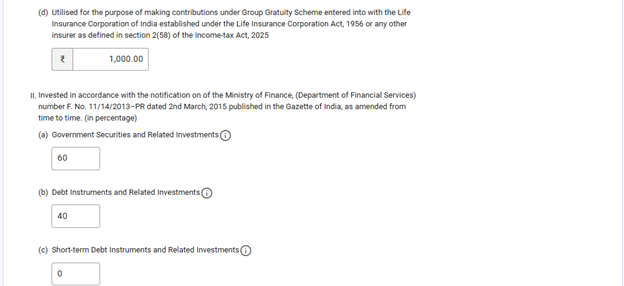
The user shall enter the amount of investment made by the fund in Field 5(ii) I. In Field 5(ii) II, user shall specify the percentage of investments made under the instruments mentioned in the form.
Note: Under the investment pattern in item 5(ii), the value at point I should be entered in Rupees, and the value at point II should be entered in percentages. The investments required at these two points are different from each other.
Step 11: Post saving the 2nd panel, select the 3rd Panel- Attachments
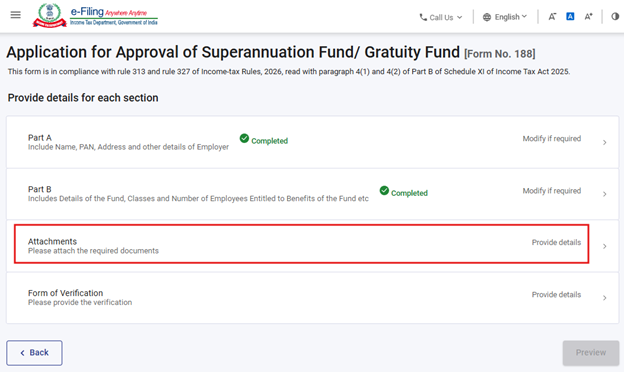
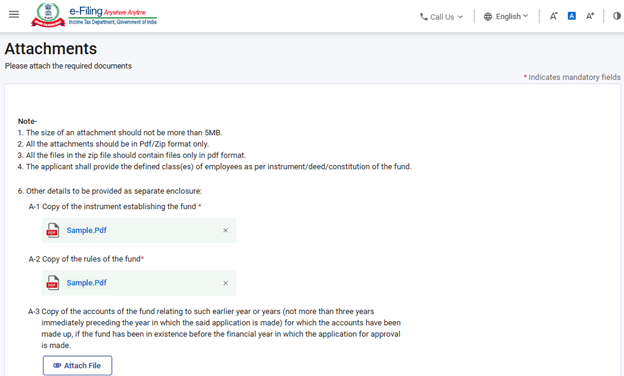
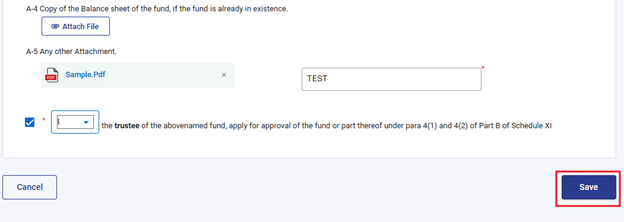
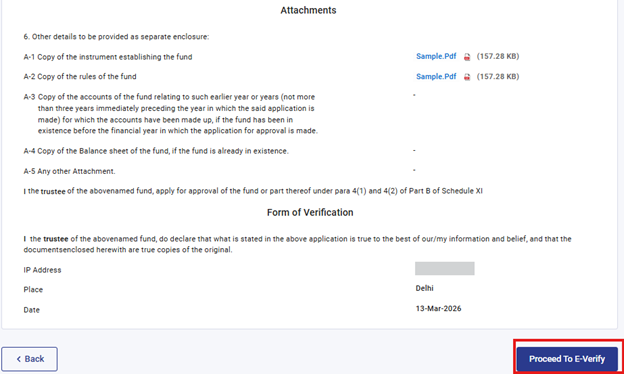
Step 12: Enter the details in ‘Attachments’ panel and click ‘Save’ to proceed.
*Indicates mandatory attachments. User can also attach any other documents which he wants to submit in ‘A-5’ Any other attachment.
Step 13: Post Attachments panel, User shall proceed to Panel 4- Form of Verification.
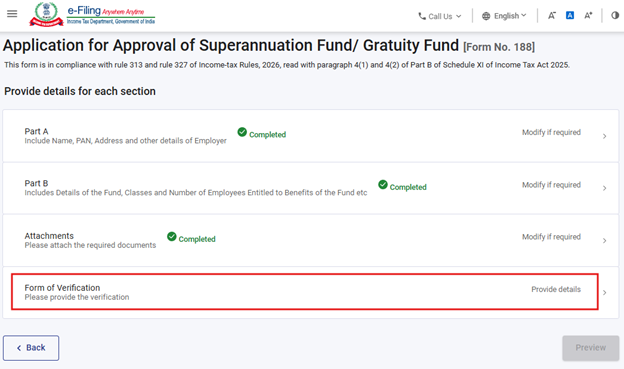
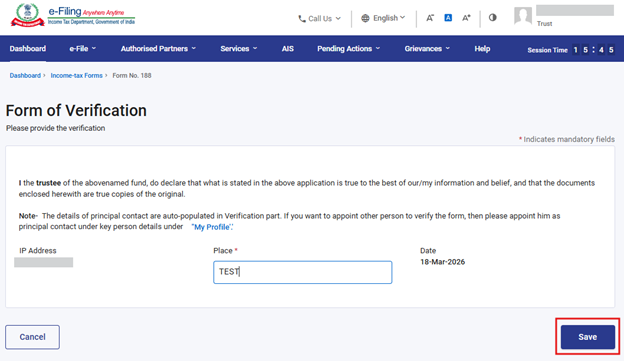
Step 14: User shall enter the details in the Form of Verification Panel. Select ‘Save’ to procced further.
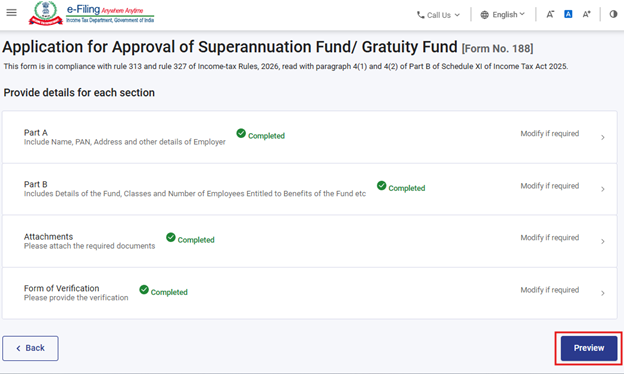
Step 15: After all the panels are saved, “completed” mark shall appear in front of the panel heading. Select “Preview” button to proceed further.
If any panel is incomplete, “Not completed” mark shall appear. Users shall click on such panel, enter the required details and save the panel. Then user may proceed to “Preview”.
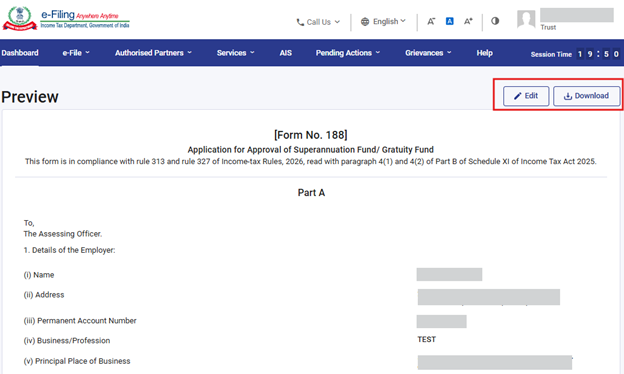
Step 16: On click of “preview” button, user shall be navigated to Preview screen where he can verify the details provided and later shall click on “Procced To E-Verify”.
All the fields and inputs provided by the user in the form, will be displayed on the preview screen. The user should review these details before proceeding. If any changes are required, the user can click the “Edit” button to modify the information within the form. The user also has the option to download the preview screen as a PDF, but this PDF is only a copy of the pre filing view and NOT the final filed form.
To continue with the filing process, the user must click the “Proceed To E-Verify” button.
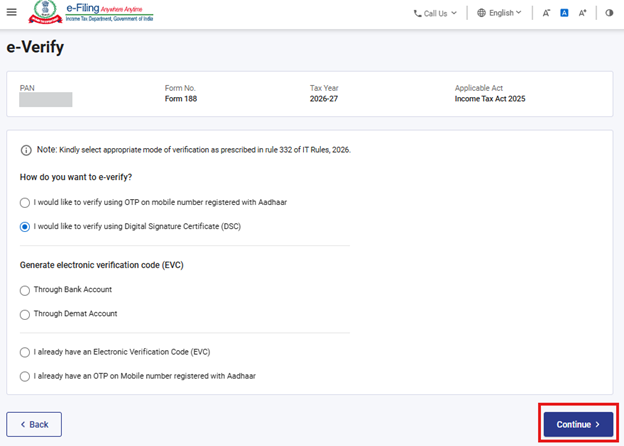
Step 17: User will be navigated to the ‘E-Verify’ page where he can verify Form No.188 using OTP/EVC/DSC. The user shall click on ‘Continue’ button to submit the form.
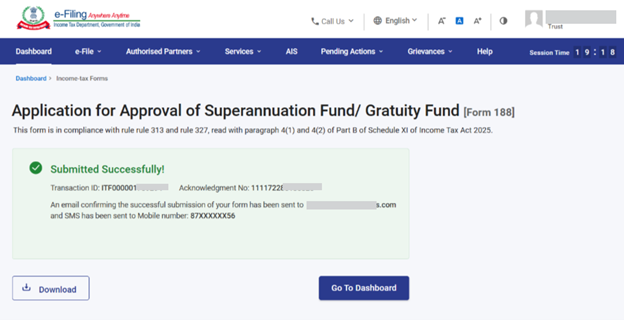
Step 18: Once the form is successfully submitted, confirmation message shall be displayed on the screen.
After successful e-Verification, a success message is displayed along with a Transaction ID and Acknowledgement Receipt Number. Please keep a note of the Transaction ID and Acknowledgement Receipt Number for future reference. You will also receive a confirmation message on the email ID(s) and mobile number(s) registered with the e-Filing portal.
Click on Download button to download the Acknowledgement receipt.
Step 19: After successful submission of Form No. 188 the user can view the filled form under - On your Dashboard, click e-File > File Income Tax Forms > View Filed Forms> View Filed Form tab under Income Tax Act 2025.
Note: Refer view filled form user manual to learn more.
Note: Refer to the How to e-Verify user manual to learn more.
5. Related Topics
- Login
- Dashboard
- How to e-Verify
- Income Tax Forms (Upload)
- Register Digital Signature Certificate (DSC)
6.Glossary
|
Acronym/Abbreviation |
Description/Full Form |
|
DSC |
Digital Signature Certificate |
|
EVC |
Electronic Verification Certificate |
|
ARN |
Acknowledgement Receipt Number |
|
PY |
Previous Year |
|
FY |
Financial Year |
|
TY |
Tax Year |



