



Form 55 User Manual
1. Overview
- Taxpayers who wish to seek assistance from the Indian Competent Authority for resolving such cases of double taxation must apply in Form 55. This form enables the Income Tax Department to examine the details of the tax dispute, validate the information provided, and initiate discussions with the Competent Authority of the foreign country, wherever applicable.
- Form 55 must be filed online on the e‑Filing portal, along with relevant supporting documents such as assessment orders, demand notices, or correspondence with foreign tax authorities. Once the application is submitted successfully, the Competent Authority reviews the case and may request additional information if required.
- This process ensures that taxpayers are protected from unintended double taxation and that disputes arising from cross‑border tax issues are resolved through a structured and transparent mechanism provided under international tax treaties.
2. Prerequisites for availing this service
- You should be a registered user on the e-Filing portal
- Status of PAN of the taxpayer should be "Active"
- You should have a valid DSC to verify the form through DSC mode, and it must be registered on the e-Filing portal and not expired
3. About the Form
3.1 Purpose
Form 55 is an application seeking to invoke mutual agreement procedure provided for in agreements with other countries or specified territories. (Refer Rule 121).
3.2 Who can use it?
Form 55 has to be filed by any assessee who is resident in India and seeking to invoke mutual agreement procedure provided for in agreements with other countries or specified territories.
3.3 Form at a Glance
Form 55 has four panels:
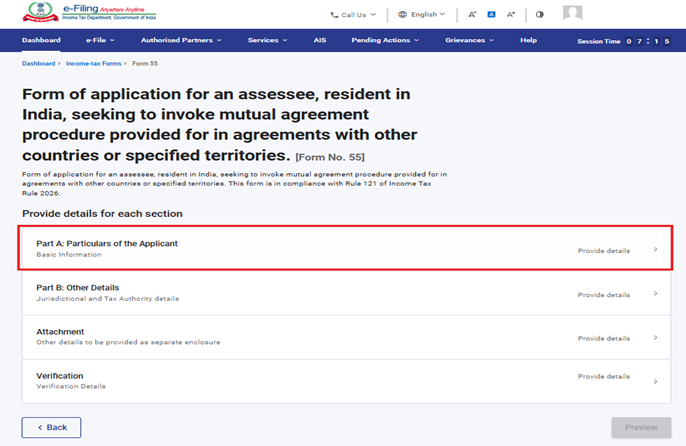
- Part A: Particulars of the Applicant
- Part B: Other details
- Attachment
- Verification
4. Step-by-Step Guide
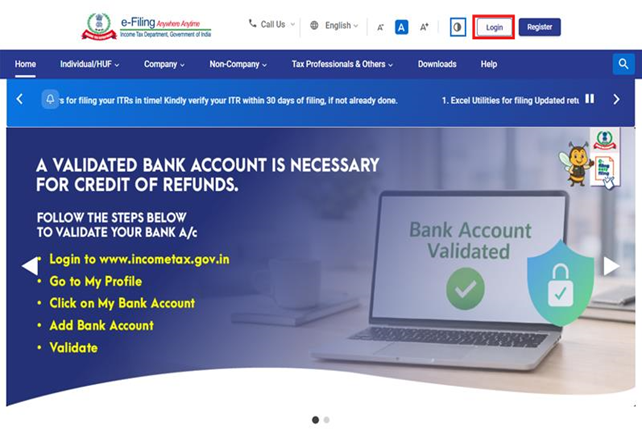
Step 1: Log in to the e-Filing portal with your User ID and Password.
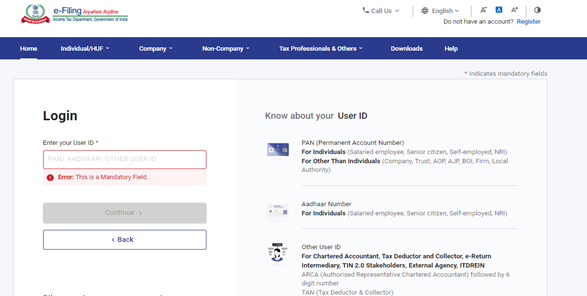
Step 2: Enter the User ID (PAN) and Password.
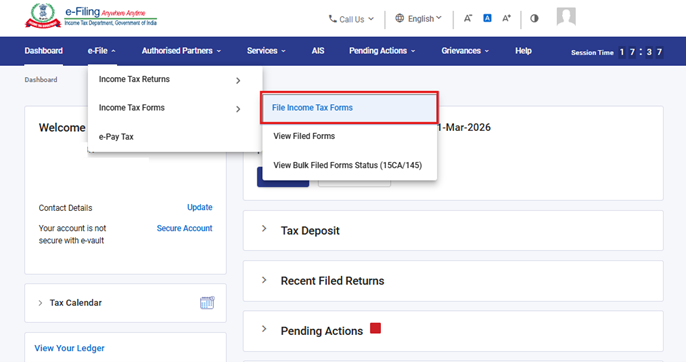
Step 3: Go to e-file >Income Tax Forms > File Income Tax Forms.
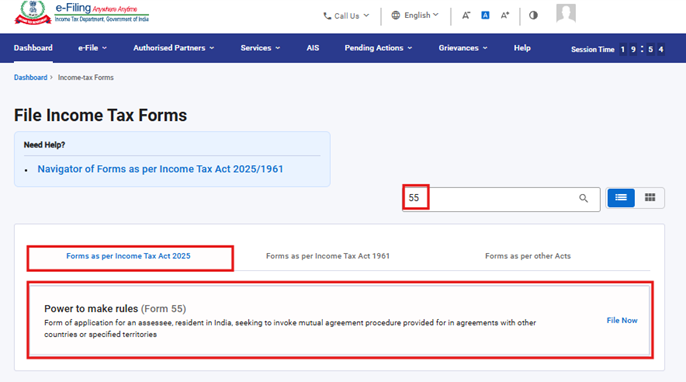
Step 4: Select the Forms as per Income Tax Act 2025 tab, select Form 55, and click the File Now button.
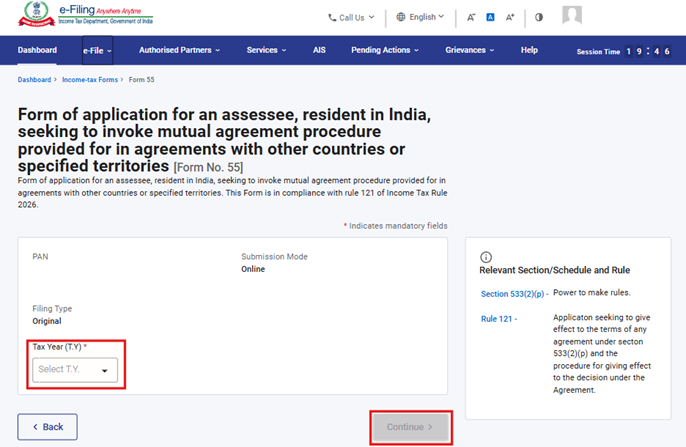
Step 5: Select the applicable Tax Year (T.Y) and click on Continue button.
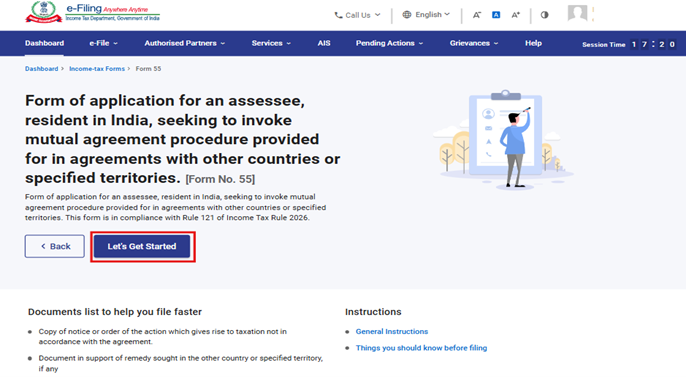
Step 6. Click on Let’s Get Started.
Step 7: Post clicking on Let’s Get Started screen, user will be navigated to Panel screen and select the 1st Panel: Part A: Particulars of the Applicant.
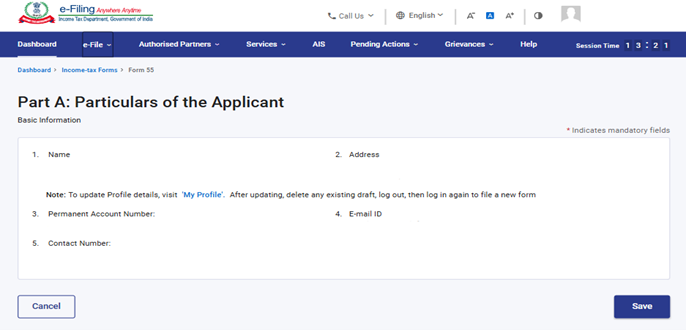
Step 8: Verify the Particulars and click on Save.
Note: Please ensure that all mandatory details under "My Profile" section including address are completed. You can update your contact and address details by clicking on hyperlink “My Profile”.
Step 9: Post saving the 1st panel, select the 2nd Panel: Part B: Other Details.
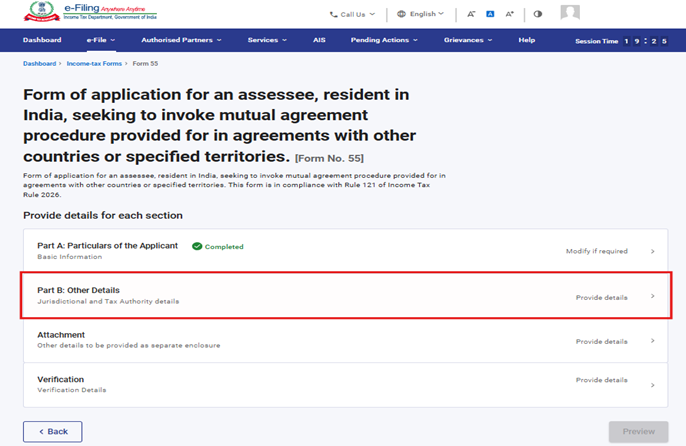
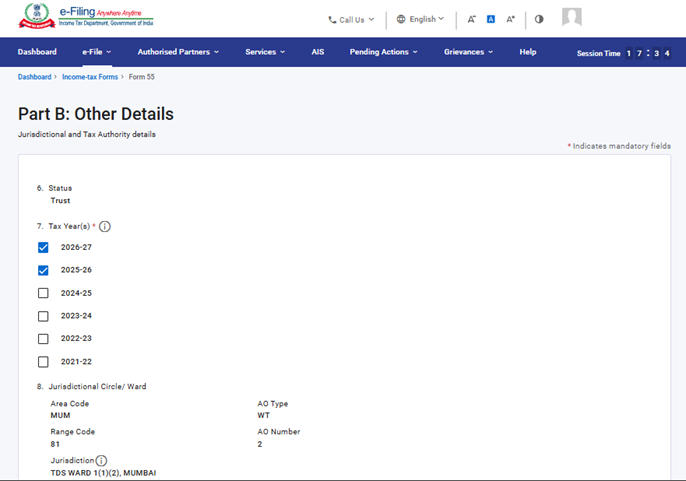
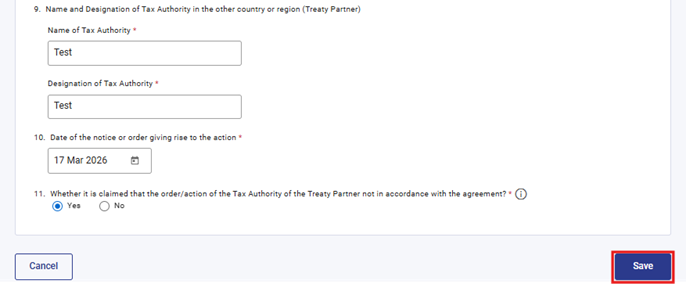
Step 10: Please fill and verify the “Part B: Other Details” panel and click on Save.
Note: In Serial No. 7, the user can select the multiple checkboxes for the field “Tax year(s)” to which the notice or order relates.
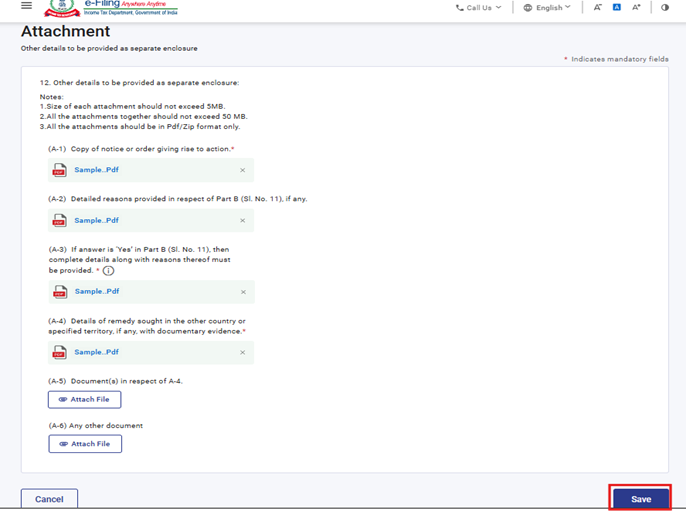
Step 11: Post saving the 2nd panel, select the 3rd Panel: Attachments.
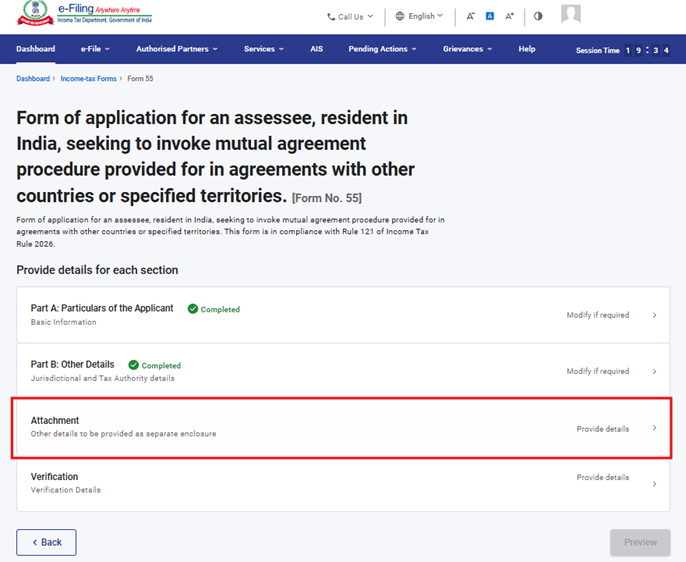
Step 12: Please attach the relevant documents and click on Save.
Note: Attachment A-3 is mandatory if user selects “Yes” in field no 11.
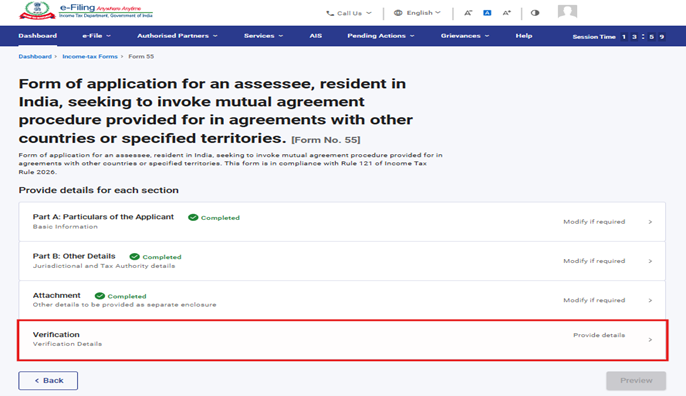
Step 13: Post saving the 3rd panel, select the “Verification” Panel.
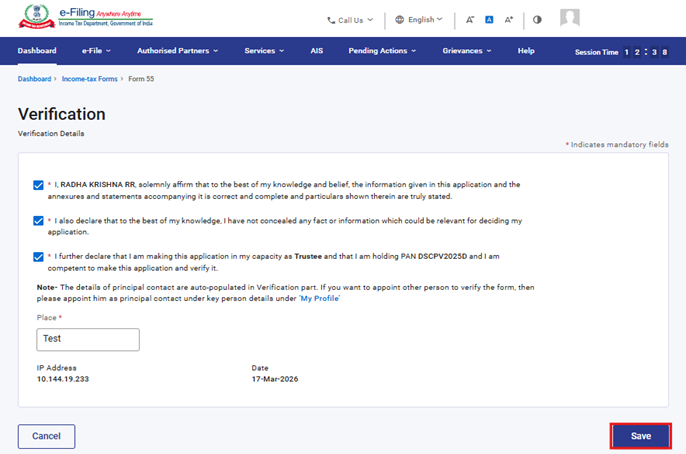
Step 14: Confirm the undertaking and click on Save.
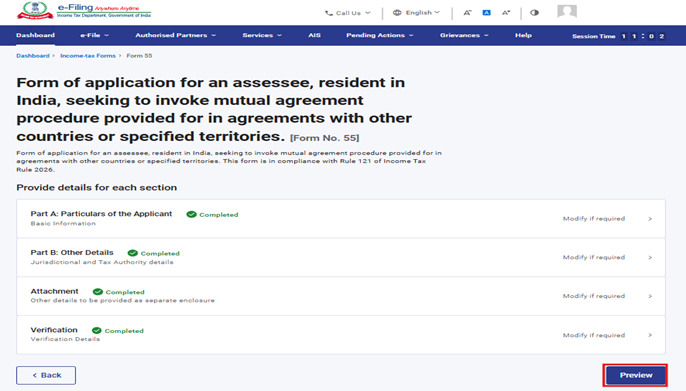
Step 15: Post saving the 4th panel, click on Preview.
Step 16: On the Preview page, click “Download” to download the preview PDF and verify the details, then click Proceed to e Verify.
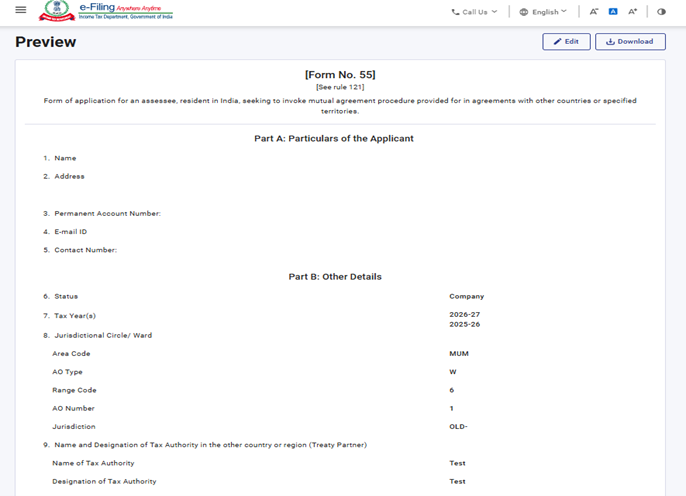
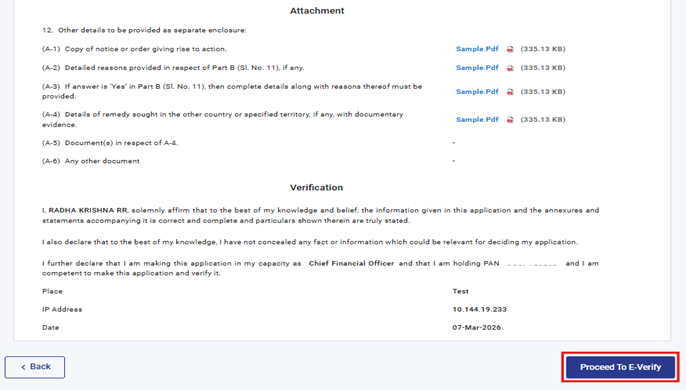
Step 17: Post clicking on Proceed to e-Verify button, a popup confirmation displaying that you would like to proceed to e-Verify. Click on Yes
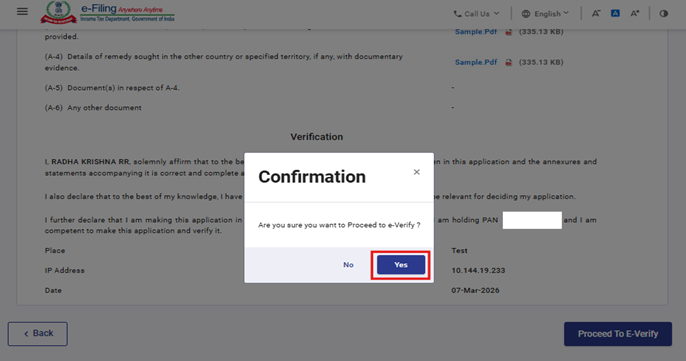
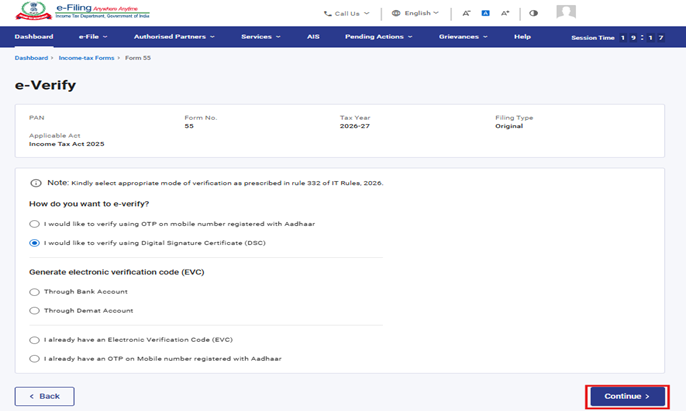
Step 18: On clicking Yes, you will be navigated to the e-Verify page where you can verify the Form 55 using DSC/EVC (as applicable).
Note: Refer to the How to e-Verify user manual to learn more.
Step 19: After successful e-Verification, a success message is displayed along with a Transaction ID and Acknowledgement Receipt Number. Please keep a note of the Transaction ID and Acknowledgement Receipt Number for future reference. You will also receive a confirmation message on the email ID(s) and mobile number(s) registered with the e-Filing portal.
Click on download button to download the Acknowledgement receipt.
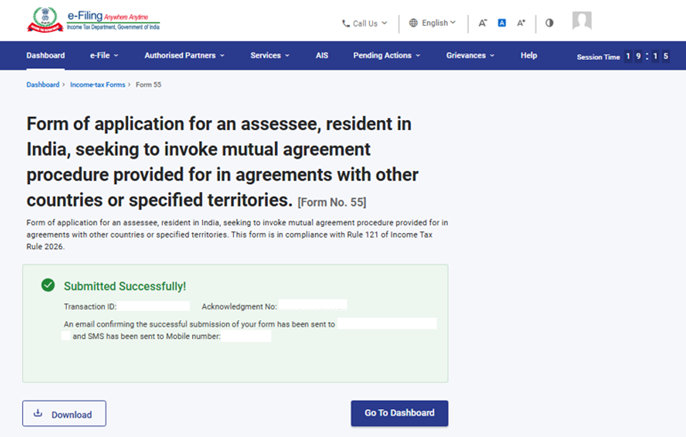
After successful submission of form 55 the user can view the filled form under - On your Dashboard, click e-File > File Income Tax Forms > View Filed Forms> View Filed Form tab under Income Tax Act 2025.
Note: Refer view filled form user manual to learn more
5. Related Topics
6.Glossary
|
Acronym/Abbreviation |
Description/Full Form |
|
DSC |
Digital Signature Certificate |
|
EVC |
Electronic Verification Certificate |
|
ARN |
Acknowledgement Receipt Number |
|
PY |
Previous Year |
|
FY |
Financial Year |
|
TY |
Tax Year |



